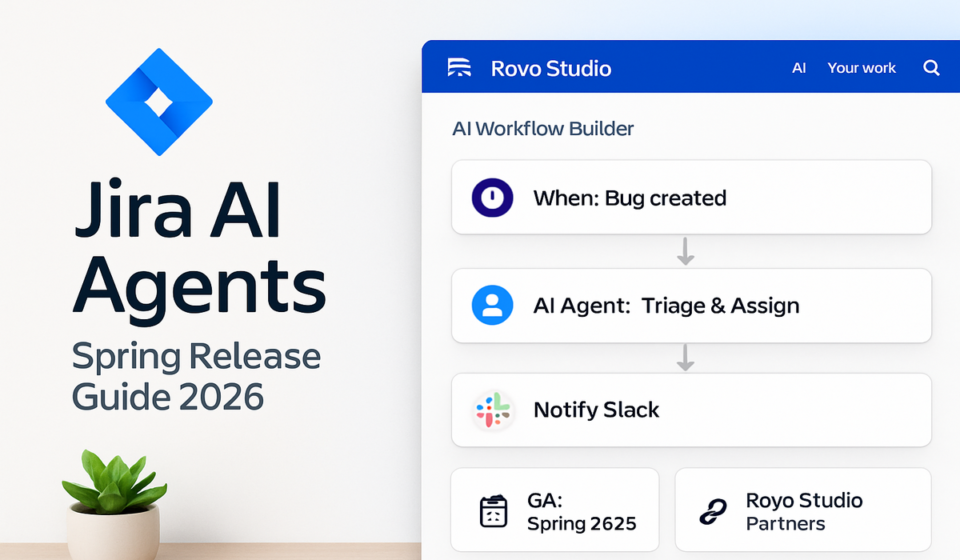

- Jira AI agents reached general availability in February 2026 for all Cloud Standard, Premium, and Enterprise plans — no add-on purchase required.
- Agents can be assigned to issues, @mentioned in comments, and triggered automatically on workflow transitions, making them true team members rather than one-off bots.
- The Rovo Studio partner catalog includes ready-made agents from Figma, Canva, Replit, Lovable, and GitHub Copilot — no custom build required for common dev workflows.
- Every agent action is logged in the standard Jira audit trail and respects existing project permissions — no special governance layer to configure.
- Critical deadline: The legacy workflow editor is being removed starting June 26, 2026. Any agents built on old workflow rules must be migrated before that date or they will stop functioning.
Jira AI agents 2026 (GA since February 2026) let teams assign AI agents directly to issues, trigger them on workflow transitions, and browse partner agents from Figma, GitHub Copilot, and others via Rovo Studio — all governed by the existing audit trail and project permissions on Standard, Premium, and Enterprise Cloud plans.
- What Are Jira AI Agents 2026? (And Why This GA Matters)
- How to Activate and Assign Jira AI Agents
- Workflow Transition Triggers: The Feature Nobody Is Talking About
- Rovo Studio Partner Catalog: Figma, GitHub Copilot, and More
- Audit Trail and Governance: What Jira AI Agents 2026 Actually Log
- Critical Warning: Legacy Workflow Editor Removal (June 26, 2026)
- Plan Comparison: Standard vs Premium vs Enterprise Agent Capabilities
- Real Team Scenarios: Engineering Sprints and Product Workflows
- Verdict
- FAQ
Jira AI Agents 2026: Complete Feature Deep-Dive (Spring Release)
Engineering teams running two-week sprints have spent years manually triaging inbound bugs, writing transition comments, and chasing status updates across Slack and Confluence. The February 2026 general availability of Jira AI agents changes that calculus — not incrementally, but structurally. This is the first time in Jira’s history that a non-human actor can sit in the same assignee dropdown as your senior developer and carry out real project actions autonomously.
This guide covers every dimension of the 2026 spring release that matters for engineering leads, project managers, and platform administrators: activation, workflow triggers, the Rovo Studio partner catalog, the audit and governance model, and — most importantly — the looming June 26, 2026 deadline that will break agent configurations built on the legacy workflow editor.
What Are Jira AI Agents 2026? (And Why This GA Matters)
Jira AI agents are purpose-built autonomous actors that can be assigned to issues, mentioned in comments, or triggered by workflow transitions. Unlike Atlassian Intelligence features that surface suggestions passively, agents take actions: they update fields, write comments, transition issues, create sub-tasks, and call connected tools — without waiting for a human to approve each step.
The February 2026 GA announcement is significant for three reasons. First, agents are now available on all Cloud Standard, Premium, and Enterprise plans — no Rovo add-on purchase and no beta waitlist. Second, the assignee-parity model means agents appear in the same UI surface as human teammates: the standard issue assignee dropdown. Third, Atlassian has committed to the audit-trail-first governance philosophy, meaning every action an agent takes is logged exactly as a human action would be, using the existing infrastructure your security and compliance teams already review.
If you have been evaluating AI work management tooling, this also changes the competitive landscape. For a full comparison of how Jira’s approach stacks up against Linear and Asana’s AI features, see our Jira vs Linear vs Asana AI Comparison for 2026.
How to Activate and Assign Jira AI Agents
Activation is a project-admin task, not a site-admin task, which means individual teams can enable agents without waiting for a central IT queue. Here is the exact path as of the Spring 2026 release:
- Navigate to your Jira project and open Project Settings > Agents from the left-hand navigation panel.
- Select Browse agents to open the Rovo Studio catalog. You will see both Atlassian-native agents and partner agents (Figma, GitHub Copilot, etc.).
- Click Add to project on your chosen agent. The agent now appears as an assignable actor in that project’s scope.
- To assign an agent to a specific issue, open the issue detail view, click the Assignee field, and select the agent from the dropdown — it appears alongside human team members.
- To configure @mention triggers, ensure the agent is added to the project and then type
@AgentNamein any comment field. The agent receives the mention and begins processing within seconds. - To enable workflow transition triggers, open Project Settings > Workflows, select the relevant workflow, and add an agent action to the desired transition using the new workflow editor (see the warning section below about the legacy editor).
One nuance worth noting: agents respect project-level permission schemes. If a human user in the Reporter role cannot transition an issue to “Done,” an agent assigned with equivalent permissions cannot do so either. There is no privilege escalation by default — the agent inherits the permission context of its configuration.
For a deeper look at setting up project permission schemes before rolling out agents at scale, see our guide on Jira Project Permissions: A Complete Setup Guide.
Workflow Transition Triggers: The Feature Nobody Is Talking About
Nearly every article covering the February 2026 GA focuses on the @mention capability and the assignee-dropdown integration. Both are useful. But the workflow transition trigger is the feature with the highest ROI for engineering teams running mature sprint processes — and it has received almost no coverage.
A workflow transition trigger fires an agent action automatically when an issue moves from one status to another. This is not a webhook that requires a separate integration layer. It is configured directly inside Jira’s new workflow editor, using the same post-function and condition interface that administrators already know.
What transition triggers unlock for engineering teams
Consider a typical sprint flow: when a bug moves from In Review to Done, your team currently relies on the assignee to manually update the fix version, post a summary comment, and notify the QA channel. With a transition trigger, an agent fires the moment that transition occurs and can:
- Auto-populate the “Fix Version” field based on the current active sprint metadata
- Write a structured closing comment summarizing what changed (pulled from linked commits via the GitHub Copilot partner agent)
- Create a linked sub-task in a separate QA project with the issue details pre-filled
- Post a Slack notification without requiring a Slack automation rule to be separately maintained
The practical impact: a mid-sized engineering team of 12 developers closing 40–60 issues per sprint eliminates roughly 3–5 hours of manual status-update work per two-week cycle. That is conservative; teams with heavier compliance documentation requirements report significantly higher savings.
Configuring a transition trigger: the exact path
In the new workflow editor (which you must be using — see the legacy editor warning below), navigate to the transition you want to instrument. Select Add post-function, then choose Run agent from the function type list. Select the agent from your project’s agent roster, provide a plain-language instruction prompt (e.g., “Write a closing comment summarizing what this issue resolved and update the fix version field”), and save. The trigger is active immediately — no publish delay beyond the standard workflow publish step.
Rovo Studio Partner Catalog: Figma, GitHub Copilot, and More
Atlassian’s Rovo Studio serves as the agent marketplace for Jira. As of the Spring 2026 release, the partner catalog includes agents from Figma, Canva, Replit, Lovable, and GitHub Copilot. Each partner agent is browsable directly from Project Settings > Agents > Browse agents without leaving Jira.
| Partner Agent | Primary Use Case | Key Actions in Jira | Best Team Type |
|---|---|---|---|
| GitHub Copilot | Code-aware issue enrichment | Links commits, summarizes PRs in comments, populates fix-version fields | Engineering / DevOps |
| Figma | Design-to-dev handoff | Attaches Figma frames to issues, flags design-spec mismatches | Product / Design-Engineering |
| Canva | Marketing asset tracking | Links Canva designs to campaign issues, updates asset-ready status fields | Marketing / Growth |
| Replit | Prototype-to-issue sync | Creates issues from Replit project milestones, links repls to bug reports | Early-stage / Hackathon teams |
| Lovable | No-code app change tracking | Creates Jira issues from Lovable build events, updates status on deploy | No-code / Citizen developer teams |
Partner agents are not installed at the Atlassian organization level — they are added per project, which keeps the surface area controlled. A project admin adding the GitHub Copilot agent to one engineering project does not automatically expose it across all projects on the site. This matters for enterprise customers with strict change-management processes.
It is worth noting that partner agents require the source tool’s OAuth connection to be authorized by each user who triggers agent actions on their behalf. The agent cannot access Figma data it has not been granted permission to see by the acting user. This is the same authorization model used by Jira’s existing app integrations.
For teams evaluating the broader Atlassian Intelligence ecosystem alongside Rovo, our Atlassian Intelligence vs Rovo: Which AI Layer Should You Use? article covers the architectural differences in detail.
Audit Trail and Governance: What Jira AI Agents 2026 Actually Log
For platform administrators and compliance teams, the governance model of Jira AI agents 2026 is the most important story. Atlassian made a deliberate architectural decision: agent actions are not a separate audit category requiring a new review workflow. They flow into the standard Jira audit log, tagged with the agent’s identity.
What gets logged
- Every field update an agent makes (who initiated it, what changed, timestamp)
- Every comment an agent posts, with the agent identity displayed in the comment header exactly as a human username would be
- Every workflow transition an agent executes, including the trigger source (manual @mention vs. transition rule)
- Every attachment or link an agent adds to an issue
- Agent configuration changes (who added or removed an agent from a project)
What the audit log does NOT capture
The audit trail logs actions within Jira. It does not log what the agent “thought” or the intermediate reasoning steps it took to arrive at its output. If your compliance requirement is to audit the AI decision-making process rather than just the outcome, you will need to supplement with Atlassian’s Atlassian audit log documentation and potentially implement a separate AI governance layer for regulated industries.
The practical implication for most teams: your existing Jira audit log exports to SIEM tools, your existing project permission schemes, and your existing workflow configurations all apply to agent actions without modification. There is no “AI bypass” risk at the Jira layer — an agent cannot do what the permission scheme prevents a human from doing.
For Security Operations teams managing Jira at enterprise scale, review the Atlassian Security Practices documentation for the full data-residency and processing commitments that apply to AI agent interactions.
Critical Warning: Legacy Workflow Editor Removal (June 26, 2026)
Atlassian is removing the legacy workflow editor starting June 26, 2026. Any agent configurations or automation rules built using the old editor will stop functioning after this date. If your team has already configured agents on existing workflows, you must migrate those workflows to the new editor before the deadline — there is no grace period announced beyond this date.
This is the single most operationally urgent item in the Spring 2026 release for teams that have been running Jira agents in beta or early access. The legacy workflow editor has been deprecated since mid-2025, but the hard removal date of June 26, 2026 creates a real risk of agent-driven workflow automation going dark mid-sprint for teams that have not yet migrated.
How to identify affected workflows
- Go to Jira Settings > Issues > Workflows (site-admin access required).
- Look for the “Legacy editor” badge displayed next to workflow names that have not been migrated.
- Open each flagged workflow and select Migrate to new editor. Atlassian’s migration tool maps most post-functions and conditions automatically, but you should review transition triggers manually after migration to confirm agent actions transferred correctly.
- Republish the migrated workflow and reassign it to your project’s workflow scheme.
- Test agent triggers on a non-production project before republishing to active sprint projects.
What breaks if you miss the deadline
Agents configured as post-functions on legacy workflow transitions will silently stop firing after June 26. The issue transition itself will still succeed — users can still move cards — but the agent action attached to that transition will not execute. This means field updates, closing comments, and downstream notifications driven by agent transition rules will stop without error messages visible to end users. The failure will appear as missing data, not as a visible error, which makes it harder to detect quickly.
Platform administrators should block out time in May 2026 to complete migration across all projects that use agent-enhanced workflows. For teams running large Jira instances with dozens of custom workflows, Atlassian’s Migrate your workflow to the new editor documentation provides a step-by-step reference.
Plan Comparison: Standard vs Premium vs Enterprise Agent Capabilities
| Capability | Standard | Premium | Enterprise |
|---|---|---|---|
| Agent GA access (Feb 2026) | ✓ | ✓ | ✓ |
| Assign agents to issues | ✓ | ✓ | ✓ |
| @mention agents in comments | ✓ | ✓ | ✓ |
| Workflow transition triggers | ✓ | ✓ | ✓ |
| Rovo Studio partner catalog access | ✓ | ✓ | ✓ |
| Agent action limits (monthly) | Shared pool (site-level cap) | Higher pooled capacity | Negotiated / unlimited options |
| Cross-project agent deployment | Per-project only | Per-project only | Organization-level deployment |
| Audit log retention | 90 days | 1 year | Configurable (up to 10 years) |
| Custom agent creation (Rovo Studio) | Limited | Full | Full + API access |
For teams on Standard, the most relevant constraint is the shared action pool. High-volume projects — particularly those with transition triggers firing dozens of times per day — should monitor usage in Jira Settings > Rovo > Agent usage to avoid hitting the site-level cap mid-sprint. Premium and Enterprise customers have higher thresholds, with Enterprise plans able to negotiate custom capacity.
Real Team Scenarios: Engineering Sprints and Product Workflows
Scenario 1: Engineering team — automated sprint closing
A 10-person engineering team at a SaaS company runs two-week sprints with 80–100 issues per cycle. Before February 2026, closing a sprint required the Scrum Master to manually verify that every “Done” issue had a fix version set, a closing comment posted, and a QA sub-task created. This took 2–3 hours at sprint end.
With the GitHub Copilot partner agent configured on the In Review → Done transition:
- The agent automatically pulls the associated PR from GitHub, summarizes the change in a structured comment, and sets the fix version field to the active sprint’s release milestone.
- A second agent (Atlassian-native) creates a QA sub-task in the linked QA project, pre-populated with the issue summary and acceptance criteria.
- Sprint closing review now takes 20 minutes instead of 2–3 hours — the Scrum Master reviews the agent’s work rather than doing it manually.
Scenario 2: Product team — design-to-dev handoff with Figma agent
A product team using Jira and Figma for feature design struggled with the handoff step: designers would complete frames, but developers had to manually find the right Figma file and attach it to the relevant Jira issue. Issues frequently went into development without the correct design file linked.
With the Figma partner agent assigned to the project and @mention enabled:
- When a designer completes a component, they @mention the Figma agent in the corresponding Jira issue comment with a link to the frame.
- The agent attaches the Figma frame thumbnail to the issue, updates a custom “Design status” field to “Ready for dev,” and transitions the issue from “Design in progress” to “Ready for development.”
- Developers see a clear, consistent handoff state without the designer needing to navigate Jira’s interface directly.
Scenario 3: Platform admin — governance at enterprise scale
An enterprise platform team managing Jira for 800 users across 12 product lines needed to verify that agent actions could be audited the same way human actions are for their SOC 2 Type II annual review.
Their audit team confirmed that the standard Jira audit log export — already flowing into their Splunk SIEM — captured agent actions with no additional configuration required. The agent identity appears in the “Actor” field of each log entry, distinguishable from human actors by the agent name prefix. Their SOC 2 auditors accepted this as equivalent to human-action logging for the purposes of change-management controls.
For teams managing Jira at this scale, our guide on Jira Enterprise Governance Checklist 2026 covers the full audit and compliance configuration in detail.
Teams also integrating Confluence for documentation alongside these Jira agent workflows should review Confluence AI Features 2026: What’s New and What’s Worth Using — several Confluence AI capabilities connect directly with Jira agent outputs to auto-generate sprint retrospectives and release notes.
Jira AI agents 2026 represent a genuine step change, not an incremental AI feature bolt-on. The combination of workflow transition triggers, assignee-parity with human teammates, and the Rovo Studio partner catalog means engineering teams can eliminate a meaningful chunk of administrative overhead without adopting a separate automation platform. The governance model — audit-trail-first, permission-respecting — makes enterprise adoption significantly easier than comparable AI agent implementations in other tools. The one non-negotiable action item: if your team has any agent configurations on legacy workflows, migration before June 26, 2026 is not optional. Handle it in May while you still have a comfortable buffer. For teams on Standard or Premium plans ready to start, the Rovo Studio catalog is the fastest path to value — the GitHub Copilot and Figma agents alone justify the evaluation time for any engineering or product team already using those tools.
Frequently Asked Questions
Are Jira AI agents available on Free plan accounts?
No. As of the February 2026 general availability release, Jira AI agents are available on Cloud Standard, Premium, and Enterprise plans only. Free plan users can see references to agents in the UI but cannot add agents to projects or configure agent triggers. Atlassian has not announced a Free plan inclusion timeline as of the Spring 2026 release.
Can an agent transition an issue without a human approving the action?
Yes — that is precisely what workflow transition triggers enable. When configured as a post-function on a transition, the agent fires the moment the transition condition is met, without any human approval step. However, the agent can only perform actions that the permission scheme allows. If the workflow has a validator that requires a specific field to be set before transitioning, the agent must satisfy that validator just as a human would. You can also add a condition to the transition that limits agent-triggered actions to specific issue types or priorities if you want a more controlled rollout.
What happens to agent actions if I exceed the monthly action limit on a Standard plan?
When a Standard plan site hits the shared agent action pool limit, additional agent actions queue but do not fire until the next billing cycle resets the pool — or until the site admin upgrades the plan. Queued actions are not lost; they execute in order when capacity becomes available. For mission-critical workflows like sprint-closing automation, Premium’s higher pool capacity is worth the upgrade consideration if your team runs high-volume sprints. Monitor usage in Jira Settings > Rovo > Agent usage proactively rather than discovering the cap mid-sprint.
Do partner agents (Figma, GitHub Copilot, etc.) store my Jira or source-tool data?
Partner agents access data through OAuth connections scoped to the permissions the authorizing user grants at connection time. Data processing for agent actions occurs within Atlassian’s infrastructure for the Jira-side actions, and within the partner’s infrastructure for source-tool actions (e.g., reading a GitHub PR). Atlassian’s standard data residency controls apply to Jira-side processing. For the partner tool’s data handling, review that partner’s data processing agreement separately — Atlassian’s Trust documentation does not extend to third-party partner infrastructure.
How do I test an agent configuration without affecting live sprint issues?
The recommended approach is to create a dedicated sandbox project (Jira supports creating projects with no associated active sprint) and add the agent there first. Configure the same workflow transitions and test by manually moving sample issues through the workflow. Once you have confirmed the agent behaves as expected — check the audit log to verify each action was recorded correctly — you can apply the same agent configuration to your active sprint project. For teams on Enterprise plans, Atlassian’s Sandbox environment feature provides a full site-level sandbox that mirrors your production configuration without affecting live data.