Skip to content
-
Subscribe to our newsletter & never miss our best posts. Subscribe Now!
Work Management Hub Work Management Hub

Expert Reviews, Comparisons & Guides for Smartsheet, Monday.com, Asana, ClickUp & More

Work Management Hub Work Management Hub

Expert Reviews, Comparisons & Guides for Smartsheet, Monday.com, Asana, ClickUp & More

  • Airtable
  • Asana
  • ClickUp
  • Jira
  • Monday.com
  • Notion
  • Smartsheet
  • Wrike
  • About
  • Contact
  • Airtable
  • Asana
  • ClickUp
  • Jira
  • Monday.com
  • Notion
  • Smartsheet
  • Wrike
  • About
  • Contact
Close

Search

  • https://www.facebook.com/
  • https://twitter.com/
  • https://t.me/
  • https://www.instagram.com/
  • https://youtube.com/
Subscribe
AirtableHow-To Guides

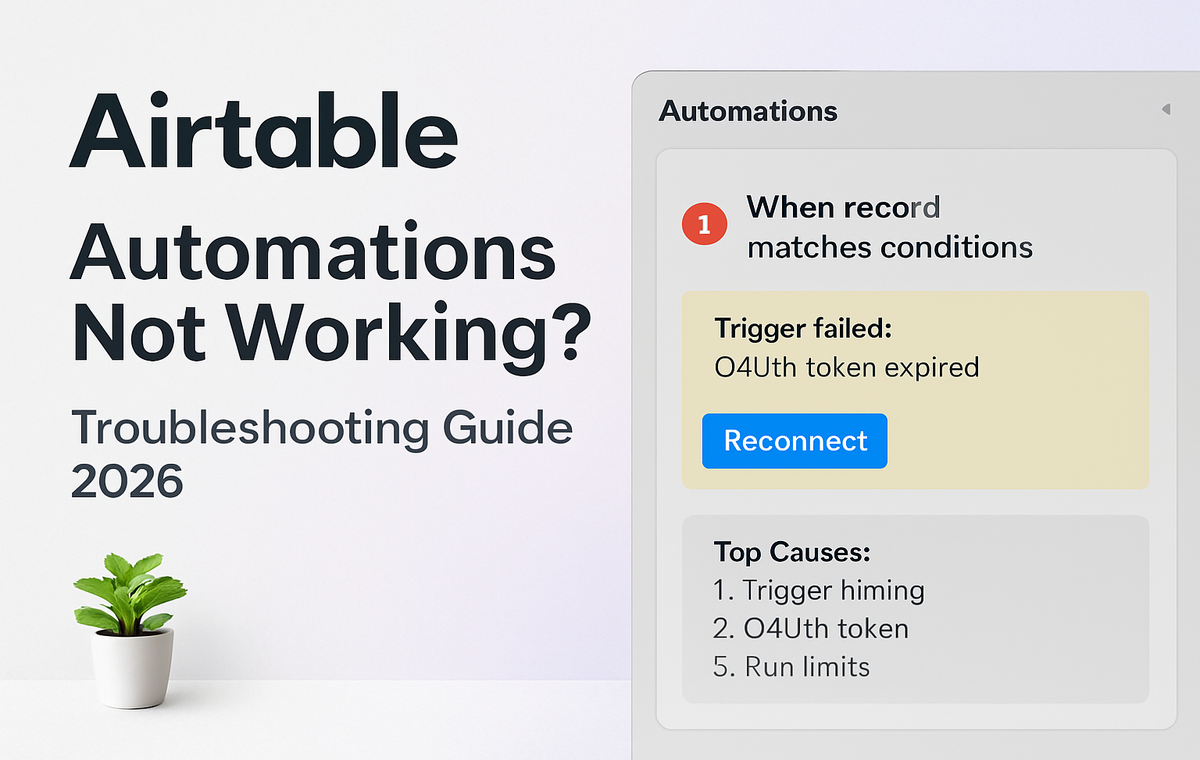
Airtable Automations Not Working? Complete Troubleshooting Guide 2026

By Shaik KB
May 15, 2026 15 Min Read
0

⚡ Key Takeaways

  • The single most common reason Airtable automations not working is a trigger record that does not meet the exact field condition at the moment it is saved — even when a manual test passes.
  • The Automation History log (Settings → Automations → clock icon) resolves roughly 70% of issues without ever contacting support — check it first.
  • Button-triggered automations only work inside Grid or Gallery interfaces in Interface Designer — the List interface does not support the “Run automation” element at all.
  • A platform incident in late April 2026 silently disabled automations for 0.45% of bases; Airtable did not refire missed runs — you must backfill manually.
  • Field Agents (released April 23, 2026) fail silently when the connected app’s OAuth token has expired — re-authenticate the integration to restore them.
  • Always check status.airtable.com before deep-diving your own configuration — platform incidents account for a surprising share of sudden failures.
Quick Answer:

Airtable automations stop working most often because the trigger record’s field value does not match the configured condition at save time, the automation is toggled off, or a connected integration token has expired. Open the Automation History log first — it pinpoints the exact failure in seconds.

Table of Contents

  1. Quick Diagnosis Checklist
  2. How to Use the Automation History Log
  3. Failure Mode 1: Trigger Condition Not Met at Save Time
  4. Failure Mode 2: Automation Is Toggled Off or Paused
  5. Failure Mode 3: Button Automation in an Unsupported Interface
  6. Failure Mode 4: Expired OAuth Token (Field Agents & Integrations)
  7. Failure Mode 5: The April 2026 Platform Incident
  8. Failure Mode 6: Action Step Misconfiguration
  9. Failure Mode 7: Monthly Run Limit Reached
  10. Failure Mode 8: Linked Record & Lookup Field Trigger Quirks
  11. Verdict
  12. Frequently Asked Questions

Airtable Automations Not Working? Complete Troubleshooting Guide 2026

If your Airtable automations not working situation appeared overnight — or never fired at all — you are not alone. Airtable’s automation engine is powerful but has a handful of non-obvious failure modes that are completely invisible to the naked eye. This guide walks through every major root cause methodically: from the most basic configuration oversight to a platform incident that silently broke thousands of bases in April 2026. Follow the steps in order and you will have a diagnosis within minutes.

Airtable Automations Not Working: Quick Diagnosis Checklist

Before diving into individual failure modes, run through this checklist. Tick each item off in sequence — the majority of cases are resolved by item four or five.

  1. Check status.airtable.com — If Airtable is experiencing a platform incident, no amount of local configuration changes will help. Confirm the automation service shows “Operational” before proceeding.
  2. Open the Automation History log — Go to Settings → Automations, then click the clock icon next to the automation in question. This single step resolves roughly 70% of issues immediately by showing exactly which step failed and why.
  3. Verify the automation is toggled ON — The on/off toggle is in the top-right corner of the automation editor. It is easy to accidentally disable during editing.
  4. Confirm the trigger record actually met the condition at save time — This is the most common silent failure. A manual test can pass even when the live trigger never fires.
  5. Check your plan’s monthly run count — Free and Plus plans have monthly run caps. Navigate to your Workspace settings → Billing to see current usage.
  6. Re-test with the “Test trigger” button — In the automation editor, use a real record that meets all conditions. A successful test confirms the trigger is configured correctly; if the auto-run still fails, the problem is in the firing logic rather than the action steps.
  7. Inspect connected app credentials — For any action that calls an external service (Slack, Gmail, Field Agents, Zapier webhooks), verify the OAuth token or API key has not expired.

How to Use the Automation History Log

The Automation History log is your first and most powerful diagnostic tool. Most Airtable users never open it, which is why they spend hours troubleshooting issues that are explained in plain language inside the log itself.

  1. Settings → Automations — Open your base, click “Settings” in the top toolbar, then select “Automations” from the left sidebar.
  2. Click the clock (history) icon — Each automation in the list has a small clock icon to its right. Click it to open the run history for that specific automation.
  3. Examine the run status column — Each row shows a run timestamp, a status (Success, Failed, or Skipped), and a summary message. A “Skipped” status almost always means the trigger fired but the condition filter was not satisfied.
  4. Expand a failed run — Click any row to expand it. You will see a step-by-step breakdown: Trigger, Condition (if configured), and each Action. The first red step is your root cause.
  5. Read the error message verbatim — Airtable’s error messages are often specific: “Invalid field type for action,” “Authentication failed,” or “Record not found.” Copy this text before searching for a fix.
  6. Cross-reference the timestamp — If the history shows zero runs during a period when you expected them, the trigger itself never fired. This points to a trigger condition problem, a platform incident, or a run limit being hit.

If the history log is empty for a period when you know records were modified, jump to Failure Mode 1 or Failure Mode 5 (the April 2026 incident).

Failure Mode 1: Trigger Condition Not Met at Save Time

This is the single most reported cause of Airtable automations not working — and the trickiest to diagnose because a manual test always passes. The “When record matches conditions” trigger evaluates the record at the instant it is saved. If your workflow updates a field in two separate operations (for example, one automation sets Status to “Ready” and another sets Due Date), Airtable may fire the trigger on the first save before the second field is populated, see that Due Date is empty, and discard the run silently.

  1. Trigger editor → “When record matches conditions” — Open the automation and review every condition in the trigger. Write them down.
  2. Simulate the exact save sequence — Manually replicate the exact series of field edits a real record goes through. Note whether all conditions are true simultaneously at a single save point.
  3. Switch to “When record updated” with a condition filter — If your conditions require multiple fields to be set across different operations, use a simpler trigger (“When record is updated”) and add your multi-field logic inside a Condition step rather than the trigger itself. This evaluates after the trigger fires, not at save time.
  4. Add a deliberate delay step — If the second field is set by another automation that runs immediately after the first, add a Wait step (even 1 minute) to your upstream automation. This gives downstream automations a guaranteed settled state to evaluate.
  5. Verify with Automation History — After adjusting, create a test record that meets all conditions in a single save. If a run appears in history with status “Success,” your fix is confirmed.

See also our guide to mastering Airtable conditional logic for a deeper look at how condition evaluation order affects automation reliability.

Airtable Automations Not Working — Failure Mode 2: Automation Is Toggled Off or Paused

Airtable automatically pauses automations that encounter repeated failures. It also pauses any automation you open for editing and does not re-enable before closing. This is easy to miss because the toggle is small and positioned far from the trigger configuration area.

  1. Open the automation editor — Click the automation name in Settings → Automations.
  2. Locate the toggle in the top-right corner — The toggle label reads “On” or “Off.” If it shows “Off,” the automation will never fire regardless of configuration.
  3. Check for an automatic pause notification — If Airtable paused the automation due to repeated failures, a yellow banner appears at the top of the editor explaining why. Read this banner before re-enabling.
  4. Re-enable and monitor — Toggle the automation back on, then immediately create a test record that should trigger it. Watch the Automation History log for the next 60 seconds to confirm a run appears.
  5. Fix the underlying failure before re-enabling — If Airtable paused the automation automatically, the underlying issue will cause it to pause again. Diagnose the failed action step first using the history log, fix it, then re-enable.

Failure Mode 3: Button Automation in an Unsupported Interface

This is an undocumented limitation that catches many Interface Designer users off guard. As of 2026, button-triggered automations using the “Run automation” element can only be added inside Grid or Gallery interfaces. The List interface does not support the “Run automation” element — it will not appear in the “Add elements” panel at all, leading users to believe the feature is broken or missing.

  1. Identify your current interface type — In Interface Designer, click the interface name in the left sidebar. The interface type (Grid, Gallery, List, Calendar, etc.) is shown beneath the name.
  2. Check the “Add elements” panel for your List interface — Open the element panel. If you do not see “Button” or “Run automation” listed, confirm you are in a List interface — this is expected behavior, not a bug.
  3. Switch to a Grid or Gallery interface — Create a new interface page using the Grid layout, or duplicate an existing Grid interface. The “Run automation” button element will now be available in “Add elements.”
  4. Add the button element in a Grid interface — In your Grid interface, click “Add elements” → scroll to “Button” → select the automation to run. Configure the button label and confirm the linked automation is toggled ON.
  5. Re-publish the interface — After saving, use the “Publish” button in the top-right of Interface Designer. Changes are not visible to end users until published.

For a full comparison of what each interface layout supports, see the official Interface Designer overview on Airtable’s support site.

Failure Mode 4: Expired OAuth Token (Field Agents & Integrations)

Field Agents — Airtable’s AI-powered automation actors released on April 23, 2026 — fail silently when the connected application’s OAuth token expires. Unlike a misconfigured action step, an expired token produces no visible error in the automation editor. The run appears to complete in history but the intended action (sending a message, creating a record in a connected app, etc.) never executes. The same issue affects any action step that uses OAuth-based integrations: Slack, Google Workspace, Microsoft 365, and third-party apps connected via the Airtable App Marketplace.

  1. Open the failing automation → Action step — Click the action step that calls the external service. Look for a “Connected account” or “Authentication” section.
  2. Click “Change account” or “Re-authenticate” — Most action steps show the currently connected account name. If the token has expired, you may see a warning icon or the account name may appear greyed out.
  3. Complete the OAuth flow — Clicking re-authenticate opens a pop-up from the third-party service. Log in with the correct credentials and grant Airtable the required permissions. Do not close the pop-up prematurely.
  4. For Field Agents specifically — Navigate to Settings → Field Agents, find the relevant agent, and click “Manage connection.” Re-authorize the connected app. Then return to the automation and verify the agent is still selected in the action step.
  5. Set a calendar reminder for token renewal — Most OAuth tokens for workplace apps expire every 60–90 days. Note the service’s expiry policy and schedule a quarterly review of all connected accounts.
  6. Run a manual test after re-authentication — Use the “Test step” button on the action to confirm the token now works before relying on live trigger runs.

This failure mode is especially common with Google Workspace integrations. See our article on connecting Airtable to Google Workspace for token management best practices.

Failure Mode 5: The April 2026 Platform Incident

In late April 2026, Airtable experienced a platform incident that silently disabled automations for approximately 0.45% of bases. Affected users saw automations listed as “On” in their editor, yet no runs appeared in the history log — even for records that clearly met all trigger conditions. Airtable confirmed the incident on their status page, but critically, missed runs were not refired once service was restored. Any records that should have triggered an automation during the outage window received no automated action and no backfill was provided.

  1. Verify your base was affected — Cross-reference the incident window (late April 2026) with your Automation History log. If history shows a gap in runs during that period with no “Failed” entries — just silence — your base was likely affected.
  2. Check status.airtable.com incident archive — The April 2026 incident is documented in the historical incidents section. Compare the outage window timestamps against your history log gap.
  3. Identify records that missed processing — Create a filtered view in your base that surfaces records that should have been processed by the automation (e.g., Status = “Ready” but the downstream field the automation would set is still empty).
  4. Build a one-time backfill automation — Create a new automation with trigger “When record matches conditions” scoped to unprocessed records. Run it once manually using the “Run” button, then disable it. This replays the missed actions on affected records.
  5. Alternatively, use Airtable Scripts — If the affected record set is large, write a short Airtable Script (Settings → Scripts) to loop through affected records and apply the required field changes programmatically. Delete the script after the backfill is complete.
  6. Contact Airtable support with your base ID — If you cannot determine the scope of impact, open a support ticket referencing the April 2026 incident. Include your base ID (found in the URL: airtable.com/[BASE_ID]) so their team can confirm whether your base was in the affected 0.45%.

For broader context on staying resilient during platform incidents, see our guide on building a downtime strategy for work management tools.

Failure Mode 6: Action Step Misconfiguration

Even when the trigger fires correctly, a misconfigured action step will cause the run to fail or produce unexpected results. Common examples include: mapping a formula field (read-only) as a target for “Update record,” referencing a deleted field in a dynamic value, or sending an email to a field that returns a non-email string.

  1. Open history → expand the failed run → click the failing action step — The step detail view shows the exact input values that were passed at the time of the run. Compare these to what you expected.
  2. Check field type compatibility — The “Update record” action cannot write to computed fields: formula, rollup, lookup, count, or autonumber fields. If your action targets one of these, change the target to a writable field type (text, number, checkbox, select, etc.).
  3. Validate dynamic field references — If you used the blue “+” dynamic value picker to insert field values into an action, verify the referenced field still exists and has not been renamed or deleted. Renamed fields break the dynamic reference silently.
  4. Test the action step in isolation — In the automation editor, click “Test step” on the action (not the trigger). This lets you see the exact output the action produces without waiting for a live trigger.
  5. Check “Send email” formatting — If the action sends an email, ensure the “To” field resolves to a valid email address. Using a formula field that sometimes returns an empty string will cause silent failures on those records.

Failure Mode 7: Monthly Run Limit Reached

Airtable enforces monthly automation run limits by plan tier. When a base hits its limit, all automations in that workspace stop firing — with no in-app notification sent to base collaborators. Runs resume at the start of the next billing cycle.

  1. Navigate to Workspace settings → Billing & Plans — Click the workspace name in the left sidebar, then select “Settings” followed by “Billing & Plans.”
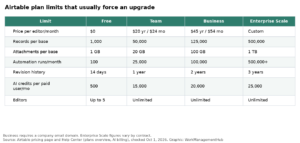
  2. Locate the “Automation runs” usage bar — This shows current-period usage vs. your plan limit. Free plan: 100 runs/month. Plus: 5,000. Pro: 50,000. Enterprise: custom.
  3. Identify high-volume automations — Return to Settings → Automations. Sort automations by run count (visible in the list view). Identify any automation that is running far more than expected — often a “When record updated” trigger on a frequently edited field.
  4. Add condition filters to reduce unnecessary runs — Add a Condition step after the trigger that checks whether the automation actually needs to do anything (e.g., only proceed if the Status field changed to a specific value). This prevents the action from executing on every minor edit.
  5. Upgrade your plan or optimize run usage — If legitimate usage genuinely exceeds your plan limit, upgrading is the cleanest fix. Otherwise, consolidate multiple small automations into a single automation with branching logic to reduce total run count.

Failure Mode 8: Linked Record & Lookup Field Trigger Quirks

Triggers that depend on linked record fields or lookup fields have a less-understood behavior: modifying a record in a linked table does not trigger an automation in the linking table, even if the lookup value changes as a result. Airtable evaluates triggers only on the table where the record is directly edited.

  1. Identify whether your trigger field is a linked record or lookup — Open the automation trigger and check the “Watch field” configuration. If it is a linked record field, a lookup, a rollup, or a formula that depends on linked data, live edits in the source table will not fire this trigger.
  2. Restructure to trigger on the correct table — Move the automation to the table where the edit actually happens. If you need data from the linking table, use dynamic field values in the action step to pull linked record data.
  3. Use a “Button” trigger as a manual workaround — For cases where you need to process linked record data on demand, a button-triggered automation in an Interface Grid view (see Failure Mode 3) gives users a clear manual control without relying on the trigger chain.
  4. Consider a scripting approach for complex lookups — If your workflow truly requires watching for changes in a linked table and acting on the parent, an Airtable Script run on a schedule is more reliable than chaining lookup-based triggers. See Airtable’s scripting documentation for guidance.

For more advanced multi-table workflow patterns, read our breakdown of Airtable multi-table workflow design.

🏆 Verdict

The overwhelming root cause of Airtable automations not working is a trigger condition mismatch at save time — the trigger fires, Airtable evaluates the conditions, finds one is not yet met, and discards the run without any notification. Your debugging order should be: (1) check Automation History for a run record, (2) confirm the automation is toggled on, (3) check status.airtable.com for incidents, (4) validate trigger conditions against the exact save-time field state, (5) inspect OAuth tokens for any connected app, (6) verify you have not hit your monthly run limit. For Interface Designer button issues, always confirm you are using a Grid or Gallery interface — not a List interface. For any silent failures introduced in late April 2026, you must manually backfill affected records.

Frequently Asked Questions

Why does my Airtable automation test pass but never fire automatically?

This is the classic trigger condition timing problem. When you run a manual test, Airtable skips the trigger evaluation and executes the action directly using the record you selected. In live operation, Airtable evaluates whether the record meets all trigger conditions at the exact millisecond of the save. If another field required by the condition is not yet populated at that save event — perhaps because it is set by a separate automation or a second edit — the trigger is discarded silently. Fix this by using a “When record updated” trigger with condition filtering in a Condition step rather than in the trigger itself, or by consolidating field updates into a single save operation.

Why did my automations stop working overnight with no changes to my base?

Three causes account for most overnight failures: an OAuth token expired on a connected integration (tokens typically expire every 60–90 days), your workspace hit its monthly run limit and the billing cycle had not yet reset, or Airtable experienced a platform-side incident. Check status.airtable.com for recent incidents first, then review your billing usage, then re-authenticate any connected apps. If the issue coincides with the late April 2026 window, see the dedicated section above on the platform incident and manual backfill process.

My button automation works in one interface but not another — why?

The most likely explanation is that the non-working interface is a List interface. As of 2026, the “Run automation” button element is only available in Grid and Gallery interfaces within Interface Designer. The element simply does not appear in the “Add elements” panel for List interfaces — it is not a permissions issue or a configuration error. Switch to a Grid interface to use button-triggered automations. If you need the List view aesthetically, consider embedding a linked Grid interface page that users navigate to when they need to trigger the automation.

How do I recover records that were missed during the April 2026 automation outage?

Since Airtable did not refire missed runs after the April 2026 incident, you need to identify and process affected records manually. Create a filtered view that surfaces records in the state they should have been in before the automation ran (for example, Status = “Approved” but a downstream field like “Notification Sent” is still empty). Then either build a one-time backfill automation triggered manually via the “Run” button, or use an Airtable Script to loop through the filtered record set and apply the required changes. Delete or disable the backfill automation immediately after running it to avoid duplicate processing.

What does it mean when a Field Agent run shows as completed but nothing happened?

This silent failure pattern almost always indicates an expired OAuth token for the app the Field Agent is connected to. The agent successfully authenticated with Airtable, the run was logged as complete, but when it attempted to call the external service the token was rejected — and Airtable did not surface this as a visible error in the run history. Navigate to Settings → Field Agents, find the relevant agent, click “Manage connection,” and re-authorize. Always follow up with a manual test run to confirm the agent can reach the external service before trusting live trigger runs again.

Author

Shaik KB

Follow Me
Other Articles
Previous

Monday.com vs Asana 2026: Full Comparison After Testing Both (With Real Pricing Data)

Next

How to Set Up Wrike AI Agents in 2026: Step-by-Step for Non-Technical Teams

No Comment! Be the first one.

    Leave a Reply Cancel reply

    Your email address will not be published. Required fields are marked *

    Ad

    🚀 Expert Consulting Services

    📊
    Smartsheet Services
    Dashboards, automations & team onboarding
    Book a Free Call →
    📈
    Analytics Services
    Power BI & Tableau dashboards & reporting
    Book a Free Call →
    🤖
    AI Agents Services
    Custom AI agents & workflow automation
    Book a Free Call →

    📧 Stay Updated

    Work management tips & updates in your inbox.

    There was an error trying to submit your form. Please try again.

    This field is required.

    There was an error trying to submit your form. Please try again.

    Categories

    • Airtable (7)
    • Alternatives (10)
    • Asana (27)
    • ClickUp (30)
    • How-To Guides (79)
    • Integrations (15)
    • Jira (18)
    • Monday.com (32)
    • Notion (23)
    • Pricing Guides (11)
    • Project Management (60)
    • Smartsheet (20)
    • Tool Comparisons (40)
    • Wrike (7)

    Recent Post

    • How to Set Up Wrike AI Agents in 2026: Step-by-Step for Non-Technical Teams
    • Airtable Automations Not Working? Complete Troubleshooting Guide 2026
    • Monday.com vs Asana 2026: Full Comparison After Testing Both (With Real Pricing Data)
    • Jira AI Agents 2026: Complete Feature Deep-Dive (Spring Release)
    • Asana AI Teammates Setup Guide: 21 Prebuilt Agents Explained (2026)
    Work Management Hub

    Independent expert reviews & comparisons of work management tools — helping 50,000+ teams choose the right software.

    Tools We Cover

    • Smartsheet
    • Monday.com
    • ClickUp
    • Asana
    • Notion
    • Jira
    • Wrike
    • Airtable

    Company

    • About Us
    • Contact Us
    • Privacy Policy
    Copyright 2026 — Work Management Hub. All rights reserved. Blogsy WordPress Theme