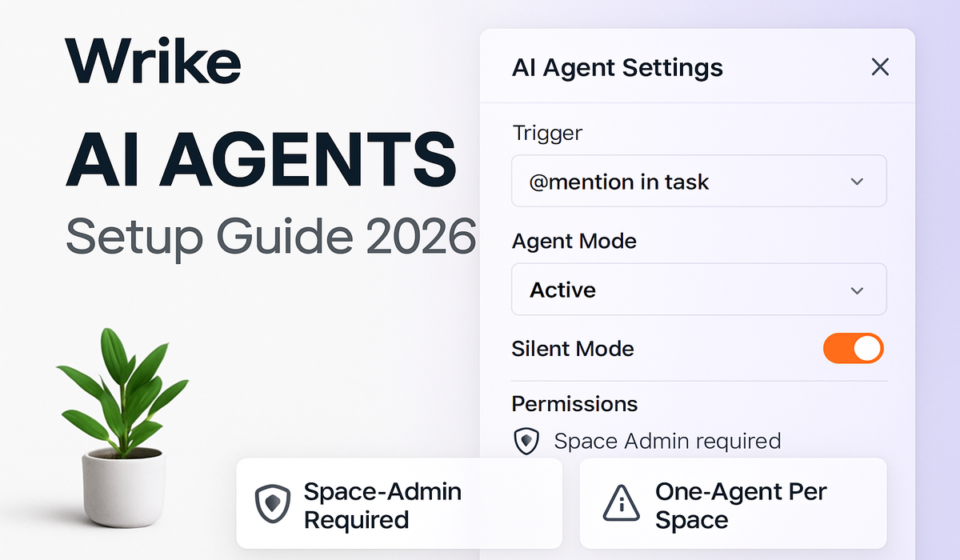

- Wrike AI Agents setup in 2026 requires Space Admin permissions — project-level admins cannot create or manage agents.
- Creating an agent in Space Settings is only half the job — you must separately @mention the agent in a folder, project, or task to activate it.
- Only one agent of each type (Triaging, Intake, or Risk) can run in the same location; adding a second silently fails with no error message.
- Use Silent Mode (released April 2026) during testing to suppress notification spam before you go live with a new agent.
- The April 2026 update introduced named actions in activity logs, making multi-action agents readable and auditable instead of cryptic “Action 1, Action 2” entries.
To set up Wrike AI agents in 2026, navigate to Space Settings > AI Agents > Create Agent as a Space Admin, configure your agent type and actions, then @mention the agent inside a folder or project to activate it. The @mention appointment step is mandatory — skipping it leaves the agent inactive.
- What Are Wrike AI Agents and What Changed in 2026?
- Prerequisites Before You Start
- Wrike AI Agents Setup 2026: Step-by-Step Guide
- The Critical Step Everyone Misses: Appointing Your Agent via @Mention
- Choosing the Right Agent Type: Triaging, Intake, and Risk Explained
- How to Use Silent Mode for Safe Testing
- Reading Audit Logs and Named Actions
- The One-Agent-Per-Type Cap: What It Means and How to Work Around It
- Verdict
- Frequently Asked Questions
How to Set Up Wrike AI Agents in 2026: Step-by-Step for Non-Technical Teams
If you’ve been searching for a clear guide to Wrike AI agents setup in 2026, you’re not alone. Wrike AI Agents reached general availability in March 2026, but the official documentation covers only the basic creation steps and glosses over several real-world gotchas that cause most setups to fail silently. This guide is built around those gaps — written for non-technical project managers and operations teams who need things to work the first time, without a developer on speed dial.
The single most important thing to know before you start: creating an agent in Space Settings is only half the setup. You must separately appoint the agent to a specific location using an @mention. Skip that step and your agent will appear “active” while doing absolutely nothing.
What Are Wrike AI Agents and What Changed in 2026?
Wrike AI Agents are context-aware automation actors that can triage incoming requests, assess project risk, and process intake forms with judgment that rule-based automations cannot match. Unlike traditional Wrike automations — which require you to define rigid if-then conditions — AI agents interpret task content, apply reasoning, and take action based on plain-language instructions you write.
Here’s what’s new since general availability:
- March 2026: General availability launch with Triaging, Intake, and Risk agent types. Requires Space Admin permissions to create.
- April 2026: Named actions introduced in multi-action agents — activity logs now show descriptive labels like “Set Priority: High” instead of “Action 1, Action 2.”
- April 30, 2026 (Springboard 2026 conference): Wrike announced the AI Accountability framework, introducing full audit logs for every agent decision and Silent Mode to suppress notification noise during testing phases.
These changes make Wrike AI agents significantly more enterprise-ready. The audit log feature answers the question every compliance-minded team has been asking: “How do I know what the AI actually did and why?” Silent Mode answers the operational question: “How do I test this without alarming my team?”
Prerequisites Before You Start
Before you open a single settings panel, confirm you have everything in place. Skipping this check is how teams waste an hour troubleshooting a permissions problem that has a five-second fix.
- Confirm Space Admin Role — Navigate to your profile icon > Account Management > Users and confirm your role shows “Space Admin” for the relevant space. Project-level admin permissions are not sufficient. If you only have project admin rights, you will see the AI Agents menu but will not be able to create or save an agent.
- Verify Wrike Business or Enterprise Plan — AI Agents are not available on Free or Professional plans. Check your plan at Account Management > Subscription.
- Confirm AI Features Are Enabled — Even on eligible plans, an account admin must have enabled Wrike AI under Account Management > AI Features. Confirm this toggle is on before proceeding.
- Identify Your Target Location in Advance — Decide whether your agent will operate at the folder, project, or task level. This determines where you will @mention it during the appointment step. Having this mapped out prevents confusion.
The single most common reason Wrike AI Agents appear to do nothing after setup is that the team completed the creation steps in Space Settings but never @mentioned (appointed) the agent to a specific location. The agent exists in your account but has no place to operate. It will not trigger on any tasks, folders, or projects until you complete the appointment step. Many teams spend days troubleshooting automation rules before realizing the agent was never actually deployed anywhere.
Wrike AI Agents Setup 2026: Step-by-Step Guide
Follow these steps in order. Each one builds on the previous, and skipping ahead is where problems start.
- Open Space Settings — In the left-hand navigation panel, right-click on the Space name where you want the agent to operate, then select Space Settings from the context menu. Alternatively, click the three-dot menu (ellipsis) that appears when you hover over the Space name.
- Navigate to AI Agents — Inside Space Settings, select the AI Agents tab from the left-side menu. If this tab is not visible, your account does not have AI features enabled or your role is not Space Admin.
- Click “Create Agent” — Select the blue Create Agent button in the upper right of the AI Agents panel. A configuration drawer will open on the right side of the screen.
- Name Your Agent Descriptively — Enter a name in the Agent Name field. Best practice: include the agent type and location (e.g., “Intake Agent — Marketing Requests Folder”). Named agents appear in @mention suggestions and activity logs, so clarity here prevents confusion at scale.
- Select Agent Type — Choose from Triaging, Intake, or Risk. Each has different default behaviors. See the agent types section below for a full breakdown.
- Write Agent Instructions in Plain Language — In the Instructions field, describe the agent’s behavior conversationally. For example: “When a new task is created, review the description and assign a priority of High, Medium, or Low based on urgency keywords. If priority is High, assign to the project manager.”
- Add Named Actions — Use the Add Action button to define what the agent will do. As of the April 2026 update, give each action a distinct name (e.g., “Set Priority,” “Assign Responsible,” “Send Notification”). Named actions are what make your audit logs readable — unnamed actions still show as “Action 1.”
- Save the Agent — Click Save. The agent now exists in your Space but is not yet active anywhere. The next section is what actually activates it.
For additional detail on configuration options, refer to the official Wrike AI Agents overview in the Wrike Help Center.
The Critical Step Everyone Misses: Appointing Your Agent via @Mention
This is the step that separates teams with working agents from teams that spend a week filing support tickets. Creating the agent in Space Settings only registers it with your account. To make it operational, you must appoint it to a specific location using an @mention — exactly the way you would tag a team member.
- Navigate to the Target Location — Go to the folder, project, or task where you want the agent to operate. This should be the location you identified in your prerequisites planning step.
- Open the Description or Comment Field — Click into the description field of the folder or project, or open a comment thread within the relevant item.
- Type @[Agent Name] — Type the @ symbol followed by the name of the agent you created. A dropdown will appear — select your agent from the list. Wrike treats the agent as a team member in this context.
- Confirm the Appointment — Once you select the agent, a confirmation prompt appears asking you to confirm the appointment to this location. Click Appoint Agent.
- Verify Activation — Return to Space Settings > AI Agents. Your agent’s status should now show Active with the location listed beneath the agent name. If it still shows Inactive, the appointment did not register — repeat the @mention step.
This two-phase architecture (create, then appoint) is intentional. It gives admins a governance checkpoint between configuration and activation. For smaller teams it feels like an unnecessary extra step — but it’s not optional.
For more context on Wrike’s overall automation ecosystem, see our guide on setting up Wrike automations for project management and our breakdown of Wrike vs. Asana in 2026.
Choosing the Right Agent Type: Triaging, Intake, and Risk Explained
Wrike currently offers three agent types, each solving a distinct workflow problem. Choosing the wrong type isn’t catastrophic — you can create multiple agents — but deploying the right agent for the right job reduces configuration time and makes instructions easier to write.
- Triaging Agent: Designed for environments where tasks or requests arrive in volume and need to be sorted, prioritized, and routed quickly. Ideal for IT help desks, marketing ops teams, and customer success teams. The triaging agent reviews new task content and applies priority labels, assigns team members, and can move tasks to appropriate folders based on your instructions.
- Intake Agent: Built for structured request intake — replacing manual form-to-task translation. When a new request comes in via Wrike Request Forms or direct task creation, the intake agent interprets the request, fills in standard fields, asks clarifying questions if needed, and ensures all required information is captured before the task enters your workflow. Particularly powerful for creative and marketing teams managing campaign briefs.
- Risk Agent: Monitors active projects for signals of schedule risk, scope creep, and resource conflicts. Unlike the other two types, the Risk Agent operates proactively on existing project data rather than reactively on new task creation. It surfaces risk flags in the project feed and can alert specific team members or apply status updates when risk thresholds are crossed.
Remember: only one agent of each type can operate within the same folder or project. If you appoint a second Triaging Agent to a location that already has one, the second appointment silently fails — no error, no confirmation, no log entry. Check your active agents list in Space Settings before appointing to an existing location.
How to Use Silent Mode for Safe Testing
Released as part of the Springboard 2026 AI Accountability framework on April 30, Silent Mode is one of the most practically useful features Wrike has added for non-technical teams. Without it, testing a new agent in a live workspace means every team member gets notified every time the agent takes an action — creating confusion and alarm before you’ve confirmed correct behavior.
- Access Agent Settings — Go to Space Settings > AI Agents and click on the agent you want to test.
- Toggle Silent Mode On — In the agent configuration panel, find the Silent Mode toggle under the Testing & Governance section. Switch it to On.
- Save Changes — Click Save. The agent will now execute all configured actions without sending notifications to any team members. Actions are still logged in full in the audit trail.
- Run Test Scenarios — Create test tasks or submit test requests in the target location. Monitor the audit log to verify the agent is interpreting instructions correctly.
- Refine Instructions if Needed — If agent behavior doesn’t match expectations, edit the Instructions field, save, and run another test cycle.
- Disable Silent Mode Before Going Live — Toggle Silent Mode back to Off and save. The agent now sends standard Wrike notifications as it operates.
A practical testing tip: create a dedicated “AI Agent Test” folder in your space, appoint the agent there first, and run all test scenarios in that isolated location before appointing the agent to your live project folder.
Reading Audit Logs and Named Actions
The AI Accountability framework introduced at Springboard 2026 gives Wrike something that enterprise teams have needed since day one of any AI tool deployment: a complete, human-readable record of every decision the agent made and why. For compliance teams, risk managers, and anyone who needs to explain “why did that task get assigned to Sarah?” to a stakeholder, this is foundational.
- Access the Audit Log — Navigate to Space Settings > AI Agents, click on your agent, then select the Audit Log tab. This shows a timestamped record of every action the agent has taken since it was appointed.
- Read Named Action Entries — As of the April 2026 update, each log entry displays the named action you configured (e.g., “Set Priority: High,” “Assign Responsible: Sarah Chen”) rather than “Action 1 executed.” If your actions are unnamed, they will still show as generic identifiers — another reason to name every action during setup.
- Review Decision Context — Each audit log entry includes the input context the agent used to make its decision: the task title, description excerpt, and the specific instruction clause the agent matched.
- Export Audit Log Data — Use the Export button in the top right of the Audit Log panel to download a CSV for compliance documentation.
For a broader look at AI governance in project management tools, see our post on the best AI project management tools in 2026. You can also find Wrike’s official documentation on the AI Accountability framework at the Wrike Help Center AI Accountability page.
The One-Agent-Per-Type Cap: What It Means and How to Work Around It
The constraint is simple: one Triaging Agent, one Intake Agent, and one Risk Agent per location — a maximum of three agents in a single folder or project, one of each type. Attempting to appoint a second agent of the same type silently does nothing. No error, no confirmation, no replacement of the first agent.
Here’s how to manage this correctly:
- Always check active agents before appointing — In Space Settings > AI Agents, filter by location to see which agents are already appointed where. This takes thirty seconds and prevents the silent conflict.
- Remove the existing agent first — To replace an agent at a location, go to Space Settings > AI Agents, click the existing agent, select Remove Appointment for that location, then confirm. Once removed, you can appoint the new agent.
- Use naming conventions to track deployments — Keep a simple internal record mapping agent names to their appointed locations. As your deployment grows across multiple spaces and projects, this documentation prevents conflicts and simplifies onboarding new admins.
- Consider folder-level agents for coverage — A single well-configured agent at the folder level covers multiple child projects, reducing total appointments needed and staying well within the one-per-type cap. See Wrike’s official guidance on agent location inheritance for how folder-level agents cascade to child items.
For teams comparing this approach against other platforms, our Monday.com AI vs. Wrike AI comparison covers how each platform handles agent scope and limits.
Wrike AI Agents in 2026 are genuinely useful for non-technical teams — once you understand that setup is a two-step process and that the @mention appointment is not optional. The Silent Mode and named-action audit log features added in April 2026 make them enterprise-ready in a way earlier versions were not. If your team handles high volumes of incoming requests, project intake, or needs proactive risk monitoring across multiple projects, the investment in setting up agents correctly pays off quickly. Start with a single Intake or Triaging Agent in a controlled test folder, validate behavior in Silent Mode, review the audit logs, and only then appoint the agent to your live workspace. Teams that follow that sequence report significantly higher satisfaction with agent performance than those who jump straight to live deployment.
Frequently Asked Questions
Can a project admin set up Wrike AI Agents, or does it have to be a Space Admin?
It must be a Space Admin. Project-level admin permissions do not grant access to AI Agent creation and management, which sit at the Space Settings level requiring Space Admin rights. If you can see the AI Agents tab in Space Settings but cannot save a new agent, confirm your specific role with your Wrike account owner — the difference between project admin and space admin is not always obvious in the UI.
Why is my Wrike AI Agent not doing anything after I set it up?
In almost every case, the agent was created in Space Settings but never appointed to a specific location via @mention. Navigate to the target folder or project, type @[your agent name] in a description or comment field, select the agent from the dropdown, and confirm the appointment. Then check Space Settings > AI Agents to confirm the status changes to Active.
What happens if I try to add a second Triaging Agent to a folder that already has one?
The second appointment silently fails with no error message. The original Triaging Agent continues operating unchanged. To replace an existing agent at a location, first remove the original agent’s appointment in Space Settings > AI Agents, then appoint the new agent. Always verify which agents are currently active at a given location before attempting a new appointment of the same type.
What is Silent Mode in Wrike AI Agents and when should I use it?
Silent Mode, introduced in the April 30, 2026 Springboard update, allows an agent to execute all configured actions without sending notifications to team members. It’s designed for the testing phase. Enable it in the agent configuration panel under Testing & Governance, run your test scenarios, review the audit log to confirm correct behavior, then turn Silent Mode off before going live.
How do I read the Wrike AI Agent audit log and what does it show?
Access the audit log via Space Settings > AI Agents > [Agent Name] > Audit Log tab. Since the April 2026 named-action update, each entry shows the timestamped action with its descriptive name, the input context used, and the instruction clause that triggered the action. The full log can be exported as a CSV for compliance documentation. If your log still shows “Action 1, Action 2” labels, return to the agent configuration and add descriptive names to each action.