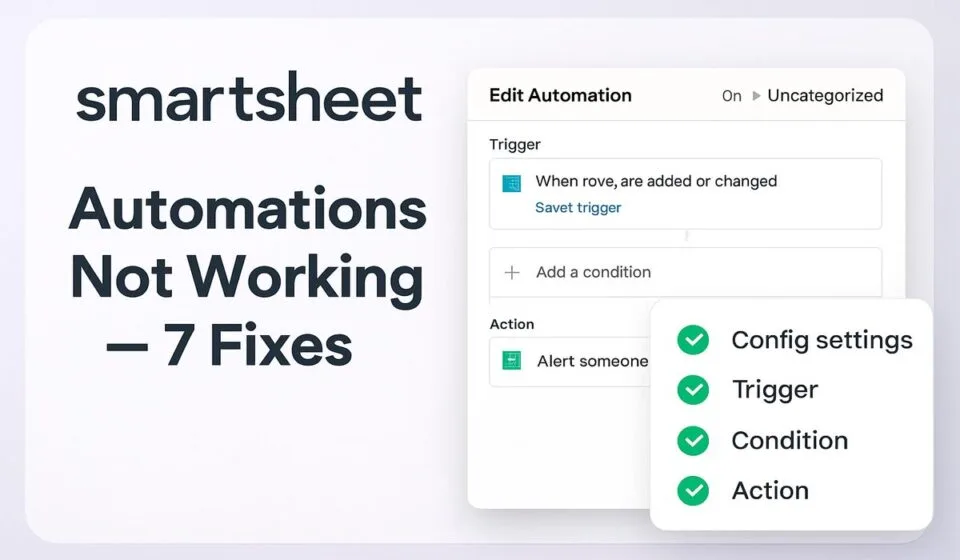

Most Smartsheet workflows that look broken are not broken — the trigger never fired. Smartsheet deliberately ignores cell changes produced by cross-sheet formulas and inbound cell links, filters out changes you made yourself, and batches hourly, daily and weekly workflows rather than sending them instantly. Check those three causes first.
Separate a trigger problem from an action problem before you touch anything
Rebuilding a workflow from scratch is the most common wasted afternoon in Smartsheet, because it fixes nothing when the trigger is the part that failed. There is a clean way to split the two halves: Run Now bypasses all trigger criteria but still respects your workflow conditions. If Run Now delivers the alert and a real edit does not, stop reading the action block — the fault is upstream.
- Open the sheet and select Automation > Manage automation workflows.
- Set the status filter to Unable to run. Anything sitting in that bucket has a fault Smartsheet already detected and is not going to fix itself.
- Sort by Last run. A workflow with no run history has never had its trigger criteria matched, which is a completely different problem from one that ran and delivered nothing.
- Hover the workflow, select the More icon, then Test now to send yourself a preview of the notification.
- Select Run Now and scope it to a single test row.
- Open Workflow Properties and note the 16-digit Workflow ID plus the list of people who unsubscribed. An unsubscribed recipient is why one person stops getting alerts while the rest of the team still does — and nothing in the workflow editor hints at it.
Two caveats on Run Now: it only appears on active workflows, and it can change your sheet data, because it genuinely executes the configured actions.
Cross-sheet formulas and cell links will never fire a sheet-change action
This is the cause teams hunt for weeks without finding, and it is documented behaviour in Smartsheet’s trigger block reference rather than a defect. To prevent infinite loops, Smartsheet does not trigger actions that change the sheet automatically when the value arrived through an inbound cell link or a cross-sheet formula. That includes a formula that merely refers to a cell holding an inbound link.
These are the actions Smartsheet classes as changing the sheet:
- Move rows and Copy rows
- Lock rows and Unlock rows
- Approval request
- Record a date
- Assign people
- Change cell value and Clear cell value
- Generate document
So a Status column populated by a lookup pointing at another sheet will never lock its row, never stamp a completion date, and never move itself to your archive sheet. The behaviour is consistent, silent, and produces no error. Smartsheet’s own workaround is to abandon the change-based trigger for those columns and schedule the work instead: use When a date is reached with a daily recurrence, or set the change trigger to run Hourly or Daily.
Two relatives of the same problem catch people out. The Change cell value action keeps working on cells containing a cell formula, but stops the moment you convert that cell formula into a column formula. And it cannot write to Date or Contact columns at all — those need Record a date and Assign people respectively. If the underlying calculation is the real issue, work through why Smartsheet formulas stop calculating before you blame automation.
When rows arrive from outside the sheet — an API write, a copy-row workflow from another sheet, or a Data Shuttle import — open the row’s cell history and confirm what actually changed and who changed it. Assumptions about what a trigger saw are usually wrong.
Changes you make yourself are filtered out by default
You edit the Status cell, the alert is addressed to you, nothing arrives, and you conclude the workflow is dead. It is working. Smartsheet suppresses your own changes in sheet notifications unless you opt in — which is why every solo test of an alert workflow appears to fail.
- On the left navigation bar, select the Account icon.
- Choose Personal Settings > Notifications.
- Set where you want each alert or action delivered — email, mobile push, or a messaging app.
- Select Include my changes in sheet notifications.
- Select Save, then repeat your test edit.
One thing this screen will not fix: Sheet Changes and Reminders are fully customisable, but email and messaging delivery for @Mentions, sharing invitations, requests and conversations stay on regardless of what you untick. If the missing message is one of those types, the setting is not your problem. For the wider delivery picture, see Smartsheet notifications not working.
Diagnostic table
| Symptom | Likely cause | Fix |
|---|---|---|
| Workflow never appears in run history | Trigger criteria never matched | Check the trigger column for cross-sheet formulas or inbound cell links |
| Lock, move, copy or date-stamp never happens | Trigger cell fed by a cell link or cross-sheet formula | Switch to a scheduled or recurring workflow |
| Works for colleagues, not for you | Your own changes are excluded | Enable Include my changes in sheet notifications |
| Alert arrives hours later | Frequency set to Hourly, Daily or Weekly | Set the trigger to When triggered |
| Placeholders show as raw text or are unavailable | Workflow is batched, not instant | Placeholders only work with When triggered |
| External recipient gets nothing | Automation permissions set to Restricted | Change the sheet setting to Limited or Unrestricted |
| New-row alert misses edited rows | Trigger is When rows are added | Switch to When rows are added or changed |
| Only one path of a branching workflow ever runs | Overlapping condition paths | Reorder paths; the leftmost match wins |
| One person stopped receiving alerts | They unsubscribed from the workflow | Check Workflow Properties and re-subscribe them |
The workflow ran, but Smartsheet is holding the message
Frequency is the setting most people never revisit after building a workflow, and it changes the behaviour more than any other choice. Only When triggered delivers immediately. Hourly workflows run hourly after the initial trigger. Daily alert messages go out between 12:00 a.m. and 4:00 a.m. the day after the workflow runs. Weekly alerts land between 12:00 a.m. and 4:00 a.m. on the Friday of the following week — which means a Wednesday build may not produce anything for over a week, and that silence looks identical to failure.
Batching carries hard restrictions worth knowing before you choose it:
- Placeholders in your message body are unavailable entirely — batched workflows cannot use them.
- Clear cell value, Assign people, Record a date, Move rows, Copy rows, Lock rows, Unlock rows and Request an approval are all unavailable on Hourly, Daily or Weekly. Save with When triggered if you need any of them.
- When several rows change inside one frequency window, subscribers receive a single notification containing up to 100 rows in grid format — not one message per row.
- A trigger set to Any Value also fires when a cell becomes blank, which produces alert volume nobody asked for.
The When rows are added trigger deserves its own warning: it does not fire for changes to existing rows. Intake sheets fed by a Smartsheet form are the right home for it, since every submission creates a new row. Anywhere else, you probably want When rows are added or changed.
Recurring workflows run on the sheet owner’s clock
The time zone for a time-based trigger is always the sheet Owner’s time zone — not yours, and not the recipient’s. On a sheet inherited from someone in another region, a workflow set for 8:00 a.m. fires at whatever 8:00 a.m. means to the owner’s profile. Check the time zone label shown under the trigger hour before assuming the schedule is wrong.
The rest of the recurrence rules are strict. When the workflow is driven by a date field, the sheet checks daily for qualifying rows; rows without a date can never be included; and if nothing meets the conditions, there is no trigger and no message. Automation also sends nothing when the sheet is empty. Set the trigger an hour ahead of when the action actually needs to happen, so a transient issue does not push it past the deadline.
Ownership matters in a second way. Deactivated users cannot sign in, but the items they created remain available, and you only get 30 days to reactivate them. Past that window, transfer their Owner permissions to an active Member rather than leaving business-critical schedules attached to a dead account.
Permissions decide whether the workflow was ever allowed to work
Two separate permission layers break automations, and they fail in different ways.
Sheet-sharing level controls what the builder could create. Editors can only create, edit or delete alert-type workflows where they are the recipient. Creating anything that notifies other people, or any Change cell value action, needs Owner or Admin. A workflow that worked until a handover often broke because the new maintainer is an Editor.
Automation permissions control who can receive. The default is Restricted, meaning only people who can view the sheet and have logged in to Smartsheet get notifications — which is exactly why alerts to contractors and clients vanish. Smartsheet documents the three levels in its guide to controlling who is notified about alerts and requests.
- Open the sheet and select Automation > Manage automation workflows.
- Select the gear icon to open Settings.
- Choose Restricted, Limited (adds people in your Smartsheet account) or Unrestricted (anyone with a valid email address).
- If the option you need is greyed out, the plan-level ceiling is blocking it. A System Admin must change it in Admin Center > Settings > Security Controls > Permissions.
- Send a test to an internal licensed user. If they receive it, the problem is specific to the external recipient’s mail delivery, not your workflow.
Adding an email address to your contacts does not make that person part of your account. Under Restricted or Limited they must be added as a user first. Slack, Teams and Google Chat delivery also require Unrestricted.
Conditional paths quietly swallow rows
In a branching workflow, Smartsheet evaluates condition paths left to right and executes the action for the leftmost path that matches. It does not run every parallel path. Build a path for “Price is 100 or less” to the left of a path for “Price between 50 and 250”, and rows priced at 75 will only ever hit the first one — the second path looks dead while being perfectly configured. Reorder from most specific to least specific, and if you need to mix and-logic with or-logic, stack two condition blocks on the same path rather than fighting a single block.
Automation runs are metered below Business
If workflows fire reliably all month and then stop, check consumption before configuration. Runs are capped on the lower tiers.
| Plan | Automations | Seats |
|---|---|---|
| Free (legacy, closed to new signups since 28 Aug 2024) | 100 per month | Two Viewers or Editors plus yourself |
| Pro | 250 per month | 1–10 Members, unlimited Contributors |
| Business | Unlimited | 3+ Members |
| Enterprise | Unlimited (includes Business) | 10+ Members, custom pricing |
250 runs a month sounds generous until one form-driven intake sheet with a three-branch approval flow eats most of it. Track which sheets are consuming the budget — a roll-up built with the techniques in this Smartsheet dashboards guide makes the pattern obvious before the cap does.
Frequently asked questions
Why does my alert work when I test it but not in real use?
Because Test now and Run Now bypass trigger criteria and only respect your conditions. A passing test proves the message, recipients and conditions are sound. A live failure after that almost always means the trigger itself never matched — usually a cell fed by a formula or an inbound link.
Do formulas trigger Smartsheet automations?
Smartsheet’s documented block is narrower than most people assume: actions that change the sheet do not fire when a value arrives through an inbound cell link or a cross-sheet formula. The documentation makes no promise about same-sheet formula results, so test that specific case on your own sheet rather than assuming it works.
How quickly should a Smartsheet workflow run?
Only When triggered is immediate. Hourly workflows run hourly after the initial trigger. Daily alert messages arrive between 12:00 a.m. and 4:00 a.m. the day after the workflow runs, and weekly alerts between 12:00 a.m. and 4:00 a.m. on the Friday of the following week.
Why did only some recipients get the alert?
Check three things in order: whether that person unsubscribed, which is visible in Workflow Properties; whether the sheet’s automation permissions are Restricted, limiting delivery to signed-in shared users; and whether their mail server filters Smartsheet’s sending domains before the message reaches them.
Can an Editor create a workflow that alerts someone else?
No. Editors can create, edit and delete alert-type workflows only when they are the recipient. Notifying other people, or using any Change cell value action, requires Owner or Admin permission on the sheet. Check who last saved the workflow if it broke after a team handover.
Sponsored