
A Smartsheet automation is three parts: a trigger (when something happens), optional conditions (only for these rows), and one or more actions (alert someone, request an update, move a row, and so on). You build them under Automation in the sheet’s menu, with no code.
The limit to know before you design anything: on Smartsheet’s pricing page (checked October 14, 2026), Pro includes 250 automations per month, while Business includes unlimited automations. Pro is $9 per member per month billed yearly ($12 monthly); Business is $19 yearly ($24 monthly).
I implement Smartsheet for clients (SSPM is a Smartsheet partner). Most automation problems I get called in for are not bugs. They are workflows that were built in the wrong order.
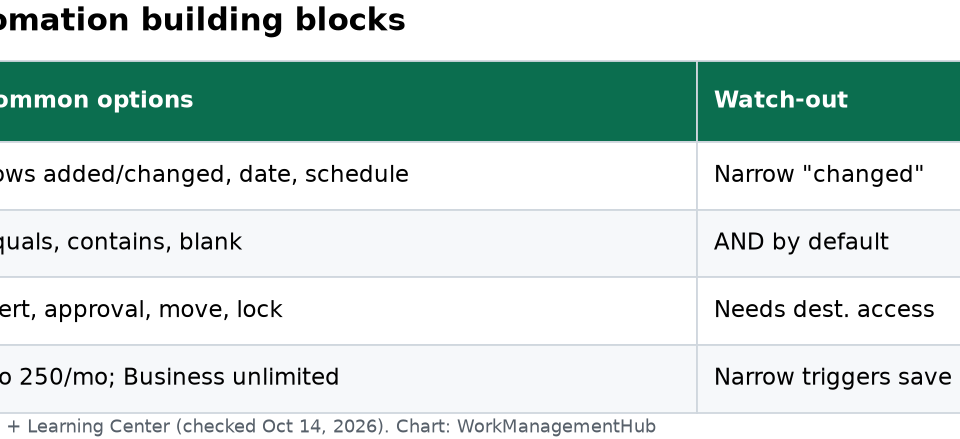
The building blocks
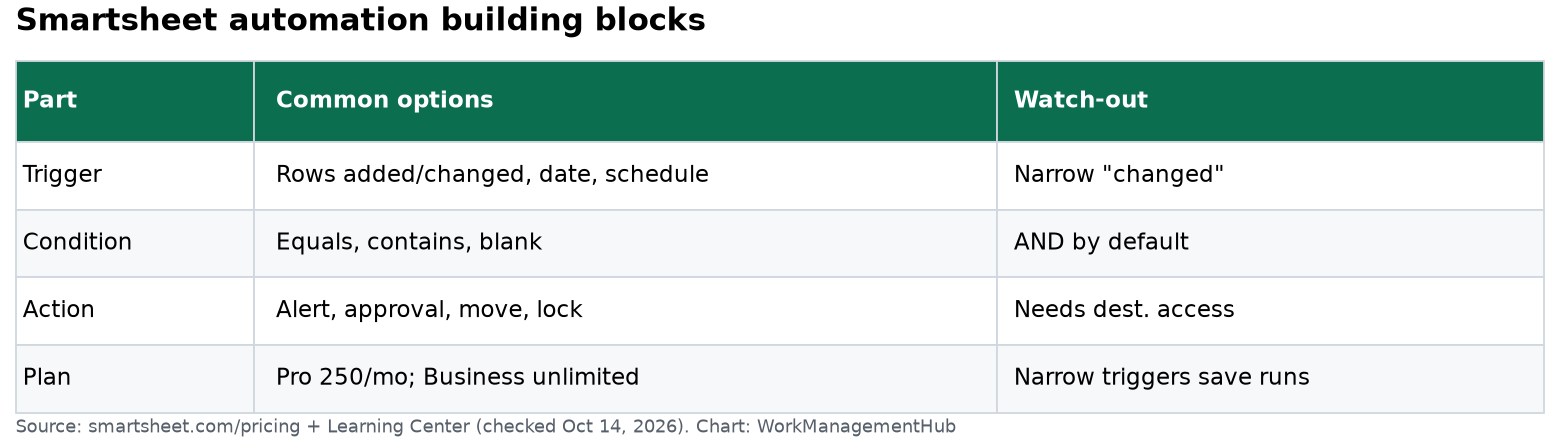
| Part | Options you will use most | Watch-out |
|---|---|---|
| Trigger | When rows are added or changed; when a date is reached; on a schedule | “Changed” fires on any edit unless you narrow it |
| Condition | Column equals / contains / is blank | Conditions are AND by default; add groups for OR |
| Action | Alert, request update, request approval, move or copy row, lock row, assign people, record a date, change cell | Move/copy needs access to the destination sheet |
Build order that avoids silent failures
- Write the rule in one sentence. “When Status changes to Ready for Review, send an approval request to the Approver column.” If you cannot write the sentence, the automation will be wrong.
- Fix the columns first. Approver should be a Contact column, Status a dropdown with fixed values. Free-text columns make conditions unreliable.
- Pick the narrowest trigger. Use “when a specific field changes to a specific value,” not “when rows are changed.”
- Add conditions. Exclude rows you do not want, such as archived or template rows.
- Choose the action and recipients. Prefer column-based recipients (the Assigned To column) over named people, so the workflow survives staff changes.
- Test with a dummy row. Change the field, wait a minute, and confirm the result before you announce anything.
Five automations worth building first
- Intake alert: when a row is added from a form, alert the triage owner.
- Due-date reminder: one day before the Due Date, alert the Assigned To contact.
- Approval: when Status changes to Ready for Review, request approval from the Approver column; record approval date.
- Lock completed rows: when Status is Complete, lock the row so history stays clean.
- Archive: when Status is Complete for 7 days, move the row to an Archive sheet. Keeps the working sheet fast.

Coming from Wrike or another tool
Teams moving from Wrike often ask for “request forms plus automations.” Smartsheet does the same thing with a form on the sheet and an automation that triggers when rows are added: route by a dropdown value, assign from a column, and alert the owner. Build the form first, then the rule. Keep one intake sheet per team; cross-team chains are where workflows break.
Plan limits and governance
On Pro, 250 runs a month disappear quickly if a “when rows change” rule fires on every edit. Narrow triggers save runs. On Business, the risk flips: unlimited automations invite sprawl. My rules for clients:
- One owner per workflow, named in the workflow title.
- No more than five active workflows per sheet without a review.
- Review Automation > Manage workflows monthly and delete anything nobody can explain.
For other plan details, see our Smartsheet pricing guide.
When an automation does not fire
The usual causes: the workflow is disabled, the trigger is too specific, the change came from another automation or a cell link that does not count as a user change, or the workflow owner lost access. Our Smartsheet automations not triggering guide walks through each one, and the notifications fix guide covers alerts that run but never arrive.
Words you will see, in plain terms
- Workflow: one automation rule in Smartsheet.
- Trigger: the event that starts it, like “a row is added”.
- Condition: a filter, like “only if Priority is High”.
- Action: what Smartsheet does, like “send an alert”.
- Contact column: a column that holds people, not text. Alerts can go to “whoever is in this column”.
Three real workflows, built step by step
1. Approval for purchase requests
- Trigger: when Status changes to “Submitted”.
- Condition: Amount is greater than 500.
- Action: request approval from the Approver contact column.
- On approve: change Status to “Approved” and record the date in an “Approved On” date column.
- On decline: change Status to “Declined” and alert the requester.
Gotcha: approvals go to the person in the Approver cell. If that cell is blank, nothing goes out. Make the Approver column required on your form.
2. Weekly status request
- Trigger: on a schedule, every Monday at 9:00 AM.
- Condition: Status is not “Complete”.
- Action: request an update from the Assigned To column, with the fields Status, % Complete and Comments.
People reply from email or the mobile app without opening the sheet. This one rule replaces most “can you send me an update?” messages.
3. Archive finished rows
- Trigger: when a date is reached, 7 days after the “Completed On” date.
- Action: move the row to an Archive sheet.
This keeps the working sheet small. Smartsheet sheets slow down as they grow, and reports run faster on a lean sheet.
How many runs will you use on Pro?
Pro gives 250 automation runs a month. Count before you build:
| Workflow | Runs per month (example) |
|---|---|
| Intake alert, 60 new requests | 60 |
| Due-date reminder, 80 tasks | 80 |
| Weekly update to 20 open rows | about 86 |
| Total | about 226 |
That is close to the cap with only three rules. One badly scoped “when rows change” rule can use 250 runs in a few days. If your count is near 250, plan for Business ($19 per member per month, yearly) instead of fighting the cap.
When NOT to automate
- Rare tasks. If something happens twice a year, a checklist is easier than a rule nobody remembers.
- Decisions that need a conversation. Approvals for contracts or hiring need a call, not just a button.
- Data you do not trust yet. If the Status column is still free text, fix the column first. Automations on messy data send messy alerts.
- Chains across many sheets. Rule A moves a row, which fires rule B on another sheet, which fires rule C. When it breaks, nobody can trace it. Keep chains to one hop.
Testing checklist before go-live
- Add a test row with your own name in every contact column.
- Trigger each rule once and check your email and the mobile app.
- Check the sheet’s activity log to confirm what changed.
- Delete the test row.
- Tell the team what the rule does and who owns it.
Common questions
How many automations do I get on Smartsheet Pro?
Pro includes 250 automations per month. Business and Enterprise include unlimited automations, per smartsheet.com/pricing on October 14, 2026.
Can Smartsheet automations send alerts to people outside my account?
Alerts can go to email addresses, but external recipients and some actions depend on your plan and admin settings. Test with one external address first.
Why did my automation run on the wrong rows?
The trigger is probably “when rows are changed” with no conditions. Narrow it to a specific field and value, and add conditions.
Can automations move rows to another sheet?
Yes. Move row and copy row actions need you to have access to the destination sheet. If access changes, the action fails.
What is the difference between an alert and an update request in Smartsheet?
An alert tells someone that something happened. An update request asks them to edit specific fields, and they can reply from email or the app without opening the sheet.
Do Smartsheet automations run on weekends?
Scheduled and date-based rules run on the date and time you set, including weekends, unless you choose weekdays in the schedule.
Plan limits and prices checked on smartsheet.com/pricing on October 14, 2026. Menu names may change as Smartsheet updates its interface.
Sponsored