Skip to content
Work Management Hub Work Management Hub

Expert Reviews, Comparisons & Guides for Smartsheet, Monday.com, Asana, ClickUp & More

Work Management Hub Work Management Hub

Expert Reviews, Comparisons & Guides for Smartsheet, Monday.com, Asana, ClickUp & More

  • Airtable
  • Asana
  • ClickUp
  • Jira
  • Monday.com
  • Notion
  • Smartsheet
  • Wrike
  • About
  • Contact
  • Airtable
  • Asana
  • ClickUp
  • Jira
  • Monday.com
  • Notion
  • Smartsheet
  • Wrike
  • About
  • Contact
Close

Search

How-To GuidesSmartsheet

Smartsheet WorkApps: How to Build No-Code Apps in 2026

By Khasim
May 27, 2026 11 Min Read
0

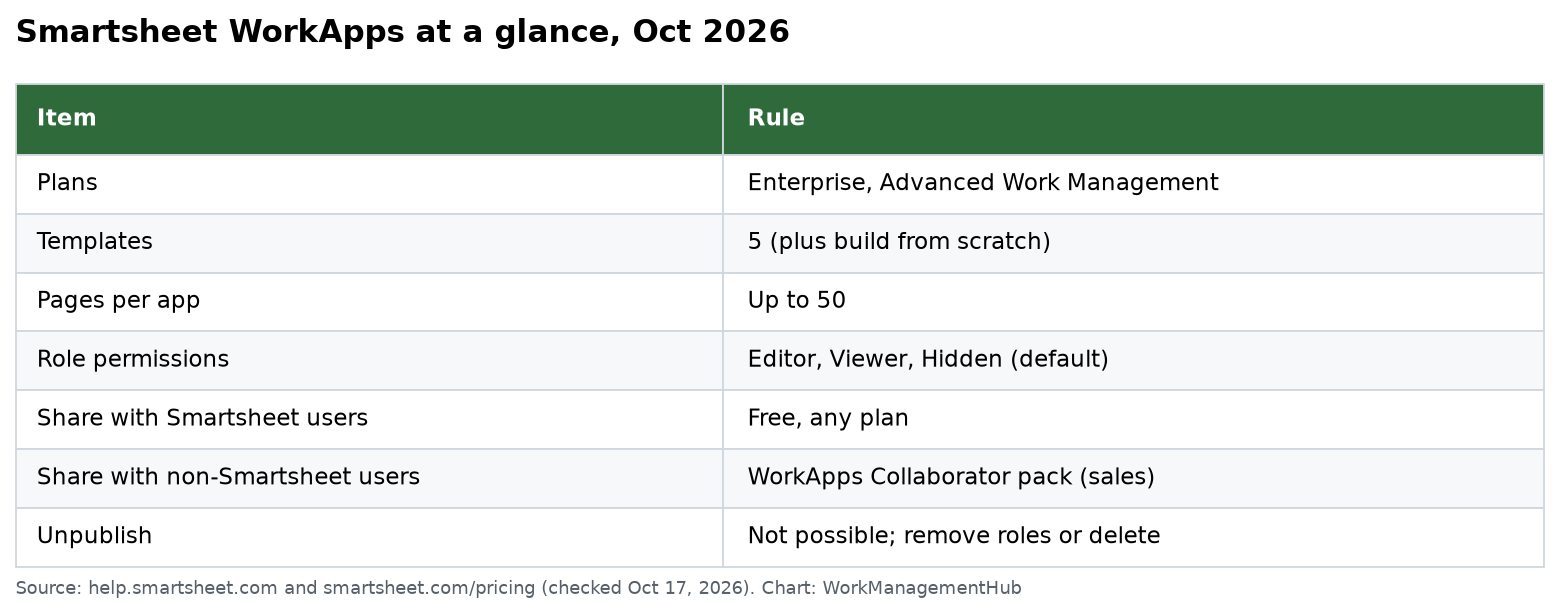
Imagine you’re leading a project team with tight deadlines and constant changes. You’ve tried every tool in the book, but collaboration still feels like herding cats. Enter Smartsheet WorkApps, a tool that promises no-code app solutions. But here’s the catch: while it’s designed to streamline workflows, it’s not available on the Pro or Business plans, so you’ll need to consider the Enterprise or Advance Package plans for access. This exclusivity means a heftier price tag but also more robust capabilities like unlimited attachment storage and advanced integrations. The trade-off? Higher costs upfront, but it could finally put an end to your coordination chaos.

Understanding Smartsheet WorkApps

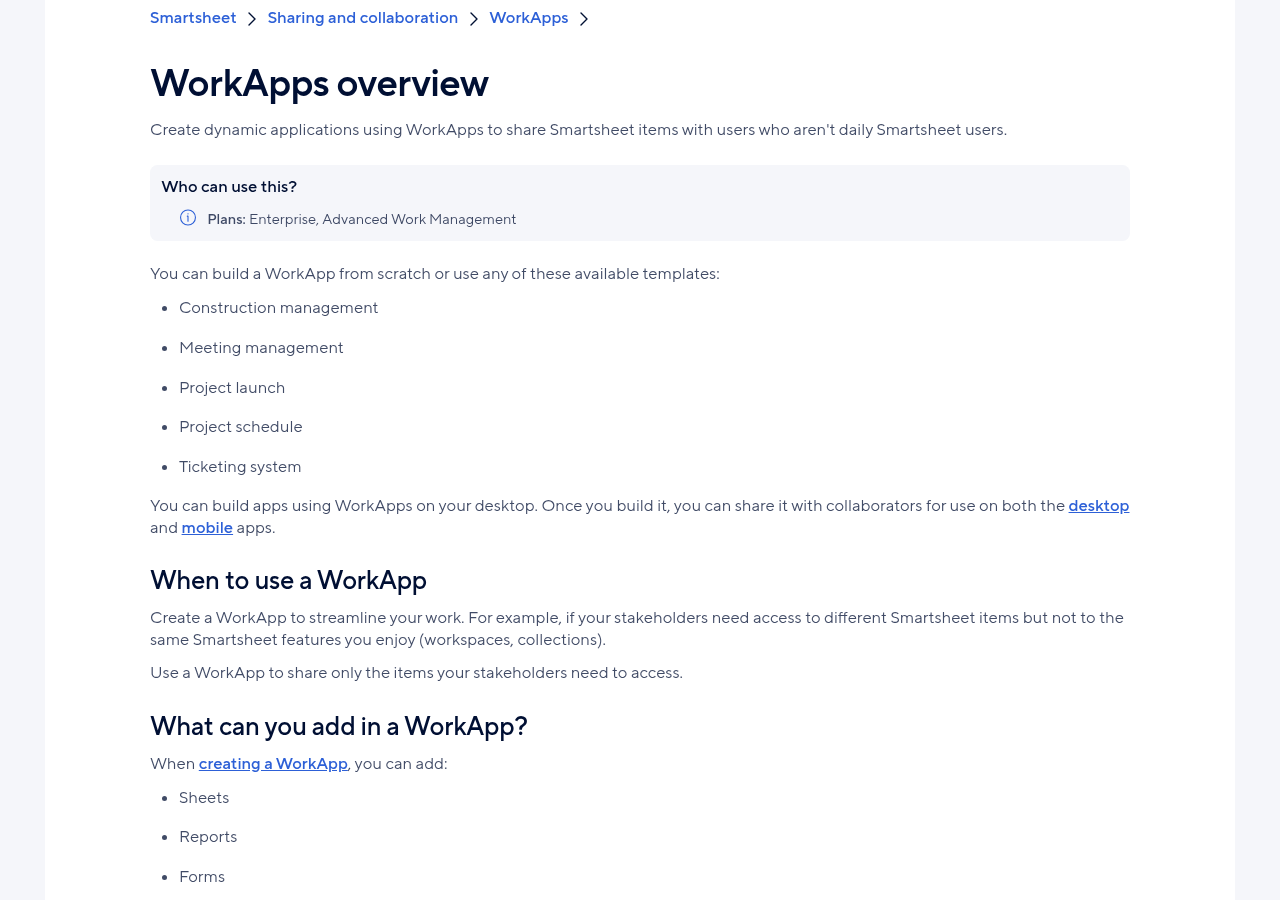
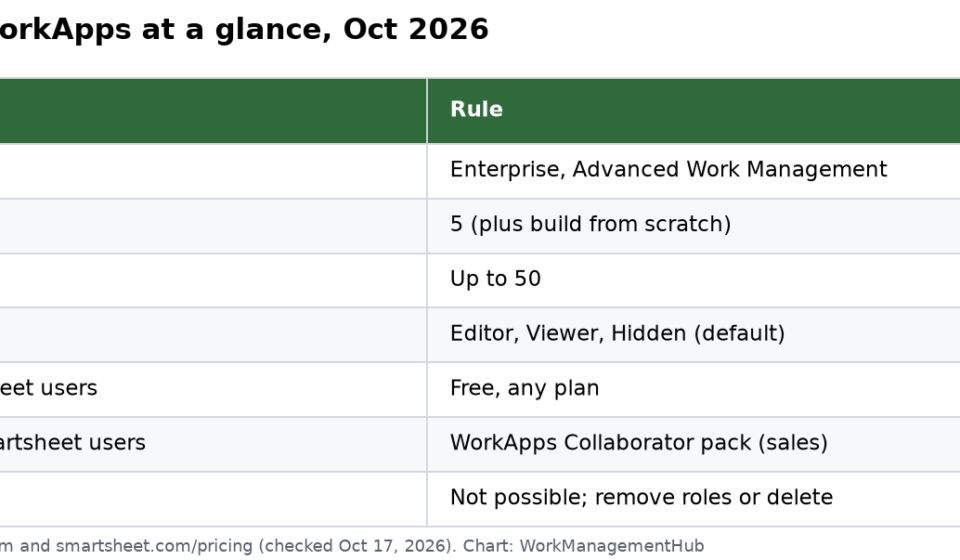
As a consultant with hands-on experience, I can attest that Smartsheet WorkApps are a powerful tool for businesses that need to streamline workflows without delving into code. However, the first thing to understand is that this feature is available solely on the Enterprise and Smartsheet Advance Package plans. If you’re not on these plans, it’s a non-starter.

WorkApps allow teams to create intuitive, role-based applications that pull together various Smartsheet items into a unified interface. The key benefit here is the ability to tailor these applications to different user roles. This is particularly useful in large organizations where different departments or teams need access to specific data subsets without overwhelming them with unnecessary information.

A common pitfall I’ve seen is overlooking the importance of meticulously configuring role-based views. It’s imperative to set these up correctly from the start to prevent sensitive information from leaking to unauthorized users. For instance, when setting up a WorkApp, make sure that each role’s permissions are thoroughly reviewed and tested.

Another aspect to consider is integrating external content like Tableau dashboards or Google Docs. While this can greatly enhance the utility of your WorkApp, ensure that the sharing settings of these external elements are configured correctly. Misconfigurations can lead to access issues, causing friction and delays.

Be aware of mobile view limitations. The default options are Mobile View or Grid View, which may not suit more complex sheets. Plan your mobile strategy carefully to avoid user frustration.

In sum, Smartsheet WorkApps can significantly boost your team’s productivity when configured correctly. However, success hinges on understanding the nuances of role configurations and external integrations.

Pricing and Plan Tiers

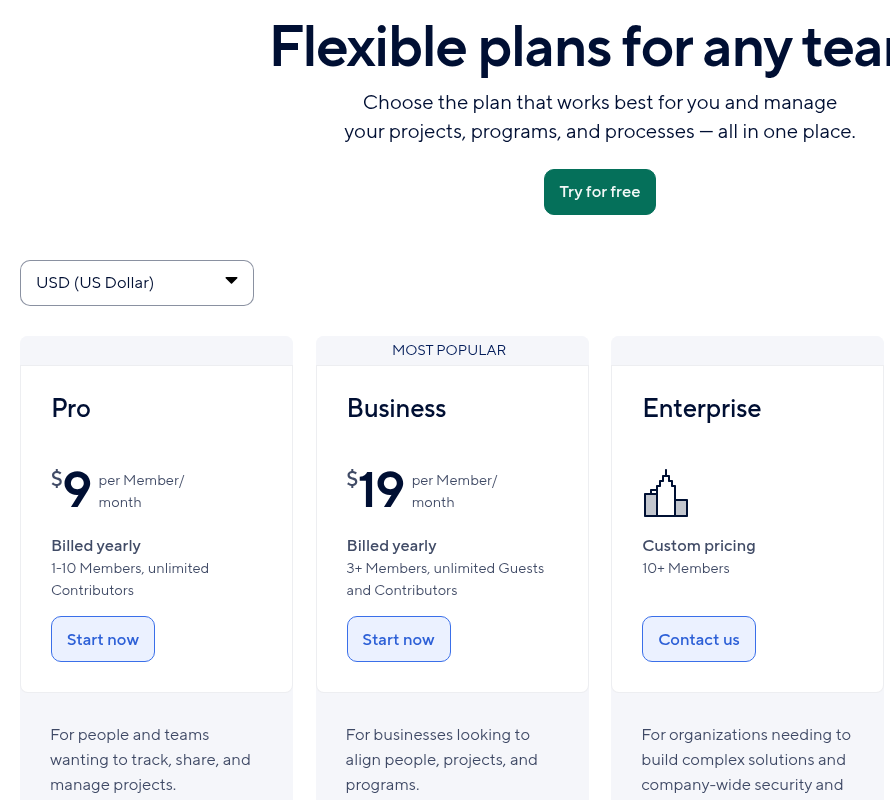
PlanMonthly Cost per User (Annual Billing)Key FeaturesStorageAutomations
Pro$9Unlimited sheets, Gantt charts, forms20 GB250 per month
Business$19Unlimited sheets, workload tracking, admin capabilities1 TBUnlimited
EnterpriseCustom PricingAdvanced SSO, directory integrationsUnlimitedUnlimited

For teams considering Smartsheet WorkApps, the choice of plan dramatically impacts both capabilities and cost-effectiveness. The Pro plan is suitable for small teams needing basic features, but the 250 automations limit can become a bottleneck quickly if workflows aren’t optimized. If your operations involve significant automation, the Business plan’s unlimited automations are compelling, especially for larger teams needing advanced workload tracking and administrative tools. Enterprise is indispensable for organizations requiring sophisticated security integrations, such as SAML-based SSO, but expect custom pricing to reflect these premium features. Evaluate your team size and feature needs carefully—moving up a tier later can disrupt budgets and workflows. For more detailed pricing information, visit Smartsheet’s official pricing page.

Key Features and Capabilities

Smartsheet WorkApps, available on the Enterprise and Advance Package plans, is a powerful no-code platform for creating intuitive, role-specific applications directly from your Smartsheet data. A crucial feature is the robust role-based access control. When setting up a WorkApp, ensure you meticulously configure roles to prevent data breaches while providing necessary access. Go to the WorkApps dashboard, click on Roles, and define permissions carefully. Failure to do so can result in unauthorized access or hidden pages, a common oversight.

Incorporating external content is another standout capability. You can embed Tableau dashboards, Google Docs, and more. Navigate to External Content within the app builder and ensure the sharing settings of these external sources are correctly configured to avoid access issues. This integration can significantly enhance the utility of your app, but improper setup can lead to frustrating user experiences.

Mobile optimization is a double-edged sword. While WorkApps supports mobile view, the options are restricted to Mobile View or Grid View. This could limit functionality for complex sheets. Test thoroughly on mobile devices—navigate to Settings and select Preview as Mobile to ensure your app performs as expected.

Lastly, automations are key in streamlining processes. The Business Plan offers unlimited automations, but beware of over-automation, which can lead to maintenance headaches and potential workflow conflicts. Always document automation workflows and use a naming convention within the Automation tab to ensure easy management.

For detailed guidance, refer to the WorkApps Learning Center. These features, when utilized effectively, can transform how your teams collaborate and manage projects.

How to Access and Create WorkApps

Accessing and creating WorkApps requires precision, especially when considering the limitations of plan tiers. WorkApps are exclusive to those on the Enterprise and Smartsheet Advance Package plans, which means if you’re on a Pro or Business plan, you’ll need an upgrade to utilize this feature. Once you’re on the right plan, accessing WorkApps is straightforward but not without its nuances.

  1. Login to Smartsheet — Ensure you’re logged into your Smartsheet account. Directly accessing WorkApps without the correct login will result in permissions errors.
  2. WorkApps Icon — Navigate to the WorkApps icon in the right navigation bar. If you’re unable to find it, your plan might not support it, or permissions need adjusting by your admin.
  3. Direct URL Access — Alternatively, you can go to https://workapps.smartsheet.com and log in with your Smartsheet credentials. This method is often faster for seasoned users who bypass the main Smartsheet dashboard.

Creating a WorkApp involves a series of steps that, while user-friendly, demand attention to detail, especially in setting permissions and roles:

  1. + Create App — In the WorkApps interface, select “+ Create app” from the upper-right corner. This is where you decide between using a template or starting from scratch, a choice that significantly impacts the setup time.
  2. Name Your WorkApp — At the top of the screen, enter a clear, descriptive name. This is crucial for identification, especially in organizations with multiple apps.
  3. Follow Instructions — The builder will guide you through the process. Pay particular attention to role-based permissions to avoid inadvertent data exposure, a common oversight.

Remember, new pages default to “Hidden” — update role permissions promptly to ensure visibility where needed. For those integrating external content, double-check sharing settings to prevent access issues. This meticulous approach to setup will ensure your WorkApp is both functional and secure.

Navigating the User Interface

To effectively build no-code apps using Smartsheet WorkApps, understanding the user interface is critical. The journey begins by logging into your Smartsheet account and heading to the WorkApps section, accessible in two ways: via the right-hand navigation bar or directly at workapps.smartsheet.com. Once there, creating a WorkApp involves intuitive yet precise steps:

  1. + Create app — Located in the upper-right corner, this button initiates the creation process. You’ll be prompted to choose a template or start from scratch, giving you flexibility based on your project needs.
  2. Name your WorkApp — At the top of the screen, assign a descriptive name to ensure easy identification within your team.
  3. Builder Instructions — Follow on-screen guidance to add pages, set permissions, and customize views. Here, attention to detail is paramount, especially when configuring role-based views to prevent unauthorized data access.

The UI’s simplicity masks potential pitfalls. Pages added to a WorkApp default to “Hidden,” necessitating a permissions review to ensure visibility for all relevant users. Another subtlety lies in role configurations; meticulously setting these ensures that users access only necessary information. For teams integrating external content, verify sharing settings to prevent access issues, a crucial step often overlooked.

On mobile, the default view options — Mobile View or Grid View — may not suit complex sheets, potentially impacting user experience. Awareness of these limitations helps in planning app structure and user journey.

While the UI is designed for ease, skipping these nuances can lead to inefficiencies. Hands-on experience reveals that the UI, though user-friendly, demands a strategic approach to fully leverage its capabilities. For detailed guidance, consult the official WorkApps guide.

Common Issues and Solutions

Navigating Smartsheet WorkApps introduces some specific challenges that aren’t immediately obvious until you’ve spent significant time with the platform. One common issue is the automatic setting of new pages to “Hidden” when added to a WorkApp. This can lead to team members missing critical information if not addressed promptly. The fix is straightforward: you need to update the role permissions. Here’s how you do it:

  1. Roles & Permissions — Navigate to the “Roles” section in your WorkApp.
  2. Edit Role — Select the role that needs access and edit its permissions.
  3. Pages — Ensure the new page is set to “Visible” for the appropriate roles.

This ties into another frequent problem: users unable to access certain features within a WorkApp due to misconfigured permissions. It’s imperative to verify that each user’s role is correctly assigned to prevent unnecessary bottlenecks.

Role-based views are powerful but demand precision in configuration. Mistakes here can either overexpose data or restrict necessary access, so double-check every role’s access level. When integrating external content like Tableau dashboards or Google Docs, verify that sharing settings are correctly configured. If these aren’t set up properly, users might face access issues that can be perplexing to troubleshoot.

Mobile view limitations are another subtle hurdle. The choice between Mobile View and Grid View can impact usability, particularly for complex sheets. If a team relies heavily on mobile access, test these views extensively to ensure a seamless experience.

These insights should help streamline your WorkApp deployment. For more detailed guidance on each step, consult Smartsheet’s official resource, which offers comprehensive insights into troubleshooting and optimizing WorkApps.

Advanced Tips and Best Practices

Navigating Smartsheet WorkApps effectively requires a strategic approach, especially since it’s only accessible on Enterprise and Advance Package plans. Here’s how to maximize its potential:

1. **Leverage Role-Based Views Intelligently**: Avoid data leaks by configuring role permissions meticulously. This is not just about granting access but ensuring that sensitive data is adequately shielded. Misconfigurations here are a common pitfall, so double-check settings regularly.

2. **Optimize Automations**: With unlimited automations on the Business Plan, streamline repetitive tasks to focus team efforts where they matter most. However, with the Pro Plan’s cap at 250 automations, prioritize automations that provide the highest ROI, such as those that automate critical workflow elements.

3. **Strategic Use of External Content**: If your WorkApp integrates external dashboards or documents, validate sharing settings externally and within WorkApps to prevent access issues. This step is crucial to maintain seamless integration and user satisfaction.

4. **Adapt for Mobile**: Given the limitations in mobile view configurations, test your WorkApp on a mobile device during development. This ensures that the most critical information remains accessible and readable. Default to Grid View for complex sheets to enhance clarity on smaller screens.

5. **Harness Workload Tracking**: Exclusive to Business and Enterprise Plans, use workload tracking to monitor team capacity and balance assignments. Regularly review these insights to adjust workloads dynamically, preventing burnout and optimizing productivity.

6. **Continuous Review and Update**: As Smartsheet introduces enhancements, keep abreast of updates and incorporate them into your WorkApps. Regular updates can improve efficiency and user experience, leveraging new features like streamlined workflows.

By embracing these practices, you ensure that your Smartsheet WorkApps not only function efficiently but also align closely with your team’s evolving needs.

Recent Enhancements and Updates

Smartsheet WorkApps underwent significant updates on April 4, 2023, aimed at elevating the collaborative experience and expediting work processes. These improvements are a direct response to user feedback, emphasizing streamlined navigation and enhanced functionality. If you’re building WorkApps for an enterprise, these enhancements are crucial to leverage effectively.

A major update includes refined role-based views—an essential feature for teams managing sensitive data. It’s now more intuitive to configure roles, but it demands precision to prevent unauthorized access. Regularly auditing role configurations is recommended to maintain data integrity and security. Additionally, the integration capabilities with external tools like Tableau and Google Docs have been expanded. However, ensure that all external content permissions are properly set, as misconfigurations here can lead to significant access barriers.

The mobile view has received attention, though it remains limited to Mobile View or Grid View. This constraint necessitates careful planning of your mobile user interface to ensure clarity and functionality, particularly for complex data sheets. Consider conducting user testing to refine these views for optimal performance.

For those on the Enterprise or Smartsheet Advance Package plans, where WorkApps is available, these updates provide substantial value. For instance, the improved collaboration features can directly impact productivity, but only if your team fully adopts them. Encourage ongoing training sessions to familiarize users with these new capabilities, minimizing resistance to change and maximizing the tools’ potential.

These enhancements represent Smartsheet’s commitment to evolving its platform based on real-world use cases and feedback. As a practitioner, staying updated with these changes and proactively integrating them into your workflow will ensure that your team remains agile and effective. For a deeper dive into these updates, refer to the official release notes.

Compliance and Security Considerations

Smartsheet WorkApps’ compliance and security capabilities are critical for teams handling sensitive data, especially those in regulated industries. WorkApps is available only on the Enterprise or Smartsheet Advance Package plans, ensuring robust security measures are in place. The Enterprise plan includes advanced security features like SAML-based single sign-on (SSO) and directory integrations, which are indispensable for maintaining compliance with industry standards such as GDPR or HIPAA.

When configuring WorkApps for compliance, a meticulous approach to role-based permissions is non-negotiable. Start by mapping out your organization’s data access needs and classify users into roles before delving into WorkApp settings. Misconfigured roles can inadvertently expose sensitive information, so double-check that permissions align with your compliance requirements.

  1. Role Permissions — Navigate to the WorkApps settings and verify that each role has appropriate permissions. Regular audits of these settings are advisable to ensure continued compliance as team structures evolve.
  2. External Content — If integrating external content such as Tableau dashboards, ensure the sharing settings of these elements align with your organization’s privacy policies. Missteps here can lead to unauthorized data exposure.

For enterprises needing unlimited attachment storage, the Enterprise plan is crucial. It allows for the secure storage of large volumes of data without the risk of hitting storage caps, which is a common pitfall in high-data environments.

Lastly, consult Smartsheet’s official resources for detailed security documentation to align your WorkApp implementation with best practices. In a world where data breaches can have catastrophic consequences, the upfront investment in understanding and utilizing Smartsheet’s security features is invaluable.

Related guides

  • Airtable Interface Designer 2026: Build No-Code Custom Apps Fast
  • How to Use Smartsheet Gantt Charts in 2026: Build Timelines, Dependencies & Track Milestones
  • How to Build Smartsheet Dashboards in 2026: Complete Reports & Charts Guide

Frequently Asked Questions

How do I access Smartsheet WorkApps?

To access WorkApps, log in to Smartsheet, then click the WorkApps icon in the right navigation bar. Alternatively, navigate directly to workapps.smartsheet.com and log in with your credentials. Note: WorkApps are only available on Enterprise and Smartsheet Advance Package plans.

What are the storage limits on different Smartsheet plans?

The Pro Plan offers 20 GB of attachment storage, the Business Plan includes 1 TB, and the Enterprise Plan provides unlimited storage. Consider your team’s storage needs when choosing a plan, especially if you work with large files frequently.

How do I create a WorkApp?

In WorkApps, click “+ Create app” in the upper-right corner. Choose a template or start from scratch, name your app at the top, and follow the builder’s instructions. Customizing your app is straightforward, but ensure you map out your workflow needs beforehand.

Can I use Smartsheet WorkApps on the Pro Plan?

No, WorkApps are not available on the Pro Plan. Access is limited to Enterprise and Smartsheet Advance Package plans. If WorkApps are a priority, consider upgrading to a plan that supports this feature to fully leverage its capabilities.

What are the automation limits on the Pro Plan?

The Pro Plan includes 250 automations per month. If your team requires more, the Business Plan offers unlimited automations. Track your usage closely to avoid interruptions, and evaluate your needs to determine if an upgrade is necessary.

Author

Khasim

Khasim is a work management expert and entrepreneur with a deep passion for project management tools. He works hands-on with platforms like Smartsheet, Monday.com, Asana, ClickUp, Jira, Notion, Wrike and Airtable every day, and loves automating workflows to save teams and customers a ton of time. On WorkManagementHub he shares practical setup guides, honest tool comparisons, and real-world troubleshooting drawn from daily use.

Follow Me
Other Articles
Previous

Airtable Formulas Not Working? 8 Fixes for Common Formula Errors in 2026

Next

Notion Formulas 2.0: Syntax, Real Formulas & Fixes (2026)

No Comment! Be the first one.

    Leave a Reply Cancel reply

    Your email address will not be published. Required fields are marked *

    Sponsored Smartsheet Expert Services – Implementation, Automation, Training
    Sponsored Power BI & Tableau Analytics – Dashboards, Reporting, Insights
    Sponsored AI Agents for Work Management – Automate Tasks, Integrate Tools

    Categories

    • Airtable (21)
    • Alternatives (12)
    • Asana (41)
    • ClickUp (47)
    • How-To Guides (192)
    • Integrations (17)
    • Jira (36)
    • Monday.com (46)
    • Notion (35)
    • Pricing Guides (11)
    • Project Management (80)
    • Smartsheet (39)
    • Tool Comparisons (59)
    • Wrike (19)

    Recent Post

    • How to Customize Jira Workflows for Non-Technical Teams in 2026: A Comprehensive Guide
    • Notion vs Airtable for Academic Research in 2026: Which Tool Wins?
    • How to Use Smartsheet for Event Planning in 2026: Complete Setup Guide
    • Airtable vs Trello 2026: Which Tool Enhances Cross-Team Collaboration Better?
    • How to Leverage Smartsheet for Strategic HR Planning in 2026: Workforce Analytics, Succession Planning & More

    Independent reviews, comparisons, and hands-on guides for work management tools — Smartsheet, Monday.com, Asana, ClickUp, Notion, Jira, Wrike, and Airtable — written from daily, real-world use of these platforms.

    Tools We Cover

    • Smartsheet
    • Monday.com
    • ClickUp
    • Asana
    • Notion
    • Jira
    • Wrike
    • Airtable

    Company

    • About Us
    • Contact Us
    • Privacy Policy
    Copyright 2026 — Work Management Hub. All rights reserved. Blogsy WordPress Theme