Smartsheet Control Center Setup Guide 2026: Blueprints, Intake Sheets and Auto-Provisioning

Smartsheet Control Center builds a full project (sheets, reports and dashboards) from a template set you design once, called a blueprint. It is a paid add-on on Business and Enterprise, and it comes included with Advanced Work Management. You need a paid seat to use it. Plan for the limits early: an add-on blueprint holds up to 5,000 active projects, and the top packages go to 20,000.
My team at SSPM implements Smartsheet for a living, and Control Center is the tool we reach for when a client runs the same kind of project over and over. Think store openings, client onboarding or capital projects. This guide follows Smartsheet’s own help articles on Control Center limits, creating a blueprint, the intake sheet and creating projects, plus the Smartsheet pricing page, all checked on October 16, 2026.
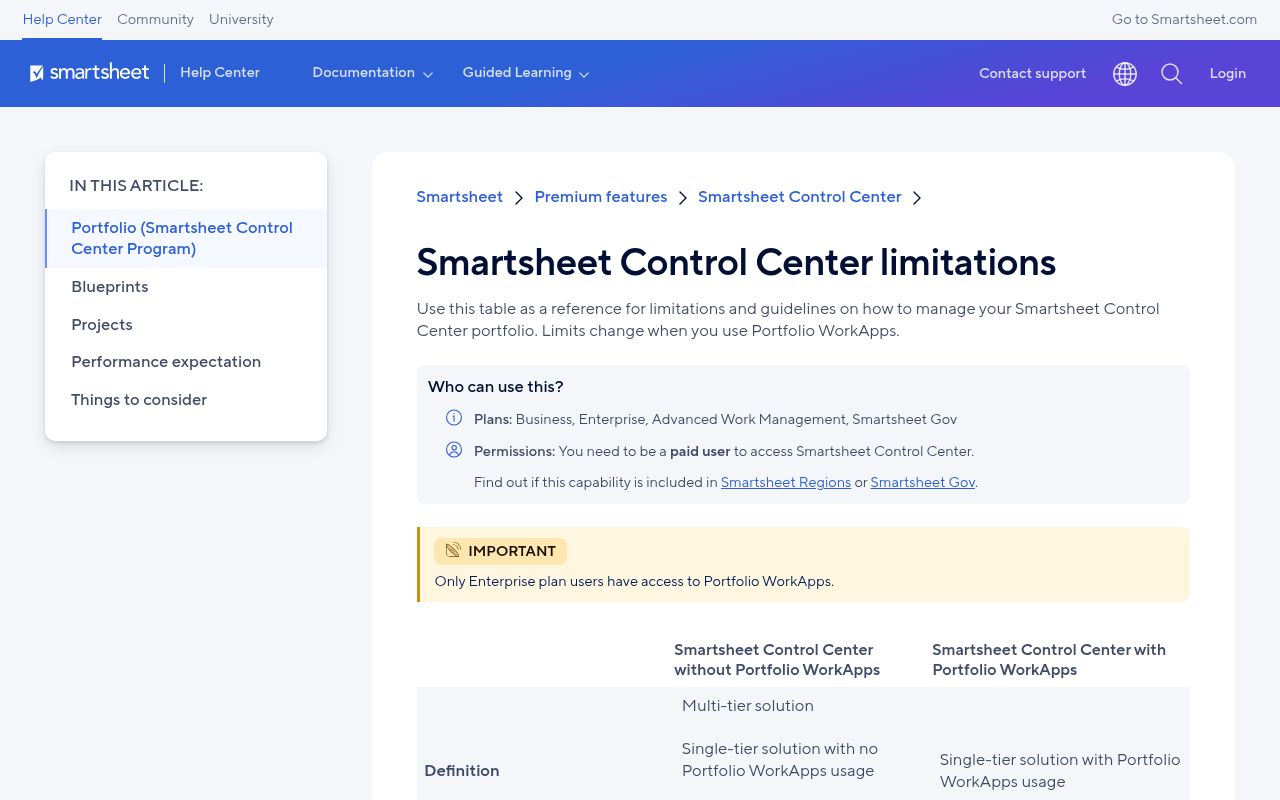
Who can use Control Center
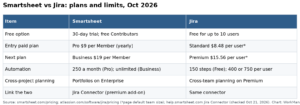
| Plan | Price (per member/month) | Control Center |
|---|---|---|
| Pro | $9 yearly, $12 monthly | Not available |
| Business | $19 yearly, $24 monthly | Paid add-on |
| Enterprise | Custom | Paid add-on |
| Advanced Work Management | Custom | Included |
Three rules catch people out:
- Only paid users can open Control Center. A free Contributor cannot build or launch projects.
- Portfolio WorkApps (the newer single-tier setup) are Enterprise only.
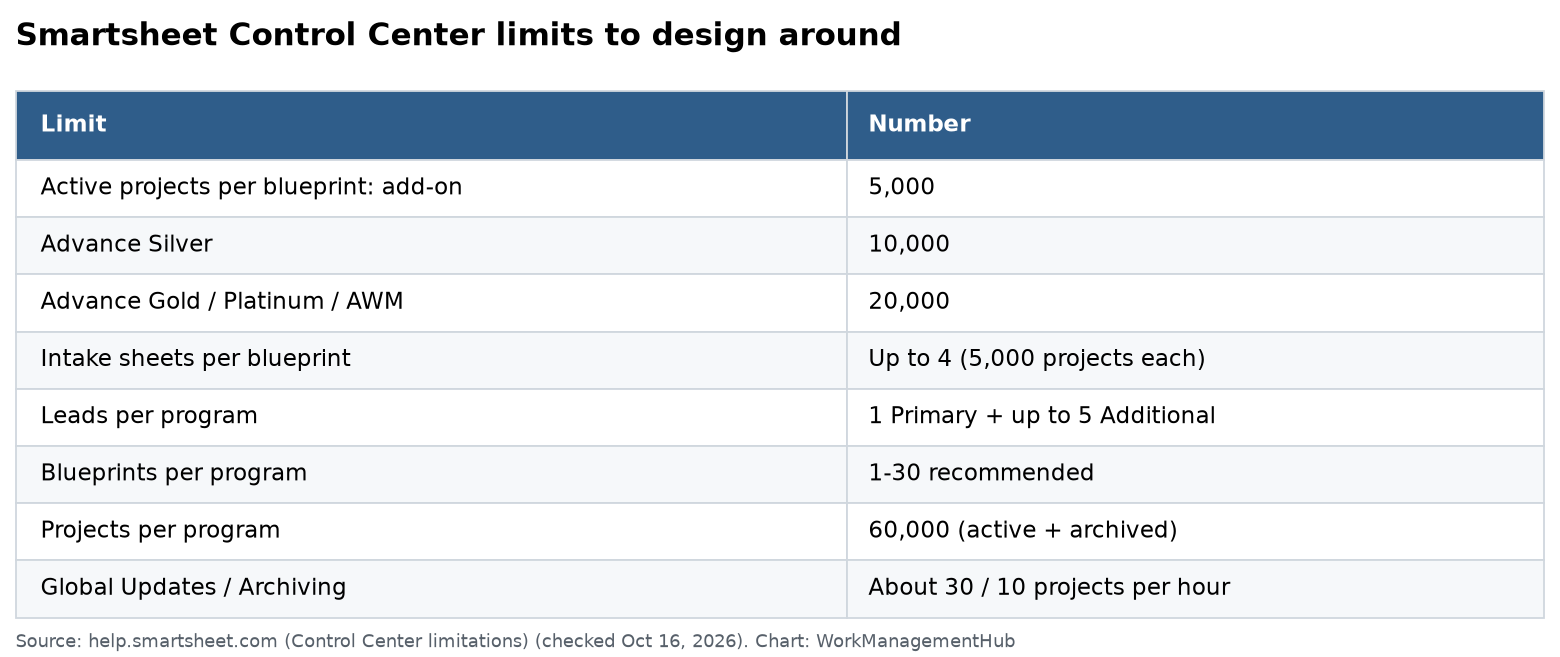
- The active projects cap depends on what you bought. The Control Center add-on allows up to 5,000 active projects per blueprint. Advance Silver allows 10,000. Advance Gold, Platinum and Advanced Work Management allow 20,000.
“Active” means provisioned projects minus archived and deleted ones. So archiving old projects frees room.
For full plan costs, see our Smartsheet pricing guide.
How Control Center fits together
Before you click anything, learn four words:
- Program: the container for one type of work, like “Client Onboarding.”
- Blueprint: the recipe. It says which templates to copy, where to put them and who gets access.
- Blueprint source folder: a workspace or folder that holds your template sheets, reports and dashboards.
- Intake sheet: the sheet where project requests land. Its rows become projects.
The flow is simple. Someone submits a request. A manager approves the row. Control Center copies the templates, names them, fills in the project details and shares them.
Step 1: Build the blueprint source folder
- Create a workspace (Smartsheet suggests an Admin workspace) and limit access to Program Leads.
- Add the sheets, reports and dashboards every project needs. The folder must hold at least one template and can hold up to 90.
- In the main project sheet, type Summary in the first row of the Primary column. Add each project detail (budget, region, due date) as an indented row under it. This is the “profile data.”
Keep templates lean. Every extra sheet is copied into every project, forever. If only big projects need a governance sheet, make it optional instead of required.
Step 2: Set up the intake sheet
The intake sheet needs only one required column: Project Name. These optional columns make it work well:
| Column | Type | What it does |
|---|---|---|
| Approval | Checkbox or dropdown | Only approved rows can be created when you require approval |
| Project Created | Checkbox or dropdown | Hides rows already built, so you avoid duplicates |
| Project Link | Link | Adds a shortcut from the request row to the new project |
| Profile data columns | Match your Summary rows | Fills in project details automatically |
Profile data column names must match the Summary row names exactly. Use a Contact List column if you want that field to control sharing.
Add a Smartsheet form on top of the intake sheet so requesters never touch the grid. Then add an alert to tell approvers when a new request arrives.
You can add up to four intake sheets per blueprint, with up to 5,000 projects per sheet. Smartsheet says to use more than one only past about 1,000 projects. Never delete project rows from an intake sheet. You can’t get them back, and the cell links break.
Step 3: Create the program and blueprint
- Open Control Center and select the menu icon in the upper-left corner, then New Program.
- Open the program and select Manage Program, then + New Blueprint.
- Pick project storage. “New workspace for each project” is the safest choice when each project needs its own sharing.
- Pick the source folder and mark each template as required, Optional – Selected or Optional – Unselected. Reports can only be required.
- Map the intake settings to your Approval and Project Created columns.
- Choose profile data and lock the fields people should not change, like Budget.
- Set naming rules. You can add up to three profile elements to each item name.
- Set permissions. Make the Primary Lead the owner. Add groups for sharing, but the Primary Lead must own those groups.
Select Save. Your blueprint is ready.
Step 4: Turn on auto-provisioning
Manual creation works: select + Create project, pick the blueprint, confirm templates and select Create. But most teams want projects to build themselves.
- Go to Manage program, then the Automations tab.
- Select New Automation, choose the blueprint and select + Create.
- Now mark a row Approved on the intake sheet. The project builds on its own.
Know these rules before you rely on it:
- Auto-provisioning only works on blueprints with an intake sheet.
- You can’t edit a blueprint while automation is on. Toggle it off, edit, then toggle it back on.
- Speed is about 40 projects per hour at the 95th percentile. Approving 200 rows at once means a wait of several hours.
- Failed projects show under the Creation Failed filter. Re-provision or delete them.
Limits that shape your design
Smartsheet lists these limits for Control Center without Portfolio WorkApps:
- Leads: one Primary Lead and up to five Additional Leads per program.
- Blueprints: 1 to 30 per program is the recommended range.
- Intake summary fields: up to 20 values can flow back from the project to the intake sheet.
- Projects per program: 60,000 total, active and archived.
- Global Updates: about 30 projects per hour. Archiving: about 10 per hour.
The real trap is the blueprint summary sheet. It holds one row per project, so it hits the sheet caps (20,000 rows, 500,000 cells) as you grow. Keep profile data to the fields you will truly report on.
Changing templates after launch
Templates change. Here is the safe order Smartsheet recommends:
- Add the new template to the source folder as Optional – Selected.
- Use Global Updates to push new reports or dashboards to existing projects. For new sheets, add them to existing projects with Edit, then Add New Templates.
- Once every project has it, make the template required for new projects.
Never edit the hidden config sheet. Control Center reads it to remember your blueprint. Changing it by hand is the fastest way to break provisioning.
When Control Center is not worth it
Skip it if you run fewer than about 10 similar projects a year, or if every project is different. A good template plus a WorkApp is cheaper and easier. Control Center pays off when you repeat the same project type many times and need clean rollups. If that rollup is the goal, also look at Smartsheet Portfolios on Enterprise.
Common questions
Which Smartsheet plans include Control Center?
It is included with Advanced Work Management and sold as a paid add-on for Business and Enterprise. Pro can’t use it.
How many projects can one blueprint hold?
Up to 5,000 active projects with the add-on, 10,000 with Advance Silver, and 20,000 with Advance Gold, Platinum or Advanced Work Management.
Can projects build automatically when approved?
Yes. Add an automation on the blueprint under Manage program, then Automations. Approved rows on the intake sheet then provision on their own.
Why can’t I edit my blueprint?
Auto-provisioning is on. Turn the automation toggle off, make your edits, then turn it back on.
Can a free Contributor create projects?
No. You must be a paid Smartsheet user to access Control Center.
Checked against help.smartsheet.com (Control Center articles) and smartsheet.com/pricing on October 16, 2026. SSPM IT Solutions is a Smartsheet partner; this guide has no affiliate links.
Sponsored