Skip to content
-
Subscribe to our newsletter & never miss our best posts. Subscribe Now!
Work Management Hub Work Management Hub

Expert Reviews, Comparisons & Guides for Smartsheet, Monday.com, Asana, ClickUp & More

Work Management Hub Work Management Hub

Expert Reviews, Comparisons & Guides for Smartsheet, Monday.com, Asana, ClickUp & More

  • Airtable
  • Asana
  • ClickUp
  • Jira
  • Monday.com
  • Notion
  • Smartsheet
  • Wrike
  • About
  • Contact
  • Airtable
  • Asana
  • ClickUp
  • Jira
  • Monday.com
  • Notion
  • Smartsheet
  • Wrike
  • About
  • Contact
Close

Search

  • https://www.facebook.com/
  • https://twitter.com/
  • https://t.me/
  • https://www.instagram.com/
  • https://youtube.com/
AsanaHow-To Guides

How to Use Asana Status Updates and Progress Reporting in 2026: Keep Stakeholders Informed Without Micromanaging

By Shaik KB
May 29, 2026 18 Min Read
0
⚡ Key Takeaways

  • Asana status updates are available on Starter and above ($10.99/user/month billed annually); the AI draft feature on the Overview tab auto-generates a three-paragraph update from recent task completions, upcoming milestones, and overdue items — most teams never find it.
  • Five status states — On track, At risk, Off track, On hold, and Complete — can each embed real-time auto-generated charts, so a status email is never a static snapshot again.
  • A collaborative co-authoring feature added in 2025 lets multiple team members draft and edit a status update before it is published — critical for distributed teams where the PM does not own all the facts.
  • Portfolio-level status reporting — with PDF and PowerPoint export for executives — is gated behind the Advanced plan ($24.99/user/month); it also includes Fall 2025’s weekly AI risk assessments that surface timeline blockers automatically.
  • The biggest mistake most teams make is writing status updates manually on a weekly cadence when Asana’s AI can generate an accurate first draft in under ten seconds.
  • Status updates integrate directly with portfolio views and can be exported, making them the connective tissue between day-to-day execution and executive reporting.
Quick Answer:

To post an Asana status update, open your project’s Overview tab, click Add Status Update in the top-right corner, select a status (On track, At risk, Off track, On hold, or Complete), use the AI draft button to auto-generate a three-paragraph summary, embed live charts, then publish. Available on Starter and above; portfolio-level updates require the Advanced plan.

Table of Contents

  1. Why Asana Status Updates Are a Leadership Tool, Not an Admin Task
  2. Plan Requirements: Project vs. Portfolio Status Updates
  3. How to Post a Project-Level Status Update (Step-by-Step)
  4. Using the AI Draft Feature to Generate Status Updates Automatically
  5. Collaborative Co-Authoring: The 2025 Feature Most Teams Miss
  6. The Five Status States and Embedding Live Charts
  7. Portfolio-Level Status Updates: Executive Reporting on Advanced
  8. AI Risk Assessments: The Fall 2025 Feature That Changes Forecasting
  9. Building a Reporting Cadence That Stakeholders Actually Read
  10. Verdict
  11. Frequently Asked Questions

How to Use Asana Status Updates and Progress Reporting in 2026: Keep Stakeholders Informed Without Micromanaging

The single biggest trust problem between project teams and their stakeholders is not missed deadlines — it is silence. Executives and sponsors do not need to know every task that was completed on Tuesday. They need a reliable, predictable signal: is this project on track, and if not, what are we doing about it? That is exactly what Asana status updates are built to deliver, and in 2026 the feature has matured to the point where generating that signal takes less than a minute, not a half-hour of copy-pasting from task lists.

After three years of rolling out Asana at enterprise clients across professional services, construction, and marketing operations, I have watched the same failure mode play out repeatedly: teams set up beautifully structured projects, fill them with tasks, and then default back to a weekly status email written from memory because nobody found the Overview tab. This guide fixes that. You will walk away knowing exactly how to use Asana status updates — from the AI draft workflow that most articles do not mention, to the portfolio-level reporting that requires the Advanced plan, to the collaborative co-authoring feature that shipped in 2025 and quietly changed how distributed teams write project communications.

Why Asana Status Updates Are a Leadership Tool, Not an Admin Task

Status reporting has a reputation problem. In most teams it gets treated as overhead — something the PM writes on Friday afternoon to keep leadership happy, disconnected from the actual work. That framing is exactly backwards. A well-constructed status update, grounded in live task data, is one of the most effective tools available for managing stakeholder expectations, surfacing risks before they become crises, and giving the team credit for what they have actually accomplished.

The reason status updates fail in practice is not lack of effort — it is that they are written from memory, inconsistently, and published without context. A PM trying to recall whether the legal review task got completed this week, while simultaneously checking whether the vendor contract milestone is still on track, is going to produce a status update that is incomplete at best and misleading at worst. When Asana’s AI draft analyzes the actual project data — completed tasks, upcoming milestones, overdue items — and writes the first draft for you, the quality floor rises dramatically and the time cost collapses.

Done right, Asana status updates also reduce the volume of ad-hoc stakeholder questions. When executives know that every Monday morning brings a structured update with a clear status, live charts, and a narrative that distinguishes what was done from what is coming next, they stop sending “quick check-in” messages mid-week. That is not a small quality-of-life improvement — it is the difference between a team that can focus and one that is perpetually context-switching to answer one-off requests.

For a deeper look at how status updates connect to the broader reporting stack, the Asana dashboards setup guide covers the dashboard layer that sits alongside status updates in executive-facing workflows.

Plan Requirements: Project vs. Portfolio Status Updates

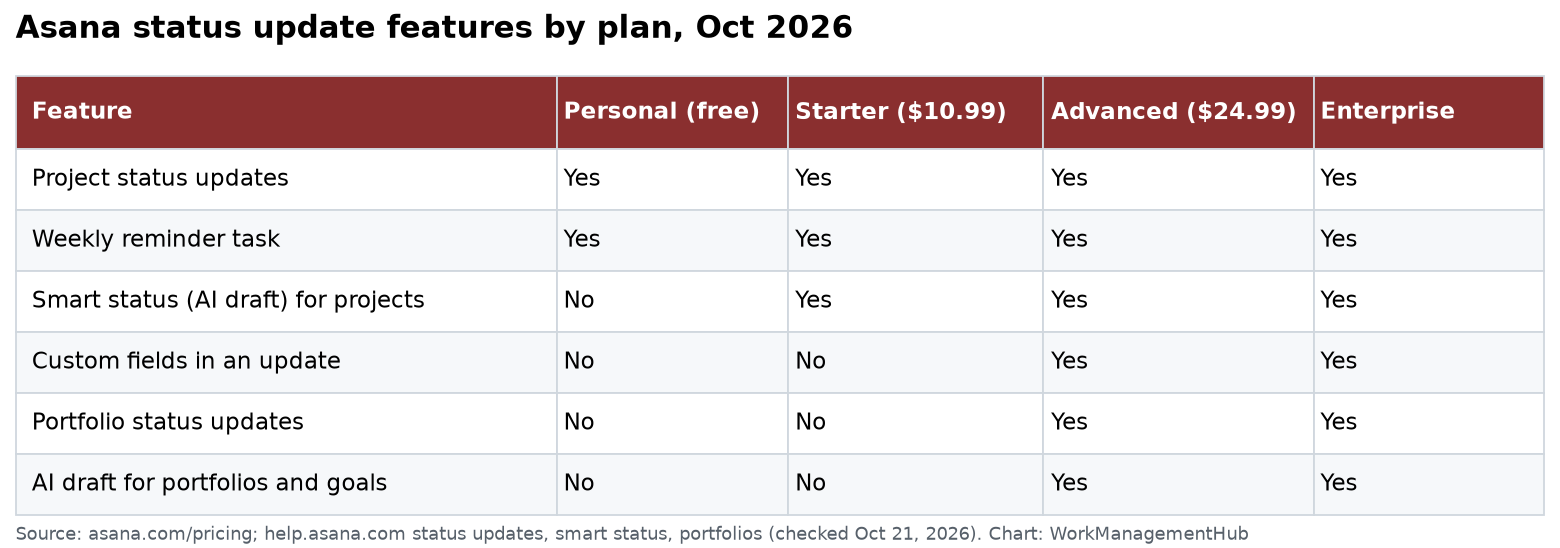
Before building your reporting workflow, you need to understand where Asana draws the plan gate — and it is not where most documentation implies. There are two distinct tiers of status reporting, and confusing them is the source of a lot of frustration at upgrade time.

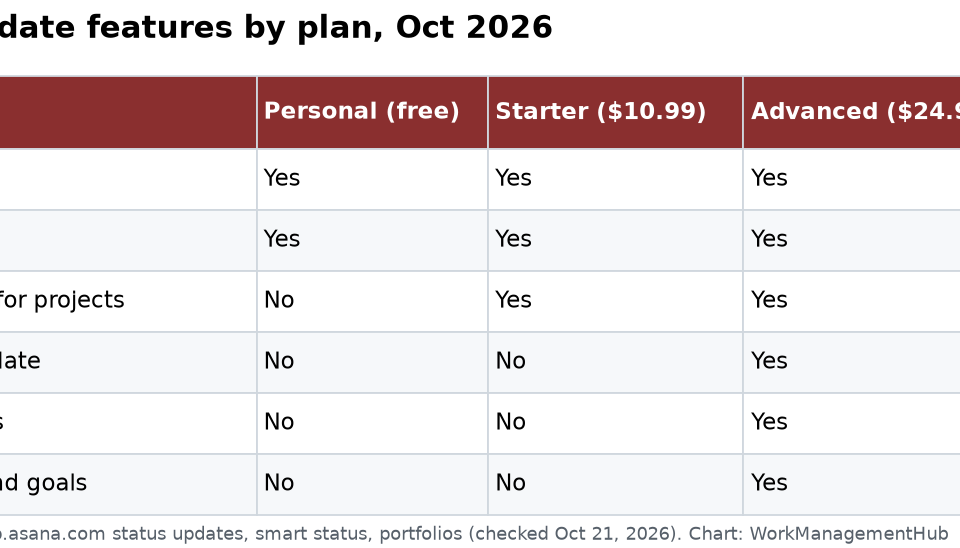
FeatureStarter ($10.99/user/mo)Advanced ($24.99/user/mo)
Project-level status updatesYesYes
AI draft generationYesYes
Collaborative co-authoringYesYes
Embedded live charts in updatesYesYes
Portfolio-level status aggregationNoYes
PDF and PowerPoint exportNoYes
Weekly AI risk assessmentsNoYes (Fall 2025)

The critical distinction: project-level status updates — the ones you post from a project’s Overview tab — are available on all paid plans including Starter. The AI draft, collaborative co-authoring, and live chart embedding all come with Starter access. What requires Advanced is the aggregation layer: rolling individual project statuses into a single portfolio view, exporting that to PDF or PowerPoint for board meetings, and accessing the AI risk assessment engine that surfaces cross-project blockers without you having to look for them.

If you manage multiple projects simultaneously or report to executives who need a single-pane view of a program, Advanced is not optional — it is the feature you are actually paying for. See Asana’s pricing page for current tier details.

How to Post a Project-Level Status Update (Step-by-Step)

Project-level Asana status updates live entirely within the Overview tab of any project. This is the most underused tab in the entire application. Most teams navigate to List or Board view every time they open a project and never spend time in Overview — which means their status history is either empty or sporadic. Establish a habit of opening Overview first on Mondays and the whole reporting workflow becomes natural.

  1. Navigate to your project’s Overview tab — In the left sidebar, click the project name, then select the Overview tab from the top navigation bar (between the List/Board/Timeline views and the Messages tab). If you do not see Overview, your plan may be Free — this feature requires Starter or above.
  2. Click “Add Status Update” — Look for the Add Status Update button in the top-right area of the Overview tab. If previous updates exist, you will see a status history below; the button remains in the top-right to add a new update regardless.
  3. Select a status state — A panel opens on the right side of the screen. At the top of the panel, select one of the five states: On track (green), At risk (yellow), Off track (red), On hold (grey), or Complete (blue). Choose based on your honest assessment of progress against the project timeline and scope — do not use “On track” as a default.
  4. Add a title for the update — The title field defaults to a date-stamped label (e.g., “Status Update — May 30, 2026”). You can leave this or customize it with context (e.g., “Week 12 — Engineering Sprint 3 Complete”).
  5. Write the update body or use AI draft — In the body field, either write manually or click the Draft with AI button (see the AI draft section below for the full workflow). The body supports rich text formatting, @mentions, and embedded charts.
  6. Add a live chart (optional but recommended) — Click the chart icon in the body toolbar. Select from available auto-generated charts — task completion, upcoming milestones, overdue item counts — and the chart will be embedded live and update in real time as the project data changes.
  7. Publish the update — Click Save to publish. All project members and followers will receive a notification. The update appears in the project’s Overview tab history and rolls up into portfolio views if you are on Advanced.

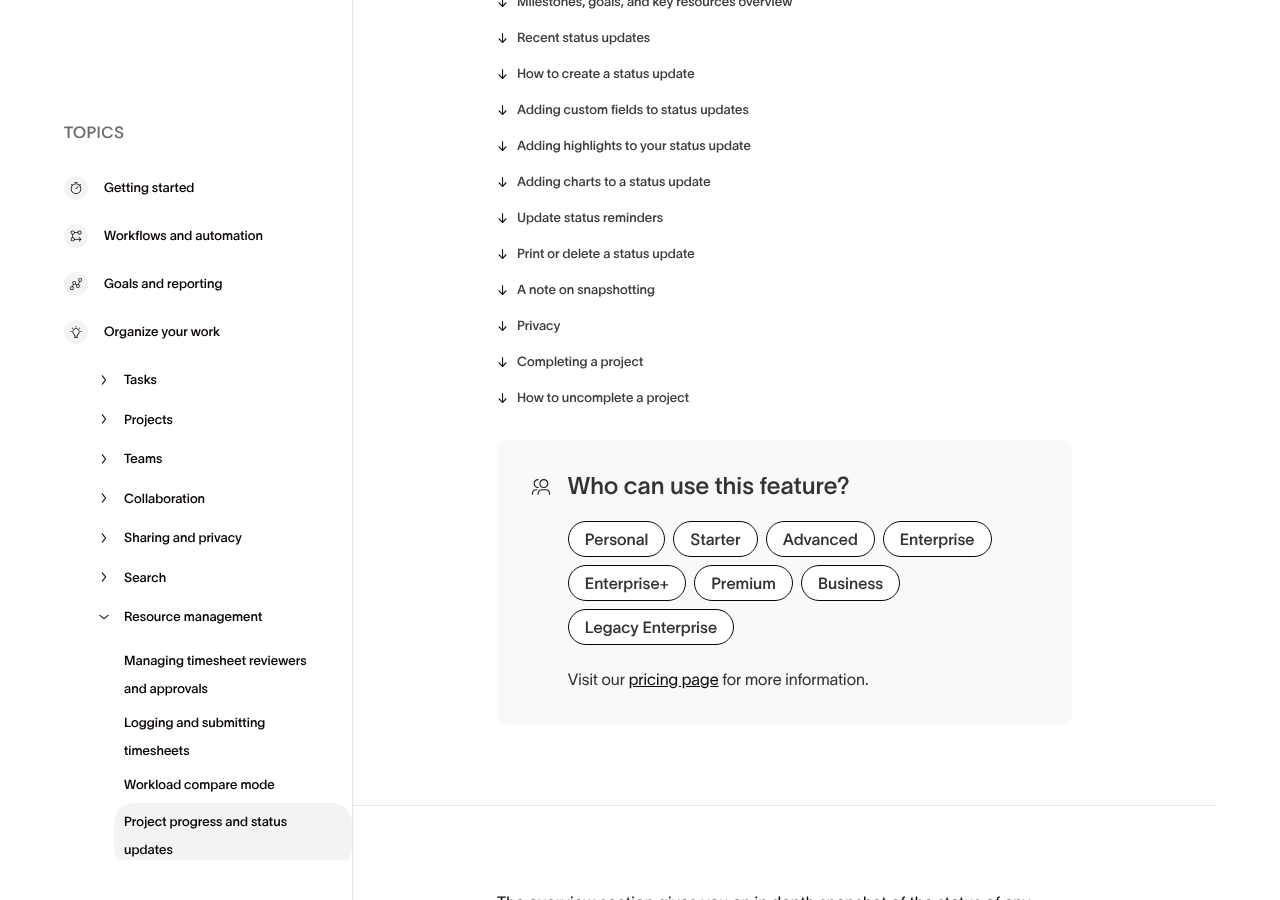
The full click path is: Project → Overview tab → Add Status Update (top-right) → Select state → Draft or write body → Add charts → Save. For the complete Asana status update documentation, see Asana’s official status updates guide.

Using the AI Draft Feature to Generate Status Updates Automatically

This is the feature that most competing guides miss entirely, and it is the one that has the highest immediate impact on how much time your team spends on status reporting. On Starter and above, the AI draft button analyzes the current state of the project and writes a structured three-paragraph update covering what was accomplished, what is coming next, and what needs attention. The entire process takes under ten seconds.

Understanding what the AI is actually analyzing changes how you use it. The draft engine looks at three data sets:

  • Recent task completions — Tasks marked complete in the past reporting period form the “what was accomplished” paragraph. The AI groups these by section or assignee to give the summary structure rather than listing every task individually.
  • Upcoming milestones — Tasks or milestones with due dates in the next reporting window form the “what is coming next” paragraph. This is why accurate due dates on milestone tasks are non-negotiable if you want AI drafts to be useful.
  • Overdue items — Tasks past their due date form the “what needs attention” paragraph. The AI flags these without editorializing, giving the PM a clean list to triage before publishing.
  1. Open the status update panel — Follow steps 1–4 from the previous section to open the update panel and select a status state.
  2. Click “Draft with AI” — The button appears below the title field, labeled Draft with AI. Clicking it triggers the analysis immediately — no configuration required.
  3. Review the generated draft — The AI populates the body with three structured paragraphs. Read each paragraph carefully. The AI will occasionally include tasks that are technically overdue but have been verbally extended, or miss context about why something is at risk. Your job is to edit, not to rewrite from scratch.
  4. Edit for context and tone — Add any stakeholder-relevant context the AI cannot infer from task data: external blockers, vendor delays, business decisions that changed scope. Remove any tasks from the “needs attention” paragraph that have already been resolved since the data pulled.
  5. Adjust the status state if needed — After seeing the AI’s summary, reassess whether the state you selected (On track, At risk, etc.) accurately reflects the narrative. It is common to realize after reading a draft summary that a project has quietly moved from On track to At risk.
  6. Publish — Click Save. The AI-drafted update is indistinguishable from a manually written one from the recipient’s perspective; it just took you ninety seconds instead of twenty minutes.

One practical note: AI draft quality is directly proportional to task hygiene. Projects with tasks that have no due dates, no assignees, and no section structure will produce generic, unhelpful drafts. Before introducing this workflow to a team, spend thirty minutes cleaning up the task structure — it pays back every single week in draft quality. This connects directly to how you configure your project data foundation; the Asana custom fields guide covers the structural setup that makes AI-generated content accurate.

Collaborative Co-Authoring: The 2025 Feature Most Teams Miss

The collaborative co-authoring feature added in 2025 addresses one of the most persistent practical problems with status reporting: the PM rarely has complete visibility into all workstreams. A project manager overseeing a product launch might have full context on the marketing timeline but limited insight into the engineering integration status. Historically, the workaround was a pre-update Slack thread to gather inputs, then manually assembling them into a single update — a process that was slow, inconsistent, and prone to information loss.

Co-authoring changes the model. Multiple collaborators can now work on the same status update draft simultaneously before it is published, with each contributor editing their section of the update in real time. The PM controls when the update goes live — nobody else can publish it — but the content gathering is distributed.

  1. Start a new status update draft — Navigate to Project → Overview tab → Add Status Update. Begin a draft as normal, either writing manually or using AI draft as a starting point.
  2. Invite co-authors — In the update panel, look for the Invite collaborators or Add co-author option (displayed as an avatar/people icon in the draft panel header). Type the name or email of team members you want to contribute. They must be project members or have project access.
  3. Collaborators receive a notification — Invited co-authors get an in-app notification and email prompting them to contribute to the draft. They can add content, edit existing sections, and leave inline comments within the draft.
  4. Review all contributions — As the PM and primary owner of the update, review all co-author edits before publishing. The draft panel shows who contributed which content and when.
  5. Publish when ready — Only the update owner (the person who initiated the draft) can click Save to publish. Co-authors cannot publish — ensuring quality control stays with the responsible PM.

In practice, the best use of co-authoring is a standing Monday morning routine: the PM creates a draft via AI, tags the two or three workstream leads who need to add context to the “needs attention” section, and publishes by end of day. The update reflects the whole team’s knowledge, not just one person’s visibility. This is especially valuable for cross-functional projects where the PM coordinates across engineering, design, and legal simultaneously.

The Five Status States and Embedding Live Charts

The five status states are not arbitrary color coding. Each one carries specific implications for how stakeholders should respond, and using them inconsistently trains your audience to ignore them. Here is how to think about each state in practice:

StateColor SignalWhen to Use It
On trackGreenTimeline, scope, and budget are all within expected parameters. No known blockers.
At riskYellowA known issue or dependency could affect the timeline if not resolved. Use proactively — not just when things have already slipped.
Off trackRedThe project has missed a milestone, the timeline has slipped, or scope changes are unresolved. Requires a mitigation plan in the update body.
On holdGreyWork has been formally paused — budget freeze, pending decision, or resource reallocation. Not the same as “nobody got to it this week.”
CompleteBlueThe project has met its defined objectives and been formally closed. Post a final status update with a retrospective summary.

The most common misuse I see in enterprise deployments is treating “At risk” as a near-crisis state reserved for when things have clearly gone wrong. That is a misuse — “At risk” is an early warning system. If you are waiting until a milestone is missed to move from green to yellow, you have eliminated the state’s entire value. Use “At risk” the moment you see a dependency that could slip, and stakeholders will learn to treat yellow as a genuine signal that attention is needed, not a harbinger of failure.

On embedding charts: each status update supports auto-generated charts pulled directly from the project’s task data. Navigate to the chart icon in the update body toolbar and select from available chart types — task completion progress, milestone timeline, overdue task counts, and workload distribution. These charts are not static images — they remain live after publishing, meaning stakeholders who revisit an older update will see updated numbers if task data has changed. Pair this with the broader Asana dashboards setup guide to understand how these embedded charts relate to the full reporting stack.

Portfolio-Level Status Updates: Executive Reporting on Advanced

Project-level status updates answer the question: how is this project doing? Portfolio-level status updates answer the question executives actually ask: how are all our projects doing, and which ones need my attention? These are different questions that require a different layer of the product, and that layer sits behind the Advanced plan gate.

At the portfolio level, Asana aggregates the current status state from each child project into a single executive view. A VP overseeing eight product launches does not need to open eight Overview tabs — the portfolio view shows all eight status states, the most recent update summary, key milestones, owners, and progress bars in one screen. The individual project updates you have been posting all week become the data source for this view automatically.

  1. Create or open a Portfolio — Portfolios live in the left sidebar under “My Portfolios” or within a workspace. Navigate to Portfolio → Overview tab to see the aggregated status view. If you do not have a portfolio set up, click the + icon next to “My Portfolios” in the sidebar, name it, and add projects.
  2. Review the aggregated status panel — The portfolio Overview tab shows each project as a row, with the current status state (color-coded), the date of the last update, key metrics columns, and the assigned project owner. Any project where status is “Off track” or “At risk” is visually prominent — leadership can identify which projects need attention without reading every individual update.
  3. Post a portfolio-level status update — The same Add Status Update button appears on the portfolio Overview tab. A portfolio update summarizes the health of the entire program, not just one project. Use the five status states to reflect the aggregate program health — if two of eight projects are Off track, the portfolio status should at minimum be “At risk.”
  4. Export to PDF or PowerPoint — In the portfolio view, click the Export button (top-right, three-dot menu, or direct export button depending on your interface version). Select PDF or PowerPoint. The exported report includes the portfolio status, individual project health indicators, milestone timelines, and the most recent status narrative. This is the report you bring to a board meeting or send to a C-suite sponsor.
  5. Set portfolio update frequency — For programs with quarterly reporting cycles, establish a Monday morning portfolio status update as a non-negotiable. For active programs, weekly is appropriate. The portfolio view retains historical updates the same way project-level updates do, giving a complete audit trail of program health over time.

The portfolio view connects directly with Asana’s goals layer. If your projects are linked to organizational goals, the portfolio view surfaces goal progress alongside project status — making it possible to answer the question “are we on track to hit Q3 OKRs?” at the same time as “are our projects on schedule?” The Asana Goals and OKR tracking guide covers that connection in depth.

AI Risk Assessments: The Fall 2025 Feature That Changes Forecasting

Introduced in Fall 2025 as part of Asana’s AI Intelligence layer on the Advanced plan, weekly AI risk assessments do something qualitatively different from the project-level AI draft: they surface potential timeline blockers across your entire portfolio automatically, without you having to open a single project and look for problems.

The mechanism is straightforward but the impact is significant. Each week, Asana’s AI analyzes task completion velocity, milestone proximity, dependency chains, and historical patterns to generate a risk assessment for each project in the portfolio. If a project has three milestones due in the next two weeks and task completion velocity over the past seven days suggests only one of them is achievable, the AI flags this as a risk — even if the project’s current status is still “On track.”

This closes the single most dangerous gap in traditional status reporting: the lag between when a risk becomes detectable in the data and when a PM notices and escalates it. In manual reporting workflows, that lag is typically one full reporting cycle — a week. In programs where a week of unresolved blockers can collapse a launch date, that lag is unacceptable. Weekly AI risk assessments eliminate it.

To access AI risk assessments: navigate to your portfolio on the Advanced plan, open the Overview tab or the dedicated AI Insights section (visible on Advanced plans). The weekly risk report appears as a structured list of flagged projects with specific risk descriptions — not generic warnings but data-grounded observations like “Task ‘Legal sign-off’ is 5 days overdue with 3 dependent tasks blocked.” Act on these before writing your status update and your updates will be proactively accurate rather than reactively corrective.

For teams managing resource-constrained programs, AI risk assessments pair naturally with the workload view. If a risk is flagged due to completion velocity, the root cause is often a capacity issue on a specific team member. The Asana workload management guide covers how to identify and resolve those capacity issues before they become timeline failures.

Building a Reporting Cadence That Stakeholders Actually Read

The best status reporting system is the one that gets read consistently. Technical setup is table stakes — the harder problem is establishing a cadence and format that stakeholders trust and rely on. After deploying this workflow at enterprise clients, these are the practices that separate the status updates that get read from the ones that get archived unread.

Consistency beats comprehensiveness. A brief, accurate update every Monday is worth ten times more than a detailed, perfect update that appears sporadically. Pick a day and stick to it. Use Asana’s recurring reminder or calendar block to make the update non-negotiable.

Always include a next action in “needs attention” items. AI drafts generate the list of overdue and at-risk items, but they do not assign ownership or propose mitigation. For every item in the “needs attention” section, add one sentence: who is resolving it and by when. An unresolved risk listed without an owner is noise; a risk with a named owner and a resolution date is actionable intelligence.

Use status states to earn credibility, not to manage perception. The instinct to keep projects green to avoid uncomfortable conversations is understandable and also corrosive to trust. When a project moves from yellow to red, stakeholders should not be surprised — they should have seen it coming through the “At risk” updates that preceded it. Using status states honestly and early builds the credibility that makes your reporting worth reading.

Link your update to the project’s intake and goals context. The best status updates briefly reference why this project exists — the business goal it serves — so stakeholders can evaluate progress against purpose, not just against a task list. If you used Asana forms for project intake, the original request brief is already in Asana; reference it in your update narrative to keep the business context front and center.

Archive and reference historical updates. Asana stores every status update in the project Overview’s history, with date stamps and author attribution. When a project comes up in a quarterly review, you can scroll through the status history to show exactly when a risk was identified, when it was escalated, and how it was resolved. That audit trail has saved numerous client relationships in post-project reviews.

🏆 Verdict

Asana status updates are genuinely among the most underutilized features in the platform, and the gap between what most teams do (manual weekly emails) and what is now available (AI-drafted, co-authored, chart-embedded, portfolio-aggregated reporting) is substantial. For teams on Starter, the AI draft workflow alone justifies the plan cost — it turns a twenty-minute task into a ninety-second one, every single week. For teams managing multiple projects and reporting to senior leadership, the Advanced plan’s portfolio reporting and AI risk assessments are not nice-to-haves; they are the operational infrastructure that allows program managers to stay ahead of problems rather than react to them. Stop writing status updates from memory. Open the Overview tab, click Draft with AI, edit for context, and publish. Your stakeholders will notice the consistency within two weeks.

Frequently Asked Questions

Can I use Asana status updates on the Free plan?

No. Project-level Asana status updates require a paid plan — Starter ($10.99/user/month billed annually) or above. The Free plan does not include the Overview tab’s status update functionality. Portfolio-level status aggregation, PDF/PowerPoint export, and the Fall 2025 AI risk assessment engine all require the Advanced plan at $24.99/user/month billed annually.

How does the AI draft feature know what to include in the status update?

The AI draft engine analyzes three data sources within the project: tasks completed since the last status update (for the “what was accomplished” paragraph), tasks and milestones with upcoming due dates (for the “what is coming next” paragraph), and tasks that are past their due date (for the “needs attention” paragraph). The quality of the draft is directly tied to the quality of your task data — tasks with accurate due dates, clear assignees, and logical section structure produce significantly better AI drafts than projects with missing metadata.

What is the difference between a project status update and a portfolio status update?

A project status update is posted from within a single project’s Overview tab and reflects the health of that one project. A portfolio status update is posted from a portfolio’s Overview tab and reflects the aggregate health of the entire program or collection of projects. Project status updates feed into the portfolio view automatically — portfolio-level reporting on Advanced aggregates the individual project statuses into a single executive dashboard that can be exported to PDF or PowerPoint. You can think of project updates as the input data and the portfolio view as the output report.

Can multiple people write a status update together in Asana?

Yes — this is the collaborative co-authoring feature added in 2025. The person who initiates a status update draft can invite team members to contribute to the draft before it is published. Co-authors can write sections, edit existing content, and leave inline comments within the draft. Only the original owner (the person who started the draft) can publish the final update, preserving a single editorial gate while distributing the content gathering. This feature is available on Starter and above.

How often should I post Asana status updates?

For active projects with weekly stakeholder check-ins, post every Monday morning before the first standup or review meeting. For programs in a steady maintenance phase, bi-weekly is sufficient. The AI draft feature makes weekly updates low-effort enough that there is little reason to post less frequently on active work. Consistency matters more than frequency — a team that posts every Monday without fail builds far more stakeholder trust than one that posts detailed updates irregularly. Use Asana’s notification or a calendar reminder to lock in the habit.

Author

Shaik KB

Follow Me
Other Articles
Previous

Jira Notifications Not Working? 7 Fixes for Missing Emails & Alert Issues in 2026

Next

How to Set Up Smartsheet Control Center in 2026: Automate Project Provisioning for Enterprise Teams

No Comment! Be the first one.

    Leave a Reply Cancel reply

    Your email address will not be published. Required fields are marked *

    Sponsored Smartsheet Expert Services – Implementation, Automation, Training
    Sponsored Power BI & Tableau Analytics – Dashboards, Reporting, Insights
    Sponsored AI Agents for Work Management – Automate Tasks, Integrate Tools

    Categories

    • Airtable (14)
    • Alternatives (12)
    • Asana (34)
    • ClickUp (40)
    • How-To Guides (141)
    • Integrations (16)
    • Jira (29)
    • Monday.com (39)
    • Notion (26)
    • Pricing Guides (11)
    • Project Management (75)
    • Smartsheet (29)
    • Tool Comparisons (46)
    • Wrike (12)

    Recent Post

    • ClickUp Time Tracking Not Working? 8 Fixes for the Most Common Issues in 2026
    • Notion Linked Databases 2026: The Complete Guide to Relations, Rollups and Cross-Database Connections
    • Linear vs Shortcut 2026: Which Issue Tracker Is Better for Software Teams?
    • How to Set Up Smartsheet Control Center in 2026: Automate Project Provisioning for Enterprise Teams
    • How to Use Asana Status Updates and Progress Reporting in 2026: Keep Stakeholders Informed Without Micromanaging
    Work Management Hub

    Independent expert reviews & comparisons of work management tools — helping 50,000+ teams choose the right software.

    Tools We Cover

    • Smartsheet
    • Monday.com
    • ClickUp
    • Asana
    • Notion
    • Jira
    • Wrike
    • Airtable

    Company

    • About Us
    • Contact Us
    • Privacy Policy
    Copyright 2026 — Work Management Hub. All rights reserved. Blogsy WordPress Theme