How to Set Up Asana AI Teammates in 2026: Step-by-Step, Access Rules and Real Costs

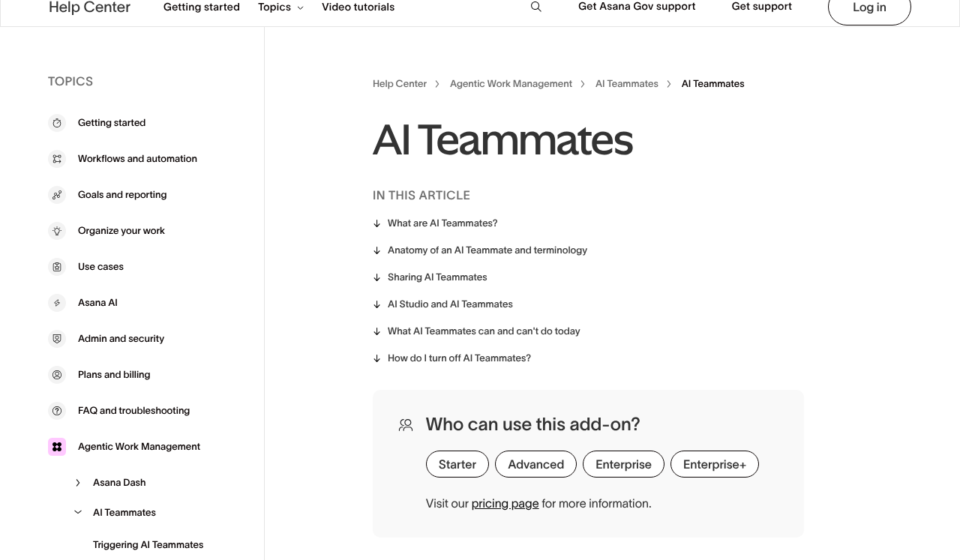
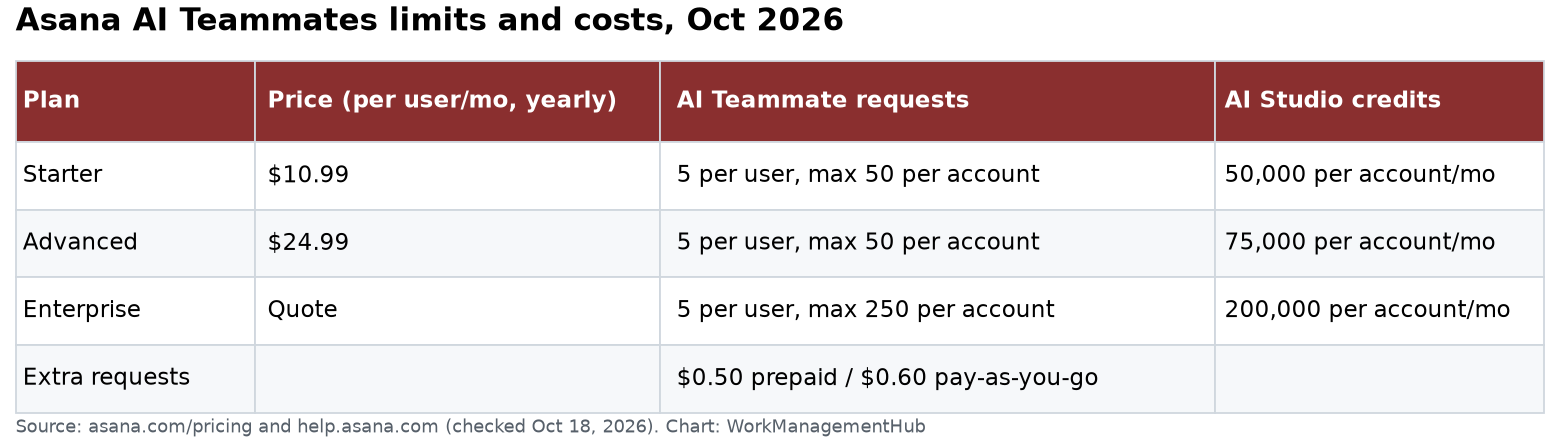
Asana AI Teammates are AI agents you assign tasks to, like a coworker. They work on Starter, Advanced, Enterprise and Enterprise+. Each plan includes only a small number of AI requests: 5 per user a month, capped at 50 per account on Starter and Advanced, and 250 on Enterprise. Extra requests cost $0.50 each prepaid, or $0.60 each pay-as-you-go. You create a Teammate from the + Create button or the AI Teammates gallery, give it access to only the projects it needs, and trigger it by assigning a task or @mentioning it.
I checked every step on October 18, 2026, against Asana’s help center: AI Teammates, How to create or discover an AI Teammate, Triggering AI Teammates and AI Teammate access control. Prices come from asana.com/pricing.
Step 0: Check your plan and budget
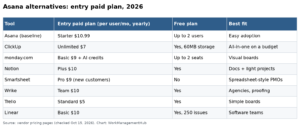
| Plan | Price (per user a month, yearly) | AI Teammate and Dash requests included | AI Studio credits |
|---|---|---|---|
| Personal | $0 | None | None |
| Starter | $10.99 | 5 per user, up to 50 per account | 50,000 per account a month |
| Advanced | $24.99 | 5 per user, up to 50 per account | 75,000 per account a month |
| Enterprise | Quote | 5 per user, up to 250 per account | 200,000 per account a month |
Read the cap carefully. A 40-person team on Advanced does not get 200 requests. It gets 50, because of the account cap. One busy Teammate that writes weekly reports for five projects can use that in a couple of weeks.
Extra requests: prepaid packs cost $0.50 per request and last for your whole contract, with no monthly reset. Pay-as-you-go costs $0.60 per request, billed monthly, and you can set a spend cap. Asana also sells an AI Teammates add-on license through sales. AI Studio credits are a separate pool for AI steps inside rules. Our Asana AI Studio guide covers those.
My advice: start with one Teammate on one project for two weeks. Watch usage in Admin console > Billing > AI Teammates. Admins can see requests used vs available, who created Teammates and how many members use them. Then decide if you need a request pack.
Step 1: Open the gallery
Use either path:
- Click + Create and pick AI Teammate, the same way you would create a task.
- Go to Agents in the sidebar, pick AI Teammates, then Create AI Teammate.
The gallery shows templates by category, Teammates already used in your company, and an Analyze project option. Analyze project reads a project’s tasks, comments, fields and rules, then suggests a Teammate that fits.
Step 2: Pick a starting point
You have three choices:
- Template. Asana lists 30+ ready-made Teammates. Examples from the help center: Work Intake Specialist, Project Manager, Insights Analyst, Content Writer, Capacity Planner, Executive Reporter and Campaign Coordinator. Templates come with a name, description and behavior guidance filled in.
- Custom, guided. Describe the work in plain words in the box, and Asana walks you through setup.
- Custom, manual. Click Create from scratch (shown as + Blank AI Teammate in some accounts) and fill in each field yourself.
For a first Teammate, start with a template that is close, then trim it.
Step 3: Fill in the five parts
- Name. Use a job title, like “Intake Coordinator.”
- Description. This is for people, not the AI. Asana notes the Teammate doesn’t read its own description. Say when to use it and when not to.
- Behavior guidance. This is what the AI follows. Write how it should talk, think and deliver. For example: “Reply in short bullet points. Flag any guess you make. Never change due dates. Ask before assigning work to a person.”
- Access. Pick the exact projects and teams it can see. You can add public URLs and files from Google Drive or OneDrive/SharePoint. Connect whole Drive or SharePoint accounts later, from the Teammate’s profile page.
- Sharing. Choose who can use it: AI Teammate admin (full control), Editor (can change and apply it) or User (can only apply it). Only invited people can use it.
Memory builds on its own as the Teammate works. You can’t add memories by hand, but you can review and delete them. A person can only see a memory if they can see the task it came from.
Step 4: Get access right
This is the step people rush, and it matters most.
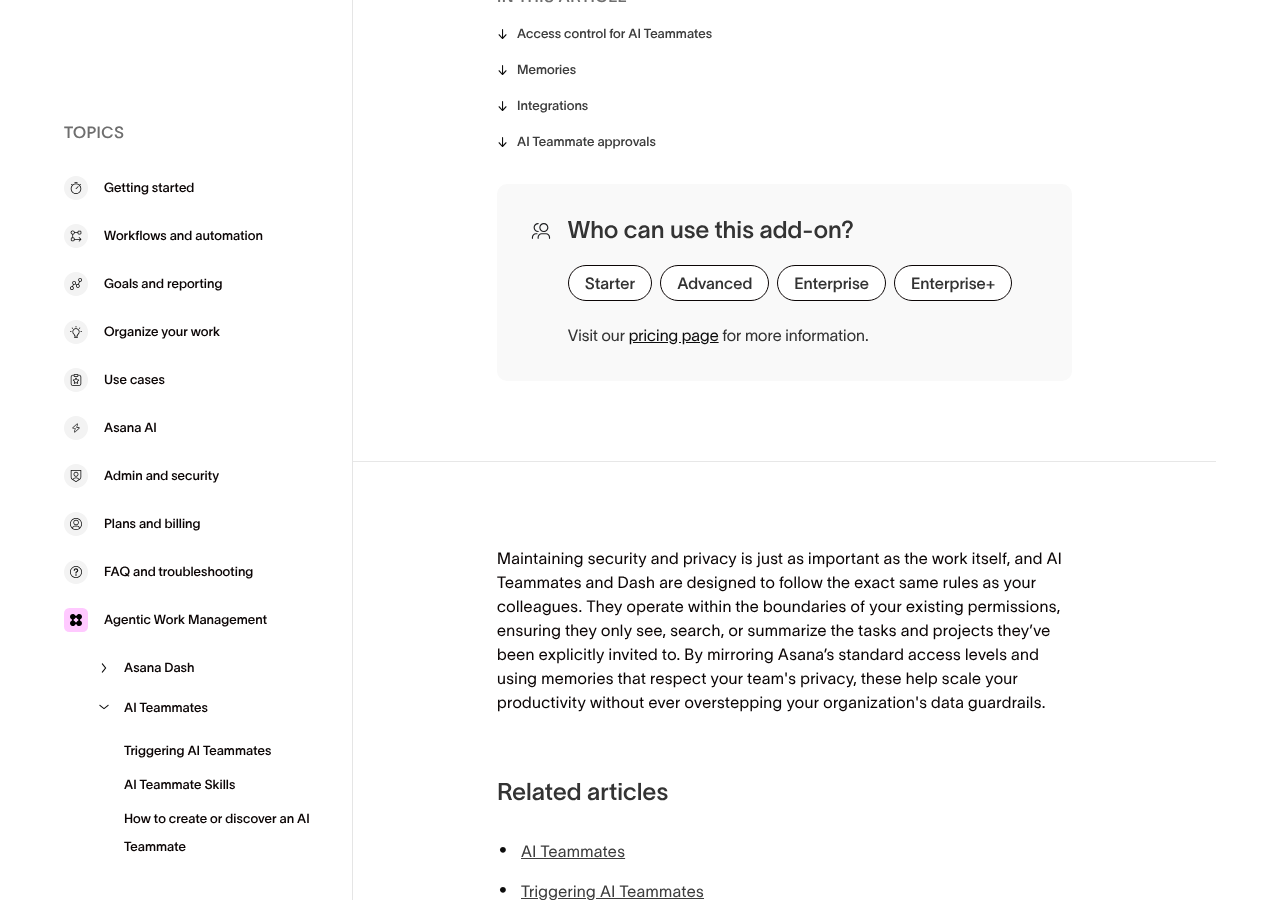
- A new Teammate can see public tasks and projects, like a new user. To see private work, you must add it as a member or collaborator.
- It follows Asana’s normal levels: Editor (create, edit, complete, comment), Commenter (comment only) or Viewer (read only).
- It can’t raise its own access.
- It answers only with information that both it and the person asking can see. It won’t leak a private project to someone outside it.
- Some actions always need a human’s approval, like removing collaborators or project members. Others need approval only when they would give someone new access, like assigning a task to a person who can’t see it yet.
Two traps with automatic triggers. When a rule triggers a Teammate, it runs with the rule owner’s access unless you change that. When a form triggers it, it uses the form creator’s access by default, or the submitter’s for logged-in forms. Build rules from an account with no more access than the Teammate needs.
Step 5: Choose how it gets triggered
By hand: – Assign it a task. It reads the title, description and context, then gets to work. – @mention it in a comment. You can do this mid-task to steer it. – Comment on a task it collaborates on, if the comment is aimed at it.
Automatically: – Rules. For example, when a task lands in the “New requests” section, assign it to the Teammate for triage. Our Asana rules guide shows how. – Forms. Make the Teammate the default assignee on a form. See our Asana forms guide. – Recurring tasks. Assign a weekly “status report” task. It runs each time. – Self-scheduled follow-ups. Ask it to “check back Friday at 9 a.m.”
Click View activity to watch what it is doing. You can interrupt it in the task thread at any time.
Cost tip: every trigger can use a request. A rule that fires on every new task in a busy project can drain 50 requests in days. Start with manual triggers, then add one rule.
Step 6: Add skills
A skill is a reusable package of instructions for one job, like “Brief Writing.” Open the Teammate, go to the Skills tab, click + Add skills, and pick from the Skills Library. Editors and admins can also write custom skills. Reuse the same skill across Teammates so work comes out the same way each time.
Step 7: Test before you roll out
- Make a private test project with 5 to 10 sample tasks. Use fake data.
- Give the Teammate access to that project only.
- Assign three tasks: one easy, one vague, one it should refuse.
- Check its replies, the subtasks it creates and any fields it changes.
- Tighten the behavior guidance and run the same three tasks again.
- Only then add it to a real project, and tell the team what it does.
Honest pros and cons
Pros – Works inside tasks, comments, rules and forms you already use – Follows Asana permissions and can’t raise its own access – 30+ templates for a quick start
Cons – Only 50 included requests per account on Starter and Advanced – Rule-triggered runs use the rule owner’s access unless changed – The add-on license needs a sales call
Skip it for now if your team is under about 10 people and has no repeat work like intake, reports or status updates. A few good rules may do the job for free. Compare options in our Asana vs monday vs ClickUp AI guide.
Common questions
Which Asana plans include AI Teammates?
Starter, Advanced, Enterprise and Enterprise+. The free Personal plan does not include them.
How many AI Teammate requests does Asana include?
Starter and Advanced include 5 requests per user a month, up to 50 per account. Enterprise allows up to 250 per account. Extra requests cost $0.50 prepaid or $0.60 pay-as-you-go.
Can an AI Teammate see private projects?
Only if you add it as a member or collaborator. It also answers only with information that both it and the person asking can see.
How do I trigger an AI Teammate automatically?
Use a rule that assigns tasks to it, make it the default assignee on a form, or assign it a recurring task. Rule runs use the rule owner’s access unless you change that.
Are AI Teammate requests the same as AI Studio credits?
No. AI Teammates and Asana Dash use AI requests. AI Studio, the AI inside rules, uses a separate pool of credits per billing account.
Plans, limits and steps checked on asana.com/pricing and help.asana.com on October 18, 2026.
Sponsored