Skip to content
-
Subscribe to our newsletter & never miss our best posts. Subscribe Now!
Work Management Hub Work Management Hub

Expert Reviews, Comparisons & Guides for Smartsheet, Monday.com, Asana, ClickUp & More

Work Management Hub Work Management Hub

Expert Reviews, Comparisons & Guides for Smartsheet, Monday.com, Asana, ClickUp & More

  • Airtable
  • Asana
  • ClickUp
  • Jira
  • Monday.com
  • Notion
  • Smartsheet
  • Wrike
  • About
  • Contact
  • Airtable
  • Asana
  • ClickUp
  • Jira
  • Monday.com
  • Notion
  • Smartsheet
  • Wrike
  • About
  • Contact
Close

Search

  • https://www.facebook.com/
  • https://twitter.com/
  • https://t.me/
  • https://www.instagram.com/
  • https://youtube.com/
How-To GuidesProject Management

Linear Releases Feature Deep Dive: Track Every Deployment in 2026

By Shaik KB
May 20, 2026 14 Min Read
0
⚡ Key Takeaways

  • Linear Releases (launched April 2026) automatically groups issues into releases and updates their status when code ships, eliminating manual changelog work from your team’s process.
  • Two pipeline modes exist: Continuous (auto-creates a completed release on every main-branch push) and Scheduled (supports named stages, target dates, and stage freezing for structured release cycles).
  • Integration requires either the official Linear GitHub Action or the Linear CLI — both authenticate via a workspace API token and work with any CI/CD platform.
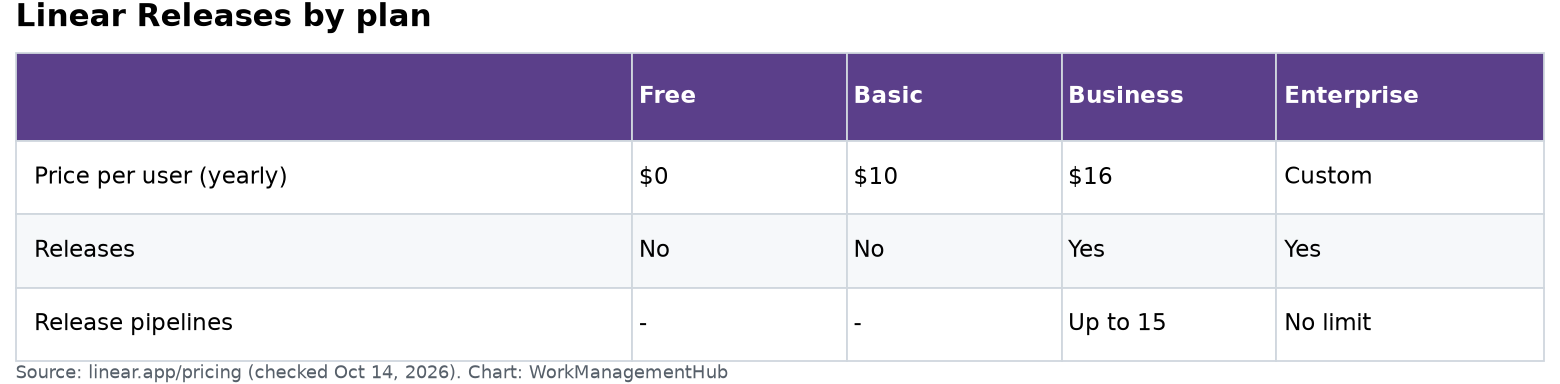
  • Releases is gated to Business and Enterprise plans. Business supports up to 15 pipelines per workspace; Enterprise has no pipeline cap.
  • Teams shipping weekly or more frequently should default to Continuous mode. Teams with formal QA stages, freeze windows, or compliance requirements should use Scheduled mode.
Quick Answer:

Linear Releases CI/CD deployment tracking connects your pipeline to Linear via a GitHub Action or CLI, automatically creating releases and updating issue statuses when commits reach production. Set up takes under 15 minutes: create a pipeline in Linear settings, add the action to your workflow YAML, and every merge to main becomes a tracked release.

Table of Contents

  1. What Is Linear Releases and Why It Changes Deployment Tracking
  2. Continuous vs. Scheduled Pipelines: Which Mode Is Right for Your Team
  3. Linear Releases CI/CD Deployment Tracking: GitHub Action Setup (Step-by-Step)
  4. Setting Up the Linear CLI for Non-GitHub Pipelines
  5. Configuring Scheduled Pipeline Stages, Dates, and Freeze Windows
  6. Real-World Team Workflow Examples
  7. Plan Limits, Pipeline Counts, and When to Upgrade
  8. Linear Releases CI/CD Deployment Tracking: Common Issues and Fixes
  9. Verdict
  10. Frequently Asked Questions

Linear Releases Feature Deep Dive: Track Every Deployment with Linear Releases CI/CD Deployment Tracking in 2026

Every engineering team eventually hits the same wall: someone asks “what shipped in last Tuesday’s deploy?” and the honest answer is a Slack search, three git log commands, and a prayer. Linear Releases CI/CD deployment tracking, launched in April 2026, is the company’s direct answer to that problem — and it goes further than any changelog integration I’ve seen baked into a project management tool.

This guide covers everything that Linear’s own changelog entry does not: how to choose between Continuous and Scheduled pipeline modes, the exact YAML configuration for the GitHub Action, how to use stage freezing in regulated environments, and concrete workflow patterns for teams of 5 to 150 engineers. If you want Linear Releases CI/CD deployment tracking running end-to-end before your next standup, you’re in the right place.

What Is Linear Releases and Why It Changes Deployment Tracking

Before Releases, Linear’s relationship with deployments was indirect. You could link a GitHub branch to an issue, and the issue would transition through states as the PR moved — but once that code was actually in production, Linear had no representation of that fact. The release was a git tag and a Slack announcement, not a first-class object in your project management system.

Linear Releases makes the deployment a first-class Linear object. When a release is created — either automatically by your CI/CD pipeline or manually — Linear groups every issue that was resolved in that batch of commits and associates them with the release record. Each issue’s status is updated to reflect that it has shipped. Stakeholders can open the release in Linear and see exactly what changed, which team worked on it, and which cycle it belonged to.

The practical consequence: your release notes, your QA sign-off list, and your sprint retrospective data now come from a single source of truth rather than being reconciled from three different tools the morning after deploy.

For teams already using Linear’s GitHub sync, Releases is the logical next layer. The commit-to-issue link was always there; Releases is what makes that link operationally useful at deploy time.

Continuous vs. Scheduled Pipelines: Which Mode Is Right for Your Team

Linear exposes two distinct pipeline modes, and picking the wrong one will create more process friction than it eliminates. Here is how to think about the choice.

Continuous Mode

Continuous mode creates a completed release automatically every time a push lands on your configured branch (typically main or production). There is no concept of a pending release, a stage, or a scheduled date. Linear sees a push, creates the release, groups the issues, marks them shipped — done.

This is the right choice for:

  • Teams practicing true continuous delivery with multiple deploys per day
  • Teams that do trunk-based development and merge feature flags rather than feature branches
  • Small teams (under ~15 engineers) where release coordination overhead would exceed its value
  • Services with automated rollback and no human approval gate before production

Scheduled Mode

Scheduled mode introduces the concept of a release lifecycle: you define stages (e.g., Development → Staging → Production), assign dates to each stage, and optionally freeze a stage to prevent new issues from being added after a certain point. Issues accumulate in the release as they merge, and the release is considered complete only when the final stage is deployed.

This is the right choice for:

  • Teams with a weekly or bi-weekly release train
  • Products that require QA sign-off before production
  • Regulated industries where you need a documented list of what entered a release before the compliance review
  • Mobile apps or other artifact-based releases where you cannot ship continuously

My recommendation: if you currently send a “release notes” email or Slack message before a deploy, you want Scheduled mode. If your deploys happen automatically when a PR merges, Continuous mode will feel invisible in the best way.

Linear Releases CI/CD Deployment Tracking: GitHub Action Setup (Step-by-Step)

The GitHub Action is the fastest path to Linear Releases CI/CD deployment tracking for teams already on GitHub. The setup involves three locations: Linear’s web UI (to create the pipeline and get your token), your repository’s secret store, and your workflow YAML.

Step 1 — Create the Pipeline in Linear

  1. Settings → Releases — In the left sidebar of your Linear workspace, click Settings, then navigate to the Releases section. This section is only visible if your workspace is on the Business or Enterprise plan.
  2. New Pipeline button — Click the + New Pipeline button in the top-right corner of the Releases settings page.
  3. Pipeline Name field — Enter a descriptive name. For a backend API service, something like api-production is clearer than pipeline-1. This name appears in release records and notifications.
  4. Pipeline Mode selector — Choose Continuous or Scheduled based on the guidance above. You can change this later, but doing so resets any stage configuration.
  5. Team association dropdown — Associate the pipeline with one or more Linear teams. Issues belonging to those teams will be eligible for grouping into releases created by this pipeline.
  6. Save Pipeline — Click Create Pipeline. Linear will display a pipeline ID (a short alphanumeric string like pip_abc123def). Copy this — you’ll need it in the workflow YAML.

Step 2 — Generate a Workspace API Token

  1. Settings → API — Return to Settings and click API in the left sidebar.
  2. Personal API Keys → Create Key — Under the Personal API Keys section, click Create Key. Give it a name like ci-releases-action.
  3. Copy the token immediately — Linear only displays the full token once. Copy it to your clipboard before closing the dialog.

Step 3 — Add the Secret to GitHub

  1. Repository → Settings → Secrets and variables → Actions — Navigate to your GitHub repository settings, expand Secrets and variables, and click Actions.
  2. New repository secret — Click New repository secret. Name it LINEAR_API_KEY and paste the token from the previous step. Click Add secret.

Step 4 — Add the Workflow YAML

Create or edit a workflow file at .github/workflows/release-tracking.yml. The minimal configuration for Continuous mode on a main-branch push looks like this:

name: Linear Release Tracking

on:
  push:
    branches:
      - main

jobs:
  create-release:
    runs-on: ubuntu-latest
    steps:
      - uses: actions/checkout@v4
        with:
          fetch-depth: 0

      - name: Create Linear Release
        uses: linear-release-action@v1
        with:
          api-key: ${{ secrets.LINEAR_API_KEY }}
          pipeline-id: pip_abc123def

The fetch-depth: 0 on the checkout step is not optional. The action uses git history to determine which commits — and therefore which Linear issue references — belong to this release. A shallow clone will produce incomplete or empty releases.

For a Scheduled pipeline where you want to advance a stage rather than create a new release from scratch, add the stage-name input to the action:

      - name: Advance to Staging
        uses: linear-release-action@v1
        with:
          api-key: ${{ secrets.LINEAR_API_KEY }}
          pipeline-id: pip_abc123def
          stage-name: staging

See the official Linear GitHub Action documentation for the full input reference.

Setting Up the Linear CLI for Non-GitHub Pipelines

Teams on GitLab CI, Bitbucket Pipelines, CircleCI, or Jenkins can use the Linear CLI to achieve identical results without the GitHub Action wrapper. The CLI is distributed as an npm package and works in any shell environment with Node 18 or later.

  1. Install the CLI — Run npm install -g @linear/cli in your pipeline environment, or add it as a dev dependency and invoke it via npx linear.
  2. Set the authentication environment variable — Add LINEAR_API_KEY as a masked/secret environment variable in your CI platform. The CLI reads this variable automatically; no linear login command is needed in a CI context.
  3. Create a release via CLI — In the deploy step of your pipeline, run:
    linear release create --pipeline pip_abc123def --from $PREVIOUS_SHA --to $CURRENT_SHA

    The --from and --to flags define the commit range. For Continuous mode, passing the previous successful deployment SHA as --from gives the most accurate issue grouping.

  4. Advance a stage (Scheduled mode) — Run:
    linear release advance --pipeline pip_abc123def --stage production --release v2.14.0

Full CLI reference is available at linear.app/docs/releases/cli.

Configuring Scheduled Pipeline Stages, Dates, and Freeze Windows

Scheduled mode’s stage system is where Linear Releases starts to look genuinely different from a glorified git-tag-to-issue mapper. Here is how to configure it for a team that ships every Thursday.

  1. Pipeline Settings → Stages tab — Open your pipeline’s settings page in Linear (Settings → Releases → [Pipeline Name] → Stages). By default a new Scheduled pipeline has a single “Production” stage.
  2. Add Stage button — Click + Add Stage to insert stages. For a typical release train, add stages in order: Development, Staging, Production. Drag to reorder; the leftmost stage is the initial state for every release in this pipeline.
  3. Set Stage Dates — Each stage has an optional target date field. For a Thursday ship, you might set Staging to Wednesday at 10:00 AM and Production to Thursday at 2:00 PM. These dates drive the release calendar view in Linear and trigger Slack/email notifications to subscribers.
  4. Enable Stage Freeze — Click the freeze icon (snowflake) next to a stage name to enable freeze. When a stage is frozen, Linear will not add new issues to the release after the freeze date, even if those issues’ commits reference the release. This is the feature compliance teams have been waiting for — it creates an immutable record of what was in scope before QA began.
  5. Auto-advance toggle — If your staging and production deploys are triggered by separate CI jobs, enable Auto-advance on deploy per stage. This tells Linear to move the release to the next stage when the corresponding pipeline action fires, rather than requiring a manual advance in the UI.

One nuance worth knowing: stage freeze applies to issue additions, not to status updates. If an issue was already in the release when the freeze was applied, and that issue’s status changes (e.g., a QA failure sends it back to “In Progress”), Linear still updates the issue’s status in the release record. The freeze only stops new issues from joining.

Real-World Team Workflow Examples

5-Person Startup: Continuous Mode, Single Pipeline

A five-person team shipping a SaaS product ten times a week has no tolerance for release process overhead. Their Linear setup: one pipeline, Continuous mode, main branch. Every merge triggers the GitHub Action, and the release appears in Linear within seconds. The team’s weekly retrospective links directly to the release list for that week — no manual changelog assembly, no “what did we ship?” archaeology.

The only configuration decision they made beyond defaults: associating all three Linear teams (Product, Platform, Growth) with the single pipeline so that cross-team issues all surface in the same release record. This is only possible because they have a monorepo; teams with separate services should use separate pipelines.

30-Person Scale-up: Scheduled Mode, Three Pipelines

A 30-person team with a web frontend, a mobile app, and a backend API represents the sweet spot for Scheduled mode. Each surface has its own pipeline with different stage configurations:

  • Web frontend pipeline: Three stages (Development → Staging → Production), Thursday ship cadence, 72-hour staging freeze before production.
  • Mobile app pipeline: Four stages (Development → Internal Beta → Public Beta → App Store), two-week cadence, freeze applied at Internal Beta to generate the App Store review submission list.
  • Backend API pipeline: Continuous mode — the backend team deploys multiple times daily with feature flags, so the release-per-deploy model is cleaner than a weekly train.

This configuration uses 3 of the 15 pipelines available on the Business plan, leaving room for future services.

100-Person Engineering Org: Scheduled Mode with Compliance Stage

Larger teams with security review requirements can insert a dedicated compliance stage between Staging and Production. The freeze on that stage creates the immutable artifact their security team needs for sign-off. When the security review is complete, a senior engineer advances the stage manually via the Linear UI rather than via CI — giving humans an explicit checkpoint that CI cannot accidentally skip.

This pattern also integrates with Linear’s AI agent features for automated release summary generation, which can draft the security review document from the list of issues in the frozen stage.

Plan Limits, Pipeline Counts, and When to Upgrade

Releases is not available on Linear’s free or Starter plans. Here is the breakdown:

PlanReleases AvailablePipeline LimitNotes
FreeNo——
StarterNo——
BusinessYes15Sufficient for most teams up to ~80 engineers
EnterpriseYesUnlimitedAlso includes SSO, audit log, and SCIM

The 15-pipeline ceiling on Business will be binding for large monorepo organizations that want per-service pipelines, or for platform teams that provision separate Linear workspaces per product line. If you are approaching 12 pipelines, budget for an Enterprise evaluation — the ceiling is the primary functional reason to upgrade from Business specifically for Releases.

If you are evaluating Linear against Jira for deployment tracking, the Linear vs. Jira 2026 comparison covers how Jira’s deployment tracking via Atlassian Compass compares in terms of setup complexity and data freshness.

Linear Releases CI/CD Deployment Tracking: Common Issues and Fixes

After setting up Releases across several team configurations, these are the failure modes that appear most often:

Issue: Release Created But No Issues Grouped

This is almost always a shallow clone. The GitHub Action resolves issue references by scanning commit messages in the range between the current SHA and the previous release SHA. Without full git history (fetch-depth: 0), the action cannot determine the commit range. Fix: add fetch-depth: 0 to your actions/checkout step.

Issue: Issues from the Wrong Team Appear in Releases

Check the team associations on your pipeline configuration (Settings → Releases → [Pipeline] → Teams). If you add a team to a pipeline, all issues belonging to that team that are referenced in the commit range will be included — even if they were merged by a different team’s engineer. Remove teams that should not be tracked by this pipeline.

Issue: Stage Freeze Not Preventing New Issues

Stage freeze applies to issues added after the freeze date. If your CI pipeline’s deploy job runs and the action fires before the freeze timestamp, those issues will be included. The freeze is a date-based cutoff, not a manual lock. If you need a hard lock that requires human approval, use the manual stage advance workflow rather than relying on the freeze date alone.

Issue: Linear API Authentication Failing in CI

Personal API keys in Linear are scoped to the user who created them. If that user’s account is deactivated (e.g., they leave the team), the key stops working. For CI use, create the API key under a dedicated service account or bot user rather than an individual employee’s account. The Linear GitHub sync troubleshooting guide covers service account setup in detail.

For a complete reference of error codes and API limits, see the Linear Releases troubleshooting documentation.

Verdict

🏆 Verdict

Linear Releases is the most seamlessly integrated deployment tracking feature in any project management tool as of mid-2026 — and it’s not close. The GitHub Action setup takes fifteen minutes, the Continuous mode workflow genuinely disappears into your existing process, and Scheduled mode’s stage freeze solves a real compliance problem without introducing a bureaucratic approval queue. The Business plan’s 15-pipeline limit is the only meaningful constraint, and it will only bind organizations with 10+ services. For any team on Linear Business or Enterprise that deploys at least weekly, turning this on is a straightforward yes. For teams evaluating Linear against Jira or Asana primarily for deployment visibility, Releases moves Linear to a clear lead in that category.

Frequently Asked Questions

Does Linear Releases work with monorepos that have multiple deployable services?

Yes, and this is one of the better-designed aspects of the feature. You create one pipeline per deployable service, each with its own pipeline ID. Your monorepo CI workflow can fire multiple pipeline actions in parallel — one per service — passing the relevant pipeline ID and commit range to each. Issues are then grouped into the appropriate service’s release based on team association, not file path. The main consideration is that issue-to-team assignment in Linear needs to be accurate for this to produce clean results.

Can stakeholders see releases without a Linear account?

No. Linear Releases records are internal to your Linear workspace and require a seat to view. There is no public release page or read-only guest access for releases specifically as of May 2026. Teams that need to share release notes externally will still need to export or copy the release content to a public location. The release record’s issue list can be exported to CSV from the release detail view, which is the fastest path to an external artifact.

How does Linear determine which issues belong to a release?

Linear scans the commit messages in the specified SHA range for issue identifiers in the standard Linear format (e.g., ENG-1234). It also resolves references in PR titles and descriptions for commits that came through a GitHub pull request, if the GitHub integration is active. Issues must belong to a team associated with the pipeline to be included — commits referencing issues from unassociated teams are ignored silently. This means teams that do not follow commit message conventions for issue references will see incomplete release groupings.

What happens to a release if a deploy fails or is rolled back?

In Continuous mode, the release is created as completed when the pipeline action fires — Linear has no awareness of post-deploy health or rollbacks. You would need to manually reopen or annotate the release in Linear if a rollback occurs. In Scheduled mode, you can leave a stage in an “in progress” state without advancing it, effectively pausing the release. Linear does not automatically roll back issue status changes if a release is reverted, so post-rollback cleanup in Linear is currently a manual step.

Is there a way to create releases manually without a CI/CD trigger?

Yes. From the Releases section in the left sidebar (visible to members with appropriate permissions), you can click New Release and manually specify the pipeline, the commit SHA range or tag, and the release name. This is useful for hotfix releases that bypass the normal pipeline, or for backfilling historical releases during initial setup. Manual releases respect the same team association and issue-grouping logic as automated ones. See the manual vs. automated Linear Releases workflow comparison for guidance on when each approach is appropriate.

Author

Shaik KB

Follow Me
Other Articles
Previous

How to Set Up Asana AI Teammates in 2026: Step-by-Step Guide

Next

How to Use ClickUp Gantt Baselines for Smarter Project Tracking in 2026

No Comment! Be the first one.

    Leave a Reply Cancel reply

    Your email address will not be published. Required fields are marked *

    Sponsored Smartsheet Expert Services – Implementation, Automation, Training
    Sponsored Power BI & Tableau Analytics – Dashboards, Reporting, Insights
    Sponsored AI Agents for Work Management – Automate Tasks, Integrate Tools

    Categories

    • Airtable (8)
    • Alternatives (10)
    • Asana (29)
    • ClickUp (34)
    • How-To Guides (102)
    • Integrations (15)
    • Jira (22)
    • Monday.com (35)
    • Notion (24)
    • Pricing Guides (11)
    • Project Management (62)
    • Smartsheet (24)
    • Tool Comparisons (44)
    • Uncategorized (5)
    • Wrike (9)

    Recent Post

    • Notion vs ClickUp 2026: Which Tool Wins for Growing Teams?
    • Smartsheet Automations Not Triggering: 7 Fixes That Actually Work in 2026
    • How to Use ClickUp Gantt Baselines for Smarter Project Tracking in 2026
    • Linear Releases Feature Deep Dive: Track Every Deployment in 2026
    • How to Set Up Asana AI Teammates in 2026: Step-by-Step Guide
    Work Management Hub

    Independent expert reviews & comparisons of work management tools — helping 50,000+ teams choose the right software.

    Tools We Cover

    • Smartsheet
    • Monday.com
    • ClickUp
    • Asana
    • Notion
    • Jira
    • Wrike
    • Airtable

    Company

    • About Us
    • Contact Us
    • Privacy Policy
    Copyright 2026 — Work Management Hub. All rights reserved. Blogsy WordPress Theme