
ClickUp’s Gantt view turns lists of tasks with start and due dates into a timeline you can drag. Dependencies draw the links between tasks; baselines (rolled out after long community demand) snapshot the original plan so you can see slip without rewriting history. If dates or dependencies are wrong, the chart is just a pretty lie.
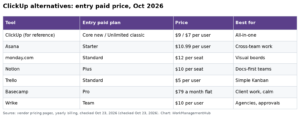
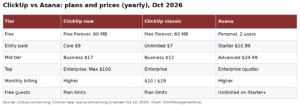
I set up ClickUp beside Smartsheet and Jira for mixed PM and product teams. The pattern that works: fix the date fields and dependency types first, then turn on critical path and baselines. Do not start with color themes. Figures below reference ClickUp pricing as of October 14, 2026 – Unlimited is $7/user/month yearly ($10 monthly); Business is $12 yearly ($19 monthly). Confirm Gantt and baseline availability on your plan in-product; ClickUp gates some timeline features on higher tiers.
ClickUp pricing note (checked October 16, 2026): ClickUp is changing its plans. New Workspaces, all Free Forever Workspaces and some paid ones now get Core at $9 and Business at $17 per user a month billed yearly ($12 and $25 monthly), with AI credits included and a new Max plan at $100. Many existing Workspaces still have the classic plans: Unlimited at $7 and Business at $12 billed yearly ($10 and $19 monthly), with ClickUp Brain as a $9 add-on. Prices in this article use the classic plans unless noted. See ClickUp’s new plans help article.
What you need before the Gantt helps
| Ingredient | Why it matters |
|---|---|
| Start and due dates on tasks | Gantt bars need both ends |
| Consistent duration habits | Dragging one bar should not fight manual dates everywhere |
| Dependency type chosen on purpose | Finish-to-start vs start-to-start change the schedule |
| One List/Folder scope | Portfolio Gantts without clean hierarchy become spaghetti |
| Permission to edit dates | Viewers cannot repair a broken network |
Create a Gantt view on the List (or Folder/Space) that owns the work. Show closed tasks only when you are reviewing history; hide them while you are scheduling.
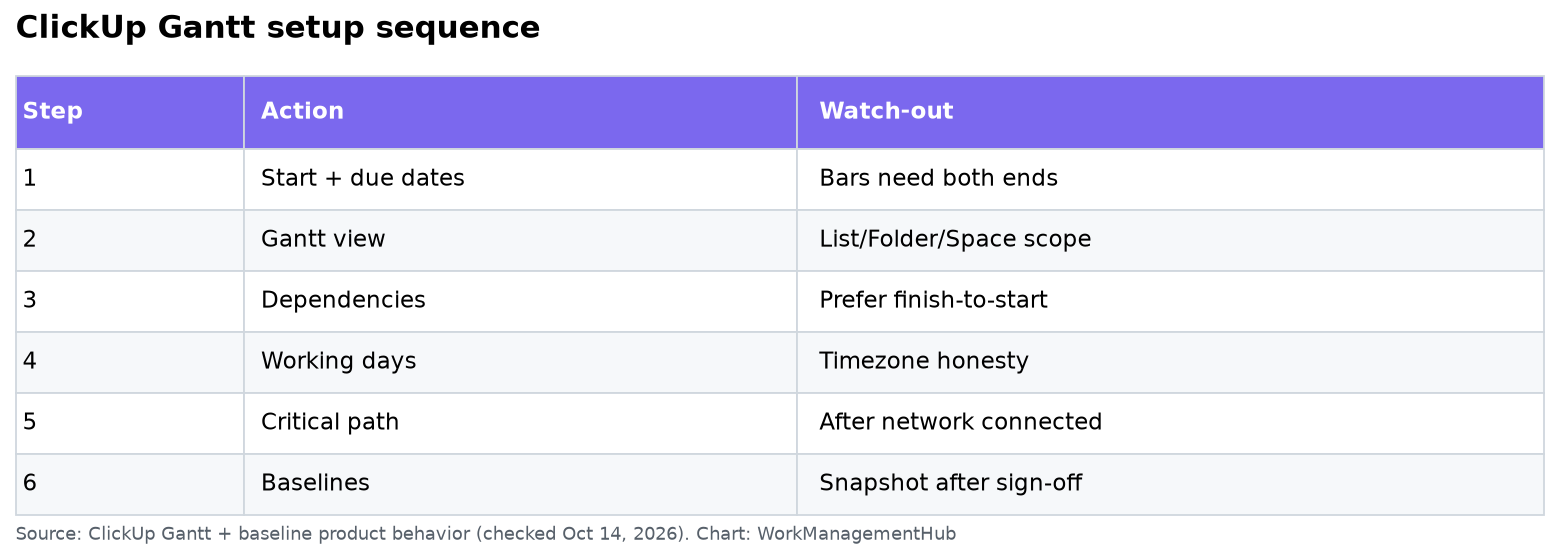
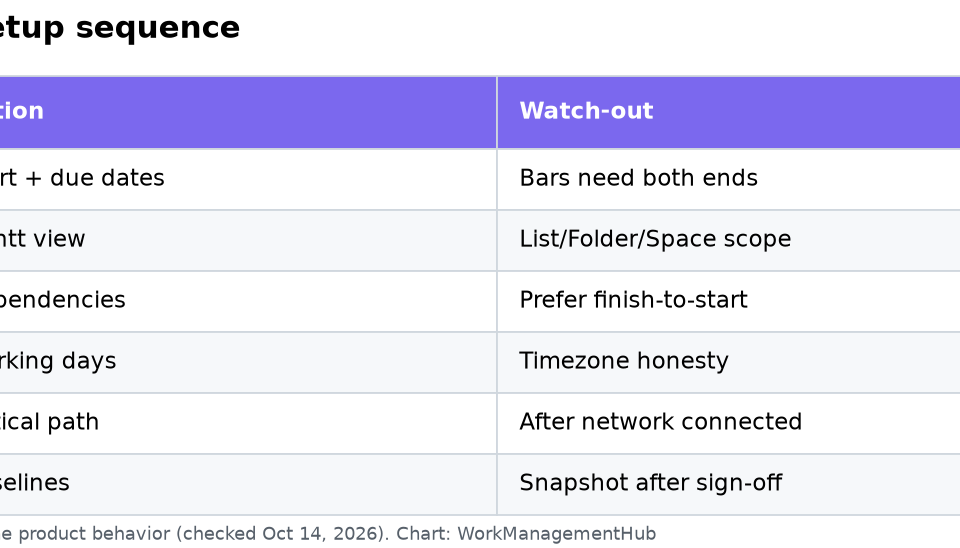
Setup sequence (about 15 minutes once data is clean)
- Add start and due dates to every task that should appear on the chart. Parent tasks can roll up from subtasks when you use ClickUp’s rollup behavior – decide whether parents are summary-only.
- Open Gantt view → sort by date or priority so the swim of bars is readable.
- Draw dependencies by dragging between task bars or using the dependency field. Prefer finish-to-start for most delivery work. Rescheduling a predecessor should push successors when Reschedule dependencies / related settings are enabled – test on two tasks before you trust a 200-task network.
- Set working days / skip weekends in workspace or view settings so duration math matches how your team actually works.
- Critical path (when available on your plan): turn it on after the network is connected. If everything is critical, your dependencies are over-constrained or everything is due tomorrow.
- Baselines: snapshot planned dates once leadership signs off. ClickUp lets you save multiple baselines per Gantt view, each with a distinct color, and toggle them from the legend without deleting them. Use them at List, Folder, or Space level depending on whether you are tracking a sprint-sized plan or a portfolio. (This baseline workflow was the unique value of our older baseline-focused article; it belongs here.)
Dependencies without pain
- One predecessor per critical chain link is easier to debug than five.
- Avoid circular dependencies; ClickUp will block or warn – treat warnings as blockers.
- Do not mix “soft” reminder links with true schedule dependencies in the same field.
- When someone needs a task “aware” of another without moving dates, use relationships/links instead of dependencies.
For sprint-shaped work, pair Gantt with ClickUp’s sprint tools carefully – see ClickUp sprints troubleshooting. If you need heavier resource loading and portfolio rollups, compare with Smartsheet Gantt setup.
Baselines: plan vs actual
A baseline is a frozen copy of start/due dates at a moment in time. After you replan, the live bars move; the baseline bars stay so executives can see variance. Practical rules:
- Take baseline B0 at kickoff, B1 after the first approved replan – not every day.
- Name baselines by date (
2026-10-14 kickoff), not “final.” - Toggle old baselines off in the legend during daily standups; turn them on for steering meetings.
- Baselines do not replace status reporting. They answer “did the dates move?” not “is the work done?”

Timezones, all-day dates, and reschedule surprises
Distributed teams break Gantt charts in boring ways. A task set as all-day on October 14 in US Eastern can appear on October 13 for someone in Asia if the view renders midnight boundaries differently. Agree on a workspace timezone for schedule math, and prefer timed due dates for anything that feeds a client deadline.
When you drag a predecessor, watch whether successors move. If they do not, dependency rescheduling is off or the link is a non-scheduling relationship. Fix that before you baseline – otherwise you snapshot a network that does not behave.
Auto-schedule features (when enabled) will rearrange dates to satisfy dependencies. Use them on a sandbox List first. I have seen auto-schedule pull a marketing launch earlier because a design dependency was linked backwards. Undo is your friend; baselines are not a substitute for undo.
What to show executives vs the delivery team
Delivery team Gantt: show assignees, dependencies, and this week’s critical path.
Executive Gantt: hide subtasks, show milestones and baseline variance only. Two views on the same List beat one overloaded chart. Export or dashboard widgets for steering committees so nobody “fixes” dates live in the meeting.
Plan limits and honest tradeoffs
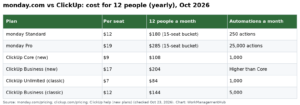
ClickUp’s Free Forever tier is fine for learning the view. Paid Unlimited/Business include the collaboration and dashboard depth most teams need. AI features (ClickUp Brain) and some advanced automation sit behind higher plans or add-ons – check clickup.com/pricing and our ClickUp pricing guide before you promise baselines-plus-AI in a vendor bake-off.
Pros: Fast to learn, flexible views, baselines on the same chart as live dates.
Cons: Complex dependency networks still need a human owner; timezone and all-day date quirks can shift bars; very large Spaces make Gantt heavy.
Common questions
How do I create a Gantt chart in ClickUp?
Open the List/Folder/Space → Add view → Gantt. Ensure tasks have start and due dates, then add dependencies as needed.
Does ClickUp Gantt support baselines?
Yes. You can save multiple colored baselines per Gantt view and toggle them in the legend to compare planned vs actual dates.
Can I set dependencies in ClickUp Gantt?
Yes – drag between bars or use the dependency controls. Finish-to-start is the default for most schedules.
Is ClickUp Gantt free?
A Gantt view is available on ClickUp’s free tier for learning; confirm any advanced timeline, critical-path, or baseline limits on your current plan in-product and on clickup.com/pricing.
Feature availability and list prices checked October 14, 2026. ClickUp changes packaging – verify baselines and critical path on your workspace before you commit a client plan.
Sponsored