Skip to content
-
Subscribe to our newsletter & never miss our best posts. Subscribe Now!
Work Management Hub Work Management Hub

Expert Reviews, Comparisons & Guides for Smartsheet, Monday.com, Asana, ClickUp & More

Work Management Hub Work Management Hub

Expert Reviews, Comparisons & Guides for Smartsheet, Monday.com, Asana, ClickUp & More

  • Airtable
  • Asana
  • ClickUp
  • Jira
  • Monday.com
  • Notion
  • Smartsheet
  • Wrike
  • About
  • Contact
  • Airtable
  • Asana
  • ClickUp
  • Jira
  • Monday.com
  • Notion
  • Smartsheet
  • Wrike
  • About
  • Contact
Close

Search

  • https://www.facebook.com/
  • https://twitter.com/
  • https://t.me/
  • https://www.instagram.com/
  • https://youtube.com/
How-To GuidesSmartsheet

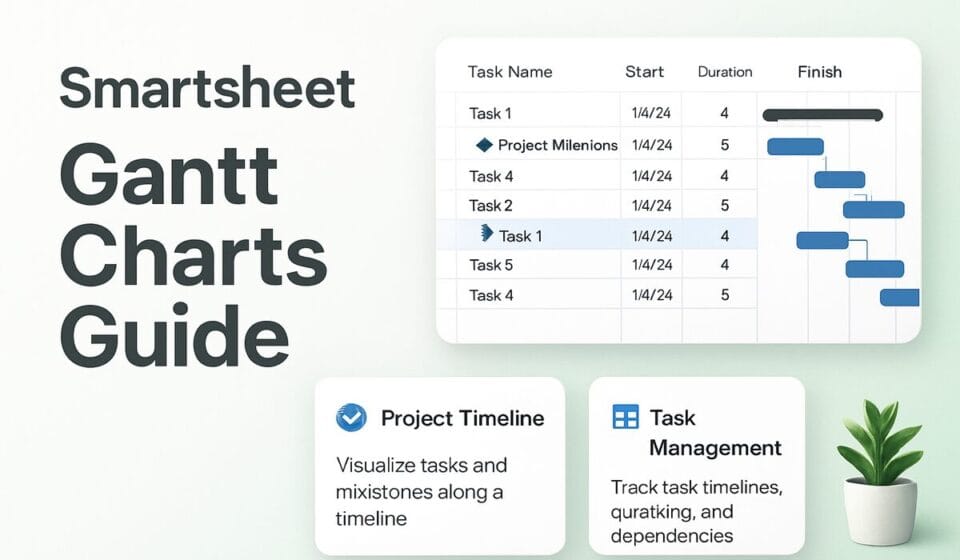
How to Use Smartsheet Gantt Charts in 2026: Build Timelines, Dependencies & Track Milestones

By Shaik KB
May 31, 2026 20 Min Read
0
⚡ Key Takeaways

  • Gantt view requires at least two date columns — a Start Date and an End Date. Neither column can be backed by a column formula; this is a hard prerequisite. Until both conditions are met, the Gantt view icon remains grayed out.
  • Milestones only appear as diamonds in Gantt view when dependencies are enabled in Project Settings. Without dependencies turned on, every row renders as a standard bar regardless of its duration — a zero-day task will not display as a milestone diamond.
  • Dependencies are configured via right-click any column header → Edit Project Settings (or the toolbar settings icon), not in column settings. Enabling dependencies unlocks the Predecessors column, auto-date cascading, and milestone visibility all at once.
  • You can drag task bars directly on the Gantt timeline to shift start/end dates, and draw connector arrows between bars to establish predecessor-successor relationships — no formula editing required.
  • When a predecessor’s dates change, all downstream dependent task dates cascade-update automatically — providing accurate critical-path visibility without manual recalculation.
  • Gantt view is available on Pro, Business, and Enterprise plans. The Free plan does not support Gantt charts.
Quick Answer:

To use a Smartsheet Gantt chart, add Start Date and End Date columns (neither backed by column formulas), then click the Gantt view icon in the toolbar. Enable dependencies via Project Settings to unlock milestones and auto-cascading dates. Set a zero-day duration row to create a milestone diamond; draw connector arrows between bars to link tasks.

Table of Contents

  1. Two Prerequisites That Block Most Beginners
  2. How to Enable Smartsheet Gantt Chart View: Step-by-Step
  3. How to Enable Dependencies in Project Settings
  4. Building Your Project Timeline: Tasks, Durations, and Predecessors
  5. How to Create and Track Milestones
  6. Drag-and-Drop Editing on the Gantt Timeline
  7. Gantt Display Options: Baselines, Labels, and Zoom
  8. Sharing and Exporting Your Smartsheet Gantt Chart
  9. Advanced Tips: Critical Path, Percent Complete, and Rollup Rows
  10. Verdict
  11. Frequently Asked Questions

How to Use Smartsheet Gantt Charts in 2026: Build Timelines, Dependencies & Track Milestones

Project schedules that live in spreadsheet rows and color-coded calendar columns are a liability. When a supplier pushes a deliverable by two weeks, every downstream task needs to be manually recalculated, and the team’s shared understanding of the schedule is usually two days behind reality by the time the updates propagate. The Smartsheet Gantt chart exists to eliminate that problem — but only if it is configured correctly from the start.

After years of implementing Smartsheet for project-driven organizations across construction, IT delivery, and professional services, I can tell you that the two most common reasons a Gantt chart fails to behave as expected have nothing to do with complexity. They are both prerequisite issues: date columns backed by column formulas prevent the view from activating at all, and milestones stay invisible until dependencies are enabled. This guide addresses those blockers first, then walks through every configuration step that turns a blank sheet into a live, cascading project timeline.


Two Prerequisites That Block Most Beginners

Before the Gantt view icon becomes clickable, Smartsheet enforces two hard prerequisites. Understanding them upfront saves significant frustration — especially if you are building on top of an existing sheet that already has date formulas.

Prerequisite 1: Two Manual Date Columns

Gantt view requires at least one Start Date column and one End Date column — both of type “Date.” This sounds obvious, but the critical detail is that neither column can be backed by a column formula. A column formula is one that applies the same formula to every cell in the column automatically (shown by the formula appearing at the column level, not the cell level). If either of your date columns is formula-driven, Smartsheet will not activate Gantt view for that column pairing.

This trips up teams who calculate End Date programmatically as Start Date plus a Duration column. The workaround: either keep End Date as a manually entered column and let dependencies handle the cascading, or use cell-level formulas in individual rows rather than column-level formulas — though the cleanest solution is to rely on Smartsheet’s built-in dependency engine (covered in the next section) rather than any formula at all.

To check whether a column has a column formula: click into any cell in that column. If you see a formula in the formula bar and the column header has a formula icon (a small “fx” marker), it is a column formula. Right-click the column header and select Edit Column Formula → Remove Column Formula to convert it to manual entry before proceeding.

Prerequisite 2: Dependencies Must Be On for Milestones to Appear

This is the less obvious of the two blockers. Even after Gantt view activates successfully, milestones will not render as diamond shapes unless Project Settings has dependencies enabled. Without dependencies, every single row — including rows where Start Date equals End Date — renders as a standard horizontal bar. The milestone diamond is exclusively a dependency-mode feature.

Many guides show you how to set a zero-day task for milestones without mentioning that dependencies must be enabled first. If your zero-day rows are showing as very thin bars instead of diamonds, this is why.


How to Enable Smartsheet Gantt Chart View: Step-by-Step

With the prerequisites confirmed — two manual Date columns present on the sheet — activating Gantt view takes under a minute.

  1. Open your sheet — Navigate to the sheet in Smartsheet. Ensure it already has at least a “Start Date” column and an “End Date” column of the Date type. If not, add them: click the + icon to the right of the last column header, name the column, and set the column type to “Date.”
  2. Click the Gantt icon in the view toolbar — In the toolbar at the top right of the sheet (where you toggle between Grid, Card, Calendar, and Gantt views), click the Gantt view icon (it looks like a horizontal bar chart). If the icon appears grayed out, one of your date columns has a column formula — revisit Prerequisite 1 above.
  3. Map your date columns — On first activation, Smartsheet opens a configuration dialog asking you to confirm which columns represent Start Date and End Date. Select the appropriate columns from the dropdowns and click OK.
  4. Confirm the Gantt timeline renders — The sheet splits into a grid on the left (your task list) and a timeline on the right. Each row with populated start and end dates appears as a colored bar spanning its scheduled duration. Rows with empty date fields appear in the grid but have no bar on the timeline.
  5. Save the view — Gantt view is now the active view for this sheet for you. Other collaborators with access to the sheet can independently switch to Gantt view from their own sessions.

If this is your first time using Smartsheet’s project features, our Smartsheet beginner guide covers sheet structure, column types, and navigation foundations before you reach the Gantt configuration.


How to Enable Dependencies in Project Settings

Enabling dependencies is the single configuration step that unlocks the full power of Smartsheet Gantt charts: milestone diamonds, predecessor-driven date cascading, the Duration column, and the Predecessors column. It changes the sheet from a visual display tool into an active scheduling engine.

  1. Access Project Settings — Right-click any column header in your sheet and select Edit Project Settings from the context menu. Alternatively, click the Project Settings icon in the toolbar (it looks like a gear with a small calendar). Either path opens the Project Settings dialog.
  2. Enable Dependencies — In the Project Settings dialog, check the box labeled Enable Dependencies.
  3. Confirm or assign the Predecessors column — Once dependencies are enabled, Smartsheet asks you to designate a Predecessors column. If one does not already exist on your sheet, Smartsheet creates it automatically. This column stores the row numbers (or row IDs) of tasks that must complete before the current task can begin.
  4. Confirm or assign the Duration column — Similarly, Smartsheet creates a Duration column if one does not exist. Duration is expressed in days by default and controls the span of each task bar.
  5. Set the % Complete column (optional but recommended) — While in Project Settings, designate a column to track completion percentage. This enables the progress overlay on Gantt bars — a filled portion of the bar that visually represents how much of the task is done.
  6. Click OK — Project Settings saves. Your sheet now has active dependency tracking. Zero-day rows will immediately begin rendering as milestone diamonds in Gantt view.

With dependencies live, any change to a predecessor task’s end date automatically pushes all downstream successor task dates forward or backward to maintain the defined lead/lag relationships. This is the cascade-update behavior that eliminates manual schedule recalculation after scope changes or delays.

For teams who want to trigger notifications or status updates automatically when task dates shift, combine Gantt dependencies with Smartsheet automations — for example, an automation that alerts the task owner when their start date is updated by a predecessor change.


Building Your Project Timeline: Tasks, Durations, and Predecessors

A well-structured Gantt chart is built from the task list outward — not from the timeline inward. Define the work breakdown structure first, then assign durations and link dependencies. Skipping straight to drawing bars on the timeline produces a schedule that looks complete but has no logical backbone.

Structuring Your Task List

Smartsheet’s Gantt chart uses row indentation to create a hierarchy. Parent rows aggregate their children’s date ranges automatically — a parent row’s bar spans from the earliest child start date to the latest child end date, giving you a rolled-up view of phase or workstream progress without any formula work.

  1. Add your task rows — In grid view, type task names in the primary column (the leftmost, bolded column). Each row becomes one task bar on the Gantt timeline.
  2. Create parent/child hierarchy — To indent a row under a parent, select the row(s) and click the Indent button in the toolbar (right-facing arrow), or press Tab. The parent row above automatically becomes a summary bar spanning its children’s date range.
  3. Enter Start Dates and Durations — With dependencies enabled, enter a Start Date for the first task in the project. Then enter Duration values for each task (in working days). Smartsheet calculates the End Date automatically based on Start Date plus Duration, respecting the project calendar’s non-working days.
  4. Set the project calendar — Back in Project Settings, confirm the working days and non-working days for your project. By default Smartsheet uses Monday through Friday. You can add holidays or custom non-working days so duration calculations skip them correctly.

Setting Predecessor Relationships

  1. Identify the row number of the predecessor — Row numbers appear in the gray far-left column of the grid. Note the row number of the task that must finish before the next task can start.
  2. Enter the predecessor in the Predecessors column — In the Predecessors column of the dependent task, type the row number of the predecessor task. For example, entering “3” means this task cannot start until Row 3 is complete (Finish-to-Start relationship, the default).
  3. Specify dependency type if needed — Smartsheet supports four dependency types: Finish-to-Start (FS, default), Start-to-Start (SS), Finish-to-Finish (FF), and Start-to-Finish (SF). To use a non-default type, enter it as a suffix: “3SS” means this task starts when Row 3 starts. “3FF+2” means this task finishes 2 days after Row 3 finishes (a lag).
  4. Add multiple predecessors — Separate multiple predecessors with commas: “3,5,7” means this task depends on rows 3, 5, and 7 all completing first.
  5. Verify cascade behavior — Change the end date on a predecessor task and confirm that all downstream tasks shift accordingly. If they do not shift, check that dependencies are enabled in Project Settings and that the Predecessors column is correctly designated.

How to Create and Track Milestones

Milestones mark the critical moments in a project — a deliverable sign-off, a go-live date, a regulatory submission deadline. In Smartsheet, milestones are not a separate object type; they are simply tasks where the Start Date equals the End Date, creating a zero-day duration. When dependencies are enabled, that zero-day row renders as a diamond on the Gantt timeline instead of a bar.

Creating a Milestone

  1. Confirm dependencies are enabled — Zero-day rows only display as milestone diamonds when Project Settings has Enable Dependencies checked. If you skip this step, the row renders as a very thin bar or nothing at all. Return to Project Settings and enable dependencies if you have not already.
  2. Add a milestone row — In the grid, add a new row and name it descriptively (for example: “Phase 1 Complete,” “Client Approval Received,” or “Go-Live”).
  3. Set the Start Date equal to the End Date — Enter the same date in both the Start Date and End Date columns (or enter the date in Start Date and set Duration to 0). Smartsheet treats any row with zero duration as a milestone.
  4. Verify the diamond appears on the timeline — Switch to Gantt view. The milestone row should render as a solid diamond shape at the corresponding date on the timeline. If it still shows as a bar, double-check that Start Date and End Date are identical and that dependencies are on.
  5. Link predecessors to the milestone — Enter the predecessor row numbers in the Predecessors column of the milestone row. The milestone will shift automatically on the timeline if any predecessor task is delayed — giving you a live view of whether the milestone is still achievable given current task progress.

Marking Milestones Complete

Update the % Complete column for the milestone row to 100% when the event occurs. If you have a % Complete column designated in Project Settings, the diamond will display a fill indicator showing completion status. You can also use Smartsheet automations to trigger stakeholder notifications when a milestone row’s % Complete reaches 100.


Drag-and-Drop Editing on the Gantt Timeline

One of Smartsheet’s most underutilized Gantt features is direct manipulation on the timeline itself. You do not need to return to the grid and edit date columns manually to adjust a schedule — you can drag, resize, and link tasks directly on the bars.

Adjusting Task Dates by Dragging

  1. Switch to Gantt view — Ensure you are in the Gantt view (not Grid or Calendar view).
  2. Move a task bar — Hover over the center of a task bar until the cursor changes to a four-directional move icon. Click and drag the bar left or right to shift the entire task (start and end dates move together, preserving duration).
  3. Resize a task bar — Hover over the left or right edge of a task bar until the cursor changes to a resize arrow. Drag the right edge to extend or shorten the End Date; drag the left edge to change the Start Date.
  4. Confirm date changes — Release the drag. Smartsheet updates the Start Date and End Date columns in the grid immediately. All dependent successor tasks cascade-update based on the new dates.

Drawing Dependency Arrows on the Timeline

  1. Hover over a task bar — Move your cursor to the right edge of the predecessor task bar until a small circular handle appears.
  2. Draw the arrow — Click and drag from the circular handle on the predecessor bar to the target successor bar. Release the mouse when the target bar highlights.
  3. Verify the predecessor entry — Switch to grid view and confirm the Predecessors column of the successor row now contains the correct predecessor row number. The arrow on the timeline and the cell value in the grid are always in sync.
  4. Delete a dependency arrow — Click the arrow on the timeline to select it, then press the Delete key. Alternatively, clear the predecessor row number from the Predecessors column in the grid.

This drag-and-drop approach is particularly valuable during planning sessions with stakeholders — you can adjust the schedule in real time on a shared screen without anyone needing to know where to find date columns or understand Smartsheet’s row numbering system.


Gantt Display Options: Baselines, Labels, and Zoom

A well-configured Gantt chart communicates schedule status at a glance — but only if the display options are set up to show the right information. Smartsheet offers several configuration options that most teams never touch.

Setting a Baseline

A baseline captures the original planned schedule so you can visually compare it against the current schedule. Once set, a second, lighter-colored bar appears behind each task bar showing where the task was originally planned versus where it stands today. This is the clearest visual indicator of schedule slippage available in Smartsheet.

  1. Open Gantt settings — Click the Gantt Settings icon (gear icon on the Gantt timeline pane) or access it via the toolbar.
  2. Set the baseline — Click Set Baseline. Smartsheet records the current Start Date and End Date for every row as the baseline. The baseline bars appear immediately as lighter (gray or translucent) bars behind your current task bars.
  3. Interpret the baseline view — If a task bar extends past (to the right of) its baseline bar, the task is running late. If the current bar is entirely within the baseline bar, the task is on or ahead of schedule.
  4. Update the baseline — Rebaselining replaces the stored baseline dates with current dates. Do this at formal project re-scoping points, not just because the schedule slipped — preserving the original baseline is valuable for post-project retrospectives and is also required for any earned value calculations.

Task Bar Labels

  1. Open Gantt Settings — Click the gear icon on the Gantt pane.
  2. Configure bar labels — Under Task Bar Labels, choose what text appears directly on the Gantt bars. Options include the task name (Primary Column), % complete, duration, assigned contact, or any other column on your sheet. Displaying % complete directly on the bar is the most common choice for status meetings.

Timeline Zoom

  1. Use the zoom controls — At the top right of the Gantt timeline pane, use the zoom slider or the preset zoom levels (Day, Week, Month, Quarter, Year) to adjust the timeline scale.
  2. Choose the right zoom for your audience — Day-level zoom is useful for short construction sprints. Month-level zoom is standard for 3 to 6 month project plans. Quarter and Year zoom work for program-level roadmaps where individual task bars are less important than phase-level visibility.

Sharing and Exporting Your Smartsheet Gantt Chart

A Gantt chart only delivers value when the right people can see it. Smartsheet offers multiple distribution options depending on whether your audience has Smartsheet licenses and how much interactivity they need.

Sharing the Live Sheet

  1. Click Share — Click the Share button in the top-right corner of the sheet.
  2. Add collaborators — Enter email addresses and set their permission level: Viewer (read-only), Commenter (can add comments but not edit), Editor – Cannot Share, Editor – Can Share, or Admin. For stakeholders who only need to monitor the schedule, Viewer is appropriate.
  3. Communicate the Gantt view — Smartsheet does not lock a shared sheet to Gantt view for all recipients. Viewers who open the sheet land on Grid view by default and need to click the Gantt icon themselves. For stakeholders who need the timeline front and center, use the dashboard embed approach described below.

Embedding the Gantt Chart in a Dashboard

For stakeholders who should see the Gantt timeline without navigating sheets, embed the Gantt chart as a widget on a Smartsheet dashboard. Dashboards can be shared with free Guest licenses — no paid seat required for viewers — making this the preferred distribution method for executive reporting or client-facing schedule updates.

  1. Create or open a dashboard — From the left navigation panel, open or create a dashboard in the same workspace as your sheet.
  2. Add a Gantt Chart widget — Click Add Widget → Gantt. In the widget configuration, select your sheet and confirm the date columns.
  3. Configure the widget display — Set the zoom level, date range, and which rows are visible. You can filter to show only top-level summary rows for an executive view, or show the full task breakdown for the project team.
  4. Share the dashboard — Share the dashboard with stakeholders. They see the live Gantt chart without ever needing to interact with the underlying sheet.

Exporting as PDF

  1. Switch to Gantt view — Ensure you are in Gantt view with the desired zoom level active.
  2. Export — Click File → Export → Export as PDF. In the export dialog, configure page orientation (Landscape is almost always correct for Gantt charts), date range to include, and whether to include the grid columns alongside the timeline.
  3. Use the exported file — The PDF export is useful for status reports, client deliverables, or offline review. Static exports immediately become stale — for ongoing visibility, the dashboard embed is preferable.

For organizations managing multiple concurrent projects, consider pairing your Gantt setup with Smartsheet resource management to surface workload conflicts directly from the people assigned to your Gantt tasks.


Advanced Tips: Critical Path, Percent Complete, and Rollup Rows

Once your Gantt chart is live and dependencies are running, these advanced configurations add the analytical depth that separates a well-managed project from a reactive one.

Highlighting the Critical Path

The critical path is the sequence of dependent tasks that determines the project’s earliest possible finish date. Any delay to a critical path task directly delays the project end date. Smartsheet can highlight the critical path visually on the Gantt timeline.

  1. Open Gantt Settings — Click the gear icon on the Gantt pane.
  2. Enable Critical Path — Toggle Show Critical Path. Tasks on the critical path are immediately highlighted in red on the Gantt timeline. Tasks with float (slack) remain their default color.
  3. Use critical path for prioritization — In your weekly project review, filter attention to red bars first. A two-day delay on a non-critical task is a minor concern. A two-day delay on a red bar requires immediate action from the project manager.

For a deeper discussion of critical path methodology and how Smartsheet implements it, see Smartsheet’s official critical path documentation.

Tracking Percent Complete on the Gantt

  1. Designate the % Complete column in Project Settings — If not already done, return to Edit Project Settings and assign the % Complete column designation to a column on your sheet (or let Smartsheet create one).
  2. Update completion values — As tasks progress, enter values between 0 and 100 in the % Complete column. The corresponding Gantt bar fills proportionally from left to right, giving a visual progress indicator.
  3. Roll up to parent rows — Parent rows automatically calculate a weighted average % complete from their child tasks based on duration. A parent row covering three tasks of 5, 10, and 5 days shows the duration-weighted average of those three completion values — no formula required.

Using Rollup Rows for Portfolio View

For program managers overseeing multiple projects tracked in separate sheets, cross-sheet references and Smartsheet dashboards provide a portfolio-level Gantt view. Pull summary row data (phase start/end dates, % complete) from multiple project sheets into a single program-level sheet using cross-sheet cell references, then view that consolidation sheet in Gantt view for an aggregated timeline across all projects.

This approach requires careful sheet architecture — specifically, ensuring that the summary cells being referenced are populated by row-level formulas (not column formulas) so the Gantt date column restriction is not triggered. See Smartsheet’s cross-sheet references guide for implementation details.

Working with the % Allocation Column for Resource Visibility

When dependencies are enabled, Project Settings also exposes a % Allocation column option. Populating this column alongside your Gantt tasks feeds directly into Smartsheet resource management panels, where you can visualize whether assigned team members are over- or under-allocated across the project timeline. This closes the loop between scheduling and capacity planning without requiring a separate tool. For a comprehensive view of everything Smartsheet can do for your organization, our full Smartsheet review covers feature depth, pricing tiers, and how Gantt capabilities compare to competing platforms.


🏆 Verdict

Smartsheet’s Gantt chart is one of the most capable schedule management tools available in a SaaS project management platform — but its value is entirely contingent on correct initial configuration. The two prerequisites (manual date columns and dependencies enabled) are non-negotiable, and skipping either produces a broken experience that makes the tool look limited when it is actually misconfigured. For teams managing multi-phase projects with real interdependencies, getting these settings right delivers auto-cascading schedules, milestone tracking, critical path visualization, and real-time stakeholder sharing in a single, maintainable sheet. Invest 30 minutes in the setup described here and Smartsheet’s Gantt chart will reduce your schedule maintenance overhead for the life of the project. For organizations running multiple concurrent projects, pair it with resource management and dashboard features to complete the project visibility picture.


Frequently Asked Questions

Why is my Smartsheet Gantt view icon grayed out?

The Gantt view icon is grayed out when the sheet does not meet the two hard prerequisites: at least one Start Date column and one End Date column of type “Date,” neither backed by a column formula. Check your date columns by clicking into any cell — if the formula bar shows a formula and the column header has an “fx” marker, that is a column formula. Remove it via right-click on the column header → Edit Column Formula → Remove Column Formula, then try activating Gantt view again. Also verify that both columns are set to the “Date” column type — text columns with date-formatted entries will not work.

Why are my milestones not showing as diamonds in Smartsheet Gantt view?

Milestone diamonds only appear when Project Settings has dependencies enabled. Without this setting, every row — including zero-day rows — renders as a bar. Go to right-click any column header → Edit Project Settings, check Enable Dependencies, and click OK. After saving, return to Gantt view; any row where Start Date equals End Date will now display as a diamond. Also confirm the row’s Start Date and End Date values are actually identical — even a one-day difference produces a thin bar rather than a diamond shape.

How do I change the dependency type from Finish-to-Start to Start-to-Start in Smartsheet?

Edit the Predecessors column value directly in the grid. The default entry of a row number (such as “5”) implies Finish-to-Start. To change the dependency type, append the type code: “5SS” for Start-to-Start, “5FF” for Finish-to-Finish, or “5SF” for Start-to-Finish. To add lead or lag time, append a plus or minus sign followed by the number of days — “5FS+3” means this task starts 3 days after Row 5 finishes. Separate multiple predecessors with commas: “3FS,5SS+2” links two predecessors with different relationship types.

Can I use a Smartsheet Gantt chart without enabling dependencies?

Yes — Gantt view activates as soon as two manual Date columns exist, regardless of whether dependencies are enabled. Tasks render as bars based on their Start and End Date values, and you can drag bars on the timeline to adjust dates. However, without dependencies there is no automatic date cascading when upstream tasks change, milestones do not display as diamonds, and critical path highlighting is unavailable. For any project with sequential task relationships, enabling dependencies is strongly recommended — the scheduling intelligence it provides is the core value proposition of the Gantt view.

How do I print or export a Smartsheet Gantt chart as a PDF?

Switch to Gantt view and set the zoom level to capture the date range you want to include. Then go to File → Export → Export as PDF. In the export dialog, select Landscape orientation (required for most Gantt timelines to fit on the page), configure the date range, and choose whether to include the grid columns alongside the timeline bars. For ongoing stakeholder distribution, embedding the Gantt chart as a widget in a Smartsheet dashboard is more effective than repeated PDF exports, since the dashboard always reflects the live schedule without any manual export step.

Sponsored Smartsheet Expert Services – Implementation, Automation, Training
Sponsored Power BI & Tableau Analytics – Dashboards, Reporting, Insights
Sponsored AI Agents for Work Management – Automate Tasks, Integrate Tools

Categories

  • Airtable (16)
  • Alternatives (12)
  • Asana (35)
  • ClickUp (41)
  • How-To Guides (153)
  • Integrations (16)
  • Jira (31)
  • Monday.com (41)
  • Notion (28)
  • Pricing Guides (11)
  • Project Management (76)
  • Smartsheet (31)
  • Tool Comparisons (49)
  • Wrike (15)

Recent Post

  • Linear Not Working? 7 Fixes for GitHub Sync, Cycle Issues & App Errors in 2026
  • Airtable CRM Setup Guide 2026: Build a Sales Pipeline That Actually Works
  • Wrike vs Teamwork 2026: Which Is Better for Agency Project Management?
  • Jira Query Language (JQL) Complete Guide 2026: Advanced Filters, Boards & Reporting
  • How to Set Up Monday.com Subitems in 2026: Organize Complex Tasks & Nested Work
Work Management Hub

Independent expert reviews & comparisons of work management tools — helping 50,000+ teams choose the right software.

Tools We Cover

  • Smartsheet
  • Monday.com
  • ClickUp
  • Asana
  • Notion
  • Jira
  • Wrike
  • Airtable

Company

  • About Us
  • Contact Us
  • Privacy Policy
Copyright 2026 — Work Management Hub. All rights reserved. Blogsy WordPress Theme