Linear Not Working? 7 Fixes for GitHub Sync, Cycle Issues & App Errors in 2026
- Always check linearstatus.com before any local troubleshooting — a May 2026 DDOS incident caused widespread “servers not reachable” errors that had nothing to do with user configuration.
- The most common GitHub sync failure is OAuth installed at the user level instead of organization level — re-authorizing with the
actor=appparameter forces the correct org-mode flow. - Post-April 2026, Linear AI Agents require both Webhook events AND Agent session events enabled in GitHub integration settings — missing either scope produces zero error output and silently breaks PR linking and cycle automation.
- Branch names must match the team workspace key exactly in case and prefix (e.g.,
ENG-123, noteng-123) for auto-status transitions to fire on PR open or merge. - Issues “disappearing” from a cycle almost always means Cycle auto-add is disabled or the cooldown period (default: 1 day) is routing new issues to the following cycle instead of the current one.
Linear not working? The most common causes are a GitHub OAuth authorization at the wrong level (user instead of org), missing Agent session event scopes introduced with the April 2026 AI Agents update, or branch naming case mismatches. Before debugging locally, always verify there is no active platform incident at linearstatus.com — several 2026 outages resolved at the infrastructure level within hours.
- Fix 1: Check linearstatus.com First (Saves Hours)
- Fix 2: GitHub OAuth Mode — User vs. Org/App Authorization
- Fix 3: Missing Agent Session Events Scope (Post-April 2026 Silent Failure)
- Fix 4: Branch Naming Case and Prefix Mismatch
- Fix 5: Cycle Auto-Add Disabled and Cooldown Behavior
- Fix 6: Webhook Delivery Failures
- Fix 7: Clear Linear Desktop App Cache
- Verdict
- FAQ
Linear Not Working? 7 Fixes for GitHub Sync, Cycle Issues & App Errors in 2026
When Linear is not working, it rarely fails loudly. A confirmed incident on May 28, 2026 is a perfect case study: users saw “Linear servers are not reachable” errors, spent hours reconfiguring OAuth permissions, and eventually discovered the cause was a platform-level infrastructure issue — nothing to do with user configuration. That pattern — Linear not working in ways that are maddeningly non-obvious — is the subject of this guide.
It was a Monday morning in late April 2026. The engineering team had just upgraded to Linear Plus to take advantage of the newly rolled-out AI Agents. By Tuesday, the GitHub integration had gone completely silent. PRs were being merged but issues weren’t transitioning. Cycle automation had stopped picking up new tasks. And the error log? Completely empty. No red banners, no failed webhook notifications, no warning emails — nothing.
I’ve seen this pattern across multiple engineering orgs at this point. Linear is an exceptional project management tool for development teams — arguably the best purpose-built option for engineering workflows in 2026 — but its GitHub integration has enough moving parts that a single misconfigured scope or a mistyped branch prefix can silently break an entire automation pipeline. When it breaks, it tends to break in ways that are maddeningly non-obvious.
This guide covers the seven most common reasons Linear stops working, ordered from most to least common based on patterns observed across real engineering teams. Each fix includes exact navigation paths and the specific settings you need to change. No vague advice — just the exact steps that get teams unblocked.
Fix 1: Check linearstatus.com First — Linear Not Working May Not Be Your Fault
Before you touch a single setting in your Linear workspace, open linearstatus.com in a browser tab. This is non-negotiable and it’s the step that most engineering teams skip — then spend two hours reconfiguring OAuth permissions before realizing the problem was a platform-level incident the whole time.
A confirmed incident on May 28, 2026 is a perfect case study. Users across multiple organizations began seeing “Linear servers are not reachable” errors immediately after unlocking their laptops or waking from sleep. The instinct was to blame the desktop app, clear cache, reinstall, or recheck network configurations. The real cause: Linear’s infrastructure team had accidentally applied DDOS protection rules in error. The issue resolved itself within hours — no local action required from any user.
If the status page shows an active incident, your only job is to wait. If it shows all systems operational and you’re still seeing issues, then proceed to the fixes below.
- linearstatus.com — Navigate directly to the status page. Check for any incidents marked “Investigating,” “Identified,” or “Monitoring” in the past 24 hours, not just current active banners.
- Linear’s official Twitter/X account (@linear) — Linear’s team posts incident updates here when the status page itself has a lag. Worth a 10-second check.
- Incident history tab on linearstatus.com — Review the last 30 days. Patterns of intermittent sync failures sometimes cluster around a rolling incident that’s been partially mitigated.
- Reproduce on web vs. desktop — If the issue only appears on the Linear desktop app and the web app at linear.app loads correctly, the problem is isolated to the desktop client (see Fix 7). If both fail, it’s either an account/integration issue or a platform incident.
Fix 2: GitHub OAuth Mode — User vs. Org/App Authorization
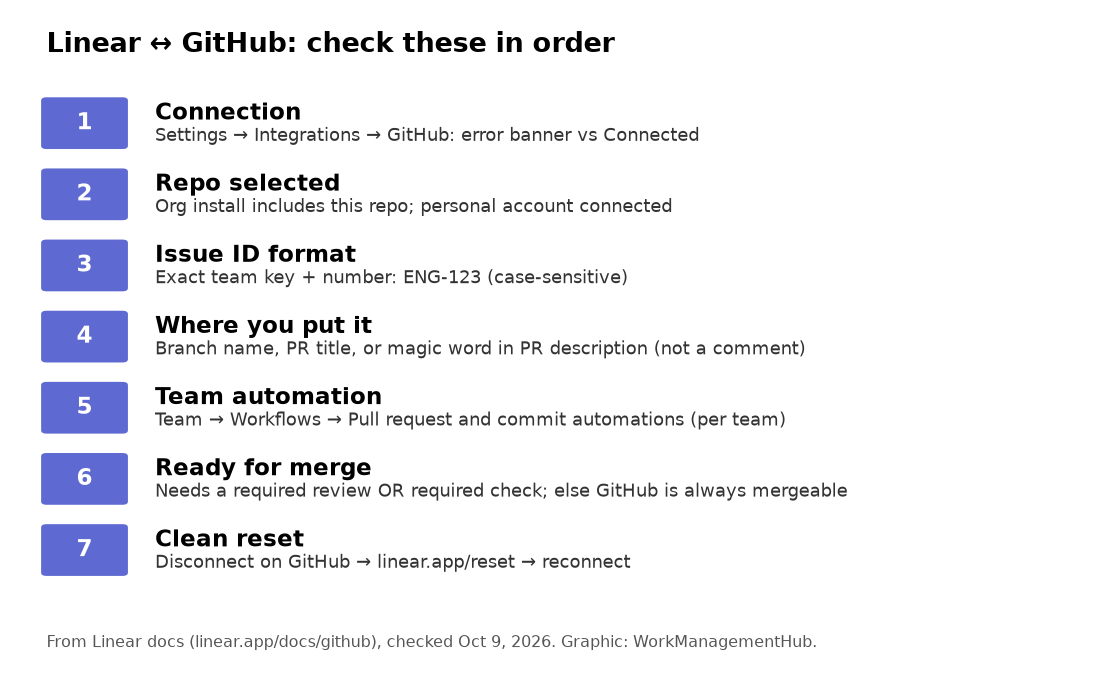
This is the single most common root cause of Linear GitHub sync failures. The problem: when a team member connects Linear to GitHub, GitHub presents two authorization paths — one for the individual user’s account, and one for the organization. If the wrong person connected it, or if they clicked through quickly and chose user-level authorization, Linear can only see repositories that user has personal access to. Any repo that’s org-owned but not in the user’s personal scope will silently fail to sync.
The fix requires disconnecting and reconnecting using the organization authorization flow, which you can force by appending the actor=app parameter to the authorization URL. This overrides any cached user-level token.
- Settings > Integrations > GitHub (in Linear) — Navigate here as a workspace admin. Non-admins will not see the disconnect option.
- Disconnect button — Click “Disconnect” next to the GitHub integration. Confirm the disconnection. This does not delete any existing issue-PR links but will pause sync until reconnected.
- Connect GitHub button — Click “Connect GitHub.” When GitHub’s OAuth authorization page loads, look at the URL in your browser’s address bar and confirm it includes your organization name in the scope, not just your personal username.
- Organization access panel on GitHub — On the GitHub OAuth consent screen, ensure your organization is listed under “Organization access” with a green checkmark, not a yellow warning. If it shows a “Request” button, you need an org admin to approve the Linear GitHub App installation at the organization level first.
- actor=app parameter — If the authorization keeps defaulting to user mode, manually append
&actor=appto the OAuth authorization URL before loading it. This forces GitHub to process the authorization as an app installation rather than a user OAuth grant.
For a deeper walkthrough of this issue, see our dedicated guide on Linear GitHub sync troubleshooting for 2026.
Fix 3: Missing Agent Session Events Scope (Post-April 2026 Silent Failure)
This is the fix that existing troubleshooting guides completely miss, and it’s the one most likely to be affecting your team if you upgraded to Plus or Enterprise after April 2026. When Linear shipped AI Agents as a native feature included in Plus and Enterprise plans, it introduced a new required event scope for the GitHub integration: Agent session events. This scope is separate from standard webhook events, and both must be explicitly enabled.
The failure mode is infuriating because Linear produces no error message, no warning banner, and no failed delivery notification when Agent session events are missing. PRs simply don’t link to issues automatically. Cycle automation that depends on PR state changes silently stops firing. To an engineering team that set up their integration before April 2026, everything looks correctly configured — because it was, for the pre-AI-Agents version of the integration.
For a full breakdown of what Linear AI Agents can do once properly configured, see our Linear AI Agent feature deep dive.
- Settings > Integrations > GitHub (in Linear) — Open as a workspace admin. Scroll past the connection status to the event configuration section.
- Webhook events toggle — Verify this is enabled. This covers standard PR events: opened, closed, merged, review_requested, etc.
- Agent session events toggle — This is the one most teams are missing. It must be enabled separately. It controls whether Linear’s AI Agents receive PR context, thread on issues, and trigger cycle-level automations based on PR state.
- Save the configuration — After enabling Agent session events, click Save. The integration does not auto-save toggle states.
- Test with a new PR — Open a test PR in GitHub with a valid Linear issue key in the branch name or PR title. Within 60 seconds, the issue in Linear should show the PR linked in the sidebar. If it does not appear after 2 minutes, proceed to Fix 6 to check webhook delivery logs.
Fix 4: Branch Naming Case and Prefix Mismatch
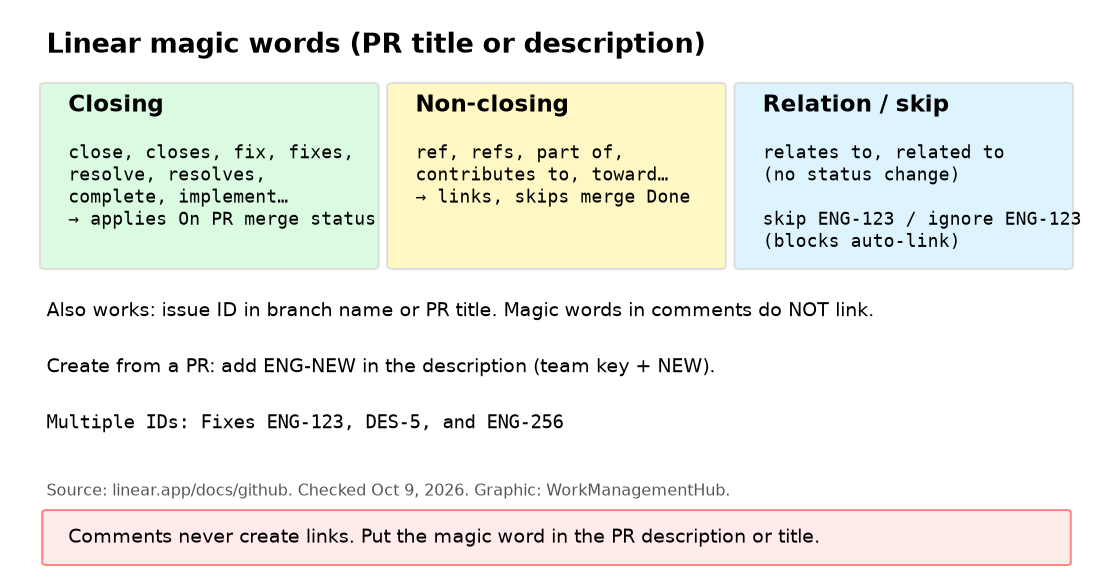
Linear’s GitHub integration uses the issue identifier in the branch name to link PRs to issues and trigger status transitions. What many developers don’t realize is that this matching is case-sensitive and prefix-sensitive. If your Linear workspace key is configured as ENG and a developer creates a branch named eng-123-fix-auth-bug, Linear will not match it.
- Settings > Workspace > Teams (in Linear) — Find your team and note the exact workspace key. It will appear in all uppercase — for example,
ENG,BACKEND, orINFRA. - Branch name format — Confirm all branches follow the format
[WORKSPACE-KEY]-[issue-number]-description, for exampleENG-123-fix-auth-bug. The workspace key portion must be uppercase and match exactly. - Linear’s “Copy git branch name” button — On any issue detail page, use this button (available in the issue’s three-dot menu or the branch section) to copy the correctly formatted branch name. This eliminates human error entirely and should be the default team workflow.
- Team branch format setting — Navigate to Team Settings > Git to review and optionally customize the branch name template. If your team has customized this template in a way that differs from what developers are creating manually, align the two.
- Existing PRs with wrong branch names — These will not retroactively link after a branch rename in GitHub. For active PRs with wrong naming, manually link them in Linear by opening the issue and adding the PR URL in the “Linked pull requests” section.
Fix 5: Cycle Auto-Add Disabled and Cooldown Behavior
If your team is asking “why are issues disappearing from our cycle?” or “why aren’t started issues showing up in the current sprint?”, the culprit is almost always one of two Cycle settings: either Auto-add is disabled, or the cooldown period is routing new issues to the following cycle instead of the active one.
Linear’s Cycle auto-add feature is opt-in and is configured per team, not globally. By default, Linear sets a 1-day cooldown at the end of each cycle. During cooldown, any newly active issue gets routed to the following cycle automatically. If a developer starts an issue 23 hours before the cycle ends, it ends up in next week’s sprint. From the developer’s view, the issue just vanished.
- Team Settings > Cycles — Navigate here as a team admin. Each team manages its own Cycle configuration independently.
- “Auto-add Active/Started issues without a cycle assignment” toggle — Enable this if it is currently off. This is the primary control for issues being silently excluded from cycles.
- Cooldown period field — Review the current cooldown setting. The default is 1 day. If your cycles are short (1–2 weeks) and issues are routinely being routed to the wrong cycle, consider reducing this to 0 days.
- Verify current cycle status — On the Cycles page, check whether your current cycle is in an active or cooldown state. Issues starting during cooldown will appear in “Next Cycle.”
- Manually reassign affected issues — For issues that were incorrectly routed to the following cycle, open each issue and use the Cycle field in the right sidebar to move it to the intended cycle.
Fix 6: Webhook Delivery Failures
If you’ve confirmed your OAuth authorization is at org level, Agent session events are enabled, and branch naming is correct — but sync is still broken — the next place to look is GitHub’s webhook delivery log. GitHub maintains a full delivery history for every webhook it has attempted to send, including the HTTP response code Linear returned.
This is also documented in the Linear documentation and the Linear GitHub repository. See also our guide on Linear’s CI/CD and deployment tracking features.
- GitHub repo > Settings > Webhooks — Navigate to the repository settings in GitHub and select “Webhooks” from the left sidebar. You should see a Linear webhook listed.
- Click the Linear webhook entry — This opens the detail view showing the last delivery attempt status. A green checkmark means delivery succeeded. A red X means it failed.
- Recent Deliveries tab — Review the last 10–20 deliveries. Look for delivery IDs that returned 4xx errors (Linear rejected the payload — often a secret key mismatch) or 5xx errors (Linear was temporarily unavailable).
- Redeliver button — For any failed delivery, GitHub provides a “Redeliver” button. Use this to resend a specific webhook payload without needing to create a new PR or commit.
- Webhook secret mismatch fix — If you’re seeing 4xx responses, the webhook secret configured in GitHub may not match what Linear expects. In Linear’s Settings > Integrations > GitHub, regenerate the webhook secret and update the corresponding field in GitHub’s webhook settings.
Fix 7: Clear Linear Desktop App Cache — Fixing “Linear Not Working” After Sleep or Unlock
The “Linear servers are not reachable” error specifically on the desktop app — particularly after waking from sleep or unlocking a laptop — is usually not a server problem. It’s a stale authentication state or corrupted local cache causing the desktop client to fail its reconnection handshake. If the web app at linear.app works normally but the desktop app shows this error, clearing the app’s local data almost always resolves it.
- Fully quit Linear desktop — Do not just close the window. On macOS: right-click the Linear icon in the Dock and select Quit. On Windows: right-click the Linear icon in the system tray and select Quit.
- Linear menu > Help > Clear App Data (macOS/Windows) — Relaunch Linear, then navigate to the Linear menu > Help > Clear App Data. This clears the local cache including stored auth tokens.
- Manual cache clear on macOS — If the menu option is unavailable, open Terminal and run:
rm -rf ~/Library/Application\ Support/Linear. Then relaunch Linear and sign in again. - Manual cache clear on Windows — Open File Explorer, navigate to
%APPDATA%\Linear, and delete the contents of the folder. Relaunch Linear and sign in again. - Sign back in — Use your SSO or email login to re-authenticate. All your data is stored in Linear’s servers — clearing local cache does not delete any issues, projects, or workspace data.
Linear remains the best project management tool for engineering teams that live in GitHub. Its speed, keyboard-driven UX, and 2026 AI Agents features are genuinely ahead of alternatives like Jira and Asana for developer workflows. The troubleshooting friction documented in this guide is real, but it’s almost entirely front-loaded — once your GitHub integration is correctly authorized at org level with all event scopes enabled and branch naming standardized, it runs reliably. Teams that invest 30 minutes in proper initial setup will spend far less time troubleshooting than teams that rush through the integration wizard. Linear is worth it. Just don’t skip the org-level OAuth step.
Frequently Asked Questions
Why is Linear not syncing with GitHub?
The most common cause is OAuth authorization at the user level instead of the organization level — Linear can only access repos the authorizing user has personal access to, rather than the full organization scope. The second most common cause post-April 2026 is missing Agent session events scope in Settings > Integrations > GitHub, which silently disables PR linking and cycle automation with no error message. Disconnect and reconnect the GitHub integration as a workspace admin, ensuring org-level authorization, and verify both webhook events and agent session events are enabled.
Why are my Linear issues disappearing from a cycle?
Issues “disappearing” from a cycle almost always means they are being routed to the following cycle due to the cooldown period behavior. Linear’s default 1-day cooldown at the end of each cycle redirects any newly active issue to the next cycle instead of the current one. Navigate to Team Settings > Cycles, enable “Auto-add Active/Started issues without a cycle assignment,” and reduce the cooldown period to 0 days if you want the current cycle to capture active issues until it closes.
What does “Linear servers are not reachable” mean?
This error appears in the Linear desktop app when the client fails to establish a connection to Linear’s servers — but the cause can be either a real platform outage or a local client issue. Always check linearstatus.com first. If the status page shows all systems operational and the web app at linear.app works fine, the issue is isolated to your desktop app’s local cache or authentication state — clear the app data using Linear menu > Help > Clear App Data and sign back in.
Why isn’t Linear auto-transitioning issues when I open a PR?
Auto-transitions require both a correctly configured GitHub integration and a branch name that exactly matches your Linear workspace key, including case. If your team key is ENG and the branch is named eng-123-description, Linear will not match the issue and no transition fires. Use the “Copy git branch name” button on the Linear issue detail page to always generate a correctly formatted branch name, and verify in Team Settings > Git that your branch template is configured as expected.
How do I reset Linear’s GitHub integration?
As a workspace admin, go to Settings > Integrations > GitHub and click Disconnect. Confirm the disconnection, then immediately click Connect GitHub. On the GitHub OAuth authorization page, ensure you are authorizing at the organization level — verify your org appears under “Organization access” with a green checkmark. After reconnecting, navigate back to Settings > Integrations > GitHub and confirm both webhook events and agent session events are enabled before clicking Save. Test the integration by opening a PR with a valid Linear issue key in the branch name. For more context, see our Linear review for 2026 and Linear vs Jira comparison.