Airtable Sync Not Working? 7 Fixes for the Most Common Issues in 2026
- A “paused” sync status almost always means a permission was revoked or an OAuth token expired — re-authenticate to fix it in under two minutes.
- Field type mismatches silently block sync — Single Line Text and Long Text are not interchangeable in Airtable Sync, and many teams never spot the discrepancy.
- Free plan users only get hourly sync updates — if you need near-real-time, you must upgrade to Business or Enterprise.
- Source view filters are invisible to the destination base and can silently delete records from your synced table — always audit the source view first.
- Two-way sync conflicts default to “source wins” — teams editing the same record simultaneously from both sides will lose destination-side changes.
- Adding or removing fields in the source base breaks the sync field mapping and requires a manual remap in Sync settings.
- Use the “Sync now” button under Sync settings to force an immediate refresh any time you suspect a stuck sync.
If Airtable Sync is not working, open Sync settings and check the sync status banner first. A paused sync requires re-authentication or a permission fix. A stalled sync is usually caused by a field type mismatch, an expired OAuth token for external sources, or a filter on the source view hiding records. Click Sync now to force a refresh after correcting any setting.
- Fix #1 — Sync Is Paused (Revoked Permission or Expired Token)
- Fix #2 — Field Type Mismatch Blocking Sync
- Fix #3 — Misunderstanding Sync Frequency on Your Plan
- Fix #4 — External Source Authentication Expired
- Fix #5 — Source View Filter Is Hiding Records
- Fix #6 — Two-Way Sync Conflict Resolution
- Fix #7 — Schema Change in Source Breaks Field Mapping
- Verdict
- FAQ
When Airtable Sync Breaks, the Business Feels It Fast
Airtable Sync is the connective tissue holding many modern operations stacks together. When it works, your sales team’s pipeline from Salesforce appears live in your ops base, your engineering tickets from Jira surface in the product roadmap, and your finance data from Google Sheets lands in the project tracker without anyone running a manual export. When it breaks, those pipelines go dark — and the breakage is almost always silent. No alarm goes off. Someone simply notices the numbers are wrong, the records are stale, or entire rows have vanished.
I have debugged Airtable sync failures across dozens of client environments — from small startup bases with two synced tables to enterprise workspaces with 40+ external connections spanning Salesforce, Jira, GitHub, and Google Sheets. The failures cluster into the same seven categories every single time. This guide covers all seven with specific UI paths, not vague suggestions. If you want a broader picture of the platform’s capabilities, our Airtable review covers what works and what still frustrates teams in 2026.
Before diving into specific fixes, do this first: navigate to the destination table, click the lightning bolt (⚡) Sync icon in the toolbar, then click Manage sync or open the Sync settings panel. The status line at the top — “Syncing,” “Paused,” “Error,” or the last successful sync timestamp — tells you which category of problem you are dealing with.
Fix #1: Sync Is Paused — Revoked Permission or Expired Connection Token
Symptom: The sync status banner reads “Sync paused” and the last successful sync timestamp is hours or days old. Records in the destination table are stale but no error email arrived.
This is the single most common sync failure I encounter. It happens in two scenarios: the creator of the sync connection had their workspace access removed (they left the team, their role was downgraded, or the sharing permission on the source base was revoked), or the connection token generated when the sync was first established has expired. Airtable does not always send a notification when a sync pauses — it simply stops running.
- Open the destination base and click the Sync icon (⚡) in the table toolbar.
- Click Manage sync to open the Sync settings panel.
- Look at the status banner — if it says “Paused”, read the reason text directly below it.
- If the reason is a permission issue, open the source base, go to Share → Share base, and verify that the account running the sync still has at minimum Read access.
- If the reason is an expired token, click Reconnect in the Sync settings panel and follow the authentication flow.
- After restoring access, click Sync now to trigger an immediate sync and confirm the status changes to “Syncing” or shows a fresh timestamp.
Prevention tip: Use a dedicated service account or a shared admin account — not a personal account — as the sync creator. Personal accounts that get removed during offboarding silently break every sync they own.
Fix #2: Field Type Mismatch Blocking Sync
Symptom: Sync appears to run (status shows a recent timestamp) but certain fields in the destination table remain blank or show incorrect data types despite the source having populated values.
This is the fix that most troubleshooting guides completely miss, and it causes enormous confusion because the sync does not error out — it just silently skips or truncates data. Airtable Sync requires the destination field type to match the source field type. The most frequent offender: source has a Long Text field, destination has a Single Line Text field. Airtable treats these as incompatible even though they look similar in the UI. Other common mismatches include Date vs Date + Time, Single Select vs Multiple Select, and Number vs Currency.
- Open Sync settings in the destination base and click Field mapping or Configure fields.
- Scan the field mapping list for any field showing a warning icon or listed as “Unmapped”.
- For each mismatched field, note the source field type (visible in the mapping panel).
- Go to the destination table, click the field header of the mismatched field, and select Customize field type.
- Change the field type to exactly match the source — for example, change Single Line Text to Long Text.
- Return to Sync settings, re-map the field if needed, then click Sync now.
- Verify the previously blank cells are now populated with the correct data.
Important: Changing a field type in the destination can reformat existing data. Always check a handful of existing records after changing the type to confirm nothing was corrupted.
Fix #3: Misunderstanding Sync Frequency by Plan
Symptom: Sync appears to be working but data is always 30–60 minutes behind. Users complain the synced table “never updates.”
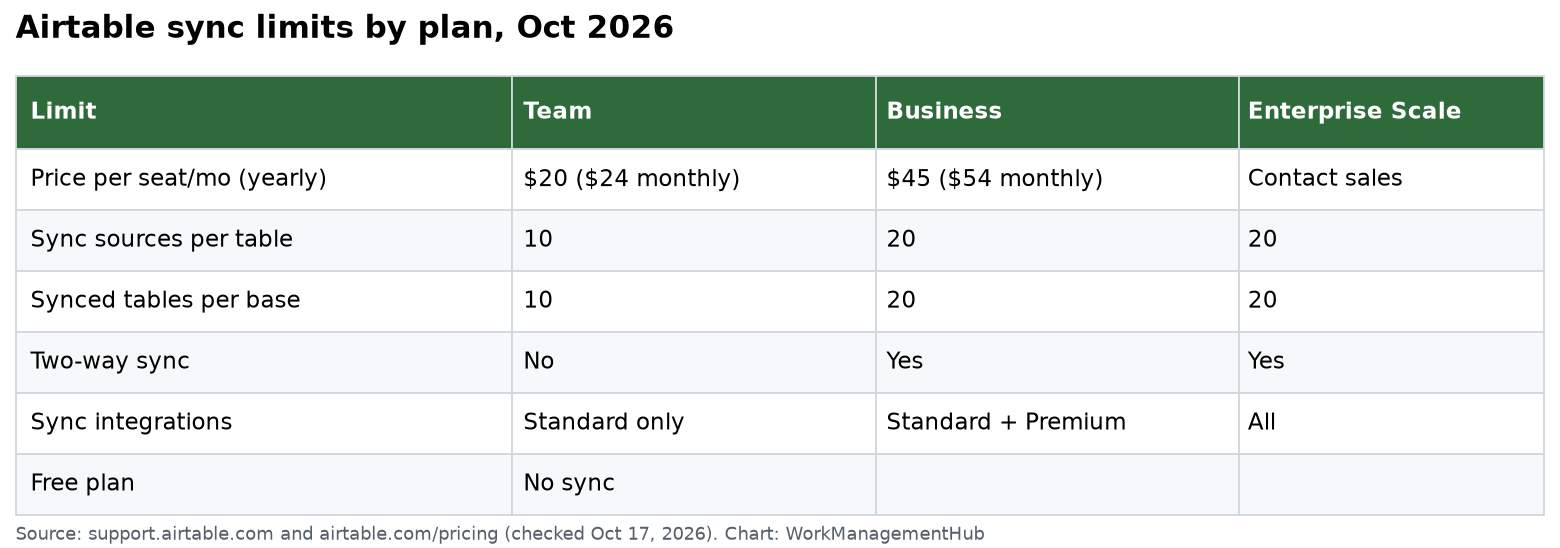
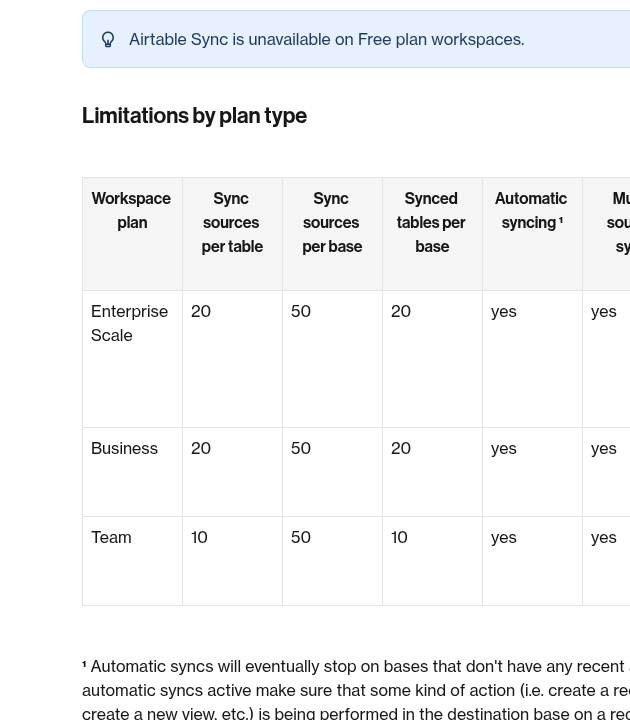
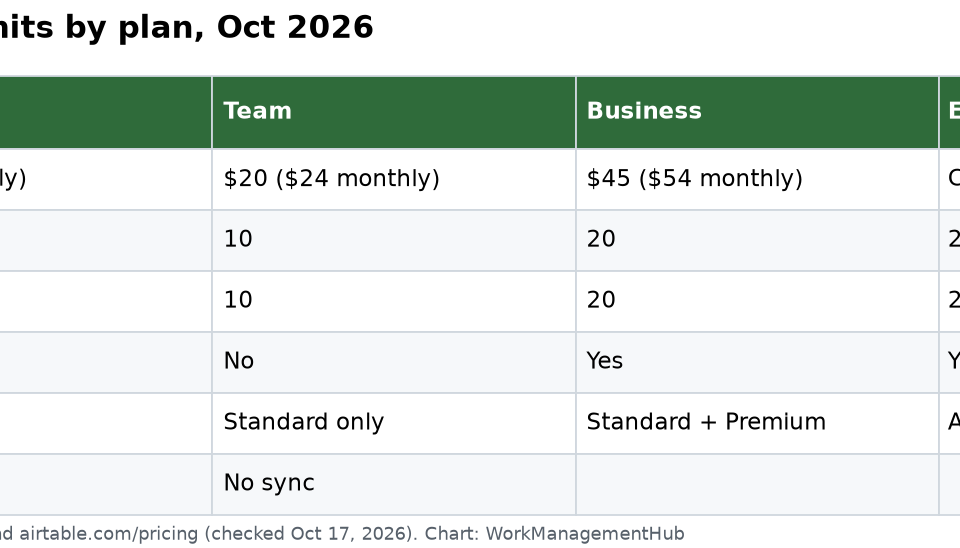
This is not a bug — it is a plan limitation that catches most teams by surprise. Airtable’s sync frequency is tiered: Free plan syncs every 60 minutes. Team plan syncs every 5 minutes. Business and Enterprise Scale offer near-real-time sync. If your team is on the Free plan expecting live data, you will always be disappointed. See our breakdown of Airtable pricing plans for a full tier comparison.
- Open Sync settings in the destination base and look at the Sync frequency field — it will display your current interval.
- Check your workspace plan: click your workspace name in the sidebar, go to Billing, and confirm the plan tier.
- If you need faster sync, upgrade to Team or higher under Billing → Upgrade plan.
- If upgrading is not possible, document the 60-minute lag for your team so expectations are set correctly — do not troubleshoot what is working as designed.
- For an immediate one-off refresh at any plan level, click Sync now in the Sync settings panel — this bypasses the interval timer and runs a sync immediately.
Fix #4: External Source Authentication Expired (Jira, Salesforce, Google Sheets, GitHub)
Symptom: Sync from an external source (Google Sheets, Jira, Salesforce, or GitHub) has stopped updating. The Sync settings panel shows an authentication error or a “reconnect” prompt. This may be weeks after the sync was first set up.
OAuth tokens — the credentials Airtable uses to talk to external platforms — expire. Salesforce tokens can expire in as little as two hours depending on your org’s session policies. Google tokens expire after extended inactivity. Jira tokens tied to a user account expire when that user changes their password or revokes app access. This is a routine maintenance task that teams forget exists until the sync breaks.
- In the destination base, open Sync settings and check the connection status at the top of the panel.
- If the status shows “Authentication error” or a yellow “Reconnect” button, click Reconnect.
- You will be redirected to the external platform’s OAuth authorization screen (Google, Salesforce, Jira, or GitHub).
- Sign in with the account that has access to the relevant data source and click Allow or Authorize.
- Return to Airtable — the connection status should now show “Connected”.
- Click Sync now and verify records are pulling correctly from the external source.
Salesforce-specific note: If your Salesforce org has session timeout set to less than 2 hours, your sync will break repeatedly. Work with your Salesforce admin to extend the Connected App session timeout or switch to a service account with a longer policy.
For Airtable’s official guidance on external integrations, review the Airtable Sync overview documentation on their support site.
Fix #5: Source View Filter Is Hiding Records
Symptom: Records that exist in the source base are not appearing in the destination — or records that previously synced have disappeared — but the sync itself shows no error.
Airtable Sync does not sync the entire table — it syncs a specific view of the table. If that view has filters applied (including filters added after the sync was originally configured), only records passing the filter are synced. When someone adds a filter to the source view to clean up their own display, they unknowingly remove records from every destination base that syncs from it. This is one of the most disruptive and hardest-to-diagnose issues because the person who added the filter had no idea they were affecting downstream bases.
- Open the source base (not the destination) and navigate to the specific view that is used as the sync source — the view name is listed in the Sync settings panel of the destination base.
- Click the Filter button in the source view toolbar and inspect all active filter conditions.
- Cross-reference the filter logic against the records that are missing from the destination — confirm they are being excluded by a filter condition.
- Either remove or modify the filter so the records you need to sync are visible in the source view.
- If the filter is needed for the source team’s workflow, create a separate, unfiltered view dedicated to sync (e.g., “Sync Source — Do Not Modify”) and update the Sync settings in the destination to point to the new view.
- Return to the destination base, open Sync settings, and click Sync now.
- Confirm the previously missing records now appear in the destination table.
Best practice: Lock the sync source view using Airtable’s Lock view option (available on Team plan and above) so no one can accidentally add filters without knowing what they are doing. Add a description to the view stating it is a sync source.
Fix #6: Two-Way Sync Conflict — Understanding “Source Wins” Behavior
Symptom: In a two-way sync setup, edits made in the destination base are being overwritten and reverted. Team members report their changes “disappearing” after a sync runs.
Two-way sync in Airtable allows both the source and destination to send updates in both directions — but it does not handle simultaneous edits gracefully. When both sides edit the same record between sync intervals, Airtable’s conflict resolution logic defaults to “source wins”: the source base value overwrites the destination base value on the next sync run. This is not a bug — it is the documented behavior — but it surprises teams who expect a merge or a prompt.
- Open Sync settings in the destination base and confirm the sync type — look for “Two-way sync” or “Bi-directional” in the configuration panel.
- Review the field-level sync direction settings. Airtable allows you to set individual fields as Source to destination only, Destination to source only, or Both directions. Open the field mapping panel to inspect each field’s direction.
- For fields where the destination team is the authoritative editor, set the sync direction to Destination to source only — this prevents the source from overwriting destination edits.
- For fields where the source is authoritative (e.g., a status field managed by another team), set the direction to Source to destination only.
- Communicate clearly to all teams which fields each side “owns” — create a shared convention document if needed.
- Enable record change notifications via Airtable automations so both teams are alerted when a record they manage is modified — this surfaces conflicts before the next sync run overwrites them.
Two-way sync conflicts are a process problem as much as a technical one. Field-level ownership mapping solves the technical side; team communication solves the human side. Both are required.
Fix #7: Schema Change in Source Breaks Field Mapping
Symptom: After someone modifies the source base — adding a new field, deleting a field, or renaming a field — the sync either stops working entirely, starts dropping data from affected fields, or shows unmapped fields in the Sync settings panel.
Airtable Sync uses internal field IDs, not field names, to maintain the mapping between source and destination. Renaming a field does not break sync — but deleting a field or changing its type does. When a mapped source field is deleted, the destination field becomes an orphan that no longer receives data. New fields added to the source after the sync was configured are not automatically mapped to the destination — they must be manually added.
- Open the destination base and navigate to Sync settings → Field mapping.
- Look for any fields flagged as “Deleted in source”, “Unmapped”, or showing a warning icon.
- For deleted source fields: decide whether to delete the corresponding destination field (it will retain its current data but no longer update) or remap it to a different source field that now carries the equivalent data.
- For new source fields you want to sync: click Add fields or Map field in the field mapping panel, select the new source field, and create or assign the corresponding destination field.
- Ensure the destination field type for any newly mapped field matches the source field type exactly (refer back to Fix #2).
- Click Save on the field mapping, then click Sync now to apply the updated mapping immediately.
- Spot-check several records to confirm the remapped fields contain correct data from the source.
Process recommendation: Establish a change management rule — any structural change to a source base (field additions, deletions, or type changes) requires a sync audit within 24 hours. This is especially important in enterprise environments with many downstream synced bases. For teams building complex interfaces on top of synced data, see our guide to Airtable Interface Extensions — schema changes in the base will also break interface components that reference those fields.
For the official field mapping documentation from Airtable, consult the Setting up a sync integration support article which covers mapping configuration in detail.
General Sync Health Checklist
Beyond the seven specific fixes above, keep these operational habits in place to prevent sync failures from recurring. Teams that run the following checklist monthly have far fewer sync incidents than those who treat sync as “set and forget.”
- Audit sync connection owners monthly — verify the account that created each sync is still active and has access to the source.
- Review external OAuth tokens quarterly — proactively re-authenticate Jira, Salesforce, and Google connections before they expire rather than waiting for the failure.
- Lock sync source views — use the Lock view feature on all views that serve as sync sources.
- Document field ownership in two-way syncs — every team should know which fields they control and which fields the other side controls.
- Run a field mapping audit after any schema change — treat source base schema changes as requiring a sync health check.
- Set up an automation to notify on sync failures — use Airtable automations troubleshooting practices to detect when a sync has not run within its expected interval.
Most Airtable Sync Failures Are Preventable — and Fixable in Under 10 Minutes
In my experience, approximately 60% of all “Airtable sync not working” tickets resolve to one of two root causes: a paused sync due to a revoked permission or expired token (Fix #1), or a field type mismatch silently blocking data transfer (Fix #2). Both are quick fixes once you know to look for them. The remaining 40% splits across source view filters, schema changes, plan frequency misunderstandings, and two-way conflict issues.
The overall recommendation: always start in Sync settings, read the status banner, and hit “Sync now” after any fix. Do not rely on the next scheduled sync to confirm your fix worked — force the sync immediately and watch the result. If you are on the Free plan and expecting live data, the sync cadence is a plan limitation, not a bug.
For teams whose sync issues also intersect with automation failures, see our dedicated Airtable automations troubleshooting guide — sync and automation failures often share the same root cause.
Frequently Asked Questions
Why does my Airtable Sync show a recent timestamp but the data is still old?
A recent sync timestamp means the sync process ran successfully — but it does not necessarily mean new data was available to pull. If the source data has not changed, the sync completes instantly with no new records transferred. If data has changed but is still not appearing, check for an active filter on the source view (Fix #5) or a field type mismatch (Fix #2) that is silently excluding the updated values.
Can I sync from a filtered view and still get all records?
No — Airtable Sync is view-based, not table-based. Only records visible in the selected source view are synced to the destination. If the source view has filter conditions applied, records excluded by those filters will not appear in the destination. To sync all records without restriction, use an unfiltered view as the sync source. Create a dedicated view called something like “Sync Source” and leave it completely unfiltered.
How do I sync data from Google Sheets to Airtable in 2026?
In your Airtable base, go to the table where you want the synced data, click + Add or import in the table tabs area, select Sync data, then choose Google Sheets as the source. Authorize your Google account via OAuth, select the specific spreadsheet and sheet, configure field mapping, and click Create synced table. On the Free plan, this syncs every 60 minutes; upgrading to Team or above gives you 5-minute sync intervals.
What happens to destination records if I delete records in the source?
When a record is deleted from the source table (or is filtered out of the source view), it is also deleted from the destination synced table on the next sync run. This is by design and cannot be overridden — Airtable Sync maintains a mirror of the source view, not an independent copy. If you need to retain destination records even when source records are deleted, you should export data to a separate table using automations rather than relying on sync.
Does Airtable Sync work across different workspaces?
Yes — Airtable Sync can pull data from bases in a different workspace, as long as the account setting up the sync has at least Read access to the source base. Cross-workspace sync is particularly useful for sharing data between departments or with external clients without granting full base access. The sync creator’s account must maintain access to both the source and destination bases for the connection to remain active.