Monday.com WorkDocs 2026: Complete Guide to Collaborative Docs, AI Writing & Board Integration

- WorkDocs is available on every Monday.com paid plan — no add-on purchase required — and lives natively alongside your boards, not in a separate tool.
- The AI writing assistant (part of the Monday AI suite, rolled out 2024–2025) can draft content, summarize meeting notes, and generate action items directly inside a doc.
- You can embed live Monday.com board views and dashboards inside a WorkDoc — most teams are completely unaware this feature exists.
- Permissions cascade automatically from board settings — guests get read or comment-only access without any extra configuration.
- WorkDocs is not a Notion or Confluence replacement — no relational databases, limited block types — but for project briefs and meeting notes that need to live with tasks, it is exceptional.
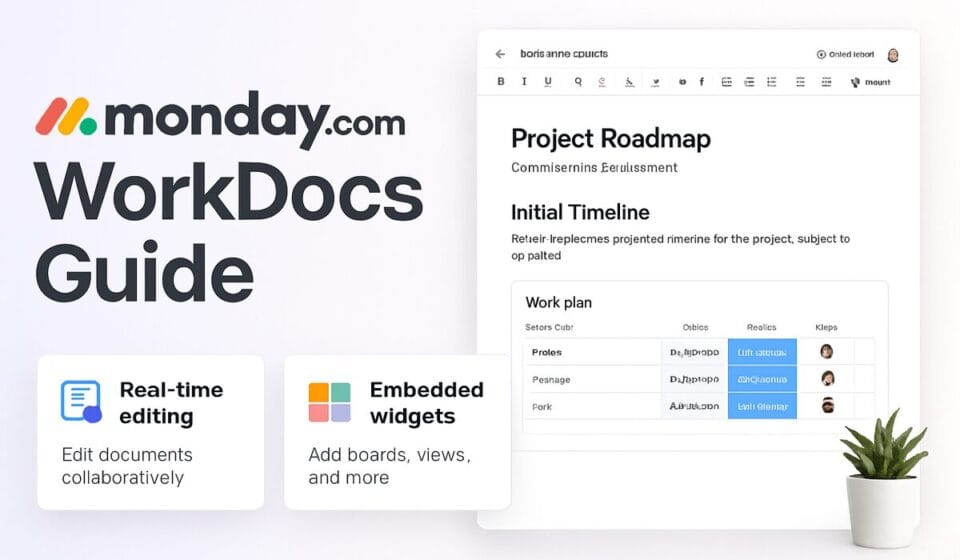
Monday.com WorkDocs is a built-in collaborative document editor available on all paid Monday.com plans. It lets teams create, edit, and share rich-text documents — including live board widgets and AI-generated content — directly inside their Monday.com workspace, so project context and written documentation stay in one place.
- What Are WorkDocs and Why Do They Matter?
- Creating Your First WorkDoc
- Using the AI Writing Assistant
- Embedding Live Board Views and Dashboards
- Real-Time Collaboration: @Mentions, Comments, and Threading
- Linking WorkDocs to Board Tasks
- WorkDoc Templates: Which to Use and When
- Permissions, Guest Access, and Security
- Honest Limitations vs. Notion and Confluence
- Best Use Cases by Team Type
- Verdict
- FAQ
What Are WorkDocs and Why Do They Matter?
If you have spent any time running projects in Monday.com, you know the pain of context switching. The board tracks tasks beautifully, but the project brief lives in Google Docs, the meeting notes are buried in an email thread, and the campaign plan is in a Confluence page that half the team cannot find. WorkDocs solves this by bringing document creation inside Monday.com itself — not as a bolt-on widget, but as a first-class citizen of the workspace.
Launched in 2022 and substantially upgraded with AI capabilities through 2024 and 2025, WorkDocs have matured from a basic rich-text editor into a genuinely capable collaborative workspace. The 2025 Monday AI suite integration is what changed the game: you can now open a meeting notes doc, highlight the entire body, and ask the AI to generate a structured action-item list that you can convert directly into board tasks. That single workflow alone has eliminated a meaningful amount of post-meeting admin for the teams I work with.
The business case is straightforward: every minute your team spends hunting for context outside Monday.com is a minute not spent delivering work. WorkDocs bring the narrative layer — the “why” and the “how” — directly alongside the operational layer of tasks and timelines. For a full picture of the platform’s capabilities, see our Monday.com review.
Creating Your First WorkDoc
There are three entry points for creating a WorkDoc, and which one you use depends on where you want the doc to live. Getting this right from the start prevents the common mistake of orphaned docs that nobody can locate two weeks later.
Method 1: Create a Standalone WorkDoc from the Left Sidebar
- In the left sidebar, click the + Add button (the plus icon near the bottom of your workspace navigation).
- Select Doc from the menu that appears.
- Name your doc and choose the workspace or folder where it should live.
- Click Create Doc — the doc opens in full-page view immediately.
Method 2: Add a WorkDoc as a Board View Tab
- Open any board and click the + (Add View) button in the top tab bar.
- Search for or scroll to Doc in the views panel.
- Click Add to Board — this pins the doc as a tab alongside your Main Table, Gantt, and other views.
- The doc is now accessible to everyone with board access without any extra sharing step.
Method 3: Embed a WorkDoc Column on a Specific Row
- On your board, click the + icon at the far right of the column headers to add a column.
- Search for Doc and select it.
- Click any cell in the new Doc column on a specific task row to open or create a doc scoped to that item.
- This is ideal for one-pagers, creative briefs, or spec documents attached to individual deliverables.
For most project teams, Method 2 (board view tab) is the right default — it keeps the project brief visible at the board level where the whole team works. Reserve Method 3 for task-specific docs like individual design briefs or client deliverable specs.
Using the AI Writing Assistant
The AI writing assistant is where WorkDocs moved from “useful” to “genuinely impressive” for daily work. It is part of Monday.com’s broader AI suite and requires an account on a plan that includes Monday AI — check your plan details if you do not see the AI option. For a full breakdown of Monday’s AI capabilities, see our guide to Monday.com AI agents.
Drafting Content from a Prompt
- Inside any WorkDoc, click on an empty block and type /AI or click the magic wand icon in the block toolbar.
- Select Write with AI and type your prompt — for example, “Write a project brief for a Q3 website redesign including goals, stakeholders, and success metrics.”
- Review the generated draft. Use the Retry button to regenerate or Keep to accept the content.
- Edit inline — the AI output is just text in a block, fully editable like anything else in the doc.
Summarizing Long Documents
- Select all the text you want summarized (or the entire doc with Ctrl+A / Cmd+A).
- Click the AI button that appears in the floating text toolbar above the selection.
- Choose Summarize — Monday AI produces a concise summary you can place at the top of the doc as an executive overview.
Generating Action Items from Meeting Notes
This is the workflow I recommend to every project manager I work with. After pasting or typing meeting notes into a WorkDoc:
- Select all the meeting notes text.
- Click the AI button and choose Generate Action Items.
- Monday AI produces a bulleted list of action items with owners and deadlines where the notes contain them.
- Hover over any action item and click Create Item — this pushes the action item directly to a connected board as a new task, pre-populated with the assignee and due date.
A 45-minute team meeting that used to produce 20 minutes of post-meeting admin now takes about three minutes. The accuracy depends heavily on how structured your notes are — the AI reads context well but is not magic, so clear, coherent notes produce cleaner output.
Embedding Live Board Views and Dashboards
This is the most underused capability in WorkDocs, and the one that most dramatically separates them from Google Docs or Notion pages. You can embed a live, interactive Monday.com widget — a board view, a dashboard chart, a timeline, a workload view — directly inside the body of a doc. The data updates in real time. No screenshots, no copy-paste, no “as of the date of this document” caveats.
How to Embed a Board View Widget
- Inside your WorkDoc, type / (forward slash) to open the block menu.
- Scroll to or search for Monday Widget and click it.
- In the widget picker, select the type of view you want to embed — Board View, Chart, Timeline, Numbers, or Dashboard.
- Select the board and specific view from your workspace. The widget embeds inline, sized to the doc width.
- Click anywhere outside the widget to return to doc editing mode. The widget remains live and reflects real-time board data.
Practical example: Our marketing team embeds a live Campaign Status board view into the quarterly campaign brief WorkDoc. When the CMO opens the doc for a status check, she sees the actual task statuses in the board widget alongside the strategy narrative — no need to open a separate tab or ask for an update. This single change eliminated our weekly “what’s the status?” email chain.
You can also embed an automation button widget, allowing a document reader to trigger a board automation directly from the doc — for example, a “Send for Approval” button that moves a task to a review stage. This is advanced territory but incredibly powerful for approval workflows. See our Monday.com automations guide for how to build the underlying automations that power these embedded buttons.
Real-Time Collaboration: @Mentions, Comments, and Threading
WorkDocs support simultaneous editing by multiple users with cursor presence indicators — you can see who else is in the doc and where they are editing in real time. This works reliably in my experience with teams of up to eight simultaneous editors; beyond that, it can feel chaotic, but that is an organizational problem as much as a technical one.
@mentions work exactly as you expect from Monday.com’s main interface. Type @ followed by a teammate’s name anywhere in a doc and they receive a notification linking directly to the relevant block. This is particularly useful in meeting note docs where you want to flag a specific point for someone who was not in the meeting.
Block-level comments are a step above what most doc tools offer. Rather than commenting on the entire document, you can highlight a specific sentence or block and add a comment thread to that exact piece of content. Reviewers can reply directly in the thread, and the comment persists until resolved. This is genuinely superior to how Google Docs handles review feedback for structured documents like project briefs.
To add a block-level comment: select any text, click the comment bubble icon that appears in the floating toolbar, type your comment, and press Enter. Anyone with access to the doc can see and reply to the thread. Resolved comments are archived but not deleted — you can review the comment history at any time.
Linking WorkDocs to Board Tasks
The bidirectional link between WorkDocs and board items is what makes the system genuinely cohesive rather than just a feature bundle. There are two ways to create this connection, and understanding both is important for keeping your workspace organized.
Drag a WorkDoc onto a Task Row
- Find the WorkDoc in your left sidebar or workspace.
- Click and drag it directly onto a task row in a board — drop it on the row’s item name or any column.
- The doc now appears as an attachment in the task’s Files column or item card.
- Open the item card and click the doc link — it opens in full-page view with the task context visible.
Link from Inside the WorkDoc
- Inside any WorkDoc, click the Connect Boards button in the top-right corner of the doc toolbar (the link icon).
- Search for and select the board and specific item you want to link.
- The doc now shows a Connected Items panel on the right — you can see the linked task’s status, assignee, and due date without leaving the doc.
- Changes to the task status on the board update in the connected panel in real time.
The bidirectional nature means the doc link appears on the board item and the board item data appears in the doc. For client-facing deliverables, I typically use the Doc column method (Method 3 from the creation section) so that each deliverable task has exactly one associated spec document — clean, unambiguous, and impossible to misplace.
WorkDoc Templates: Which to Use and When
Monday.com ships five core WorkDoc templates. Each solves a real problem but has specific strengths depending on your team type.
| Template | Best For | Key Sections |
|---|---|---|
| Project Brief | New project kickoffs, client engagements | Goals, scope, stakeholders, success metrics |
| Meeting Notes | Recurring team meetings, client calls | Attendees, agenda, discussion, action items |
| Sprint Review | Agile/Scrum teams at sprint close | Completed work, demo notes, blockers, velocity |
| Retrospective | End-of-sprint or end-of-project reflection | What went well, what didn’t, improvements |
| One-Pager | Executive summaries, proposals | Problem, solution, impact, ask |
To access templates: when creating a new WorkDoc, click Use a Template instead of starting blank. You can also save any doc you have built as a custom template — click the three-dot menu at the top right of a doc and select Save as Template. This is particularly valuable once you have established your team’s standard project brief format with embedded board widgets already configured.
Permissions, Guest Access, and Security
Permissions are where many teams get confused — but once you understand the underlying logic, it is actually elegant. WorkDoc permissions cascade directly from the board they are associated with. There is no separate permission system to manage for docs, which reduces administrative overhead significantly compared to Notion or Confluence where permissions can become a maintenance burden.
How Permission Inheritance Works
- A WorkDoc embedded as a board view tab inherits the board’s sharing settings automatically. If a board is shared with a guest at view-only level, the doc appears in read-only mode for that guest.
- A standalone WorkDoc in a workspace defaults to the workspace’s member permissions. Members with edit access can edit; guests with comment access can comment but not modify text.
- To adjust permissions on a standalone doc independently, click the Share button (top-right of any doc) and set individual user or group permissions to Full Access, Can Edit, Can Comment, or Can View.
- External guests (client-facing) can be given Can Comment access — they can read the doc and add comments but cannot alter the content. This is the configuration I use for all client-facing project briefs and status documents.
One important nuance: if a guest can view a WorkDoc that contains an embedded board widget, they will only see data from that board that they already have permission to access. The widget respects the board’s own permission settings — it does not expose data the guest should not see. For teams running Monday.com CRM workflows with sensitive deal data, this is worth verifying explicitly. See our Monday.com CRM setup guide for how to structure board permissions in client-facing scenarios.
For an authoritative reference on Monday.com’s permission model, the Monday.com board permissions help article and the official WorkDocs overview page are the most current sources.
Honest Limitations vs. Notion and Confluence
Any honest consultant has to give you the full picture, and WorkDocs have real constraints that matter for certain use cases.
No relational databases. Notion’s table databases with linked properties, rollup fields, and formula columns have no equivalent in WorkDocs. If your documentation strategy depends on a structured knowledge base with relational data, WorkDocs will not replace Notion.
Limited block types. WorkDocs supports text, headings, bullet lists, numbered lists, toggles, callouts, dividers, images, videos, and Monday widgets. Notion supports all of this plus code blocks with syntax highlighting, breadcrumbs, synced blocks, and embedded databases. Confluence adds page hierarchies, macros, and deep Jira integration. If your engineering team needs a living spec doc with code snippets, they will likely find WorkDocs frustrating.
No page hierarchy. WorkDocs does not support nested pages or a wiki-style structure. You can organize docs into folders, but there is no parent-child page relationship like Confluence’s space-and-page model. For large knowledge bases this is a meaningful gap.
Export options are limited. As of 2025, WorkDocs can be exported as PDF. Full Word document or Markdown export is not natively supported, which can be an issue for teams that need to share polished deliverables with external parties in editable formats.
The honest summary: WorkDocs wins on integration and simplicity for teams already in Monday.com. For teams that need a robust knowledge management system or developer documentation, Notion or Confluence remain stronger options. The pricing context matters here too — if you are already paying for Monday.com, WorkDocs is included; adding a separate Notion or Confluence subscription has real cost. See our Monday.com pricing breakdown to understand what plan you need.
Best Use Cases by Team Type
Based on deploying WorkDocs across marketing, operations, consulting, and product teams, here is where the ROI is clearest:
Marketing teams: Campaign briefs as board-view docs with embedded campaign task boards and performance dashboard widgets. The creative brief stays live and the team can check task progress without leaving the doc.
Project managers: Meeting notes docs linked to project boards, with AI action-item generation converting discussion points to tasks in seconds. Weekly status reports written inside the project board’s doc tab eliminate the PowerPoint-update cycle.
Consulting and client services: Client-facing project briefs shared with guest comment-only access, with embedded timeline views showing project milestones. Clients see real data, not a slide that was accurate when you made it.
Operations teams: Standard operating procedure docs linked to process boards. When a process changes, the SOP doc and the board automation update together — no risk of documentation drift.
HR and people teams: Onboarding guides as WorkDocs embedded in the onboarding board, with task checklists on the board tracking progress through the doc’s steps in parallel.
Yes — with a clear-eyed understanding of scope. For any team already running their work in Monday.com, WorkDocs is a no-brainer addition. The zero marginal cost, the live board widget embedding, the AI action-item generation from meeting notes, and the permission inheritance from boards collectively make it the best documentation tool available within a work management platform. It is not trying to be Notion and should not be evaluated as a Notion replacement. It is trying to make your Monday.com workspace self-contained — and at that, it succeeds. If your documentation needs are primarily project briefs, meeting notes, campaign plans, and client-facing status documents, you should be using WorkDocs today. Teams that need a full wiki, relational knowledge base, or engineering documentation system will need to supplement with Notion or Confluence — but even then, WorkDocs can handle the operational layer while those tools handle the knowledge layer.
Frequently Asked Questions
Sponsored