
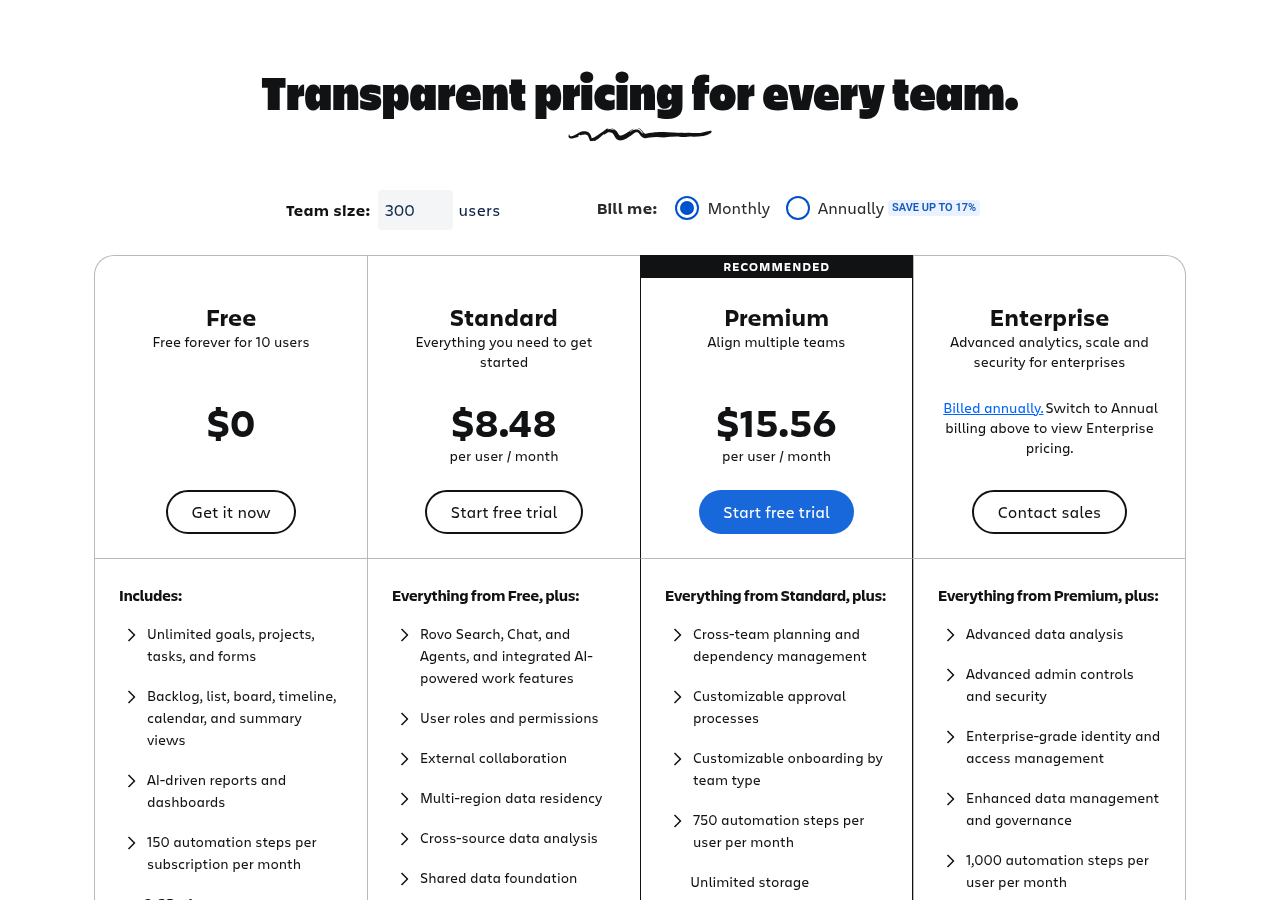
Jira is still the default tool for software teams in 2026 because it models how they work: backlogs, sprints, story points, releases and tight links to code. It is free for up to 10 users. Standard costs $8.48 per user a month and Premium $15.56 at the page’s default team size. Teams outside software often find it heavy and should look at simpler tools first.
I checked Jira’s pricing page and Atlassian’s docs on the velocity chart and sprint report on October 22, 2026.
What Jira does better than anyone
1. Agile, built in. Scrum and Kanban boards, backlogs, sprints, story points, velocity charts, sprint reports and burndowns are all native. Tools like ClickUp and monday dev have agile features too, but Jira’s reports go deeper.
2. Links to code. Connect GitHub, GitLab or Bitbucket. When a developer puts the work item key (like PROJ-123) in a branch name or commit, Jira links the branch, commits and pull requests to that item. The item shows open pull requests and build status, so fewer people ask “is this done?”.
3. Workflows you can shape. Admins can build custom statuses, transitions, required fields and approvals. For regulated teams, that control is the point.
4. Scale. Standard and up support up to 100,000 users per site. Enterprise supports up to 150 sites.
5. A real free plan. Free covers up to 10 users with unlimited projects, boards, backlogs, timelines and forms. A small dev team can run its whole process at no cost.
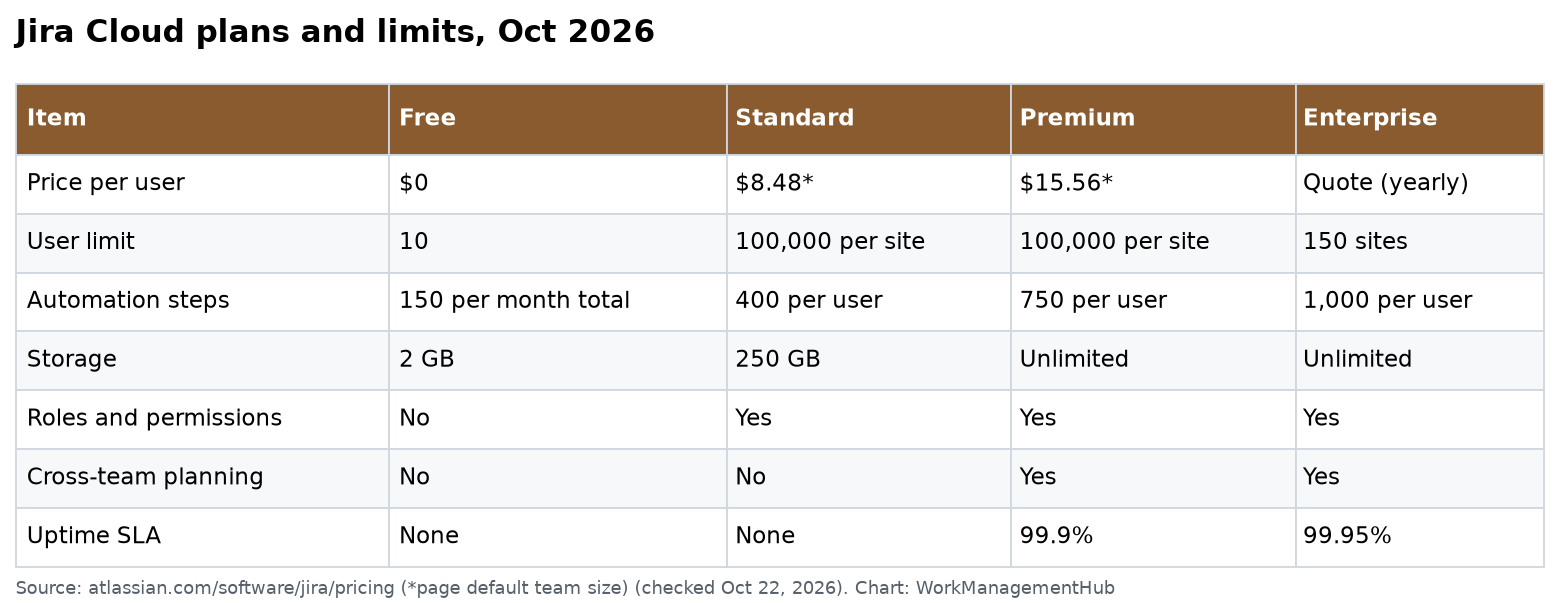
Jira pricing in 2026
| Free | Standard | Premium | Enterprise | |
|---|---|---|---|---|
| Price per user | $0 | $8.48 | $15.56 | Quote, yearly only |
| Users | Up to 10 | Up to 100,000 per site | Same | Up to 150 sites |
| Automation | 150 steps a month, total | 400 steps per user a month | 750 per user | 1,000 per user |
| Storage | 2 GB | 250 GB | Unlimited | Unlimited |
| Support | Community | 9/5 regional | 24/7 for critical issues | 24/7 for all issues |
| Uptime SLA | None | None | 99.9% | 99.95% |
Prices change with team size and billing term. The figures above are what the page showed at its default team size.
What each paid tier adds:
- Standard: user roles and permissions, external collaboration, Rovo Search, Chat and Agents, multi-region data residency.
- Premium: cross-team planning and dependency management, custom approval processes, unlimited storage, an uptime SLA.
- Enterprise: advanced analytics, admin controls and identity management, multiple sites.
My advice: most teams of 10 to 50 people should buy Standard. Pay for Premium when several teams plan against shared dependencies, or when you need the SLA.
Watch the Free plan’s automation cap. 150 steps a month is for the whole subscription, not per user. A few busy rules can use it up in a week.
What changed in Jira this year
- New names. Atlassian’s docs now say spaces instead of projects and work items instead of issues. Menus and help pages use the new terms, so older guides can be confusing.
- AI on paid plans. Rovo Search, Chat and Agents come with Standard and up. Free includes AI-driven reports and dashboards.
- Automation counted in steps. Limits are measured in automation steps per user a month on paid plans.
Where Jira struggles
Non-developers. Marketing, HR and finance teams often find Jira’s terms and screens foreign. Simple jobs take more clicks than in Asana or monday.com.
Admin work. Workflow schemes, permission schemes and screen schemes take skill. Without a trained admin, Jira gets cluttered fast. Custom fields pile up when every team adds its own.
Report traps. Velocity and sprint reports are board-specific and ignore sub-task estimates. A wrong board filter or Done column makes the numbers look broken. See our guide to why the Jira velocity chart shows wrong numbers.
Suite creep. Teams start with Jira, then add Confluence, Jira Service Management and security add-ons. Each is billed separately, so check the total before you commit.
How to set up Jira so it stays clean
- Pick the right space type. Company-managed spaces give admins shared workflows and full reports, including velocity. Team-managed spaces let one team set its own rules fast.
- Keep workflows short. To Do, In Progress, In Review, Done covers most teams. Add steps only when someone needs to act at that step.
- Map every finished status to the last column. Otherwise your reports undercount.
- Estimate parent items, not sub-tasks. Reports only count parent estimates.
- Limit custom fields. Add a field only if someone will filter or report on it.
- Connect your code host on day one. The code links are a big part of what you pay for.
Jira next to the main alternatives
Prices are per user a month, from each vendor’s pricing page on October 22, 2026.
| Tool | Free plan | Entry paid plan | Best for |
|---|---|---|---|
| Jira | Up to 10 users | Standard, $8.48 | Software teams that need control and reports |
| Linear | 250 issues, 2 teams | Basic, $10 (yearly) | Fast-moving dev teams |
| ClickUp | Yes, 60 MB storage | Core $9 (new) or Unlimited $7 (classic), yearly | Mixed teams in one tool |
| Asana | Up to 2 users | Starter, $10.99 (yearly) | Business project work |
| GitHub Projects | Included with GitHub Free | Team, $4 | Small teams already on GitHub |
Jira is not the expensive choice per seat. The real cost is admin time. Plan for someone to own Jira’s setup, even part time, once you pass about three teams.
Your first 30 days as a Jira admin
- Week 1: create one company-managed Scrum space for one team. Connect the code host.
- Week 2: set the board’s estimation to story points and check the column mapping.
- Week 3: add two or three automation rules, such as auto-assigning new bugs. Watch the step count on the Free plan.
- Week 4: run the first sprint review with the sprint report and velocity chart. Fix any board filter gaps before you add a second team.
Who should use Jira in 2026
Use Jira if:
- You are a software team running sprints or Kanban with real release dates.
- You need workflows with required fields, approvals or audit trails.
- Your support team uses Jira Service Management.
Look elsewhere if:
- Your team isn’t building software. Asana, monday.com or ClickUp will be easier.
- You are a small dev team that wants speed over control. Try Linear.
- Your code lives on GitHub and your needs are simple. GitHub Projects may be enough.
Related guides
- Jira pricing 2026
- Jira sprint planning guide
- 7 Jira alternatives worth switching to
- Jira and GitHub integration
- Jira automation rules setup guide
Common questions
Is Jira free?
Yes, for up to 10 users. The Free plan includes unlimited projects, boards and forms, 150 automation steps a month and 2 GB of storage.
How much does Jira cost per user?
The pricing page showed Standard at $8.48 and Premium at $15.56 per user a month at its default team size. Enterprise is quoted and billed yearly.
Is Jira good for non-software teams?
It can work, but most business teams find Asana, monday.com or ClickUp easier to learn and run.
What is the difference between company-managed and team-managed spaces?
Company-managed spaces share settings set by admins and support the full set of agile reports. Team-managed spaces let a team change its own settings without an admin.
Does Jira include AI?
Standard and higher include Rovo Search, Chat and Agents. The Free plan includes AI-driven reports and dashboards.
Sources
- Jira pricing (checked Oct 22, 2026)
- Atlassian: View and understand the velocity chart
- Atlassian: View and understand the sprint report
- Atlassian: Configure how your board estimates and tracks work
Sponsored