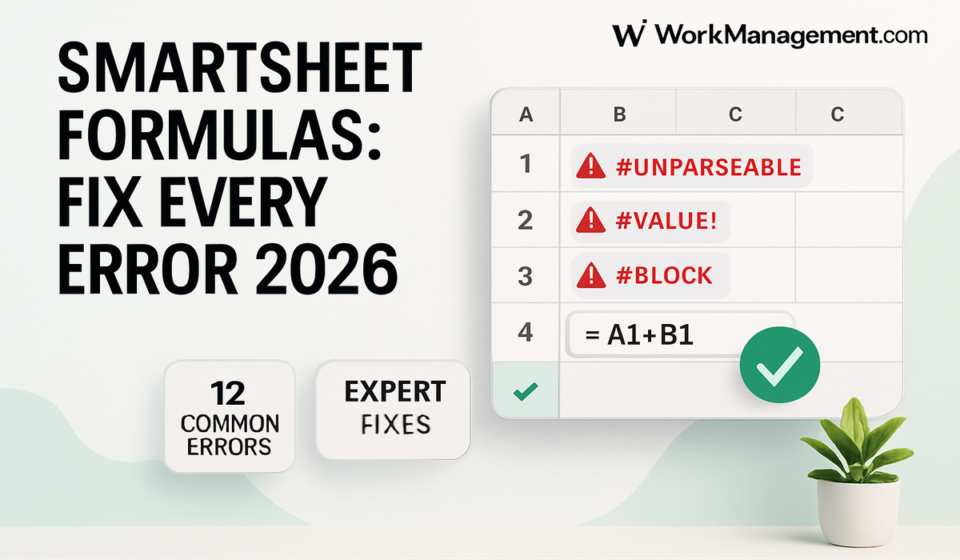

A Smartsheet formula fails for one of three reasons: the text can’t be parsed, the data type doesn’t match the column, or a reference points somewhere invalid. Smartsheet tells you which by writing a specific code into the cell — #UNPARSEABLE, #DATE EXPECTED, #INVALID REF and so on. Read the code first; guessing wastes time.
Smartsheet does not return a single generic failure the way a spreadsheet cell sometimes does. It returns one of roughly twenty named codes, and each one maps to a narrow, well-defined condition. That specificity is the fastest debugging tool available, and most people ignore it because the code looks like noise. It isn’t. #INVALID COLUMN VALUE and #INVALID DATA TYPE sound interchangeable and are not — one is about the column the formula lives in, the other is about what the formula is being handed.
The reference table below covers the complete published list. Everything in it is taken from Smartsheet’s official formula error messages article. If a code isn’t here, Smartsheet doesn’t document it.
Every Smartsheet formula error code, decoded
| Error | What Smartsheet actually means | The fix |
|---|---|---|
#BLOCKED | Your formula is fine. A cell it references contains an error, so this calculation never ran. | Trace the referenced cells. Fix the upstream error and this one clears on its own. |
#BOOLEAN EXPECTED | The formula sits in a Checkbox, Flag or Star column but returns something that isn’t 0/1 or true/false — commonly a number above 1, or a date. | Return a boolean, move the formula to another column type, or append + "" to coerce the result to text. |
#CALCULATING | Not an error. The engine is still working, usually because of chained formulas, cell links, or browser load. | Wait. If it persists, reduce conditional formatting, archive rows, and check you aren’t near the 100,000 cell reference ceiling. |
#CIRCULAR REFERENCE | The formula references itself, directly or through a chain of other cells that lead back. | Copy the formula out, then remove references one at a time until the error disappears. |
#CONTACT EXPECTED | A formula in a Contact List column returned something other than text or a contact. | Return text or a contact, or move the formula to a Text/Number, Date, Dropdown, Checkbox or Symbol column. |
#DATE EXPECTED | A formula in a Date column returned a value that isn’t a date or text. | Move the formula, or convert the result — =TODAY() + "" turns a date into text. |
#DIVIDE BY ZERO | The divisor evaluated to zero. | Wrap it: =IFERROR(100/Value4, "") returns a blank instead of an error. |
#IMBALANCED | Opening and closing parentheses don’t match in number. | Count them. Smartsheet colours the final closing parenthesis blue when the count is right — that confirms quantity, not placement. |
#INCORRECT ARGUMENT SET | Two ranges passed to a function are different sizes, or an argument is missing or extra. | Match the range sizes; add or remove arguments to fit the function’s signature. |
#INVALID COLUMN VALUE | The formula’s output type doesn’t match the type of the column holding it — for example a MAX over date cells sitting in a Text/Number column. | Move the formula, change the column type, wrap in IFERROR, or convert the output (WEEKNUMBER around a date, for instance). |
#INVALID DATA TYPE | The formula is handed an incompatible type, such as =INT("Hello"). | Point the arguments at the right data type. |
#INVALID OPERATION | An operator is unsupported or typed backwards. The classic is =< instead of <=. | Check every operator. Smartsheet supports + - * / ^^ < > >= <= = <> and nothing else. |
#INVALID REF | A name inside curly braces doesn’t match any cross-sheet reference that exists on this sheet. | Correct the name inside the braces, or create the reference. References are per-sheet and are not inherited when you copy a formula elsewhere. |
#INVALID VALUE | A numeric argument falls outside the range the function accepts — =FIND("H", "Hello", 100) starts past the end of a five-character string. | Bring the number into the valid range. |
#NESTED CRITERIA | You nested criteria inside SUMIF or COUNTIF, which only accept one. | Switch to SUMIFS or COUNTIFS. |
#NO MATCH | VLOOKUP or MATCH found nothing — either the value isn’t in the range, or the match type doesn’t suit how the data is sorted. | Adjust the lookup table and match_type, or the range and search_type for MATCH. |
#OVERFLOW | A computed value exceeded the supported numeric range (roughly ±9,007,199,254,740,992), or a WORKDAY calculation passed 1,000,000 days. | Usually a bad reference pulling in far more than intended. Re-check the ranges. |
#PERMISSION ERROR | The formula reads another sheet, but nobody holds the permissions on both sheets required to resolve it. | Give at least one person Editor or higher on the destination sheet and Viewer or higher on the source sheet. |
#REF | The formula points at a cell that no longer exists, typically after a row or column deletion. | Repoint the formula manually. Smartsheet will not repair it for you. |
#UNPARSEABLE | Smartsheet cannot read the formula at all. Misspelled function or column names, wrong capitalisation on a column name, an incomplete operator, or single quotes where double quotes belong. | Check spelling and case on every column name; use double quotes for all text strings. |
#UNSUPPORTED CROSS-SHEET FORMULA | CHILDREN, PARENT or ANCESTORS is pointed at a reference in curly braces. Hierarchy functions only work inside their own sheet. | Remove the cross-sheet reference from that function and select the cells directly instead. |
Why #BLOCKED is the one worth chasing first
#BLOCKED is a symptom, never a cause. In a sheet with layered rollups it can appear in twenty cells while exactly one cell somewhere upstream holds the real problem. Work backwards rather than editing the formulas that show the error.
- Double-click the #BLOCKED cell, or select it and press F2, to read the formula without editing it.
- Note every column and cross-sheet reference it uses.
- Inspect those source cells. One of them carries a specific code — that is the real fault.
- If the source cell is itself #BLOCKED, repeat. Chains three or four levels deep are normal in metric sheets.
- Fix the terminal error. Every downstream #BLOCKED clears without further edits.
If you are building rollup logic like this, the reference material in our Smartsheet formulas and functions guide covers the function syntax these chains depend on.
Column type is a constraint, not a formatting preference
Four codes — #DATE EXPECTED, #CONTACT EXPECTED, #BOOLEAN EXPECTED and #INVALID COLUMN VALUE — are all the same underlying problem stated four ways. Smartsheet columns are strongly typed, and a formula’s return type must match the column it occupies. This is the single biggest behavioural difference from Excel, where a cell will happily hold whatever you give it.
Note one inconsistency in the official documentation: the error-messages article describes #DATE EXPECTED as covering Date, Number and Symbol columns, while the formulas FAQ describes it purely as a Date column returning a non-date. In practice, treat all four codes as one instruction — align the output type with the column type.
To change the column instead of the formula:
- Right-click the column header and select Edit Column Properties.
- Set the type to match what your formula returns.
- Save the sheet and confirm the error has cleared across the whole column, not just the cell you were watching.
The escape hatch when you cannot change the column is coercion to text: appending + "" converts a formula result to a string. =TODAY() + "" will sit happily in a Text/Number column. Use it deliberately, because the result is no longer sortable or comparable as a date. Symbol columns have their own rule — the value must be the literal symbol name in double quotes with exact capitalisation, so "Green", not green. If you are working with dropdown and symbol logic, smart columns and dynamic dropdowns is the related read.
Cross-sheet reference limits that shape your architecture
Cross-sheet references are where Smartsheet solutions stop being spreadsheets and start being systems, and where the hard limits start to matter. Per Smartsheet’s cross-sheet references documentation:
- A sheet can hold no more than 100 distinct cross-sheet references. Reuse existing reference names by typing them inside braces rather than creating a new reference each time.
- A single reference range can include a maximum of 100,000 inbound cells.
- CHILDREN, PARENT and ANCESTORS do not accept cross-sheet references at all.
- Large-scale sheets are not supported as cross-sheet reference sources.
- Cells containing cross-sheet formulas do not trigger sheet-change automations — and neither do cells that merely reference such a cell.
That last point causes more confusion than any error code, because nothing appears broken. The formula calculates, the value updates, and the workflow silently never fires. If that describes your situation, the problem is architectural rather than syntactic; see why Smartsheet automations aren’t triggering.
Plan gating is real here too. Cross-sheet references require Pro or above — they are not available on the free tier. AI-assisted formula generation and troubleshooting is Enterprise-only. And deleting a sheet reference removes it for everyone with access, breaking their formulas as well as yours.
Column formulas: the syntax they refuse
Column formulas apply one expression to every row, including rows added later. They are the right default for any calculation that should be uniform, and they eliminate the most common source of silent drift — a row where someone overwrote the formula with a typed value.
The restriction that trips people up is that column formulas cannot contain explicit row numbers. Per Smartsheet’s column formulas documentation, [Column]@row and full-column ranges like [Column]:[Column] are supported; [Column]1, [Column]$1 and partial ranges like [Column]1:[Column]12 are not. If Convert to Column Formula is greyed out or errors, a hard-coded row reference is almost always why.
- Rewrite every cell reference using
@rowor a full-column range. - Enter the formula in a single cell and confirm it calculates correctly.
- Right-click that one cell — selecting multiple cells disables the option — and choose Convert to Column Formula.
- Confirm the function icon now appears beside the column name.
Where you genuinely need a fixed value, put it in a sheet summary field and reference that instead. Creating column formulas requires Owner or Admin permissions; Editors cannot do it, and Editors can only work with formulas in unlocked cells at all.
Where formulas simply aren’t allowed
Some cells reject formulas outright rather than erroring. Start Date, End Date, Duration, Predecessors and % Complete carry built-in project logic once dependencies are enabled. Contact cells used by Resource Management, system columns such as Modified By, and the default attachment and comment columns are also off limits. The documented workaround is to disable dependencies or build parallel columns for your own calculations — relevant if you are combining scheduling with custom rollups, as covered in our Smartsheet resource management guide.
You also cannot author formulas in forms, update requests, reports or dashboards. Results display there; the logic has to live on a sheet. That constraint is the reason most mature Smartsheet builds route dashboard metrics through a dedicated calculation sheet, a pattern explained in our Smartsheet dashboards guide.
Frequently asked questions
Why does my formula break after someone renames a column?
#UNPARSEABLE is triggered by misspelled or wrongly capitalised column names. Any formula still carrying the old column name — typically one pasted in as text rather than built by clicking cells — no longer matches a real column. Search the sheet for the old name and update every occurrence, including cross-sheet references.
How many cross-sheet references can one sheet have?
One hundred distinct references per sheet, with a maximum of 100,000 inbound cells in any single reference range. Reference whole columns rather than small ranges, and reuse existing reference names by typing them inside braces. Reports are often the better answer once you approach that ceiling.
Does Smartsheet have IFERROR?
Yes, and Smartsheet’s own documentation recommends it for #DIVIDE BY ZERO and #INVALID COLUMN VALUE. Use it to substitute a blank or a label rather than surfacing a code to users. Suppress errors only after you understand them — IFERROR around a broken reference hides the fault permanently.
Why can’t I convert my formula to a column formula?
Almost always a hard-coded row number. Column formulas accept [Column]@row and full-column ranges only; cell references, absolute references and partial ranges are rejected. Rewrite those references relatively. Also check you have selected exactly one cell and hold Owner or Admin permissions on the sheet.
What is the difference between #INVALID DATA TYPE and #INVALID COLUMN VALUE?
#INVALID DATA TYPE means the formula was handed an argument of the wrong type, such as text passed to a numeric function. #INVALID COLUMN VALUE means the formula computed correctly but its output type conflicts with the column holding it. One is an input problem, the other an output problem.
Sponsored

Related guides