Skip to content
Work Management Hub Work Management Hub

Expert Reviews, Comparisons & Guides for Smartsheet, Monday.com, Asana, ClickUp & More

Work Management Hub Work Management Hub

Expert Reviews, Comparisons & Guides for Smartsheet, Monday.com, Asana, ClickUp & More

  • Airtable
  • Asana
  • ClickUp
  • Jira
  • Monday.com
  • Notion
  • Smartsheet
  • Wrike
  • About
  • Contact
  • Airtable
  • Asana
  • ClickUp
  • Jira
  • Monday.com
  • Notion
  • Smartsheet
  • Wrike
  • About
  • Contact
Close

Search

How-To GuidesSmartsheet

Smartsheet Notifications Not Working? 8 Real Fixes

By Khasim
July 4, 2026 9 Min Read
0

Most Smartsheet notification failures trace to four causes: the workflow is deactivated, you triggered the change yourself (Smartsheet suppresses your own alerts by default), the recipient is blocked by the sheet’s automation permissions, or the email is stuck in a corporate quarantine. Open Automation > Manage automation workflows and confirm the workflow shows as Active first.

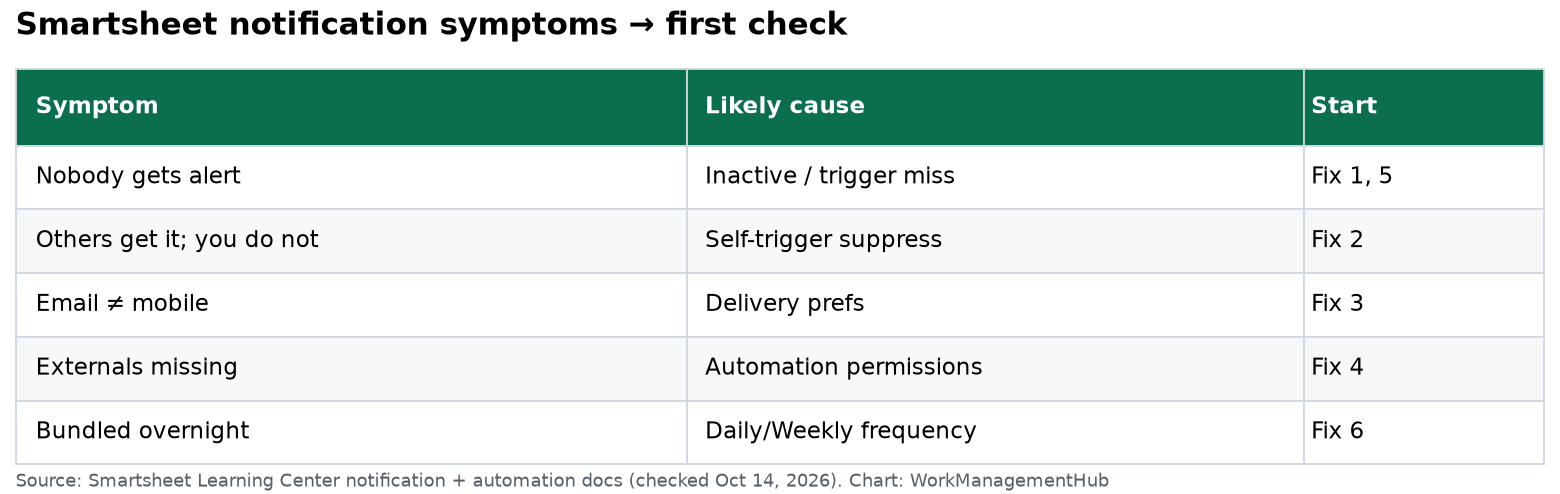
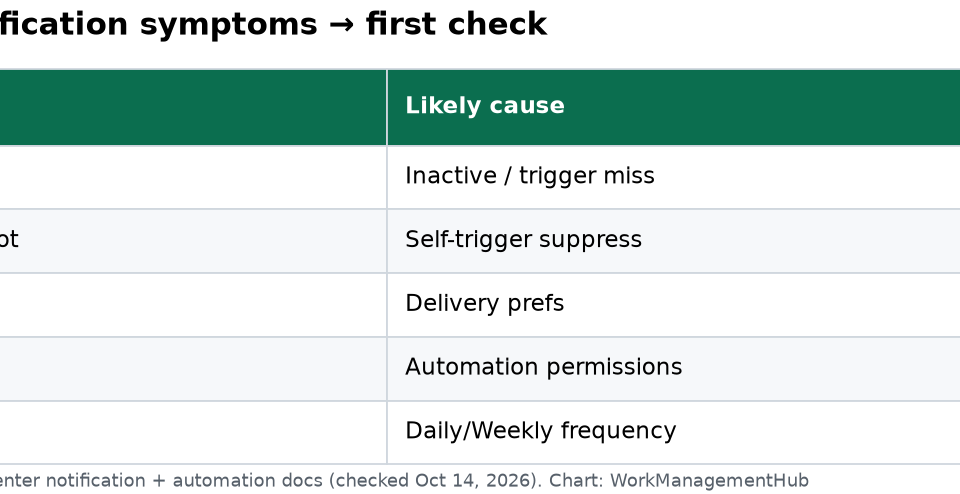
The word “notification” covers at least five different mechanisms in Smartsheet, and they fail for different reasons. Alert workflows, update requests, approval requests, row-level reminders, and your own personal delivery preferences all sit on separate settings screens. Fixing the wrong one is the single biggest time-waster here, which is why the table below is worth thirty seconds before you start clicking.

Diagnose before you change anything

SymptomLikely causeGo to
Nobody gets the alert, including other recipientsWorkflow is deactivated, or the trigger criteria were never metFix 1 and Fix 5
Colleagues get the alert, you never doYou made the change that triggered itFix 2
Email arrives but mobile push doesn’t (or vice versa)Personal delivery preferences for that notification typeFix 3
Some recipients get it, external or unlicensed people don’tAutomation permissions set to Restricted or LimitedFix 4
Alerts arrive in the small hours, bundled togetherWorkflow frequency set to Daily or Weekly, not When triggeredFix 6
A cell changes via cross-sheet formula and nothing happensDocumented exclusion for sheet-changing actions; alert behaviour isn’t spelled outFix 7
Nothing lands anywhere, for anyone outside your domainRecipient’s mail filtering is blocking Smartsheet’s sending domainsFix 8

Fix 1: Confirm the workflow is active and has actually run

Deactivated workflows look identical to active ones at a glance, and a colleague with Admin rights can switch one off without telling anyone.

  1. Open the sheet and select Automation > Manage automation workflows.
  2. In the top right of the workflow manager, use Filter by status and choose Unable to run. Anything listed here is broken, not just quiet.
  3. Switch the filter to Inactive to catch workflows someone deactivated.
  4. Change Sort by to Last run. A workflow that has never run is a configuration problem, not a delivery problem.
  5. Hover the workflow, select the More icon, and choose Test now… to send yourself a preview of how the notification will look.

While you’re in that menu, open Workflow Properties. It lists the 16-digit workflow ID and, more usefully, the total number and names of people who have unsubscribed. Recipients can unsubscribe straight from the Don’t want to receive these emails? link at the bottom of any alert, and nobody gets told when they do. That unsubscribe list explains more “broken” workflows than almost anything else on this page.

Fix 2: Smartsheet does not alert you about your own changes

This is the number one false alarm. Smartsheet’s email troubleshooting documentation is blunt about it: the platform doesn’t send email notifications to the person who triggered the workflow, and calls this expected behaviour. Other recipients on the same automation still receive the email. So if you are testing your own alert by editing a row yourself, you will conclude it’s broken when it isn’t.

There’s a per-user override:

  1. On the left navigation bar, select the Account icon.
  2. Choose Personal Settings > Notifications.
  3. Tick Include my changes in sheet notifications, which Smartsheet documents specifically as the setting for receiving notifications when testing automations.
  4. Select Save.

Leave it on while you build and test. Turn it off once the workflow goes live, or you’ll spend the next quarter reading emails about things you did yourself.

Fix 3: Your delivery preferences are muting one channel

The same Personal Settings > Notifications screen controls which channel each notification type reaches you on. The level of control varies by type, and this catches people out.

Sheet Changes and Reminders are fully customisable — you can switch off email, mobile push, or messaging app delivery independently. @Mentions, Sharing Invitations, Requests, and Conversations behave differently: mobile push is customisable, but email and messaging app delivery are on by default and can’t be deactivated even if you untick the box. If you’re trying to silence approval requests by unticking email, it won’t work. Build an inbox rule instead.

Fix 4: Automation permissions are blocking the recipient

Two settings stack here, and the account-level one wins. In the Admin Center, a System Admin sets a plan-wide ceiling under Settings > Security Controls > Permissions: Only shared users, Only shared users and people in your account, or Anyone. Sheet Owners and Admins can match or further restrict that ceiling on an individual sheet, but they can’t exceed it.

At sheet level:

  1. Select Automation > Manage automation workflows.
  2. Select the gear icon to open Settings.
  3. In the Automation permissions window, choose the level you need. Restricted is the default and only delivers to people who can view the sheet and have logged in to Smartsheet. Limited adds people in your Smartsheet account. Unrestricted delivers to anyone, shared or not.

The subtle trap: adding someone’s email to your contacts does not make them available in your account. Under Restricted or Limited, they also have to be added as a user before they can receive anything. That’s the mechanism behind most “it works for our team but not for the client” reports.

Permission level also governs who can build the workflow in the first place. Owners and Admins can create workflows with others as the recipient; Editors and Viewers can only create alert-type workflows with themselves as the recipient. If an Editor set up your team alert, it was only ever notifying that one person. If you’re still finding your way around sheet sharing levels, our complete Smartsheet setup guide for beginners covers how Owner, Admin, Editor, and Viewer differ.

Fix 5: The trigger never matched what changed

A workflow that is active, permitted, and correctly addressed still sends nothing if the trigger doesn’t fire. Four documented behaviours account for most of these:

  • When rows are added does not trigger for changes to existing rows. If your process edits rows rather than creating them, you need When rows are changed or When rows are added or changed.
  • A trigger set to Any Value includes the case where a cell becomes blank — which produces alerts people didn’t expect rather than the reverse, but it’s worth knowing when you’re auditing noise.
  • For date-driven workflows, the sheet checks daily for qualifying rows. If no rows satisfy the conditions, there is no trigger at all. Rows without a date can’t be included.
  • Automation doesn’t send messages when the sheet is empty.

Time zone matters too: the trigger’s time zone is always the sheet Owner’s, not the recipient’s. A workflow set to fire at 8 a.m. by an owner in London reaches a New York recipient at 3 a.m. Smartsheet’s own guidance is to set the trigger an hour before the action needs to happen, so a technical hiccup doesn’t push it past the deadline.

If form submissions are supposed to be the trigger and nothing fires, check that the form is writing to the sheet at all before blaming the workflow — our Smartsheet forms setup guide walks through the submission path. For triggers that appear correct but produce no action whatsoever, the deeper diagnostics in our guide to Smartsheet automations not triggering go further than this article does.

Fix 6: The alert isn’t missing, it’s batched

If someone set Run workflow to Daily or Weekly instead of When triggered, alerts arrive on a schedule that looks like failure. Per Smartsheet’s trigger block documentation, daily alert messages are delivered between 12:00 a.m. and 4:00 a.m. the day after the workflow runs. Weekly alert messages go out between 12:00 a.m. and 4:00 a.m. on Friday of the following week. Hourly sends hourly after the initial trigger.

Two consequences people don’t anticipate. First, when multiple rows change within the batching window, everyone subscribed receives a single notification containing up to 100 rows in grid format — not one email per row. Second, if your alert message uses {{Placeholders}}, the batching options disappear entirely; placeholder-based notifications can only send When triggered. A workflow that silently reverted to When triggered after you added a placeholder is behaving correctly, just not as you configured it.

Fix 7: Cross-sheet formulas and inbound cell links

To prevent infinite loops, Smartsheet documents that it doesn’t trigger actions which change the sheet automatically when the change came from an inbound cell link or a cross-sheet formula. The example given in the help centre is a lock-rows workflow that fails to fire when a linked Status cell flips to Complete.

Read that carefully: the documented exclusion is written about sheet-changing actions. Smartsheet’s article does not state whether alert actions are covered by the same rule, so I’d treat linked-cell alerts as undocumented rather than confirmed either way, and test on a throwaway row before building a process on top of them. The workaround Smartsheet suggests for the documented case — switching to a time-based or recurrence workflow that evaluates the cell on a schedule rather than reacting to the change — sidesteps the ambiguity entirely. If the source cell itself is producing the wrong value, that’s a different problem, and our guide to Smartsheet formulas not working is the better starting point.

Fix 8: The email is being filtered before it arrives

When the workflow log shows a run but nobody received anything, the problem has moved to mail delivery. Work through this in order:

  1. Check spam and junk. Smartsheet mail is commonly caught here on first contact.
  2. Check corporate quarantine. Smartsheet names Mimecast and Proofpoint as systems that quarantine messages from new senders; your IT team has to release and allowlist.
  3. Confirm your First and Last Name are filled in under Personal Settings. Per Smartsheet’s email delivery troubleshooting article, filtering services may flag mail that arrives with only an email address in the sender field and no display name. This is an obscure fix that costs nothing to apply.
  4. Get the sending domains allowlisted. For US accounts: smartsheet.com, app.smartsheet.com, info.smartsheet.com, system.smartsheet.com, reply.smartsheet.com, noreply@smartsheet.com, and bounce.smartsheet.com. EU and AU accounts use .eu and .au equivalents. AU accounts specifically need mail.application.smartsheet.au, which is the domain automation emails use in that region — miss it and every alert vanishes while password resets keep arriving.
  5. Check the Smartsheet status page if delivery worked yesterday and stopped today.

One more: there is a 20 MB ceiling on emails sent from Smartsheet. Exceed it and the message isn’t sent, and you get no error telling you so. This mostly bites the Send Sheet as Attachment command rather than alert workflows, but it explains a specific class of silent failure.

Reminders follow their own timing rules

Row-level reminders — the bell icon in the row action indicator column — are not automation workflows and don’t appear in the workflow manager. They fire at noon in the sheet owner’s time zone. If your reminder “didn’t work,” check whether it was set to send before, on, or after the date, and confirm the date column driving it isn’t blank.

Viewers can’t create automations at all, but they can set row-level reminders for themselves. That’s often the practical workaround for someone who needs a nudge but only has view access to the sheet.

The billing detail nobody checks

Smartsheet’s pricing page lists 250 automations per month on the Pro plan and unlimited automations on Business and above. Pro is capped at 1–10 Members; Business starts at 3+. What the pricing page does not spell out is exactly what happens when a Pro plan reaches that ceiling mid-month, so I won’t assert it. What I will say is that if you’re on Pro, running high-volume alerts, and notifications died partway through the month across multiple sheets at once, ask your System Admin to check plan usage before you spend another hour on workflow configuration. A failure that hits every sheet simultaneously is almost never a per-sheet setting. Automation volume is also worth watching if you’re driving Smartsheet dashboards from the same underlying sheets.

Questions people actually ask

Why do colleagues get notifications for my edits but I don’t?

By design. Smartsheet’s email troubleshooting article states it doesn’t send email notifications to the person who triggered the workflow, and that other recipients on the same automation still receive it. Turn on Include my changes in sheet notifications under Personal Settings > Notifications if you want your own changes to reach you.

How fast should a Smartsheet alert arrive?

It depends on the Run workflow setting. When triggered fires immediately. Hourly sends hourly after the initial trigger. Daily alert messages go out between 12:00 a.m. and 4:00 a.m. the day after the workflow runs, and weekly alerts land between 12:00 a.m. and 4:00 a.m. on Friday of the following week.

Why do external recipients never receive my alerts?

Usually automation permissions. The default sheet-level setting is Restricted, which only delivers to people who can view the sheet and have logged in to Smartsheet. Switch to Unrestricted under Automation > Manage automation workflows > Settings. If that option is unavailable, your System Admin has capped it at plan level.

Can an Editor create a notification for someone else?

No. Smartsheet’s workflow permissions table is explicit: Owners and Admins can create workflows with others as the recipient, while Editors and Viewers can only create alert-type workflows with themselves as the recipient. If an Editor built your team alert, it only ever notified that one person. Rebuild it under an Owner or Admin account.

How do I tell whether a workflow ran at all?

Open Automation > Manage automation workflows. Use Filter by status to see All, Active, Inactive, or Unable to run, and Sort by Last run to spot workflows that have never fired. Workflow Properties shows the 16-digit workflow ID that Smartsheet Support asks for when you escalate.

Sponsored

OneSMAR for Smartsheet Teams - Available on the App Store
Author

Khasim

Khasim is a work management expert and entrepreneur with a deep passion for project management tools. He works hands-on with platforms like Smartsheet, Monday.com, Asana, ClickUp, Jira, Notion, Wrike and Airtable every day, and loves automating workflows to save teams and customers a ton of time. On WorkManagementHub he shares practical setup guides, honest tool comparisons, and real-world troubleshooting drawn from daily use.

Follow Me
Other Articles
Previous

Linear Asks Deep Dive 2026: Slack Intake, Web Forms & Triage Intelligence Explained

Next

How to Set Up Wrike Request Forms in 2026: Dynamic Fields, Conditional Logic & Blueprint Launch

No Comment! Be the first one.

    Leave a Reply Cancel reply

    Your email address will not be published. Required fields are marked *

    Sponsored OneSMAR – Everything you need for Smartsheet in one place
    Sponsored Power BI & Tableau Analytics – Dashboards, Reporting, Insights
    Sponsored AI Agents for Work Management – Automate Tasks, Integrate Tools

    Categories

    • Airtable (21)
    • Alternatives (12)
    • Asana (41)
    • ClickUp (47)
    • How-To Guides (192)
    • Integrations (17)
    • Jira (36)
    • Monday.com (46)
    • Notion (35)
    • Pricing Guides (11)
    • Project Management (80)
    • Smartsheet (39)
    • Tool Comparisons (59)
    • Wrike (19)

    Recent Post

    • How to Customize Jira Workflows for Non-Technical Teams in 2026: A Comprehensive Guide
    • Notion vs Airtable for Academic Research in 2026: Which Tool Wins?
    • How to Use Smartsheet for Event Planning in 2026: Complete Setup Guide
    • Airtable vs Trello: Where Each One Actually Breaks
    • How to Leverage Smartsheet for Strategic HR Planning in 2026: Workforce Analytics, Succession Planning & More

    Independent reviews, comparisons, and hands-on guides for work management tools — Smartsheet, Monday.com, Asana, ClickUp, Notion, Jira, Wrike, and Airtable — written from daily, real-world use of these platforms.

    Tools We Cover

    • Smartsheet
    • Monday.com
    • ClickUp
    • Asana
    • Notion
    • Jira
    • Wrike
    • Airtable

    Company

    • About Us
    • Contact Us
    • Privacy Policy
    Copyright 2026 — Work Management Hub. All rights reserved. Blogsy WordPress Theme