
monday CRM gets shortlisted for the same reason most monday.com products do: you can see your pipeline as a board on day one, and a sales manager can change the process without filing a ticket. The real question is whether it can replace Salesforce or HubSpot. For some teams, yes, comfortably. For others, it’ll feel like a nice board that runs out of room.
I implement work-management and data tools through SSPM, a Smartsheet Premier Aligned Partner, and CRM decisions come up constantly because sales is where project work starts. This review sticks to what you can verify today. Prices and limits are from monday CRM pricing, HubSpot Sales Hub pricing and Salesforce Sales pricing, all checked October 6, 2026.
If you’re looking for setup steps rather than a buying decision, our monday CRM sales pipeline setup guide walks through the build.
The short verdict
- monday CRM can replace HubSpot or Salesforce for small and mid-size sales teams with a simple to moderately complex pipeline, especially if the rest of the company already works in monday.com.
- Buy Pro, not Standard, if you plan to automate anything. Standard’s 250 automations a month and 15 columns per board are tight for a real sales process.
- Stay on HubSpot if marketing automation and inbound lead flow drive your pipeline. Stay on Salesforce if you need complex territories, forecasting, quoting rules or a large admin-built data model.
monday CRM plans and limits
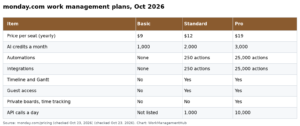
| Basic | Standard | Pro | Ultimate | |
|---|---|---|---|---|
| Price per seat/month, billed yearly | $12 | $17 | $28 | Custom |
| Price per seat/month, billed monthly | $18 | $25 | $41 | Custom |
| Active contacts and deals | 1,000 | 10,000 | 100,000 | Unlimited |
| Columns per board | 5 | 15 | 75 | Unlimited |
| Custom dashboards | 1 | 5 | 50 | Unlimited |
| Custom automations/month | Not listed | 250 | 25,000 | Enterprise-scale |
| Quotes and invoices/month | 20 | 50 | 250 | Unlimited |
| Mass email and email sequences | No | No | Yes | Yes |
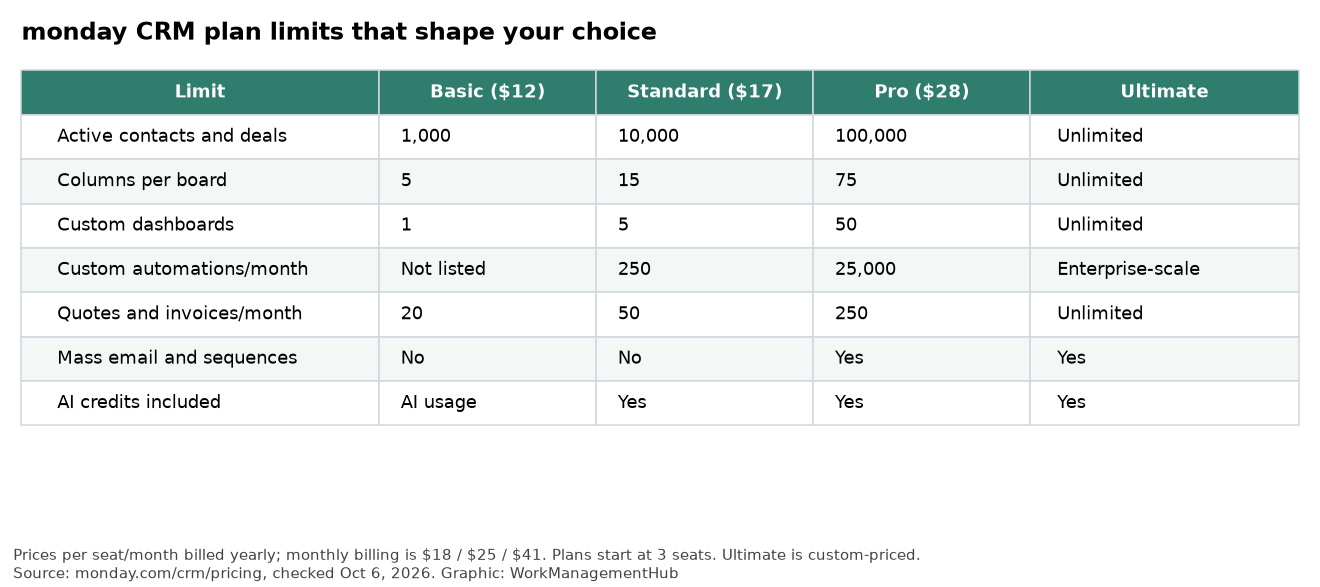
Plans start at 3 seats. The pricing toggle shows yearly billing saving about 33%, although the FAQ on the same page still says 18%. Go by the checkout price. Ultimate is the new name for monday’s Enterprise tier and adds advanced permissions, HIPAA compliance, advanced email log rules and white-glove migration.
The limits that catch people
Five columns per board on Basic. A deal usually needs owner, stage, value, close date, company and next step. That’s six already. Basic is fine for a solo founder testing the idea; it’s not a team CRM.
250 automations a month on Standard. “When a deal moves to Won, notify finance and create an onboarding item” is two actions every time it fires. Ten sellers closing and updating deals all month can run out well before month-end. Pro’s 25,000 is a different league.
Sequences are a Pro feature. If your reps send follow-up sequences today in HubSpot or a sales engagement tool, you need Pro to keep doing that in monday CRM.
What 10 sellers pay
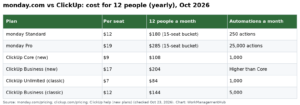
| Option | Per seat/month | 10 seats/month | Notes |
|---|---|---|---|
| monday CRM Standard | $17 | $170 | 250 automations/month, no sequences |
| monday CRM Pro | $28 | $280 | Sequences, mass email, 25,000 automations |
| Salesforce Starter Suite | $25 | $250 | Billed monthly or yearly |
| Salesforce Pro Suite | $100 | $1,000 | Adds quoting, forecasting, more customization |
| HubSpot Sales Hub Professional | $90 | $900 | Plus a required one-time $1,500 onboarding fee |
| Salesforce Sales Cloud Core | $195 | $1,950 | Billed yearly |
A few notes on the competitors. HubSpot has a free tier for up to 2 users, and its Starter tier showed a much lower “starts at” price on annual billing than on monthly when I checked, so run its calculator for your seat count. HubSpot Sales Hub Enterprise starts at $150 per seat with a $3,500 one-time onboarding fee. Salesforce also offers a Free Suite and a 30-day trial.
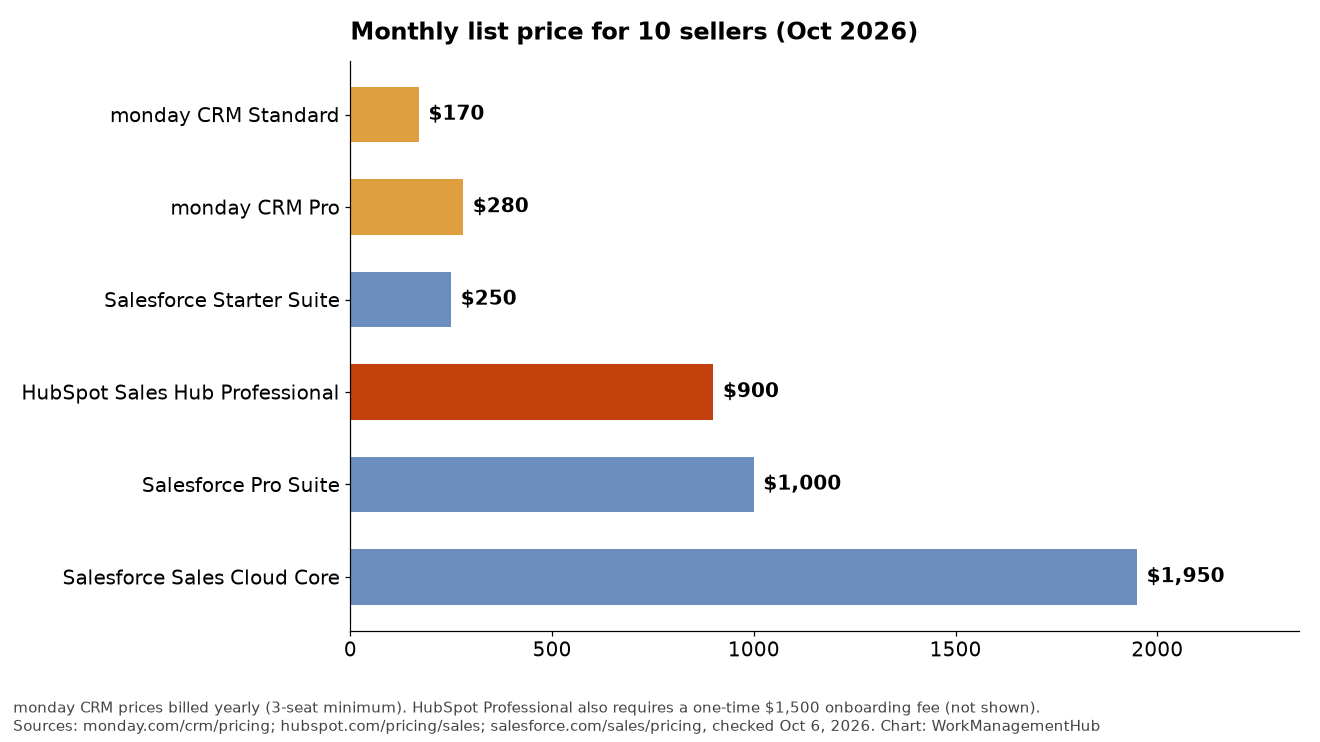
The takeaway isn’t “monday is cheap.” It’s that monday CRM Pro costs about the same as Salesforce’s entry suite while giving you far more automation room, and it costs a fraction of HubSpot Professional. You’ll feel the difference in what’s missing, which is the next section.
Where monday CRM wins
Speed of setup. A pipeline board, a lead capture form, a few automations and a dashboard can be live in days. Salesforce projects usually take longer and often involve a partner.
Sales and delivery on one platform. This is the strongest argument. If your project, onboarding or account-management teams already run in monday.com, a closed deal can create the delivery work on the same platform. Our monday.com review covers the wider work-management side.
AI is bundled, not bolted on. monday says AI credits are included on Standard, Pro and Ultimate, with features like Sidekick, AI-powered data fields, a meeting notetaker and prebuilt sales agents. Treat the agent features as something to test in your trial, not a reason to buy on their own.
Managers can change the process. Add a stage, a field or a rule without an admin queue. For a growing team still figuring out its sales motion, that flexibility is worth a lot.
Where HubSpot or Salesforce still wins
HubSpot, if marketing feeds sales. HubSpot’s value is the shared database between marketing and sales: forms, email, lead scoring and sequences in one system. If most of your pipeline is inbound, moving sales to monday CRM splits that loop, and you’ll spend time syncing.
Salesforce, if the process is complex. Territories, multi-step approvals, product catalogs and price books, detailed forecasting and a large ecosystem of apps and admins are where Salesforce earns its price. If you already have a Salesforce admin and a custom data model, monday CRM is a step down, not a step sideways.
Already deep in either one? You don’t have to replace it to use monday.com. Our monday.com Salesforce integration guide shows how teams keep Salesforce as the system of record and run delivery in monday.com.
Who should pick which
Small B2B team (3 to 15 sellers), outbound or referral-led, company already on monday.com: monday CRM Pro.
Same team, but marketing runs inbound lead flow in HubSpot: stay on HubSpot, and connect it to your project tool instead.
Sales org with territories, CPQ needs or a Salesforce admin: stay on Salesforce.
Budget-first and still figuring out the process: monday CRM Standard for a quarter, with a plan to move to Pro once automations hit the cap. If your data mostly lives in spreadsheets and you’d rather build your own, compare our Airtable CRM setup guide.

How I’d test it before switching
- Import a real slice of your pipeline, say the last 90 days of open deals, not demo data.
- Map your fields first and count them. If you need more than 15 columns on the deals board, you need Pro.
- Build your three most-used automations and estimate monthly runs. Multiply by your team size and compare to 250.
- Have two reps use it for a full week, including the mobile app, and ask them what they’d miss from the old CRM.
- Check the reports your leadership actually reads. If a forecast or board report can’t be rebuilt, that’s your answer.
For general monday.com plan pricing outside the CRM product, see our monday.com pricing guide.
A starter pipeline setup that’s easy to maintain
If you’re testing monday CRM, keep the first version of the deals board small. Most messy CRM boards I’ve seen started with 30 columns and no rules for who fills them in.
| Column | Type | Why it’s there |
|---|---|---|
| Deal stage | Status | Drives the pipeline view and forecast |
| Owner | People | One person responsible per deal |
| Deal value | Numbers | Feeds the forecast |
| Close probability | Numbers (%) | Set by stage, not by gut feel |
| Expected close date | Date | Lets you spot slipping deals |
| Next step and date | Text + Date | The column that actually keeps deals moving |
| Contact / Account | Connect boards | Links to your contacts and accounts boards |
Three automations cover most of the follow-up work:
- When Deal stage changes to Negotiation, notify the owner’s manager. Big deals get attention without a status meeting.
- When the next-step date arrives, notify the owner. Nothing goes quiet just because someone forgot.
- When Deal stage changes to Won or Lost, move the item to a Closed group. That keeps the active pipeline readable.
Check your plan’s monthly automation actions before you build more. Each run uses an action, and lower tiers cap them; the monday CRM pricing page lists the current limits.
FAQ
How much does monday CRM cost in 2026?
monday CRM Basic is $12, Standard $17 and Pro $28 per seat per month, billed yearly ($18, $25 and $41 billed monthly). Ultimate is custom-priced. Plans start at 3 seats.
Is monday CRM cheaper than HubSpot?
At list price, yes. Ten seats of monday CRM Pro cost about $280 a month billed yearly, while HubSpot Sales Hub Professional is $90 per seat ($900 for 10) plus a one-time $1,500 onboarding fee. HubSpot’s free and Starter tiers are cheaper, but more limited.
Can monday CRM replace Salesforce?
For small and mid-size teams with a straightforward sales process, often yes. For organizations with complex territories, quoting, forecasting or heavy customization, Salesforce is usually still the better fit.
What are monday CRM’s automation limits?
Standard includes 250 custom automations per month and Pro includes 25,000. Ultimate has enterprise-scale automations. Basic doesn’t list automations.
Does monday CRM include AI?
Yes. monday says AI credits are included on Standard, Pro and Ultimate, covering features like Sidekick, AI data fields and its sales agents. Usage depends on your credit allowance.
Pricing and plan limits checked against monday.com, HubSpot and Salesforce public pricing pages on October 6, 2026. Prices vary by billing country and change often; confirm a current quote before you buy.
Sponsored