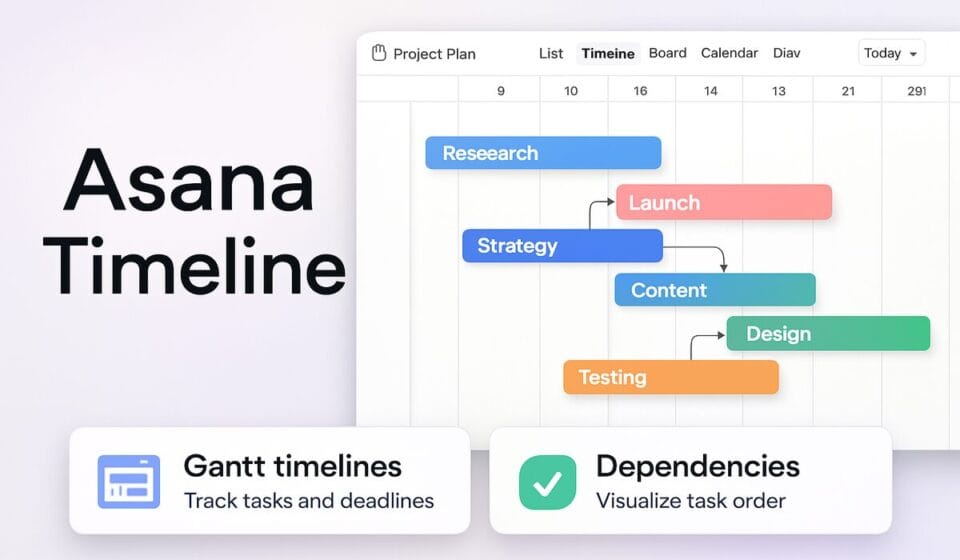

Open your project, click the plus icon in the tab bar, and choose Timeline. Any task with a due date or date range appears right away; tasks without dates sit in the Unscheduled panel on the right, ready to drag onto the calendar. One catch worth knowing up front: Timeline needs a paid plan, so free Personal accounts can’t use it at all.
That last sentence is the thing most setup guides bury. If your team is on the free Personal tier, none of the steps below will work until someone upgrades. Everything else is genuinely quick, and I’ll walk through it the way I actually set it up on client projects, including the parts Asana’s own docs gloss over.
Timeline view versus Gantt view: pick the right tab
Asana ships two schedule-style views, and people conflate them constantly. Timeline is the older, more flexible one. It’s built for plans that shift, where you’re dragging tasks around, watching dependencies ripple, and getting buy-in on a rough shape. Gantt is the newer tab, aimed at structured projects where you compare current progress against a locked baseline and lean on auto-scheduling.
Both live on the same paid plans, and both render tasks as horizontal bars with dependency arrows. The practical difference: Gantt adds a baseline snapshot, auto-scheduling of new tasks, a critical path highlight, and a compact left pane. If you just want to see how work lines up and adjust dates by hand, Timeline is enough. If you’re managing a launch with a fixed deadline and need to prove how far the plan has drifted, add Gantt too. You can run both tabs on the same project.
Neither is on the free Personal plan. Timeline and Gantt both start on Starter, Asana’s entry-level paid tier, and carry through Advanced, Enterprise, and Enterprise+ (plus the legacy Premium, Business, and Legacy Enterprise plans). If you’re weighing the jump, the breakdown of what each Asana plan actually includes is worth reading before you pay, because Timeline alone rarely justifies the tier on its own.
Setting up Timeline view
Adding the view takes about ten seconds. Getting it to look like a plan takes a little longer, because Asana only auto-places tasks that already have dates.
- Open the project you want to schedule.
- Click the plus icon at the end of the project tab bar (next to List, Board, and your other tabs).
- Choose Timeline from the dropdown. A new Timeline tab appears and becomes your active view.
- Look at the main canvas. Every task that already has a due date or a date range is now plotted as a bar.
- Look at the right edge. Tasks with no dates are stacked in the Unscheduled tasks panel, waiting for you.
If the Timeline tab is greyed out or missing entirely, you’re almost certainly on the free Personal plan or your workspace admin has restricted view creation. That’s a plan or permissions issue, not a bug.
Scheduling tasks and clearing the Unscheduled pile
The Unscheduled panel is where most of the real work happens. Two ways to place a task on the calendar:
- Drag a task straight from the Unscheduled tasks panel onto the dates you want. It picks up a due date the moment you drop it.
- Or jump back to List or Board view, add a due date or date range there, and the task appears on the Timeline automatically.
To create a task without leaving the view, click directly on the canvas on the date you want and start typing. Asana drops a new task there and mirrors it into your List and Board views. Handy when you’re planning fast and don’t want to context-switch.
Need to shove a whole block of work later because a dependency slipped? You can reschedule in bulk. Click the first task, hold Command (Ctrl on Windows), click the others until the selection rectangle turns blue, then drag the group to the new dates. Every selected bar moves together and keeps its relative spacing.
To hide the Unscheduled panel once you’ve cleared it, click the arrow at the right edge or toggle Unscheduled off in the project toolbar. It reappears the instant a new dateless task lands in the project.
Colors, sorting, and the sections gotcha
Flat grey bars are hard to read on a busy plan. To color them by meaning, click Options, open Color tasks by, and point it at a custom field: team, priority, status, whatever you track. Set colors on that custom field first and the bars inherit them. Save the view and everyone sees the same logic.
Sorting is where Asana trips people. Click the Sort icon and you can order by Start Date, Due Date, or Assignee. Useful, but here’s the catch nobody warns you about: the moment you sort by any of those, your project sections vanish from the timeline. Everything collapses into one flat run of bars. To get your sections back, sort by None. I’ve watched people panic thinking their sections were deleted. They weren’t, they’re just hidden by the sort.
You can also filter the canvas to show Incomplete, Complete, or All tasks from the toolbar, which is the fastest way to declutter a plan mid-project.
Dependencies and subtasks
Dependencies are the reason to use a timeline at all. To create one, hover over a task bar until the connector handle appears, then drag it to the task that should come next. Once the link exists, a dropdown arrow lets you set the dependency type. When a blocking task moves, Asana flags the downstream work so you can shuffle it. If your dependencies aren’t behaving the way you expect, that’s usually a scheduling or view-refresh issue rather than a broken feature, and the fixes are the same ones covered in the guide to automating routine Asana workflows, where date-based rules can adjust dependent tasks for you.
Subtasks are the weak spot. They do not inherit the project or the assignee from their parent, so a subtask won’t show on the timeline until you manually add it to the project and give it a due date. Only the first level of subtasks renders, and you can’t create a subtask from the Timeline view at all; you have to open the parent’s detail pane or use List view. Your zoom also has to be set to Days or wider for subtasks to appear. If you run deep, nested workstreams, expect to do some of that structuring outside the timeline.
When Gantt view earns its place
Once your plan is stable, Gantt adds three things Timeline lacks. Add it the same way: plus icon, then Gantt.
Baseline. Open Options, then Layout options, and set a date under Compare baseline. Asana overlays your original plan as hashed bars against the current solid ones, so drift is visible at a glance. One real limitation: each project gets exactly one baseline. Save a new snapshot and it overwrites the old one, so you can’t compare against multiple points in time. If your project managers expect the multi-baseline behavior of a dedicated Gantt tool, they’ll be disappointed.
Auto-scheduling. On by default in Gantt, this gives every new task a consecutive one-day duration (five days if you’re zoomed out to half-year or year). It builds structure fast, but it also silently assigns dates you may not want. Toggle it off under Gantt options if you’d rather place work deliberately.
Zoom range and bulk chaining. Gantt zooms from Days all the way to Years, and you can multi-select tasks and pick Chain dependencies to link a whole sequence at once, which beats dragging connectors one by one.
The limits worth knowing before you rely on it
Asana’s timeline is good for planning and communication. It is not a full project-scheduling engine, and pretending otherwise leads to frustration. There’s no resource leveling, no multiple baselines, and no true export of a print-ready Gantt chart from the view itself. For polished, client-facing Gantt exports, Asana’s own help center points teams to the Instagantt integration rather than a native feature, which tells you where the built-in ceiling sits.
The subtask handling above is the other real constraint. And because the whole feature is paywalled from the free tier, solo users and tiny teams often find the entry cost hard to justify for what is, at heart, a nicer way to look at dates. If your main need is a shared visual schedule and little else, it’s worth comparing how rivals handle it. Our ClickUp versus Asana comparison covers where each tool’s timeline and Gantt features diverge, including which one gates them behind which plan.
Once your timeline is live, the natural next step is tracking progress against it. That’s a reporting job, not a timeline job, and the walkthrough on building Asana reporting dashboards shows how to turn scheduled tasks into charts leadership will actually read. If you’re setting up a brand-new plan from scratch, starting from one of the pre-built layouts in our roundup of the most useful Asana project templates saves you from wiring dependencies by hand.
Troubleshooting
Tasks aren’t showing on the timeline. They have no due date or date range. Add one in List view or drag them out of the Unscheduled panel.
The Timeline tab is greyed out or gone. You’re on the free Personal plan, or an admin has limited who can add views. This is a plan or permissions gate, not a glitch.
My sections disappeared. You sorted by start date, due date, or assignee. Set Sort back to None and they’ll return.
A subtask won’t appear. Subtasks don’t inherit the project. Add the subtask to the project directly and give it a due date, and remember only the first level renders.
New tasks keep landing on dates I didn’t choose. That’s Gantt auto-scheduling. Open Gantt options and toggle Auto-schedule tasks off.
Frequently asked questions
Is Asana Timeline view free?
No. Timeline is not available on the free Personal plan. It starts on Starter, Asana’s entry-level paid tier, and continues on Advanced, Enterprise, and Enterprise+, along with the legacy Premium, Business, and Legacy Enterprise plans. Gantt view follows the same rule, so free accounts get neither.
What’s the difference between Timeline and Gantt in Asana?
Timeline is the flexible view for plans that change often, where you drag tasks and watch dependencies react. Gantt is built for structured projects, adding a baseline snapshot, auto-scheduling, and a critical path so you can compare current progress against the original plan. Both run on the same paid tiers.
Can I show a Gantt chart in Asana without upgrading?
Not through the built-in views. Both Timeline and Gantt require a paid plan. Some teams use the Instagantt integration, which Asana’s help center references, to produce exportable Gantt charts, but the connection still assumes a paid Asana workspace underneath. There is no true free Gantt path inside Asana itself.
Why do my sections disappear on the timeline?
Sorting causes it. The moment you sort by start date, due date, or assignee, Asana collapses your project sections into one flat list of bars. Nothing is deleted. Open the Sort menu and choose None, and every section reappears exactly where it was.
Can I see subtasks on the Asana timeline?
Only the first level, and only after some setup. Subtasks don’t inherit their parent’s project or assignee, so you must add each subtask to the project and give it a due date before it shows. Your zoom also has to be set to Days or wider, and you can’t create subtasks from the timeline.
For the official reference, Asana documents the full feature set in its Timeline help article, the companion Gantt view article, and the Gantt view FAQ, which is the clearest source on when to reach for each tab.
Sponsored