
Asana forms turn each submission into a task in a project. You need a paid plan: forms start on Starter at $10.99 per user a month, billed yearly. Starter covers one form per project, field mapping and public links. Branching questions, a default assignee, custom confirmations and more than one form per project need Advanced at $24.99.
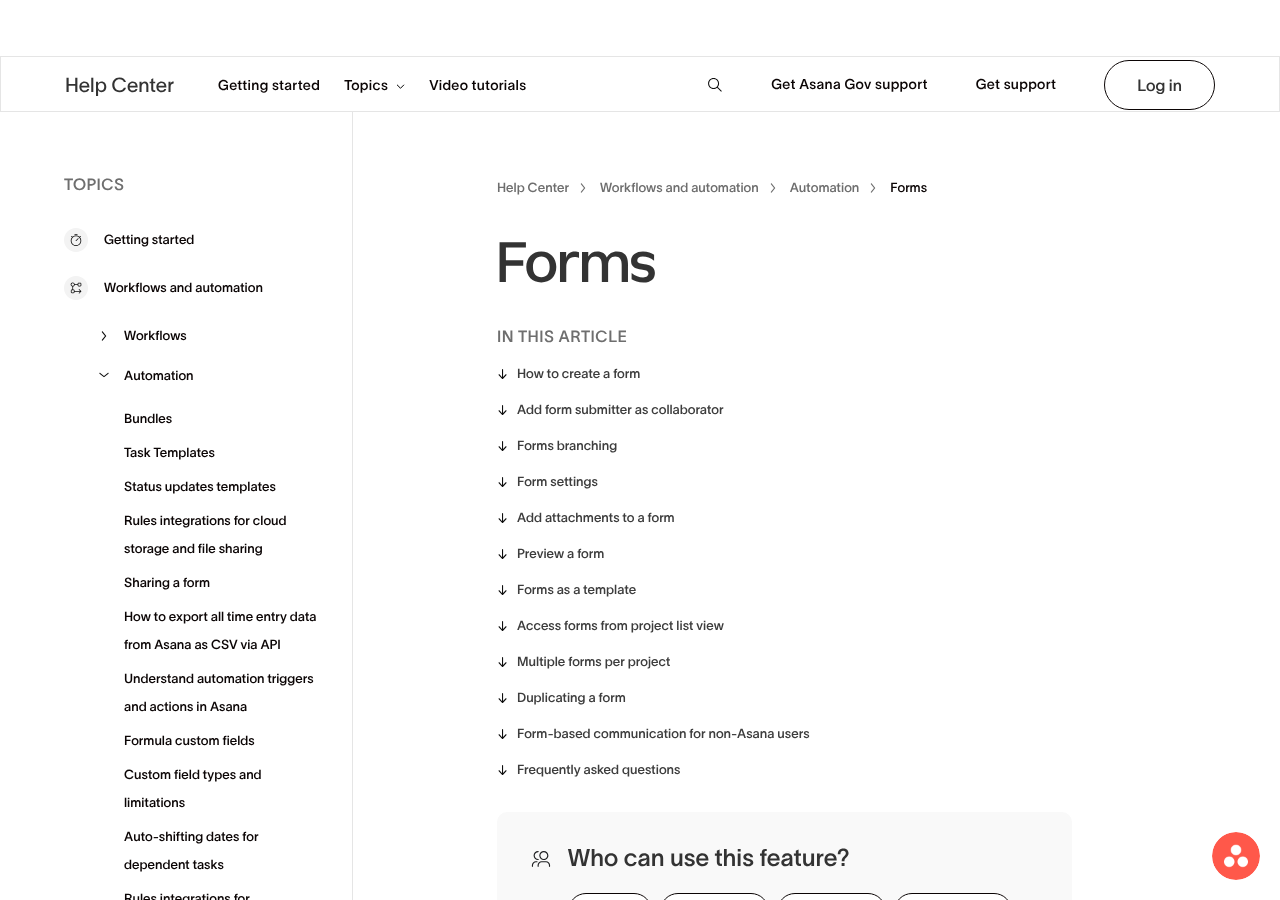
I checked Asana’s forms help article, its form sharing and field mapping articles, and its pricing page on October 21, 2026.
Where Asana forms fit
A form is the front door to a project. Instead of requests arriving by email, chat and hallway chats, everyone fills in the same questions. Each answer set becomes one task. Good uses:
- Creative and design requests
- IT or facilities tickets for a small team
- Content ideas and editorial pitches
- New client or new hire kickoffs
If you run a large internal help desk with SLAs and an AI agent, look at Asana Service Management instead. It went live on September 22, 2026, on Enterprise and Enterprise+ plans. Our Asana Service Management guide explains when it is worth it.
Build the form, step by step
- Create or open the intake project. Give it sections such as New, In review, In progress and Done.
- Open the project’s Customize menu.
- Under Add, click Forms.
- Rename the form and add a short description that tells people what happens next.
- Add your questions. Name and email are there by default.
- Click Publish.
Keep the email question. If you delete it, submitters do not get a confirmation email with a copy of their answers. That one email cuts a lot of “did you get my request?” messages.
You can also add headings to group questions, and an attachment question so people can upload briefs, images or PDFs. Files land on the new task.
Map answers to task fields
Field mapping is what makes a form useful for reporting. Without it, answers only sit in the task description.
- When you add a question, click Connect to field and pick a project custom field. You can also type a new name and click + Add.
- For date questions, choose Single day (sets the due date) or Date range (sets start and end dates).
- To add many fields at once, open the Questions tab, click Fields, select them and click Update, then Save.
A gotcha: a custom field only shows up in Connect to field if both organization members and guests have access. If guests have No access, open the field’s settings, click Manage access and give guests at least User access.
In Settings, also pick the section where new tasks land and which field becomes the task title. If you do not map a section, tasks go to the first section of the project. A rule that moves form tasks still wins over the form’s section setting.
Branching questions (Advanced and up)
Branching shows follow-up questions based on an earlier answer. It works with single-select and multi-select questions. You can nest up to five levels of branches.
Example: “Request type” has Design, Copy and Video. Pick Video and the form asks for length and platform. Pick Copy and it asks for word count instead. People only see what applies to them, so they finish the form.
My advice: keep branches to two levels. Five levels sounds powerful, but it is hard to test and hard for the next admin to understand.
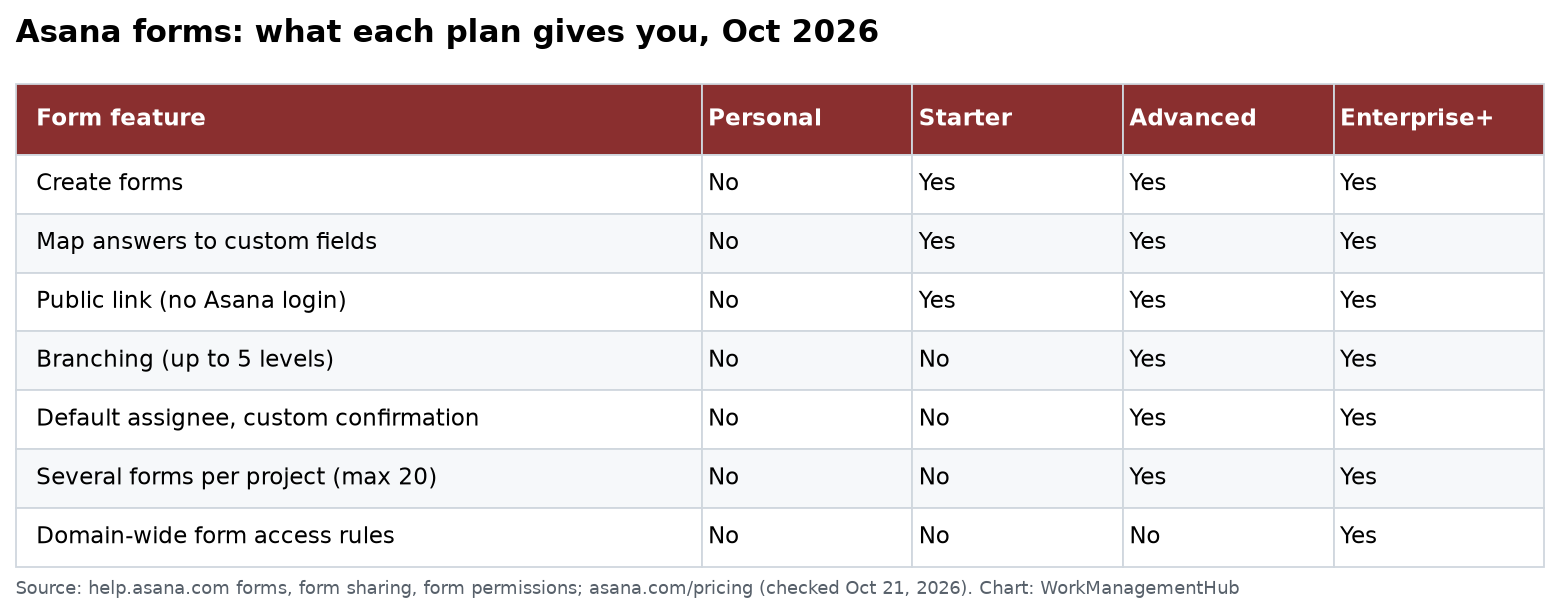
What each plan gives you
| Feature | Starter ($10.99) | Advanced ($24.99) | Enterprise+ |
|---|---|---|---|
| Create forms, map fields | Yes | Yes | Yes |
| Public link, no Asana login | Yes | Yes | Yes |
| Branching | No | Yes | Yes |
| Default assignee | No | Yes | Yes |
| Custom confirmation message | No | Yes | Yes |
| More than one form per project (max 20) | No | Yes | Yes |
| Domain-wide form access rules | No | No | Yes |
The free Personal plan has no forms. Starter has no seat cap and includes unlimited free guests.
Share the form safely
Forms are private to your organization by default. In sharing settings you pick one of three options: Anyone can access, Organization only or Deactivated.
- Anyone can access lets people without an Asana account submit. Use it for clients and vendors.
- Organization only asks people to sign in first. Use it for internal requests.
- To embed a form on a website, go to the Settings tab, copy the embed code and paste it into the page. A public site needs Anyone can access.
On Enterprise+, super admins can set rules for the whole domain in the Admin console. If they restrict forms to your domain, every existing public form becomes internal only. Warn team leads before that switch, or client forms will stop working overnight.
The gotchas nobody puts in the marketing copy
- No default assignee on Starter. New tasks arrive unassigned. Add a rule to assign them, or someone checks the project daily.
- One form per project on Starter. If you need separate forms for bugs and ideas, use two projects or move to Advanced.
- The 20-form cap. Advanced and up allow up to 20 forms in one project.
- Deleting a mapped section. If someone deletes the section a form points to, new tasks fall back to the first section. Check after any project clean-up.
- Submitters outside Asana cannot follow the task. You can reply to them by email with request tracking, or invite them to your space.
Make intake hold up over time
- Add a triage rule. When a task is added from the form, set a status and assign the triage owner. See our Asana rules guide.
- Use required fields sparingly. Three to five required questions is the sweet spot. More and people stop halfway.
- Review the form every quarter. Remove questions nobody uses in reports.
- Report on it. Build a chart by request type and status. Our Asana dashboards guide shows how.
- Save it as a template. Forms copy over when you duplicate a project or use a custom template.
Related guides
- Asana custom fields setup to plan the fields your form fills.
- Asana pricing 2026 for every plan detail.
Common questions
Do I need a paid plan to use Asana forms?
Yes. Forms start on Starter at $10.99 per user a month, billed yearly. The free Personal plan has no forms.
Can people without an Asana account submit a form?
Yes, if the form is set to “Anyone can access”. They get a confirmation email if they fill in the email question.
What happens to files uploaded through a form?
They are attached to the task the form creates in your project.
Can I have more than one form in a project?
Yes, on Advanced, Enterprise and Enterprise+, up to 20 forms per project. Starter allows one.
Which plan has form branching?
Advanced and higher. You can nest up to five levels of branches.
Sources
- Asana Help: Forms (checked Oct 21, 2026)
- Asana Help: Sharing a form
- Asana Help: Field mapping in forms
- Asana Help: Form access permissions
- Asana pricing
Sponsored