Airtable CRM Setup Guide 2026: Build a Sales Pipeline That Actually Works
- Build your Airtable CRM on three linked tables — Contacts, Companies, and Deals — so data lives in one place and connects relationally without duplication.
- Use the Weighted Value formula
{Deal Value} * ({Probability} / 100)on your Deals table for automatic pipeline forecasting. - Airtable’s Kanban view groups deals by Stage and shows column-level deal value sums — a visual sales pipeline with zero extra configuration.
- Interfaces (Team plan+) let you build role-specific dashboards with KPI tiles, charts, and filtered views so reps see only their deals.
- 2026 Airtable AI adds predictive deal scoring, account research automation, and AI meeting summaries that auto-populate your deal records.
To build a CRM in Airtable, create three linked tables — Contacts, Companies, and Deals. Add a Stage field and Weighted Value formula to your Deals table, set up a Kanban view for pipeline visibility, automate follow-up reminders, and layer on an Interfaces dashboard for your sales team.
- Why Airtable CRM?
- Before You Start: Plans and Team Size
- Step 1: Create the Contacts Table
- Step 2: Create the Companies Table and Link to Contacts
- Step 3: Create the Deals Table with Stage and Weighted Value
- Step 4: Set Up the Pipeline Kanban View
- Step 5: Build Automations for Follow-Ups and Alerts
- Step 6: Create an Interfaces Dashboard for the Sales Team
- Step 7: Add 2026 AI Features
- Tips for Keeping Your Airtable CRM Clean
- Limitations: When to Upgrade to a Dedicated CRM
- Verdict
- FAQ
Airtable CRM Setup Guide 2026: Build a Sales Pipeline That Actually Works
Why Airtable CRM Is the Smart Middle Ground for Growing Sales Teams
Every sales team I’ve worked with starts in the same place: a shared Google Sheet with columns for Company, Contact Name, Email, Deal Size, and a Status column someone color-codes by hand. It works until it doesn’t. The moment a contact changes companies, a deal splits across two rows, or two reps update the same cell simultaneously, the spreadsheet becomes a liability rather than a tool.
Dedicated CRMs like Salesforce and HubSpot solve the structural problem, but they introduce a different one: complexity and cost that price out 10–50 person teams before they’ve closed their first enterprise deal. HubSpot’s Sales Hub Professional starts at $90 per seat per month. Salesforce Essentials is $25 per seat — but the moment you need custom objects or automation beyond the basics, you’re looking at Professional at $80 per seat. For a team of 15, that’s a serious line item against a tool your reps may resist using anyway.
Airtable CRM occupies the smart middle ground. It’s a relational database that looks like a spreadsheet, which means adoption is fast. You can build a CRM that rivals the structure of a purpose-built tool in an afternoon, without a Salesforce admin on retainer. And in 2026, with Airtable’s AI features maturing rapidly, the capability gap between Airtable CRM and mid-market dedicated tools has narrowed significantly. See our full Airtable review for 2026 to understand the full platform picture.
The catch — and it’s real — is that Airtable CRM requires intentional setup. Most Airtable CRM guides online show you a single Contacts table and call it done. That’s not a CRM. That’s a contact list. A real Airtable CRM is relational: contacts link to companies, companies link to deals, and deals connect back to contacts. Done correctly, one record change cascades correctly across your entire database. That’s what this guide will show you how to build.
Before You Start: Plans and Team Size
Before touching Airtable, get clear on two variables: your plan and your team’s expectations.
Airtable Plan Requirements
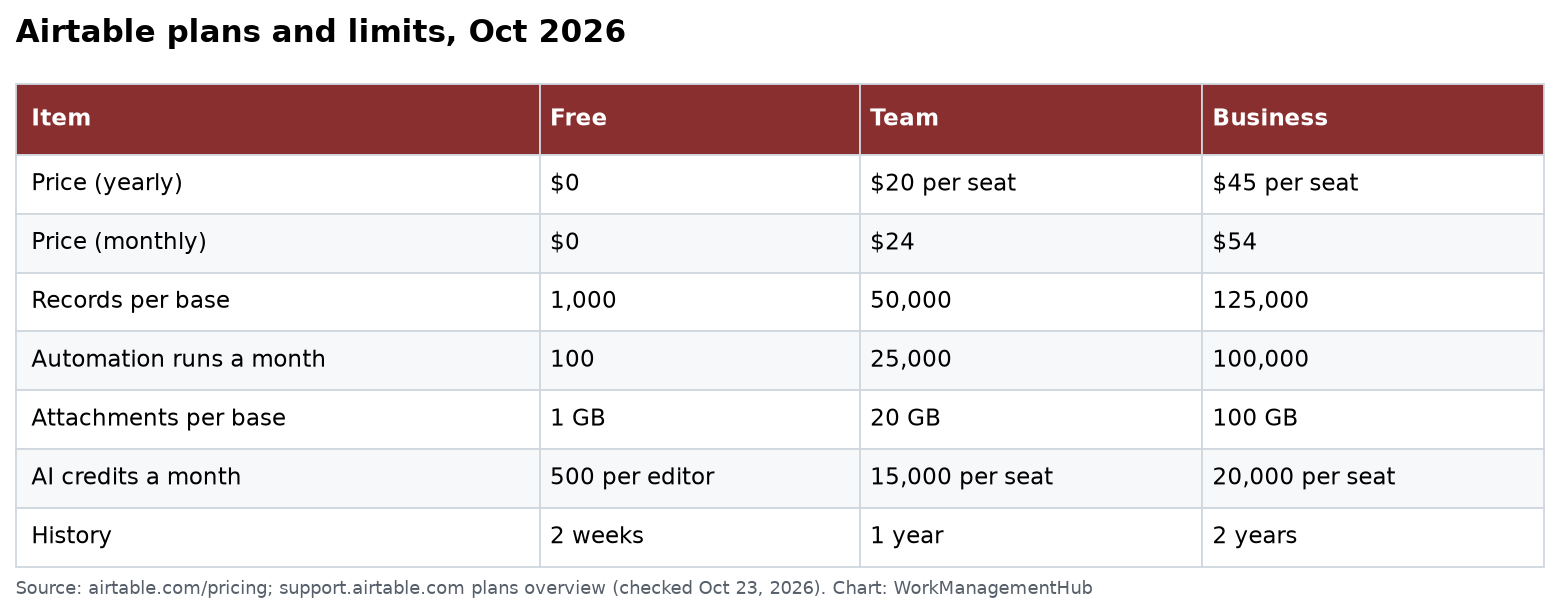
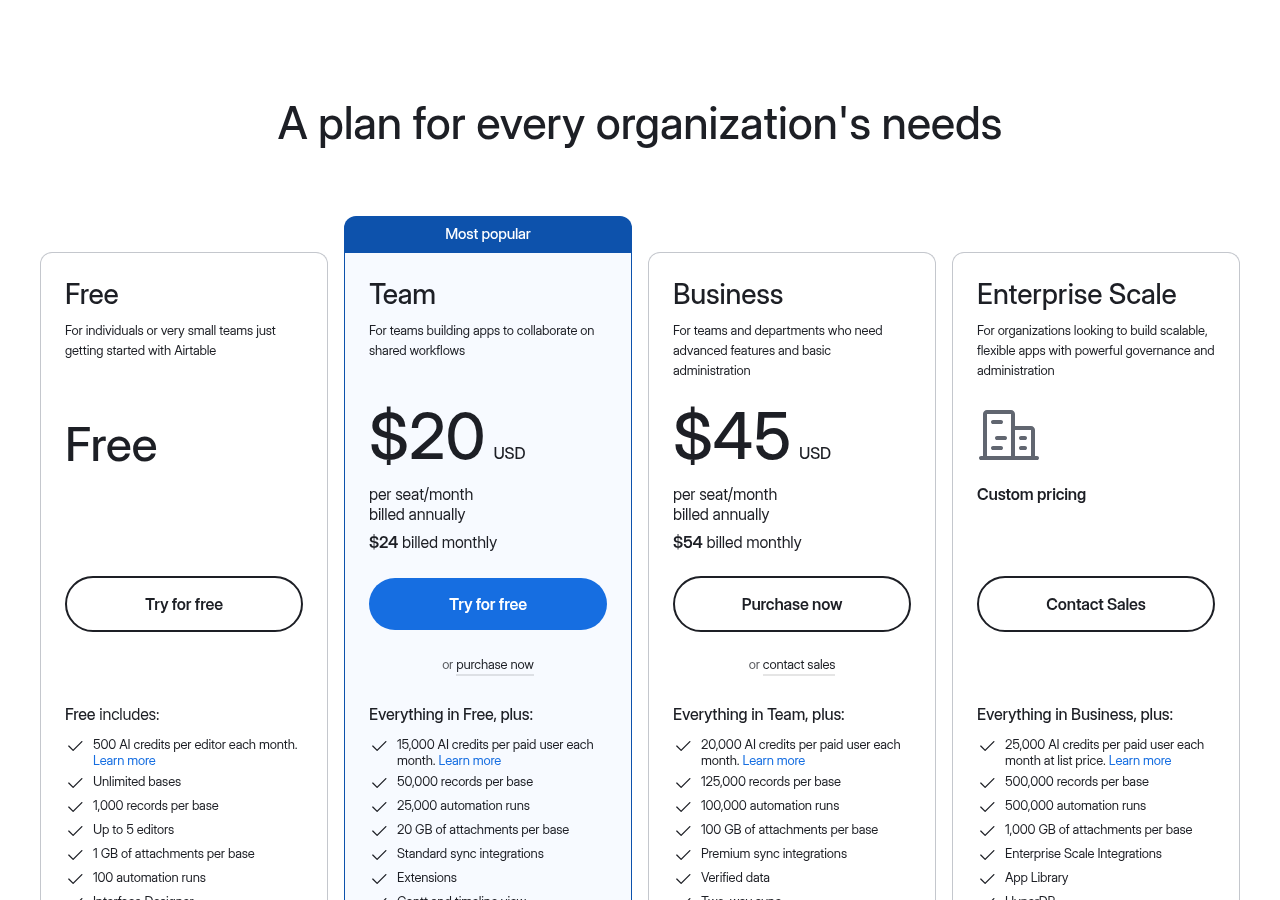
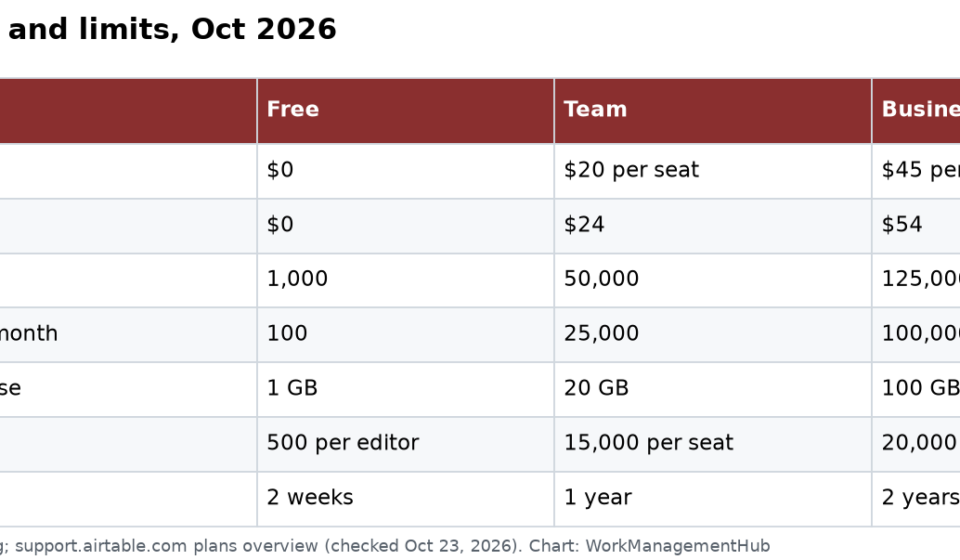
- Free plan: Suitable for solo founders or very small teams (1–2 people). Limited to 1,000 records per base and no Interfaces. You can build the three-table structure, but you’ll outgrow it quickly.
- Plus/Pro plan (now called Team): This is the sweet spot for 5–25 person sales teams. Unlocks Interfaces, more automation runs, and expanded record limits. Most teams I’ve built CRMs for land here.
- Business/Enterprise plan: Required if you need admin controls, advanced permissions, SCIM provisioning, or syncing data from external CRMs via Airtable Sync.
What you need before you start: Admin access to an Airtable workspace, a list of your current pipeline stages, and 60–90 minutes of uninterrupted setup time. Do not rush this. The schema you set up today will determine how painful or painless CRM maintenance is for the next two years.
Step 1: Create the Contacts Table
Start with a new base from scratch — do not use a template yet. Templates can constrain your thinking. Name your base something obvious like “Sales CRM 2026.”
- Rename “Table 1” to “Contacts” — double-click the tab name at the bottom of the screen and type “Contacts.”
- Rename the primary field to “Full Name” — click the field header, select “Rename field,” type “Full Name.” Keep this as a Single Line Text field. This is your anchor field for every linked record.
- Add an Email field — click the + icon to add a new field, choose type “Email.” Name it “Email.”
- Add a Phone field — add a new field, type “Phone Number,” name it “Phone.”
- Add a Role field — Single Line Text, name it “Title/Role.” This captures the contact’s job title.
- Add a Last Contacted field — field type “Date,” name it “Last Contacted.” Enable “Include time” if your team logs call times.
- Add a Lead Source field — Single Select, name it “Lead Source.” Add options: Inbound, Outbound, Referral, Event, Partner, Cold Outreach.
- Add a Notes field — Long Text, name it “Notes.” Enable rich text formatting if reps will write detailed call notes here.
- Leave a placeholder for Company — you’ll come back and add this as a Linked Record after you create the Companies table in Step 2.
At this point your Contacts table has clean, typed fields for every core attribute. Resist the urge to add 25 fields now. You can always add fields later; cleaning bad data from over-engineered fields is far more painful.
Step 2: Create the Companies Table and Link to Contacts
Click the + button next to the “Contacts” tab to add a second table. Name it “Companies.”
- Rename the primary field to “Company Name” — Single Line Text. This is what will display in linked record pills across your CRM.
- Add an Industry field — Single Select. Common options: SaaS, Manufacturing, Financial Services, Healthcare, Retail, Professional Services, Logistics. Add what’s relevant to your market.
- Add a Website field — URL field type, name it “Website.”
- Add a Company Size field — Single Select. Options: 1–10, 11–50, 51–200, 201–1000, 1000+. This helps with ICP scoring.
- Add an Annual Revenue field — Currency field type, name it “Annual Revenue (Est.).”
- Add a HQ Location field — Single Line Text, name it “HQ Location.”
- Now go back to Contacts and add the Company link — in your Contacts table, add a new field, choose type “Link to another record,” select “Companies.” Name this field “Company.” When prompted to create a linked field in Companies, click “Allow” — this auto-creates a “Contacts” linked field on the Companies table that populates automatically as you link contacts.
You now have a bidirectional link: a contact record shows which company it belongs to, and a company record shows all contacts associated with it. One contact can be linked to only one company (correct for most CRM use cases). If a contact changes companies, you update one field, and everything downstream reflects it immediately. This is the core advantage of relational structure over flat spreadsheets.
Step 3: Build Your Airtable CRM Deals Table with Stage and Weighted Value
This is the most important table in your Airtable CRM. Add a third table and name it “Deals” (some teams prefer “Opportunities” — the name doesn’t matter, consistency does).
- Rename the primary field to “Deal Name” — Single Line Text. Use a naming convention from day one: “[Company] — [Product/Service] — [Quarter]” works well. Example: “Meridian Co. — Platform License — Q3 2026.”
- Add a Stage field — Single Select. Add these options in order: New, Discovery, Proposal, Negotiation, Closed Won, Closed Lost. Color-code them: blue for New, yellow for Discovery and Proposal, orange for Negotiation, green for Closed Won, red for Closed Lost.
- Add a Deal Value field — Currency field type (USD or your local currency), name it “Deal Value.”
- Add a Probability field — Percent field type, name it “Probability.” Enter probability as a whole number (50 = 50%). Common defaults by stage: New 10%, Discovery 25%, Proposal 50%, Negotiation 75%, Closed Won 100%, Closed Lost 0%.
- Add the Weighted Value formula — add a new field, choose type “Formula,” name it “Weighted Value.” Enter this exact formula:
{Deal Value} * ({Probability} / 100). Set the format to Currency. This field automatically calculates the probability-adjusted value of every deal. A $100,000 deal at 50% probability shows $50,000 weighted. Your pipeline sum is no longer wishful thinking — it’s a realistic forecast. - Add a Close Date field — Date type, name it “Expected Close Date.”
- Add a Linked Contact field — Link to another record, select “Contacts.” Name it “Primary Contact.”
- Add a Linked Company field — Link to another record, select “Companies.” Name it “Company.”
- Add an Owner field — Collaborator field type, name it “Deal Owner.” This assigns each deal to a specific rep and enables per-user filtering in Interfaces later.
- Add a Last Activity field — Date type, name it “Last Activity Date.” Reps or automations update this whenever there’s meaningful deal movement.
- Add a Notes field — Long Text with rich text enabled, name it “Deal Notes.” This is where reps log meeting outcomes and next steps.
Your Deals table is now the operational core of your Airtable CRM. Every record is a single source of truth for a sales opportunity, connected relationally to the right contact and company.
Check out Airtable’s official CRM templates if you want to compare your structure against Airtable’s own starting points — though you’ll find the three-table approach here is more robust than most pre-built options.
Step 4: Set Up the Pipeline Kanban View
The Grid view is for data entry. The Kanban view is for pipeline management. Here’s how to create it on your Deals table.
- Open the Views sidebar — click “Views” in the left sidebar of the Deals table.
- Click “+ Add a view” — select “Kanban” from the view type options.
- Name the view “Pipeline” — type “Pipeline” and press Enter.
- Set the Stack field to “Stage” — Airtable will prompt you to select the field to group cards by. Select “Stage.” Your six lanes (New, Discovery, Proposal, Negotiation, Closed Won, Closed Lost) will appear immediately.
- Enable the Column Sum on Deal Value — click the three-dot menu on any stage column header, select “Summarize column,” choose “Deal Value,” and select “Sum.” Do this for each column. The bottom of every lane now shows total deal value for that stage.
- Customize card fields — click the “Fields” button in the toolbar, and configure which fields appear on each card. Recommended visible fields: Company (linked), Deal Value, Weighted Value, Expected Close Date, Deal Owner.
- Filter to active deals — click “Filter,” add a condition: Stage is not “Closed Won” AND Stage is not “Closed Lost.” Save as a named filter called “Active Pipeline.” Create a separate view called “Closed Deals” with the inverse filter for historical review.
For a deeper look at Airtable’s view types, see our complete guide to Airtable views.
Step 5: Build Automations for Follow-Ups and Alerts
A CRM without automation is a contact list with extra steps. Airtable’s Automations feature handles the repetitive work so your reps focus on selling. For a full deep-dive, see our Airtable Automations guide.
- Open Automations — click the “Automations” button in the top toolbar of your base.
- Create a “Deal Won” notification automation — click “+ New automation.” Set trigger: “When a record matches conditions.” Condition: Stage is “Closed Won.” Action: Send an email (or Slack message) to the deal owner and their manager. Include fields: Deal Name, Deal Value, Company.
- Create a “Stale Deal” reminder automation — New automation. Trigger: “At a scheduled time” — set to run daily at 8 AM. Condition: Last Activity Date is more than 14 days ago AND Stage is not “Closed Won” AND Stage is not “Closed Lost.” Action: Send an email to the Deal Owner with the deal name, company, and last activity date.
- Create a “New Deal Assigned” notification — Trigger: “When a record is created.” Action: Send email to the person in the Deal Owner field. This ensures reps know immediately when deals are assigned to them.
- Test each automation — use Airtable’s “Test automation” button to run through each flow before activating.
Step 6: Create an Interfaces Dashboard for the Sales Team
Interfaces transform your Airtable CRM from a database that only ops leads navigate into a tool that every rep actually uses. This feature is available on Team plan and above.
- Open Interfaces — click the “Interfaces” tab at the top of your base.
- Click “+ New interface” — select “Dashboard” as the starting layout.
- Name it “Sales Dashboard” — this will be the primary view for your sales team.
- Add a KPI tile for “Deals Closed This Month” — drag a “Number” widget onto the canvas. Connect it to the Deals table. Set the filter: Stage is “Closed Won” AND Close Date is within the current month. Set the aggregation to Count.
- Add a KPI tile for “Monthly Revenue Closed” — another Number widget. Same filter as above. Aggregation: Sum of Deal Value. Format as currency.
- Add a Bar Chart for “Pipeline by Stage” — drag a Chart widget. Data source: Deals table. X-axis: Stage. Y-axis: Sum of Deal Value.
- Add a filtered list view for each rep — drag a “List” or “Grid” widget. Connect to Deals table. Add a filter: Deal Owner is [specific rep]. Each rep’s interface page shows only their deals.
- Share the interface — use the Share button to send reps a direct link. They interact with the clean dashboard without ever seeing the raw database grid.
Our Airtable Interfaces Designer guide covers advanced layout techniques and widget configuration in detail.
Step 7: Add 2026 AI Features to Your Airtable CRM
This is where 2026 Airtable CRM setup diverges significantly from guides written even 18 months ago. Airtable’s AI capabilities have moved from novelty to genuinely useful sales operations tools.
- Enable AI fields on your Companies table for automated account research — in the Companies table, add a new field and select “AI.” In the prompt configuration, write: “Research [Company Name] and summarize: their primary product, recent funding, key competitors, and estimated employee count.” Airtable’s AI will populate this field automatically when a new company record is created.
- Add predictive deal scoring to your Deals table — add an AI field to your Deals table. Prompt: “Based on the following deal attributes — Stage: [Stage], Deal Value: [Deal Value], Last Activity Date: [Last Activity Date], Company Size: [pull from linked Company] — rate the likelihood this deal closes within 30 days on a scale of 1–10 and explain your reasoning in one sentence.”
- Configure AI next-best-action recommendations — add another AI text field to Deals. Prompt: “Given this deal is in [Stage] with last activity on [Last Activity Date], what is the single most impactful next action the sales rep should take? Be specific.”
- Set up AI meeting summary automation — in Automations, create a trigger based on a form submission or webhook from your meeting tool (Zoom, Google Meet via Zapier/Make, or Fireflies.ai). The action uses Airtable AI to summarize the transcript and populate the Deal Notes field and Last Activity Date automatically.
For more on AI automation patterns, the Airtable support documentation covers AI field configuration and prompt best practices in detail.
Tips for Keeping Your Airtable CRM Clean
The best CRM schema fails without data hygiene habits. These are the practices that separate functional CRMs from abandoned ones six months post-launch.
- Deduplicate contacts monthly. Use Airtable’s Dedupe app (in the Apps marketplace) to surface duplicate contact records by email address. Run it the first Monday of every month.
- Archive closed deals quarterly. Create a separate “Closed Deals Archive” view filtered to Closed Won and Closed Lost deals from prior quarters.
- Enforce the Stage field religiously. A deal sitting in “New” for 45 days is not a New deal. Review stage accuracy in your weekly pipeline meeting.
- Lock primary fields. Use field permissions (Business plan+) to prevent reps from accidentally editing the primary “Deal Name” or “Full Name” fields.
- Set a “CRM Owner” on your team. Someone needs to own schema changes. Every new field request should go through one person who evaluates whether it belongs in the schema or in a Notes field.
Limitations: When to Upgrade to a Dedicated CRM
Airtable CRM is not the right tool for every team. Be honest about these thresholds.
- Above 50 active reps: Airtable’s permission model becomes difficult to manage at scale. Salesforce or HubSpot’s territory management, role hierarchies, and native reporting are worth the cost at this headcount.
- Complex quoting and CPQ needs: If your deals require product catalogs, pricing rules, or multi-line quote generation, a dedicated CRM with CPQ capabilities is necessary.
- Compliance-heavy industries: If you’re in financial services or healthcare and need SOC 2 Type II guarantees, full audit trails, and data residency controls, evaluate carefully against Salesforce or Veeva.
- Native email integration: Airtable does not natively log emails from Gmail or Outlook into deal records. HubSpot does this automatically. See our comparison at Airtable vs. Monday.com 2026 for more context.
Airtable CRM is the right choice for sales teams of 5–40 people who want relational data structure, visual pipeline management, and role-specific dashboards without the cost or complexity of Salesforce or HubSpot. The three-table architecture — Contacts, Companies, Deals — combined with the Weighted Value formula and Kanban view gives you 80% of what a dedicated CRM delivers at a fraction of the price. The 2026 AI features — deal scoring, account research, and meeting summaries — close the capability gap further. If your team is serious about clean data and willing to maintain the schema, build it in Airtable. You’ll move faster, customize freely, and avoid six months of Salesforce implementation pain.
Frequently Asked Questions
Can I use Airtable as a free CRM?
Yes, but with significant limitations. The Free plan supports up to 1,000 records per base and 100 automation runs per month, which works for solo founders or very early-stage teams. You won’t have access to Interfaces or advanced field permissions. For any team with more than two or three people actively using the CRM, the Team plan is a much better investment. The record and automation limits alone make the free plan impractical for active pipeline management beyond the first few months.
Is Airtable better than HubSpot for CRM?
For small teams that want flexibility and customization, Airtable is often a better fit than HubSpot’s free or Starter tier. HubSpot’s real advantage kicks in at the Sales Hub Professional level — native email logging, sequences, calling, and forecasting are all tightly integrated. Airtable requires you to build and maintain those workflows yourself. If your team lives in email and needs native inbox integration, HubSpot wins. If your ops lead is comfortable building in Airtable and your team needs a highly customized workflow, Airtable wins on cost and flexibility.
How do I link contacts to deals in Airtable?
In your Deals table, add a field of type “Link to another record” and select the Contacts table. Name this field “Primary Contact.” When creating or editing a deal record, click the Linked Record field and search for the contact by name. You can link multiple contacts to a single deal if needed — for example, a champion and an economic buyer. The linked contact’s record will also show all associated deals in a rollup field on their Contacts record, giving you a full view of every deal each contact is involved in.
Can multiple salespeople use the same Airtable CRM?
Absolutely. Airtable is designed for collaborative multi-user access. Add team members to your workspace and assign them as editors on the CRM base. Use the Deal Owner collaborator field to assign deals, and build Interfaces pages filtered by owner so each rep sees their own pipeline. On the Business plan, you can use “Current user” filters in Interfaces to dynamically show each rep only their records without creating separate pages per person. For teams where reps should not see each other’s deals, row-level permissions are available on the Enterprise plan.
Does Airtable CRM work on mobile?
Yes. Airtable has native iOS and Android apps that give full access to your CRM base, including record editing, Kanban views, and Interfaces. Reps can log call notes, update deal stages, and add contacts from their phones. The mobile experience for data entry is solid; complex formula configuration or schema changes are better handled on desktop. For field sales teams who need to update deals between meetings, the mobile app is genuinely useful and has improved substantially in recent Airtable releases.