Skip to content
-
Subscribe to our newsletter & never miss our best posts. Subscribe Now!
Work Management Hub Work Management Hub

Expert Reviews, Comparisons & Guides for Smartsheet, Monday.com, Asana, ClickUp & More

Work Management Hub Work Management Hub

Expert Reviews, Comparisons & Guides for Smartsheet, Monday.com, Asana, ClickUp & More

  • Airtable
  • Asana
  • ClickUp
  • Jira
  • Monday.com
  • Notion
  • Smartsheet
  • Wrike
  • About
  • Contact
  • Airtable
  • Asana
  • ClickUp
  • Jira
  • Monday.com
  • Notion
  • Smartsheet
  • Wrike
  • About
  • Contact
Close

Search

  • https://www.facebook.com/
  • https://twitter.com/
  • https://t.me/
  • https://www.instagram.com/
  • https://youtube.com/
AirtableHow-To Guides

Airtable Interface Designer: Complete Guide to Building Custom Apps in 2026

By Shaik KB
May 31, 2026 22 Min Read
0


Airtable Interface Designer: Complete Guide to Building Custom Apps in 2026


⚡ Key Takeaways

  • Airtable Interface Designer is available on every plan, but the number of interfaces you can publish is tiered: Free = 1, Team = 3, Business and Enterprise Scale = unlimited.
  • There are two layout categories: visualization-based layouts (list, gallery, kanban, calendar, timeline) and element-based layouts (dashboard, record detail, record review, form) — each solves a different business problem.
  • Every interface is built from drag-and-drop elements that can display data, enable inline editing, filter records, or add structural formatting — no code required at any stage.
  • Airtable Omni (launched 2025–2026) lets builders describe a layout in plain language and receive auto-generated dashboard or table components — the fastest way to stand up a new interface from scratch.
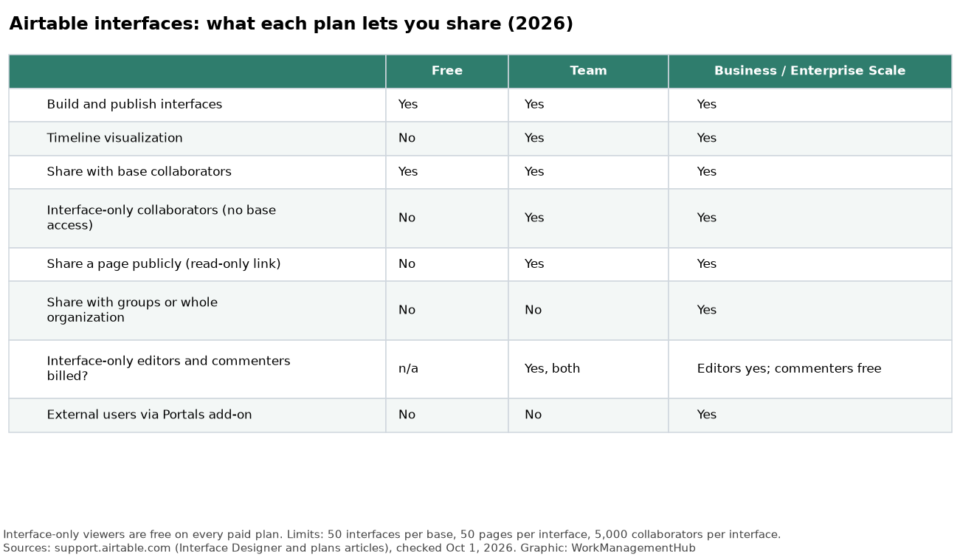
  • Interface Designer is strictly for internal Airtable users. Sharing interfaces with external stakeholders requires Airtable Portals, a separate add-on priced at $8 per guest per month — a distinction that catches many teams off guard after they have already built.
  • The most powerful use cases in 2026 are leadership project dashboards, ops team kanban boards, and internal intake forms — all achievable without writing a single line of code.

Quick Answer:

Airtable Interface Designer is a no-code app builder built into every Airtable base. It lets internal teams create custom dashboards, kanban boards, forms, and record detail pages on top of existing base data using drag-and-drop elements — all without writing code. Available on all plans, with interface counts capped per plan tier.

Table of Contents

  1. What Is Airtable Interface Designer?
  2. Plans, Interface Limits, and What Each Tier Gets You
  3. Two Layout Categories: Visualization vs. Element-Based
  4. Drag-and-Drop Elements: The Building Blocks Explained
  5. How to Build an Airtable Interface: Step-by-Step
  6. Three Real-World Use Cases That Deliver Immediate Value
  7. Airtable Omni: AI-Generated Interface Elements in 2025–2026
  8. The Critical Limitation: Internal-Only Access and Airtable Portals
  9. Interface Designer vs. Native Views: When to Use Each
  10. Interface Designer Best Practices for Operations Teams
  11. Verdict
  12. Frequently Asked Questions

Airtable Interface Designer: Complete Guide to Building Custom Apps in 2026

Most Airtable users stop at the base. They build tables, configure views, and set up automations — and then hand teammates a raw grid filled with dozens of fields they will never touch. The result is adoption friction, errors, and the inevitable question: “Is there a simpler way to look at this?” That simpler way is Airtable Interface Designer, and in 2026 it is one of the most capable no-code app builders built directly into a work management platform.

I have deployed Interface Designer across client engagements ranging from project management offices that needed executive dashboards to operations teams running multi-stage intake workflows. The pattern is consistent: teams that invest two to four hours building a well-structured interface see adoption jump because the interface hides the complexity of the underlying base and presents only what each user role actually needs.

This guide covers everything — layout types, drag-and-drop elements, the new Airtable Omni AI generation feature, plan limits, and the single most important limitation that teams discover too late. Whether you are building your first interface or rethinking an existing one, this is the reference you need for 2026.

What Is Airtable Interface Designer?

Airtable Interface Designer is a no-code application builder embedded directly inside every Airtable base. Rather than replacing your underlying tables and views, Interface Designer sits on top of them — drawing from the same data but presenting it through purpose-built pages designed for specific audiences and workflows.

Think of the separation this way: your base is the database engine. Views are how your power users and administrators interact with the data directly. Interfaces are what everyone else sees — the polished, role-appropriate front end that lets a project manager update statuses, a department head read a live dashboard, or a new employee submit an onboarding request without ever seeing a field they do not need.

Interface Designer was introduced as a beta feature in 2021 and has matured significantly since. In 2026 it supports:

  • Multiple interface pages within a single interface, each with different layouts and data sources
  • Granular user permissions — different roles can see different pages or interact with different fields
  • Drag-and-drop layout building with no code at any step
  • AI-assisted layout generation via Airtable Omni
  • Conditional element visibility based on user role or record state
  • Direct connection to any table or view within the same base

Access Interface Designer by clicking the Interfaces tab at the top of any Airtable base. If you have not created an interface yet, you will land on the creation screen. If interfaces already exist, you will see a list of published pages along with the builder canvas.

For a broader understanding of how Interface Designer sits within the Airtable platform, see our full Airtable platform review for 2026.

Plans, Interface Limits, and What Each Tier Gets You

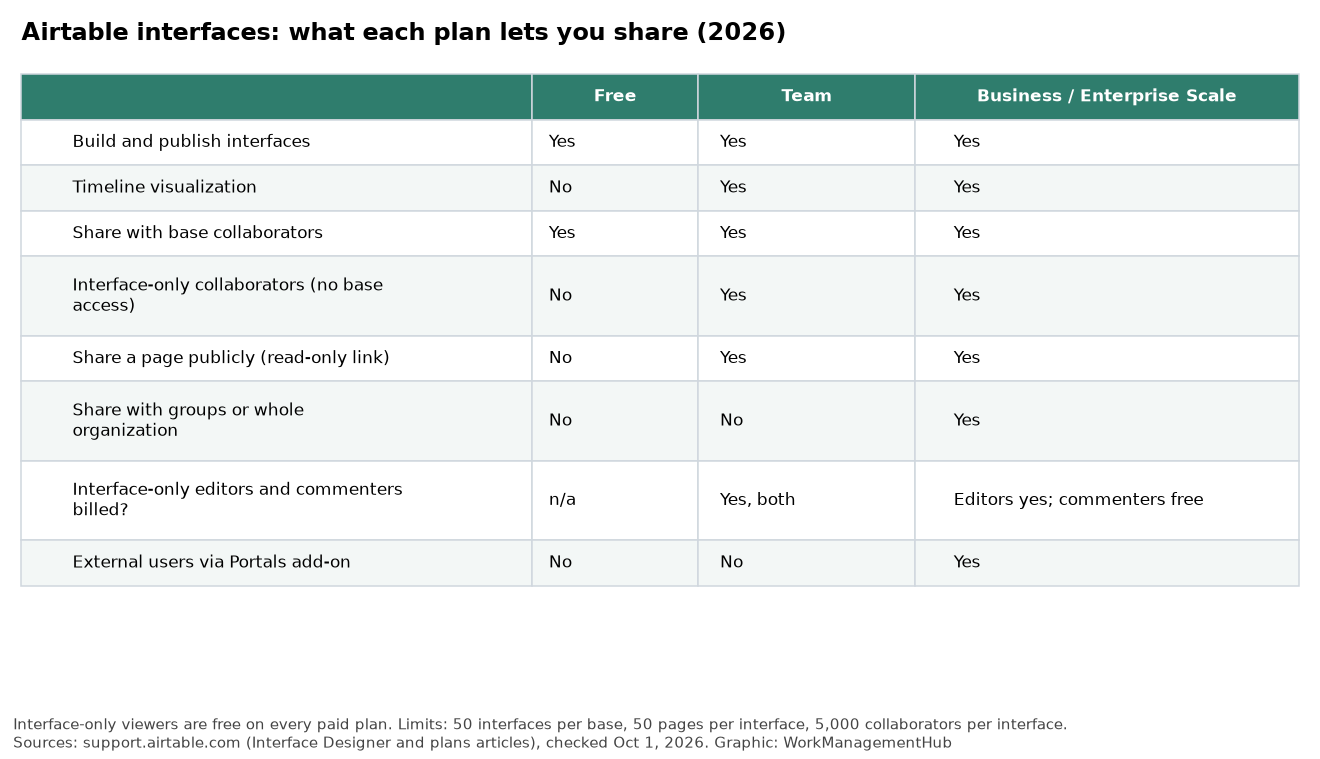
The first question every team asks before investing time in Interface Designer is: how many interfaces can we actually publish? The answer depends on your Airtable plan, and the gap between tiers is significant enough to affect your build strategy.

Here is the breakdown as of 2026:

PlanInterfaces AllowedBest For
Free1Evaluating the feature with a single use case
Team3Small teams with 2–3 distinct workflows to surface
BusinessUnlimitedDepartments deploying interfaces for multiple teams and use cases
Enterprise ScaleUnlimitedOrganization-wide deployment with advanced permissions and SSO

A few practical implications worth understanding before you start building:

On the Free plan, you get one interface per base. That single interface can have multiple pages — so a one-interface-per-base limit does not mean one page. A well-structured multi-page interface can cover a leadership dashboard page, an ops data entry page, and an intake form page all under one interface umbrella.

On the Team plan, three interfaces per base is genuinely workable for most small teams. Where it becomes a constraint is when you have multiple departments sharing a base and each wants its own independently controlled interface.

On Business and Enterprise, the unlimited interface count lets you build purpose-specific interfaces for every team, project phase, or stakeholder group without architectural trade-offs. This is where Interface Designer begins to compete seriously with purpose-built internal tooling platforms like Retool or Glide.

Two Layout Categories: Visualization-Based vs. Element-Based

When you create a new interface page, the first decision is which layout type to use. Airtable organizes these into two categories, and choosing the right category before you start building saves significant rework later.

Visualization-Based Layouts

These layouts are centered on presenting a set of records from a table in a specific visual format. The layout type dictates how records are arranged, and your customization options are scoped to that format. Use these when the primary goal is browsing, filtering, or monitoring a collection of records.

  • List: A streamlined record list, optimized for quick scanning. Useful for task queues, backlog reviews, and approval pipelines where a user needs to work through records one by one.
  • Gallery: Card-based visual layout with image or attachment support. Best for content libraries, product catalogs, or any context where a visual thumbnail makes identification faster than reading a field value.
  • Kanban: Column-based board organized by a single-select or status field. The go-to layout for operations teams managing workflow stages, sprint boards, or deal pipelines.
  • Calendar: Records plotted on a date grid. Useful for editorial calendars, event planning, and deadline tracking where a temporal view reduces cognitive load.
  • Timeline: Horizontal Gantt-style view showing records with start and end dates. Ideal for project scheduling, campaign planning, and resource allocation presented to leadership.

Element-Based Layouts

Element-based layouts start with a blank canvas and let you place any combination of elements onto the page. The layout is not determined by a single view type — you compose it from individual components, each pulling data from its own source. This is where Interface Designer becomes genuinely powerful as an app-building platform.

  • Dashboard: A freeform canvas where you combine charts, summary stats, record lists, buttons, and text blocks. The right choice when different elements need to pull from different tables or show aggregated metrics alongside raw data.
  • Record Detail: A full-page view of a single record with all relevant fields, related records, and action buttons. Replaces the default expanded record view with a purpose-built display.
  • Record Review: A sequential review flow where users work through records one at a time, taking actions on each. Useful for approval workflows, quality checks, and content moderation queues.
  • Form: A data entry form that creates new records in a connected table. More customizable than native Airtable forms, with conditional field visibility, section headers, and per-field help text.

The practical rule: if your audience needs to browse data, start with a visualization layout. If they need to act on data, compose it from elements. Dashboards and record review pages typically deliver the highest ROI because they replace the need for custom-built internal tools.

Drag-and-Drop Elements: The Building Blocks Explained

The drag-and-drop element system is what makes Interface Designer accessible to non-developers while remaining expressive enough to solve real business problems. Every element you place on an interface page falls into one of four functional categories.

Data Display Elements

These elements fetch and display data from your connected table or view. They are read-only by default but can be configured to allow inline editing. Examples include:

  • Grid element: A table of records with configurable columns, sorting, and filtering. Functions like a scoped view embedded in the interface.
  • Chart element: Bar, line, pie, donut, or scatter charts driven by field data. No external BI tool required for most common visualizations.
  • Summary/Metric element: A single aggregated value (count, sum, average, min, max) displayed as a prominent stat block — ideal for leadership dashboards.
  • Record list element: A compact list of records with configurable display fields and an optional detail panel.
  • Calendar element: A date-grid view of records embedded within a dashboard page.

Inline Editing Elements

These elements allow users to update record data directly from the interface without navigating to the underlying base. This is where Interface Designer closes the gap between a dashboard and a true operational tool. Field elements — text inputs, dropdowns, date pickers, file attachments — all write back to the source table in real time. The interface user never needs to know which table the data lives in.

Filter and Navigation Elements

Filter elements let interface users narrow the records displayed without modifying the underlying view. A dropdown filter connected to a Status field lets a team lead switch between “In Progress,” “Blocked,” and “Complete” without needing to understand how Airtable filters work. Button elements can navigate between interface pages or trigger automations — enabling multi-step workflows that feel like a native app.

Formatting Elements

Text blocks, headings, and dividers add structural clarity to the interface. These do not pull data — they exist to organize the page visually, add instructions for users, or separate logical sections. A well-placed heading and a line of guidance text can eliminate most of the confusion new users experience when first encountering a dashboard.

For teams that want to extend Interface Designer capabilities beyond built-in elements, the Airtable Interface Extensions SDK allows custom element development for advanced use cases.

How to Build an Airtable Interface: Step-by-Step

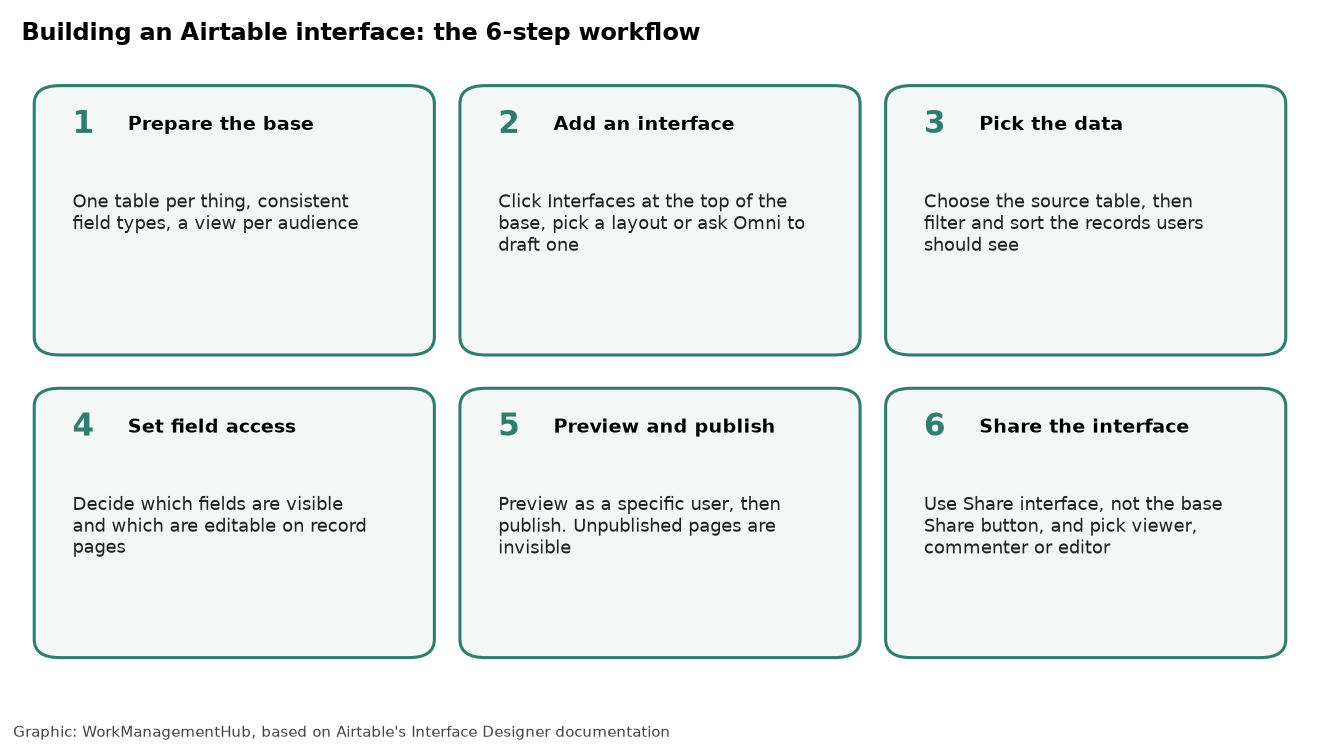
The following steps walk through building a complete interface from scratch. This walkthrough assumes you have an existing Airtable base with at least one table containing live data. If your base is empty, populate it with sample records first so you can validate what elements look like during the build.

  1. Open the Interfaces tab. From any Airtable base, click the Interfaces tab in the top navigation bar (between “Data” and “Automations”). If no interfaces exist yet, you will see the Interface Designer start screen with template options and a blank canvas option.
  2. Click “Create an interface” or “+ New interface.” You will be prompted to name the interface. Use a name that reflects the audience, not the content — for example, “Ops Team Dashboard” rather than “Project Status View.” The name appears in the interface navigation bar that users will see.
  3. Select your first page layout. After naming the interface, you will be prompted to select a layout type for the first page. Choose either a visualization layout (kanban, calendar, list, gallery, timeline) or an element-based layout (dashboard, record detail, record review, form). If you are building a leadership dashboard, choose Dashboard. If you are building a workflow board for your ops team, choose Kanban.
  4. Connect the page to a table or view. Every interface page needs a data source. Select the table and optionally a specific view from that table. Connecting to a view (rather than the full table) means the interface will inherit the view’s existing filters and sorts as a baseline — useful if you have already configured the data logic in your views. For more on setting up views before building interfaces, see our complete Airtable views guide.
  5. Place and configure elements (element-based layouts only). If you chose a dashboard or record-detail layout, the canvas will be blank. Click the + button or drag elements from the right-hand element panel onto the canvas. Start with a heading element to label the page, then add your primary data elements (grid, chart, metric summary). Configure each element by clicking it and using the settings panel on the right to connect it to a data source, choose which fields to display, and set visibility or editing permissions.
  6. Configure element data connections and permissions. For each data element, you can specify: which table and view it pulls from, which fields are visible, whether users can edit fields directly, and whether to apply additional filters on top of the connected view. Set field-level editing permissions carefully — most leadership dashboards should be read-only, while ops workflow boards need inline editing enabled for status fields.
  7. Add additional pages to the interface. Click the + Add page button in the left panel of the Interface Designer. Each page can have a different layout type and data source. A common multi-page structure for ops teams is: Page 1 (Dashboard) for metrics and summaries, Page 2 (Kanban) for active task management, Page 3 (Form) for new request intake.
  8. Configure user roles and page visibility. In the interface settings, assign which Airtable collaborators can view each page. Interface Designer supports role-based access so your project managers see different pages than your executives or individual contributors. Set this before sharing the interface link.
  9. Preview, test, and publish. Click Preview to see the interface exactly as your users will see it. Test every filter, button, and editable field to confirm data writes correctly back to the base. When ready, click Publish. The interface is now accessible to all collaborators with the appropriate role. Share the interface URL directly from the sharing panel.
  10. Set up automations to trigger from interface actions (optional). Interface buttons can trigger Airtable automations. If you have a “Submit for Review” button, wire it to an automation that sends a notification, updates a status field, and creates a linked record in a review table. This is where interfaces transition from display layers into true workflow tools. See our Airtable automations guide for the full configuration process.

Three Real-World Use Cases That Deliver Immediate Value

Interface Designer solves concrete business problems. These three use cases are the ones I deploy most frequently with clients because they demonstrate value within the first week and require no technical resources to maintain.

Use Case 1: Project Status Dashboard for Leadership

The business problem: Leadership teams need a real-time view of project health without digging through dozens of rows in a project tracking table. They need to know how many projects are on track, which are at risk, who owns what, and what is overdue — in under 30 seconds.

How to build it: Create a Dashboard layout page connected to your Projects table. Add four Metric Summary elements across the top row, each showing a count of records filtered by status: Total Active, On Track, At Risk, Overdue. Below that, add a Bar Chart element showing project count by department or owner. In the bottom half of the canvas, add a Grid element showing only the “At Risk” and “Overdue” records with key fields visible: Project Name, Owner, Due Date, and Status. Add a text block at the top with a last-refreshed timestamp note if your data is updated on a schedule.

The result: Leadership gets a single URL that loads a live, branded dashboard. They never interact with the base directly. The underlying project data remains structured and editable by the operations team through the same base — the two audiences simply see different views of the same data.

Use Case 2: Client Intake Form for Internal Processing

The business problem: New client or service requests arrive via email, Slack, and direct conversation — creating inconsistent data capture and forcing someone to manually create records in Airtable. The intake process needs to be standardized, and the form needs to feel professional enough that internal requesters actually use it.

How to build it: Create a Form layout page connected to your Requests or Intake table. Configure the form to show only the fields a requester should fill in — not the internal fields like Assigned To, Priority, or SLA Date that your team adds after submission. Use the Interface Designer form’s section header and help text elements to guide users through the form logically. Set conditional field visibility so that selecting “New Client” reveals different follow-up fields than selecting “Existing Client.” Publish the interface and share just the form page URL.

The result: Every request lands in the same Airtable table with consistent field data. Your team processes requests from a Kanban or List view on a separate interface page, and an automation fires immediately on submission to notify the intake coordinator. The requester gets a confirmation message — all without Zapier or a third-party form tool.

Use Case 3: Kanban Board for Operations Teams

The business problem: Operations teams managing multi-stage workflows — onboarding, procurement, incident management, content production — need a board that shows only their work, lets them update status with a single drag-and-drop action, and hides all the background fields that are only relevant to administrators.

How to build it: Create a Kanban layout page connected to a view that is pre-filtered to show only records assigned to the current user’s team (or use Interface Designer’s built-in user filtering to scope records to the logged-in user). Configure the Kanban columns to use your Status field. Set the card display to show the three or four fields most relevant to the team: Record Name, Assignee, Due Date, and Priority. Enable inline editing on the Status field so moving a card between columns updates the record. Add a button that opens the record detail page for deeper editing when needed.

The result: The ops team has a purpose-built board that feels like a dedicated project management tool — because it is, functionally. The difference is that it sits on top of the same Airtable base used for reporting, invoicing, and client communication, so there is no data duplication and no synchronization overhead.

Airtable Omni: AI-Generated Interface Elements in 2025–2026

The most significant addition to Interface Designer in the 2025–2026 release cycle is Airtable Omni, Airtable’s AI assistant that generates interface elements from natural language descriptions. This is not a gimmick — it meaningfully reduces the time-to-first-draft for new interfaces, particularly for builders who are not yet fluent in the element configuration options.

Here is how Airtable Omni works within Interface Designer:

  • Natural language prompts: From within the Interface Designer canvas, you can describe what you want to display. For example: “Show me a bar chart of project count by department, filtered to only active projects” or “Create a summary metric showing total budget across all open records.”
  • Auto-generated components: Omni interprets your prompt, identifies the relevant table and fields based on your base schema, and places a configured element on the canvas. It selects the appropriate element type, connects it to the right data source, and applies the filters you described.
  • Iterative refinement: You can follow up with additional prompts to adjust the element — change the chart type, add a filter, switch the grouping field, or modify the metric calculation — all without opening the configuration panel manually.
  • Dashboard scaffolding: Beyond individual elements, Omni can scaffold an entire dashboard page from a single description: “Build a project management dashboard showing active project count, overdue tasks, a chart of tasks by status, and a list of the five most recently updated records.” The result is a multi-element layout that typically needs only minor adjustments before it is production-ready.

In practice, Omni is most valuable at the beginning of an interface build — it compresses what would be a 30-minute layout session into five to ten minutes. The AI-generated elements still require review and refinement: field connections should be verified, permissions should be set explicitly, and layout positioning typically needs manual adjustment for visual polish. But the structural logic is usually sound, and the field mapping is accurate when your table has clearly named fields.

Availability: Airtable Omni interface generation is available on Business and Enterprise Scale plans as part of the broader Airtable AI feature set. Team plan users have access to some AI features but may find interface-specific generation limited or gated. Check your plan’s AI credits and feature list in the billing section of your account settings.

The practical recommendation: even if you are an experienced Interface Designer builder, run an Omni prompt before starting any new dashboard page. Treat the output as a starting point rather than a finished product. The AI scaffolding removes the blank-canvas friction and lets you spend your time on refinement rather than initial construction.

The Critical Limitation: Internal-Only Access and Airtable Portals

This is the section that teams wish they had read before spending a week building an interface intended for external stakeholders. Airtable Interface Designer is designed exclusively for internal users — meaning people who have an Airtable account and have been added as collaborators to the base.

If you build an interface with the intention of sharing it with a client, a vendor, a partner organization, or any external person who does not have an Airtable account and a collaborator role in your base, they cannot access it. There is no public link option for interfaces. There is no guest access at the interface level without an Airtable account.

The solution Airtable provides for this use case is Airtable Portals. Portals are a separate product that allows you to share an interface or a subset of interface pages with external guests who authenticate via email without needing a full Airtable account. The pricing for Portals is $8 per guest per month.

Here is a side-by-side comparison of the two options:

FeatureInterface DesignerAirtable Portals
Who can accessInternal Airtable collaborators onlyExternal guests (email authentication)
Requires Airtable accountYesNo (guest login)
Public link sharingNoGated by guest invitation
PricingIncluded in base plan$8/guest/month (add-on)
Best forInternal team workflows and dashboardsClient-facing portals, vendor access, external reviews

The $8 per guest per month figure is important context for budgeting. If you have 20 clients who each need portal access to their respective project status pages, you are looking at $160 per month in portal costs on top of your base plan. For many professional services firms this is reasonable — it replaces the cost of maintaining a separate client portal tool. But it needs to be a deliberate decision, not a discovery made after the interface is built.

The practical rule: If the audience for your interface includes anyone outside your organization — or anyone who does not already have an Airtable account — plan for Portals from the outset and budget accordingly. If the audience is entirely internal, Interface Designer delivers full value at no additional cost beyond your existing plan.

Interface Designer vs. Native Views: When to Use Each

A common question from teams moving beyond basic Airtable usage is when to use Interface Designer versus simply sharing a native view. Both can display data, both can be filtered, and both can be shared with collaborators. The distinction matters because using the wrong approach creates maintenance overhead and user experience problems.

Use native views when:

  • The audience is a power user or administrator who needs to see all fields and interact with raw data.
  • You need to display data from a single table in a single format (grid, kanban, calendar) and no additional context or structure is needed.
  • The use case is internal and does not require role-based visibility control at the field or section level.
  • You are iterating quickly on data structure and do not want to rebuild an interface every time you rename or add a field.

Use Interface Designer when:

  • The audience is not a power user and should not see all fields, table structure, or Airtable’s navigation UI.
  • You need to combine data from multiple tables or views on a single page.
  • The interface needs to support multiple user roles, each seeing or editing different data.
  • You want to embed charts, metrics, and actionable buttons alongside record data.
  • The end goal is a polished, branded experience rather than a raw data view.

The two are complementary, not competitive. The most effective Airtable setups use both: native views for internal power users and administrators managing the base, and Interface Designer for the broader team who needs to interact with data without being exposed to the underlying complexity. This is the same pattern used in custom software development — a database layer, an admin interface, and a user-facing application — replicated in a no-code environment.

Interface Designer Best Practices for Operations Teams

After deploying Interface Designer across dozens of client engagements, these are the practices that consistently separate interfaces that teams adopt from interfaces that get abandoned after two weeks.

  1. Design for the user role, not the data structure. The single biggest mistake builders make is organizing interface pages around table structure (“Projects table page,” “Tasks table page”) rather than user workflows. A project manager does not think in tables — they think in actions: “See what needs my attention,” “Update a status,” “Submit a new request.” Structure your pages around those actions.
  2. Lock down field visibility before publishing. Every field that is not relevant to the interface user is a potential distraction or a data security concern. Configure each element to display only the fields that are actionable for that audience. Airtable’s field-level permissions within Interface Designer let you hide internal fields like cost data, internal notes, or administrative IDs that should never be visible to general users.
  3. Connect interfaces to views, not raw tables. When adding a data element to an interface page, always connect it to a pre-configured view rather than the raw table wherever possible. Views let you apply baseline filters and sorts at the table level, so the interface element starts from a cleaned, relevant subset of data. This also means that if your data logic changes, updating the view automatically updates the interface — you are not maintaining filter logic in two places.
  4. Use the record review layout for approval workflows. The Record Review layout is underused. It is purpose-built for workflows where a user needs to evaluate records sequentially and take a specific action on each one. Approval workflows, content reviews, and quality checks are all dramatically faster in Record Review than in a filtered grid — users can focus on one record at a time with all relevant fields visible and action buttons immediately accessible.
  5. Build a “getting started” page as the first page of every interface. The first page a user sees when they open the interface should orient them. Use text elements to explain what the interface is for, which pages they should use for which tasks, and who to contact if something looks wrong. This one-time investment eliminates the majority of support questions when you roll out to a larger team.
  6. Keep multi-page interfaces to five pages or fewer. There is a temptation to build a comprehensive interface that covers every possible use case. Resist it. Interfaces with more than five pages become difficult to navigate and feel like a second Airtable base rather than a focused tool. If you have more than five distinct use cases, consider whether they should live in separate interfaces for separate audiences.
  7. Test with real users before announcing the launch. Share the interface with two or three representative users from each role group before the official rollout. Watch them use it — do not guide them. The points where they get confused, ask questions, or try to click things that are not buttons are exactly the points where the interface needs improvement. This step consistently surfaces two to five small fixes that significantly improve adoption.

🏆 Verdict

Airtable Interface Designer is the most underutilized capability in the Airtable platform. For teams already running their operations in Airtable, it eliminates the need for separate internal tooling, reduces training overhead, and significantly improves adoption among non-technical team members — all without adding a new tool to the stack. The plan limits (1 interface on Free, 3 on Team) are a real constraint for growing teams, and the internal-only restriction means Portals costs need to be budgeted for any external-facing use case. But for teams on Business or Enterprise plans who need scalable, role-appropriate interfaces built on top of their existing base data, Interface Designer in 2026 is one of the best no-code app builders available at any price point. Start with a leadership dashboard or an ops kanban board — both deliver visible value within a week — and use Airtable Omni to accelerate the initial build. The ROI from reduced tool sprawl and improved data quality alone typically justifies the investment within the first month.

Frequently Asked Questions

Is Airtable Interface Designer included in the free plan?

Yes. Interface Designer is available on all Airtable plans including the Free tier. However, Free plan users can only publish one interface per base. The Team plan allows three interfaces per base, while Business and Enterprise Scale plans allow unlimited interfaces. The builder tool itself is accessible regardless of plan — the limit applies to how many interfaces you can publish and make available to collaborators.

Can external clients or vendors access an Airtable interface?

Not through Interface Designer directly. Interfaces are restricted to internal Airtable collaborators who have been added to the base. To share an interface with external stakeholders — clients, vendors, partners — you need Airtable Portals, which is a separate add-on priced at $8 per guest per month. Portal guests authenticate via email but do not need a full Airtable account. If external access is a requirement, plan for the Portals cost before building.

What is the difference between an Airtable interface and an Airtable view?

An Airtable view is a saved configuration of how data in a single table is displayed — it is always tied to one table and one format (grid, kanban, calendar, etc.). An Airtable interface is a multi-page application layer built on top of one or more tables. Interfaces can combine data from multiple tables, restrict which fields are visible, support multiple user roles, and include charts, metrics, forms, and action buttons on the same page. Views are for power users who interact with base data directly; interfaces are for everyone else who needs a focused, role-appropriate experience.

What does Airtable Omni do in Interface Designer?

Airtable Omni is an AI assistant integrated into Interface Designer that generates interface elements from natural language descriptions. You can describe the component you want — “a bar chart of active projects by department” or “a metric showing total open requests” — and Omni will place a configured element on the canvas, connected to the appropriate table and fields from your base schema. It can also scaffold full dashboard layouts from a single prompt. Omni is available on Business and Enterprise Scale plans and is most valuable for accelerating the initial build phase of a new interface.

Can users edit records directly from an Airtable interface?

Yes. Interface Designer supports inline editing for records directly on the interface page, without requiring users to navigate to the underlying base. Each element can be configured to allow or restrict editing at the field level — you can make a status field editable while keeping all other fields read-only. Edits made through an interface write back to the source table in real time. This makes interfaces suitable not just for data display but for active workflow management, including status updates, field population, and form submission.

Official Airtable Resources

  • Getting Started with Airtable Interface Designer — Official Documentation
  • Airtable Interface Designer — Platform Overview


Author

Shaik KB

Follow Me
Other Articles
Previous

Wrike Resource Management: Complete Guide to Workloads, Capacity & Bookings in 2026

Next

Wrike Not Working? 8 Fixes for the Most Common Wrike Issues in 2026

No Comment! Be the first one.

    Leave a Reply Cancel reply

    Your email address will not be published. Required fields are marked *

    Sponsored Smartsheet Expert Services – Implementation, Automation, Training
    Sponsored Power BI & Tableau Analytics – Dashboards, Reporting, Insights
    Sponsored AI Agents for Work Management – Automate Tasks, Integrate Tools

    Categories

    • Airtable (16)
    • Alternatives (12)
    • Asana (35)
    • ClickUp (41)
    • How-To Guides (153)
    • Integrations (16)
    • Jira (31)
    • Monday.com (41)
    • Notion (28)
    • Pricing Guides (11)
    • Project Management (76)
    • Smartsheet (31)
    • Tool Comparisons (49)
    • Wrike (15)

    Recent Post

    • Linear Not Working? 7 Fixes for GitHub Sync, Cycle Issues & App Errors in 2026
    • Airtable CRM Setup Guide 2026: Build a Sales Pipeline That Actually Works
    • Wrike vs Teamwork 2026: Which Is Better for Agency Project Management?
    • Jira Query Language (JQL) Complete Guide 2026: Advanced Filters, Boards & Reporting
    • How to Set Up Monday.com Subitems in 2026: Organize Complex Tasks & Nested Work
    Work Management Hub

    Independent expert reviews & comparisons of work management tools — helping 50,000+ teams choose the right software.

    Tools We Cover

    • Smartsheet
    • Monday.com
    • ClickUp
    • Asana
    • Notion
    • Jira
    • Wrike
    • Airtable

    Company

    • About Us
    • Contact Us
    • Privacy Policy
    Copyright 2026 — Work Management Hub. All rights reserved. Blogsy WordPress Theme