
When Wrike “stops working,” it is usually one of four things: the browser session, a permission you lost, notification settings, or an integration whose connection expired. Real outages happen, but they are the minority. Check Wrike’s status page first; if it is green, work through the fixes below in order.
I implement work-management tools for teams (SSPM is a Smartsheet partner, and we support Wrike accounts during migrations). This is the checklist I use on client calls, written so a project lead can run it without admin help until step 6.
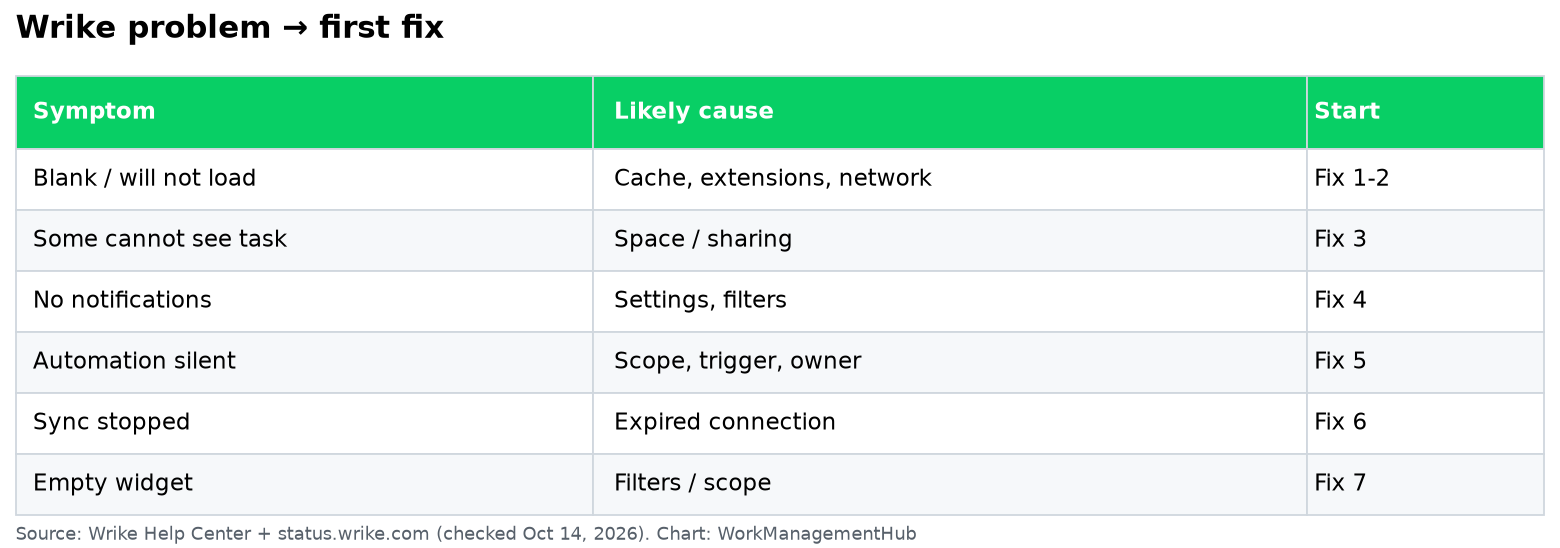
Start here: symptom to fix
| Symptom | Most likely cause | Start with |
|---|---|---|
| Wrike will not load or shows a blank page | Browser cache, extensions, or network filter | Fix 1, 2 |
| Some people see a task, others do not | Sharing or space permissions | Fix 3 |
| No email or push notifications | Notification settings or email filters | Fix 4 |
| Automation did not run | Rule scope, trigger, or paused rule | Fix 5 |
| Integration stopped syncing | Expired connection or changed owner | Fix 6 |
| Dashboard widgets empty | Filters or folder scope | Fix 7 |
1. Clear the browser session
Sign out, clear cookies and cached files for wrike.com, and sign back in. Then try a private window with extensions off. Ad blockers and privacy extensions break Wrike’s real-time updates more often than anything else. If the private window works, re-enable extensions one at a time.
2. Check the network
Corporate VPNs and web filters sometimes block the websocket connections Wrike uses for live updates. Symptoms: tasks load but never refresh, or comments appear minutes late. Test on a phone hotspot. If that fixes it, send IT the domains your filter is blocking.
3. Confirm permissions and sharing
Wrike shows items based on space membership and sharing. If a colleague cannot see a task, check which space and folder it lives in and whether they are a member. On Business and above, access roles can also limit editing. A task in someone’s personal space is invisible to everyone else until it is shared or moved.
4. Fix notifications
Open your profile settings and review notification preferences for email, desktop, and mobile. Then check:
- You are a follower or assignee on the item. Wrike notifies followers.
- Your email client is not filing Wrike mail into spam or a promotions tab.
- Mobile push is allowed in your phone’s OS settings for the Wrike app.
If one person misses alerts and everyone else gets them, it is almost always their settings or inbox rules.
5. Automations that do not run
Check that the rule is active, that it is attached to the right space or folder, and that the trigger actually happened as defined (for example, a status change to a specific status, not any status). Rules created by a user who later lost access can stop behaving as expected; have an admin take ownership. Wrike’s Team plan includes natural-language automation rule generation; double-check what it generated before relying on it.

6. Reconnect integrations
Slack, Jira, GitHub, and cloud storage connections are tied to the person who authorized them. When that person leaves or changes their password, sync can stop quietly. Reconnect from the integration settings using a stable admin or service account. Two-way sync with tools like Jira is a separate paid add-on (Wrike Two-Way Sync, custom pricing on wrike.com/price).
7. Dashboards and reports showing nothing
Widgets inherit filters and folder scope. If a widget is empty, open its settings and confirm the folder, date range, and assignee filters. Our Wrike dashboard table widget guide covers the setup in detail.
8. Know when your plan is the problem
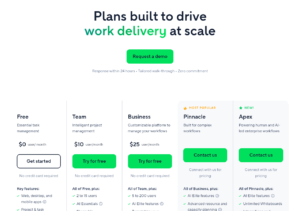
Some “broken” features are plan limits. On the current pricing (valid for purchases from January 21, 2026), Free covers basic task management; Team ($10/user/month, 2 to 15 users) adds Gantt charts, dashboards, and AI Essentials; Business ($25/user/month, 5 to 200 users) adds templates and AI Elite actions; Pinnacle and Apex are custom-priced. If a feature is missing, compare against our Wrike pricing breakdown before you file a bug.
When to contact Wrike support
Open a ticket when the status page is green, a private window on a clean network still fails, and a second user reproduces the issue. Include the task or folder link, the time it happened (with time zone), browser version, and a screen recording. That cuts the back-and-forth by days.
What experienced Wrike admins do before anything breaks
Use a service account for integrations. Connect Slack, Jira and cloud storage with a shared admin account, not a person’s login. When that person leaves, sync keeps working. This one habit prevents most “sync stopped” tickets I see.
Name automation owners. Put the owner’s name in the rule name, like “Intake routing (owner: Priya)”. When something misfires, you know who to ask.
Keep a test folder. Make a “Sandbox” folder with fake tasks. Test new rules and templates there first. Never test on a live client project.
Write down your plan limits. Team covers 2 to 15 users. Business covers 5 to 200. If you add a 16th person on Team, you are now shopping for a new plan. Know that before a hiring push.
The fix order, with time estimates
| Step | What you do | Time |
|---|---|---|
| Status page | Check status.wrike.com | 1 minute |
| Private window | Sign in with extensions off | 3 minutes |
| Second network | Try a phone hotspot | 5 minutes |
| Second user | Ask a teammate to repeat the action | 5 minutes |
| Settings | Notifications, sharing, rule scope | 10 minutes |
| Support ticket | Send links, time, browser, video | 10 minutes |
Most problems end by the third or fourth step. If you jump straight to rebuilding a workflow, you can lose a day and still not fix it.
When NOT to rebuild
Do not delete and recreate an automation or a blueprint (a reusable project template) just because it failed once. You lose its history, and the new copy often has the same problem. First check the trigger (the event that starts the rule). A rule set to “status changes to Completed” will not fire if your team uses a custom status called “Done”. That one mismatch causes many “broken” rules.
Also, do not change workflow statuses during a busy week. Rules, dashboards and reports point at those statuses. Change them on a quiet day, then check every rule that uses them.
Mobile app problems
If the phone app misbehaves but the web app works:
- Update the app from the App Store or Google Play.
- Sign out and back in.
- Turn on notifications for Wrike in the phone’s settings.
- Check that the phone’s date and time are set automatically. A wrong clock can break sign-in.
Slow Wrike: real causes
Very large folders, dashboards with many widgets, and reports across the whole account load slowly. Split huge projects. Archive finished work. Keep dashboards to the widgets people actually read. On big accounts, I also limit “all tasks in account” reports to admins.
Common questions
Why is Wrike not loading?
Usually browser extensions, cached data, or a network filter. Try a private window with extensions off, then a different network. Check status.wrike.com for outages.
Why am I not getting Wrike notifications?
Check your notification settings, confirm you follow the item, and look in spam. Mobile push also needs OS-level permission.
Why did my Wrike automation stop?
The rule may be paused, scoped to a different folder, or owned by someone who lost access. Have an admin review and take ownership.
Is something wrong with Wrike today?
Check status.wrike.com. If it shows no incident, the issue is likely local to your browser, network, or account.
Why is Wrike so slow?
Large folders, busy dashboards and account-wide reports slow it down. Archive old work, split big projects and trim dashboards. Browser extensions can also slow it.
Why did my Wrike Slack integration stop?
It is usually tied to a person who left or changed their login. Reconnect it with a shared admin or service account.
Pricing checked on wrike.com/price on October 14, 2026. Settings names may change as Wrike updates its interface.
Sponsored