Skip to content
-
Subscribe to our newsletter & never miss our best posts. Subscribe Now!
Work Management Hub Work Management Hub

Expert Reviews, Comparisons & Guides for Smartsheet, Monday.com, Asana, ClickUp & More

Work Management Hub Work Management Hub

Expert Reviews, Comparisons & Guides for Smartsheet, Monday.com, Asana, ClickUp & More

  • Airtable
  • Asana
  • ClickUp
  • Jira
  • Monday.com
  • Notion
  • Smartsheet
  • Wrike
  • About
  • Contact
  • Airtable
  • Asana
  • ClickUp
  • Jira
  • Monday.com
  • Notion
  • Smartsheet
  • Wrike
  • About
  • Contact
Close

Search

  • https://www.facebook.com/
  • https://twitter.com/
  • https://t.me/
  • https://www.instagram.com/
  • https://youtube.com/
How-To GuidesWrike

How to Set Up Wrike Dashboard Table Widgets for Real-Time Reporting in 2026

By Shaik KB
May 22, 2026 18 Min Read
0


⚡ Key Takeaways

  • Wrike’s Table View Widget (GA March 2026) supports multi-level grouping, full hierarchy display across tasks, projects, folders, and custom item types — making it the most flexible native reporting widget the platform has shipped to date.
  • Field column selection is the highest-leverage configuration decision: pairing status, assignee, custom fields, and effort data in a single widget eliminates the need to navigate to individual task panes during a status call.
  • The April 2026 AI Agent Location Change action integrates directly with Table Widget data, so automation-driven task movements surface as real-time row updates — enabling dashboards that reflect AI-triggered workflow state without manual refresh.
  • Enterprise and Business plan customers get the full filter and grouping stack; core Table Widget functionality is available on Business plans and above, but AI Agent integration requires an Enterprise or Pinnacle seat.

Quick Answer:

To set up a Wrike dashboard table widget, open a dashboard, click Add Widget, select Table View, choose your space or folder scope, configure field columns and grouping levels, apply status or assignee filters, then save. The entire process takes under five minutes once your data hierarchy is planned.

Table of Contents

  1. What the Table View Widget Actually Does (and Why It Matters for Reporting)
  2. Plan Requirements and Prerequisites
  3. Wrike Dashboard Table Widget Setup: Adding Your First Table Widget
  4. Multi-Level Grouping Configuration
  5. Wrike Dashboard Table Widget: Field Column Selection Strategy
  6. Filters, Flat-List View, and Subitem Collapse Controls
  7. Combining Table Widgets with AI Agent Location Change Actions
  8. Real-World Use Case: Agency Delivery Dashboard
  9. Verdict
  10. Frequently Asked Questions

How to Set Up Wrike Dashboard Table Widgets for Real-Time Reporting in 2026

Most Wrike users still run their weekly status meetings off a combination of project exports, manually refreshed reports, and screen-share walks through task lists. That approach worked well enough when dashboards were limited to chart widgets and summary counters. It stops working the moment a leadership team needs to see live task-level data, grouped by portfolio and filtered by risk, during a call — without handing over the keyboard.

The March 2026 general availability of Wrike’s Table View Widget changes that equation. For the first time, a single dashboard widget can surface your full work hierarchy — tasks, subtasks, projects, folders, and custom item types — with configurable field columns, multi-level grouping, and real-time filter controls. When combined with the April 2026 AI Agent Location Change actions, the widget becomes a live feed of automation-driven workflow state, not just a static snapshot.

This guide walks through the complete configuration process from the perspective of someone who builds Wrike reporting environments for enterprise clients. Every step references the exact UI path. Nothing here is theoretical — these configurations are in active use.

What the Table View Widget Actually Does (and Why It Matters for Reporting)

Before touching any configuration, it is worth being precise about what the Table View Widget is — because the name undersells it. This is not a simplified list view bolted onto a dashboard. It is a fully interactive data grid that pulls live from your Wrike space, respects all existing permissions, and updates in real time as tasks change state.

The widget supports three display modes that serve distinct reporting scenarios:

  • Hierarchical view — renders the full parent-child structure of your work items. A project appears as a parent row; its tasks and subtasks nest beneath it with expand/collapse controls. This is the default and the most useful mode for portfolio-level reporting.
  • Flat-list view — collapses all hierarchy and displays every matching item as a single-level row. Useful when you need a cross-project assignee view or a raw count of items in a specific status.
  • Grouped view — applies multi-level grouping logic on top of either hierarchical or flat data, creating report-style section breaks by any field combination you define.

The practical implication is that a single widget can replace what previously required three separate Wrike reports, a pivot table export, and a manual presentation layer. That is not a minor efficiency gain — it is a structural change in how your team consumes project data.

For a broader understanding of how Wrike’s AI capabilities tie into dashboard functionality, see our deep-dive on Wrike AI Agents in 2026.

Plan Requirements and Prerequisites

Not every Wrike plan gets the same level of Table Widget functionality. Before building reporting dashboards for a client or configuring your own environment, confirm the following:

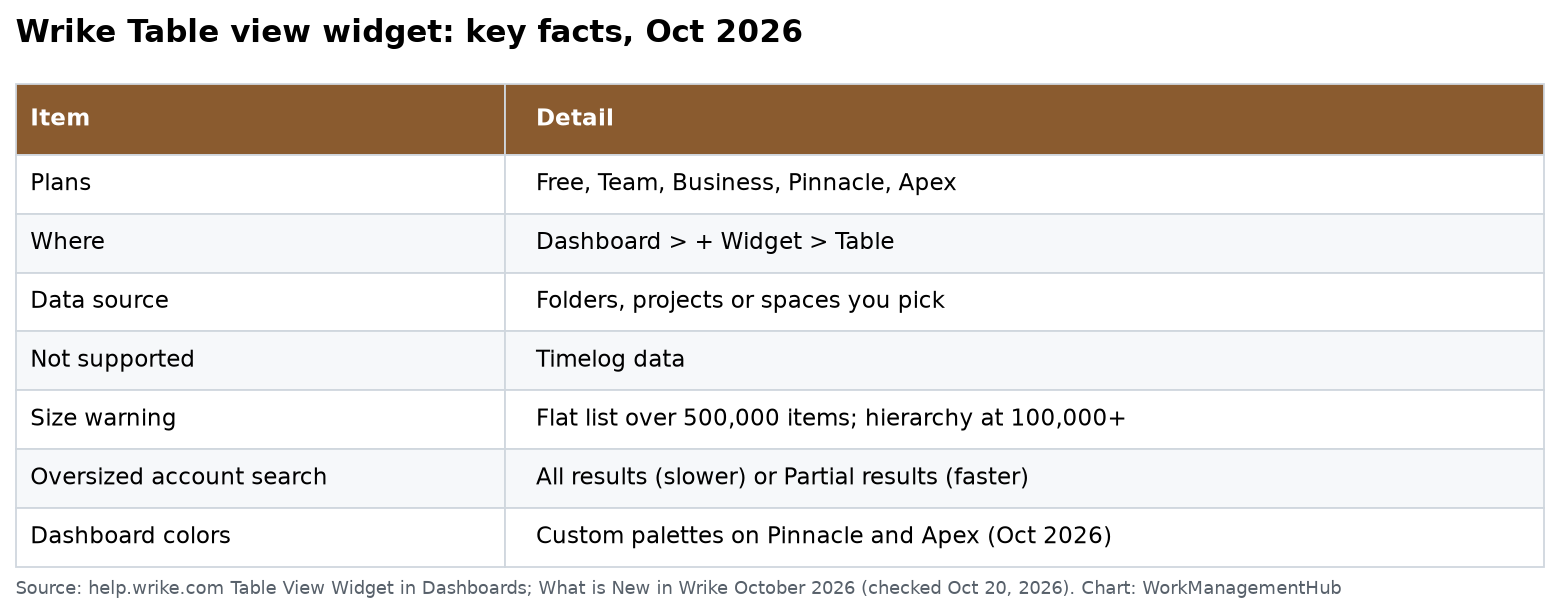
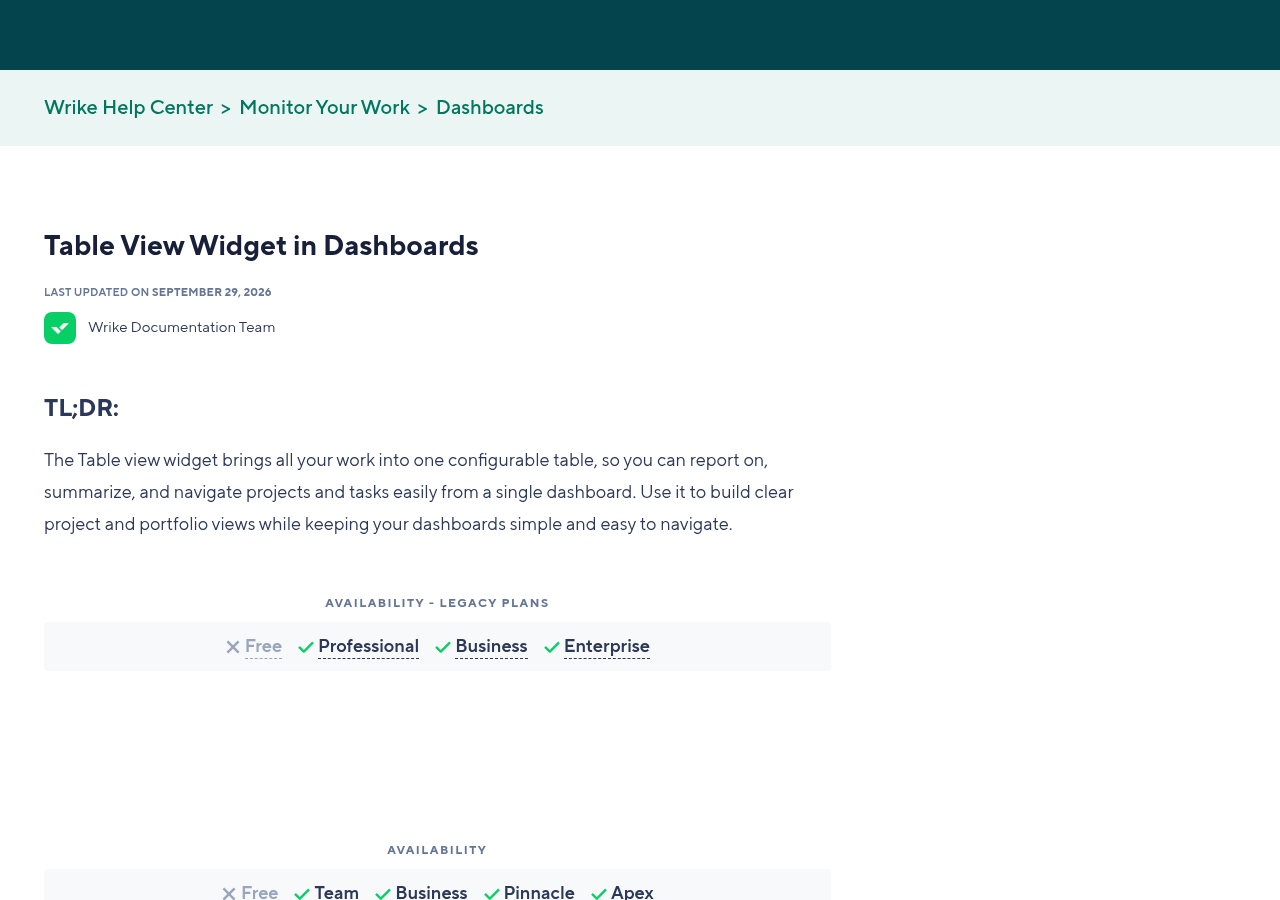
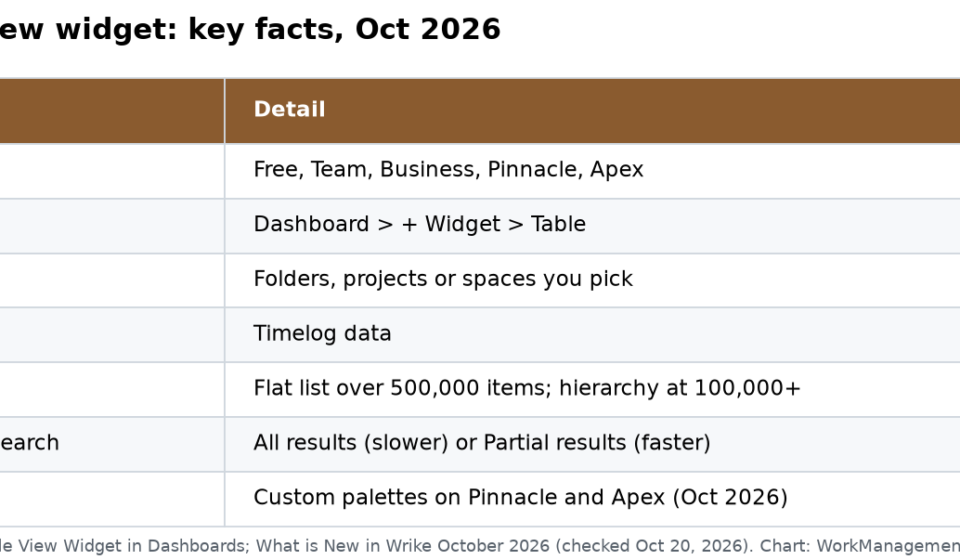
  • Table View Widget (basic) — available on Business plans and above. Includes field column configuration, flat-list and hierarchical views, and single-level grouping.
  • Multi-level grouping — requires Business plan or above with the Advanced Reporting add-on, or Enterprise/Pinnacle plans where it is included by default.
  • Custom item type display — requires custom item types to be created first under Account Management > Custom Item Types. Only then will they appear as grouping or filter options in the widget.
  • AI Agent integration — AI Agents with Location Change actions require an Enterprise or Pinnacle plan. Business plan users can see tasks that have been moved by AI Agents (the data reflects in the widget), but cannot configure the agents themselves.
  • Dashboard sharing — dashboards containing Table Widgets respect Wrike’s existing space and folder permissions. A shared dashboard will only show each viewer the items they have access to, which is the correct behavior for enterprise use but must be communicated to stakeholders who expect to see a full portfolio view.

Confirm these prerequisites with your Wrike account admin before committing to a dashboard architecture. Discovering a plan limitation mid-build is the most avoidable delay in any Wrike reporting project.

Wrike Dashboard Table Widget Setup: Adding Your First Table Widget

The following steps assume you are starting from an existing dashboard. If you need to create a new dashboard first, navigate to Dashboards in the left sidebar and select + New Dashboard.

  1. Open the target dashboard — navigate to Dashboards in the left navigation panel and select the dashboard where you want to add the widget. If this is a shared team dashboard, confirm you have edit permissions before proceeding.
  2. Enter edit mode — click the Edit Dashboard button in the top-right corner of the dashboard canvas. The canvas will display widget placeholder outlines and an active Add Widget control.
  3. Open the widget gallery — click + Add Widget. A panel slides in from the right side of the screen listing all available widget types grouped by category. Scroll to the Table section or use the search field at the top of the panel and type “table”.
  4. Select Table View Widget — click the Table View widget card. Wrike will place a placeholder widget on the dashboard canvas and immediately open the widget configuration panel on the right.
  5. Set the data scope — in the configuration panel, locate the Scope field. Click Select Space, Folder, or Project and navigate to the container that should feed this widget. You can select a top-level space (which will pull everything within it), a specific folder, or a single project. For portfolio dashboards, selecting a space or a top-level portfolio folder gives the broadest and most useful dataset.
  6. Choose the item types to include — below the scope selector, the Show dropdown lets you specify which item types appear in the widget: Tasks, Subtasks, Projects, Folders, or any custom item types defined in your account. For a reporting dashboard, check all types you want visible. You can always filter them later.
  7. Set the display mode — toggle between Hierarchical and Flat List using the view toggle near the top of the configuration panel. Start with Hierarchical for most reporting use cases — you can always switch without losing your other configuration settings.
  8. Click Apply — the widget renders on the canvas with your selected scope and default column configuration. You will now configure grouping, columns, and filters in the subsequent sections.
  9. Save the dashboard — click Save in the top-right corner of the edit canvas. Wrike auto-saves periodically, but explicit saves prevent configuration loss if your session times out during a long setup.

At this point you have a functional Table Widget. The default column set includes Task Name, Status, Assignee, and Due Date. That default is adequate for a basic list but falls short of the reporting fidelity most teams need. The next two sections address that gap.

Multi-Level Grouping Configuration

Grouping is where the Table Widget earns its reporting value. A flat list of tasks sorted by due date is a to-do list. A hierarchical table grouped first by project, then by assignee, then by priority is a management reporting layer. The configuration is straightforward once you understand the order of operations.

  1. Open the widget settings panel — hover over the widget on the dashboard canvas and click the gear icon (Settings) that appears in the top-right corner of the widget. The configuration panel reopens on the right side of the screen.
  2. Navigate to the Grouping section — in the configuration panel, scroll to the Group By section. You will see a primary group selector and an option to add additional grouping levels beneath it.
  3. Set the primary group — click the Group by dropdown for the first level. Available grouping fields include: Status, Assignee, Priority, Project, Folder, Custom Fields (any that apply to items in the selected scope), and Due Date (by week or month). For a portfolio reporting dashboard, set the primary group to Project or the relevant custom item type that represents your portfolio structure.
  4. Add a secondary group — click + Add Grouping Level below the primary group selector. A second dropdown appears. Set this to Assignee for workload reporting, Status for delivery tracking, or a custom field such as a Risk Rating or Sprint field if your account uses them. Wrike supports up to three grouping levels in the current release.
  5. Add a tertiary group (optional) — click + Add Grouping Level again to set a third grouping tier. Use this sparingly: three levels of grouping on a large dataset creates section headings that require excessive scrolling. Reserve three levels for narrowly scoped widgets (e.g., a single project broken down by sprint, then by assignee, then by priority).
  6. Configure group header display — each group level has an expand/collapse control setting. Toggle Default collapsed on for any grouping level that produces many sections. This keeps the widget scannable at a glance while still allowing drill-down. For executive dashboards, collapsing the secondary and tertiary levels by default is standard practice.
  7. Set group sort order — click the sort icon next to each group level label. Options include ascending/descending alphabetical, by item count, or by a date field. For status groupings, manually reordering the groups to match your workflow sequence (e.g., Not Started to In Progress to In Review to Complete) is worth the time investment and is done by dragging the group labels in the sort configuration panel.
  8. Click Apply and Save — apply the grouping configuration and save the dashboard. Test the collapse/expand behavior by clicking group header rows in the live widget. If a group header is not visible in the collapsed state, the section has no items matching the current filter — this is expected behavior, not a bug.

One common mistake at this stage is applying grouping before finalizing the scope. If your scope is too broad, grouping will surface hundreds of sections and make the widget unusable. Get scope right first, then layer grouping on top.

For context on how Wrike’s 2026 updates have improved other visualization layers, the updated Gantt chart feature breakdown covers complementary timeline reporting options worth combining with your Table Widget dashboard.

Wrike Dashboard Table Widget: Field Column Selection Strategy

Default column sets in any project management tool are built for the median user. Your reporting dashboard is not built for the median user — it is built for a specific audience making specific decisions. Column selection is where you translate that audience into a data configuration.

The following steps walk through the column configuration process, followed by a field selection framework organized by reporting audience.

  1. Open column settings — with the widget configuration panel open, click Manage Columns or the column settings icon (a grid icon with a gear) near the top of the configuration panel. A column management drawer opens, showing all currently active columns on the left and available fields on the right.
  2. Remove default columns you do not need — click the X next to any active column to remove it. Default columns such as Created Date and Last Modified consume horizontal space without contributing to live reporting value in most use cases. Remove them unless a specific stakeholder has requested them.
  3. Add fields from the available list — click + Add Column and search or browse the available fields. The list includes all standard Wrike fields plus every custom field defined in your account. Custom fields appear under the account name heading in the field list.
  4. Set column width — drag the right edge of each column header in the preview to set width. Task Name should be the widest column (250–350px for complex names). Status, Assignee, and Priority columns work well at 100–130px. Effort and date columns sit comfortably at 110–140px.
  5. Set column sort defaults — click a column header in the widget configuration preview to set default sort. For delivery tracking dashboards, sorting by Due Date ascending surfaces overdue items at the top when combined with a status filter that excludes completed items.
  6. Pin critical columns — hover over a column in the configuration drawer and use the pin icon to freeze it to the left of the table. Pin Task Name and Status at minimum so they remain visible during horizontal scroll on screens narrower than the full widget width.
  7. Click Apply and Save — apply the column configuration and save. Review the rendered widget for column overflow — if columns compress to the point where cell content is truncated beyond readability, remove the lowest-priority column before adding a replacement.

Column selection by audience:

Executive / portfolio view: Task/Project Name, Status, % Complete, Assignee (owner only, not all collaborators), Due Date, Priority, a single RAG-status custom field if your account uses one. Keep this to six or seven columns maximum.

Delivery team / operational view: Task Name, Status, Assignee, Effort (hours), Due Date, Sprint custom field, Blocker/Risk custom field. Eight to ten columns is acceptable here because the audience is doing work management, not skimming.

Resource/workload view: Assignee (grouped at primary level), Task Name, Effort, Due Date, Status, Project Name. Sorting by Effort descending within each assignee group gives an immediate read on who is carrying the most load.

Finance/billing view: Task Name, Project Name, Status, Billable Hours custom field, Billing Rate custom field, Client custom field. This configuration effectively produces a live billing summary without leaving Wrike.

The guiding principle is that every column must answer a question a stakeholder in your target audience would actually ask during a review meeting. If no one in the room would ask about the data in that column during the meeting, remove it.

Filters, Flat-List View, and Subitem Collapse Controls

Filters are the mechanism that transforms a general-purpose Table Widget into a focused reporting tool. A widget scoped to a full portfolio space and filtered to show only items with a status of “At Risk” or “Blocked” is more operationally useful in a weekly review than a complete unfiltered view of all 400 tasks in the portfolio.

  1. Open the Filters section — in the widget configuration panel, scroll to the Filters section below the Grouping controls. Click + Add Filter to open the filter builder.
  2. Add a Status filter — select Status from the field dropdown. Choose the filter logic (is, is not, is any of). For a risk dashboard, select is any of and choose your at-risk and blocked status values. For a delivery completion dashboard, select all incomplete statuses using is not and choose Complete/Done.
  3. Add an Assignee filter — click + Add Filter again and select Assignee. Use is any of with a specific team member list to scope the widget to one team. Use is not empty to exclude unassigned tasks from the view — highly recommended for operational dashboards, since unassigned items without owners do not belong in a delivery status report.
  4. Add Custom Field filters — click + Add Filter and scroll to the Custom Fields section in the field list. Priority, Sprint, Client, or any account-specific custom field can be used as a filter dimension. Custom field filter logic varies by field type: dropdown fields offer is / is not / is any of; numeric fields offer range operators; date fields offer relative operators such as “is in the next N days” or “is overdue”.
  5. Set filter logic (AND vs OR) — at the top of the filter section, Wrike displays the logic connector between filters. The default is AND (all conditions must be true). Click the connector label to toggle to OR for specific combinations. Note that OR logic between all filters broadens results significantly — use it intentionally.
  6. Configure subitem collapse defaults — in the Hierarchical view, each parent item has a collapse toggle. In the widget settings, locate Expand subitems by default and set it to off for large datasets. This keeps the widget compact and allows users to expand specific parents on demand during a review session.
  7. Toggle between Hierarchical and Flat-List mid-session — note that the view toggle is available in the live widget, not just in configuration mode. Users can switch between hierarchical and flat-list views without re-entering configuration. This is a useful feature to surface to stakeholders — it lets them toggle to a flat assignee view during a workload discussion without requiring admin intervention.

Combining Table Widgets with AI Agent Location Change Actions

The April 2026 Wrike update introduced AI Agent Location Change actions — a capability that allows AI Agents to move tasks to new folders or projects based on defined conditions, without human intervention. For Table Widget reporting, this creates a direct connection between automated workflow logic and your live dashboard data.

When an AI Agent moves a task from an “Intake” folder to an “Active Projects” folder because it meets defined criteria (client confirmed, scope document attached, kickoff date set), that task immediately appears in any Table Widget scoped to the Active Projects folder. No manual refresh. No status update required from a team member. The widget reflects the automation-driven state of your workflow in real time.

For a complete breakdown of how to configure AI Agents themselves, see the step-by-step guide to setting up Wrike AI Agents in 2026. The steps below focus specifically on configuring your Table Widget to surface AI Agent outputs effectively.

  1. Identify the destination folders used by your AI Agents — before configuring the widget, map out which folders your AI Agents move tasks into. Each destination folder represents a workflow stage that can be represented as a table widget scope or a grouping level. Document these folder names and their hierarchy positions.
  2. Create a folder structure that supports grouping — if your AI Agents move tasks into folders named by stage (Intake, Scoping, Active, In Review, Delivered), structure these folders inside a single parent portfolio folder. This allows you to scope your Table Widget to the portfolio folder and group by the child folder level, producing a Kanban-style table view where each group represents an AI-assigned pipeline stage.
  3. Scope the widget to the portfolio parent folder — in the widget Scope selector, choose the parent portfolio folder. Enable Include subfolders if prompted. This ensures the widget sees tasks regardless of which stage folder they currently occupy.
  4. Add a Folder grouping level — in the Group By configuration, set the primary group to Folder. Each AI Agent destination folder becomes a section in your widget. Tasks move between sections automatically as the AI Agent relocates them.
  5. Add a Last Modified column — to make AI-driven movements visible, add the Last Modified field as a column and sort descending within each folder group. Tasks that the AI Agent moved most recently will appear at the top of each section, giving reviewers immediate visibility into recent automation activity.
  6. Add a filter to surface AI Agent activity specifically — if your AI Agent sets a custom field (e.g., an “AI Processed” checkbox or a “Stage Source” dropdown set to “AI Agent”) when moving tasks, add a filter on that custom field. This creates a widget that shows only tasks whose current location was determined by the AI Agent — a useful audit and monitoring view for teams adopting automation for the first time.
  7. Verify the dashboard is not cached — in high-volume automation environments, open the dashboard settings via the gear icon in the top-right of the dashboard (not the widget) and confirm that caching is not enabled for this dashboard. Live AI Agent pipelines require live data to provide accurate reporting.

The practical result of this configuration is a dashboard that functions as a real-time automation audit board. Leadership can see not just where tasks are, but that AI Agents are actively classifying and routing work — which builds organizational confidence in automation adoption faster than any presentation slide.

For teams evaluating whether Wrike’s AI and dashboard capabilities justify a platform switch, the monday.com vs Wrike 2026 comparison covers how the two platforms compare on automation-driven reporting specifically.

Real-World Use Case: Agency Delivery Dashboard

To make the configuration concrete, here is the exact Table Widget setup used for a mid-size digital agency managing 40–60 concurrent client projects across four delivery teams. This configuration was built in March 2026 immediately after the Table View Widget reached GA.

Business problem: Weekly delivery review meetings ran 90 minutes because the delivery director had to navigate between individual project views to surface at-risk items and blocked tasks. No single view showed cross-project status with owner accountability.

Widget configuration:

  • Scope: “Client Projects” space (top-level space containing all active client folders)
  • Item types displayed: Projects, Tasks (subtasks excluded to reduce noise at the portfolio level)
  • Display mode: Hierarchical
  • Primary grouping: Custom field — “Delivery Team” (dropdown: Brand, Development, Strategy, Media)
  • Secondary grouping: Status
  • Columns: Project/Task Name (pinned, 280px), Status (110px), Assignee — Owner only (130px), Due Date (110px), Priority (100px), Risk Status custom field (120px), Estimated Hours custom field (110px)
  • Filters: Status is not “Completed” AND Status is not “Cancelled” AND Due Date is in the next 30 days OR is overdue
  • Default collapse: Secondary grouping (Status) collapsed by default; primary grouping (Delivery Team) expanded by default

AI Agent integration added in April 2026: An AI Agent monitors the agency’s “New Briefs” intake folder. When a brief has an attached scope document, a confirmed client contact, and a completed intake form (tracked via custom field checkboxes), the agent moves the brief project into the appropriate delivery team’s “Active” subfolder. The Table Widget picks this up immediately — the project appears in the correct Delivery Team group in the At Risk or Not Started status section, depending on where the AI Agent placed it.

Outcome: Weekly review meetings dropped from 90 minutes to 35 minutes. The delivery director opens the dashboard, the Table Widget shows every at-risk and overdue item grouped by team, and the meeting proceeds by team section without any manual navigation. New briefs processed overnight by the AI Agent appear in the correct team section without any morning housekeeping from project managers.

This is the standard to hold all Wrike reporting configurations to: the dashboard does the navigation work so the meeting can focus on decisions.

🏆 Verdict

Wrike’s Table View Widget is the most capable native reporting element the platform has shipped. For Business plan users, the combination of hierarchical display, multi-level grouping, and configurable field columns eliminates most of the reasons teams were exporting data to external tools for status reporting. For Enterprise and Pinnacle users, the integration with AI Agent Location Change actions pushes the widget into genuine real-time automation reporting territory — a capability that competitors have not yet matched with comparable ease of configuration. If you are on a qualifying plan and you are still running status reviews without a Table Widget dashboard, build one this week. The setup time is under an hour and the meeting time you recover will be immediate.

Frequently Asked Questions

Can I have multiple Table View Widgets on the same dashboard?

Yes. Wrike allows multiple Table View Widgets on a single dashboard, each with independent scope, grouping, and filter configurations. A common pattern is to place an executive summary widget (scoped to the full portfolio, minimal columns, collapsed grouping) alongside an operational widget (scoped to a single team’s folder, expanded by default, with effort and blocker columns). Each widget manages its own state independently, so collapsing a group in one widget does not affect another.

Do Table Widget configurations survive dashboard sharing?

Yes, with an important caveat. The widget configuration — scope, grouping, columns, filters — is shared exactly as you built it. However, each viewer sees only the items they have permission to access within that scope. If a shared dashboard widget is scoped to a space that a viewer only has partial access to, they will see a subset of the rows you see. This is correct permission behavior, but it means the totals and item counts visible to different viewers may not match. Communicate this to stakeholders before sharing dashboards that include sensitive project data.

What is the performance limit for Table View Widgets with large datasets?

Wrike has not published a hard item-count limit for Table View Widgets as of May 2026, but performance degradation becomes noticeable in hierarchical mode when a widget is scoped to more than approximately 2,000 items without grouping or filtering. The practical mitigation is to scope widgets tightly and rely on grouping and filters to reduce rendered row counts. For very large portfolios (500+ active projects), building multiple scoped widgets and using a tabbed dashboard layout is more effective than a single all-encompassing widget. Flat-list mode performs somewhat better than hierarchical mode at high item counts because it skips the hierarchy resolution step.

Can I export data from a Table View Widget?

Direct export from the Table View Widget to CSV or Excel is not available in the current release as of May 2026. The widget is a live viewing layer, not an export tool. For data exports, use Wrike’s Reports feature (accessible from the left sidebar) which offers CSV export with similar field and filter configuration. The intended workflow is to use the Table Widget for live review sessions and Wrike Reports for exported deliverables that need to travel outside the platform. Wrike’s official report configuration documentation covers the export process in detail.

How does the Table View Widget work on mobile?

The Table View Widget renders in a horizontally scrollable format on mobile devices. Pinned columns (Task Name, Status) remain fixed while users scroll right to access additional columns. Grouping expand/collapse controls work on mobile via tap. Multi-level grouping with more than two levels can become difficult to navigate on small screens — for dashboards that will be regularly accessed on mobile, limit grouping to one or two levels and reduce the column count to five or fewer. The Wrike mobile app documentation covers dashboard interaction in more detail.


Author

Shaik KB

Follow Me
Other Articles
Previous

Jira vs Wrike 2026: Which Is Right for Your Team?

Next

Airtable Interface Extensions SDK: A Complete Deep Dive for 2026

No Comment! Be the first one.

    Leave a Reply Cancel reply

    Your email address will not be published. Required fields are marked *

    Sponsored Smartsheet Expert Services – Implementation, Automation, Training
    Sponsored Power BI & Tableau Analytics – Dashboards, Reporting, Insights
    Sponsored AI Agents for Work Management – Automate Tasks, Integrate Tools

    Categories

    • Airtable (9)
    • Alternatives (10)
    • Asana (27)
    • ClickUp (33)
    • How-To Guides (100)
    • Integrations (15)
    • Jira (22)
    • Monday.com (34)
    • Notion (21)
    • Pricing Guides (11)
    • Project Management (61)
    • Smartsheet (23)
    • Tool Comparisons (43)
    • Uncategorized (5)
    • Wrike (8)

    Recent Post

    • Airtable Interface Extensions SDK: A Complete Deep Dive for 2026
    • How to Set Up Wrike Dashboard Table Widgets for Real-Time Reporting in 2026
    • Jira vs Wrike 2026: Which Is Right for Your Team?
    • Jira Legacy Workflow Editor Removal: How to Migrate Before June 2026
    • How to Build Custom Board Widgets with Monday Vibe in 2026
    Work Management Hub

    Independent expert reviews & comparisons of work management tools — helping 50,000+ teams choose the right software.

    Tools We Cover

    • Smartsheet
    • Monday.com
    • ClickUp
    • Asana
    • Notion
    • Jira
    • Wrike
    • Airtable

    Company

    • About Us
    • Contact Us
    • Privacy Policy
    Copyright 2026 — Work Management Hub. All rights reserved. Blogsy WordPress Theme