Wrike’s New Gantt Chart 2026: Public Snapshots, AI Risk Flags & What’s Actually New

- Public Snapshots went GA in April 2026 — you can now share a read-only, watermarked Gantt view with external stakeholders via a link, no Wrike login required, with an optional expiry date.
- AI Risk Flags (launched March 2026) automatically surface tasks at risk of delay based on dependency chains, assignee workload, and historical completion patterns — before the deadline is missed.
- Cross-project critical path now works across up to 50 projects in a single Gantt view — previously limited to tasks within a single project folder, making it viable for enterprise program timelines.
- Baseline comparison got a visual redesign in 2026: you can now overlay up to three saved baselines simultaneously, with color-coded variance indicators per task row.
- The new Gantt Minimap (bottom panel) provides a zoomable overview of your entire program timeline without losing context when zoomed in on a specific sprint window.
The Wrike new Gantt chart 2026 update delivers Public Snapshots for external sharing, AI Risk Flags for proactive delay detection, cross-project critical path across up to 50 projects, triple-baseline comparison, and a new Minimap for timeline navigation. All features are live on Business plans and above as of April 2026.
- What Actually Changed in Wrike’s Gantt Chart in 2026
- Public Snapshots: Share Gantt Views With External Stakeholders
- AI Risk Flags: Catching Delays Before They Happen
- Cross-Project Critical Path: Program-Level Timeline Analysis
- Wrike New Gantt Chart 2026: Triple-Baseline Comparison
- Gantt Minimap: Navigate Long Timelines Without Losing Context
- Plan Tier Requirements: What’s Available on Which Plan
- Wrike New Gantt Chart 2026 vs. Competitors: How It Stacks Up
- Verdict
Wrike’s New Gantt Chart 2026: Public Snapshots, AI Risk Flags & What’s Actually New
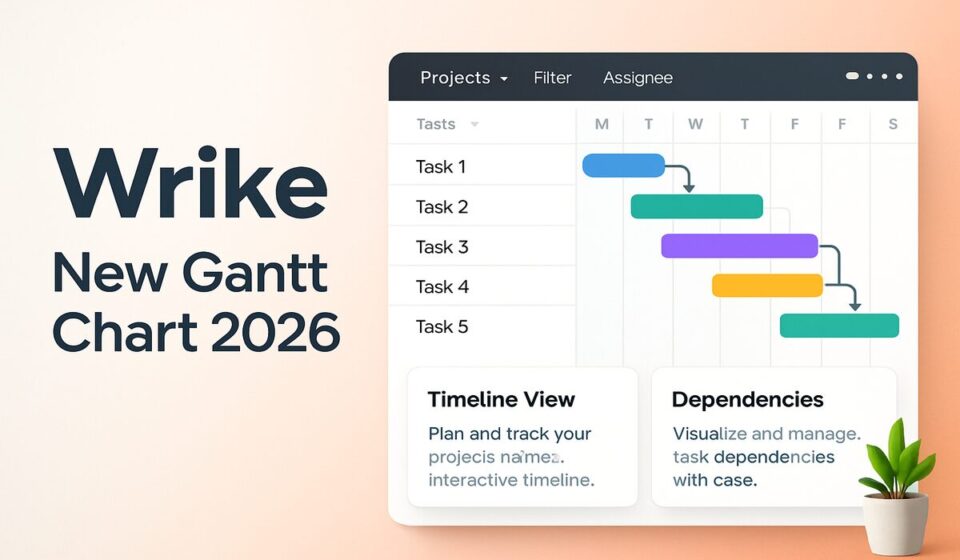
The Wrike new Gantt chart 2026 release is not a visual refresh. The updates that shipped between March and April 2026 — AI Risk Flags, Public Snapshots going GA, cross-project critical path expansion, triple-baseline comparison, and the Gantt Minimap — represent the most substantive functionality changes to Wrike’s timeline view since the platform introduced interactive Gantt charts. If you are using Wrike for program management and have not revisited these features, you are likely still manually flagging at-risk tasks and emailing PNG exports to clients instead of sharing a live, access-controlled link. This guide covers every 2026 change in detail, including exactly which plan tier each feature requires.
What Actually Changed in Wrike’s Gantt Chart in 2026
Wrike’s Gantt chart has offered interactive timelines, dependency tracking, and baseline comparisons for several years. The 2026 updates did not replace those foundations — they extended them in three meaningful directions: proactive AI-driven risk detection, external sharing without access requirements, and program-scale multi-project analysis.
The release timeline matters for teams evaluating these features:
- March 2026: AI Risk Flags launched in beta across Business and Enterprise plans.
- April 2026: Public Snapshots went GA (exiting the beta that began in Q4 2025). Cross-project critical path expanded from single-project scope to multi-project (up to 50 projects). Baseline comparison redesigned to support up to three simultaneous baselines with color variance indicators.
- April 2026: Gantt Minimap shipped as part of the same release package.
All features discussed in this guide are live in production as of May 2026. No features described here are in beta or on a waitlist. If you are on a Business plan or above and do not see these options, contact Wrike support to confirm your feature rollout status — some features were rolled out in batches to Business accounts.
Public Snapshots: Share Gantt Views With External Stakeholders
Public Snapshots solve a problem that Wrike enterprise teams have worked around for years: clients, vendors, and board-level stakeholders who need to see program timelines but cannot or will not create a Wrike account. Previously, the only options were exporting a static PNG or PDF, or provisioning a guest license. Neither option was good — static exports go stale immediately, and guest licenses add cost and administrative overhead.
Public Snapshots generate a shareable URL that renders a read-only, watermarked version of the current Gantt view. The recipient sees the live state of the chart (updated in real time) without any ability to edit tasks, click into subtasks, or access linked files. The watermark is configurable — you can display your organization name, a confidentiality notice, or leave it as the default Wrike branding.
- Open your Gantt view and configure the display — set the zoom level, date range, and visible task hierarchy to exactly what you want stakeholders to see. Public Snapshots capture the view state at the moment of generation.
- Click the Share button in the Gantt toolbar — select “Create Public Snapshot” from the share menu. A dialog opens with snapshot configuration options.
- Set access controls — toggle “Require password” if the timeline contains sensitive delivery information. Set an expiry date if the share should auto-deactivate after a client meeting or project phase ends. Snapshots without an expiry date remain active until manually revoked.
- Configure the watermark — click the watermark dropdown to enter custom text. Leave blank to use the default “Powered by Wrike” watermark. For client-facing shares, entering your company name here is recommended.
- Copy the snapshot URL — click “Generate link.” The URL is immediately shareable. Recipients opening the link see the Gantt chart rendered in a full-browser view with no login prompt. Mobile viewing is supported but Wrike recommends desktop for charts spanning more than 90 days.
- Manage active snapshots — navigate to Account Settings → Sharing → Public Snapshots to see all active snapshot URLs, when they were created, how many times they have been accessed, and their expiry status. You can revoke any snapshot from this panel.
Public Snapshots are available on Business plans and above. They are not available on the Free or Team plan. For teams managing client delivery timelines, this feature alone justifies the Business plan upgrade for many agency and professional services teams. For a full comparison of how Wrike’s sharing model compares to competitors, see our Monday.com vs. Wrike 2026 comparison.
AI Risk Flags: Catching Delays Before They Happen
AI Risk Flags are Wrike’s most significant Gantt innovation in 2026. The feature uses a combination of dependency chain analysis, assignee workload data, and historical task completion patterns to identify tasks that are likely to slip — and flags them proactively in the Gantt view before any deadline is actually missed.
The visual treatment is deliberate: risk-flagged tasks display an amber warning indicator on the Gantt bar. Hovering over the indicator opens a tooltip explaining the specific risk factors: “Assignee has 14 overdue tasks this week,” or “This task has 3 blocked predecessors — 2 are behind schedule,” or “Tasks of this type average 3 days longer than estimated based on your team’s last 6 months of history.” The AI does not just say a task is at risk — it says why.
- Enable AI Risk Flags in Gantt settings — click the Settings (gear) icon in the top-right of your Gantt view. Toggle “Show AI Risk Flags” to on. The toggle is off by default to avoid visual noise on Gantt views where teams have not opted in.
- Review flagged tasks — risk-flagged tasks display an amber diamond indicator on the left edge of their Gantt bar. Click the indicator to open the Risk Detail panel, which shows the risk score (Low/Medium/High), the contributing factors, and the estimated date impact if the risk materializes.
- Act on the risk recommendation — the Risk Detail panel includes an “Actions” dropdown. Available actions include: reassign the task to a team member with lower current workload, adjust the task duration, create a dependency mitigation task, or dismiss the flag with a note. Dismissed flags are logged in the task activity feed.
- Use the Risk Summary view — click “Risk Summary” in the Gantt toolbar to open a list view of all AI-flagged tasks sorted by risk score. This view is the artifact to bring into weekly program reviews — it surfaces the highest-risk items across your entire program without requiring manual status tracking.
- Configure risk sensitivity — in Account Settings → AI Features → Risk Flag Sensitivity, you can set whether the AI flags tasks at Low/Medium/High thresholds or only at High. Teams that find Low-risk flags too noisy for day-to-day use typically set this to Medium or above.
AI Risk Flags are available on Business plans and above. The feature requires at least 90 days of task history in your Wrike account for the historical completion pattern analysis to activate — on fresh accounts or new workspaces, the dependency-chain and workload factors apply immediately, but the historical pattern component takes time to calibrate.
For the official Wrike documentation on AI features in the Gantt view, see the Wrike AI Gantt features help article.
Cross-Project Critical Path: Program-Level Timeline Analysis
Critical path analysis has been available in Wrike’s Gantt for years, but it was limited to tasks within a single project folder. For enterprise programs where delivery dependencies span multiple projects — a product launch that requires engineering, marketing, and legal to all complete work in sequence — the single-project scope made critical path largely decorative. The April 2026 expansion changes this.
Cross-project critical path now calculates the longest dependency chain across up to 50 linked projects simultaneously, correctly identifying which tasks, across which projects, are on the critical path for your program milestone. A delay in any critical-path task now triggers a recalculation that updates the entire program timeline view.
- Create or open a cross-project Gantt view — navigate to a Space or Folder that contains multiple projects. In the view selector (top-left of the task panel), select “Gantt”. If you want to build a cross-project Gantt from scratch, use New View → Gantt and select the projects to include from the project picker.
- Enable critical path display — click the Critical Path toggle in the Gantt toolbar. On single-project Gantt views, this toggle has existed for years. On cross-project views, the toggle now calculates across all included projects — up to 50.
- Review the critical path highlight — critical path tasks are highlighted with a red border on their Gantt bars. Cross-project dependency lines connecting critical path tasks across project boundaries display in red as well, visually tracing the program’s longest path from start to finish.
- Inspect cross-project dependency links — click any red dependency line to open the Dependency Detail panel, which shows the source task, target task, their respective projects, current lag/lead time, and whether the link is a Finish-to-Start, Finish-to-Finish, Start-to-Start, or Start-to-Finish dependency.
- Use the Critical Path Summary — click “Critical Path Summary” in the toolbar to generate a list of all critical path tasks sorted by project and sequence. This is the view to export for executive program reviews — it shows exactly which tasks cannot slip without delaying the program end date.
Cross-project critical path requires Enterprise plan for the full 50-project scope. Business plan users can use cross-project critical path across up to 10 projects. For a deeper look at enterprise program management capabilities in Wrike, see our Wrike enterprise program management guide.
Wrike New Gantt Chart 2026: Triple-Baseline Comparison
Baseline comparison — saving a snapshot of the planned schedule and comparing it against current actuals — has been available in Wrike for enterprise users for some time. The 2026 redesign introduced two meaningful changes: you can now save and display up to three baselines simultaneously, and the variance display is now color-coded per task row rather than shown as a separate overlay layer.
The practical use case for triple-baseline comparison: save baseline 1 at project kick-off (the original plan), baseline 2 at the end of phase 1 (the revised plan after discovery), and baseline 3 at the re-baseline point after a scope change. With all three visible simultaneously, stakeholders can see not just how far the current schedule differs from the original plan, but where each specific change decision moved the needle.
- Save a baseline — click the Baseline button in the Gantt toolbar. Select “Save current as baseline.” Name it descriptively — “Original plan — [date]” is better than “Baseline 1.” You can save up to three baselines per Gantt view.
- Display baseline comparison — with baselines saved, click the Baseline button and select “Show baselines.” A sub-menu lets you select which of the saved baselines to display. Each active baseline adds a thin reference bar below each task’s current Gantt bar, color-coded by baseline (blue for baseline 1, green for baseline 2, orange for baseline 3).
- Read the variance indicators — each task row that differs from a displayed baseline shows a colored triangle indicator on the task name column. Hover over the indicator to see the exact date variance: “+5 days vs. Original Plan (Baseline 1).” The indicator color matches the baseline it references.
- Export baseline comparison — click Export → Gantt with Baselines to generate a PDF or PNG that includes all displayed baselines. This export format is specifically designed for client status reports and project steering committee documentation.
Triple-baseline comparison is available on Enterprise plan. Business plan users can save and display a single baseline.
Gantt Minimap: Navigate Long Timelines Without Losing Context
The Gantt Minimap is a quality-of-life feature that addresses a specific usability problem for large programs: when you zoom into a two-week sprint window on a 12-month program Gantt, you lose visibility into where you are relative to the rest of the timeline. The Minimap solves this by rendering a compressed full-timeline view in a collapsible panel at the bottom of the Gantt canvas, with a viewport indicator showing your current zoom position.
- Enable the Minimap — click the View Options button (the grid icon in the top-right Gantt toolbar) and toggle “Show Minimap” to on. The minimap panel appears at the bottom of the Gantt canvas, approximately 80px tall.
- Navigate using the Minimap — click anywhere on the Minimap to jump the main Gantt view to that date range. The viewport indicator (a semi-transparent blue rectangle) repositions to show your new location on the full timeline.
- Resize the viewport indicator — drag the edges of the viewport indicator in the Minimap to change the zoom level of the main Gantt view. Expanding the indicator zooms out; contracting it zooms in.
- Identify milestones in the Minimap — milestone tasks are represented as diamond icons in the Minimap regardless of the zoom level, making it easy to jump directly to a milestone date without scrolling through the full timeline.
The Gantt Minimap is available on all plan tiers that include Gantt access (Business and above). It is particularly valuable for programs with timelines longer than six months or Gantt views with more than 100 tasks.
Plan Tier Requirements: What’s Available on Which Plan
| Feature | Business | Enterprise | Pinnacle / Apex |
|---|---|---|---|
| Interactive Gantt Chart | ✓ | ✓ | ✓ |
| Public Snapshots | ✓ | ✓ | ✓ |
| AI Risk Flags | ✓ | ✓ | ✓ |
| Cross-Project Critical Path | Up to 10 projects | Up to 50 projects | Up to 50 projects |
| Baseline Comparison | 1 baseline | 3 baselines (triple) | 3 baselines (triple) |
| Gantt Minimap | ✓ | ✓ | ✓ |
Wrike New Gantt Chart 2026 vs. Competitors: How It Stacks Up
The Wrike new Gantt chart 2026 feature set places Wrike ahead of most work management platforms on timeline depth for enterprise programs, but the comparison is not uniform across all buyer profiles.
vs. Monday.com: Monday.com’s Timeline view does not offer critical path analysis, AI risk detection, or external stakeholder sharing without a login. For teams choosing between platforms primarily on Gantt capability, Wrike wins this comparison outright. Monday.com’s strength is agent accessibility — not timeline analytics.
vs. Asana: Asana’s Timeline view offers critical path highlighting and baseline comparison, but does not yet match Wrike’s cross-project scope (Asana’s critical path is single-project) or AI risk flagging. Asana does offer external sharing via portfolio links, but these are not Gantt-specific in the same way Public Snapshots are.
vs. Microsoft Project: Microsoft Project remains the benchmark for Gantt depth — resource leveling, multi-project master plans, and earned value analysis are not available in Wrike. For programs that require those capabilities, Project is still the specialist tool. Wrike’s advantage is the rest of the work management stack that surrounds the Gantt — collaborative tasks, automation, proofing, and the 2026 AI agent layer — none of which Project offers.
For the full competitive landscape, see our best project management software 2026 guide and our detailed Wrike vs. Asana 2026 comparison.
Official Wrike documentation for the Gantt chart is available at the Wrike Gantt Chart help center.
Wrike’s 2026 Gantt updates represent a genuine step forward for program managers who need timeline tools that work at enterprise scale without switching to a dedicated scheduling application. Public Snapshots eliminate the client-access friction that has plagued Wrike enterprise accounts for years. AI Risk Flags are the right feature at the right time — proactive risk detection is more valuable than retrospective reporting, and the explainability of the risk factors (workload, dependency chain, historical patterns) makes the flags actionable rather than just alarming. Cross-project critical path at 50-project scope finally makes Wrike’s Gantt viable for the complex, multi-team programs it was always marketed toward but could not fully serve with single-project scope. The one honest caveat: triple-baseline comparison and full 50-project critical path require Enterprise plan. Business plan users get a meaningful subset of these capabilities, but program managers running large portfolios should budget for Enterprise if they want the full 2026 feature set. For agencies, in-house project teams, and enterprise program offices running on Wrike, the April 2026 Gantt update is the most impactful release in the platform’s history for timeline management specifically.
Frequently Asked Questions
What are Public Snapshots in Wrike’s Gantt chart?
Public Snapshots are shareable, read-only URLs that render a watermarked version of your Gantt chart without requiring the recipient to log in to Wrike. They went GA in April 2026. Snapshots can be password-protected, configured with an expiry date, and revoked at any time from Account Settings. The recipient sees the live state of the chart — updated in real time — but cannot edit tasks, click into subtasks, or access linked files. Public Snapshots are available on Business plan and above.
How do Wrike AI Risk Flags work?
AI Risk Flags analyze three data sources to identify tasks likely to slip: dependency chains (are predecessor tasks behind schedule?), assignee workload (how many overdue or overallocated tasks does the assignee currently have?), and historical completion patterns (does this task type typically take longer than estimated based on the last six months of data?). Flagged tasks display an amber indicator on their Gantt bar. Clicking the indicator opens a Risk Detail panel explaining the specific contributing factors and their estimated date impact. Sensitivity can be configured between Low, Medium, and High thresholds.
Is cross-project critical path available on the Business plan?
Yes, but with a scope limit. Business plan users can run cross-project critical path analysis across up to 10 projects simultaneously. Enterprise plan (and above) expands this to 50 projects. For most mid-market teams running programs across 3–8 projects, the Business plan scope is sufficient. For large enterprise programs spanning many parallel workstreams, Enterprise is required for the full capability.
Can I use triple-baseline comparison on a Business plan?
No. Triple-baseline comparison — storing and displaying up to three saved baselines simultaneously with color-coded variance indicators — requires Enterprise plan. Business plan users can save and display a single baseline. If baseline comparison is a core requirement for your team’s program reporting, this is worth factoring into your plan tier decision.
Does the Gantt Minimap work on all plan tiers?
The Gantt Minimap is available on all plan tiers that include Gantt access, which starts at the Business plan. Free and Team plan users do not have access to the interactive Gantt chart and therefore do not have access to the Minimap. For Business plan and above, the Minimap is enabled by default and can be toggled on or off from the View Options panel in the Gantt toolbar.
Sponsored