Skip to content
-
Subscribe to our newsletter & never miss our best posts. Subscribe Now!
Work Management Hub Work Management Hub

Expert Reviews, Comparisons & Guides for Smartsheet, Monday.com, Asana, ClickUp & More

Work Management Hub Work Management Hub

Expert Reviews, Comparisons & Guides for Smartsheet, Monday.com, Asana, ClickUp & More

  • Airtable
  • Asana
  • ClickUp
  • Jira
  • Monday.com
  • Notion
  • Smartsheet
  • Wrike
  • About
  • Contact
  • Airtable
  • Asana
  • ClickUp
  • Jira
  • Monday.com
  • Notion
  • Smartsheet
  • Wrike
  • About
  • Contact
Close

Search

  • https://www.facebook.com/
  • https://twitter.com/
  • https://t.me/
  • https://www.instagram.com/
  • https://youtube.com/
How-To GuidesMonday.com

How to Build Custom Board Widgets with Monday Vibe in 2026

By Shaik KB
May 22, 2026 16 Min Read
0


⚡ Key Takeaways

  • Monday Vibe launched in 2026 as a no-code AI builder embedded directly inside monday.com — you describe a widget in plain English and it builds a fully functional app on your board in seconds.
  • No developer is required at any stage — from initial prompt to publishing a production-ready widget, the entire workflow runs inside your monday.com account through a conversational AI interface.
  • The most powerful widgets connect live board data to custom logic — time tracking dashboards, capacity planners, and client-facing status portals that update in real time as your board changes.
  • Publishing a Vibe App takes your widget from private prototype to shared workspace tool in one click, with granular permission controls that let you restrict who can view, interact with, or edit the widget.
Quick Answer:

To build a custom board widget with Monday Vibe, open any board, click the Vibe Apps icon in the board toolbar, type a plain-language description of the widget you need, click Build It, then refine through the chat interface before hitting Publish to make it live for your workspace. No code required at any step.

Table of Contents

  1. What Is Monday Vibe and Why It Changes Everything
  2. Before You Build: Access Requirements and Board Setup
  3. Writing Your First Monday Vibe Custom Widget Prompt: What Actually Works
  4. How to Build a Custom Board Widget: Step-by-Step
  5. Real-World Widget Examples by Team Size and Use Case
  6. Refining Your Widget Through the Vibe Chat Interface
  7. Publishing Your Widget and Managing Permissions
  8. Common Mistakes That Produce Broken Widgets
  9. Verdict
  10. Frequently Asked Questions

How to Build Custom Board Widgets with Monday Vibe in 2026

Most teams using monday.com hit the same ceiling: the native views and dashboards cover 80% of what they need, but that remaining 20% — the specific KPI rollup their ops team needs, the client-facing status panel that doesn’t expose internal fields, the automated time-tracking widget scoped to a single project group — requires either a developer or a workaround that falls apart the moment the board structure changes.

Monday Vibe closes that gap. Launched as part of Monday’s May 2026 relaunch as an AI Work Platform, Vibe is a no-code app builder that lives inside your board. You describe what you need in plain English, the AI builds it, and you refine it through conversation until it behaves exactly the way your team needs. The output is a Vibe App — a fully functional, published widget that connects to your live board data and updates in real time.

What follows is the full end-to-end workflow: from writing a prompt that actually produces a usable widget, to iterating through the chat interface, to publishing a production-ready tool your entire workspace can use. If you’ve read other overviews of Monday Vibe and still aren’t sure exactly how to go from zero to a working widget on a real board, this is the walkthrough you need.

What Is Monday Vibe and Why It Changes Everything

The term “monday vibe custom widget” has been circulating since the May 2026 product update, but most coverage treats it as a feature announcement rather than a practical capability. Here’s what actually matters to teams running projects on monday.com day to day.

Monday Vibe is a generative AI layer built directly into the monday.com interface. Unlike third-party integrations or the monday Apps Marketplace — which require selecting a pre-built app and hoping it matches your use case — Vibe lets you generate purpose-built tools from scratch. The underlying model understands monday.com’s data model, knows the difference between a column type and a group, and can write functional app logic that reads your actual board data without any API configuration on your end.

The practical implication for ops teams, project managers, and department leads is significant: any repeatable report, tracker, or interactive panel that currently lives in a spreadsheet, a separate BI tool, or a copied-and-pasted email update can now become a live widget embedded on the board it belongs to. Teams that previously needed a developer to extend monday.com’s functionality now have that capability through a chat interface.

It’s worth understanding where Monday Vibe sits in the broader 2026 product architecture. As part of the AI Work Platform relaunch, monday.com positioned Vibe alongside its AI automations and monday.com AI agents as the three pillars of intelligent work management. Vibe specifically handles the “build custom tools” use case — it’s not an automation engine and it doesn’t replace AI agents, but it does fill the gap between them and the native monday.com interface.

Before You Build: Access Requirements and Board Setup

Before you write a single prompt, confirm these prerequisites. Skipping this step is the number one reason teams find Vibe Apps missing from their interface.

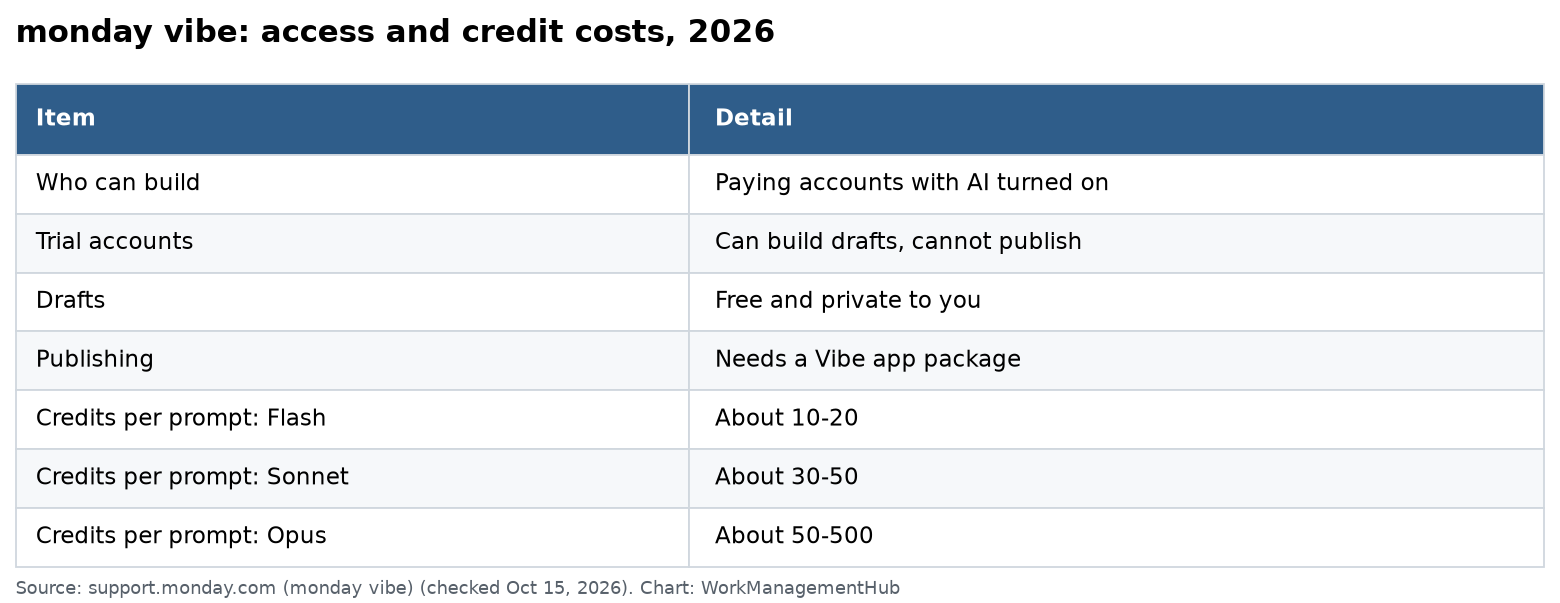
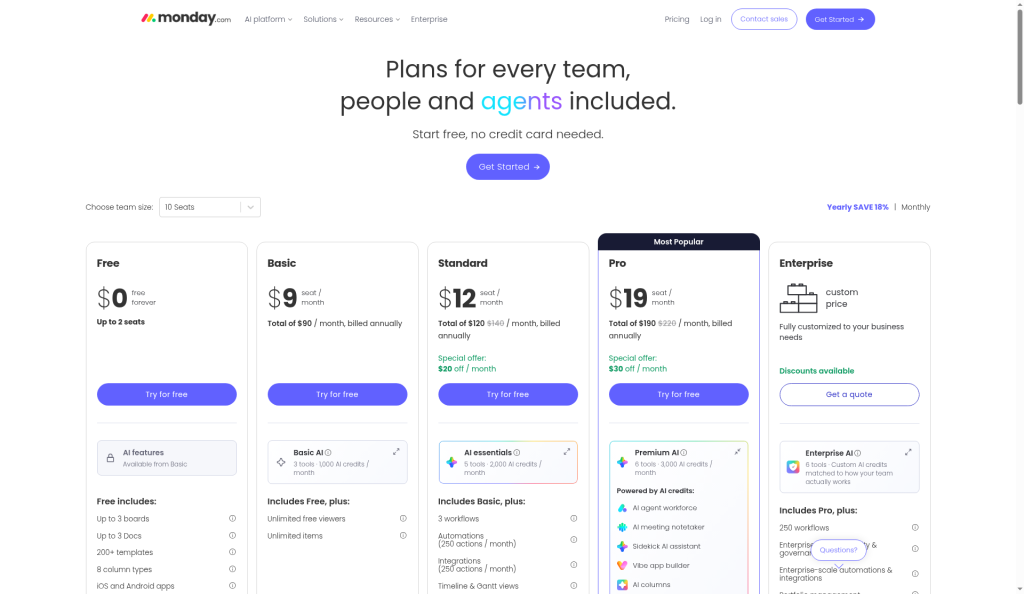
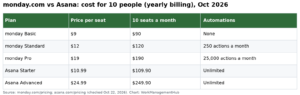
  1. Account Tier Requirement — Monday Vibe is available on Pro and Enterprise plans as of May 2026. Standard plan users can see the Vibe Apps interface but cannot generate or publish widgets. If you’re on Standard and evaluating an upgrade, the Monday.com vs Asana 2026 comparison covers the plan differences in detail.
  2. Board Permission Level — You must be a Board Owner or have Edit access to the board where you want to publish the widget. Viewers and commenters can interact with published Vibe Apps but cannot build or edit them.
  3. Column Structure Readiness — The quality of your widget depends heavily on how well-structured your board columns are. Before building, ensure your key columns have clear, descriptive names (not “Column 1” or “Text”), correct column types are assigned (Status, Numbers, Date, People — not generic Text for everything), and any columns the widget will reference contain actual data. Vibe can build against an empty board, but testing will be limited.
  4. Workspace Admin Notification — If your workspace has admin-controlled app installation policies, check with your monday.com admin before building. Some enterprise configurations require admin approval before a Vibe App can be published workspace-wide. You can build and test without approval, but publishing may be blocked.

Once confirmed, open the board you want to work with. For your first widget, choose a board with at least 10-15 rows of real data across multiple column types. This gives Vibe enough context to build a widget that actually demonstrates the functionality, rather than producing a mostly-empty interface that’s hard to evaluate.

Writing Your First Monday Vibe Custom Widget Prompt: What Actually Works

The difference between a Vibe prompt that produces a usable widget in one pass and one that requires five rounds of correction usually comes down to specificity in three areas: what data the widget should show, how it should be organized, and what interaction (if any) the user should have with it.

Vague prompts like “show me a dashboard for this board” work, but the output tends to be generic — a summary view that looks similar to monday.com’s native dashboard tiles. Specific prompts that reference your actual column names and describe a real business scenario produce dramatically better results.

Here are prompt patterns that consistently produce strong first-pass results:

For tracking and rollup widgets: “Create a widget that groups items by the [Status] column and shows a count and percentage for each status value. Display the results as a horizontal bar chart. Include a last-updated timestamp at the top.”

For team capacity or workload widgets: “Build a widget that reads the [Assigned To] and [Estimated Hours] columns and shows each team member’s total estimated hours this week. Highlight anyone over 40 hours in red. Sort by total hours descending.”

For client-facing panels: “Create a read-only status panel that shows the [Item Name], [Status], and [Due Date] columns for all items in the ‘In Progress’ and ‘Review’ groups. Do not show any columns related to internal cost or assignee.”

For time tracking widgets: “Build a time-tracking widget that lets users log hours against a specific item by selecting it from a dropdown, entering hours spent, and adding a note. Store submissions in a new Numbers column called [Logged Hours] and a Text column called [Time Notes].”

The pattern: describe the data source (which columns), describe the output format (chart, table, form, panel), and specify any filtering, sorting, or conditional logic. If the widget needs user interaction, describe what the user does and what happens as a result.

How to Build a Custom Board Widget: Step-by-Step

The following walkthrough uses a project management board with Status, Assigned To, Due Date, Priority, and Estimated Hours columns. The goal is a team workload widget that shows each assignee’s open items grouped by priority.

  1. Open the Vibe Apps Panel — From your board, click the Apps icon in the right-hand board toolbar (it appears as a puzzle-piece icon in the upper-right board menu). In the panel that opens, select Vibe Apps from the top of the app list. If you don’t see Vibe Apps listed, confirm your plan tier and that the feature has been enabled by your workspace admin via Admin > Features > Vibe Apps.
  2. Click “Create New Vibe App” — At the top of the Vibe Apps panel, click the + Create New Vibe App button. This opens the Vibe Builder interface — a split-screen view with a prompt input on the left and a live preview canvas on the right.
  3. Name Your Widget — In the Widget Name field at the top of the builder, enter a descriptive name. This name appears in the board’s app panel and in workspace-wide searches. Use something specific: “Team Workload by Priority” rather than “My Widget”.
  4. Write and Submit Your Prompt — In the main prompt input, type your description. For this example: “Create a widget that reads the Assigned To, Priority, and Status columns. Group items by Assigned To person. Within each person’s section, show a count of their items broken down by Priority (Critical, High, Medium, Low). Only include items where Status is not ‘Done’. Display as a card layout, one card per person, sorted alphabetically.” Click Build It.
  5. Review the Initial Preview — Vibe generates the widget and displays it in the preview canvas, pulling from your actual board data. The first pass typically takes 15-30 seconds. Review the output critically: check that the correct columns are being read, that grouping logic is correct, and that the visual hierarchy matches what you described. Do not click Publish at this stage.
  6. Inspect the Widget Logic (Optional but Recommended) — Below the preview canvas, click View Logic to see a plain-language explanation of what the widget is doing. This step is particularly valuable for widgets with filtering conditions — it confirms that “Status is not Done” is being applied correctly rather than being ignored.
  7. Enter the Refinement Chat — The left panel switches to a chat interface after the initial build. Type refinement requests here as natural-language follow-ups. You do not need to rewrite your entire prompt — just describe the change: “Add a total item count badge to each person’s card” or “Change the sort order to show the person with the most open items first.”
  8. Test with Live Data Interaction — If your widget includes interactive elements (dropdowns, input fields, buttons), test them directly in the preview canvas. Vibe Apps interact with your real board data during preview — a form submission in the preview will actually write to your board, so use a test item or a test group if you don’t want live data modified during development.
  9. Set Board Data Scope — Before publishing, click Data Settings in the builder toolbar. Here you can restrict the widget to specific groups (e.g., only show items from the “Q3 Projects” group), set a column filter that always applies regardless of user interaction, or connect the widget to a mirrored column from a connected board. This step is often skipped on first builds and is a major source of “the widget shows too much data” complaints post-publish.
  10. Click Publish — Once the widget behaves correctly in preview, click the Publish button in the upper-right corner of the builder. This adds the widget to your board’s app panel and makes it available to other board members according to the permission settings you configure in the next dialog.

Real-World Widget Examples by Team Size and Use Case

The most common question after teams discover Vibe is: what should we actually build? Here are four high-value widget patterns that have immediate ROI for different team configurations.

Small teams (5-15 people) — Sprint Health Dashboard: A single widget that shows total items per status, items due this week, and a list of overdue items with assigned owner. Replaces the Monday standup report that someone was manually compiling every morning. Prompt complexity: low. Build time: under 10 minutes including refinement.

Mid-size teams (15-50 people) — Capacity Planner: Reads Assigned To, Estimated Hours, and Due Date columns. Shows each team member’s total committed hours for the current week and next week side by side. Highlights anyone in the red zone (over 80% capacity based on a configurable hours-per-week setting). This is the widget that most directly replaces spreadsheet-based resource planning. Prompt complexity: medium — requires specifying date range logic carefully.

Agency or client-services teams — Client Status Portal: A filtered, read-only widget that shows only the columns and item statuses relevant to a specific client. Published as an embeddable link (available via the Vibe Apps share feature), it gives clients a real-time view of their project without exposing internal fields, cost data, or unrelated board items. Prompt complexity: medium. This pairs well with the Monday Autopilot Hub setup for fully automated client reporting.

Operations teams — Approval Request Widget: A form-based widget that lets users submit a request (budget approval, resource request, PO approval) by filling in fields. On submission, it creates a new item in a designated approvals board, assigns it to the relevant approver based on request type, and sets the due date to three business days out. Prompt complexity: high — requires specifying the target board, column mappings, and assignment logic explicitly. Worth the investment because it eliminates email-based approval chains entirely.

Refining Your Widget Through the Vibe Chat Interface

Most widgets reach production quality in two to four refinement cycles. Understanding what the chat interface handles well — and where it struggles — saves significant time.

The Vibe chat handles these refinement requests reliably:

  • Layout changes: “Switch from card layout to table layout”
  • Sorting and filtering adjustments: “Sort by Due Date ascending instead of descending”
  • Adding or removing displayed columns: “Remove the Priority column from the display”
  • Conditional formatting: “Highlight rows where Status is Stuck in orange”
  • Label and heading changes: “Rename the ‘Assigned To’ header to ‘Owner'”

The chat struggles with:

  • Complex cross-board data joins (use the Data Settings panel for mirrored columns instead)
  • Custom date arithmetic beyond simple relative ranges (e.g., “show items due between the 15th and last day of the current month”)
  • Calculations that require data outside the current board’s columns

When the chat produces an unexpected change, use the Undo Last Change button (circular arrow icon in the builder toolbar) rather than trying to describe the reversal. Describing a reversal in plain language often introduces ambiguity that produces a different unexpected result. The undo function restores the exact previous widget state instantly.

For complex widgets, build incrementally. Get the data display right first, then add filtering, then add conditional formatting, then add interactivity. Trying to specify all four in a single prompt frequently results in a widget that handles three of the four correctly and mangles the fourth in a way that’s difficult to debug through chat.

Publishing Your Widget and Managing Permissions

Publishing a Vibe App is straightforward, but the permission dialog that appears on first publish is worth understanding carefully before you click through it.

  1. Click “Publish” in the Builder Toolbar — The Publish dialog opens. This is a one-time configuration step; subsequent publishes (when you update the widget) skip straight to deployment without showing this dialog again.
  2. Set Viewer Permissions — Under Who can see this widget, choose from: Board Members Only, Workspace Members, or Specific People. For internal operational widgets, Board Members Only is usually correct. For client-facing portals, use Specific People and add the relevant client contact if they have a guest seat, or use the shareable link option instead.
  3. Set Editor Permissions — Under Who can edit this widget, choose who can open the Vibe builder for this widget and make changes. Restrict this to Board Owners in most cases. If you want a team lead to be able to update the widget without coming to you, add them by name here.
  4. Configure Interactive Permissions (if applicable) — If your widget includes forms or interactive elements that write to the board, set Who can interact with this widget separately from who can view it. A common configuration: all board members can view and interact, but only owners can edit the widget logic.
  5. Choose Widget Placement — Under Add to board as, select Board View (appears as a tab at the top of the board, full-width) or Side Panel Widget (appears in the right-hand panel alongside other apps). For dashboards and status panels, Board View works better. For quick-reference widgets that users consult while working on items, Side Panel Widget is less disruptive.
  6. Click “Publish and Add to Board” — The widget is deployed. Board members will see a notification that a new app has been added to the board. The widget is immediately live and connected to real board data.

After publishing, you can return to the builder at any time by hovering over the widget and clicking the Edit Widget pencil icon. Changes made in the builder are saved as drafts until you click Publish Update, which pushes the new version live. The previous version remains active until the update is published, so you can refine safely without taking the widget offline.

For enterprise teams managing many Vibe Apps across multiple boards, the official Monday Vibe product page covers the workspace-level admin controls for auditing and managing published apps across the account.

Common Mistakes That Produce Broken Widgets

After building and iterating on Vibe Apps across a range of team configurations, these are the mistakes that consistently produce widgets that fail in production despite looking fine during development.

Referencing columns by position instead of name: Prompts like “show the third column from the left” produce fragile widgets that break when board columns are reordered. Always reference columns by their exact name in your prompt. If a column name is ambiguous (two columns called “Notes”), rename one before building.

Not scoping the data range: By default, Vibe widgets read all items on the board including archived items and items in subitems. If your board has 500 items but your widget is only relevant for the 50 active ones, set a group filter in Data Settings. A widget reading 500 items when it should read 50 will be slower and will produce confusing results.

Testing on an empty board: Building a widget on a board with no data, then adding data after publishing, often reveals that the widget’s empty-state behavior was never defined. Vibe generates a “no items found” placeholder by default, but it’s generic. If the empty state matters to your team, describe it explicitly in your prompt: “If no items match the filter, show a message that says ‘All caught up — no open items.'”

Publishing before testing interactive elements: Form-based widgets that write to the board behave differently when accessed by users with different permission levels. A team member with viewer-only access to a connected board may not be able to submit a form that writes to that board, even if they have full access to the board the widget lives on. Test with a secondary account or have a team member test before declaring the widget production-ready.

Skipping the Logic View: The plain-language logic explanation that Vibe provides is not decorative. For any widget with filtering conditions, checking the logic view is the fastest way to catch cases where the AI interpreted “not Done” as “Stuck only” or applied a date filter incorrectly. Catching this in development takes 30 seconds. Catching it after a week of incorrect data takes considerably longer.

For more context on how Vibe fits into monday.com’s broader automation ecosystem, the Monday AI Work Platform announcement covers the full May 2026 product architecture and how Vibe Apps interact with AI automations and the Autopilot Hub.

🏆 Verdict

Monday Vibe delivers on its promise for teams that have been managing that frustrating gap between what monday.com’s native interface provides and what their specific workflows actually need. The no-code widget builder is genuinely useful — not a feature-demo capability, but a practical tool that produces production-ready widgets in under 30 minutes for straightforward use cases. The ceiling is real: complex cross-board logic and advanced date arithmetic still require either a developer or a careful workaround. But for the 80% of custom widget needs that most teams actually have — workload dashboards, filtered status panels, time-tracking interfaces, approval forms — Vibe handles them faster and more reliably than any alternative available inside monday.com today. Teams on Pro or Enterprise plans who have not yet explored Vibe Apps are leaving meaningful productivity on the table.

Frequently Asked Questions

Does Monday Vibe require any coding knowledge to build a custom board widget?

No. Monday Vibe is designed specifically for non-technical users. The entire build process — from initial prompt to published widget — uses plain-language input through a chat interface. You describe what you want the widget to do, Vibe generates it, and you refine through conversation. The only prerequisite is a clear understanding of your board’s column structure and what data the widget should display or interact with.

Can a Vibe App widget connect to data from multiple boards?

Yes, with some limitations. Vibe Apps can read data from boards connected through monday.com’s Mirror Column feature. You set up the mirror connection in your board first, then reference the mirrored column in your Vibe prompt as you would any other column. Direct cross-board queries without mirror columns are not currently supported in the Vibe builder — for those use cases, monday.com’s dashboard widgets or the reporting features within the Enterprise plan are more appropriate.

What happens to a published Vibe App if someone restructures the underlying board — adds columns, renames them, or deletes a group?

Vibe Apps are resilient to additive changes: adding new columns or groups to a board does not break an existing widget. Renaming a column that the widget references will break the connection for that column — the widget will either show an error for that field or display it as empty. Deleting a group that the widget is scoped to will cause that group’s data to disappear from the widget output without an error message, which can be more confusing than an outright failure. Best practice is to notify the widget owner before renaming or deleting board elements that a Vibe App depends on.

Can I share a Vibe App widget with someone outside my monday.com workspace?

Yes, for read-only viewing. Published Vibe Apps can generate a shareable link (accessed via the widget’s overflow menu under Share Widget) that allows external users — including people without a monday.com account — to view the widget’s current data. The shareable link is view-only: external users cannot interact with form elements or trigger any writes to the board. For interactive external sharing, the recipient needs at minimum a Guest seat in your monday.com account.

Is there a limit to how many Vibe Apps I can publish on a single board or across my workspace?

As of the May 2026 product update, monday.com does not publish a hard cap on the number of Vibe Apps per board. Pro plan accounts have a workspace-wide limit of published Vibe Apps that is enforced at the account level rather than the board level — the specific limit is visible in your account’s Usage & Limits settings under the Admin panel. Enterprise accounts have higher or unlimited Vibe App quotas depending on their contract. If you hit a limit, archiving or deleting unused published widgets frees up quota immediately.

Author

Shaik KB

Follow Me
Other Articles
Previous

Notion vs ClickUp 2026: Which Tool Wins for Growing Teams?

Next

Jira Legacy Workflow Editor Removal: How to Migrate Before June 2026

No Comment! Be the first one.

    Leave a Reply Cancel reply

    Your email address will not be published. Required fields are marked *

    Sponsored Smartsheet Expert Services – Implementation, Automation, Training
    Sponsored Power BI & Tableau Analytics – Dashboards, Reporting, Insights
    Sponsored AI Agents for Work Management – Automate Tasks, Integrate Tools

    Categories

    • Airtable (9)
    • Alternatives (10)
    • Asana (27)
    • ClickUp (33)
    • How-To Guides (100)
    • Integrations (15)
    • Jira (22)
    • Monday.com (34)
    • Notion (21)
    • Pricing Guides (11)
    • Project Management (61)
    • Smartsheet (23)
    • Tool Comparisons (43)
    • Uncategorized (5)
    • Wrike (8)

    Recent Post

    • Airtable Interface Extensions SDK: A Complete Deep Dive for 2026
    • How to Set Up Wrike Dashboard Table Widgets for Real-Time Reporting in 2026
    • Jira vs Wrike 2026: Which Is Right for Your Team?
    • Jira Legacy Workflow Editor Removal: How to Migrate Before June 2026
    • How to Build Custom Board Widgets with Monday Vibe in 2026
    Work Management Hub

    Independent expert reviews & comparisons of work management tools — helping 50,000+ teams choose the right software.

    Tools We Cover

    • Smartsheet
    • Monday.com
    • ClickUp
    • Asana
    • Notion
    • Jira
    • Wrike
    • Airtable

    Company

    • About Us
    • Contact Us
    • Privacy Policy
    Copyright 2026 — Work Management Hub. All rights reserved. Blogsy WordPress Theme