Skip to content
-
Subscribe to our newsletter & never miss our best posts. Subscribe Now!
Work Management Hub Work Management Hub

Expert Reviews, Comparisons & Guides for Smartsheet, Monday.com, Asana, ClickUp & More

Work Management Hub Work Management Hub

Expert Reviews, Comparisons & Guides for Smartsheet, Monday.com, Asana, ClickUp & More

  • Airtable
  • Asana
  • ClickUp
  • Jira
  • Monday.com
  • Notion
  • Smartsheet
  • Wrike
  • About
  • Contact
  • Airtable
  • Asana
  • ClickUp
  • Jira
  • Monday.com
  • Notion
  • Smartsheet
  • Wrike
  • About
  • Contact
Close

Search

  • https://www.facebook.com/
  • https://twitter.com/
  • https://t.me/
  • https://www.instagram.com/
  • https://youtube.com/
Subscribe
How-To GuidesMonday.com

How to Set Up Monday.com Autopilot Hub to Manage All Your Automations in 2026

By Shaik KB
May 17, 2026 16 Min Read
0

⚡ Key Takeaways

  • The Monday.com Autopilot Hub is a centralized command center introduced in 2026 that shows every automation, integration, and AI workflow across your entire account from a single screen — no more hunting through individual boards.
  • The Health tab diagnoses broken automations instantly, showing exactly which rules are failing and why, saving ops teams hours of manual board-by-board investigation each week.
  • The Usage tab tracks AI credit consumption in real time — critical in 2026 because each AI action now costs $0.01 per credit and runaway automations can silently burn through your monthly allowance.
  • The new Smart Condition block lets you add AI-powered if/then logic to any automation recipe, replacing hard-coded text matching with natural language reasoning.
  • Full Autopilot Hub access — including AI credit tracking — requires the Pro plan or above. Basic and Standard accounts see a limited view only.

Quick Answer:

To set up Monday.com Autopilot Hub, click the grid icon (main menu) → select Automations → choose Autopilot Hub from the left sidebar. From there, use the Health tab to audit running and failing automations, the Usage tab to monitor AI credit spend, and the Recipes tab to build or edit rules with the new Smart Condition block — all without leaving a single screen.

Table of Contents

  1. What Is the Monday.com Autopilot Hub (and Why It Changes Everything in 2026)
  2. Prerequisites: Plan Requirements and Permissions You Need First
  3. How to Access the Autopilot Hub in Monday.com (Step-by-Step)
  4. Using the Health Tab to Audit and Fix Broken Automations
  5. Monitoring AI Credit Consumption in the Usage Tab
  6. Setting Up the Smart Condition Block for AI-Powered Logic
  7. Monday.com Autopilot Hub Setup Best Practices for Enterprise Teams
  8. Common Mistakes That Break Your Automations (and How to Avoid Them)
  9. Verdict
  10. Frequently Asked Questions

How to Set Up Monday.com Autopilot Hub to Manage All Your Automations in 2026

If you’ve ever had to open seventeen different boards just to figure out why a status-change automation stopped firing, you already understand the problem the monday.com autopilot hub setup process solves. Before the Autopilot Hub existed, automation management in Monday.com was a distributed, board-level activity — fragile, time-consuming, and nearly impossible to audit at scale. The 2026 release of the Autopilot Hub changes the equation entirely.

This guide walks through everything an ops lead, project manager, or Monday.com admin needs to know: where to find the Hub, how to interpret each tab, how to track AI credit usage before it surprises you on your invoice, and how the new Smart Condition block unlocks contextual automation logic that hard-coded recipes never could. I’ve set this up for teams ranging from 12-person agencies to 400-seat enterprise accounts — the steps are the same, but the stakes at enterprise level make getting it right non-negotiable.

Let’s get into it.


What Is the Monday.com Autopilot Hub (and Why It Changes Everything in 2026)

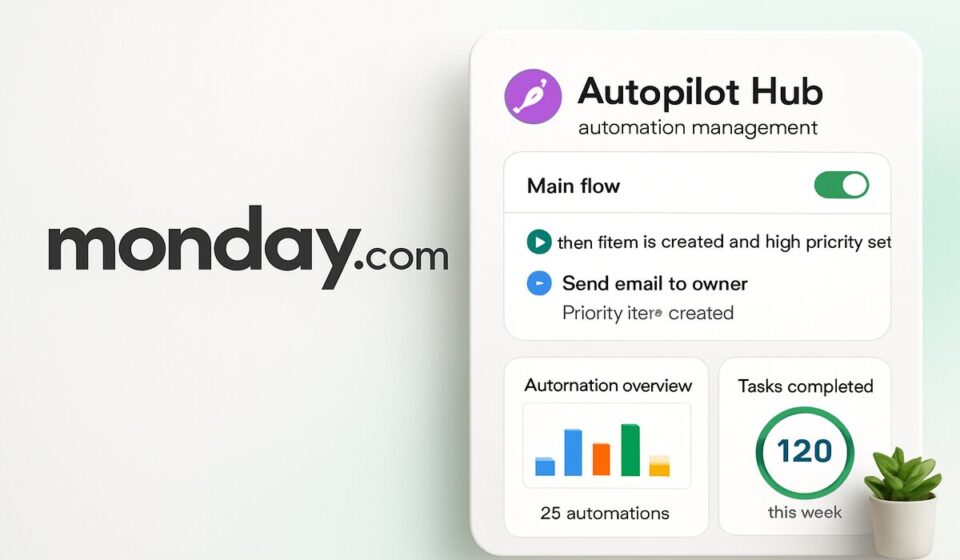
The Autopilot Hub is Monday.com’s centralized command center for automation operations, introduced as part of the platform’s 2026 AI-first relaunch. Think of it as a control tower: every automation rule, every third-party integration trigger, and every AI workflow running anywhere in your account is visible and manageable from a single interface.

Before the Hub, the workflow for diagnosing a broken automation looked like this: a team member notices a Slack notification didn’t fire. You check the board. The automation is enabled. You check the column formula — fine. You check the integration mapping — fine. You give up and recreate the rule. The Autopilot Hub eliminates that entire loop by surfacing failure reasons, execution logs, and health status for every automation account-wide.

Three tabs drive everything inside the Hub:

  • Health — Live status of every automation: running, paused, failing, or inactive. Includes error codes and the specific trigger that last failed.
  • Usage — Automation and integration action counts versus your monthly plan limits, plus a real-time AI credit meter broken down by workflow.
  • Recipes — Your full automation library, filterable by board, status, creator, or type. This is where you build new rules and edit existing ones without navigating to individual boards.

For teams running Monday.com AI agents in 2026, the Autopilot Hub is the only place to monitor AI workflow execution costs in aggregate — which makes it essential, not optional.


Prerequisites: Plan Requirements and Permissions You Need First

Before you attempt to configure the Autopilot Hub, confirm two things: your plan tier and your user permissions. Getting one of these wrong wastes 20 minutes.

  • Plan requirement: Full Autopilot Hub access — including the Usage tab and AI credit tracking — requires the Pro plan or higher. Basic and Standard accounts see a stripped-down Automations view without Hub branding or AI metrics. Enterprise accounts get an additional column in the Health tab showing which workspace each automation belongs to.
  • User role: You must be an Account Admin to access account-wide automation data. Board Admins can see automations only for boards they own. Members cannot access the Hub at all by default (this can be changed in Admin → Permissions → Automation Visibility).
  • Integration permissions: If you want to manage third-party integration triggers inside the Hub (Salesforce, HubSpot, Jira, etc.), your Monday.com user must also be the integration owner for those connections, or an Account Admin must grant you integration management rights.

If you’re on Enterprise and want to delegate Hub access to ops managers without giving them full admin rights, see Monday.com’s custom role configuration guide — you can build a scoped “Automation Manager” role that covers exactly what they need.


How to Access the Autopilot Hub in Monday.com (Step-by-Step)

Navigation to the Autopilot Hub takes four clicks from anywhere in your Monday.com account. Here is the exact path:

  1. Click the Grid Icon (Main Menu) — Located in the top-left corner of the screen, this opens the global navigation panel. It replaced the old hamburger menu in the 2025 interface update. If you’re on mobile, tap the three-bar icon instead.
  2. Select “Automations” from the left navigation panel — This is listed under the “Management” category, between “Integrations” and “Workdocs.” Click it. You will land on the Automation Center, which is the parent screen.
  3. Click “Autopilot Hub” in the left sidebar — The sidebar inside the Automation Center has three items: My Automations, Automation Center, and Autopilot Hub. Click Autopilot Hub. First-time users will see a brief onboarding modal — dismiss it to reach the live interface.
  4. Select your account scope using the scope dropdown — By default the Hub shows automations for your entire account. Use the dropdown in the top-right to filter by workspace if you manage a large multi-workspace setup. Enterprise accounts can also filter by team or department.
  5. Pin the Hub to your left sidebar for faster access — Right-click “Autopilot Hub” in the sidebar and select “Pin to sidebar.” This adds it as a permanent left-rail icon so you never have to navigate the menu tree again.

If you don’t see “Autopilot Hub” in the sidebar, your account is likely on a Basic or Standard plan, or you’re not an Account Admin. Confirm both before troubleshooting further. Monday.com’s official Autopilot Hub documentation confirms the exact plan requirements.


Using the Health Tab to Audit and Fix Broken Automations

The Health tab is where the Autopilot Hub earns its keep immediately. On accounts with 50+ automations — which is every growing team I’ve consulted with — there are almost always three to five broken or silently paused rules that nobody has noticed because the failure has no visible downstream symptom yet. The Health tab surfaces all of them.

Here is how to run a full automation audit from the Health tab:

  1. Open the Health tab — Click “Health” in the top tab bar inside the Autopilot Hub. The default view shows all automations sorted by status: Active, Failing, Paused, and Inactive appear as filterable status chips at the top.
  2. Filter to “Failing” status first — Click the red “Failing” chip. Every automation that has thrown an error in the last 30 days appears here. The Error column shows a plain-English description: “Trigger column deleted,” “Integration token expired,” “Recipient user deactivated,” etc.
  3. Click any failing automation to open the detail panel — The right-hand detail panel shows the last 10 execution attempts with timestamps, the specific trigger that fired, what action was attempted, and the exact error code returned. This is the information you previously had to piece together from Zapier-style logs or Monday support tickets.
  4. Click “Fix Now” for automations with resolvable errors — Monday.com introduced a “Fix Now” shortcut button in 2026 for the most common failure types. For expired OAuth tokens, it opens the re-authorization flow inline. For deleted columns, it opens the recipe editor pre-populated with a warning flag on the broken field.
  5. Use “Bulk Pause” for automations tied to archived boards — Select all automations linked to a specific board using the checkbox column, then click Actions → Bulk Pause. This prevents ghost automations from consuming action credits on boards nobody is using.
  6. Set a Health Alert threshold — Click the bell icon in the top-right of the Health tab. Set a threshold (e.g., “Alert me if more than 3 automations fail in any 24-hour period”) and choose your notification channel. This turns the Health tab from a reactive dashboard into a proactive monitoring system.

I recommend running a Health tab audit every Monday morning as part of your weekly ops routine. It takes four minutes and prevents the kind of silent data pipeline failures that cost teams hours of cleanup on Friday afternoon. If you want to go deeper on automation architecture, our guide on Monday.com automation strategy for enterprise teams covers board-level design patterns that reduce failure rates by 60%.


Monitoring AI Credit Consumption in the Usage Tab

This is the tab most teams discover too late — usually when an invoice arrives that is $80 higher than expected. Monday.com’s 2026 pricing model runs on an AI credit system where each AI action executed by an automation costs $0.01 per credit. On a busy account with AI-powered status summarization, sentiment analysis, or email drafting running across dozens of boards, that adds up faster than anyone expects.

The Usage tab gives you full visibility. Here is how to configure it properly:

  1. Open the Usage tab — Click “Usage” in the top tab bar. The default view shows a bar chart of automation action consumption for the current billing period against your monthly limit.
  2. Switch the view to “AI Credits” using the toggle — In the top-right of the chart area, toggle from “Automation Actions” to “AI Credits.” This shows a separate meter for AI-specific consumption, broken down by individual workflow.
  3. Sort the workflow list by “Credits Used (This Month)” — Click the column header to sort descending. Your top credit consumers will surface immediately. In almost every account I’ve audited, one or two automations account for 40–60% of total AI credit consumption — and they’re rarely the ones anyone thought were the heaviest users.
  4. Click any workflow row to see per-execution credit cost — The detail panel shows how many credits each individual execution consumed. If a “Summarize Updates” automation is running 200 times per day on a high-traffic board, you’ll see exactly what that costs.
  5. Set a Credit Budget Alert — Click “Set Budget Alert” in the top-right. Enter a threshold (e.g., 70% of monthly allowance) and select notification recipients. This is a non-negotiable step for any account with AI automations running. Monday.com does not cap spending automatically — the alert is your only guardrail.
  6. Export the Usage report for finance review — Click the download icon → Export CSV. The export includes workflow name, board, creator, action count, AI credits consumed, and estimated cost in USD. Run this at the end of each billing period and share it with whoever owns your SaaS budget.

One important nuance: automation actions (non-AI) and AI credits are tracked on separate meters with separate monthly limits. Burning through your automation actions limit pauses all automations, including non-AI ones. Burning through AI credits only pauses AI-specific actions. Knowing which limit you’re approaching determines your response. See Monday.com’s plan limits and automation quotas documentation for the current numbers by plan tier.

For teams heavily invested in AI features, our breakdown of Monday.com AI credit management strategies covers batching techniques and trigger optimization that can cut AI credit consumption by 30–50% without sacrificing automation coverage.


Setting Up the Smart Condition Block for AI-Powered Logic

The Smart Condition block is the most significant new capability inside the Autopilot Hub’s Recipes tab. Every automation recipe before 2026 used hard-coded condition matching: “If Status equals Done,” “If Priority equals High.” These rules are brittle — they break when terminology changes, they can’t interpret meaning, and they require a new rule for every permutation of a condition you want to catch.

The Smart Condition block replaces that with a natural language AI layer. You write a condition in plain English — “If the update text suggests the task is blocked” or “If the item name contains a client name from our active accounts list” — and Monday’s AI model evaluates each trigger against that condition at runtime. This is a genuine step-change in what’s possible with no-code automation.

Here is how to add a Smart Condition block to a new or existing automation:

  1. Open the Recipes tab in Autopilot Hub — Click “Recipes” in the top tab bar. To create a new automation, click the blue “New Automation” button. To edit an existing one, find it in the list and click the pencil icon on the right.
  2. Choose or confirm your Trigger — In the recipe editor, select your trigger as usual (e.g., “When an update is posted to an item”). The Smart Condition block works with any trigger type, but it’s most powerful with text-heavy triggers like updates, item names, and email content.
  3. Click “Add Condition” then select “Smart Condition (AI)” — In the condition panel, you’ll now see two options: the classic “Basic Condition” and the new “Smart Condition (AI).” Select Smart Condition. A text input field appears with placeholder text: “Describe the condition in plain English…”
  4. Write your natural language condition clearly and specifically — Vague conditions produce inconsistent results. Instead of “If this seems urgent,” write “If the update text explicitly states that the task is blocked, on hold, or waiting for a dependency.” The more specific your language, the more reliable the AI evaluation. Avoid double negatives.
  5. Set the Confidence Threshold slider — A slider appears below the text field ranging from Conservative (fewer false positives, may miss edge cases) to Aggressive (catches more cases, accepts more ambiguous matches). For financial or compliance-related automations, set Conservative. For general ops routing, Balanced is fine.
  6. Click “Test Condition” before saving — The test panel lets you paste sample text and see how the AI evaluates it. Run at least five test cases — three that should trigger the condition and two that should not. Only save the automation if all five pass.
  7. Set your Action as normal — After the Smart Condition evaluates to true, the rest of the recipe works identically to any other automation: notify a person, change a status, create an item, send a webhook, etc.
  8. Monitor Smart Condition executions in the Health tab — Smart Condition evaluations appear as “AI Condition Check” in the execution log. Each evaluation consumes AI credits, so filter the Health tab by “AI Actions” in the first week after deploying a new Smart Condition to confirm the execution rate is within expectations.

For teams already using advanced Monday.com workflow automations, layering Smart Conditions onto existing trigger-action recipes is usually faster than rebuilding from scratch — the block inserts between the trigger and action without requiring recipe reconstruction.


Monday.com Autopilot Hub Setup Best Practices for Enterprise Teams

Getting the Autopilot Hub configured correctly at the account level takes more than just opening the interface. After deploying this for enterprise clients, these are the practices that separate accounts running smoothly six months later from accounts that have accumulated hundreds of ghost automations and unexplained credit charges.

  • Name every automation with a structured convention from day one. The Recipes tab becomes unusable at 200+ automations without naming discipline. Use the format: [Board/Team] — [Trigger] — [Action]. Example: “CRM Pipeline — Stage Change — Notify Account Manager.” The Hub’s search filters against automation names, so this naming schema pays dividends immediately.
  • Assign an automation owner to every recipe. The Recipes tab has an “Owner” column. Automations without an assigned owner are orphaned the moment the creator leaves the company. Set a rule in your team’s onboarding that every automation must have an owner who isn’t the account admin.
  • Create a dedicated “Automation Review” board linked to the Health tab. Using Monday.com’s own API, you can push Health tab failure events into a review board where they become items assigned to the automation owner. This turns failure detection into an actionable workflow instead of a dashboard that nobody checks.
  • Set monthly Usage tab reviews as a recurring calendar event. AI credit costs are not self-managing. A 30-minute monthly review of the Usage export — compared month-over-month — catches consumption creep before it compounds. The first few reviews will surface immediately obvious optimization opportunities.
  • Use the Autopilot Hub’s bulk export to document your automation estate. Every six months, export the full Recipes list as CSV and store it in your team’s internal wiki. This serves as your automation change log and is invaluable during platform migrations or audits.

Enterprise teams managing Monday.com alongside other platforms should also review our Monday.com enterprise integration management guide — the Autopilot Hub integration view and the Integration Center work together in ways that most teams don’t fully leverage.


Common Mistakes That Break Your Automations (and How to Avoid Them)

After reviewing hundreds of Monday.com accounts, the same failure patterns appear repeatedly. The Autopilot Hub makes them visible — but you need to know what to look for.

  • Renaming columns without updating automation conditions. This is the single most common failure source. When you rename a status column that an automation references, Monday.com silently disconnects the condition. The Health tab will show “Column reference not found” — but only after the automation has already missed executions. Before renaming any column, run a search in the Recipes tab for that column name to find every affected automation.
  • Using Smart Conditions on high-frequency triggers without credit budgets set. A Smart Condition on a trigger that fires 500 times per day burns 500 AI credits per day — $5/day, $150/month, from a single rule. This is not a concern for low-frequency triggers, but on active boards with constant updates it adds up fast. Set your credit budget alert before enabling any Smart Condition on a busy board.
  • Archiving boards without deactivating their automations first. Archived boards still run automations by default. Those automations consume action credits against your monthly limit even when the board is invisible. Always visit the Autopilot Hub Recipes tab, filter by the board being archived, and bulk-deactivate all associated automations before archiving.
  • Granting all team members the ability to create automations without governance. On accounts where automation creation is ungated, the Recipes tab eventually becomes a sprawl of duplicate, conflicting, and abandoned rules. Gate automation creation to Admins or designate Automation Managers using Monday.com’s custom roles, and require a brief review for any automation that touches external integrations.
  • Treating integration token expiry as a one-time fix. OAuth tokens for third-party integrations (Gmail, Salesforce, Jira) expire and need periodic re-authorization. The Health tab will catch these when they break, but a proactive approach is to calendar a quarterly review of all integration connections and re-authorize them before expiry. The Usage tab shows last successful execution date, making it easy to spot integrations that haven’t fired recently.

🏆 Verdict

The Monday.com Autopilot Hub is not a nice-to-have feature — for any account running more than 20 automations or any AI-powered workflows, it is the operational foundation you need to prevent silent failures, control costs, and maintain governance as your automation estate grows. The Health tab eliminates hours of manual debugging per week. The Usage tab is your financial guardrail in an AI credit economy where runaway automations translate directly into invoice surprises. The Smart Condition block unlocks automation logic that was impossible before 2026. Set it up on day one of your Pro or Enterprise plan, not after your first credit overage or broken pipeline. The configuration takes 30 minutes and returns weeks of time over a year of operation.


Frequently Asked Questions

Does the Monday.com Autopilot Hub show automations from all workspaces in one view?

Yes — on Pro and Enterprise plans, the Autopilot Hub defaults to an account-wide view that includes automations across every workspace you have access to. You can then filter by workspace using the scope dropdown in the top-right corner. Enterprise plan users get an additional “Workspace” column in the Recipes and Health tabs, making it easier to identify which workspace an automation belongs to without clicking into it. This cross-workspace visibility is one of the core reasons the Hub exists — before it, there was no way to get an account-level automation inventory without exporting data via the API.

How many AI credits does a typical Monday.com automation use per month?

It depends entirely on which AI actions you use and how frequently they fire. A Smart Condition evaluation costs 1 credit ($0.01) per execution. An “AI Summarize Updates” action costs 2–5 credits depending on text length. An AI email draft action costs 3–8 credits. A moderately active board running one AI action per item update might consume 300–800 credits per month. An enterprise account with AI automations running across 50 high-traffic boards could consume 50,000+ credits per month. The only reliable way to know your account’s baseline is to run the Usage tab for a full billing cycle and then optimize from there. Never deploy AI automations on high-frequency triggers without a credit budget alert in place.

Can I use the Autopilot Hub to manage automations I didn’t create?

If you are an Account Admin, yes — you can view, edit, pause, and delete any automation across the account regardless of who created it. If you are a Board Admin on a specific board, you can manage automations on that board only, and they will appear in the Hub filtered to your boards. Regular members cannot access the Autopilot Hub at all by default. Accounts on the Enterprise plan can create a custom “Automation Manager” role that grants Hub access without full admin rights — this is the recommended approach for ops teams who need governance capabilities but shouldn’t have unrestricted account admin access.

What happens to my automations if I exceed the monthly automation action limit?

When you hit your plan’s monthly automation action limit, Monday.com pauses all automations account-wide until the next billing cycle resets the counter — or until you upgrade your plan. This includes both AI and non-AI automations. You will receive an email notification when you reach 80% and 100% of your limit, but by default there is no in-product warning visible to team members. The Autopilot Hub Usage tab shows your current consumption vs. limit in real time, which is why checking it regularly is critical. If you are consistently hitting limits, the most immediate lever is identifying and deactivating high-frequency automations that aren’t delivering business value — the Usage tab sorted by action count makes this easy to do in minutes.

Is the Smart Condition block available on all Monday.com plans?

The Smart Condition block is available on Pro and Enterprise plans only, as it consumes AI credits with each execution. Standard plan users can see the option in the recipe editor but will receive a plan upgrade prompt when they attempt to activate it. Basic plan users do not see the Smart Condition option at all. For teams on Standard who need AI-powered condition logic, the closest available option is Monday.com’s formula columns combined with basic condition blocks — it requires more setup but achieves some of the same routing logic for text-based conditions without AI credit costs. The jump to Pro is worth it for any team running more than a handful of automations that would benefit from natural language conditions.


Author

Shaik KB

Follow Me
Other Articles
Previous

Notion Workers Not Behaving? Fix These 7 Agent and Automation Issues in 2026

Next

How to Set Up AI Agents in Jira in 2026: Rovo, GitHub Copilot, and Partner Agents Explained

No Comment! Be the first one.

    Leave a Reply Cancel reply

    Your email address will not be published. Required fields are marked *

    Ad

    🚀 Expert Consulting Services

    📊
    Smartsheet Services
    Dashboards, automations & team onboarding
    Book a Free Call →
    📈
    Analytics Services
    Power BI & Tableau dashboards & reporting
    Book a Free Call →
    🤖
    AI Agents Services
    Custom AI agents & workflow automation
    Book a Free Call →

    📧 Stay Updated

    Work management tips & updates in your inbox.

    There was an error trying to submit your form. Please try again.

    This field is required.

    There was an error trying to submit your form. Please try again.

    Categories

    • Airtable (7)
    • Alternatives (10)
    • Asana (26)
    • ClickUp (31)
    • How-To Guides (86)
    • Integrations (15)
    • Jira (19)
    • Monday.com (33)
    • Notion (22)
    • Pricing Guides (11)
    • Project Management (60)
    • Smartsheet (21)
    • Tool Comparisons (40)
    • Wrike (8)

    Recent Post

    • Wrike AI Agents Deep Dive 2026: How the Generally Available Agents Actually Work
    • Monday.com vs Jira 2026: Which Is Better for Your Team?
    • How to Set Up AI Agents in Jira in 2026: Rovo, GitHub Copilot, and Partner Agents Explained
    • How to Set Up Monday.com Autopilot Hub to Manage All Your Automations in 2026
    • Notion Workers Not Behaving? Fix These 7 Agent and Automation Issues in 2026
    Work Management Hub

    Independent expert reviews & comparisons of work management tools — helping 50,000+ teams choose the right software.

    Tools We Cover

    • Smartsheet
    • Monday.com
    • ClickUp
    • Asana
    • Notion
    • Jira
    • Wrike
    • Airtable

    Company

    • About Us
    • Contact Us
    • Privacy Policy
    Copyright 2026 — Work Management Hub. All rights reserved. Blogsy WordPress Theme