Wrike AI Agents in 2026: The 6 Prebuilt Agents, How to Set Them Up and What They Cost
Wrike AI Agents watch your projects and act on their own: they flag risks, sort new requests, chase overdue work, fill in fields and send Slack, Teams or email alerts. They are included on Wrike’s Business, Pinnacle and Apex plans, not Free or Team. Every agent step uses “AI Elite actions” from a monthly pool, and smaller Business accounts can run out fast. Plan your agents around that limit.
I checked everything here against Wrike’s help center on October 17, 2026: About AI Agents, AI Agent Types and Understanding Wrike AI Pricing and Usage. Launch details come from Wrike’s February 5, 2026 announcement.
What changed in 2026
Wrike made AI Agents generally available on February 5, 2026, after a preview at its Collaborate 2025 event. At launch there were three ready-made agents and an Agent Builder for custom ones. The help center now lists six prebuilt agents plus custom agents.
Two launch features matter for real use:
- Multi-Actions: one agent can do several steps in a row.
- Agent Chaining: one agent’s output can start another agent.
Wrike also added a test space (the help docs call it the Playground) so you can try an agent before turning it on for the team.
How an agent works
Each agent runs in two phases:
- Watcher. It watches a space, project or folder for a trigger, like a new task or a field change.
- Do-er. It reads the context and takes action: posts a comment, updates a field, starts an approval or sends a message.
Wrike says a response usually takes 2 to 5 seconds, longer for big items or bulk changes. Changes made through the Wrike API also trigger agents, so work coming in from other systems gets the same treatment.
Agents can see more than the one task that triggered them. They can read the parent project’s custom fields, sibling tasks and subtasks, people’s job titles and time zones, approval status, and dependency chains. That’s why a single agent can replace a long list of rules.
The 6 prebuilt agents
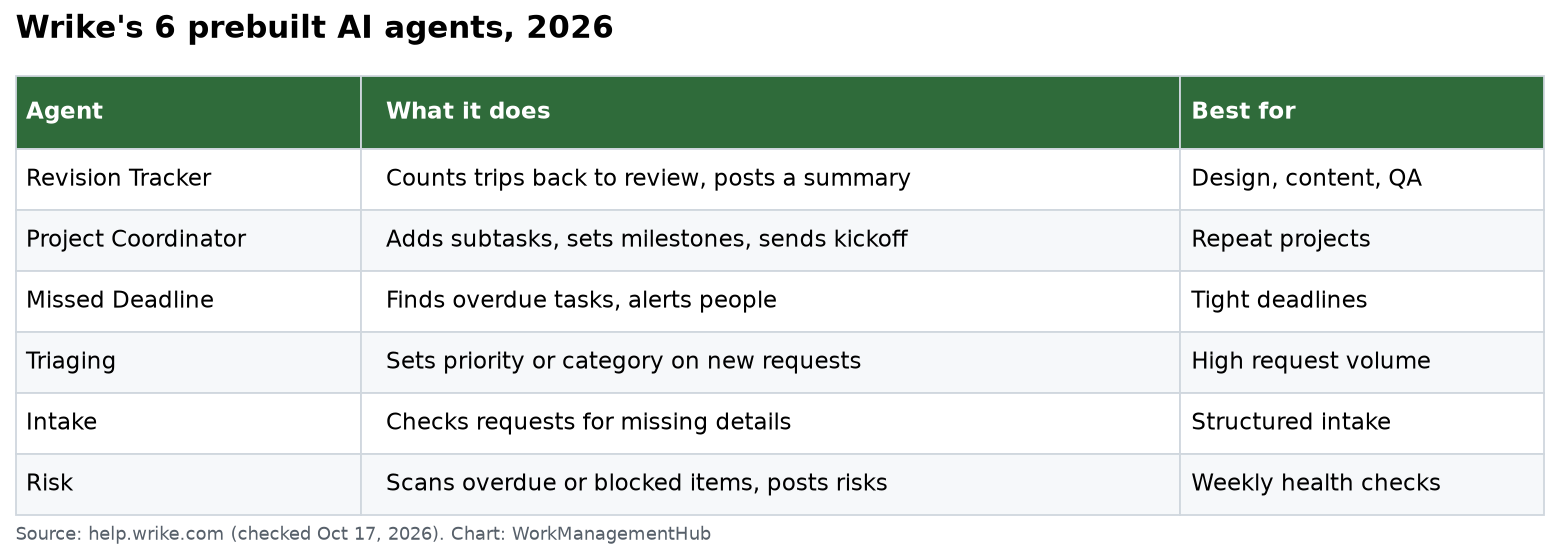
| Agent | What it does | Best for |
|---|---|---|
| Revision Tracker | Counts how often work goes back into review and posts a summary | Design, content and QA teams |
| Project Coordinator | Creates standard subtasks, sets milestone dates, sends a kickoff note | Ops and client teams with repeat projects |
| Missed Deadline | Finds overdue tasks, tells the right people, suggests next steps | Project managers with tight dates |
| Triaging | Reads new requests and sets fields like priority or category | Teams with lots of incoming work |
| Intake | Checks new requests for missing details and comments on gaps | Teams with structured intake |
| Risk | Scans for overdue or blocked items and posts a risk summary | Weekly project health checks |
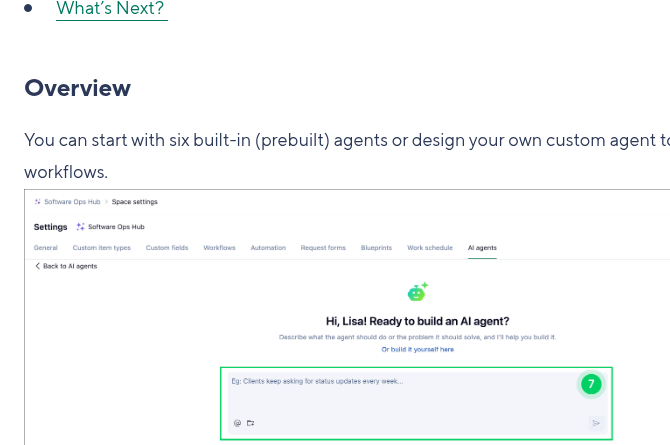
A Custom agent lets you write your own role, triggers and actions in plain language.
Before you start: the four requirements
Wrike lists these, and missing any one hides the AI Agents button:
- A Business, Pinnacle or Apex plan.
- Space admin rights in the space where the agent will live.
- A signed AI Addendum (Wrike’s AI terms).
- Generative AI turned on in settings. Only the account owner can turn this on.
Agents work only at the space level for now. You can’t build one agent that watches your whole account.
How to build your first agent
- Open the space, go to Space settings, then AI agents.
- Pick a prebuilt agent, or describe the problem in the prompt box for a custom one.
- Set the trigger: which folder or project to watch, and what event starts it.
- Set the actions, such as which field to update or which Slack channel to post in.
- Write clear rules. For a Triaging agent, list the exact categories and what each one means.
- Test it in the Playground on a few sample tasks.
- Turn it on for one project for a week before you spread it wider.
Tip from setups I’ve done: start with the Intake agent. It only comments, so a mistake costs nothing. Once you trust it, move to agents that change fields or assignees.
AI Elite actions: the limit that matters most
Agents are an AI Elite feature. AI Elite also covers Wrike Copilot, widget generation and the whiteboard assistant. All of them draw from one monthly pool per account.
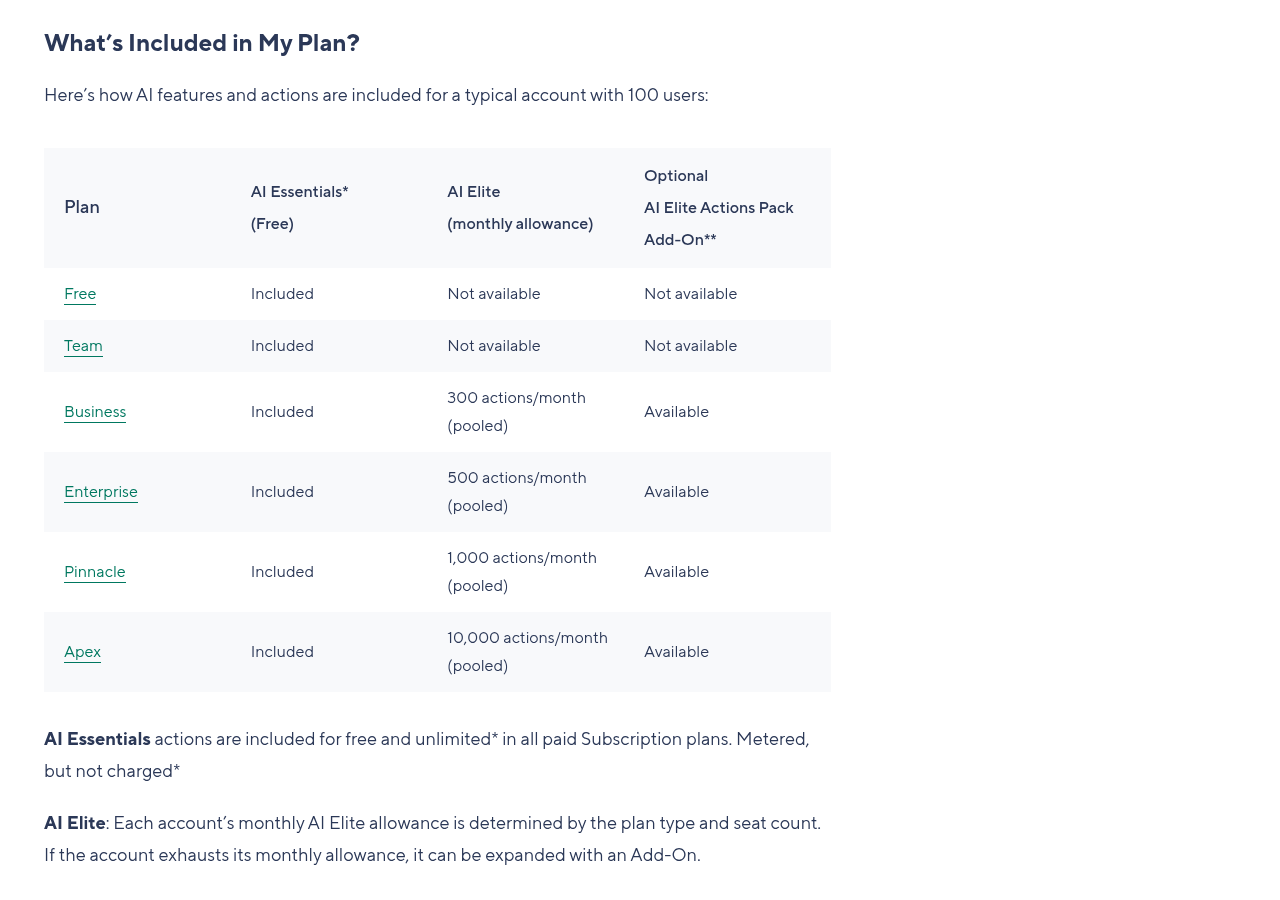
Wrike’s example for a 100-user account shows:
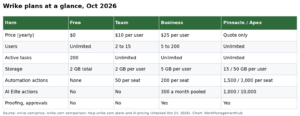
- Business: 300 actions a month (pooled)
- Pinnacle: 1,000 actions a month
- Apex: 10,000 actions a month
- Free and Team: no AI Elite actions
The pool depends on plan and seat count. Wrike gives Pinnacle as 10 actions per full user a month, so Business works out to about 3 and Apex about 100.
How fast an agent uses actions
Each thing an agent does counts as one action. Wrike’s own example is a weekly status agent across 10 projects. Each run fills 2 fields, posts 1 comment and updates 1 status, so 4 actions per run. That’s 4 × 10 projects × 4 weeks = 160 actions a month.
Now the catch. On Business, a 30-person account gets about 90 actions a month by that math. One agent like this would use them all in under three weeks. And Wrike says skipped and failed actions count too.
What happens when you run out:
- Admins and owners get alerts at 90% and 100% of the balance.
- AI Elite features may be limited until the next monthly reset.
- You can buy an AI Elite Actions Pack of 12,000 actions. Pack actions don’t expire until your renewal.
Wrike started enforcing these quotas on April 1, 2026, and says it won’t charge you automatically. Your account manager contacts you about options.
My advice: if agents are a big reason you’re buying Wrike, price Pinnacle or a pack from day one. On Business, use agents for low-volume, high-value jobs, like weekly risk reports, not for every new task.
Where to watch usage
Account admins can open Settings, then Account management, then AI usage. The Agents table shows each agent’s name, how many times it ran, how many actions it used, its space and who built it. Check it weekly for the first month.
When not to use an agent
- A simple rule will do. “When status is Done, notify the client” is an automation, not an agent. Rules don’t use AI actions.
- The decision needs a human. Don’t let an agent reassign work across teams without review.
- Your data is messy. Agents read fields and descriptions. Bad inputs mean bad actions. Clean up your request forms first. Our Wrike request forms guide helps.
Which plan should you buy for agents?
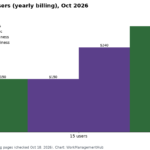
- Testing agents on one team: Business at $25 per user a month (billed yearly) is fine. Keep agents few and weekly.
- Agents across many projects: Pinnacle, by quote.
- Agents everywhere, plus integrations: Apex, by quote.
Full plan details are in our Wrike pricing guide. Comparing Wrike’s AI with a dev tool? See our Jira guide and our guide to AI agents in Jira.
Common questions
Which Wrike plans include AI Agents?
Business, Pinnacle and Apex. Free and Team don’t include AI Agents or any AI Elite actions.
Who can create Wrike AI Agents?
Space admins. The account must also have the AI Addendum signed, and the account owner must turn on Generative AI.
How many AI actions does Wrike Business include?
For a 100-user account, Wrike lists 300 AI Elite actions a month, pooled. The pool scales with plan and seat count.
Do failed agent actions count against my limit?
Yes. Wrike says skipped and failed actions count, because it counts the agent’s effort, not just successful results.
What happens when Wrike AI actions run out?
AI Elite features may be limited until the monthly reset. You can buy a 12,000-action pack, which lasts until your renewal.
Agent features, plans and AI limits checked on help.wrike.com and wrike.com on October 17, 2026.
From our team: OneSmar for Smartsheet Teams