Jira Query Language (JQL) Complete Guide 2026: Advanced Filters, Boards & Reporting
- Every Jira Agile board IS a JQL filter — the board’s scope is defined entirely by a saved JQL query under Board Settings > General > Filter. If issues are “missing” from your board, the JQL filter is almost always the cause.
- Dynamic functions like
currentUser(),startOfDay(), andmembersOf('group')make JQL filters role-aware and time-sensitive without hardcoding any values — these are the difference between a basic filter and a genuinely useful one. - Saved JQL filters are reusable across boards, dashboard gadgets, and email subscriptions — build them once and deploy them everywhere.
- The 2026 Jira dashboard update supports chart-level filtering with up to 5 filters per chart, enabling side-by-side velocity comparisons across multiple teams in a single gadget.
- Subquery syntax —
issue in linkedIssues(PROJECT-123)— unlocks cross-project dependency reporting that is impossible with basic search. - JQL clause structure:
FIELD OPERATOR VALUE [ORDER BY field ASC|DESC]— once you internalize this pattern, any query becomes composable.
Jira JQL (Jira Query Language) is a structured search syntax for filtering and reporting on issues. A query follows FIELD OPERATOR VALUE — e.g., assignee = currentUser() AND status != Done ORDER BY priority ASC. Saved JQL queries power Agile boards, dashboard gadgets, and scheduled reports.
- What JQL Is and Why It Matters More Than Basic Search
- JQL Syntax: Fields, Operators, Values, ORDER BY
- Most Useful JQL Fields
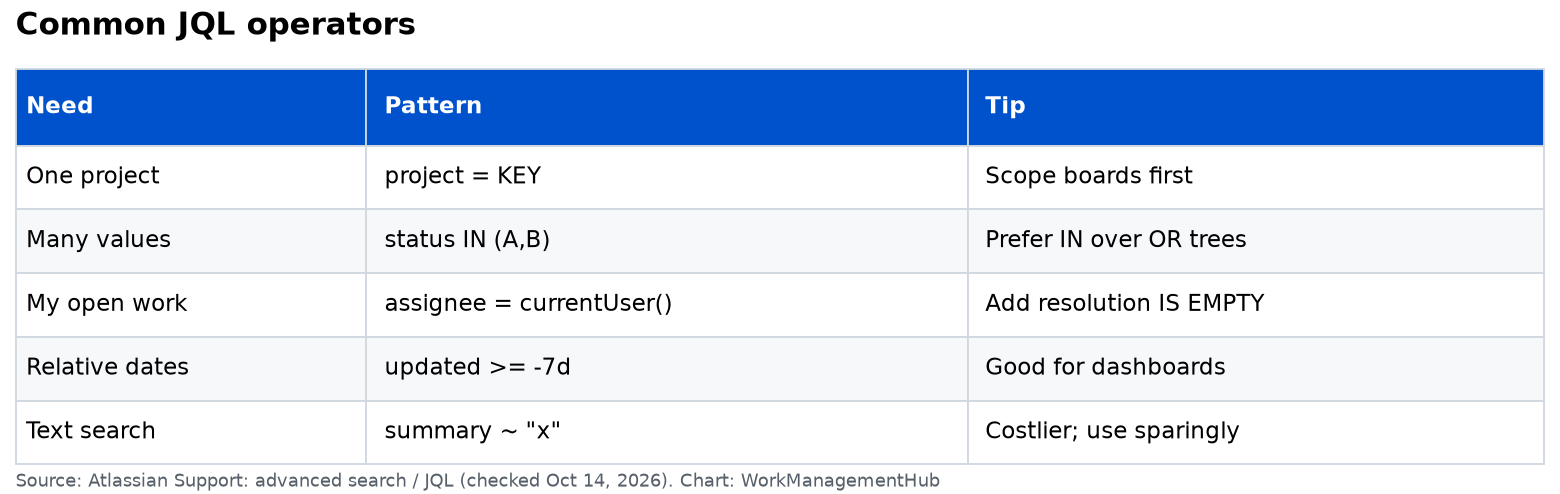
- Operators Reference
- Dynamic Functions: currentUser, startOfDay, membersOf and More
- Saving Filters and Using Them in Boards, Dashboards, and Subscriptions
- The Board-Filter Relationship: Every Board IS a JQL Filter
- Advanced: Subqueries and Cross-Project Queries
- 2026 Chart-Level Filtering in Dashboards
- 10 Essential JQL Queries Every Jira User Should Save
- Troubleshooting: Issues “Missing” From Boards Due to Misconfigured Filters
- Verdict
- Frequently Asked Questions
Jira Query Language (JQL) Complete Guide 2026: Advanced Filters, Boards & Reporting
Most teams treating Jira JQL as a search box feature are leaving significant operational capability on the table. Jira JQL — Jira Query Language — is not just how you find issues: it is the engine behind every Agile board, every dashboard gadget, every scheduled report email, and every automation trigger condition in Jira. Understanding it at the level of a senior admin transforms how you run projects: boards stop showing the wrong issues, dashboards start reflecting reality, and reports run themselves.
This guide covers JQL from syntax fundamentals through to the features most guides miss entirely: dynamic functions that make queries role-aware without hardcoding usernames, the board-filter relationship that explains why issues “disappear” from boards, subqueries for cross-project dependency tracking, and Jira’s 2026 chart-level filtering that enables multi-team comparative reporting in a single gadget. It is written from the perspective of someone who writes JQL daily and has debugged enough misconfigured boards to know where the traps are.
What Jira JQL Is and Why It Matters More Than Basic Search
Jira’s basic search — the dropdown filters for project, status, assignee — is fine for simple one-off lookups. JQL is what you use when you need precision, repeatability, or power. It is a purpose-built query language that exposes every field in Jira’s data model and supports Boolean logic, comparisons, text matching, date arithmetic, and nested functions.
The key insight that most teams miss: saved JQL queries are first-class infrastructure in Jira. A saved filter is not just a shortcut to a search result. It can be assigned as the scope of an Agile board, attached to a dashboard gadget as its data source, subscribed to for automated email delivery, and referenced inside other JQL queries as a subquery. This means a single well-crafted JQL filter can simultaneously power a board, feed three gadgets on two different dashboards, and send a Monday morning email summary to your team lead — all without duplicating any configuration.
JQL is also the only way to do certain things in Jira. Basic search cannot compare dates relative to today, cannot filter by whether a field is empty or populated, cannot find issues linked to a specific issue, and cannot scope results to the current user dynamically. Every one of those capabilities requires JQL.
For teams using Jira’s automation rules, JQL literacy is doubly important — automation rule conditions use JQL syntax directly, and understanding filters is prerequisite knowledge for building useful automations. See our Jira automation rules setup guide for how JQL-based conditions work in that context.
JQL Syntax: Fields, Operators, Values, ORDER BY
A JQL query is made up of one or more clauses joined by AND, OR, and NOT. Each clause follows a fixed structure:
FIELD OPERATOR VALUEA complete query with ordering looks like this:
project = BACKEND AND assignee = currentUser() AND status != Done ORDER BY priority ASCBreaking that down:
- FIELD: the Jira field to query against —
project,assignee,status,priority,created, etc. - OPERATOR: how to compare —
=,!=,IN,~,<,>,IS EMPTY, etc. - VALUE: what to match — a literal value, a list, a function call, or a quoted string.
- ORDER BY (optional): one or more fields with
ASCorDESCdirection.
Multiple clauses connect with Boolean operators:
project IN (BACKEND, FRONTEND) AND issuetype = Bug AND priority IN (High, Critical) ORDER BY created DESCParentheses control precedence exactly as in standard Boolean algebra:
(project = BACKEND OR project = FRONTEND) AND (priority = High OR priority = Critical) AND status != DoneHow to Write a JQL Query in Jira
- Open Advanced Search — In Jira Cloud, click the Filters menu in the top navigation and select Advanced issue search. Alternatively, press / (the global search shortcut) and type “Advanced search.” This opens Jira’s JQL editor with autocomplete support — it will suggest field names, operators, and values as you type.
- Write your first clause — Start with the most scoping clause first, typically the project: type
project =and Jira’s autocomplete will offer your available projects. Select one and press space to move to the operator. For a single-project query,project = MYPROJECTis your foundation. - Add conditions with AND — Type
ANDand continue adding clauses. A practical starting query for daily standup prep:project = MYPROJECT AND assignee = currentUser() AND status != Done ORDER BY priority ASC. This shows your open work, prioritised, nothing more. - Add ORDER BY for sorting — Append
ORDER BY created DESCto sort newest first, orORDER BY priority ASCfor priority-sorted queues where Critical appears at the top. You can order by multiple fields:ORDER BY priority ASC, created DESC. - Test by pressing Enter or clicking Search — Jira runs the query immediately. If the JQL contains a syntax error, a red error banner identifies which clause is invalid and what it expected. Fix and rerun until results match your intent.
- Save as a filter — Once the query returns what you need, click Save filter above the results, give it a descriptive name (not “My Filter” — something like “Backend Open Bugs – P1 and P2”), and click Submit. The filter is now available in your Filters menu and as a data source for boards and dashgets.
- Share the filter with your team — Click the filter name in the Filters menu, then the three-dot menu next to it, and select Edit permissions. Set it to be viewable by your project or group so teammates can reuse the same filter in their own boards and dashboards without creating duplicates.
Most Useful JQL Fields
Jira exposes dozens of fields in JQL. These are the ones that do the most work in practice.
| Field | What It Queries | Example |
|---|---|---|
project | Project key or name | project = BACKEND |
assignee | Current assignee (user or function) | assignee = currentUser() |
status | Workflow status name | status IN ("In Progress", "In Review") |
issuetype | Issue type (Bug, Story, Epic, Task, etc.) | issuetype = Bug |
priority | Priority level | priority IN (High, Critical) |
sprint | Sprint name or function | sprint in openSprints() |
created | Date issue was created | created >= startOfWeek() |
updated | Date issue was last modified | updated <= -7d |
labels | Issue labels (multi-value) | labels = "tech-debt" |
fixVersion | Target release version | fixVersion in unreleasedVersions() |
reporter | User who created the issue | reporter = currentUser() |
component | Project component | component = "API Gateway" |
duedate | Issue due date | duedate < endOfWeek() |
resolution | How the issue was resolved | resolution = Unresolved |
Operators Reference
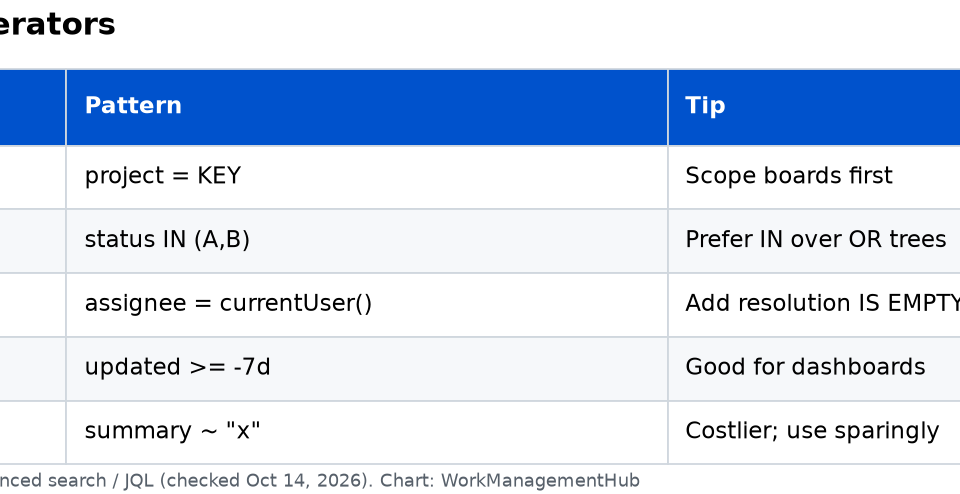
Choosing the right operator is as important as choosing the right field. Using = when you need ~, or IN when you need NOT IN, produces either empty results or far more issues than intended.
| Operator | Meaning | Works With | Example |
|---|---|---|---|
= | Exact match | All fields | status = "In Progress" |
!= | Not equal | All fields | status != Done |
IN | Matches any value in list | All fields | priority IN (High, Critical) |
NOT IN | Matches none of the values in list | All fields | status NOT IN (Done, Cancelled) |
~ | Contains (text search) | Text fields (summary, description, comment) | summary ~ "login error" |
!~ | Does not contain | Text fields | summary !~ "spike" |
IS EMPTY | Field has no value | Most fields | assignee IS EMPTY |
IS NOT EMPTY | Field has a value | Most fields | duedate IS NOT EMPTY |
< | Less than | Dates, numbers | created < -30d |
> | Greater than | Dates, numbers | created > startOfMonth() |
<= | Less than or equal | Dates, numbers | storyPoints <= 5 |
>= | Greater than or equal | Dates, numbers | updated >= -7d |
~ operator performs a full-text search, not a substring match. It uses Jira’s underlying Lucene index, which means it will find stemmed variations of words. summary ~ "logging" will also match “log” and “logged.” For exact phrase matching, wrap the value in quotes: summary ~ "\"exact phrase\"".Dynamic Functions: currentUser, startOfDay, membersOf and More
Dynamic functions are where JQL moves from useful to genuinely powerful. Instead of hardcoding a username or a date, you use a function that resolves to the correct value at query runtime. A filter using currentUser() returns different results for every person who runs it — their own issues — without any change to the query itself.
This is the capability most JQL guides skip entirely, and it is the capability that makes the difference between a filter that works for one person and a filter that works for an entire team.
currentUser()
Returns the currently logged-in user. Every Jira user who runs a filter containing currentUser() sees their own data. This is the foundation of every personal queue filter.
assignee = currentUser() AND status NOT IN (Done, Cancelled) ORDER BY priority ASCstartOfDay(), endOfDay(), startOfWeek(), endOfWeek(), startOfMonth(), endOfMonth()
Date boundary functions that resolve to midnight at the start or end of the specified period, relative to now. You can also pass offsets: startOfWeek(-1) means the start of last week, endOfMonth(1) means the end of next month.
created >= startOfWeek() AND created <= endOfWeek() ORDER BY created ASCduedate >= startOfDay() AND duedate <= endOfDay(3) AND status != DonemembersOf('group-name')
Returns all members of a specified Jira group. This is indispensable for team-scoped filters that do not require listing every team member by name -- if the group membership changes, the filter automatically reflects the updated team without any modification.
assignee in membersOf("backend-engineers") AND sprint in openSprints() AND status NOT IN (Done, Cancelled)releasedVersions() and unreleasedVersions()
Functions that return all released or unreleased fix versions for a project. Used for version-based reporting without hardcoding version numbers -- critical for teams that release frequently and would otherwise need to update their filters every release cycle.
project = MYAPP AND fixVersion in unreleasedVersions() AND issuetype = Bug ORDER BY priority ASCproject = MYAPP AND fixVersion in releasedVersions() AND created >= startOfMonth(-3) ORDER BY fixVersion DESCopenSprints(), closedSprints(), futureSprints()
Return all active, completed, or planned-but-not-started sprints respectively. Essential for sprint-scoped queries that need to remain valid across sprint cycles.
sprint in openSprints() AND issuetype = Bug AND priority = Critical ORDER BY created ASCissuetype = Bug AND assignee IS EMPTY AND created >= -2d AND sprint in openSprints() ORDER BY created ASCSaving Filters and Using Them in Boards, Dashboards, and Subscriptions
A JQL query becomes reusable infrastructure the moment you save it as a filter. Here is how to save a filter and deploy it across all three use cases.
Saving a Filter
- Run your JQL query in Advanced search and confirm it returns the correct issues.
- Click "Save filter" in the bar above the search results. A dialog box appears asking for a filter name.
- Name it descriptively -- use a convention that identifies the scope and purpose: "Backend Team -- Open Sprint Issues" not "Filter 1." You will thank yourself when you have 30 filters six months from now.
- Click Submit -- the filter is saved to your personal filters list and immediately accessible from the Filters menu in the top navigation.
- Set sharing permissions -- Find the filter in Filters > View all filters, click its name, then the three-dot menu, then Edit permissions. Share with the relevant group or project role so teammates can use the same filter without creating duplicates.
Using a Saved Filter on a Dashboard Gadget
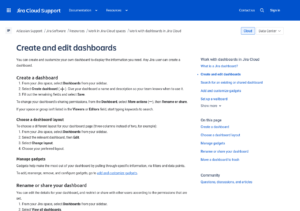
- Open your dashboard and click Add gadget or click the gear icon on an existing gadget to open its configuration.
- In the gadget configuration panel, look for the Filter or Saved filter input field.
- Type the first few characters of your filter name and select it from the autocomplete dropdown.
- Save the gadget. It will now pull data from your JQL filter in real time.
For a full walkthrough of dashboard gadget configuration, see our Jira dashboards and custom gadgets setup guide.
Setting Up an Email Subscription
- Navigate to Filters > View all filters and click your saved filter.
- Click the three-dot menu next to the filter name and select Subscribe.
- Set the schedule -- daily, weekly, on a custom day/time -- and choose whether to receive the email even if the filter returns zero results.
- Add other recipients from your team by entering their usernames. Each recipient must have permission to view the filter.
- Click Subscribe. Jira will email the full list of matching issues on the configured schedule, formatted as an HTML table with clickable issue links.
The Board-Filter Relationship: Every Board IS a JQL Filter
This is the single most important structural fact about Jira boards that most teams do not know, and it is the explanation for the majority of "broken board" support requests I have seen over years of Jira administration: every Agile board in Jira -- Scrum or Kanban -- is fundamentally just a view on top of a JQL filter.
When you create a board, Jira generates a JQL filter behind the scenes that defines the board's scope. That filter determines which issues can ever appear on the board, on the backlog, or in any sprint on that board. If an issue does not match the board's filter, it is invisible to the board -- full stop. It does not matter if it is in the right project, the right sprint, assigned to the right person. If it does not match the filter, the board cannot see it.
You can view and edit this filter directly:
- Open Board Settings -- Navigate to your board and click the three-dot menu in the top right, then Board settings. Alternatively, if you are a board admin, the settings link appears in the board header.
- Click "General" in the left sidebar -- This shows the board's core configuration.
- Find the "Filter" section -- You will see a field labeled Filter query with the JQL that defines this board's scope. There is also a link to the underlying saved filter -- click it to open the full filter editor.
- Edit the filter to fix scope issues -- If issues are missing from your board, this is where you fix it. The most common cause: the filter specifies a single project key, but issues were created in a slightly different project. Update the filter to
project IN (PROJECT-A, PROJECT-B)or add the missing project.
The board-filter relationship also means you can build boards for cross-project work, multi-team views, or specialised workflows simply by crafting the right JQL filter -- there is no need for a board to map one-to-one to a project. A single board can span five projects if the filter captures the right issues from all five. This is one of the most powerful and underused architectural patterns in Jira.
For guidance on how boards connect to sprint planning workflows, see our Jira sprint planning guide.
Advanced: Subqueries and Cross-Project Queries
JQL supports a form of subquery syntax using the issue in operator combined with specific functions. These enable dependency tracking and cross-project reporting that basic search cannot touch.
linkedIssues() -- Dependency Mapping
The linkedIssues() function returns all issues that are linked to a specified issue, optionally filtered by link type. This is the foundation of cross-project dependency reporting.
issue in linkedIssues("PROJECT-123")This returns every issue that has a link relationship with PROJECT-123 -- whether it "blocks," "is blocked by," "duplicates," "relates to," or any other configured link type. You can narrow by link type:
issue in linkedIssues("PROJECT-123", "is blocked by")Combined with cross-project scoping, this becomes a programme-level dependency view:
issue in linkedIssues("PLATFORM-456", "blocks") AND project != PLATFORM AND status != Done ORDER BY priority ASCThat query finds all open issues in other projects that the PLATFORM-456 epic is blocking -- exactly the kind of dependency visibility that programme managers need when a platform team's work gates multiple downstream teams.
Cross-Project Queries
JQL has no concept of project boundaries -- you can query across any projects your account has permission to view. The IN operator on the project field is the primary mechanism:
project IN (FRONTEND, BACKEND, MOBILE) AND issuetype = Bug AND priority = Critical AND status != Done ORDER BY project ASC, priority ASCThis returns all open critical bugs across three projects, sorted by project then priority -- a practical all-hands triage view that would take three separate searches in basic search mode.
You can also reference saved filters in cross-project queries using the filter field:
filter = "All Team Projects" AND issuetype = Bug AND created >= startOfWeek()This delegates the project scope to the saved filter, keeping the query readable while reusing centrally maintained scope definitions.
2026 Chart-Level Filtering in Dashboards
One of the most significant additions in Jira's 2026 dashboard update is chart-level filtering -- the ability to apply multiple independent filters to a single chart gadget and display them side by side for comparative reporting. This was previously impossible in Jira's native dashboard tooling, requiring either Marketplace apps or exporting data to external BI tools.
With the 2026 update, the Velocity Chart and certain other gadgets now accept up to 5 separate JQL filters per chart. Each filter appears as a distinct series on the chart. The practical application: you can compare sprint velocity across five different teams in a single gadget, each team represented by its own JQL filter, rendered as a separate line or bar series.
Setting Up Multi-Filter Chart Gadgets
- Create individual team filters -- Before configuring the chart, build a saved JQL filter for each team you want to compare. For example:
- Filter "Backend Team -- Sprint Issues":
assignee in membersOf("backend-team") AND sprint in closedSprints() ORDER BY sprint ASC - Filter "Frontend Team -- Sprint Issues":
assignee in membersOf("frontend-team") AND sprint in closedSprints() ORDER BY sprint ASC
- Filter "Backend Team -- Sprint Issues":
- Add a Velocity Chart gadget to your dashboard via Add gadget.
- Open the gadget configuration by clicking the gear icon on the gadget.
- Enable multi-filter mode -- In the 2026 gadget configuration UI, click Add comparison filter. This reveals additional filter slots alongside the primary filter input. You will see up to 5 slots in total.
- Assign a filter to each slot -- Select one of your team filters for each slot. Give each filter a display label (the label appears in the chart legend) -- "Backend," "Frontend," "Mobile," etc.
- Set the sprint range -- Choose how many sprints to include in the historical comparison window. For meaningful velocity trends, a minimum of 6 sprints is recommended.
- Save the gadget -- The chart renders with one series per filter, colour-coded and labelled, making cross-team velocity comparison immediate and visual without leaving the dashboard.
This capability directly addresses a common reporting gap: engineering managers who previously had to export to spreadsheets or use Jira Align to compare velocity across multiple teams can now do it natively in a dashboard gadget. Combined with the Jira roadmap features for programme-level planning, chart-level filtering makes Jira's native reporting competitive with dedicated BI integrations for most team-level analytics use cases.
10 Essential Jira JQL Queries Every User Should Save
These are the ten filters I recommend every Jira user -- from developer to engineering manager -- saves on day one. Each one is immediately useful and each uses the JQL features described in this guide.
1. My Open Work (Personal Queue)
assignee = currentUser() AND resolution = Unresolved AND status NOT IN (Done, Cancelled) ORDER BY priority ASC, updated DESC2. Current Sprint -- All Issues
sprint in openSprints() AND project = MYPROJECT ORDER BY status ASC, priority ASC3. Blocked Issues in Active Sprint
sprint in openSprints() AND status = "Blocked" ORDER BY priority ASC, created ASC4. Unassigned Open Bugs
issuetype = Bug AND assignee IS EMPTY AND resolution = Unresolved AND status NOT IN (Done, Cancelled) ORDER BY priority ASC, created ASC5. Critical Issues Due This Week
priority in (Critical, High) AND duedate >= startOfDay() AND duedate <= endOfWeek() AND status != Done ORDER BY duedate ASC6. Team Open Issues (Group-Based)
assignee in membersOf("backend-engineers") AND sprint in openSprints() AND status NOT IN (Done, Cancelled) ORDER BY assignee ASC, priority ASC7. Issues Updated More Than 7 Days Ago (Staleness Check)
status NOT IN (Done, Cancelled) AND updated <= -7d AND assignee IS NOT EMPTY ORDER BY updated ASC8. Open Bugs Against Unreleased Versions
issuetype = Bug AND fixVersion in unreleasedVersions() AND resolution = Unresolved ORDER BY priority ASC, fixVersion ASC9. Issues Created This Week
created >= startOfWeek() AND created <= endOfWeek() ORDER BY created DESC10. Cross-Project Dependency View
issue in linkedIssues("PLATFORM-100", "blocks") AND status NOT IN (Done, Cancelled) ORDER BY priority ASC, project ASCTroubleshooting: Issues "Missing" From Boards Due to Misconfigured Filters
The number one Jira support ticket in most organisations is some variation of "my issue isn't showing on the board." In almost every case, the cause is a JQL filter mismatch -- the board's underlying filter is not capturing that issue. Here is a systematic approach to diagnosing and fixing it.
Step-by-Step Diagnosis
- Identify the issue key of the "missing" issue -- note it down (e.g., BACKEND-245). Confirm the issue exists by navigating to it directly via the issue URL.
- Open the board's filter -- Go to Board Settings > General > Filter and note the JQL. Click View filter to open it in the full filter editor.
- Test the filter against the missing issue -- Add
AND issue = BACKEND-245to the filter query and run it. If it returns zero results, the issue does not match the board filter. If it returns one result, the issue does match and the problem is elsewhere (most likely a swimlane configuration or column mapping). - Identify the exclusion cause -- Remove clauses one at a time from the modified filter until BACKEND-245 appears in the results. The last clause you removed before it appeared is the one excluding the issue.
- Common causes and fixes:
- Wrong project key: the filter specifies
project = BACKENDbut the issue was created inBACKEND-TEMP. Fix: change toproject IN (BACKEND, BACKEND-TEMP). - Issue type excluded: the filter includes
issuetype != Epicbut the missing issue is a Sub-task. Fix: review and broaden the issuetype clause. - Status excluded: the filter has
status NOT IN ("Won't Fix", Duplicate)and the issue was mistakenly moved to one of those statuses. Fix: correct the issue status, or review whether that status should be excluded. - Sprint mismatch: the issue is in a future sprint but the filter uses
sprint in openSprints(). The issue will not appear until the sprint starts -- this is correct behaviour, not a bug. - Label or component filter: the filter restricts to
labels = "platform"and the issue lacks that label. Fix: add the label to the issue or broaden the filter.
- Wrong project key: the filter specifies
- Update the board filter -- Once you have identified the cause, update the filter in Board Settings > General. Changes take effect immediately -- refresh the board and verify the previously missing issue now appears.
For issues related to automation rules that feed into board states, cross-reference with the Jira automation rules guide -- automations that move issues to states excluded by the board filter are a common hidden culprit.
Verdict
JQL is not optional knowledge for anyone who manages or works within Jira at scale -- it is the control layer for the entire platform. Boards, dashboards, automations, and subscriptions all run on JQL filters under the hood. Teams that treat JQL as an advanced feature for power users end up with boards that silently exclude issues, dashboards full of stale data, and email reports nobody reads. Teams that build a library of well-crafted saved filters -- using dynamic functions, group-based scoping, and version functions -- end up with a self-maintaining reporting system that survives sprint cycles, team changes, and release schedules without requiring constant manual updates. The 2026 chart-level filtering feature raises the ceiling further: multi-team velocity comparisons that previously required Jira Align or external BI tools now work natively in a dashboard gadget. Start with the 10 essential queries in this guide, understand the board-filter relationship, and you will resolve more "broken board" issues in an afternoon than most admins fix in a month.
Frequently Asked Questions
What is JQL in Jira?
JQL (Jira Query Language) is the structured search syntax built into Jira for finding and filtering issues. A JQL query follows the pattern FIELD OPERATOR VALUE -- for example, project = BACKEND AND status != Done -- and can include Boolean logic, date functions, and dynamic functions like currentUser(). Saved JQL queries become reusable filters that power Agile boards, dashboard gadgets, and scheduled email reports across your Jira site. For the full official reference, see Atlassian's JQL documentation.
How do I write a JQL filter for my team's open issues?
Use the membersOf() function to capture your entire team without hardcoding usernames: assignee in membersOf('your-team-group') AND resolution = Unresolved AND status NOT IN (Done, Cancelled) ORDER BY priority ASC. Go to Filters > Advanced issue search, enter this query with your actual group name, confirm it returns the right issues, then click Save filter to make it reusable. Share the saved filter with your team so everyone can access the same view without creating duplicates.
Can JQL filter by sprint, epic, and assignee at the same time?
Yes -- JQL clauses combine with AND to filter by multiple fields simultaneously. A query like sprint in openSprints() AND "Epic Link" = PROJ-10 AND assignee = currentUser() returns all issues in the current sprint, under a specific epic, assigned to the current user. There is no practical limit to how many fields you can combine in a single JQL query, though extremely long queries can be harder to maintain -- use saved filters as building blocks to keep queries readable.
How do I use JQL to power a Jira dashboard gadget?
First save your JQL query as a named filter via Filters > Advanced issue search > Save filter. Then on your dashboard, add a gadget (such as Filter Results, Issue Statistics, or Two-Dimensional Filter Statistics), open the gadget configuration panel, and select your saved filter from the Filter input field. The gadget will pull live data from your JQL filter every time the dashboard loads. For a full walkthrough of dashboard gadget setup, see our Jira dashboards and custom gadgets guide.
What are the most useful JQL functions?
The most impactful JQL functions are: currentUser() (makes filters role-aware without hardcoding names), membersOf('group') (makes team filters resilient to personnel changes), openSprints() and closedSprints() (scope queries to active or completed sprints), startOfWeek() and endOfWeek() and their day/month variants (enable time-relative date filtering without updating the query), unreleasedVersions() and releasedVersions() (scope by release stage without hardcoding version numbers), and linkedIssues('ISSUE-KEY') (find all issues linked to a specific issue, enabling cross-project dependency reporting). Learn more about Jira's full feature set at Atlassian's site.