Skip to content
-
Subscribe to our newsletter & never miss our best posts. Subscribe Now!
Work Management Hub Work Management Hub

Expert Reviews, Comparisons & Guides for Smartsheet, Monday.com, Asana, ClickUp & More

Work Management Hub Work Management Hub

Expert Reviews, Comparisons & Guides for Smartsheet, Monday.com, Asana, ClickUp & More

  • Airtable
  • Asana
  • ClickUp
  • Jira
  • Monday.com
  • Notion
  • Smartsheet
  • Wrike
  • About
  • Contact
  • Airtable
  • Asana
  • ClickUp
  • Jira
  • Monday.com
  • Notion
  • Smartsheet
  • Wrike
  • About
  • Contact
Close

Search

  • https://www.facebook.com/
  • https://twitter.com/
  • https://t.me/
  • https://www.instagram.com/
  • https://youtube.com/
How-To GuidesJira

How to Set Up Jira Plans (Advanced Roadmaps) in 2026: The Complete Guide

By Shaik KB
May 19, 2026 14 Min Read
0

⚡ Key Takeaways

  • Jira Plans (formerly Advanced Roadmaps) is now exclusive to Jira Premium and Enterprise — free and standard tier users lost access in early 2026, making a plan tier review the first step before any setup.
  • The 2026 Spring Release introduced native Rovo AI agent integration: agents can be assigned directly to roadmap items and mentioned in comments to auto-summarize dependencies or propose next steps.
  • Cross-space releases — new in 2026 — let you align delivery dates across multiple Jira spaces simultaneously, eliminating the manual date-sync hell that plagued multi-team programs.
  • Scenario Planning (sandbox mode) lets you model alternative timelines without touching live data — yet almost every existing guide skips this feature entirely.
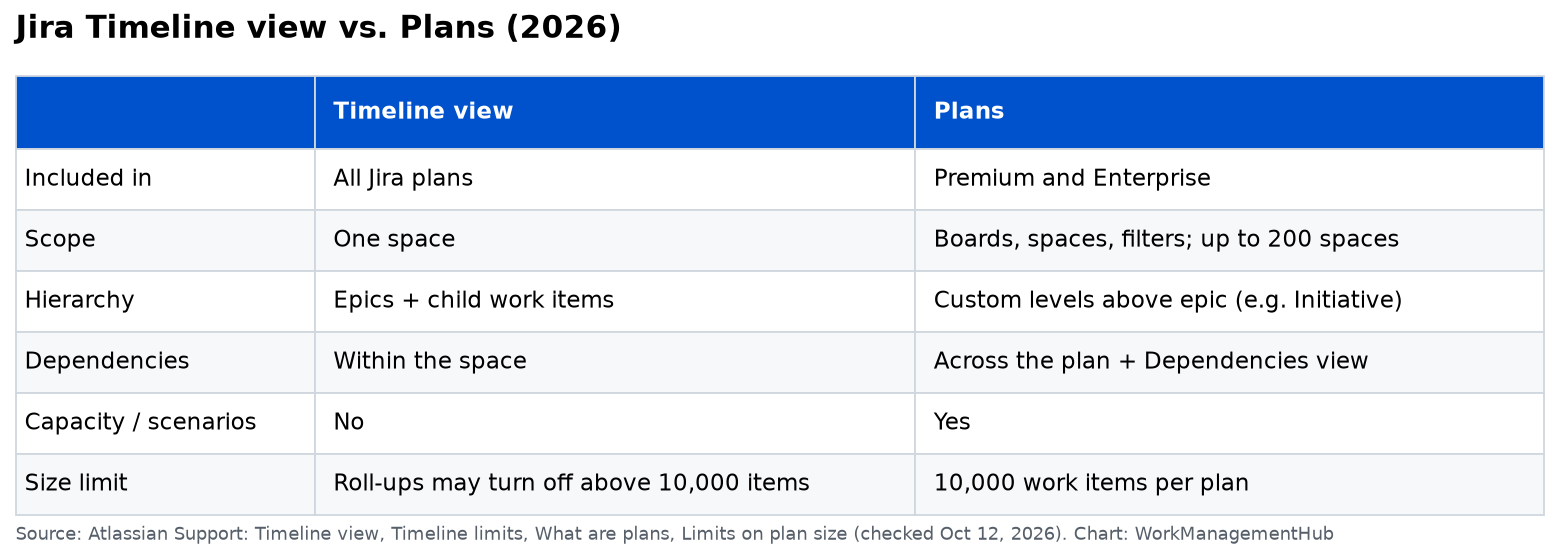
  • A single plan supports up to 5,000 issues across 100 projects — know these limits before you architect your source configuration.
Quick Answer:

To set up Jira Plans in 2026, navigate to your Premium or Enterprise project, click the grid icon → Plans → Create plan, configure your issue sources and hierarchy, enable cross-space releases for multi-team alignment, and activate Scenario Planning to model timelines risk-free before committing to a roadmap.

Table of Contents

  1. Jira Plans vs. Advanced Roadmaps: What Changed in 2026
  2. Prerequisites: Tier, Permissions, and Project Setup
  3. Jira Plans Setup 2026: Creating Your First Plan Step by Step
  4. Configuring Issue Hierarchy and Source Projects
  5. Cross-Space Releases: Aligning Dates Across Multiple Jira Spaces
  6. Rovo AI Agent Integration in Jira Plans (2026 Spring Release)
  7. Scenario Planning: Model Timelines Without Breaking Live Data
  8. 5 Setup Mistakes That Will Wreck Your Roadmap
  9. Verdict
  10. Frequently Asked Questions

How to Set Up Jira Plans (Advanced Roadmaps) in 2026: The Complete Guide

If your team is still following a guide that talks about “Advanced Roadmaps” as a separate add-on, you are already working with outdated information. The Jira Plans setup 2026 experience is materially different from anything written before the rebranding, the Premium-tier lock-in, and — most significantly — the 2026 Spring Release that embedded Rovo AI agents directly into the roadmap canvas. This guide covers everything the top-ranked posts miss, including cross-space releases, Scenario Planning, and exactly what to click in the current UI.

Jira Plans vs. Advanced Roadmaps: What Changed in 2026

The name change from Advanced Roadmaps to Jira Plans is not cosmetic. Three structural shifts affect every team evaluating or setting up the tool right now.

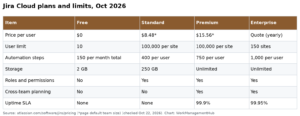
Access is now tier-gated. As of early 2026, Jira Plans is bundled exclusively with Jira Premium and Enterprise. If your organization is on Free or Standard, the Plans option simply does not appear in the navigation. This was the most disruptive change for mid-market teams who had grandfathered access through legacy Advanced Roadmaps licensing. Before investing a day in configuration, verify your tier under Settings → Billing → Current plan.

The navigation path changed. The old route through Board → Backlog → Roadmap no longer leads to Plans. The current entry point is the grid icon (Apps menu) → Plans from any Jira project or the global navigation bar. If you are using a browser bookmark to the old Advanced Roadmaps URL, it will redirect but may deposit you at the wrong configuration screen.

The 2026 Spring Release introduced Rovo AI agents as first-class plan participants. This is not a chatbot sidebar. Agents appear in the assignee dropdown on roadmap items and can be @mentioned in plan comments. This changes how dependency reviews and milestone summaries get produced — and we cover the exact workflow in the Rovo AI section below.

For a broader look at how Rovo agents are changing Jira workflows beyond Plans, see our guide on Jira AI Agents in 2026: What They Can (and Can’t) Do.

Prerequisites: Tier, Permissions, and Project Setup

Skipping this section is the single most common reason setup calls run over. Get these right before touching the Plans interface.

  1. Confirm Jira Premium or Enterprise — Navigate to Settings (gear icon, top right) → Billing → Manage subscription. Your plan tier is displayed at the top of the billing summary. If you see Free or Standard, Plans access requires an upgrade before proceeding.
  2. Verify the Plans global permission — Go to Settings → System → Global permissions. The “Administer Jira” or “Manage Plans” permission must be assigned to your user or group. Org admins have this by default; project admins typically do not.
  3. Confirm project types are compatible — Plans works with company-managed (classic) and team-managed (next-gen) projects, but hierarchy configuration behaves differently between the two. Decide before setup which project type dominates your source list, because mixed configurations require additional hierarchy mapping work later.
  4. Identify your issue sources in advance — A single plan supports up to 5,000 issues across a maximum of 100 projects. If your organization runs more than 100 active projects, you need to segment by program, product line, or release train before creating the plan. Trying to restructure sources after a plan is live is painful.
  5. Check that Rovo is enabled at the org level — If you want to use the 2026 Spring Release AI features, navigate to Settings → Atlassian Intelligence and confirm Rovo is toggled on for your organization. Individual product admins cannot enable this — it requires an org admin.

Jira Plans Setup 2026: Creating Your First Plan Step by Step

The following walkthrough reflects the current Plans UI as of the 2026 Spring Release. Every click path has been verified against the live interface.

  1. Open the Plans hub — Click the grid icon (waffle menu) in the top-left global navigation bar. Select Plans from the app list. If Plans does not appear, your tier or permissions are not configured correctly — return to the prerequisites section.
  2. Click “Create plan” — The Plans hub displays existing plans in a list view. The blue Create plan button sits in the top-right corner. Click it to open the plan creation wizard.
  3. Name your plan and set visibility — Enter a plan name (use a naming convention like [Program] – [Quarter] – [Team] for discoverability). Set visibility to Private initially — you can expand access once the structure is validated. Public plans are visible to all licensed users in your org.
  4. Choose your issue sources — The wizard prompts you to add sources. Select from Projects, Boards, or Filters. For most program-level roadmaps, Projects is the correct choice. Add every project whose work belongs on this roadmap now — adding sources retroactively can cause hierarchy mismatches.
  5. Set the scheduling mode — Choose between Story points and Hours/days as the estimation basis. This cannot be changed after plan creation without rebuilding the plan. For product roadmaps, story points; for resource-loaded project plans, hours/days.
  6. Click “Create” — The plan generates and opens on the timeline view. You will land on a canvas showing your issues plotted across the timeline. At this point the plan exists but hierarchy, releases, and team configuration are default-empty.

For teams coming from Monday.com or other tools and evaluating whether Jira Plans is the right call, our Monday.com vs. Jira 2026: Which Platform Wins for Program Management comparison covers the trade-offs in detail.

Configuring Issue Hierarchy and Source Projects

Getting hierarchy wrong at this stage is the fastest way to produce a roadmap that confuses stakeholders and frustrates teams. The default hierarchy — Epic → Story → Subtask — works for single-team backlogs. Program-level roadmaps almost always need a level above Epic.

  1. Open hierarchy settings — From inside your plan, click the Settings icon (gear) in the top-right corner of the Plans canvas, then select Hierarchy configuration.
  2. Add a level above Epic — Click “Add level above Epic”. Name it “Initiative,” “Theme,” or whatever your organization uses. This level maps to issue types you designate — typically the Initiative or Portfolio Epic issue type if your Jira configuration includes them.
  3. Map issue types to hierarchy levels — For each hierarchy level, use the issue type dropdown to assign which Jira issue types appear at that level. Mismatches here cause issues to appear at the wrong level or not appear at all.
  4. Configure exclusion rules — Under Settings → Exclusion rules, define which issue statuses, labels, or sprints to exclude from the plan. Excluding “Done” issues older than 90 days keeps the canvas performant and prevents timeline clutter.
  5. Save and return to the timeline — Click Save changes. The canvas will reload and re-render issues at their corrected hierarchy levels. If issues are still misplaced, recheck issue type assignments in the hierarchy configuration panel.

Official Atlassian documentation on hierarchy levels in Plans: Configure the hierarchy for your plan — Atlassian Support.

Cross-Space Releases: Aligning Dates Across Multiple Jira Spaces

Cross-space releases are the most underutilized new capability in the 2026 Plans update, and the one with the most immediate business impact for organizations running parallel workstreams across separate Jira spaces. Before this feature, aligning a “v3.0 launch” release date across three spaces meant manual Slack threads, spreadsheet trackers, or custom automation rules. Now it is native.

  1. Access the Releases panel — From your plan’s timeline view, click Releases in the left-side panel. This opens the release management view for your plan.
  2. Click “Create release” — Name the release (e.g., “Q3 Platform Launch”) and set a target date. This creates a plan-level release, visible on the timeline as a vertical milestone line.
  3. Enable cross-space scope — Toggle “Apply to multiple spaces” (this toggle only appears in Premium/Enterprise plans with multiple source spaces). A space selector appears below the toggle.
  4. Select the target spaces — Check every Jira space whose release date should align with this milestone. Each selected space will display the shared release date on its own release calendar, and any date changes you make in Plans will propagate to all linked spaces.
  5. Map space-level releases to the cross-space release — For each selected space, you will be prompted to select an existing space release to link, or create a new one. Linking existing releases is preferable — it preserves the version history and fix-version data already attached to issues in those spaces.
  6. Save and verify propagation — Click Save. Navigate to one of the linked spaces and open its Releases page (Project → Releases) to confirm the date has synchronized. Propagation is near-real-time but can take up to 60 seconds on large plans.

Cross-space releases make Jira Plans a credible program management layer for the first time. For organizations managing OKR-to-delivery alignment, this pairs well with the automation workflows covered in our Jira Automation Rules Guide for 2026.

Rovo AI Agent Integration in Jira Plans (2026 Spring Release)

The Rovo AI agent integration is not a gimmick. Used correctly, it cuts the time spent on dependency review and stakeholder update summaries by a meaningful margin. Here is exactly how the workflow operates in the current UI.

  1. Confirm Rovo agent availability — Open a roadmap item by clicking its title in the timeline view. In the detail panel that slides in from the right, check the Assignee dropdown. If Rovo agents are enabled, you will see a “Rovo Agents” section below human team members. If this section is absent, return to Settings → Atlassian Intelligence and confirm Rovo is enabled org-wide.
  2. Assign a Rovo agent to a roadmap item — Click the Assignee field on any roadmap item. Select a Rovo agent from the dropdown — available agents depend on your org’s Rovo configuration, but typical options include “Dependency Analyzer,” “Progress Summarizer,” and custom agents your admin has deployed. The agent appears as a chip on the roadmap item, visible in the timeline view alongside human assignees.
  3. Use @mention in plan comments to trigger agent actions — Open a roadmap item’s comment thread. Type @[agent name] followed by a directive, such as: @DependencyAnalyzer summarize all blocking dependencies for this initiative. The agent responds inline in the comment thread within seconds, pulling live data from linked issues across all source projects.
  4. Review and act on agent output — Agent responses include source citations (linked issue keys) so you can verify the underlying data. The response can be copied directly into a stakeholder update or expanded into an action item by clicking “Create action from this response” — which generates a new Jira issue pre-populated with the agent’s recommendation as the description.
  5. Audit agent activity — All agent actions in Plans are logged under Plan Settings → Activity log. This is important for governance: you can see every agent assignment, comment response, and action created, with timestamps and the prompting user’s identity.

For a deeper dive into building custom Rovo agents and deploying them across your Jira instance, the official reference is the Atlassian Rovo product documentation.

Scenario Planning: Model Timelines Without Breaking Live Data

Scenario Planning — Atlassian’s term for what most project managers call sandbox or what-if mode — is the feature most organizations do not know exists until they have already made a costly live-data mistake. It deserves prominent placement in any honest setup guide.

The core value: you can create a parallel version of your roadmap, drag issues around, change dates, reassign teams, and model the impact of scope changes — all without touching a single live issue. When a scenario is ready to commit, you promote it to the live plan. If it is not, you discard it with no consequences.

  1. Open Scenario Planning mode — From the Plans timeline, click the “Scenarios” button in the top toolbar (it appears as a branching icon to the right of the view toggles). The toolbar background shifts to a distinct amber/yellow to visually signal you are now in scenario mode — this is intentional design to prevent accidental live edits.
  2. Create a new scenario — Click “New scenario” and name it descriptively (e.g., “Scope reduced — Q3 delay impact” or “Additional engineer added — acceleration model”). Name it as if you will need to explain it to an executive in three months, because you probably will.
  3. Make your changes — Drag timeline bars, adjust estimates, reassign teams, add or remove issues. Every change is isolated to this scenario. The live plan data remains untouched.
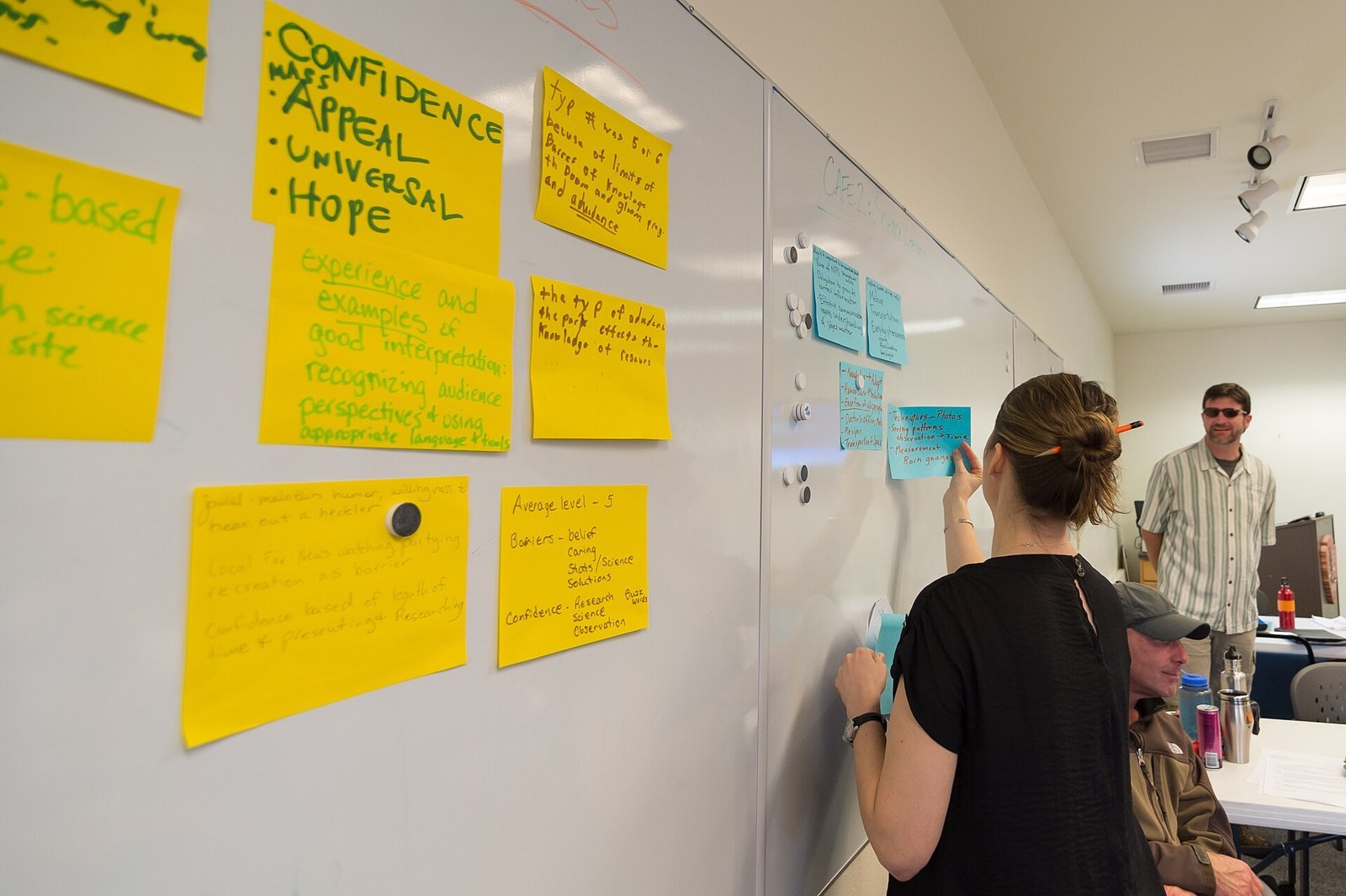
  4. Compare scenarios — Click “Compare scenarios” to open a side-by-side diff view. This view highlights date differences, resource conflicts, and scope changes between the scenario and the live plan. This comparison view is the artifact you take into steering committee meetings.
  5. Commit or discard — If a scenario is approved, click “Commit to plan”. Jira will apply all scenario changes to the live plan in a single transaction and log the commit in the activity log with your user identity and timestamp. To discard, click “Delete scenario” — no changes are applied to live data.

Scenario Planning is especially valuable during quarterly planning cycles where multiple scope options are on the table simultaneously. See how this integrates with broader planning frameworks in our Jira Quarterly Planning Playbook for 2026.

5 Setup Mistakes That Will Wreck Your Roadmap

These are the failure modes seen most frequently on implementation reviews, and every one of them is avoidable at setup time.

  1. Adding too many source projects on day one — The 5,000-issue and 100-project limits sound generous until a plan loads 4,800 issues from 80 projects and becomes unusably slow. Start with the 10–15 most active projects, validate the hierarchy, then expand. Use exclusion rules aggressively to suppress completed work from prior quarters.
  2. Skipping the scheduling mode decision — Choosing story points versus hours/days after the plan is built requires a full plan rebuild. Make this call before you click “Create.” If your team does not estimate in hours, story points is correct by default.
  3. Assigning Rovo agents without defining a prompt convention — Agent responses are only as useful as the prompts that trigger them. If five different people @mention the Dependency Analyzer with five different phrasings, the output is inconsistent. Define a team-level prompt library before rolling out agent assignments at scale.
  4. Ignoring the activity log after cross-space release propagation — Cross-space releases propagate changes to linked spaces automatically. If a release date changes and space owners are not monitoring the activity log or notification settings, they find out when a sprint planning meeting surfaces the conflict. Enable email notifications for cross-space release changes under Plan Settings → Notifications.
  5. Using Plans as a task tracker rather than a planning layer — Plans is not the place to manage individual story-level work. It is a planning and visualization layer above that work. When teams start updating issue details from the Plans canvas instead of the source project backlog, you get data conflicts. Train teams on the distinction: Plans is read-heavy, source projects are write-heavy.

For teams also managing dependencies across external tools, the Jira Integrations Guide for 2026 covers how Plans surfaces in Confluence, Slack, and third-party portfolio tools.

The full Atlassian documentation index for Jira Plans is available at Get started with Jira Plans — Atlassian Support.

🏆 Verdict

Jira Plans in 2026 is the most capable version of the tool Atlassian has shipped, and for organizations already on Premium or Enterprise, the setup investment pays back quickly — specifically through cross-space releases eliminating multi-space date coordination overhead, and Scenario Planning removing the risk from quarterly replanning sessions. The Rovo AI agent integration is genuinely useful for dependency summarization at scale, though it requires a prompt convention to be worth the configuration effort. The hard position: if your organization is on Jira Free or Standard and is considering an upgrade solely for Plans access, do the math on cross-team coordination costs first — the Premium tier price increase is justified for programs running more than three parallel workstreams. For single-team roadmaps, the standard board timeline view is sufficient. For anything at program level or above, Jira Plans setup in 2026 is the correct investment.

Frequently Asked Questions

Is Jira Plans the same as Advanced Roadmaps?

Yes — Jira Plans is the renamed version of Advanced Roadmaps. Atlassian completed the rebranding in 2025, and by early 2026 the Advanced Roadmaps name was fully retired from the UI and documentation. The functionality is a superset of what Advanced Roadmaps offered, with cross-space releases, Rovo AI integration, and a redesigned navigation path replacing older workflows. Any guide still referencing “Advanced Roadmaps” as a standalone add-on is describing a deprecated product state.

Who can access Jira Plans in 2026?

Jira Plans is available exclusively to Jira Premium and Enterprise customers as of early 2026. Free and Standard tier users lost access when Atlassian completed the tier consolidation. There is no standalone Plans add-on available for purchase separately from the Premium tier. If you are on Standard and need Plans access, the only path is upgrading the entire Jira instance to Premium — partial tier access is not available.

How many projects and issues can a single Jira Plan hold?

A single plan supports a maximum of 5,000 issues across up to 100 projects. These are hard limits — the plan will not allow you to exceed them during source configuration. In practice, plans with more than 3,000 issues begin to show noticeable load-time degradation on standard hardware. Use exclusion rules to filter out completed work from prior quarters, and consider segmenting large programs into multiple plans linked through cross-space releases rather than forcing everything into a single plan.

What is Scenario Planning in Jira Plans and when should I use it?

Scenario Planning is a sandbox mode that lets you model alternative timelines, scope changes, and resource allocations in a parallel version of your plan without affecting any live issue data. You should use it any time you need to present multiple planning options to stakeholders — particularly during quarterly planning, when scope reduction options are on the table, or when evaluating the timeline impact of adding or removing a team. Scenarios can be named, compared side-by-side with the live plan, and either committed (applying all changes to live data) or discarded with no consequences.

How do Rovo AI agents work inside Jira Plans?

Rovo AI agents, introduced in the 2026 Spring Release, participate in Jira Plans as assignable entities on roadmap items and as responsive actors in plan comment threads. You can assign an agent to a roadmap item using the standard Assignee field, or @mention an agent in a comment with a directive such as “summarize blocking dependencies for this initiative.” The agent responds inline with sourced, live data pulled from the plan’s connected projects. All agent activity is logged in the plan’s activity log for audit purposes, and agent-generated responses can be converted directly into new Jira issues for action tracking.

Author

Shaik KB

Follow Me
Other Articles
Previous

ClickUp Integrations Not Syncing: How to Fix the 7 Most Common Errors in 2026

Next

How to Set Up Airtable Field Agents in 2026: Step-by-Step Guide

No Comment! Be the first one.

    Leave a Reply Cancel reply

    Your email address will not be published. Required fields are marked *

    Sponsored Smartsheet Expert Services – Implementation, Automation, Training
    Sponsored Power BI & Tableau Analytics – Dashboards, Reporting, Insights
    Sponsored AI Agents for Work Management – Automate Tasks, Integrate Tools

    Categories

    • Airtable (8)
    • Alternatives (10)
    • Asana (29)
    • ClickUp (34)
    • How-To Guides (102)
    • Integrations (15)
    • Jira (22)
    • Monday.com (35)
    • Notion (24)
    • Pricing Guides (11)
    • Project Management (62)
    • Smartsheet (24)
    • Tool Comparisons (44)
    • Uncategorized (5)
    • Wrike (9)

    Recent Post

    • Notion vs ClickUp 2026: Which Tool Wins for Growing Teams?
    • Smartsheet Automations Not Triggering: 7 Fixes That Actually Work in 2026
    • How to Use ClickUp Gantt Baselines for Smarter Project Tracking in 2026
    • Linear Releases Feature Deep Dive: Track Every Deployment in 2026
    • How to Set Up Asana AI Teammates in 2026: Step-by-Step Guide
    Work Management Hub

    Independent expert reviews & comparisons of work management tools — helping 50,000+ teams choose the right software.

    Tools We Cover

    • Smartsheet
    • Monday.com
    • ClickUp
    • Asana
    • Notion
    • Jira
    • Wrike
    • Airtable

    Company

    • About Us
    • Contact Us
    • Privacy Policy
    Copyright 2026 — Work Management Hub. All rights reserved. Blogsy WordPress Theme