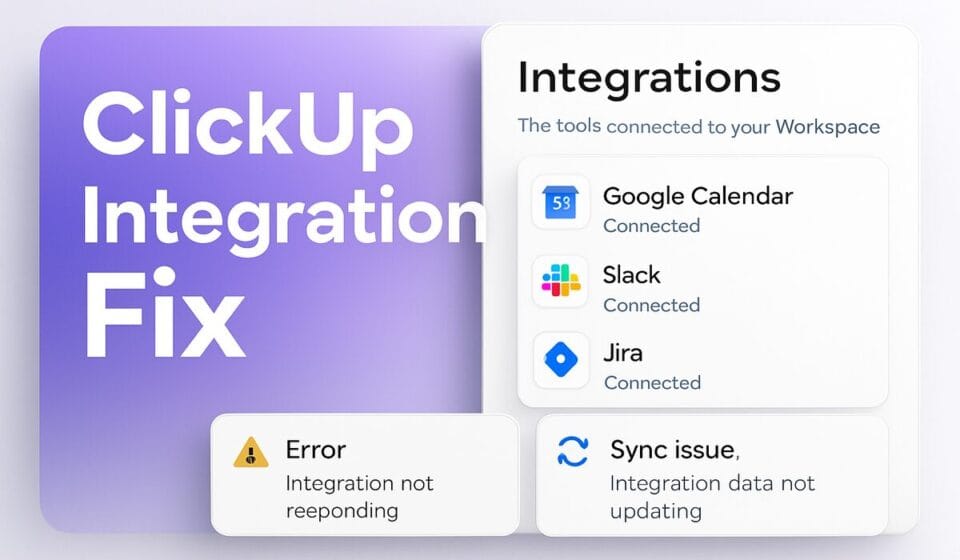

Most ClickUp integration failures are not outages. They fall into three buckets: the connection was authorised at the wrong scope (personal instead of Workspace, or the reverse), the Workspace hit its monthly Automation Actions cap and every Automation paused, or an outbound webhook was suspended after repeated failed deliveries. Identify the bucket before changing any settings.
Three failure domains, not one
ClickUp presents integrations as a single App Center feature, which encourages the wrong debugging instinct: disconnect and reconnect everything. That works maybe a third of the time and destroys evidence the rest of the time. Behind the App Center there are three independent systems, and they fail for different reasons. The OAuth connection governs what data ClickUp is permitted to see. The Automations engine governs anything that fires on a trigger, and it is metered. Outbound webhooks and the public API govern everything running through Zapier, Make, or your own code, and they have their own suspension logic.
Match the symptom to the domain first.
| Symptom | Likely domain | Where to look first |
|---|---|---|
| It works for you, not for teammates | Connection scope | App Center, Personal vs Workspace tab |
| Everything stopped at once, mid-month | Automation Actions quota | Manage Automations, Usage tab |
| Slack messages arrive for some Lists only | Activity sync mapping | Sync ClickUp Activity to Channels |
| A Zapier or Make scenario went quiet with no error | Suspended webhook | The webhook object’s fail_count |
| Tasks missing from Google Calendar | Sync filters, not the connection | Task start dates, due dates, statuses |
| Pull requests never appear on the task | Task ID formatting | Branch name, commit message, PR title |
Connection scope decides what the integration can see
ClickUp supports two connection types, and the choice is not cosmetic. A personal connection links an external account to one ClickUp user in one Workspace; nobody else can reach that data through ClickUp. A Workspace connection is created by an owner or admin and exposes searchable content to everyone in the Workspace. Only owners and admins can create Workspace connections, per ClickUp’s Connect an app documentation.
The practical consequences catch people out constantly. Slack activity sync works with public and private channels on a personal connection, but public channels only on a Workspace connection. Google Calendar supports personal connections only, so an admin cannot configure it centrally for the team. Google Drive allows one authorised Drive account per user per Workspace, which breaks the common pattern of one person holding both a corporate and a client Drive account.
The sharpest edge is on Slack activity messages: only the creator of the Workspace connection can set up new locations for those messages. Admins and owners can map existing messages to additional Spaces, Folders, Subfolders, or Lists, but they cannot add new ones. When the person who set the connection up leaves the company, that capability leaves with them.
- In the upper-left corner, click your Workspace avatar and select Apps.
- Search for and select the integration.
- Check whether you are on the Personal or Workspace tab, and which one shows Connected.
- If the wrong scope is connected, click the ellipsis … next to Connected and select Disconnect, then confirm.
- Reconnect on the correct tab and click Connect, authorise, then click Done.
Before you spend an afternoon on this, confirm the affected user is not a guest or a limited member. Guests and limited members cannot use the Slack or GitHub integrations at all. That is a permissions design decision, not a bug, and no amount of reconnecting will change it.
The Automations quota is the most common silent killer
If several unrelated integrations stopped on the same day and nothing was reconfigured, check quota before anything else. ClickUp meters Automation Actions monthly, and the documented behaviour when you exceed the cap is blunt: the Workspace’s Automations are paused for the remainder of that month. Not throttled. Paused.
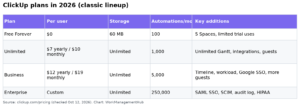
| Plan | Active Automations | Actions per month | Task webhooks, integration Automations, Chat webhooks |
|---|---|---|---|
| Free Forever | 5 | 100 | No |
| Unlimited | 500 | 1,000 | No |
| Business | Unlimited | 5,000 | Yes |
| Business Plus (listed in ClickUp’s help-centre limits article, but not on its public pricing page) | Unlimited | 25,000, plus purchasable add-ons | Yes |
| Enterprise | Unlimited | 250,000, plus purchasable add-ons | Yes |
Two rows in that table explain a large share of “my integration broke” tickets. First, task webhooks, integration Automations, and Chat webhooks are unavailable on Free Forever and Unlimited. A team on Unlimited at $7 per user per month billed yearly can build Automations, but not the ones that talk to other products. Second, limits reset on the first of the month in Pacific Time, so a Workspace that blew its cap on the 12th sits dead for eighteen days and then spontaneously recovers, which is exactly the pattern that convinces people the problem was transient.
- From a Space, Folder, Subfolder, or List, click the Automate button or the lightning bolt icon.
- Click Manage Automations.
- Click the Usage tab.
- Read Total actions used and Total active rules against your plan’s ceiling.
Treat that number as approximate. ClickUp’s documentation states the Usage tab updates with every ten Automation uses, so a Workspace sitting at 4,995 of 5,000 may already be over. Alert emails go to owners and admins at 90% and 100% of the monthly allowance, which is the signal actually worth routing somewhere people read. The full breakdown lives in ClickUp’s Automations feature availability and limits article, and if your Automations are misfiring rather than stopped, work through the Automations-specific troubleshooting path instead.
One more constraint worth designing around: a single Automation permits one Trigger, up to fifteen Conditions, and up to six Actions. Conditions are a Business-and-above feature. Teams on Unlimited who cannot use Conditions tend to compensate by building several near-duplicate Automations, which burns the 1,000-Action allowance far faster than they expect.
Slack messages that never arrive
Slack integration complaints are usually mapping problems rather than connection problems. Work through these in order.
- For a private channel, run
/invite @ClickUpin that channel. ClickUp cannot post to a private channel it has not been invited to, and the channel simply will not appear in the picker. - If you created the channel in the last few minutes, wait. New channels can take up to five minutes to appear in ClickUp. Logging out does not accelerate it.
- In the App Center, open Slack and next to Sync ClickUp Activity to Channels click Add.
- Select the Space, Folder, Subfolder, or List, then the destination channel.
- Confirm the message types are selected, and enable Include Private if the tasks you care about sit in private locations.
If tasks are appearing in ClickUp but never generating a Slack message, check whether they use Tasks in Multiple Lists. ClickUp only generates activity messages for those tasks when their home List falls inside the selected location. A task surfaced into a mapped List from elsewhere will not fire.
Unfurling is a separate mechanism again. Task, comment, and Doc previews in Slack require a personal connection, not a Workspace one, and Slack’s own link-preview setting for ClickUp must be enabled on the Slack side. Connected Search is separate a third time: the initial index can take up to 24 hours, and new messages may take up to ten minutes to become searchable. None of those three being broken tells you anything about the other two. For deeper configuration, see the ClickUp Slack integration walkthrough, and if the messages arrive in Slack but not in ClickUp itself, the problem is more likely notification settings.
Google Calendar is usually filtering, not failing
The single most misdiagnosed integration in ClickUp. Task-to-calendar sync applies a set of documented exclusions that look identical to a broken connection from the user’s side. Per ClickUp’s Google Calendar integration documentation, the following will not sync:
- Tasks with no due date, or with a due date in the past.
- Tasks with no start date, or a start date more than 60 days in the future.
- Tasks in Closed statuses.
- Future instances of recurring tasks. Only the current instance appears.
Several behaviours are by design and cannot be configured away. Google Calendar renders every synced task as a 30-minute block regardless of the task’s real duration. Tasks with a due date but no due time sync starting one hour beforehand. Editing an event in Google Calendar does not update the linked ClickUp task, so the sync is meaningfully one-directional for task data even though calendar events themselves are two-way. You cannot sync tasks to a shared Google Calendar, and only calendars from the My Calendars section are selectable.
- In the App Center, open Google Calendar.
- To the right of Sync tasks to calendar, click Manage.
- Click Add sync.
- Select a source location, a destination calendar, and any filters.
- Click Add sync.
Because tasks land as busy events by default, create a dedicated Google Calendar for the sync rather than pushing into a primary calendar. It is a five-second decision that saves a painful cleanup. On the cleanup point: if you sync tasks, disconnect Google, then sync again, the original events are not removed by Google. They must be deleted manually, and there is no bulk tool for it.
Connection-stage errors have a narrower cause. If you see No Calendars for this user, disable ad blocking and reauthorise. If authorisation fails outright, the block is on Google’s side, in the account’s security settings. Beyond that, be careful with removal: taking your Google account off ClickUp removes it from the entire Workspace for security reasons, which simultaneously breaks sending email from ClickUp and attaching Drive files. Drive-driven workflows deserve their own review, covered in the Google Drive Automations guide.
GitHub activity that never lands on the task
GitHub linking is deterministic. ClickUp scans pull request titles, pull request descriptions, branch names, and commit messages for a task ID, and links what it finds. If nothing links, the reference format is almost always wrong.
Accepted formats are #{task_id}, CU-{task_id}, and {custom_task_id}. To move a status at the same time, append the status in square brackets with no space, as in #ud5b[ready]. Any whitespace between the ID and the bracket breaks the parse.
- Confirm the task sits in a Space that is linked to the repository. Unlinked Spaces receive nothing.
- In the App Center, open GitHub and click Settings in the upper-right.
- Click Add repo and select the repository. Only the connection owner can add repos, and only repository admins can authorise them.
- Click the repository name, then + Add Space, and select the Space.
- Re-test with a commit message containing a correctly formatted task ID.
If the activity exists but you cannot see it, open the task’s Activity feed, click Show more, and filter by Git items. ClickUp collapses similar activity, and merged branches display all their commits as one item. Note also that the confirmation comment ClickUp posts back to the pull request uses the GitHub account of whoever configured the repo-to-Space mapping. When that person’s GitHub access is revoked, the comments stop even though the underlying linking continues.
Zapier, Make and custom webhooks fail quietly
This is the failure mode with the worst ergonomics, because ClickUp does not tell you it happened. Per the webhook health status documentation, a webhook is marked failing if your endpoint returns an unsuccessful status code or takes longer than seven seconds to respond. ClickUp retries each event up to five times, then increments fail_count and abandons that event permanently. Failed events are never resent. When fail_count reaches 100, the webhook is suspended and deliveries stop entirely. A 410 or 401 response suspends it immediately.
ClickUp’s documentation states plainly that no notification is sent when a webhook’s health status changes. A middleware endpoint that was slow for an hour can therefore burn through to suspension while everyone assumes the integration is fine.
- Read
fail_countand the status from the webhook object via the API. - Fix the endpoint so it responds successfully in under seven seconds. Acknowledge first, process asynchronously.
- Reactivate a suspended webhook by setting its status back to active with
PUT /api/v2/webhook/{webhook_id}. - Backfill the events that were dropped during the outage. ClickUp will not replay them.
- Add your own monitoring on
fail_count, since ClickUp provides none.
Rate limiting is the other API-side cause. ClickUp applies limits per token, based on the plan of the Workspace hosting that token: 100 requests per minute on Free Forever, Unlimited and Business; 1,000 on Business Plus (a tier documented in ClickUp’s developer docs and help centre, though it does not appear on the public pricing page); and 10,000 on Enterprise. Exceeding the limit returns HTTP 429, with X-RateLimit-Limit, X-RateLimit-Remaining and X-RateLimit-Reset in the response headers. A Business Workspace running a nightly bulk sync through Zapier will hit 100 requests per minute without much effort, and the fix is backoff and batching rather than a plan upgrade.
Where ClickUp genuinely falls short
Three things make this harder than it should be, and none of them are user error.
Automations usage history is stored for one day on Free Forever, Unlimited and Business. Thirty days requires Business Plus (documented in ClickUp’s help-centre limits article, not on the public pricing page) and six months requires Enterprise. If an Automation misfires on Friday, a Business customer paying $12 per user per month billed yearly has no record of it by Monday. That is the single largest obstacle to diagnosing intermittent integration faults, and it pushes teams toward external logging they should not need.
Webhook health changes generate no notification of any kind. You are expected to poll for your own failures.
Disconnecting a Google account is Workspace-wide by design, so removing it to fix a calendar problem also disables Drive attachments and outbound email. Verify what else depends on that account before you touch it. The same caution applies to time-based features that quietly rely on integrations, such as time tracking.
Common questions
Why did all my ClickUp integrations stop working on the same day?
Almost always the monthly Automation Actions cap. ClickUp pauses a Workspace’s Automations for the rest of the month once the limit is exceeded, and limits reset on the first of the month in Pacific Time. Check the Usage tab under Manage Automations before changing any connection settings.
Do I need a paid plan for ClickUp integrations to sync?
Slack, Google Calendar and GitHub are available on every plan, including Free Forever. Task webhooks, integration Automations and Chat webhooks require Business or above. Unlimited use of the Google Drive integration requires a paid plan. Free Forever also caps you at five active Automations and 100 Actions monthly.
Why do my tasks not appear in Google Calendar?
Sync filters, not connection failure. Tasks need a start date or due date. Anything with no due date, a past due date, a start date more than 60 days out, or a Closed status is excluded by design, as are future instances of recurring tasks. Verify the dates before reconnecting.
How do I know if my ClickUp webhook has been suspended?
Read the fail_count on the webhook object through the API. ClickUp sends no notification when webhook health changes. A webhook suspends after fail_count reaches 100, or immediately on a 410 or 401 response. Reactivate it with a PUT request to the webhook endpoint.
Why can my colleague see the integration but I cannot?
Check connection scope and user role. Personal connections are visible only to their owner; Workspace connections are visible to everyone but can only be created by owners and admins. Guests and limited members cannot use the Slack or GitHub integrations regardless of connection type.
Sponsored