Asana Slack Integration Setup Guide 2026: Complete Step-by-Step Instructions
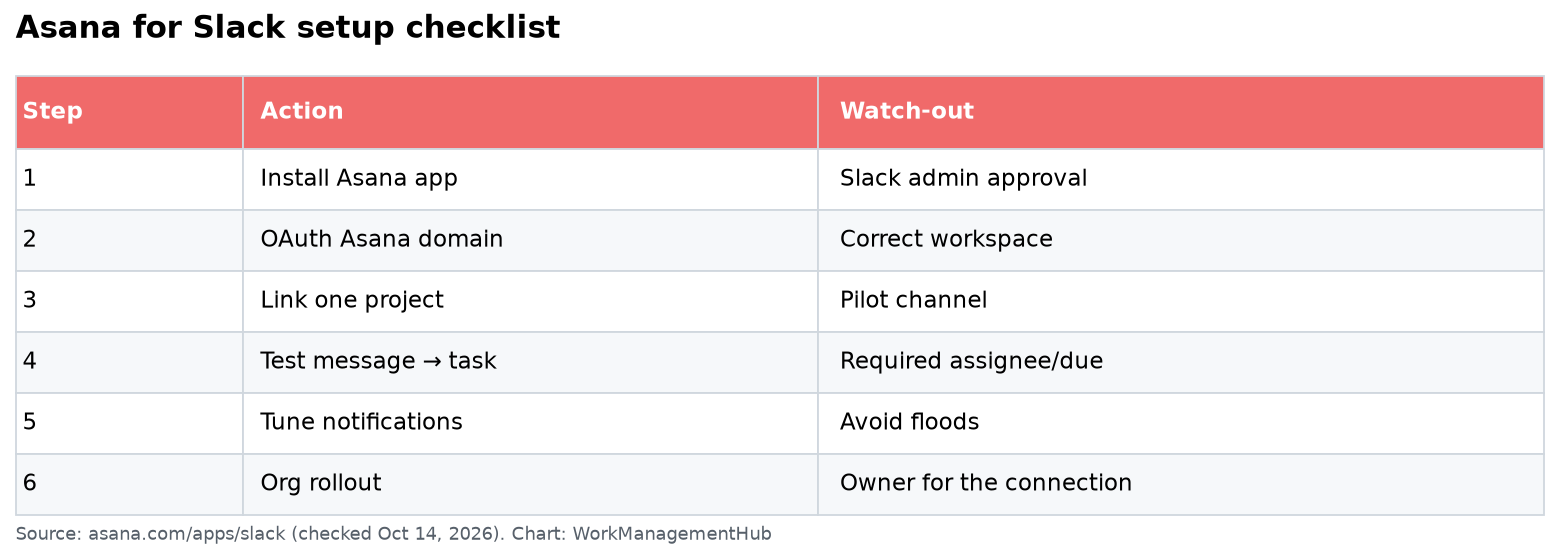
- Before attempting setup, verify you have Workspace Owner or Admin permissions in Asana (Settings → Members → your role) — missing this is the single most common reason the integration fails mid-flow.
- The integration can be initiated from either direction: via Slack’s App Directory (search “Asana” → Add to Slack) or from Asana’s workspace Settings → Apps → search Slack → Connect.
- After installation, the
/asanaslash command is your primary Slack interface —/asanacreates a task instantly, and/asana helplists every available command. - Channel-level configuration lets you choose which Asana projects sync to which Slack channels and which events (task created, completed, commented) trigger notifications — scoping this correctly prevents channel noise.
- Tasks created from Slack appear immediately in the linked Asana project with full metadata: assignee, due date, description, and a back-link to the original Slack message.
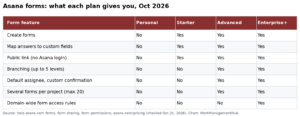
- The integration is free to use on any paid Asana plan (Starter and above); it is not available on the Free plan.
To integrate Asana with Slack, go to Slack’s App Directory, search “Asana,” click Add to Slack, and approve the permission prompts. Then use /asana in any Slack channel to create tasks directly. You must be a Workspace Owner or Admin in Asana to complete the connection. The entire setup takes under five minutes.
- Step 0: Verify Admin Permissions Before You Start
- Method 1: Set Up the Asana Slack Integration from Slack’s App Directory
- Method 2: Connect from Asana’s Settings
- Using /asana Slash Commands: The Complete Reference
- Channel-Level Configuration: Linking Projects and Scoping Notifications
- Configuring Notification Events to Prevent Channel Noise
- Task Creation Workflow: From Slack Message to Asana Task
- Asana Slack Integration: Troubleshooting Common Errors
- Advanced Tips: Getting More from the Integration
- Verdict
- Frequently Asked Questions
Asana Slack Integration Setup Guide 2026: Complete Step-by-Step Instructions
The Asana Slack integration closes the gap between where work is discussed and where work actually lives — one of the most persistent productivity drains in modern teams. Slack is where decisions get made; Asana is where commitments get tracked. Without a bridge, action items evaporate into the chat scroll, and nobody is quite sure whether that thing from Tuesday’s standup thread made it into the project plan.
The Asana–Slack integration closes that gap directly. It lets anyone on your team turn a Slack message into a tracked Asana task in seconds, receive project updates inside the channels where the relevant team already lives, and stay in flow without context-switching between tools. When configured well, it is one of the highest-leverage integrations in the Asana ecosystem — on par with the Asana Microsoft Teams integration for productivity impact, but oriented toward teams for whom Slack is the operational hub.
This guide covers everything: the admin permission check that most tutorials skip (and that causes most failed installs), setup from both directions, the full slash command reference, channel-level notification scoping, and a troubleshooting section for the errors you are most likely to hit.
Step 0: Verify Admin Permissions Before You Start
Most integration guides jump straight to the app directory. This one doesn’t, because skipping the permissions check is the single most common reason the Asana–Slack integration fails — specifically, you get through the Slack authorization flow successfully, then hit a permission-denied wall when Slack tries to handshake back to Asana.
The integration requires Workspace Owner or Admin access in Asana. A regular Member can initiate the Slack side of the connection but cannot authorize it on the Asana side. If you attempt setup without sufficient rights, you will see either a generic “Something went wrong” message or an explicit “You don’t have permission to connect apps to this workspace” error.
How to check your Asana role:
- Click your workspace avatar in the top-left corner of Asana — this opens the workspace switcher and account menu.
- Select “Admin Console” from the dropdown (if you can see this option, you already have sufficient access; if it’s absent, you don’t have admin rights).
- Alternatively, go to Settings → Members and locate your name in the member list — your role is displayed to the right of your name as “Owner,” “Admin,” or “Member.”
If you are a Member and not an Admin: You have two options. First, ask your Workspace Owner to either grant you temporary Admin status to perform the integration setup, or to complete the setup themselves and configure which channels receive notifications. Second, your Workspace Owner can complete the Asana side of the authorization while you complete the Slack side — both authorizations need to happen, but they can be done by different people. Once the integration is connected at the workspace level, all Members can use the /asana slash command without Admin rights.
Method 1: Set Up the Asana Slack Integration from Slack’s App Directory
This is the most common path and works well if you spend most of your day in Slack. The entire flow takes three to four minutes.
- Open the Slack App Directory — click “Apps” in the left sidebar of your Slack workspace, or go directly to your workspace’s app directory at
[your-workspace].slack.com/apps. - Search for “Asana” in the search bar at the top of the app directory page.
- Click on the Asana app listing — it should be the first result, showing the official Asana logo and the “By Asana” publisher label.
- Click “Add to Slack” — this begins the OAuth authorization flow. Slack will show you a permissions summary listing what Asana is requesting access to (send messages to channels, read channel names, etc.).
- Review the permissions and click “Allow” — you must be a Slack workspace Admin or have permission to install apps in your Slack workspace. If your Slack workspace restricts app installs to admins only, you will need approval from your Slack admin before this button becomes active.
- You will be redirected to Asana’s authorization page — sign in to Asana if you aren’t already, then click “Allow” to grant Slack access to your Asana workspace. This is where Asana Admin or Owner rights are required.
- Select your Asana workspace from the dropdown if you belong to multiple workspaces — choose the one you want to connect to this Slack workspace.
- Click “Authorize” — Asana will redirect you back to Slack with a confirmation message. The integration is now active at the workspace level.
After authorization, Asana will send a direct message to you in Slack confirming the connection and offering a short onboarding guide. This DM also includes a link to configure your first channel-level notification settings, which is covered in a later section of this guide.
Method 2: Connect from Asana’s Settings
If you prefer to start from within Asana — for example, if you’re setting this up as part of a broader Asana configuration session — you can initiate the integration from the Asana side.
- Click your workspace avatar or name in the top-left corner of Asana to open the account/workspace menu.
- Select “Admin Console” — this is only visible if you have Admin or Owner access. If you see only “My Settings,” your role is Member and you’ll need an Admin to complete this step.
- In the Admin Console, navigate to the “Apps” tab in the left sidebar — this lists all available third-party integrations for your workspace.
- Search for “Slack” in the integrations search bar, or scroll to find it in the listed apps.
- Click “Connect” next to the Slack integration — this initiates the same OAuth flow described in Method 1, but from the Asana side.
- Sign in to Slack if prompted and select the Slack workspace you want to connect to this Asana workspace.
- Review and approve the Slack permission request — Asana needs permission to post messages to Slack channels and read basic workspace information.
- Click “Allow” in Slack to complete the authorization. You’ll be redirected back to Asana’s Admin Console showing the Slack integration as “Connected.”
Both methods produce identical results — the integration is workspace-level, meaning all users in the Asana workspace can use it once it’s connected. The path you take is purely a matter of where you happen to be working when you initiate setup.
For official documentation on supported permissions and data access, see Asana’s official Slack integration guide.
Using /asana Slash Commands: The Complete Reference
Once the integration is active, the /asana slash command becomes your primary interface for interacting with Asana without leaving Slack. It works in any channel or DM, as long as the Asana app has been added to that channel.
Core commands:
/asana(with no arguments) — opens the task creation dialog. You’ll see a modal with fields for task name, assignee, due date, description, and project. Fill in the details and click “Create Task.” The task appears immediately in the selected Asana project./asana help— lists all available commands with brief descriptions. Use this as a quick reference without leaving Slack./asana link— links the current Slack channel to an Asana project for notifications. You’ll be prompted to select a project from your Asana workspace./asana unlink— removes the Asana project link from the current channel. Notifications from that project will stop appearing in the channel./asana tasks— displays a list of your open Asana tasks assigned to you, directly in Slack. Clicking a task name opens the Asana task detail view./asana search [term]— searches your Asana workspace for tasks, projects, or teammates matching the search term, returning results directly in Slack.
In addition to slash commands, you can turn any Slack message into an Asana task by hovering over the message and clicking the three-dot “More actions” menu, then selecting “Create Asana task.” This is especially useful in channels where your team is discussing work in real time — you can capture action items directly from the conversation thread without disrupting the flow.
Tasks created from Slack include a link back to the originating Slack message in the task description, giving anyone who opens the Asana task full context on where the request originated. This bidirectional context is one of the most practically useful aspects of the integration. You can read more about how this fits into a broader automation strategy in our guide to Asana automations.
Channel-Level Configuration: Linking Projects and Scoping Notifications
The workspace-level installation connects Asana and Slack as authorized services, but it doesn’t automatically push anything into your channels. Channel-level configuration is where you define which Asana project updates flow into which Slack channels. Getting this right is the difference between a genuinely useful integration and a noisy one.
- Navigate to the Slack channel where you want to receive Asana project notifications — ideally a channel that corresponds to the team or project in question (e.g.,
#marketing-campaignsfor your marketing campaigns Asana project). - Type
/asana linkin the channel message box and press Enter. - A project selector dialog appears — search for or scroll to the Asana project you want to link to this channel. You can link multiple projects to a single channel, or one project to multiple channels, depending on your team’s communication structure.
- Select the project and click “Link Project” — Asana will confirm the link and immediately begin sending notifications for that project to the channel.
- Repeat for each channel–project pairing your team needs. A typical setup might link a project to its primary team channel, and also to a leadership/executive channel if stakeholder visibility is required.
Recommended channel architecture for most teams:
#project-[name]— linked to the corresponding Asana project; receives all update types#team-updatesor#standup— linked to multiple projects but scoped to “task completed” events only, to give a clean daily accomplishment feed#leadership-digest— linked to portfolio-level projects; scoped to milestone completions and status changes only
Configuring Notification Events to Prevent Channel Noise
The most common complaint about the Asana–Slack integration is that it generates too much noise. Teams link a project to a channel, keep the default settings, and find themselves inundated with notifications for every minor task update. This is entirely configurable — you just need to know where to look.
- After linking a project to a channel, click the Asana app name or logo in the channel header to open the channel’s Asana integration settings. Alternatively, type
/asana linkagain in the channel to access the settings for an existing link. - In the notification settings panel, you will see a list of event types that can trigger Slack notifications. The default is often “all events,” which is almost never what you want.
- Available notification event types include:
- Task created — fires when any new task is added to the linked project
- Task completed — fires when a task is marked complete
- Task due date approaching — fires a configurable number of days before a task’s due date
- Task commented on — fires when anyone adds a comment to a task in the project
- Task assigned — fires when a task is assigned or reassigned to a team member
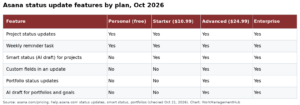
- Status update posted — fires when a project status update (on track / at risk / off track) is published
- Milestone reached — fires when a milestone task is completed
- Uncheck any event types that don’t require channel-level visibility — for most project channels, “task commented on” generates the most noise and is most safely disabled at the channel level (team members can still see comments in Asana or in their personal notifications).
- Click “Save” to apply the notification scope. Changes take effect immediately for new events.
Recommended event configurations by channel type:
| Channel Type | Recommended Events to Enable |
|---|---|
| Active project channel | Task created, Task completed, Status update posted, Milestone reached |
| Daily standup / updates channel | Task completed, Milestone reached |
| Leadership / exec channel | Status update posted, Milestone reached |
| Deadline tracking channel | Task due date approaching, Task completed |
This pairs well with a broader notification strategy. If your team is also using Asana’s built-in rules engine, see our guide to Asana automations to avoid doubling up on alerts triggered by both automations and the Slack integration. For teams exploring intelligent notification routing, Asana AI rules can further reduce manual configuration overhead by suggesting notification patterns based on team behavior.
Task Creation Workflow: From Slack Message to Asana Task
Understanding the full task creation workflow helps teams build consistent habits around how they use the integration. There are three distinct ways to create Asana tasks from Slack, each suited to a different context.
Method A: The slash command dialog
- Type
/asanain any channel and press Enter to open the task creation modal. - Fill in the Task Name field — this is the only required field; all others are optional but strongly recommended for keeping your Asana project clean.
- Select the Assignee — start typing a team member’s name or Asana username. The dropdown auto-completes from your Asana workspace members.
- Set a Due Date using the date picker — tasks without due dates are the primary cause of Asana project staleness, so treat this field as mandatory for your team even if the app doesn’t enforce it.
- Choose the Project from the dropdown — this determines where the task lands in Asana. If you select a project that has sections, you can also select the target section.
- Add a Description with any relevant context from the Slack conversation — paste in the relevant message text, a link, or notes so the task is self-contained when someone opens it in Asana.
- Click “Create Task” — the task appears immediately in the selected Asana project, and a confirmation card is posted to the Slack channel with a direct link to the task.
Method B: The message action (turning any message into a task)
- Hover over the Slack message you want to convert into a task.
- Click the three-dot “More actions” icon that appears to the right of the message.
- Select “Create Asana task” from the actions menu. The task creation modal opens with the message text pre-populated in the description field.
- Edit the Task Name to be a clear action item rather than the raw message text (Slack message text often reads as conversation rather than a task instruction).
- Complete the remaining fields and click “Create Task.”
Method C: Approving a task creation request from a teammate
When a team member creates a task using Method A or B and assigns it to you, you will receive a Slack notification from the Asana app that includes the task details and a direct link to open it in Asana. You can also reply to the notification card to add a comment to the Asana task without leaving Slack.
Asana Slack Integration: Troubleshooting Common Errors
Even with a correct setup, teams run into a handful of recurring issues. Here are the most common errors and their fixes.
Error: “You don’t have permission to connect apps to this workspace”
- Confirm your Asana role by going to Settings → Members and checking your role column. You need Owner or Admin.
- If you are a Member, ask your Workspace Owner to either elevate your role temporarily or complete the Asana authorization step themselves while you handle the Slack side.
- If the error persists after confirming Admin status, check whether your Asana workspace has a third-party app policy that restricts which apps can be connected — this is found in Admin Console → Security → App approvals.
Error: Slack app install is blocked / requires admin approval
- This is a Slack workspace-level restriction, not an Asana issue. Your Slack workspace admin has enabled the app approval workflow.
- Submit an install request through Slack — the app directory page will show a “Request to Install” button instead of “Add to Slack.” This sends your Slack admin a notification to approve the install.
- Alternatively, your Slack admin can install the Asana app directly from the Admin section of Slack (Slack Admin → Manage Apps → Install an App).
Error: /asana command not found in a specific channel
- The Asana app must be added to the channel before slash commands work there. Type
@Asanain the channel — if you see a prompt to add the app, click it. - Alternatively, go to the channel settings (click the channel name → Integrations → Add an App) and add Asana from there.
- In private channels, you must explicitly invite the Asana app by typing
/invite @Asana— apps are not automatically added to private channels even after workspace-level installation.
Error: Notifications stopped appearing after they were working
- Check whether the Asana app was removed from the channel — go to channel settings → Integrations to verify Asana is still listed.
- Re-authenticate the integration in Asana’s Admin Console (Settings → Apps → Slack → Reconnect) — tokens occasionally expire or are revoked when a user who authorized the integration leaves the workspace or has their permissions changed.
- Check Asana’s status page at trust.asana.com to rule out a service-level incident affecting the integration.
Error: Tasks created from Slack appear in Asana but with no project assigned
- This happens when the “Project” field is left blank during task creation in the Slack modal. The task lands in “My Tasks” without a project.
- Train your team to always complete the Project field — consider adding a team-level rule in Asana that flags unassigned or unprojectified tasks for triage.
- Use
/asana linkto set a default project for the channel — when a channel is linked to a project, the task creation modal pre-selects that project, reducing the chance of the field being skipped.
Advanced Tips: Getting More from the Integration
Once the core integration is running smoothly, these advanced configurations further increase the return on your setup investment.
Use Slack channels as project communication hubs: Link your primary project channel to the corresponding Asana project and train the team to post all project-related discussion in that channel. The Asana notifications that flow back into the channel become a running project log — visible to anyone who joins the channel later, and searchable without opening Asana.
Combine the Slack integration with Asana reporting: If you’re using Asana reporting dashboards, you can post a link to the live dashboard in the pinned messages of your project Slack channel. This gives stakeholders a one-click path from the conversation to the current project health view.
Route high-priority Slack conversations to Asana tasks automatically: Set up a Slack workflow (using Slack’s Workflow Builder) that triggers when a message is reacted to with a specific emoji (e.g., a checkmark or clipboard icon) and calls the Asana API to create a task. This creates a “reaction-to-task” pattern that many ops teams use for inbox triage.
Integrate with Asana’s rules engine for closed-loop updates: Create Asana automation rules that post a Slack message when a rule fires — for example, “When a task moves to the ‘Blocked’ section, notify #project-channel.” This creates bidirectional flow: Slack messages become Asana tasks, and Asana state changes post back to Slack. See our full guide to Asana automations for the rule setup steps.
Manage the integration alongside your Asana workspace configuration: If you’re evaluating Asana as a platform, the Slack integration is one of many factors to consider. Our full Asana review covers how integrations, pricing, and features compare across plans and alternatives.
For the official Slack API documentation on Asana’s Slack app permissions, see the Asana listing in the Slack App Directory.
The Asana–Slack integration is one of the most practical connections in the project management tool ecosystem, and it is genuinely underused by most teams that have it installed. The setup is straightforward once you clear the admin permission hurdle — which this guide leads with precisely because it’s where most installs fail. The real value comes not from the installation itself but from the channel-level configuration: linking the right projects to the right channels, scoping notifications to the events that matter, and training the team to use /asana and the message action consistently. Teams that invest fifteen minutes in this configuration typically save hours per week of context-switching and follow-up. For organizations running Asana on the Starter plan or above, there is no additional cost, making this one of the highest-ROI setup tasks available.
Frequently Asked Questions
Is the Asana–Slack integration free?
The integration itself has no additional cost — it is included with any paid Asana plan (Starter at $10.99/user/month and above). It is not available on the Asana Free plan. On the Slack side, the Asana app is free to install on any Slack plan, including the free tier, though free Slack workspaces have a limit on the number of apps they can install. There are no usage fees or per-message charges tied to the integration on either platform.
Can I link one Asana project to multiple Slack channels?
Yes. A single Asana project can be linked to as many Slack channels as needed, and each channel can have different notification event settings for the same project. For example, you might link a project to both #project-alpha (receiving all events) and #leadership-updates (receiving only status updates and milestone completions). Each channel’s settings are configured independently using /asana link in that channel.
What happens to tasks created in Slack if the integration is disconnected?
Tasks already created in Asana remain intact — disconnecting the integration does not delete any Asana data. The tasks exist permanently in your Asana workspace and are fully editable and manageable from Asana directly. What you lose when the integration is disconnected is the bidirectional notification flow and the ability to create new tasks via /asana in Slack. Reconnecting the integration restores all functionality without affecting existing tasks.
Why are my /asana commands not working in a private Slack channel?
Private Slack channels require the Asana app to be explicitly invited before slash commands work. This is a Slack security feature — apps don’t automatically join private channels even when they’re installed at the workspace level. To fix it, type /invite @Asana in the private channel to add the app. Once invited, all /asana commands and the message action will work normally in that channel. You’ll need to do this separately for each private channel where you want the integration active.
Can individual team members control which Asana notifications they receive in Slack?
Yes and no. Channel-level notification settings apply to everyone in that channel — they are set by whoever runs /asana link and configures the events, and they are not overridable at the individual user level within the channel. However, individual users can control their personal Asana notification preferences (which Asana-generated messages appear in their direct messages from the Asana bot) by going to their Asana profile settings under Notifications. The two notification streams — channel-level project updates and personal DM notifications — are independent of each other and can be tuned separately.