How to Use Asana AI Rules in 2026: Smart Automation Setup for Any Team
- Asana’s Winter 2026 release introduced the Collaborator is added trigger and the ability to pause individual rules within a bundle — two features almost no tutorial covers yet.
- There are now three distinct automation tiers in Asana: standard Rules (Starter+), AI Studio (Advanced+), and AI Teammates (Enterprise+) — each with different capabilities and plan requirements.
- AI-powered project selection — where AI automatically routes new tasks to the right project — is a Winter 2026 feature that eliminates intake bottlenecks at scale.
- AI Teammates ship with 21 prebuilt role templates across Marketing, Operations, IT, and Product — meaning most teams can activate autonomous agents without writing a single rule from scratch.
- Competitor guides focus only on standard Rules and miss AI Studio and AI Teammates entirely — putting teams that rely on those guides one major capability tier behind.
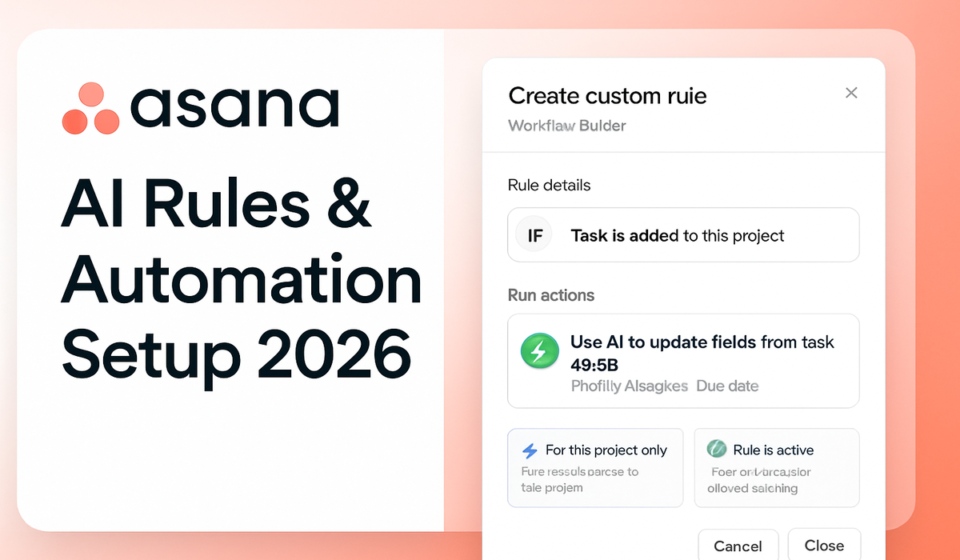
To use Asana AI automation rules in 2026, go to Project Settings > Rules > + Add Rule for standard triggers, or open AI Studio on an Advanced plan to describe automations in plain English. For fully autonomous agents, activate AI Teammates from Organization Settings on Enterprise plans.
- Why Asana AI Automation Rules Matter in 2026
- The Three Automation Tiers: Rules, AI Studio, and AI Teammates
- How to Set Up Standard Rules (Step by Step)
- Winter 2026 Rule Features Most Teams Are Missing
- How to Use AI Studio: Natural-Language Asana AI Automation Rules 2026
- AI Teammates: Autonomous Agents for Enterprise Teams
- AI-Powered Project Selection: Solving the Intake Routing Problem
- Plan-by-Plan Automation Capability Comparison
- Best Practices for Managing Asana AI Automation Rules 2026
- Verdict
- Frequently Asked Questions
How to Use Asana AI Automation Rules 2026: Smart Setup for Any Team
If you searched for a guide to Asana AI automation rules 2026 and landed on an article that only talks about standard if-then rules, you found the wrong resource. Most tutorials — including the ones ranking at the top of Google today — were written before Asana’s AI roadmap accelerated dramatically. They walk you through trigger-and-action rule builders that have existed since 2019 and say nothing about AI Studio or AI Teammates, both of which fundamentally change how automation works in Asana.
This guide closes that gap. As a work management consultant who advises teams daily on Asana configuration, I’ll walk you through all three automation tiers, highlight the Winter 2026 features that have flown under the radar, and give you a realistic view of which capability is right for your team’s plan and maturity level.
By the end, you’ll understand not just how to click the right buttons, but why each layer of Asana AI automation exists and how to combine them into a system that genuinely reduces manual work rather than adding complexity.
Why Asana AI Automation Rules Matter in 2026
Work management tools have always promised automation. The difference in 2026 is that Asana’s automation has split into three genuinely distinct systems — and choosing the wrong one for your use case costs you either capability or unnecessary complexity.
Standard Rules are deterministic: if X happens, do Y. They’re reliable, auditable, and available on every paid Asana plan. But they require you to anticipate every scenario in advance and configure each one manually. At scale — say, an operations team managing 15 intake workflows — this becomes unmanageable.
AI Studio changes the authoring experience. Instead of building rule logic in a UI, you describe what you want in plain English and Asana’s AI constructs the rule for you. This dramatically lowers the skill floor for building complex automations and makes non-technical project managers self-sufficient.
AI Teammates go further still: they’re not rules at all in the traditional sense. They’re autonomous AI agents assigned to roles — Marketing Coordinator, IT Helpdesk, Product Intake Manager — that monitor projects, respond to context, and take actions without being told to. They represent a different architectural model for how work gets routed and executed in Asana.
Understanding the difference between these three tiers isn’t academic — it directly determines your automation strategy, your training plan, and in some cases your Asana contract renewal decision.
The Three Automation Tiers: Rules, AI Studio, and AI Teammates
Before diving into setup steps, here is a clear-eyed breakdown of what each tier does, what plan it requires, and where it sits in the automation hierarchy.
Tier 1 — Standard Rules
Standard Rules use a structured trigger-condition-action framework. You pick a trigger (a task is added, a field changes, a due date approaches), optionally add filter conditions, then define one or more actions (assign a user, move to a section, send a notification, create a subtask). Rules can be bundled — grouped into reusable packages you can apply across multiple projects — and since Winter 2026, individual rules within a bundle can be paused independently. Available on Starter plan and above.
Tier 2 — AI Studio
AI Studio is Asana’s natural-language automation builder. You open it from the Rules panel and describe your automation in conversational text. AI Studio interprets your intent, selects the appropriate triggers and actions, and generates a rule you can review and activate. It handles ambiguity better than a rigid UI — you can say “when a high-priority design task is added, assign it to the design lead and flag it in the creative review section” and AI Studio handles the translation. Requires the Advanced plan (formerly known as Business).
Tier 3 — AI Teammates
AI Teammates are the newest and most powerful tier. These are autonomous AI agents that Asana has pre-trained for specific workplace roles. There are 21 prebuilt roles spanning Marketing (Social Media Coordinator, Campaign Manager, Content Strategist), Operations (Intake Manager, Process Coordinator), IT (Helpdesk Agent, Change Manager), and Product (Backlog Groomer, Sprint Facilitator, Release Coordinator). Each AI Teammate monitors the projects it’s assigned to, interprets incoming work, and takes actions — without a human-authored rule governing each scenario. Requires Enterprise or Enterprise+ plan.
For a deeper look at how Asana stacks up against competing platforms on automation depth, see our Asana vs. Monday.com automation comparison.
How to Set Up Standard Rules (Step by Step)
Even if you eventually move to AI Studio or AI Teammates, understanding the standard Rules builder is essential — it’s the foundation all other automation builds on, and it’s where you’ll troubleshoot when higher-tier automations behave unexpectedly.
- Open Project Settings > Rules — From any Asana project, click the three-dot overflow icon in the top-right corner of the project header, or click the gear icon, and select Rules from the menu. This opens the Rules panel for that specific project.
- Click + Add Rule — In the top-right corner of the Rules panel, click the + Add Rule button. You’ll see a blank rule canvas with a Trigger, optional Conditions, and Actions sections.
- Select your trigger — Click + Add Trigger and browse the trigger library. Common triggers include: Task added to this project, Task is completed, Due date is approaching, Custom field changes, Task moved to a section, and — new in Winter 2026 — Collaborator is added. Select the trigger that matches the real-world event you want to respond to.
- Add conditions (optional but recommended) — Click + Add Condition to filter which tasks the rule applies to. For example, if your trigger is “Task added to project” but you only want to act on tasks where
Priority = High, add that as a condition. Without conditions, rules fire on every instance of the trigger, which often leads to unintended noise. - Define your actions — Click + Add Action and choose what Asana should do. You can stack multiple actions in sequence: assign a user, set a custom field, move to a section, send a message, create a subtask, or add a collaborator. Order matters — actions execute top to bottom.
- Name the rule descriptively — Use a naming convention your team can read at a glance, such as
[Project] Trigger > Action(e.g., Intake: Task Added > Assign to Triage Queue). Click Create rule. The rule activates immediately. - Test and verify with run history — Perform the trigger action manually (add a test task, change a field, etc.), then return to Project Settings > Rules and click the rule to view its run history. Confirm it fired and that the actions completed as expected. If it didn’t fire, check your conditions — overly restrictive filters are the most common culprit.
For more on organizing Asana projects effectively before automation, read our guide on Asana project structure best practices.
Winter 2026 Rule Features Most Teams Are Missing
The Winter 2026 Asana release shipped two rule-layer changes that have received almost no coverage in existing tutorials. Both have meaningful operational impact.
The “Collaborator is added” Trigger
This trigger fires whenever a new collaborator is added to a task. Before this release, there was no way to automate based on collaboration events — you could act on assignee changes, field changes, or task movement, but adding a stakeholder to a task was a dead spot in the trigger library.
Now you can build rules like: “When a collaborator is added to a task in the Legal Review section, send a notification to the Legal team lead and set the Legal Review Status field to Pending Review.” For teams that rely on collaboration as a signal of task escalation or handoff, this fills a real workflow gap.
To use it: in the trigger selector, scroll to the Collaboration category and choose Collaborator is added. You can optionally filter by which collaborator was added if you want the rule to fire only for specific users.
Pausing Individual Rules Within a Bundle
Rule bundles let you group related rules and deploy them across multiple projects simultaneously. Until Winter 2026, if one rule in a bundle was causing problems, your only option was to disable the entire bundle — which broke every other rule in the group — or detach and rebuild.
Now you can pause a single rule inside a bundle without affecting the others. To do this: go to Project Settings > Rules, find the bundle, expand it to see individual rules, hover over the rule you want to pause, and click the Pause toggle. The rule is suspended for that project only; the rest of the bundle continues running.
This is a significant improvement for operations teams maintaining large rule bundles across many projects. It makes bundle management safe enough to actually use at scale — something that felt risky before because a bad rule could only be neutralized by breaking everything around it.
How to Use AI Studio: Natural-Language Asana AI Automation Rules 2026
AI Studio is where Asana AI automation rules in 2026 start to look genuinely different from anything that existed three years ago. The core shift is that you no longer need to understand Asana’s trigger-condition-action architecture to build a useful rule. You need to understand your workflow and be able to describe it clearly.
AI Studio is available on the Advanced plan. If you’re on Starter or Premium (legacy plans), you’ll see the AI Studio entry point but won’t be able to activate rules built there.
- Open AI Studio from the Rules panel — Navigate to Project Settings > Rules, then click Open AI Studio in the top section of the Rules panel. This launches the AI Studio interface, which looks like a conversational input area rather than a rule builder.
- Describe your automation in plain English — Type a description of what you want. Be specific: mention the trigger event, any conditions that should filter it, and the actions you want taken. Example: “When a task tagged as ‘Client Deliverable’ is marked complete, notify the account manager via Asana message and set the ‘Client Status’ field to ‘Ready for Review.'” AI Studio handles ambiguous language reasonably well but responds better to specific field names and section names from your actual project.
- Review the generated rule — AI Studio displays the rule it built from your description. Review the trigger, conditions, and actions to confirm they match your intent. If something is off, you can edit the description and regenerate, or manually adjust specific fields in the rule preview.
- Activate the rule — Click Activate (or Create rule depending on your plan’s UI variant). The rule goes live immediately and appears in your Rules panel like any manually built rule.
- Iterate based on run history — AI Studio-generated rules are functionally identical to manually created ones — they appear in run history, can be edited, and can be added to bundles. Use the same monitoring process as standard rules to verify they’re firing correctly.
Consultant’s note: The most common AI Studio mistake I see is describing automations at too high a level — “handle intake tasks automatically” rather than specifying the exact trigger and fields. AI Studio is powerful, but it reads your project structure. Use the actual names of your custom fields, sections, and tags from the project when prompting it.
For additional context on how AI is reshaping project management tools broadly, see our overview of AI features in project management tools in 2026.
AI Teammates: Autonomous Agents for Enterprise Teams
AI Teammates are categorically different from both standard Rules and AI Studio. They are not rules — they are autonomous AI agents that hold a defined role within your organization’s Asana workspace and act with context-awareness rather than pre-scripted logic.
Asana ships 21 prebuilt AI Teammate roles. The current roster spans four functional domains:
- Marketing: Social Media Coordinator, Campaign Manager, Content Strategist, Event Coordinator, Brand Compliance Reviewer
- Operations: Intake Manager, Process Coordinator, Cross-Functional Tracker, Resource Allocator
- IT: Helpdesk Agent, Change Manager, Incident Coordinator, Compliance Monitor
- Product: Backlog Groomer, Sprint Facilitator, Release Coordinator, Feature Request Triage, Stakeholder Communicator
Each AI Teammate is trained on the responsibilities and decision patterns of its named role. When activated in a project, it monitors task activity, interprets context (task names, descriptions, custom field values, comments), and takes actions — such as triaging incoming requests, updating statuses, sending summaries, or flagging blockers — autonomously.
- Navigate to Organization Settings > AI Teammates — This option is only available to Asana Admins on Enterprise or Enterprise+ plans. If you don’t see it in Organization Settings, your plan doesn’t include AI Teammates.
- Browse the 21 prebuilt role templates — Select the template that most closely matches the role you want to fill. Each template includes a description of what the AI Teammate does, what project types it works best in, and what permissions it needs.
- Configure scope and permissions — Define which projects the AI Teammate has access to, what actions it’s permitted to take (read-only vs. write vs. message-sending), and any escalation rules — situations where it should flag a human rather than acting autonomously.
- Assign the AI Teammate to projects — Activate the AI Teammate in specific projects. It appears as a named agent in the project member list, distinct from human collaborators.
- Monitor via the AI Teammate activity log — In Organization Settings > AI Teammates, you can view an activity log for each agent: what actions it took, what tasks it touched, and how decisions were made. This is the primary governance tool for enterprise admins managing multiple AI Teammates.
AI Teammates are most effective in high-volume, repetitive intake workflows where the variability is modest and the cost of human triage is significant. A marketing team handling 200+ creative requests per month, or an IT team managing an internal helpdesk queue, will see the highest ROI. They’re less effective in highly bespoke or judgment-heavy workflows where context that isn’t captured in Asana task data matters significantly.
For guidance on setting up your Asana workspace to support enterprise-scale automation, see our guide on Asana enterprise workspace setup and governance.
AI-Powered Project Selection: Solving the Intake Routing Problem
One of the most practically valuable Winter 2026 features is AI-powered project selection — and it’s the one that solves a problem most operations teams have tried to fix with complicated manual rules that inevitably break.
The problem: when tasks are created via forms or external integrations, someone has to decide which project they belong in. In teams running multiple simultaneous work streams — a marketing team managing campaign, brand, content, and social projects simultaneously — this routing decision is made dozens of times per day and is almost always done manually or via brittle rules that depend on a single field value being filled in correctly.
AI-powered project selection changes this. When a task is created (typically via a form submission), Asana’s AI analyzes the task’s full content — the title, the description, all custom field values, and metadata about the requester — and selects the most appropriate destination project automatically. It doesn’t rely on a single dropdown being filled in correctly. It reads the whole task.
How to Enable AI-Powered Project Selection
- Open the relevant intake form — Navigate to Project Settings > Forms and open the intake form where new tasks originate.
- Open form routing settings — In the form editor, click Settings (or the gear icon) and find the Task Routing section. On Advanced and Enterprise plans, you’ll see an option for AI-powered project selection alongside the standard conditional branching options.
- Enable AI routing and define eligible projects — Toggle on AI-powered project selection, then define the pool of projects the AI should consider as routing destinations. You can restrict this to a defined list or allow the AI to consider all projects in the workspace (not recommended for large organizations).
- Set a fallback routing rule — Define where tasks go if the AI’s confidence score falls below a threshold. Typically this is a dedicated “Unrouted” or “Needs Triage” project that a human reviews. Do not skip this step — unconfident AI routing with no fallback creates tasks that land in unpredictable places.
- Test with representative submissions — Submit test form responses covering your most common request types and verify routing decisions in the destination projects. Check the routing rationale (displayed in the task’s automation history) to understand why the AI chose each destination.
For reference, Asana’s official documentation on setting up rules and automation covers the core Rules framework, and their AI Studio documentation covers the natural-language authoring layer.
Plan-by-Plan Automation Capability Comparison
One of the most frustrating experiences in Asana is discovering a feature you need is locked to a plan tier above yours. Here’s a clear breakdown of what you get at each level for Asana AI automation rules in 2026.
| Feature | Starter | Advanced | Enterprise | Enterprise+ |
|---|---|---|---|---|
| Standard Rules (trigger/action) | ✓ | ✓ | ✓ | ✓ |
| Rule Bundles | ✓ | ✓ | ✓ | ✓ |
| Pause individual rules in bundle (Winter 2026) | ✓ | ✓ | ✓ | ✓ |
| Collaborator is added trigger (Winter 2026) | ✓ | ✓ | ✓ | ✓ |
| AI Studio (natural-language rule building) | — | ✓ | ✓ | ✓ |
| AI-powered project selection | — | ✓ | ✓ | ✓ |
| AI Teammates (21 prebuilt roles) | — | — | ✓ | ✓ |
| AI Teammate activity log and governance | — | — | ✓ | ✓ |
| Custom AI Teammate role creation | — | — | — | ✓ |
The practical threshold for most mid-market teams is the Advanced plan — it unlocks AI Studio and AI-powered project selection, which together handle the bulk of high-value automation use cases without requiring the organizational overhead of managing autonomous AI agents. Enterprise is the right call if you have high-volume intake workflows and dedicated ops staff to govern AI Teammate behavior.
Best Practices for Managing Asana AI Automation Rules 2026
After configuring Asana automation for teams ranging from 10-person startups to multi-division enterprises, the failure modes are consistent. Here are the practices that separate teams whose automation compounds value over time from teams who end up with a tangle of conflicting rules nobody understands.
1. Establish a naming convention before you build
Every rule should have a name that communicates its trigger, scope, and action without anyone needing to open it. Use the format: [Project/Team] — Trigger: Action. Ambiguously named rules get disabled by admins who don’t know what they do, and never re-enabled.
2. Document your rule logic in a central register
Maintain a simple Asana project (or even a sheet) that lists every active rule, its bundle membership, its purpose, its owner, and its last verified test date. This becomes essential when team members leave or when a rule starts firing unexpectedly. AI Studio-generated rules are especially important to document — their plain-English origin can mislead future editors into assuming they’re simpler than they are.
3. Use bundles for cross-project consistency, not for convenience
Bundles are powerful but dangerous when used casually. A rule that works perfectly in a marketing project may cause problems in an operations project with different field structures. Only bundle rules that are genuinely identical in behavior across the projects you’ll deploy them to. Use the Winter 2026 individual rule pause feature as a recovery mechanism, not a substitute for careful bundle design.
4. Set notification rules conservatively
The fastest way to erode trust in your automation system is to flood team members with notifications. Notification actions should require at least one filter condition — never fire a notification on a raw trigger with no conditions attached. Start with narrower notification scope than you think you need and expand based on actual feedback.
5. Audit AI Teammates quarterly
AI Teammates act autonomously, which means their impact compounds — for better or worse — over time. Schedule a quarterly review of the AI Teammate activity log for each active agent: what actions it took most frequently, whether any actions were inappropriate, and whether the role’s project assignments still make sense given team changes.
For a comprehensive look at optimizing team workflows in Asana beyond automation alone, see our guide to Asana workflow optimization for growing teams.
Asana’s official AI Teammates documentation is the authoritative reference for governance settings and permission configuration at the enterprise level.
Verdict
For most teams in 2026, the right Asana automation strategy is layered: use standard Rules for deterministic, high-frequency triggers where predictability matters; use AI Studio to build complex rules faster without needing to master the trigger-condition-action UI; and reserve AI Teammates for high-volume, repetitive intake and coordination workflows where autonomous action compounds value at scale. The Winter 2026 additions — the Collaborator is added trigger, pausable bundle rules, and AI-powered project selection — are not minor polish updates. They close gaps that have frustrated operations teams for years. If you’re on an Advanced or Enterprise plan and haven’t explored AI Studio or evaluated AI Teammates, you’re leaving material automation capacity on the table. Start with AI Studio — the barrier to entry is a clear description of your workflow, and the payoff is faster, more maintainable rule logic from day one.