
- ClickUp automations not working in 2026 most commonly traces to three root causes: hit automation run limits, silently broken trigger links from workspace renames, or a creator who lost space access.
- Every automation runs under the permissions of the user who created it — if that person is offboarded or loses access, every automation they own stops firing with no alert.
- ClickUp 4.0’s Super Agents and Google Drive Automations are powerful but require explicit permission grants in the new role model before they will execute reliably.
- Always check Settings > Automations > Usage before troubleshooting logic — running out of monthly automation runs is silent and stops everything instantly.
- Best practice: designate a permanent “Automation Owner” service account that never changes role or space access, and rebuild critical automations under that account.
ClickUp automations not working in 2026 are almost always caused by one of three silent failures: exceeding plan-level run limits (check Settings > Automations > Usage), a renamed list or folder severing the trigger link, or the automation creator losing space access. Fix the root cause first, then re-save the automation to reactivate it.
- Why ClickUp Automations Not Working 2026 Happens: The Real Causes
- Before You Build: Prerequisites Every Beginner Misses
- How to Set Up ClickUp 4.0 Automations: Step-by-Step
- ClickUp 4.0 Super Agents and Google Drive Automations Explained
- The Permission Inheritance Problem Nobody Talks About
- Diagnosing ClickUp Automations Not Working 2026: A Systematic Checklist
- Best Practices for Reliable ClickUp Automations in 2026
- Verdict
- Frequently Asked Questions
ClickUp Automations Not Working 2026? How to Set Up ClickUp 4.0 the Right Way (Beginner’s Guide)
If your ClickUp automations not working in 2026 is the problem driving you here, you’re not alone. The exact phrase “ClickUp automations not working 2026” is one of the most-searched troubleshooting queries in work management — and for good reason. ClickUp 4.0 shipped significant architecture changes — Super Agents, a revamped permission model, and native Google Drive Automations — and the same features that make ClickUp more powerful in 2026 have also introduced new, silent failure modes that catch even experienced users off guard.
I’ve spent years helping operations and project management teams deploy ClickUp at scale. The pattern I see repeatedly: teams build automations that work perfectly for three weeks, then mysteriously stop. No error message. No notification. Work just falls through the cracks. This guide is written to prevent exactly that outcome — and to give you the step-by-step foundation to build automations that actually stay working.
Why ClickUp Automations Not Working 2026 Happens: The Real Causes
Before you touch a single trigger or action, you need to understand the landscape. ClickUp 4.0 introduced changes that made three failure modes significantly more common. Skipping this section is how you end up building the same broken automation twice.
Cause 1: Plan-Level Automation Run Limits
Every ClickUp plan ships with a monthly automation run cap. In 2026, teams are hitting those caps faster than ever because ClickUp 4.0’s Super Agents generate multiple automation runs per workflow trigger. When you hit your limit, automations silently stop. There is no dashboard alert by default, no email warning, and no indication in the task itself that the automation failed to fire. You have to check proactively.
Check your current usage at Settings > Automations > Usage. Do this before any other troubleshooting step. If you’re at 90% or above, that is your culprit.
Cause 2: Workspace Structural Changes Breaking Trigger Links
This is the most insidious failure mode in ClickUp 4.0. When you rename a List, Folder, or Space, ClickUp does not automatically update automation triggers that reference that structural element. The trigger link breaks silently. The creator of the automation receives no notification. From the automation’s perspective, it is still pointed at the old name — which no longer exists.
This matters enormously in growing teams where workspace reorganization is frequent. A well-intentioned rename during a sprint review can disable a dozen automations across multiple spaces without anyone noticing until a critical task goes unassigned.
Cause 3: Creator Permission Loss
ClickUp runs every automation under the permissions of the user who originally created it. This is not widely documented, and it is the failure mode that most competitor guides completely miss. If the creating user is removed from a space, has their role downgraded, or is offboarded from the workspace entirely, every automation they own stops firing — immediately and without notification.
This is especially dangerous during team transitions. An outgoing project manager who built your entire onboarding automation chain becomes a single point of failure the moment their account is deprovisioned.
Before You Build: Prerequisites Every Beginner Misses
Getting these prerequisites right takes fifteen minutes and saves hours of debugging later. Do not skip them in the name of moving fast.
- Verify Your Plan’s Automation Run Allowance — Navigate to Settings > Automations > Usage and record your monthly limit and current consumption. Free plans get 100 runs/month; Business plans get 25,000; Enterprise is unlimited. If your team is on Free and already running complex flows, upgrade before building more automations.
- Designate an Automation Owner Account — Create or designate a permanent service account (a generic email like automations@yourcompany.com) with Admin-level permissions across every relevant Space. Every critical automation should be owned by this account, not individual users. This eliminates the creator-permission failure mode entirely.
- Audit Current Workspace Structure — Go to your Spaces list and document every Space, Folder, and List name that your existing automations reference. Treat these names as immutable infrastructure. Establish a team norm: renaming requires an automation audit first.
- Enable Automation Notifications — In Settings > Notifications, turn on “Automation errors” under the Admin section. This is off by default in ClickUp 4.0 and gives you at least some visibility when an automation fails to execute.
- Confirm Google Drive Integration Permissions — If you plan to use ClickUp 4.0’s new Google Drive Automations, navigate to Settings > Integrations > Google Drive and verify the integration is authenticated under the Automation Owner account, not a personal account. Automations that call Google Drive under a personal account will break the moment that person’s OAuth token expires or is revoked.
For a deeper look at structuring your ClickUp workspace before adding automation logic, see our guide on ClickUp workspace structure best practices for scaling teams.
How to Set Up ClickUp 4.0 Automations: Step-by-Step
The following walkthrough covers building a reliable automation from scratch in ClickUp 4.0. I’m using a practical example — automatically assigning a task and setting a due date when a task status changes to “In Review” — because it exercises the most common trigger and action types beginners encounter.
- Open the Automation Center — From your left sidebar, click the Space or List you want to automate. In the top-right corner, click the lightning bolt icon (Automations). Alternatively, navigate via Space Settings > Automations > + Add Automation.
- Select “From Scratch” — ClickUp 4.0 surfaces template suggestions immediately. For learning purposes, choose Create From Scratch so you understand every component you’re configuring.
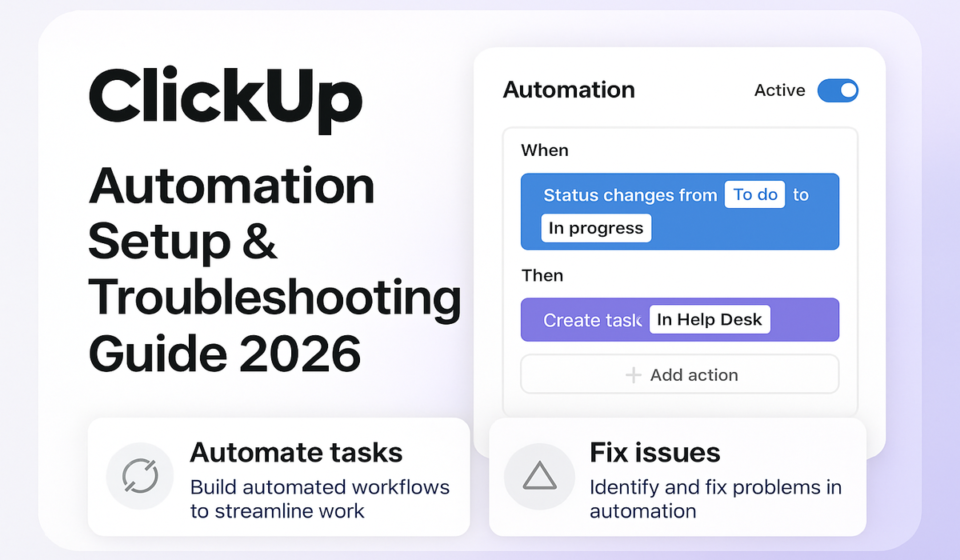
- Set Your Trigger — “Status Changes” — Click + Add Trigger, then select Status Changes from the dropdown. In the “From” field, select Any Status. In the “To” field, select In Review. This fires the automation whenever any task in this List reaches the In Review status.
- Add a Condition (Optional but Recommended) — Click + Add Condition and select Task Type is Standard. This prevents the automation from firing on Milestones or Subtasks unless you intend it to — a common source of unexpected automation behavior in ClickUp 4.0.
- Configure Action 1 — Assign Reviewers — Click + Add Action, select Assign a User, and choose the specific assignee or a role. Use Specific People only if the reviewer is always the same person. Use Task Creator or a Custom Field reference if you want dynamic assignment.
- Configure Action 2 — Set Due Date — Click + Add Action again, select Set Due Date, and choose Relative Date. Set it to +3 Business Days from Trigger Date. This is cleaner than a fixed date and survives across recurring task types.
- Name the Automation Descriptively — Click the default name at the top and replace it with something specific: “Status→InReview: Assign Reviewer + Set 3-Day Due Date [ListName].” Including the List name in the automation title makes bulk auditing dramatically easier as your workspace grows.
- Set the Automation Scope — In the top-right of the automation builder, confirm the scope is set to the correct List, not the entire Space, unless you genuinely want it to fire across all Lists in that Space. Scope creep here is a common cause of duplicate notifications and unintended assignments.
- Save and Test Immediately — Click Save, then manually change a test task’s status to “In Review.” Verify the assignee was set and the due date appeared. Do not rely on logic alone — always run a live test before considering an automation complete.
- Document the Automation in Your Team’s Automation Register — This is a habit, not a ClickUp step. Maintain a shared document or ClickUp Doc listing every active automation, its owner account, its trigger, and the date it was last verified. Teams that skip this step are the ones who find broken automations six months later with no one who remembers building them.
For more complex automation patterns including multi-step approval chains, read our breakdown of building ClickUp approval workflows with automation.
ClickUp 4.0 Super Agents and Google Drive Automations Explained
ClickUp 4.0’s flagship automation additions — Super Agents and Google Drive Automations — are genuinely useful, but they require additional configuration that the standard automation builder does not make obvious.
Super Agents
Super Agents are AI-powered automation actors that can interpret task context, draft responses, summarize threads, and take multi-step actions based on natural language instructions embedded in your automation. Think of them as an automation action that can reason, not just execute a fixed command.
- Enable Super Agents — Navigate to Settings > AI > Super Agents and toggle the feature on. This requires a ClickUp Brain-enabled plan.
- Add a Super Agent Action — In the automation builder, click + Add Action and select Super Agent: Custom Instruction from the AI section.
- Write a Specific Instruction — Avoid vague prompts. Instead of “Summarize this task,” write: “Draft a three-sentence status update for this task based on the task description and most recent comment, formatted as a Slack message.” Specificity dramatically improves reliability.
- Grant Super Agent Space Access — Under Settings > AI > Super Agents > Permissions, confirm the Super Agent has read and write access to every Space it needs to reference. In ClickUp 4.0’s new role model, this is a separate permission grant from your user-level access.
Google Drive Automations
ClickUp 4.0 now supports triggers and actions that reach directly into Google Drive — creating folders on task creation, attaching Drive files when status changes, and more.
- Authenticate Under the Automation Owner Account — Go to Settings > Integrations > Google Drive and connect using the Automation Owner service account’s Google credentials. Personal accounts will cause OAuth expiry failures.
- Select a Google Drive Trigger or Action — In the automation builder, Google Drive options appear under the “Integrations” category. Available triggers include “File added to folder” and “File shared with user.” Actions include “Create folder,” “Copy file,” and “Attach file to task.”
- Map Drive Folder Paths Explicitly — Use full Drive folder paths rather than “current folder” shortcuts. Relative path references break when Drive folder structures are reorganized, mirroring the same problem as ClickUp List renames.
The official ClickUp documentation on Automations Overview covers the full trigger and action library available on each plan.
The Permission Inheritance Problem Nobody Talks About
This section covers the gap that virtually every competitor guide ignores, and it is the failure mode most likely to damage your team’s trust in ClickUp automations.
ClickUp’s automation engine executes every automation as the user who created it. This is called permission inheritance. It means the automation has access to exactly what that user has access to — no more, no less. In ClickUp 4.0’s updated role model, this has broader implications than in previous versions because role assignments now cascade differently across Spaces, Folders, and Lists.
Scenarios Where This Breaks Silently
- Employee Offboarding — An operations manager builds 40 automations across five Spaces, then leaves the company. Their account is deactivated. All 40 automations stop firing. There is no system alert. Tasks stop being assigned, due dates stop being set, and client notifications stop going out. This is discovered only when someone notices things aren’t happening.
- Role Downgrade — A team member who built automations in a Space is moved to a Guest role for billing reasons. Guest accounts in ClickUp 4.0 cannot trigger automation actions that modify task assignees or due dates in Spaces they don’t have edit access to. Every automation they built in that Space stops executing those actions.
- Space Access Revocation — A contractor’s Space access is removed when their project ends. They built automations in that Space. Those automations are now orphaned.
The Fix: Ownership Migration
- Audit Automation Owners — Go to Settings > Automations, click each automation, and check the “Created By” field. Note every automation owned by a real person rather than a service account.
- Rebuild Under the Service Account — Log in as your Automation Owner service account and recreate each at-risk automation. Delete the original once the replacement is confirmed working.
- Lock the Service Account’s Role — Set the Automation Owner account to Admin and add a calendar reminder to review its access quarterly. Do not let this account’s permissions change without an automation audit.
Understanding how ClickUp roles interact with automation is also covered in our post on ClickUp role and permissions setup for 2026.
Diagnosing ClickUp Automations Not Working 2026: A Systematic Checklist
When an automation stops firing, resist the urge to rebuild it immediately. Go through this checklist in order. Most failures are diagnosed and resolved within ten minutes using this sequence.
- Check Run Limits — Settings > Automations > Usage — If you’re at or above your monthly limit, no automation will fire. Purchase additional runs or wait for the monthly reset. This is always Step 1.
- Confirm the Automation is Enabled — Open Space Settings > Automations and verify the toggle next to the automation is green (active). It can be accidentally toggled off.
- Check for Renamed Triggers — Click into the automation and inspect every trigger. If a trigger references a List, Folder, or Status that no longer exists by that exact name, the trigger field will show a warning or be blank. Re-select the correct element and save.
- Verify the Creator’s Account Status — Confirm the “Created By” user is still active, still has the correct role, and still has access to the Spaces involved in the automation.
- Review the Automation History Log — Inside the automation builder, click History in the top-right. This shows the last 30 days of trigger events, whether they succeeded or failed, and a brief error code if they failed. Error code 403 almost always means permission failure. Error code 404 almost always means a renamed or deleted structural element.
- Test with a Manual Trigger — Some automation builders allow a manual test run. If yours does, use it and watch for error messages in real time.
- Check Integration Authentication for Third-Party Actions — If the automation involves Slack, Google Drive, or another integration, navigate to Settings > Integrations and confirm the integration is still authenticated. OAuth tokens expire.
For Slack-specific integration failures, see our guide on troubleshooting the ClickUp-Slack integration in 2026.
The official ClickUp help article on Troubleshooting Automations provides additional error codes and their meanings.
Best Practices for Reliable ClickUp Automations in 2026
Building automations that hold up over months and team changes requires discipline beyond the initial setup. These practices separate teams whose automations reliably work from teams who constantly wonder why they don’t.
- Single Ownership, Single Account — Every automation, without exception, should be owned by your designated Automation Owner service account. Individual user ownership is a liability.
- Name Every Automation with [Space/List] Prefix — Format: “[Space Name] — Trigger: Action Description.” This makes bulk audits tractable when you have 50+ automations across a workspace.
- Treat Workspace Structure as Infrastructure — Before renaming any Space, Folder, or List, run a global search for automations referencing that element. ClickUp 4.0 does not do this for you. Build it into your team’s renaming checklist.
- Set a Monthly Automation Audit Reminder — On the first day of each month, open Settings > Automations > Usage and run through your top ten most business-critical automations to confirm they’re still active and logging successful runs in History.
- Cap Automation Chains at Four Steps — Automations that trigger other automations (chained automations) multiply your run count and create debugging nightmares. If a workflow requires more than four sequential steps, break it into two separate named automations with a manual checkpoint between them.
- Use Conditions Aggressively — Every automation should have at least one condition to prevent unintended firing. A bare trigger-action automation with no conditions will eventually fire on a task you didn’t expect.
- Document in a ClickUp Doc, Not a Spreadsheet — Maintain an Automation Register as a ClickUp Doc in a dedicated “Operations” Space. Include: automation name, owner account, trigger, action(s), last tested date, and the name of the person who built it. Link the Doc to each automation’s description field.
For teams building out a full operations stack, our resource on the ClickUp operations playbook for 2026 covers how to systematize automation governance at scale.
ClickUp 4.0 automations are among the most capable in the work management space in 2026 — but they are also more fragile than ClickUp’s marketing suggests. The platform does not protect you from silent failures caused by renamed lists, creator permission loss, or exhausted run limits. The teams that get reliable, long-running automation are the ones who treat automation as infrastructure: they designate a permanent service account as owner, they audit monthly, and they document everything. If you take only one action after reading this guide, make it this: go to Settings > Automations > Usage right now, check your run count, and identify every automation owned by a real person rather than a service account. Fix those two things first. Everything else is refinement.
Related guides
Frequently Asked Questions
Why do my ClickUp automations stop working after a few weeks?
The most common cause is a workspace structural change — a List, Folder, or Space was renamed after the automation was built, and ClickUp silently severed the trigger link without notifying you. The second most common cause is hitting your plan’s monthly automation run limit, which stops all automations immediately with no alert. Check Settings > Automations > Usage first, then open each automation and inspect the trigger fields for missing or blank references. Re-selecting the correct structural element and saving the automation will usually restore it.
Does ClickUp notify you when an automation fails?
Not by default in ClickUp 4.0. You must manually enable automation error notifications under Settings > Notifications > Automation errors for Admins to receive alerts. Even with notifications enabled, some failure types — particularly creator permission loss — do not generate alerts. This is a known gap. The only reliable detection method is regular review of the automation History log inside each automation’s builder, which shows the last 30 days of execution results.
Can I transfer automation ownership in ClickUp 4.0 without rebuilding from scratch?
As of 2026, ClickUp does not offer a native “transfer ownership” button for individual automations. The workaround is to log in as the new owner account, duplicate the existing automation (using the three-dot menu inside the automation builder), and then delete the original. The duplicate will be created under the currently logged-in user’s account, making that user the new owner. Always test the duplicated automation before deleting the original to confirm it fires correctly under the new account’s permissions.
How do ClickUp 4.0 Super Agents count against my automation run limit?
Each Super Agent action within an automation counts as one automation run, in addition to the base automation trigger run. An automation with a trigger and two Super Agent actions therefore consumes three runs each time it fires. Teams using Super Agents heavily can exhaust their monthly run allowance much faster than they expect based on historical usage. Monitor your usage at Settings > Automations > Usage weekly during the first month after deploying Super Agent automations, and adjust your plan tier or automation frequency accordingly.
Do ClickUp automations work across different Spaces?
Yes, but with important caveats. Cross-Space automations require that the automation creator (or owner account) has edit-level access to every Space the automation reads from or writes to. In ClickUp 4.0’s updated role model, Space-level permissions are evaluated independently — having Admin access to Space A does not automatically grant write access for automation actions in Space B. If a cross-Space automation is failing, always verify that the owner account’s role is set to Member or above in every Space the automation touches, not just the Space where the automation lives.
Sponsored