Smartsheet Portfolios & Scenario Planning: The Complete Enterprise Guide 2026

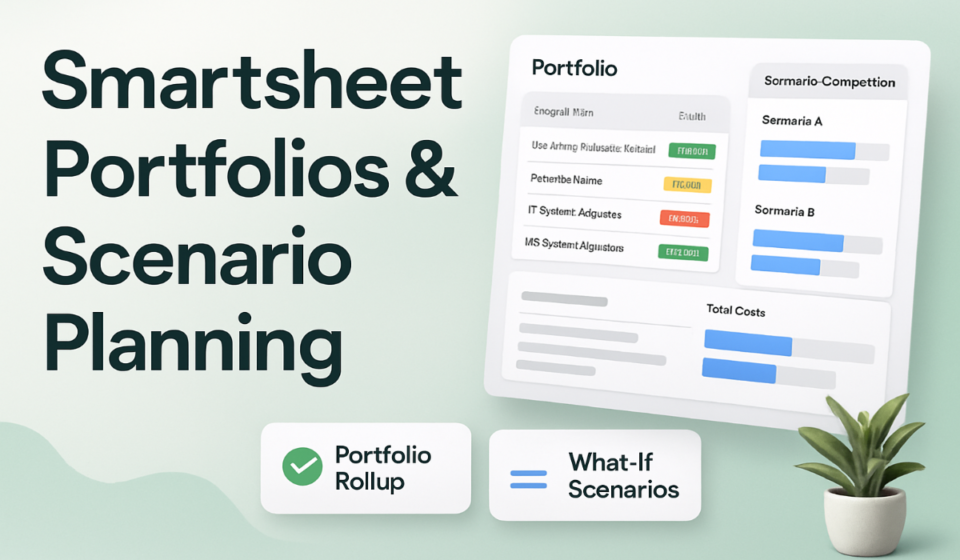
- Smartsheet Portfolios gives enterprise PMOs a standardized, repeatable way to launch and roll up groups of related projects — eliminating the data normalization chaos that kills cross-project reporting.
- Scenario Planning creates a full sandbox layer on top of live plans: model resource shifts, timeline changes, and budget trade-offs without touching production data until leadership approves.
- Both features are Enterprise-only — Smartsheet is targeting organizations that have outgrown per-project management but don’t want to pay for dedicated PPM tools like Planview or Clarity.
- The Claude/MCP Server integration turns your portfolio into a queryable AI command center — ask natural language questions across hundreds of projects and get synthesized answers in seconds.
- Teams migrating from Microsoft Project Server will find Portfolios familiar but dramatically faster to configure, with no dedicated IT setup required.
- What Smartsheet Portfolios Actually Does (And What It Doesn’t)
- Scenario Planning: Why This Changes Enterprise Resource Decisions
- Setting Up Your First Portfolio: The Right Way
- Running What-If Scenarios Without Breaking Live Plans
- AI Integration: Querying Your Portfolio with Claude
- Who Benefits Most — and Who Should Wait
- How It Compares to Planview, Wrike, and Monday.com
- FAQ
Smartsheet has been repositioning itself from a “better Excel” into a genuine enterprise work management platform for three years. The GA release of Portfolios and Scenario Planning marks the clearest signal yet that it’s serious about competing with Planview and Clarity for the program management layer that large organizations have historically purchased separately.
What Smartsheet Portfolios Actually Does (And What It Doesn’t)
Portfolios addresses a specific failure mode that affects virtually every organization running multiple concurrent projects: the inability to see cross-project risk until it’s already a crisis. By the time a PMO director discovers that Project B’s kickoff date depends on a deliverable from Project A that’s three weeks behind, both projects are already in trouble.
The core mechanism is template-enforced standardization. Every project entering a portfolio inherits a predefined structure — consistent columns, status fields, milestone definitions, rollup metrics. This solves the data normalization problem that makes enterprise reporting so expensive: most large teams waste weeks per quarter reconciling project data collected in incompatible formats.
✅ What Portfolios Delivers
- Standardized intake: New requests enter through a form and convert to project plans automatically — no manual sheet creation, no rogue structures.
- Portfolio rollup dashboard: Health, budget, milestone status, and risk flags aggregate across all projects into a single executive view in real time.
- Cross-project dependency visibility: Dependencies between projects surface at the portfolio level before either PM notices the conflict.
- Consistent schema: Every project shares the same column structure, making comparisons and aggregations meaningful rather than approximate.
Book Your FREE Smartsheet Discovery Call
A no-obligation 30-minute session — get expert answers tailored to your team’s Smartsheet setup.
Scenario Planning: Why This Changes Enterprise Resource Decisions
Every PMO director knows this situation: someone in a leadership meeting asks “what happens if we push Project X out by six weeks?” and the honest answer is “I’ll need a day to model that.” Scenario Planning creates a sandbox layer on top of your live plans. You define scenarios and the tool models downstream impact without touching production. Multiple scenarios are compared side-by-side. When leadership picks a path, a single click applies it across all connected sheets.
Setting Up Your First Portfolio: The Right Way
The most important setup decision happens before you open the UI: your project template. Map the columns that matter for portfolio-level reporting — budget, phase, health status, owner, strategic objective, key milestone dates. Navigate to Portfolios from the Smartsheet left panel (Enterprise plan required). Configure intake via the request form — when a project request comes in, Smartsheet generates a new sheet from the template pre-populated with intake data.
⚠️ Common Setup Mistake
- Do not add existing projects with inconsistent column structures to a portfolio before normalizing them. The rollup will technically work, but aggregations will be meaningless. Audit and standardize your existing sheets first — even if it takes a week — before activating portfolio rollup.
Running What-If Scenarios Without Breaking Live Plans
From your Portfolio, open the Scenario Planning tab. Create a new scenario and name it descriptively — “Q3 Freeze Delay 3 Projects” rather than “Scenario 1.” Within the scenario, make your changes: shift resource allocations, adjust timelines, change project priorities. The capacity bar for each team member updates in real time. When a scenario is approved, “Apply” pushes all changes to the underlying sheets simultaneously.
AI Integration: Querying Your Portfolio with Claude
Smartsheet’s MCP Server allows Claude to query live Smartsheet data directly. Instead of building custom reports, you can ask Claude natural language questions across your entire portfolio.
✅ High-Value Portfolio Queries for Claude
- “Which projects are less than 50% complete but have deadlines within 30 days?”
- “Which team members are assigned to more than three active projects simultaneously?”
- “What is the total projected budget overage across all red-status projects this quarter?”
Who Benefits Most — and Who Should Wait
These features deliver maximum value for organizations running 10+ concurrent projects with shared resource pools. PMO offices, enterprise IT departments, professional services firms, and operations teams are the natural fit. Teams running fewer than five projects will find setup overhead exceeds the benefit.
How It Compares to Planview, Wrike, and Monday.com
FAQ
Not technically — you can add existing sheets to a portfolio. But meaningful rollup reporting requires consistent column naming. Normalize them first or map columns during setup.
Yes — when you adjust timelines in a scenario, dependencies within the portfolio recalculate in the sandbox. Dependencies on sheets outside the portfolio are flagged but don’t automatically update until the scenario is applied.
📚 Related Reading on WorkManagement Hub
🎯 Expert Bottom Line
Smartsheet Portfolios and Scenario Planning are the most significant enterprise releases from any work management platform in H1 2026. They reposition Smartsheet as a credible alternative to dedicated PPM tools for organizations that don’t need the full complexity of Planview or Clarity. If you’re on Enterprise and running 10+ concurrent projects, activating Portfolios should be your next initiative. The combination of AI querying via Claude, sandbox scenario modeling, and standardized rollup reporting creates a decision-support layer that most PMOs have wanted for years but couldn’t justify buying as a standalone product.
📚 Related Reading on WorkManagement Hub
Sponsored