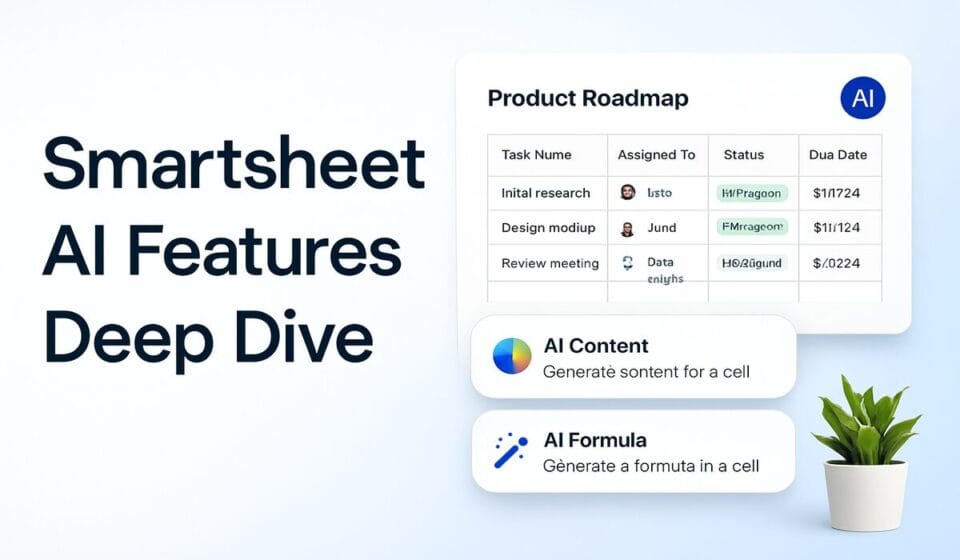

Smartsheet’s AI now covers four working areas: Smart Assist (a conversational assistant embedded in every sheet), Smart Columns (AI that runs on every row automatically), an AI dashboard builder, and in-cell tools for formulas, summaries, and charts. Smart Assist and the core AI tools ship on Pro, Business, and Enterprise — you no longer need Enterprise just to get started.
I’ve turned these features on for client orgs ranging from a 12-person marketing team to a 400-seat construction PMO, and the gap between what gets demoed and what survives past week one is bigger than Smartsheet’s marketing pages suggest. Some of this is genuinely useful. Some of it is a feature you enable once, show your director, and never open again.
What Ships Today vs. What’s Still Rolling Out
Smartsheet went through a rebrand in 2026, and it’s worth separating the marketing language from the release calendar. Smart Assist reached general availability on June 3, 2026, after months in private beta. It’s the feature I’d point a new client toward first, because it’s the one that’s actually finished.
Smart Flows, the natural-language automation builder, and the Project Manager Smart Agent are further behind — they moved through early adopter access this year and are still stabilizing. For the full picture on those, including where natural-language automation logic breaks down on complex conditions, see our deep dive on Smartsheet’s Smart Agents and Smart Flows rollout. This piece covers what’s actually sitting in your sheet today: Smart Assist, Smart Columns, the AI dashboard builder, and the in-cell formula and text tools.
Smart Assist: The One People Keep Using
Smart Assist is a chat panel that lives inside your sheet, workspace, or report. Click the AI icon in the top right, and you can ask it to summarize a project, flag what’s overdue, draft a stakeholder update, or make bulk changes to rows — without touching a formula or a filter.
What surprised me is how much of it clients keep using after the first week, which is rare for an AI feature bolted onto existing software. The summarization is genuinely good for status catch-up: point it at a 300-row construction tracker and ask “what changed since Friday,” and it reads comments, cell history, and status columns to give an accurate answer in seconds. That used to be fifteen minutes of scrolling.
Where it gets shakier is risk assessment on sheets with sparse or inconsistent data. If your team skips fields, uses status colors instead of dates, or leaves the “actual completion” column blank half the time, Smart Assist’s risk flags start looking like guesses dressed up as insight. I tell every client the same thing before we turn this on: clean your data entry habits first, or you’ll spend more time correcting AI output than you saved.
How to turn on and use Smart Assist
- Open the sheet, report, or workspace you want to work with.
- Click the AI sparkle icon in the top-right corner of the interface.
- Select a suggested prompt from the panel, or type your own question in plain language.
- For risk or status questions, ask something specific — “what tasks are at risk this week” works better than “how’s the project going.”
- Review any suggested row or column changes before approving them; Smart Assist drafts the action, you confirm it.
Smart Columns: Useful, But Only If You Babysit the First Batch
Smart Columns are a column type that runs an AI operation — categorize, summarize, translate, or score sentiment — on every row automatically as data changes. Write the instruction once (say, “categorize this issue as Technical, Commercial, or Regulatory”), and the column applies it to every existing and new row.
This is the feature I’ve seen deliver the clearest time savings, specifically for organizations aggregating unstructured text: help desk tickets, vendor issue logs, client feedback forms. One client running a 50-team status rollup used a Smart Column to tag incoming free-text updates by risk category, cutting a weekly two-hour manual triage down to a ten-minute review of the AI’s flags.
The catch: your first 50 rows through a new Smart Column need a human read-through. Categorization drifts when your taxonomy doesn’t match generic categories, and sentiment analysis still misses sarcasm and industry shorthand. Budget an afternoon to tune the column’s instructions before trusting it unsupervised.
| Plan | AI Features Included | Notable Limits |
|---|---|---|
| Pro (from $9/user/mo, annual) | Smart Assist, formula generation, text/summary generation, analyze data, intelligent form fill | 250 automations/month; only 1 report; no dashboards, which limits how far AI-built dashboards can take you |
| Business (from $19/user/mo, annual) | Everything in Pro, plus Smart Columns and the AI dashboard builder with full reporting | Unlimited automations and reports; this is the tier where AI features have room to actually matter |
| Enterprise (custom pricing) | Everything in Business, plus Smart Hub governance console, admin-level AI controls by user group, and early access to Smart Flows/Smart Agents as they roll out | Pricing negotiated; needed mainly for governance and audit requirements, not core AI access anymore |
Formula Generation: Fast for Standard Logic, Still Needs a Review Pass
Ask it in plain language — “flag any row where the due date has passed and status isn’t Complete” — and it hands back a working formula plus a plain-English explanation of what it does.
For standard logic — nested IF statements, date math, cross-sheet lookups with clear column names — it’s faster than writing the formula yourself, and the explanation doubles as decent documentation for whoever inherits the sheet next. I’ve stopped writing basic status-flag formulas by hand because the AI version is correct on the first try most of the time.
Where I still check its work: multi-condition formulas involving cross-sheet references and INDEX/MATCH combinations across more than two sheets. It occasionally references the wrong sheet alias or produces a formula that runs but returns a subtly wrong result — an off-by-one row error, or a SUMIF that includes a row it shouldn’t. Skipping a quick test against known data is how you end up explaining a wrong number in a steering committee meeting.
How to generate a formula with AI
- Click into the cell where you want the formula.
- Open the formula bar and click the AI icon (sparkle) next to it.
- Type what you want the formula to do in plain language.
- Review the generated formula and its explanation before applying it.
- Click Apply, then test it against a few rows with known correct values.
Summarization and the AI Dashboard Builder: Where Sheet Size Matters
The text and summary generator works inside a cell or row, pulling from other columns to draft a status update, translate content, or write ad copy referencing your project data. On sheets under a few hundred rows, it holds context well. Push past a couple thousand rows or ask it to summarize activity across multiple linked sheets, and quality drops — summaries get generic, or miss recent changes outside the columns it’s weighting most heavily. For portfolio-level summaries, I route large rollups through Smart Assist at the workspace level instead, since it handles broader context better.
The AI dashboard builder is a genuine time-saver for the first draft of a dashboard: describe what you want, point it at your data sources, and it lays out charts, metrics, and widgets you’d otherwise spend an hour configuring manually. It’s rarely the final version — color schemes, widget sizing, and metric groupings usually need a manual pass — but going from blank to 80% done in two minutes is worth the cleanup time.
Admin Setup Before You Turn AI On Org-Wide
Retrofitting governance after 200 people have started using Smart Assist is a much bigger job than setting it up beforehand. A few settings are worth configuring first.
- Go to the Admin Center from your account settings.
- Open the AI features section and review which capabilities are enabled by default.
- Restrict Smart Assist and Smart Columns access to specific user groups if you want a pilot phase rather than an org-wide rollout on day one.
- Set workspace-level policies for which sheets AI tools can read and act on, particularly for workspaces containing client or regulated data.
- Review Smartsheet’s data handling commitments — customer data isn’t used to train third-party models and doesn’t mix across customer accounts — and confirm this satisfies your organization’s data policies before wider rollout.
For governance at real scale — multiple business units, audit requirements, custom agent creation — Smart Hub is the Enterprise-tier console built for that. See the dedicated breakdown of how Smart Hub and Smart Agents fit into enterprise AI governance before committing budget to it.
Is It Worth Upgrading a Plan For?
For a small team already on Pro, AI alone doesn’t justify moving to Business. Smart Assist ships on Pro too, and the in-cell formula and summary tools cover most of what a five-person team needs. What pushes small teams to Business is usually the reporting and dashboard limits, not the AI.
For a mid-size operations team running 10-50 sheets with real cross-team reporting, Business is where the AI tools start paying for themselves — Smart Columns on intake sheets and the dashboard builder on portfolio views save real hours weekly, on top of the unlimited automations and reports you’re likely upgrading for anyway.
For Enterprise, the honest read is that you’re not paying for better AI — the core features are identical to Business. You’re paying for governance: Smart Hub, admin-level controls over who can use what, and the compliance posture regulated industries and large PMOs need. Without a governance or audit requirement driving the conversation, Enterprise is priced for problems you may not have yet.
For the formula engine that AI-generated formulas build on top of, see our Smartsheet formulas and functions guide. If your AI-driven workflows involve moving data between Smartsheet and other systems, our Data Shuttle setup guide covers that automation layer. And for how these AI features fit into the platform as a whole, our full Smartsheet review covers the rest of what you’re buying.
Frequently Asked Questions
Do I need the Enterprise plan to use Smartsheet AI?
No. Smart Assist, formula generation, text summaries, and the analyze-data tool are available on Pro and Business as of mid-2026. Enterprise adds Smart Hub governance controls and admin-level restrictions, useful for compliance-heavy organizations but not required for day-to-day AI use.
How accurate is Smartsheet’s AI formula generation?
Strong on standard logic like date comparisons, status flags, and simple lookups. Weaker on multi-sheet INDEX/MATCH combinations and complex nested conditions, where it can produce a formula that runs without erroring but returns a subtly wrong result. Test any AI-generated formula against rows with known values first.
Can Smart Assist accidentally change my data?
Smart Assist drafts actions like row updates or new sheets and asks for confirmation before applying most changes, rather than executing silently. Even so, in a shared workspace it’s worth restricting who can approve bulk actions, since a confirmed AI edit overwrites data the same way a manual edit would.
Does Smart Assist work well on large or complex sheets?
It handles single-sheet summaries well even at a few hundred rows. Accuracy softens on very large sheets or when synthesizing across multiple linked sheets with inconsistent data entry — missing dates or blank status fields noticeably degrade its risk assessments.
Is Smartsheet’s AI safe for client or regulated data?
Smartsheet states customer data isn’t used to train third-party foundation models and doesn’t mix between customer accounts, with encryption in transit and at rest. For regulated data, configure Admin Center AI permissions by user group before rollout, and confirm current certifications directly with Smartsheet for your specific requirement.