Skip to content
Work Management Hub Work Management Hub

Expert Reviews, Comparisons & Guides for Smartsheet, Monday.com, Asana, ClickUp & More

Work Management Hub Work Management Hub

Expert Reviews, Comparisons & Guides for Smartsheet, Monday.com, Asana, ClickUp & More

  • Airtable
  • Asana
  • ClickUp
  • Jira
  • Monday.com
  • Notion
  • Smartsheet
  • Wrike
  • About
  • Contact
  • Airtable
  • Asana
  • ClickUp
  • Jira
  • Monday.com
  • Notion
  • Smartsheet
  • Wrike
  • About
  • Contact
Close

Search

How-To GuidesSmartsheet

Smartsheet Data Shuttle Setup Guide (2026)

By Khasim
May 23, 2026 9 Min Read
0

Data Shuttle is Smartsheet’s no-code tool for moving CSV or XLSX data into and out of a sheet on a schedule. It requires a Business or Enterprise plan with the app enabled by a System Admin in Admin Center, a target sheet with columns already built to match your source data, and a genuinely unique key column if you plan to update existing rows instead of just adding to them.

What Data Shuttle Actually Is, and Who Can Turn It On

I’ve set up Data Shuttle for clients who expected an integration platform and were disappointed to learn it’s a file mover. It reads a CSV or XLSX file from a fixed location, maps columns to a sheet, and writes rows on a schedule or when an attachment lands. Run it in reverse and it writes sheet data back out to a file — there’s no live connection or API polling either direction. It’s a scheduled file handoff, and every decision in this guide follows from that.

Access is gated twice: Data Shuttle is a premium add-on on Business and Enterprise only, and a System Admin must explicitly enable it in Admin Center (Apps & Integrations) before datashuttle.smartsheet.com lets anyone in.

Business and Enterprise diverge on source connectivity: Business limits uploads to a file attached directly to a sheet or row, while Enterprise adds direct connections to Google Drive, OneDrive, SharePoint, and Box, so a source system can write to a shared folder that Data Shuttle watches. You’ll also need Owner, Admin, or Editor permission on the destination sheet — Viewer access isn’t enough.

What to Set Up on the Sheet Before You Touch Data Shuttle

The biggest source of Data Shuttle headaches is a target sheet that wasn’t built to receive the data. It maps columns by name and writes into whatever column type is already there — it won’t coerce text into a date or fix a mismatched dropdown value. A Date column formatted “2026-03-14” rejects a source file’s “03/14/2026” with blank cells, not a silent fix.

  • Build every column you need first. Data Shuttle maps to existing columns; it won’t create new ones during mapping.
  • Match column types deliberately. Dates, Text/Number fields, and Contact List columns cause the most friction; currency symbols or thousands separators may get rejected by a Number column.
  • Never map a formula column as a destination. Data Shuttle can’t overwrite a formula cell. Use plain “raw import” columns for it to write into, with formulas elsewhere referencing them.
  • Decide your unique identifier column before you decide merge mode — the step people skip and the one that causes the most trouble.
  • Check Dropdown List columns against source values. If a restricted list gets a value it doesn’t contain, confirm ahead of time how the column handles it.

The Unique-Identifier Trap That Creates Duplicate Rows

A merge workflow is only as reliable as your key column’s uniqueness, and Data Shuttle won’t warn you in advance. Per the official upload workflow documentation, merge mode requires a column with no duplicates, no blanks, and it can’t be a system column, Multi-Select Dropdown, or formula column. Two rows sharing the same “Invoice Number” from an export error means Data Shuttle can’t tell which is authoritative — the result is an error, or worse, silent duplicates on every run.

I’ve seen a client’s project-code column look unique for months until a second business unit adopted the same numbering convention; the workflow then quietly appended duplicates every night until a dashboard count looked wrong. The fix is picking a column structurally guaranteed to be unique, like an autogenerated source ID or email address, not one unique by convention.

Setting Up an Upload Workflow, Step by Step

This is the configuration most teams need: a file drops into place, and Data Shuttle imports it on a schedule.

  1. Sign in to Data Shuttle at datashuttle.smartsheet.com, or open the Connections menu (Grid view) or Data Integrations button (Table view) from inside a sheet.
  2. Select the plus icon (+) in the left navigation, then choose Upload Data.
  3. Choose your Source Location: Smartsheet Attachment, Google Drive, Google Sheets, OneDrive/SharePoint, or Box, then specify the file or a name-matching rule.
  4. Confirm header settings: check This file has column headers if row 1 has headers, and set First Row/Tab Number if your export has a title row above the real header.
  5. Select your target sheet — the one you prepared earlier.
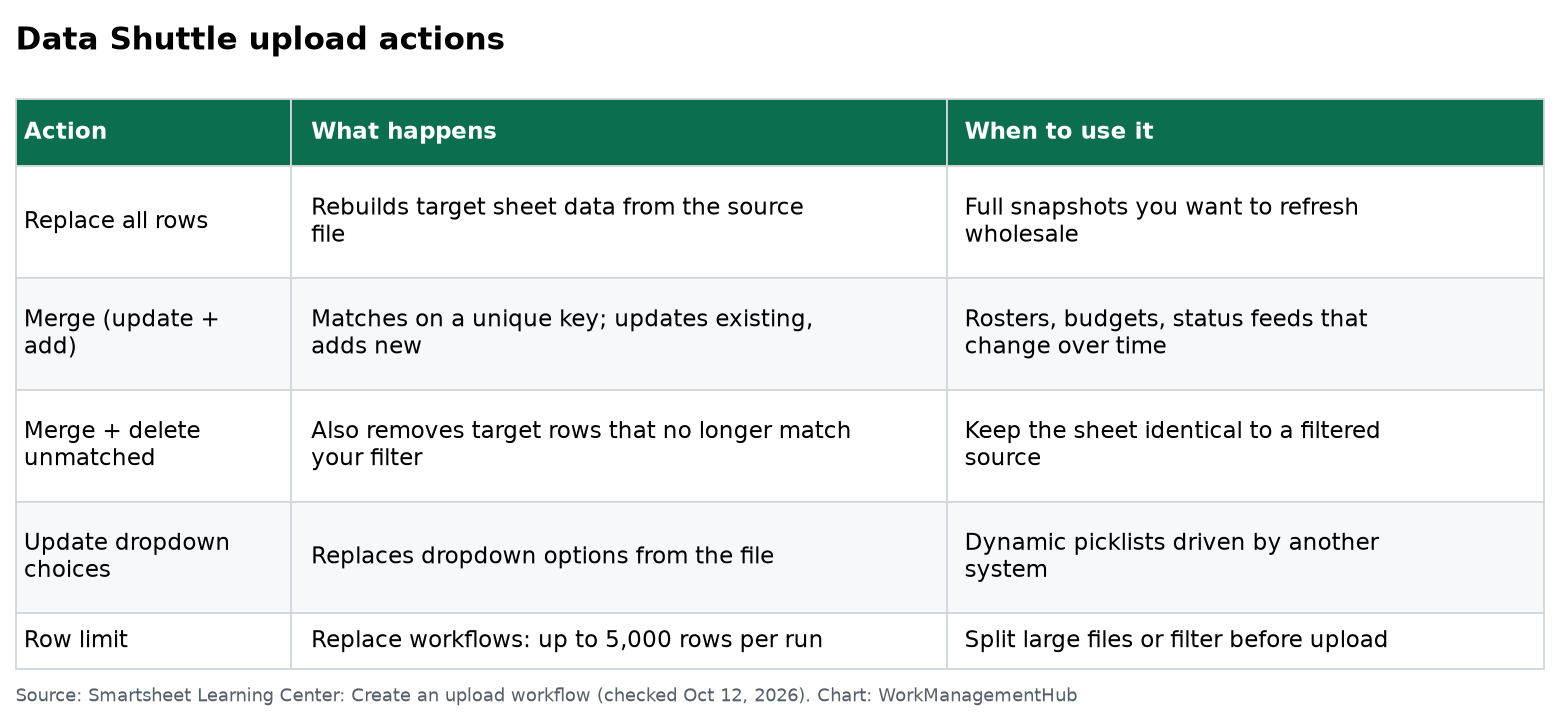
  6. Choose your workflow action: Replace all target sheet rows, Merge data into the target based on a key column value, or Update the dropdown choices for the selected columns. Merge lets you combine adding, updating, and deleting rows.
  7. Build filters (optional): add conditions like Status equals “In Progress,” combined with AND/OR using filter ID numbers, e.g. (1 AND 2) OR 3 — also your escape valve for datasets exceeding the row limits below.
  8. Map columns. Identical names auto-map; fix the rest manually. Anything unmapped stays untouched on the target sheet.
  9. Set your Unique Identifier if you chose a merge action.
  10. Add input expressions (optional): apply a formula to a column during import, like ="ERP Import" or =TODAY(), then map it to its target column.
  11. Configure scheduling: Run on attachment, Run on schedule (days, start time, frequency, end time), both, or neither. Schedules run in UTC regardless of your time zone — convert manually or you’ll import at 2 a.m. local time by accident.
  12. Share and publish with a name specific enough to identify among thirty other workflows six months from now, then run it manually once and spot-check row counts and mapped columns.

Merge, Replace, and Append: What Each One Actually Does

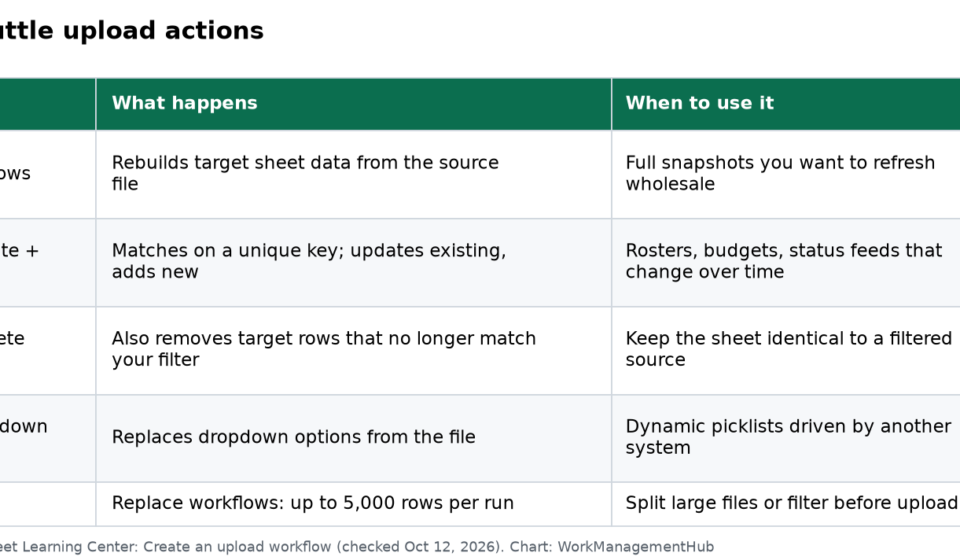
Data Shuttle gives you two structural choices for existing sheet data, and merge has sub-behaviors people often mistake for separate modes — getting this wrong either loses data or floods a sheet with duplicates.

ModeWhat happensWhen to use itRow limit per run
Add rows only (append)New unique identifiers added; existing matches left aloneAdditive data: new orders, tickets, log entries20,000 (merge cap)
Update + add (upsert)Matching identifiers updated; new identifiers addedFull snapshots that change over time: budgets, rosters, status20,000 (merge cap)
Delete unmatched (with merge)Rows no longer matching your filter removedCombined with upsert to drop records that left the source20,000 (merge cap)
Replace all rowsEvery row deleted and rebuilt from source each runRead-only mirrors nobody edits by hand5,000

Merge and replace don’t share a row ceiling: merge tops out at 20,000 rows per run, replace at 5,000, with a shared 400-column limit. For bigger datasets, apply a filter, map only needed columns, or split the load across multiple workflows. For data structurally too large for a sheet regardless, Smartsheet’s own guidance points to DataTable.

Append is the safest default when unsure since it can’t overwrite anything. Replace is destructive by design: comments, attachments, and manual edits on existing rows disappear the moment the next run executes, and cross-sheet references break because rows are deleted and recreated rather than edited in place. I reserve Replace for sheets that purely mirror a source system, never anything a human touches.

Offload Workflows for Reporting Pipelines

An offload workflow runs the pipeline in reverse: it reads a sheet, or a saved filtered view of it, and writes a CSV or XLSX file to a cloud destination or attachment. It matters most when Smartsheet is your system of record but a BI tool or legacy database needs the data as a file. Setup is simpler than upload since sheet columns map directly to output columns:

  1. Create a new workflow, choose Offload Data, and select the source sheet.
  2. Optionally apply a saved filter so only a subset (active projects, a department, current-quarter records) goes into the file.
  3. Choose the destination (Google Drive, OneDrive/SharePoint, Box, or a sheet attachment) and set the file name — static overwrites every run, dynamic with a date variable creates timestamped snapshots.
  4. Pick CSV (machine ingestion) or XLSX (a person opens it directly), and deselect columns that shouldn’t leave Smartsheet.
  5. Schedule it just ahead of the downstream system’s ingestion window, and run it manually once to confirm the file lands correctly.

A pattern I use often: an ERP exports to SharePoint, an upload workflow pulls it into Smartsheet each morning, the team works the data all day, and an offload workflow writes it back each evening for a reporting tool to pick up overnight. It’s not real-time sync — it’s two scheduled handoffs bracketing a day of human work — but for daily reporting it holds up well with no developer time to maintain.

Troubleshooting the Failures You’ll Actually Hit

  • Access denied or can’t build a workflow. Confirm Data Shuttle is enabled in Admin Center and you’re on Business or Enterprise — usually a permissions setting nobody flipped.
  • Scheduled run completes but nothing changed. Data Shuttle logs a no-file-found result rather than erroring loudly, so a missing export can go unnoticed for weeks. Set an automation on a “Last Updated” column to alert you.
  • Columns come in blank or in the wrong place. Source headers that changed since the workflow was built silently break a name-based auto-map. Also confirm you’re not mapping into a formula or system column (Created By, Modified Date) — both are rejected as targets.
  • Duplicate rows on every run. Your key column isn’t actually unique in the source file, or none was set. Check the source data for duplicates before touching the workflow again.
  • Run-on-attachment isn’t firing. Confirm the file name matches your filter and it’s attached at the same level (sheet vs. row) the trigger is watching.
  • A reliable cloud connection suddenly stops. OAuth tokens for Google Drive, SharePoint, and Box expire periodically — re-authenticate from the workflow’s source settings.
  • A paused workflow you didn’t pause. Downgrading a user to Contributor or below locks any workflow they own; 1,000 consecutive failed runs pauses it automatically. Reassign ownership before downgrading access.

When Data Shuttle Is the Wrong Tool

A few situations call for something other than Data Shuttle:

  • Real-time sync needed, not scheduled batches: Data Shuttle never runs continuously. Use the Smartsheet API instead of polling every fifteen minutes as a workaround.
  • A native connector already exists: Jira, Salesforce, and Microsoft Dynamics 365 have dedicated bidirectional connectors in the Smartsheet Marketplace that handle mapping better than a CSV export.
  • Conditional logic or multi-system orchestration: Data Shuttle moves data from a file to a sheet or back; it doesn’t branch on values or coordinate across systems. That’s Bridge’s job.
  • Data volume too large for a sheet: the 20,000/5,000-row merge and replace caps compound a sheet’s own hard limits. DataTable is built for that volume.
  • Merging two sheets inside Smartsheet: Data Shuttle’s sources are files, not sheets. DataMesh handles sheet-to-sheet consolidation.

Data Shuttle is the right tool for getting a recurring file export into or out of a sheet without writing code — just don’t stretch it past that job.

For related setup work, see our guides to Smartsheet automations for chaining actions to rows Data Shuttle creates, Smartsheet formulas and functions for structuring formula columns that reference imported data safely, and Smartsheet-Microsoft Teams integration if your failure alerts run through Teams. Our Smartsheet review covers where Data Shuttle fits into overall plan economics.

FAQ

Can Data Shuttle update a sheet column that has a formula in it?

No. Data Shuttle cannot write into a cell containing a formula. Map import data to a plain column instead, and have a separate formula column reference that raw column, so formulas stay intact across every run.

What happens if the source file isn’t there when a scheduled run fires?

Data Shuttle logs a no-source-file result and leaves the target sheet exactly as it was — no rows changed and no automatic alert sent. If a missed file needs to trigger a notification, build a Smartsheet automation watching a last-updated date column.

Is Data Shuttle the same thing as the Smartsheet API?

No. The API is a developer-built, real-time integration path requiring code. Data Shuttle is a no-code, file-based, scheduled pipeline. Use Data Shuttle for a CSV or XLSX file generated on a cadence; use the API for real-time behavior or conditional logic.

Why does my merge workflow keep creating duplicate rows instead of updating them?

Your key column almost certainly isn’t unique in the source file — it may look unique by convention but contain repeated, blank, or inconsistently formatted values. Merge mode requires a column with no duplicates and no blanks, and it can’t be a system column, Multi-Select Dropdown, or formula column. Audit the source key column for duplicates before changing anything in the workflow itself.

Author

Khasim

Khasim is a work management expert and entrepreneur with a deep passion for project management tools. He works hands-on with platforms like Smartsheet, Monday.com, Asana, ClickUp, Jira, Notion, Wrike and Airtable every day, and loves automating workflows to save teams and customers a ton of time. On WorkManagementHub he shares practical setup guides, honest tool comparisons, and real-world troubleshooting drawn from daily use.

Follow Me
Other Articles
Previous

Linear vs Asana 2026: Which Is Better for Engineering Teams?

Next

Notion Automations Not Working: Fix by Symptom (2026)

No Comment! Be the first one.

    Leave a Reply Cancel reply

    Your email address will not be published. Required fields are marked *

    Sponsored Smartsheet Expert Services – Implementation, Automation, Training
    Sponsored Power BI & Tableau Analytics – Dashboards, Reporting, Insights
    Sponsored AI Agents for Work Management – Automate Tasks, Integrate Tools

    Categories

    • Airtable (21)
    • Alternatives (12)
    • Asana (41)
    • ClickUp (47)
    • How-To Guides (192)
    • Integrations (17)
    • Jira (36)
    • Monday.com (46)
    • Notion (35)
    • Pricing Guides (11)
    • Project Management (80)
    • Smartsheet (39)
    • Tool Comparisons (59)
    • Wrike (19)

    Recent Post

    • How to Customize Jira Workflows for Non-Technical Teams in 2026: A Comprehensive Guide
    • Notion vs Airtable for Academic Research in 2026: Which Tool Wins?
    • How to Use Smartsheet for Event Planning in 2026: Complete Setup Guide
    • Airtable vs Trello 2026: Which Tool Enhances Cross-Team Collaboration Better?
    • How to Leverage Smartsheet for Strategic HR Planning in 2026: Workforce Analytics, Succession Planning & More

    Independent reviews, comparisons, and hands-on guides for work management tools — Smartsheet, Monday.com, Asana, ClickUp, Notion, Jira, Wrike, and Airtable — written from daily, real-world use of these platforms.

    Tools We Cover

    • Smartsheet
    • Monday.com
    • ClickUp
    • Asana
    • Notion
    • Jira
    • Wrike
    • Airtable

    Company

    • About Us
    • Contact Us
    • Privacy Policy
    Copyright 2026 — Work Management Hub. All rights reserved. Blogsy WordPress Theme