Notion Automations Not Working? 7 Fixes for Database and Button Triggers in 2026
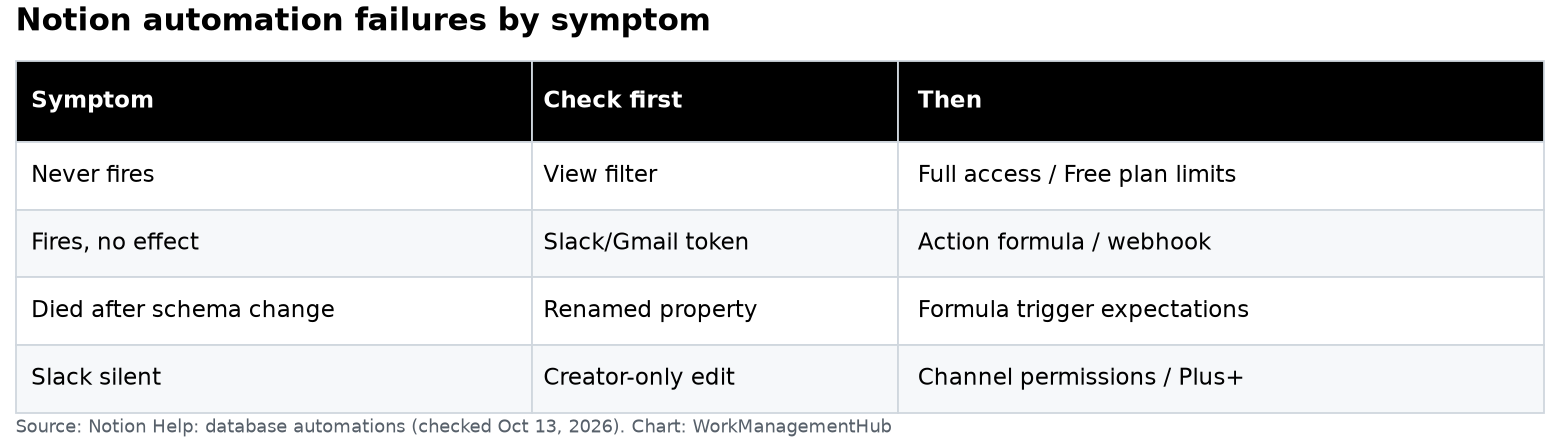
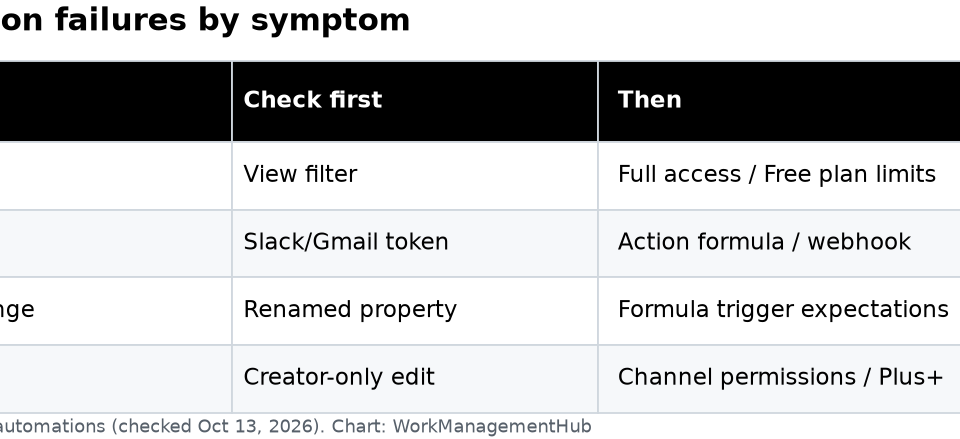
- Expired Slack or Gmail integration tokens are the most common cause of silent automation failures — Notion gives you zero notification when this happens.
- The automation creator must have edit access to every database or page the automation touches — restricted pages cause silent failures with no error message.
- Multiple “is edited” triggers in a single automation must all fire within approximately 3 seconds or the entire automation is skipped.
- Notion automations cannot trigger other automations — this is a hard platform limitation, not a bug you can work around with clever configuration.
- Pages outside an active database view filter will never trigger automations tied to that filtered view.
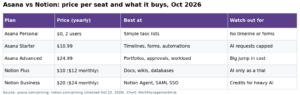
- Free plan users face automation run limits in 2026; the Business plan ($20/user/month) is required for full, unrestricted automation capabilities.
- Button automations run in the context of the page where the button lives — mismatched page access causes another category of silent failure.
Most Notion automations not working trace to one of three root causes: an expired third-party integration token (Slack, Gmail), the automation creator lacking edit permissions on a referenced database, or pages falling outside the filter criteria of the database view the automation is watching. Check these three first before anything else.
Notion Automations Not Working? 7 Fixes for Database and Button Triggers in 2026
When a Notion automation stops firing, the business cost starts immediately. Project status updates don’t reach the team in Slack. New client intake forms sit unprocessed because the assigned-owner property was never set. Weekly rollup tasks that should generate automatically pile up as manual rework. And the most maddening part? Notion almost never tells you why the automation failed.
This guide is structured as a diagnostic protocol. Each of the seven fixes below explains the underlying reason for the failure before the remediation steps — because understanding why Notion automations break is what prevents the same problem from resurfacing in two weeks. Work through the fixes in order; the most common causes appear first.
For broader context on how automations fit into your overall Notion setup, see our complete Notion database guide for 2026 and our Notion project management setup guide.
- Fix 1: Check Permissions — The Creator Must Have Edit Access Everywhere
- Fix 2: Reconnect Expired Integrations (Slack, Gmail, Zapier)
- Fix 3: Fix Filter Criteria Conflicts in Database Views
- Fix 4: Fix the 3-Second Trigger Window for Multiple “Is Edited” Triggers
- Fix 5: Remove Automation-Chain Loops
- Fix 6: Check Plan Limits — Free Plan Has Restricted Automation Runs
- Fix 7: Debug Button Automation Scope
- Verdict
- FAQ
Fix 1: Check Permissions — The Automation Creator Must Have Edit Access Everywhere
This is the single most common cause of Notion automations not working after running fine for weeks. Here is what happens: a workspace admin sets up an automation that reads from a project intake database and writes to a delivery tracker. At the time of setup, the admin has full access to both. Three months later, the delivery tracker is reorganized into a team-specific section with restricted permissions, or the admin who created the automation leaves the company and their account is downgraded. The automation stops working. Notion logs no error. Your team sees nothing.
The core rule: Notion automations run as the user who created them. Every database, every page, every property that the automation reads from or writes to must be accessible with edit-level permissions by the creator’s account at the moment the automation fires. Read-only access is not sufficient for write actions. Private pages are always inaccessible.
- Identify the automation creator. Open the database containing the automation, click the lightning bolt icon to open the Automations panel, and check which account is listed as the creator on each automation rule.
- Audit every database and page the automation touches. Go through each action step — “edit page property,” “add page to database,” “send Slack message” — and confirm the creator account has at least Editor access on every referenced object.
- Check for recently restricted pages. Verify that none of the pages the automation references have been moved into a restricted space since the automation was created.
- Recreate the automation under a service account if needed. If the original creator has left or been downgraded, delete and recreate the automation under a full-access admin account. There is no way to transfer automation ownership in Notion without recreating it.
- Test with a dummy page. After correcting permissions, add a test page to the database and confirm the automation fires. If it still fails silently, move to Fix 2.
For teams managing complex permission structures across departments, our guide on using Notion for teams in 2026 covers workspace permission architecture in detail.
Fix 2: Reconnect Expired Integrations — Slack, Gmail, and Zapier Tokens Expire Silently
If your automation includes any action that communicates with a third-party service — sending a Slack message, sending an email via Gmail, triggering a Zapier webhook — there is an entire failure mode that has nothing to do with your Notion configuration. OAuth tokens expire. Integration connections get revoked when a user changes their password, when a workspace admin removes an app from an approved list, or simply because the token hit its expiry date. Notion does not send any notification when this happens. The automation appears active, the trigger fires correctly, and then nothing happens at the action step.
- Open Notion Settings and navigate to Connections. Go to Settings → Connections. Look for any integrations marked with a warning icon or a “Reconnect” prompt.
- Revoke and re-authorize the integration. For Slack: click the Slack integration entry, select “Disconnect,” then reconnect and re-authorize. For Gmail: same process. Do not just click “reconnect” — a full revoke-and-reauthorize clears any stale token state.
- Check organizational policy for third-party app access. If your company uses Google Workspace or Slack Enterprise, IT administrators may have revoked Notion’s OAuth access at the organization level. This requires an admin to re-approve the Notion connection in the Google Admin Console or Slack admin dashboard.
- Update the automation action to use the reconnected integration. After reconnecting, open each affected automation and re-select the Slack channel or Gmail account in the action configuration.
- Set a recurring calendar reminder to audit integrations. Notion does not alert you to expired connections. A quarterly review of Connections in Settings is essential operational hygiene.
Notion’s official documentation on setting up and managing automations covers the integration connection process in detail.
Fix 3: Fix Filter Criteria Conflicts in Database Views
This failure mode catches even experienced Notion users. When you set up an automation on a filtered database view — for example, a view that only shows pages where Status is “Active” — the automation will only fire for pages currently visible in that view. A page that doesn’t match the filter criteria is, from the automation’s perspective, invisible. If you add a page with Status “Draft” to that database, the automation won’t fire.
- Identify which view the automation is tied to. Open the Automations panel in the database. Each automation rule shows the view context it was created in.
- Switch to the “All” or unfiltered view before creating automations. Always create automations from the default, unfiltered database view. Navigate to your database, switch to a view with no filters applied, open the Automations panel, and set up your rules there.
- For existing automations, recreate them from an unfiltered view. There is no way to change the view scope of an existing automation without deleting and recreating it.
- Review whether filter scoping is intentional. If you want an automation to only fire for a subset of pages, add a property condition to the automation’s trigger using the “only when” condition option rather than relying on view-level filtering.
- Test by adding a page that doesn’t match the filter. Confirm it doesn’t trigger the automation, then add a page that does match and confirm the automation fires.
Fix 4: Fix the 3-Second Trigger Window for Multiple “Is Edited” Triggers
This is one of the least-documented Notion automation constraints. When you configure an automation with multiple “property is edited” trigger conditions — for example, “when Status is edited AND Priority is edited” — Notion requires all of those trigger events to occur within approximately 3 seconds of each other. If a user edits Status, then clicks away, then edits Priority 30 seconds later, the automation does not fire.
This constraint exists because Notion’s trigger evaluation is event-driven, not state-driven. It listens for bursts of change events, not for a final state where multiple conditions are true.
- Identify automations using multiple “is edited” triggers. Open each automation and count the number of “property is edited” conditions in the trigger block. Any automation with two or more “is edited” conditions is subject to this constraint.
- Replace compound “is edited” triggers with a single trigger plus property conditions. Use a single “property is edited” trigger (pick the most important property), then add “only when” conditions that check the current value of other properties.
- Use a dedicated “trigger property” pattern for complex workflows. Create a dedicated checkbox or select property called “Ready to Process.” Configure the automation to trigger only on this single property being edited, giving you predictable, user-controlled triggering.
- Document this limitation for your team. If users are manually triggering automations by editing multiple properties in sequence, they need to know this constraint exists.
- Test your revised trigger with deliberate timing. After restructuring to a single trigger with property conditions, test by editing the trigger property while the condition property is set correctly, and confirm the automation fires.
Fix 5: Remove Automation-Chain Loops
This is a hard platform limitation, not a configuration mistake. Notion database automations cannot trigger other automations. When Automation A fires and edits a page property, that property edit will not trigger Automation B, even if Automation B is configured to fire exactly on that property being edited. This is a deliberate architectural constraint to avoid infinite loops.
- Map your automation dependencies. Write out or diagram which automations modify which properties, and check whether any of those modified properties are the trigger conditions for other automations.
- Consolidate chained automations into a single automation. If you need Automation A to set Status to “In Review” and then Automation B to send a Slack message, combine both actions into a single automation with multiple action steps.
- Use Notion’s multi-action capability. A single automation can have multiple actions — edit property, add page, send Slack message, send email — all within one automation rule.
- For genuinely complex workflows, evaluate Zapier or Make as middleware. If your workflow requires true automation chaining with conditional branching, Zapier and Make (formerly Integromat) can watch Notion databases for changes and trigger multi-step workflows.
- Identify loops in your current setup. Understand your automation logic carefully — some configurations can cause unexpected behavior in edge cases.
It’s also worth noting that Notion automations are fundamentally different from Notion AI capabilities — automations are rule-based if/then triggers, while Notion Workers and AI Agents use AI reasoning. These are separate systems.
Fix 6: Check Plan Limits — Free Plan Has Restricted Automation Runs
In 2026, Notion’s Free plan includes automation functionality, but with meaningful restrictions on the number of automation runs per month. If your workspace is on the Free plan and your automations were working earlier in the month but have quietly stopped mid-month, you may have hit the plan’s automation run ceiling. Notion does not proactively alert you when you approach or hit this limit.
- Check your current plan and automation usage. Go to Settings → Plans (or Billing) in your Notion workspace. Your current plan tier is displayed here.
- Audit automation run frequency. Calculate approximately how many automation runs fire per day in high-volume databases. Multiply by 30 to estimate monthly volume and compare against your plan’s limit.
- Prioritize which automations are business-critical. On the Free plan, disable nice-to-have automations (cosmetic property updates, optional notifications) to preserve run capacity for critical ones (client notifications, data routing).
- Evaluate the Business plan upgrade ROI. At $20 per user per month, the Business plan removes run limits. Calculate the time cost of manual rework when automations fail — even two hours of staff time per month at typical knowledge worker rates exceeds the plan cost for most teams.
- Check Notion’s current plan comparison page. Automation run limits are subject to change. Verify the current limits on Notion’s plans documentation directly.
Fix 7: Debug Button Automation Scope
Button automations introduce a distinct failure mode. When a button is placed on a Notion page and configured to perform automation actions, the button runs in the context of the page where it lives. If that page is in a location the automation’s configuration doesn’t have access to, it silently fails. Unlike database trigger automations that might eventually fire when conditions are met, a failed button click is a missed action with no retry.
- Verify the button creator’s permissions against all referenced databases. The account that created the button must have edit access to every database and page the button’s actions reference.
- Check the page context the button lives on. If the button is on a page inside a team space with restricted access, and the databases it references are in a different team space, the cross-space access may be blocked.
- Rebuild the button from the target database, not a separate page. If possible, place the button directly inside the database where it needs to take actions — as an inline button within a database row template or as a database-level button.
- Test the button actions individually. If a button has multiple actions, simplify it temporarily — remove all actions except the first one and test. Add actions back one at a time until the failure recurs.
- Check that buttons on shared pages are accessible to all expected users. The button creator’s permissions govern all clicks — confirm the creator account has persistent edit access and won’t be downgraded.
For a comprehensive look at how buttons and automations work together in a structured project environment, see our Notion project management setup guide for 2026. Also review our guide on using Notion AI for project management for understanding where AI capabilities end and automations begin.
In practice, roughly 80% of Notion automations not working come down to three issues: expired third-party integration tokens (Fix 2), permissions problems where the automation creator has lost access to a referenced database (Fix 1), and filter view conflicts that exclude pages from the automation’s scope (Fix 3). Start with these three before investigating the more nuanced causes. The 3-second trigger window issue (Fix 4) is the most common cause of automations that have never worked since they were created. If you’ve worked through all seven fixes and automations are still failing, contact Notion support directly and provide the automation ID, the creator account, and a timestamp of the last failed trigger attempt.
Frequently Asked Questions
Why does my Notion automation run sometimes but not always?
Intermittent automation firing typically points to one of two causes. First, if you have multiple “is edited” trigger conditions, the 3-second window constraint means the automation fires when conditions align quickly but not when properties are edited with any gap in between. Second, if the automation involves a filtered view, pages may move in and out of the view’s filter criteria, causing the automation to fire for some pages but not others. Restructure to a single trigger with property conditions to fix the first issue, and recreate the automation from an unfiltered view to fix the second.
Can Notion automations trigger other Notion automations?
No — this is a hard platform limitation. When a Notion automation performs an action that modifies a page property, that modification does not trigger any other automation that watches that property. The correct approach is to consolidate multiple automation steps into a single automation rule with multiple actions. If your workflow genuinely requires multi-step automation chaining with conditional logic, you need to use a third-party workflow tool like Zapier or Make.
How do I know if my Notion Slack integration has expired?
Notion does not send any notification when a connected integration expires or is revoked. The only reliable way to check is to navigate to Settings → Connections in your Notion workspace and review the status of each connected service. If your Slack-based automations have stopped working without any obvious configuration change, revoke and reauthorize the Slack connection as a first step. After reconnecting, open each affected automation and re-select the target Slack channel — the action step may reference a stale connection object even after the integration is reconnected at the workspace level.
What triggers are available for Notion database automations?
As of 2026, Notion’s available automation triggers are: a page being added to a database, a page property being edited, a page being archived, a specific date or time (scheduled trigger), and a form submission. Actions you can perform include editing page properties, adding pages to a database, sending a Slack message, sending an email, and creating sub-items. These rule-based automations are entirely separate from Notion Workers and Notion AI Agents. For details, refer to Notion’s official automation guide.
Do Notion automations work on the Free plan?
Yes, Notion automations are available on the Free plan, but with restrictions on the number of automation runs per month. For teams using automations regularly in high-volume databases, the Free plan’s run limits will become a recurring constraint. The Business plan at $20 per user per month removes run limits and provides full access to all automation triggers and actions. If your automations worked at the start of the month and stopped partway through, the monthly run limit is a likely cause.