Skip to content
-
Subscribe to our newsletter & never miss our best posts. Subscribe Now!
Work Management Hub Work Management Hub

Expert Reviews, Comparisons & Guides for Smartsheet, Monday.com, Asana, ClickUp & More

Work Management Hub Work Management Hub

Expert Reviews, Comparisons & Guides for Smartsheet, Monday.com, Asana, ClickUp & More

  • Airtable
  • Asana
  • ClickUp
  • Jira
  • Monday.com
  • Notion
  • Smartsheet
  • Wrike
  • About
  • Contact
  • Airtable
  • Asana
  • ClickUp
  • Jira
  • Monday.com
  • Notion
  • Smartsheet
  • Wrike
  • About
  • Contact
Close

Search

  • https://www.facebook.com/
  • https://twitter.com/
  • https://t.me/
  • https://www.instagram.com/
  • https://youtube.com/
How-To GuidesNotion

Notion Formulas 2.0: The Complete Guide to Functions and Syntax (2026)

By Shaik KB
May 27, 2026 4 Min Read
0
⚡ Key Takeaways

  • Formulas 2.0’s multi-line editor with tab indentation and inline comments transforms formula writing from guesswork into structured code — essential for any formula longer than two conditions.
  • The let() function eliminates the most common database maintenance nightmare: duplicated logic spread across ten formula properties that all need updating when one condition changes.
  • Output types now include lists and objects, enabling Notion formulas to work with related database data directly — this is the change that makes Formulas 2.0 a genuine spreadsheet alternative for project teams.
  • ifs() replaces deeply nested if() chains — a formula that previously required 4 nested ifs now fits in a single readable block.
  • map(), filter(), and length() combined give teams a native progress tracker for sub-tasks and related records without any third-party integration.
  • Formulas 2.0 works best for teams managing up to moderate complexity — for multi-database rollups with live financial data, dedicated BI tooling still outperforms what Notion formulas can do natively.
Quick Answer:

Notion Formulas 2.0 is a major overhaul of Notion’s formula engine that adds a multi-line code editor with comment support, the let() variable function, list and object output types, and new functions like ifs(), map(), and filter() — enabling project teams to build progress trackers, deadline alerts, and budget rollups directly inside their databases without external tools.

Notion Formulas 2.0: The Complete Guide to Functions and Syntax (2026)

Notion Formulas 2.0 is Notion’s biggest formula overhaul — and every Notion consultant has the same scar tissue that made it necessary: a deeply nested if(if(if(if( chain buried in a “Priority Score” property, written six months ago, now completely unreadable to everyone including the person who wrote it. Change one condition and the whole thing falls apart. Duplicate the logic across three other formula columns. Repeat the nightmare.

Formulas 2.0 is Notion’s answer to that problem — and it is a meaningful one. The update is not a cosmetic refresh. The new editor, the let() function, expanded output types, and functions like ifs(), map(), and filter() collectively move Notion formulas from “tolerable for simple calculations” to “credible for the project management workflows that teams actually run.” This guide builds on our complete Notion database guide and covers the full picture: what changed, why it matters, and the four real formula recipes your team can deploy this week.

Table of Contents

  1. What Changed in Formulas 2.0 (and Why It Matters More Than You Think)
  2. The Formula Editor: Multi-Line Writing and the Let Variable
  3. Output Types: Text, Numbers, Dates, Lists, and Objects
  4. Essential Function Reference (The Ones That Matter)
  5. Formula Recipe: Project Progress Tracker (% Complete)
  6. Formula Recipe: Deadline Warning System
  7. Formula Recipe: Budget Rollup from Related Database
  8. Formula Recipe: Auto-Priority Score Based on Multiple Properties
  9. Combining Formulas with Notion Automations
  10. Common Formula Errors and How to Fix Them
  11. Verdict
  12. FAQ

What Changed in Notion Formulas 2.0 (and Why It Matters More Than You Think)

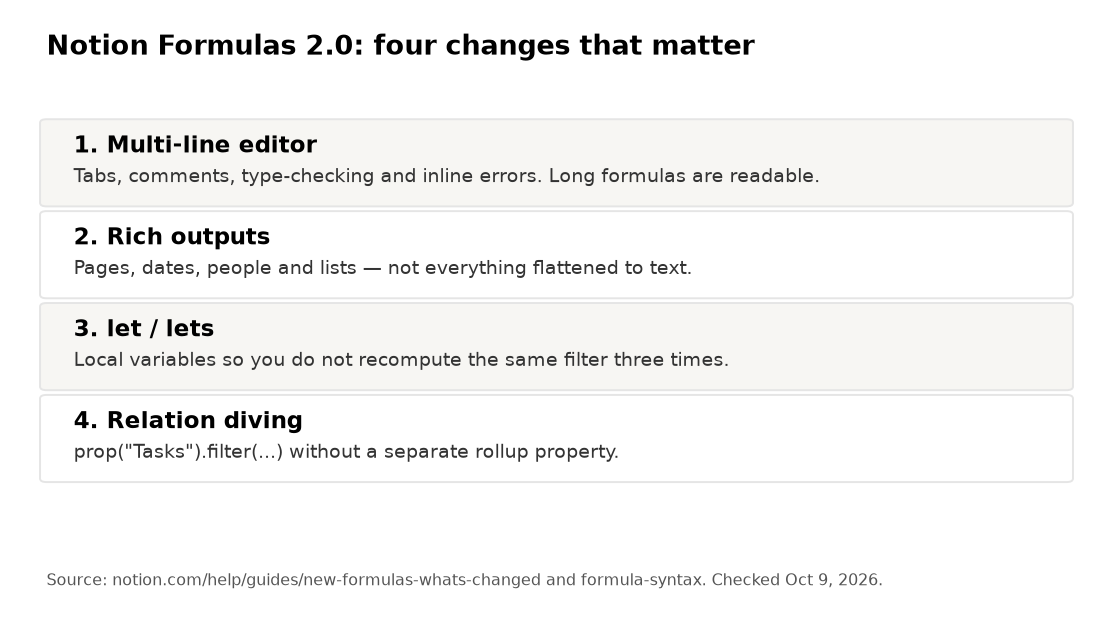
The changelog for Formulas 2.0 reads like a list of the exact complaints every power Notion user has filed at some point. Before this update, Notion formulas had three structural problems that made complex logic genuinely painful to build and maintain.

First, the editor was a single-line text box. Every formula — regardless of complexity — had to live on one line. A deadline warning formula with three output states and five conditions could hit 400 characters of unbroken text. Debugging meant reading left to right through a wall of parentheses. Second, there was no way to define a reusable variable inside a formula. If you needed to reference today’s date adjusted for weekends in three different parts of a formula, you typed that logic three times. Change the business rule and hunt down every instance. Third, the output types were limited: text, number, checkbox, date. No lists. No ability to do anything meaningful with a related database’s records.

Formulas 2.0 addresses all three. The practical result: formulas that used to require a separate consultant to decipher can now be written in a way that a team member with moderate Notion experience can read, understand, and update without breaking everything. For teams that have been using Notion as a spreadsheet replacement, this is the update that actually makes that viable for real-world project management complexity. See the official Notion formulas documentation for the full specification.

Notion Formulas 2.0 Editor: Multi-Line Writing and the Let Variable

Opening the Formulas 2.0 editor for the first time, the most immediate change is spatial: you can press Enter to go to a new line and Tab to indent. This sounds trivial. It is not. The ability to write a formula with the same visual structure as code — conditions indented under their parent function, closing parentheses stacked on their own line — cuts the time it takes to debug a formula by a significant margin. You can also add comments with //, which means you can leave notes inside the formula itself explaining why a condition exists.

Here is what a deadline warning formula looked like before Formulas 2.0:

if(empty(prop("Due Date")), "No Date", if(dateBetween(prop("Due Date"), now(), "days") < 0, "Overdue", if(dateBetween(prop("Due Date"), now(), "days") <= 3, "Due Soon", "On Track")))

And here is the same formula written in Formulas 2.0 with multi-line formatting:

// Deadline status — updated 2026-01 to include "No Date" state
ifs(
empty(prop("Due Date")), "No Date",
dateBetween(prop("Due Date"), now(), "days") < 0, "Overdue",
dateBetween(prop("Due Date"), now(), "days") <= 3, "Due Soon",
true, "On Track"
)

The logic is identical. The second version takes about one-third of the time to read and audit. That is the entire point.

The let() function: the most important addition for maintainability. The let() function allows you to define named variables at the top of your formula and reference them throughout. The syntax is let(variableName, value, ...formula that uses variableName). For complex formulas that reference the same calculated value multiple times, this eliminates duplication entirely.

let(
daysRemaining, dateBetween(prop("Due Date"), now(), "days"),
ifs(
empty(prop("Due Date")), "No Date",
daysRemaining < 0, "⛔ Overdue by " + abs(daysRemaining) + " days",
daysRemaining <= 3, "⚠️ Due in " + daysRemaining + " days",
true, "✅ On Track"
)
)

Notice that daysRemaining is calculated once and used three times. Before let(), you would write the dateBetween() call three times — and if the business rule changed (say, the warning threshold moved from 3 days to 5), you would need to find and update every instance. With let(), you change it once. For databases with 15 or 20 formula properties where the same calculated value is shared, this is genuinely transformative for maintenance overhead.

You can also nest let() calls to create multiple variables, or use lets() — the multi-variable version — to define several variables in sequence where later ones can reference earlier ones.

lets(
budget, prop("Budget"),
spent, prop("Amount Spent"),
remaining, budget - spent,
pctUsed, round((spent / budget) * 100),

// Output the budget health summary
ifs(
budget == 0, "No Budget Set",
pctUsed >= 100, "🔴 Over Budget",
pctUsed >= 80, "🟡 " + pctUsed + "% Used — Watch closely",
true, "🟢 " + pctUsed + "% Used — Healthy"
)
)

Output Types: Text, Numbers, Dates, Lists, and Objects

This is the structural change that moves Notion formulas from "useful for simple display logic" into "capable of project management calculations." Previously, a Notion formula could output text, a number, a checkbox (boolean), or a date. Those four types covered a lot of ground but hit a hard wall when you needed to work with the records in a related database.

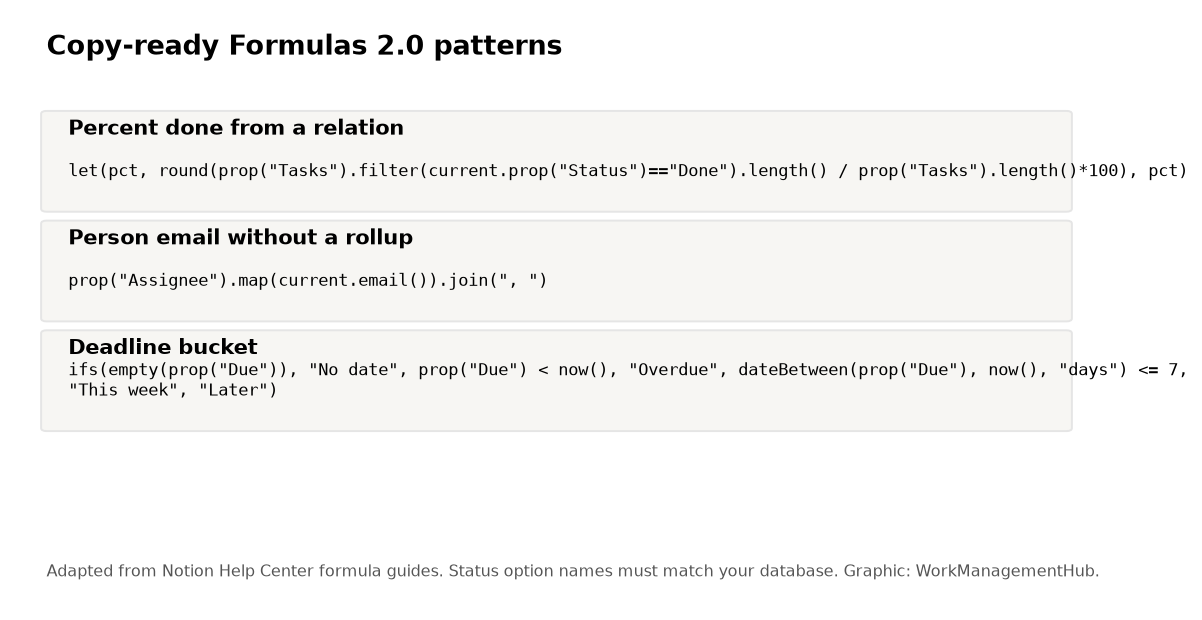
Formulas 2.0 adds list and object output types. A formula can now return a list of values derived from a relation property — for example, the list of completion statuses from all sub-tasks linked to a project record. Once you have that list, you can pass it through filter() to keep only the "Done" items, then length() to count them, and divide by the total count to get a completion percentage. This is the most-requested Notion formula use case — counting completed sub-tasks — and it now works natively without any Zapier automation or external database.

Object output types allow formulas to return structured data with named keys, enabling more sophisticated downstream calculations. In practice, the list output type is what most project teams will reach for first, since it directly enables the progress tracking, budget rollup, and related-record counting patterns that make Notion a spreadsheet replacement for teams managing projects.

Date outputs have also been expanded. Formulas can now perform date arithmetic more cleanly, including returning date values that other formula properties can consume — enabling chains of date calculations across multiple formula columns without awkward text-to-date conversion workarounds.

Essential Function Reference (The Ones That Matter)

The Notion formula cheat sheet lists every available function. This section covers the ones that actually drive complex project management formulas — not all 100+, but the 15 or so that appear in almost every serious Notion database build.

Conditional logic:

// ifs() — flat alternative to nested if() chains
// Syntax: ifs(condition1, value1, condition2, value2, ..., default)
ifs(
prop("Priority") == "Critical", 1,
prop("Priority") == "High", 2,
prop("Priority") == "Medium", 3,
true, 4
)

// if() — still useful for simple binary conditions
if(prop("Status") == "Done", "✅", "⬜")

List operations — the core of Formulas 2.0's power:

// map() — transform each item in a list
// Returns a new list with each element processed by the expression
prop("Sub-tasks").map(current.prop("Status"))

// filter() — return only list items matching a condition
prop("Sub-tasks").filter(current.prop("Status") == "Done")

// length() — count items in a list
prop("Sub-tasks").length()

// Combined: count completed sub-tasks
prop("Sub-tasks").filter(current.prop("Status") == "Done").length()

Date functions:

// dateBetween() — days between two dates (negative if date is past)
dateBetween(prop("Due Date"), now(), "days")

// dateAdd() — add time to a date
dateAdd(prop("Start Date"), 14, "days")

// now() — current timestamp
// formatDate() — display a date in custom format
formatDate(prop("Due Date"), "MMM D, YYYY")

Math and text utilities:

// round(), floor(), ceil() — number rounding
round((prop("Spent") / prop("Budget")) * 100)

// abs() — absolute value (useful for "X days overdue" messaging)
abs(dateBetween(prop("Due Date"), now(), "days"))

// min(), max() — clamp values to a range
min(round(prop("Score")), 100) // cap score at 100

// contains() — check if text or list contains a value
contains(prop("Tags"), "Urgent")

// empty() — check for null/empty values (critical for safe formulas)
if(empty(prop("Due Date")), "No date set", formatDate(prop("Due Date"), "MMM D"))

Variable functions:

// let() — single variable
let(varName, expression, formula using varName)

// lets() — multiple variables in sequence
lets(
var1, expression1,
var2, expression using var1, // var2 can reference var1
final expression
)

Formula Recipe: Project Progress Tracker (% Complete)

This is the formula every team replacing a spreadsheet with Notion wants first. The goal: a numeric percentage showing how many sub-tasks (stored as related records in a linked database) are marked Done, displayed both as a number and as a visual progress bar using emoji or text blocks.

Setup requirements: A Projects database with a relation property called "Sub-tasks" pointing to a Tasks database. The Tasks database has a Status select property with a "Done" option.

Formula property: "% Complete" (number type, formatted as percent):

lets(
total, prop("Sub-tasks").length(),
completed, prop("Sub-tasks").filter(current.prop("Status") == "Done").length(),

if(
total == 0,
0,
round((completed / total) * 100)
)
)

Formula property: "Progress Bar" (text type) — visual indicator:

lets(
total, prop("Sub-tasks").length(),
completed, prop("Sub-tasks").filter(current.prop("Status") == "Done").length(),
pct, if(total == 0, 0, round((completed / total) * 100)),
filled, floor(pct / 10), // number of filled blocks (0-10)
empty_, 10 - filled, // number of empty blocks

// Build the visual bar
"▓".repeat(filled) + "░".repeat(empty_) + " " + pct + "% (" + completed + "/" + total + ")"
)

The output looks like: ▓▓▓▓▓▓░░░░ 60% (6/10). This displays cleanly in gallery view, table view, or on the project page itself. For teams visualizing this data across views, see our guide to Notion charts and database views for how to surface these formula outputs in filtered board views and gallery layouts.

Formula Recipe: Deadline Warning System (Overdue, Due Soon, On Track)

Deadline visibility is the single most common reason teams evaluate Notion against dedicated project management tools. The good news: with Formulas 2.0, you can build a deadline status system that is more contextual than what most dedicated tools provide out of the box — because you control exactly what "due soon" means for your team.

Formula property: "Deadline Status" (text type):

lets(
// Core variables — change these to adjust thresholds
due, prop("Due Date"),
status, prop("Status"),
daysLeft, dateBetween(due, now(), "days"),
warnThreshold, 3, // days before due = "Due Soon"
critThreshold, 1, // days before due = "Critical"

ifs(
// Already done — don't flag completed tasks
status == "Done", "✅ Complete",

// No date set
empty(due), "📅 No Due Date",

// Past due
daysLeft < 0, "🔴 Overdue — " + abs(daysLeft) + "d ago",

// Due today
daysLeft == 0, "🚨 Due Today",

// Critical window
daysLeft <= critThreshold, "🔴 Critical — " + daysLeft + "d left",

// Warning window
daysLeft <= warnThreshold, "🟡 Due Soon — " + daysLeft + "d left",

// On track
true, "🟢 On Track — " + daysLeft + "d left"
)
)

The lets() block at the top is doing exactly the work the let() function was designed for. The warnThreshold and critThreshold variables are defined once. If your team decides the warning window should be 5 days instead of 3, you change one number and every record in the database updates. With old-style nested if() formulas, this change would require editing the hard-coded number in three or four places and hoping you caught them all.

This formula pairs naturally with filter views — create a database view filtered to Deadline Status contains "Overdue" and you have an instant at-risk project dashboard that updates in real time.

Formula Recipe: Budget Rollup from Related Database

Budget tracking in Notion has historically required either a complex rollup property (which is inflexible for calculations) or an external spreadsheet. Formulas 2.0's list output types change this. You can now pull budget and spend figures from related expense records and perform calculations directly in a formula.

Setup: A Projects database with a relation property "Expenses" pointing to an Expenses database. The Expenses database has a "Amount" number property.

Formula property: "Budget Health" (text type):

lets(
budget, prop("Budget"),

// Sum all expense amounts from related records
// map() pulls the Amount from each linked expense record
// then we use sum() on the resulting list
totalSpent, prop("Expenses").map(current.prop("Amount")).sum(),

remaining, budget - totalSpent,
pctUsed, if(budget == 0, 0, round((totalSpent / budget) * 100)),

ifs(
budget == 0,
"No Budget Set",

pctUsed >= 100,
"🔴 Over Budget — $" + format(abs(remaining)) + " over",

pctUsed >= 90,
"🔴 Critical — " + pctUsed + "% used ($" + format(remaining) + " left)",

pctUsed >= 75,
"🟡 Watch — " + pctUsed + "% used ($" + format(remaining) + " left)",

true,
"🟢 Healthy — " + pctUsed + "% used ($" + format(remaining) + " left)"
)
)

Companion formula: "Spend Summary" (text type) for at-a-glance display in gallery view:

lets(
budget, prop("Budget"),
spent, prop("Expenses").map(current.prop("Amount")).sum(),
expCount, prop("Expenses").length(),

"$" + format(spent) + " spent of $" + format(budget) + " across " + expCount + " expenses"
)

This approach does have limits: it works cleanly when the relation is one-to-many (one project, many expenses). For many-to-many relations or multi-level rollups spanning three or more databases, the formula complexity increases significantly and you may hit performance constraints on large databases. For that scale, see our coverage of combining Notion AI with project management workflows — AI-assisted database design can help structure the data model to avoid those limits.

Formula Recipe: Auto-Priority Score Based on Multiple Properties

Manual priority assignment is one of the biggest sources of inconsistency in project databases. Every team member has a slightly different definition of "high priority." An auto-calculated priority score based on objective factors — deadline urgency, business impact, effort estimate, and stakeholder tier — removes the subjectivity and keeps the database consistent without asking anyone to follow a rubric they won't remember next week.

Setup: The Projects database has: a Due Date property, an Impact select ("High" / "Medium" / "Low"), an Effort select ("High" / "Medium" / "Low"), and a Stakeholder Tier select ("Executive" / "Client" / "Internal").

Formula property: "Priority Score" (number type, 0–100):

lets(
daysLeft, if(empty(prop("Due Date")), 30, dateBetween(prop("Due Date"), now(), "days")),

// Urgency score: more points as deadline approaches
urgency, ifs(
daysLeft < 0, 40, // overdue = max urgency
daysLeft <= 1, 35,
daysLeft <= 3, 28,
daysLeft <= 7, 20,
daysLeft <= 14, 12,
true, 5
),

// Impact score: what happens if this doesn't get done
impact, ifs(
prop("Impact") == "High", 30,
prop("Impact") == "Medium", 18,
true, 8
),

// Stakeholder score: who is waiting on this
stakeholder, ifs(
prop("Stakeholder Tier") == "Executive", 20,
prop("Stakeholder Tier") == "Client", 15,
true, 5
),

// Effort modifier: high effort tasks get a small penalty (lower score = lower priority per unit effort)
effortMod, ifs(
prop("Effort") == "High", -5,
prop("Effort") == "Medium", 0,
true, 5 // low effort = slight bonus (quick wins)
),

// Final score clamped to 0-100
min(100, max(0, urgency + impact + stakeholder + effortMod))
)

Formula property: "Priority Label" (text type) — human-readable tier from the score:

lets(
score, prop("Priority Score"),
ifs(
score >= 80, "🔴 Critical",
score >= 60, "🟠 High",
score >= 40, "🟡 Medium",
score >= 20, "🔵 Low",
true, "⚪ Minimal"
)
)

The power of this pattern is that the scoring weights are all defined as variables in the lets() block. When stakeholders decide that client-tier items should carry more weight than executive-tier items (it happens), you change two numbers instead of rebuilding the formula logic. For a complete view of how this fits into a structured project management system, our Notion project management setup guide covers the full database architecture.

Combining Formulas with Notion Automations

Formulas and automations serve different functions in Notion's logic layer, and understanding the boundary between them is what prevents the most common architectural mistake: trying to do everything in one or the other.

Formulas are reactive and stateless. They recalculate every time the record is viewed or any property changes. They cannot trigger actions, send notifications, or create records in other databases. What they can do is compute a state — "Overdue," "Critical," "Budget Exceeded" — that an automation can then react to.

Automations are event-driven. They fire when a trigger condition is met — and formula property values changing can be that trigger. The most powerful Notion workflow pattern combines both: a formula computes a status value, and an automation fires when that value changes to send a Slack message, assign an owner, or create a follow-up task.

Practical example: the Deadline Status formula above outputs "🔴 Overdue" when a project passes its due date. Pair that with an automation: When "Deadline Status" changes to contains "Overdue" → Send Slack message to #project-alerts channel → Set "Escalation Sent" checkbox to checked. The checkbox prevents the automation from firing repeatedly as the page is updated while still overdue.

The key constraint to know: Notion automations cannot trigger other Notion automations. You cannot chain automation A → automation B. If you need multi-step workflows triggered by formula state changes, a formula → automation → Zapier or Make.com integration is the standard approach. For a full diagnostic of what breaks automation chains and how to fix it, see our guide to Notion automations not working in 2026.

Common Formula Errors and How to Fix Them

Notion formula errors fall into a predictable set of categories. Here are the ones that appear most often in real database builds, and the specific fix for each.

Error: "Type mismatch" when comparing properties
This occurs when you try to compare a text property to a number, or a select property to a boolean. The most common instance: using prop("Checkbox") == true when the property is actually a formula outputting text. Always confirm the type of each property before writing a condition against it.

// Wrong — comparing text formula output to boolean
if(prop("Status Formula") == true, ...)

// Right — compare text to text
if(prop("Status Formula") == "Done", ...)

Error: Division by zero on percentage calculations
Any formula that divides by a count or total will throw an error when that denominator is zero — typically when a new project record has no sub-tasks yet. Always guard division with an empty() or == 0 check.

// Will error on empty relation
prop("Sub-tasks").filter(current.prop("Status") == "Done").length() / prop("Sub-tasks").length()

// Safe version
let(
total, prop("Sub-tasks").length(),
if(total == 0, 0, prop("Sub-tasks").filter(current.prop("Status") == "Done").length() / total)
)

Error: Formula outputs blank instead of expected value
Usually caused by a property name mismatch. Notion's formula editor is case-sensitive and space-sensitive for property names. prop("due date") and prop("Due Date") are different references. When a formula goes blank instead of erroring, check every prop() reference against the exact property name in the database.

Error: now() not updating on existing records
Formulas using now() recalculate when the page is opened or when any property on the record changes. If a record is untouched for several days, its "Days Until Deadline" formula will be stale until the page is opened. This is a fundamental Notion limitation — not a formula error. The workaround is an automation that touches the record daily (edits a hidden property) to force recalculation, though this has its own complexity cost.

Error: map() returning unexpected types
When using map() on a relation, the current keyword refers to each related page object. If the property you are mapping does not exist on the related database — either because the name is wrong or the database was changed — the map will return a list of empty values. Always verify the property name in the related database before using it in a map expression.

// Correct pattern for mapping a property from related records
prop("Sub-tasks").map(current.prop("Status"))
// "Status" must exactly match the property name in the Sub-tasks database
🏆 Verdict

Formulas 2.0 finally makes Notion a credible spreadsheet replacement for project teams operating at moderate complexity — think one to three interconnected databases, 10 to 50 active projects, and formula logic that goes beyond simple date display. The multi-line editor and let()/lets() functions are not incremental improvements; they are the difference between formulas that one person can maintain and formulas that a team can own. The expanded output types (lists, objects) unlock the progress tracking and budget rollup patterns that teams have been building workarounds for since Notion's early days. Where Formulas 2.0 still falls short: multi-database rollups at scale, real-time financial data aggregation, and anything requiring live external data without an automation layer. For those use cases, the formula → automation → integration chain adds complexity that dedicated BI tools or Airtable's more mature relational features handle more cleanly. But for the overwhelming majority of project management teams that need deadline alerts, progress tracking, priority scoring, and budget visibility inside a single Notion workspace, Formulas 2.0 removes the last major excuse not to build those systems natively.

FAQ

Do I need to upgrade my Notion plan to use Formulas 2.0?

Formulas 2.0 is available across all Notion plans, including the free tier. The new formula editor, let() function, expanded output types, and functions like map(), filter(), and ifs() are not gated behind a paid plan. However, some of the automation integrations that pair most powerfully with formula outputs — particularly unlimited automation runs and Slack/Gmail actions — require the Business plan at $20 per user per month.

Can Formulas 2.0 replace rollup properties entirely?

For many use cases, yes — especially sum, count, and conditional aggregation from a related database. The pattern of prop("Relation").map(current.prop("PropertyName")).sum() replaces a rollup property while giving you more control over how the result is formatted and combined with other logic. Rollup properties still have one advantage: they update more reliably in real time on large databases, since they are computed at the database level rather than per-page. For databases with thousands of records, test formula-based rollups against performance before fully replacing rollups.

What is the difference between let() and lets()?

let() defines a single variable: let(variableName, value, formula). lets() defines multiple variables in sequence, where each can reference the ones before it: lets(var1, expr1, var2, expr2 using var1, final formula). Use let() when you only need one intermediate value, and lets() when your formula requires building up a chain of calculated values — for example, computing budget remaining and then computing percent used from that remaining figure.

Why does my Formulas 2.0 formula using now() show stale values?

Notion formulas recalculate when a page is opened or when any property on that record is edited — they do not run on a scheduled timer. A project record that no one opens or edits over a weekend will show the deadline status from Friday until someone touches it Monday. The workaround is an automation that edits a hidden "Last Refreshed" date property on a daily schedule, which forces the formula to recalculate. It adds a small overhead but solves the stale-value problem for time-sensitive status formulas. See our guide to Notion automation troubleshooting for setting up scheduled automations correctly.

Can I use Formulas 2.0 to reference properties from a page that is not directly related?

Formulas can only directly access properties from the current database and properties from databases connected via a direct relation property. You cannot "hop" two relation levels in a single formula — for example, reaching from a Project to a Client via a Task relation is not possible in a single formula. The standard workaround is to create a direct relation between the two databases you need, or to surface the needed value as a rollup in an intermediate database so your formula only has to look one level away.

Author

Shaik KB

Follow Me
Other Articles
Previous

Linear vs GitHub Issues: Which Should Your Team Use in 2026?

Next

ClickUp Sprints Not Working? Here’s How to Fix It (2026)

No Comment! Be the first one.

    Leave a Reply Cancel reply

    Your email address will not be published. Required fields are marked *

    Sponsored Smartsheet Expert Services – Implementation, Automation, Training
    Sponsored Power BI & Tableau Analytics – Dashboards, Reporting, Insights
    Sponsored AI Agents for Work Management – Automate Tasks, Integrate Tools

    Categories

    • Airtable (12)
    • Alternatives (12)
    • Asana (33)
    • ClickUp (39)
    • How-To Guides (133)
    • Integrations (16)
    • Jira (27)
    • Monday.com (38)
    • Notion (25)
    • Pricing Guides (11)
    • Project Management (74)
    • Smartsheet (28)
    • Tool Comparisons (44)
    • Wrike (11)

    Recent Post

    • ClickUp Sprints Not Working? Here’s How to Fix It (2026)
    • Notion Formulas 2.0: The Complete Guide to Functions and Syntax (2026)
    • Linear vs GitHub Issues: Which Should Your Team Use in 2026?
    • Smartsheet WorkApps: How to Build No-Code Apps in 2026
    • Asana Custom Fields: Complete Setup Guide for 2026
    Work Management Hub

    Independent expert reviews & comparisons of work management tools — helping 50,000+ teams choose the right software.

    Tools We Cover

    • Smartsheet
    • Monday.com
    • ClickUp
    • Asana
    • Notion
    • Jira
    • Wrike
    • Airtable

    Company

    • About Us
    • Contact Us
    • Privacy Policy
    Copyright 2026 — Work Management Hub. All rights reserved. Blogsy WordPress Theme