Skip to content
-
Subscribe to our newsletter & never miss our best posts. Subscribe Now!
Work Management Hub Work Management Hub

Expert Reviews, Comparisons & Guides for Smartsheet, Monday.com, Asana, ClickUp & More

Work Management Hub Work Management Hub

Expert Reviews, Comparisons & Guides for Smartsheet, Monday.com, Asana, ClickUp & More

  • Airtable
  • Asana
  • ClickUp
  • Jira
  • Monday.com
  • Notion
  • Smartsheet
  • Wrike
  • About
  • Contact
  • Airtable
  • Asana
  • ClickUp
  • Jira
  • Monday.com
  • Notion
  • Smartsheet
  • Wrike
  • About
  • Contact
Close

Search

  • https://www.facebook.com/
  • https://twitter.com/
  • https://t.me/
  • https://www.instagram.com/
  • https://youtube.com/
How-To GuidesNotion

Notion Linked Databases 2026: The Complete Guide to Relations, Rollups and Cross-Database Connections

By Shaik KB
May 29, 2026 12 Min Read
0
⚡ Key Takeaways

  • Notion linked databases are not copies — they are filtered windows into the same underlying data, meaning changes in a linked view write back to the source database.
  • The 2025 Data Sources architecture decoupled database containers from their data, letting you restructure or merge workspace systems without breaking existing relation properties.
  • Rollup properties support 13+ calculation functions across number, date, and any-property types — giving you aggregated intelligence without formulas.
  • A 2026 improvement lets you import an existing view’s filters and customizations when creating a new linked instance, eliminating redundant setup work across pages.
  • The Notion API still does not support linked data sources — view creation and management must be done through the UI directly.
Quick Answer:

Notion linked databases let you display the same database across multiple pages with independent filters, sorts, and groups. Relations connect records across databases, while Rollups aggregate that related data — together they replace spreadsheet VLOOKUP logic with a structured, queryable relational layer inside your workspace.

Table of Contents

  1. What Are Notion Linked Databases (And Why They Matter)
  2. The 2025 Data Sources Architecture Change
  3. Relation Properties: Two-Way vs. One-Way Connections
  4. How to Set Up Relations Between Notion Databases
  5. Rollup Calculations: The Full Function Reference
  6. Creating and Managing Notion Linked Database Views
  7. 2026 Update: Re-Usable Linked Views
  8. Practical Use Cases: CRM, Projects, and Invoicing
  9. API Limitations You Need to Know
  10. Verdict
  11. FAQ

Notion Linked Databases 2026: The Complete Guide to Relations, Rollups and Cross-Database Connections

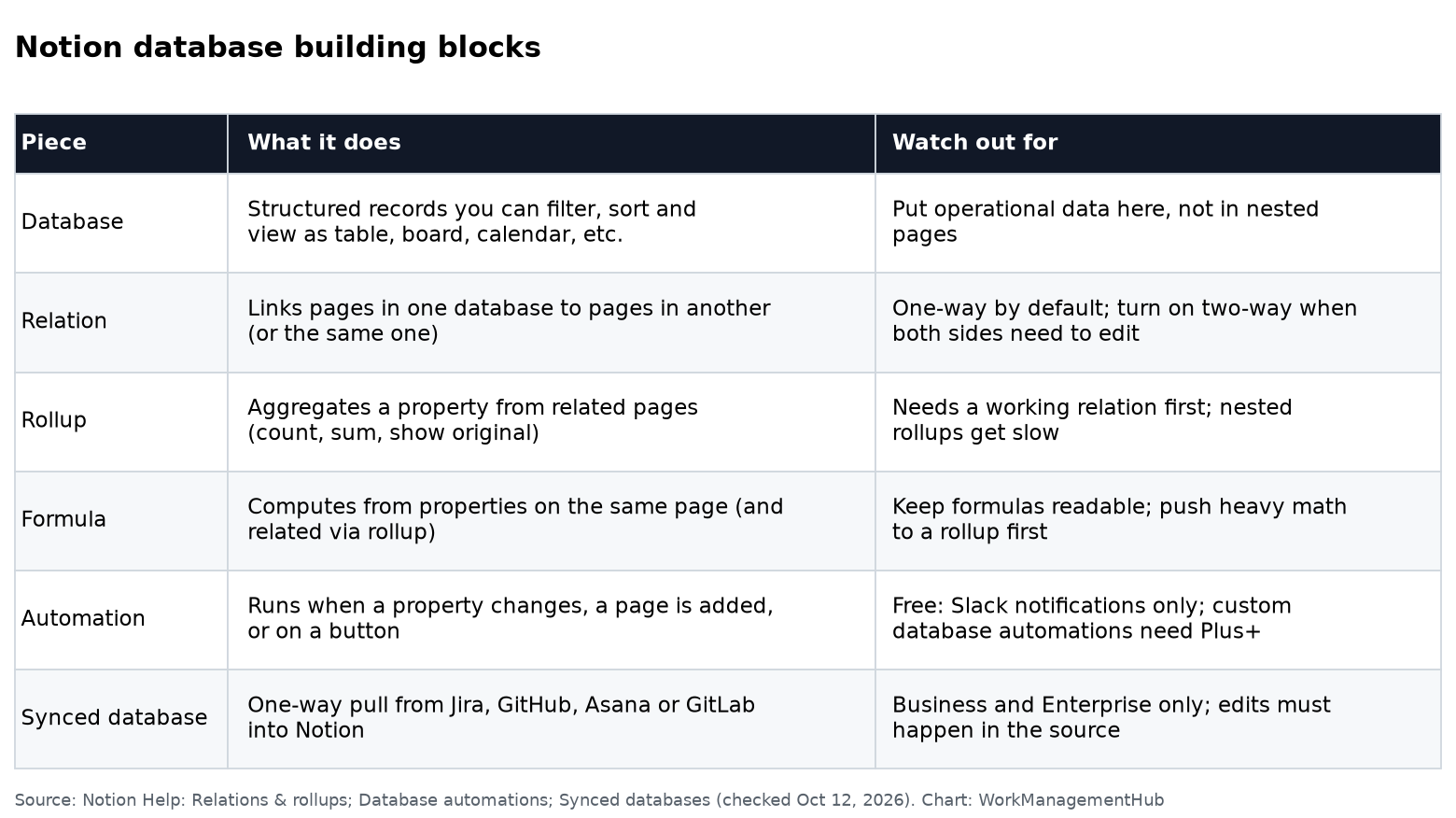
Notion linked databases are the backbone of every serious workspace architecture. Once you move beyond single-purpose databases into systems where clients connect to projects, projects connect to tasks, and tasks roll up into budget summaries, you are working with Notion’s relational layer — and the depth of that layer is far greater than most guides acknowledge.

This guide covers the full picture: how Relations work under the hood, every Rollup calculation available in 2026, the mechanics of linked database views, the 2025 Data Sources architecture shift that changed how Notion stores and connects data, and the 2026 linked view improvements that reduce repetitive configuration. Whether you are building a client-facing CRM or restructuring a company-wide project OS, this is the reference you need.

What Are Notion Linked Databases (And Why They Matter)

A linked database is a view of an existing database placed on a different page. It is not a copy, not a snapshot, and not a separate data store. Any page you create or edit through a linked database view is the same underlying record — edited in place. The linked view simply presents a filtered, sorted, or grouped perspective of the source data.

This distinction matters enormously for workspace design. It means you can embed a filtered view of your full Projects database on a Client page showing only that client’s work — without maintaining a separate database. You can place a priority-sorted view of a Tasks database on your daily planning page — without syncing anything. Every edit propagates immediately because every view is reading from and writing to the same source.

The practical power is in composition. A single master database can appear dozens of times across your workspace, each instance scoped to the context of the page it lives on. For a deeper foundation, see our Notion database guide before proceeding.

The 2025 Data Sources Architecture Change

In 2025, Notion introduced a structural change that most guides have not caught up with: the Data Sources architecture. Prior to this change, a database was a monolithic object — the container and the data were effectively the same thing. If you wanted to restructure your workspace, moving or merging databases risked breaking relation properties that referenced those databases by ID.

The Data Sources model decouples the database container from the underlying data. A database is now a container that can hold one or more Data Sources. This means: you can restructure workspace organization without breaking existing relation properties, merge two previously separate databases into a single container while preserving both data sets, and split a large database into distinct sources without orphaning linked views. The data source identity persists through structural changes, so your relations and rollups survive reorganization intact.

For teams that periodically reorganize their Notion workspace — especially when onboarding new members or scaling systems — this is a significant quality-of-life improvement. Refactoring a workspace that previously required careful dependency mapping before any move now becomes substantially safer.

Relation Properties: Two-Way vs. One-Way Connections

A Relation property creates a link between records in two databases. The implementation question is whether that relationship is visible from both sides — this is the two-way versus one-way distinction.

Two-way relations create a corresponding property in the related database automatically. If you relate Projects to Clients, Notion also creates a “Projects” relation property on the Clients database. Both sides are visible and editable — a client record shows its associated projects; a project record shows its client. Default to two-way for primary entity relationships (Clients ↔ Projects, Projects ↔ Tasks).

One-way relations create the link only in the database where you defined the property. Use one-way relations when you need to reference records from another database for lookup or rollup purposes but do not want to pollute the target database with a backlink property that editors will not use.

Notion also supports self-referential relations — a database relating to itself. This is useful for hierarchical structures like task dependencies (Task A blocks Task B, both in the same database) or org charts where Person A reports to Person B in the same People database.

How to Set Up Relations Between Notion Databases

  1. Open the source database — navigate to the database where you want to add the relation property (e.g., your Projects database).
  2. Add a new property — click the “+” button in the property header row. Select Relation from the property type list.
  3. Select the target database — in the relation configuration panel, search for and select the database you want to link to (e.g., Clients). Notion searches across your entire workspace.
  4. Choose relation type — toggle Show on [Target Database] to enable a two-way relation. If you leave this off, the relation is one-way. Name the backlink property if enabling two-way.
  5. Confirm the relation — click Add relation. The property appears in your source database, and if two-way, the backlink property appears in your target database.
  6. Populate the relation — open any record in the source database and click the relation property to search for and link records from the target database. You can link multiple records per relation.

For large databases with hundreds of records, use the relation property in a full-page database view rather than inline — the search and link experience is faster. You can also bulk-link records by opening a record and typing directly into the relation field to search and multi-select targets.

Rollup Calculations: The Full Function Reference

A Rollup property reads through a relation property and performs a calculation on a specific property of the related records. This is where Notion’s relational layer starts to feel genuinely powerful — aggregating data across database boundaries without a formula in sight. For complex formula-based aggregations that go beyond rollup capabilities, our Notion Formulas 2.0 guide covers the extended expression syntax.

Number Property Rollups

  • Sum — total of all related values. Use for invoice totals, estimated hours, budget figures.
  • Average — arithmetic mean. Useful for average deal size or mean task completion time.
  • Median — middle value. More resistant to outliers than Average for financial data.
  • Min / Max — lowest or highest value among related records.
  • Range — difference between Max and Min. Useful for understanding spread in pricing or estimates.
  • Percent empty / non-empty — data completeness health checks.

Date Property Rollups

  • Earliest date — the oldest date across all related records. Find a project’s earliest task start.
  • Latest date — the most recent date. Find a project’s final deadline without scanning every task.
  • Date range — displays both earliest and latest, giving you the full temporal span.

Universal Rollup: Show Original

Show Original works across any property type and displays all related page values inline in the rollup cell. A 2024 API bug caused rollup objects with “Show Original” set to be silently omitted from API responses — this has since been patched. If you built automations that appeared to work intermittently on Show Original rollups, re-test them to confirm they now return data correctly.

Adding a Rollup Property

  1. Add a new property — in the database where you want the rollup, add a property and select Rollup as the type.
  2. Select the Relation — choose which relation property to read through. Only relation properties in the current database appear here.
  3. Select the Property — choose which property on the related records to aggregate (e.g., “Invoice Amount” on the Invoices database).
  4. Select the Calculate function — choose your aggregation function. Available functions update dynamically based on the property type selected in step 3.

Creating and Managing Notion Linked Database Views

Linked database views let you embed a database on any page with independent display settings. Filters, sorts, groups, and visible properties set on a linked view are local to that instance and do not propagate back to the source database or to other linked instances. For a full walkthrough of view types and display options, see our guide to Notion charts and database views.

  1. Navigate to the destination page — go to the page where you want the linked database to appear.
  2. Type /linked — in the page body, type /linked and select Linked view of database from the command menu.
  3. Search for the source database — Notion presents a search panel. Find and select your target database.
  4. Choose the view type — select Table, Board, Timeline, Calendar, List, or Gallery as your starting view.
  5. Configure local filters and sorts — use the Filter and Sort controls to scope this view to the relevant data. These settings exist only in this linked instance.
  6. Set visible properties — use the Properties panel to show only the columns relevant to this context. Hiding properties in a linked view does not delete them from the source.

Linked database views are particularly powerful when embedded on record pages. A Client record page with a linked view of the Projects database filtered to “Client = this record” gives every client its own scoped project tracker — automatically populated by the relation, no manual maintenance required.

2026 Update: Re-Usable Linked Views

Prior to 2026, every new linked database instance required manual reconfiguration of filters, sorts, groups, and visible properties from scratch. The 2026 linked view improvement addresses this directly. When creating a new linked instance of a database, you can now import an existing view’s filters and customizations instead of rebuilding them from scratch.

The workflow presents a list of existing named views from the source database and any previously configured linked views — select one as your starting configuration, and all its filters, sorts, groups, and property visibility settings are pre-applied to the new instance. This is particularly valuable for template-driven workspace architectures.

The imported configuration is a starting point, not a live link. After importing, the new linked instance is fully independent — changes to the source view’s configuration do not propagate to instances that imported from it. Think of it as a view template, not a subscription.

One critical limitation: Notion’s API does not support linked data sources. View creation, configuration, and management for linked database instances must be done through the Notion UI directly. Plan your workspace automation accordingly. For details on the full API property object structure, the Notion API property object reference documents what is and is not accessible programmatically.

Practical Use Cases: CRM, Projects, and Invoicing

CRM + Project Database

The canonical use case: a Clients database and a Projects database connected by a two-way relation. On the client record page, a linked view of Projects filtered to the current client gives account managers an instant project tracker. Rollups on the Clients database surface aggregated data: Count (total projects), Show Original on Project Status (see all statuses at a glance), Latest Date on Project Deadline (furthest upcoming deadline).

For a complete implementation within a full project operating system, see our Notion project management setup guide.

Client + Invoice Database

A Clients database related to an Invoices database enables financial tracking without a separate accounting tool for smaller teams. One-way relation (Invoices → Client). Rollups on the Clients database aggregate: Sum of Invoice Amount (total billed), Count of invoices with Status = “Unpaid” (outstanding invoices), Latest Date on Invoice Date (most recent invoice).

Tasks + Projects + Sprints

A three-database relational system where the 2025 Data Sources architecture pays the most dividends. Tasks relate to Projects; Projects relate to Sprints. Rollups cascade upward: Tasks roll up completion percentages to Projects; Projects roll up aggregated completion to Sprints. When a task is checked off, the sprint-level completion metric updates automatically.

For teams using Notion AI to generate summaries of these relational data structures, the Notion AI guide covers how AI features interact with database properties and linked views.

API Limitations You Need to Know

Relation properties return an array of page references (IDs and page URLs) via the API. Rollup properties return a rollup object containing the function used, the type of the result, and the result value. The patched Show Original rollup now correctly returns its results in API responses — an array of property value objects for each related record, where previously it would silently return null.

The hard limit: the API does not support linked data sources or linked view management. You cannot use the API to create a new linked instance, import view configurations, or modify filters of an existing linked view. All linked view operations are UI-only. Use the API for data operations (creating records, updating properties, querying databases) and the UI for view configuration.

When querying a database through the API, you are always querying the source database — not a linked view. If you need filtered results programmatically, replicate the filter logic in your API query parameters.

🏆 Verdict

Notion’s relational layer — notion linked databases, relations, and rollups — is the most underutilized part of the platform for teams that have outgrown simple page collections. The 2025 Data Sources architecture removes the biggest structural risk in building relational systems (reorganization breaking your relations), and the 2026 reusable linked view feature removes the biggest operational friction (rebuilding view configurations repeatedly). The API limitation on linked views is real and worth planning around, but it does not diminish the power available through the UI. Invest the time to design your relational schema deliberately. The returns compound: every relation becomes a surface for rollups, every rollup becomes a live metric, and every linked view becomes a contextual window that keeps your team in the right data at the right time.

Frequently Asked Questions

Can I relate databases across different Notion workspaces?

No. Relation properties only work within the same Notion workspace. You cannot create a relation between a database in Workspace A and a database in Workspace B. If your organization operates across multiple workspaces and needs cross-workspace relational data, you will need to either consolidate into a single workspace or use a third-party integration tool to synchronize records. Notion’s teamspace structure within a single enterprise workspace is the recommended approach for large organizations that want relational integrity with access segmentation.

Why isn’t my Rollup showing any values even though the relation is populated?

The most common cause is a misconfigured rollup pointing at the wrong property — verify that the property selected in the rollup configuration actually contains data on the related records. The second common cause is a filter on the linked database view hiding related records from view but not affecting the rollup calculation (rollups calculate across all related records regardless of view filters). If you are reading rollup data via the API and receiving null for Show Original rollups, confirm you are on the current API version — the 2024 bug has been patched.

Do filters on a linked database view affect the source database?

No. Filters, sorts, groups, and property visibility settings on a linked database view are entirely local to that linked instance. They affect what you see in that view but have no effect on the source database or on other linked instances of the same database. This is a core architectural feature — it allows multiple teams or contexts to have their own perspective on shared data without interfering with each other.

What is the difference between a linked database view and a filtered database view?

A filtered database view is a saved view tab within the source database itself — it lives in the database’s view bar and is accessible to anyone who opens the database directly. A linked database view is an instance of the database embedded on a different page, with its own independent configuration. Linked views bring the database to the page where it is relevant (e.g., a client record page), while saved view tabs organize different perspectives within the database’s own page.

Can I use rollups inside formulas?

Yes. Rollup properties return a value (number, date, string, or array depending on the function) that is fully accessible inside Notion formula properties. This means you can build conditional logic on top of rollup results — for example, a formula that flags a project as “Over Budget” when a Sum rollup on its task estimates exceeds a budget number property. See our Notion Formulas 2.0 guide for the full syntax reference.

Author

Shaik KB

Follow Me
Other Articles
Previous

Linear vs Shortcut 2026: Which Issue Tracker Is Better for Software Teams?

Next

ClickUp Time Tracking Not Working? 8 Fixes for the Most Common Issues in 2026

No Comment! Be the first one.

    Leave a Reply Cancel reply

    Your email address will not be published. Required fields are marked *

    Sponsored Smartsheet Expert Services – Implementation, Automation, Training
    Sponsored Power BI & Tableau Analytics – Dashboards, Reporting, Insights
    Sponsored AI Agents for Work Management – Automate Tasks, Integrate Tools

    Categories

    • Airtable (14)
    • Alternatives (12)
    • Asana (34)
    • ClickUp (40)
    • How-To Guides (141)
    • Integrations (16)
    • Jira (29)
    • Monday.com (39)
    • Notion (26)
    • Pricing Guides (11)
    • Project Management (75)
    • Smartsheet (29)
    • Tool Comparisons (46)
    • Wrike (12)

    Recent Post

    • ClickUp Time Tracking Not Working? 8 Fixes for the Most Common Issues in 2026
    • Notion Linked Databases 2026: The Complete Guide to Relations, Rollups and Cross-Database Connections
    • Linear vs Shortcut 2026: Which Issue Tracker Is Better for Software Teams?
    • How to Set Up Smartsheet Control Center in 2026: Automate Project Provisioning for Enterprise Teams
    • How to Use Asana Status Updates and Progress Reporting in 2026: Keep Stakeholders Informed Without Micromanaging
    Work Management Hub

    Independent expert reviews & comparisons of work management tools — helping 50,000+ teams choose the right software.

    Tools We Cover

    • Smartsheet
    • Monday.com
    • ClickUp
    • Asana
    • Notion
    • Jira
    • Wrike
    • Airtable

    Company

    • About Us
    • Contact Us
    • Privacy Policy
    Copyright 2026 — Work Management Hub. All rights reserved. Blogsy WordPress Theme