
- Asana’s Winter 2026 release ships 21 prebuilt AI Teammates across Marketing, IT, and Operations — all configurable in minutes with zero code.
- Standout Teammates include Sprint Coach, Bug Investigator, and Onboarding Assistant — each wired to Asana context like goals, workload data, and portfolios.
- AI Studio rule-building can now reference goals and portfolio health, and Jira Software Cloud comment sync keeps cross-tool task data in lockstep.
- Asana’s native Claude integration converts Claude conversations directly into structured Asana projects and tasks — no copy-pasting required.
- Teams that map the right Teammate to each workflow immediately cut status-update overhead and reduce context-switching between tools.
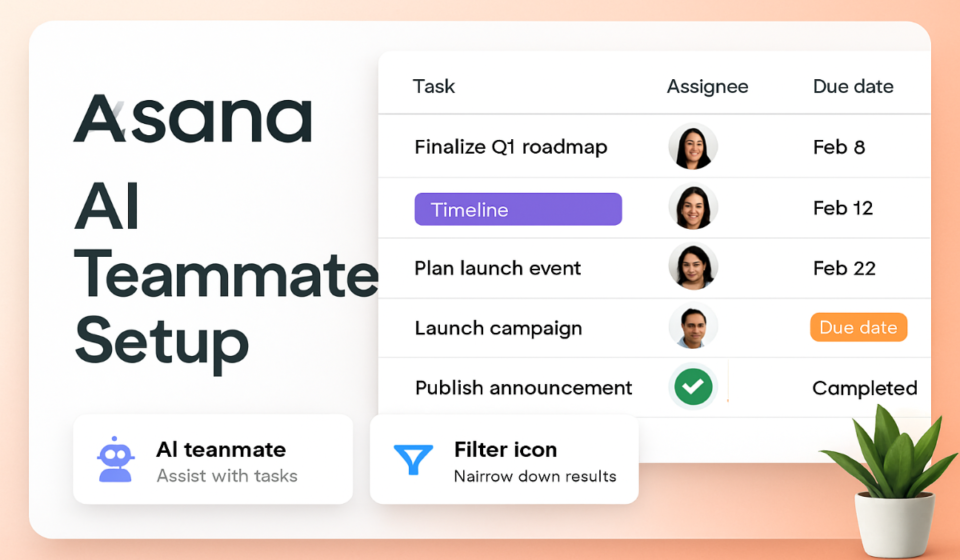
To set up Asana AI Teammates, go to Settings > AI & Automation > AI Teammates, select a prebuilt Teammate from the 21 available in the Winter 2026 release, configure its trigger conditions and scope, then activate. No code required — most teams are live in under ten minutes.
Why AI Teammates Are a Step-Change, Not a Feature Update
Most work management platforms have bolted AI onto existing features — a suggestion here, an auto-complete there. Asana’s Winter 2026 release takes a different architectural position: AI Teammates are autonomous agents that live inside your project structure, monitor work in real time, and take actions without requiring a human to initiate each one. The productivity implication is significant. A Sprint Coach Teammate can flag scope creep before a sprint derails. A Bug Investigator can pull context from linked Jira issues and summarize impact before your engineering lead even opens their laptop.
The 21 prebuilt Teammates Asana ships out of the box cover the three teams where status overhead is most painful: Marketing, IT, and Operations. Each one is pre-trained on domain logic — Marketing Teammates understand campaign timelines and approval chains; IT Teammates know incident severity and escalation paths. That specificity is what separates these from generic AI assistants.
If you’re still running weekly status meetings to surface blockers that a well-configured Teammate could surface at creation time, this guide will show you exactly how to close that gap.
What Are Asana AI Teammates?
AI Teammates are role-based AI agents embedded directly in Asana workspaces. Unlike rules-based automation — which triggers fixed actions on fixed conditions — Teammates use large language model reasoning to interpret task context, generate responses, and take multi-step actions. They operate within the permission boundaries you configure and surface their outputs inside Asana tasks, comments, and project timelines.
Each Teammate has three components:
- Trigger: the event or condition that activates the Teammate (task created, status changed, comment added, deadline missed).
- Context window: the Asana data the Teammate is allowed to read — custom fields, goals, portfolios, workload data, linked integrations.
- Action set: what the Teammate can do — add comments, update fields, create subtasks, send notifications, sync to external tools.
Critically, Teammates operate on a human-in-the-loop model by default. They surface recommended actions for approval rather than executing autonomously — though you can configure auto-approve for low-stakes actions like adding labels or drafting comment replies.
All 21 Prebuilt AI Teammates: Complete Reference
The Winter 2026 release groups Teammates into three functional categories. Below is the complete reference — the first guide to map all 21 to their intended use case, default trigger, and primary output.
Marketing Teammates (7)
| Teammate | Default Trigger | Primary Output | Best For |
|---|---|---|---|
| Campaign Planner | New project created in Marketing portfolio | Auto-generates campaign brief template with milestone tasks | Demand gen, brand campaigns |
| Content Reviewer | Task moves to “Review” stage | Drafts structured review checklist as task comment | Content teams, editorial workflows |
| Launch Coordinator | Launch date field set within 14 days | Sends pre-launch readiness checklist to task owner | Product launches, campaign go-lives |
| Approval Tracker | Approval subtask overdue by 24h | Escalation comment to project owner with blocker summary | Legal/brand approval chains |
| Brief Summarizer | Task description exceeds 500 words | Generates TL;DR summary pinned to task | Agency/client briefs, RFPs |
| Event Scheduler | Event type custom field set | Creates event logistics subtask tree | Field marketing, webinars, trade shows |
| Performance Reporter | Campaign end date passed | Prompts team to complete results fields; drafts recap | Post-campaign retrospectives |
IT Teammates (7)
| Teammate | Default Trigger | Primary Output | Best For |
|---|---|---|---|
| Bug Investigator | Bug task created with Severity field set | Pulls Jira comments, summarizes impact, suggests assignee | Engineering, QA teams |
| Incident Responder | Priority set to Critical/P1 | Creates incident response subtasks; pings on-call member | SRE, DevOps, support escalations |
| Change Manager | Change request task created | Generates impact assessment checklist; routes for CAB approval | IT change advisory boards |
| Sprint Coach | Sprint milestone at 50% elapsed with >40% tasks incomplete | Flags at-risk tasks, recommends scope adjustments to PM | Agile/scrum engineering teams |
| Access Request Handler | Task tagged “Access Request” | Validates form fields, routes to IT admin, sets SLA due date | IT helpdesk, provisioning teams |
| SLA Monitor | Task approaching SLA breach threshold | Escalation alert with time-to-breach and owner notification | ITSM, customer support, NOC |
| Post-Mortem Facilitator | Incident task marked Resolved | Creates post-mortem task with templated sections pre-filled | SRE retrospectives, incident reviews |
Operations Teammates (7)
| Teammate | Default Trigger | Primary Output | Best For |
|---|---|---|---|
| Onboarding Assistant | New hire task created in HR project | Generates 30/60/90-day onboarding plan with assignees | HR, people ops, team leads |
| Vendor Coordinator | Vendor contract expiry within 30 days | Renewal checklist task with procurement owner assigned | Procurement, legal ops |
| Budget Tracker | Budget field updated or threshold crossed | Variance alert with overage summary to finance lead | Finance ops, project controllers |
| Meeting Prep Assistant | Recurring meeting task triggered 24h before | Aggregates open action items and drafts agenda comment | Chiefs of staff, ops leads, EAs |
| Risk Flagging Agent | Project health score drops below threshold | Identifies contributing tasks and escalates to portfolio owner | PMO, program managers |
| Resource Balancer | Workload view shows team member at >120% capacity | Recommends task reassignment candidates based on availability | Resource managers, team leads |
| Process Documenter | Project marked Complete | Generates process summary from task history and comments | Knowledge management, ops excellence |
Note: Asana’s product team has indicated the 22nd Teammate (a Finance-specific Spend Analyzer) is slated for a Q2 2026 release.
How to Set Up Asana AI Teammates: Step-by-Step
Prerequisites
- Asana Business plan or higher (AI Teammates require Business or Enterprise)
- Admin or Super Admin role in your Asana organization
- The project or portfolio where you want the Teammate to operate already exists
Activating a Teammate
- Settings (gear icon, bottom-left sidebar) — Click the gear icon to open organization settings.
- AI & Automation tab — Select the AI & Automation tab in the left panel of Settings.
- AI Teammates section — Scroll to AI Teammates and click Browse Teammates.
- Category filter — Use the Marketing / IT / Operations filter to narrow the 21 Teammates to your relevant domain.
- Select Teammate — Click the Teammate card (e.g., Sprint Coach) to open its configuration panel.
- Read the Teammate brief — Review the default trigger, context window, and action set listed on the right side of the configuration panel before changing anything.
- Set Scope — Under Where should this Teammate work?, choose between Specific Project, Specific Portfolio, or All Projects. For first deployment, limit to a specific project.
- Configure Trigger — Click Edit Trigger to adjust the default condition. Most teams keep the default for the first 30 days, then refine based on false-positive rates.
- Set Action Permissions — Under What can this Teammate do?, toggle auto-approve for low-stakes actions (add label, add comment) and leave high-stakes actions (create task, reassign) on manual approval mode.
- Activate — Click Activate Teammate. The Teammate is now live and will appear as an agent in project activity feeds.
Configuring the Onboarding Assistant (Detailed Example)
- Browse Teammates — Navigate to Settings > AI & Automation > AI Teammates > Browse Teammates, filter by Operations, select Onboarding Assistant.
- Scope: Specific Project — Set scope to your New Hire Onboarding project template.
- Trigger customization — Change the default trigger from “New hire task created” to “Task created AND ‘Start Date’ field is set” — this prevents the Teammate from firing on placeholder tasks.
- Context: Goals — Under Context Sources, enable Linked Goals so the Teammate can reference team OKRs when generating the 30/60/90-day plan.
- Context: Workload — Enable Workload Data so the Teammate avoids assigning onboarding tasks to team members already at capacity.
- Action: Auto-approve subtask creation — Toggle Create Subtasks to auto-approve — the Teammate generates the onboarding task tree without waiting for human sign-off.
- Save and Activate — Click Activate Teammate. Test by creating a dummy new hire task with a start date and confirming the 30/60/90-day plan appears within 60 seconds.
AI Studio: Building Custom Rules with Goals and Portfolio Context
Out-of-the-box Teammates handle 80% of common workflows. For the remaining 20% — cross-functional programs, company-specific risk thresholds, OKR-linked automation — AI Studio is where you build bespoke logic without writing code.
The Winter 2026 release added two critical context sources to AI Studio rules that were previously unavailable: Goals and Portfolio health. This changes the ceiling of what rule-based automation can do.
Accessing AI Studio
- Main navigation sidebar — Click AI Studio (wand icon) in the left sidebar.
- New Rule — Click + New Rule in the top-right corner.
- Trigger selection — Select your trigger from the dropdown.
- Add Condition: Goals — Click Add Condition, select Goal from the context category, and choose a condition such as Linked goal status is “At Risk”.
- Add Condition: Portfolio — Add a second condition using Portfolio context — e.g., Portfolio health is “Off Track”.
- Define Action — Set the action: Post comment, Notify, or Create task.
- AI-generated action content — For comment or notification actions, check Use AI to generate content.
- Save Rule — Name the rule descriptively and click Save.
Jira Software Cloud Comment Sync
For engineering teams running work in both Asana and Jira, the comment sync integration in the Winter 2026 release solves one of the most persistent friction points in cross-tool workflows: the information gap between where work is tracked and where context lives.
Enabling Jira Comment Sync
- Apps & Integrations — Navigate to Settings > Apps & Integrations > Jira Software Cloud.
- Connected projects — Confirm your Jira workspace is already connected.
- Comment Sync toggle — Find Comment Synchronization and toggle it to On.
- Sync direction — Choose Bidirectional (recommended) or one-way.
- Scope: linked tasks only — Select Only sync comments on tasks with an active Jira link.
- Save — Click Save Settings. Sync activates within 5 minutes.
Asana + Claude Integration: Conversations into Projects
Asana’s native Claude integration is the least understood capability in the Winter 2026 release — and potentially the highest-leverage one for knowledge workers who do their thinking in AI conversations before doing their managing in Asana.
Setting Up the Claude Integration
- Apps & Integrations — Go to Settings > Apps & Integrations and search for Claude.
- Connect — Click Connect Claude and authenticate with your Anthropic account credentials.
- Permission scope — Grant Claude permission to Create Projects and Create Tasks in your Asana workspace.
- Verify connection — The Claude integration card should show Connected status.
Using Claude to Asana in Practice
- Open Claude — Start a Claude conversation and work through your planning exercise.
- Export to Asana — Click Export to Asana (or use the slash command
/asanain supported Claude interfaces). - Review structure — Claude presents a structured preview: project name, sections, tasks, and assignees.
- Select destination — Choose the target Asana team and confirm whether to create a new project or add tasks to an existing one.
- Confirm export — Click Create in Asana. Tasks appear in Asana within seconds.
Mapping the Right Teammate to Your Team Type
Engineering / Scrum Teams
Start with: Sprint Coach + Bug Investigator. Sprint Coach catches scope drift at the 50% milestone. Bug Investigator cuts the time between bug filed and context-assembled by pulling Jira data before the engineer even opens the task.
Marketing Teams
Start with: Approval Tracker + Launch Coordinator. These two Teammates address the two most common causes of campaign delays: approvals that go stale in inboxes, and launch checklists that exist only in someone’s head.
IT / ITSM Teams
Start with: Incident Responder + SLA Monitor. P1 incidents are high-stakes, time-pressured, and involve multi-step coordination — exactly the conditions where an autonomous triage Teammate delivers the most value.
HR / People Operations
Start with: Onboarding Assistant. New hire onboarding involves predictable sequences, multiple handoffs, and a tight window where experience quality matters enormously.
PMO / Program Management
Start with: Risk Flagging Agent + Resource Balancer. These two Teammates are the most strategically valuable for program managers running multiple concurrent projects.
Asana AI Teammates are the most substantive work management AI release of early 2026. The 21 prebuilt Teammates are not experiments — they are production-ready agents with domain-specific logic that solves real coordination problems. The key is targeted deployment: start with one Teammate per team, connect the right context sources (Goals, Workload, Jira sync), and expand based on measured reduction in status overhead. Teams that treat Teammate activation as a one-click setup without investing in context configuration will underperform teams that spend twenty minutes on proper scope and permission settings. The Claude integration is the underrated highlight — if your team already uses Claude for planning, the export-to-Asana capability removes the highest-friction step in translating thinking into execution. Deploy Sprint Coach and Bug Investigator together for engineering teams today; the ROI case closes itself within a sprint cycle.
Frequently Asked Questions
Which Asana plan is required to use AI Teammates?
AI Teammates require the Asana Business plan or higher. The full suite of 21 prebuilt Teammates and AI Studio access is available on Business and Enterprise tiers. Asana Starter includes limited AI features but does not include configurable AI Teammates or AI Studio rule-building with Goals and Portfolio context.
Can AI Teammates take actions automatically, or do they always require approval?
By default, all Teammates operate in human-in-the-loop mode — they surface recommended actions for approval rather than executing automatically. You can toggle auto-approve on a per-action basis during setup. Low-stakes actions (adding comments, applying labels, notifying team members) are safe to auto-approve. High-stakes actions (creating tasks, reassigning work, updating due dates) should stay on manual approval until you have confidence in the Teammate’s accuracy.
How does the Jira comment sync interact with Bug Investigator?
When Jira comment sync is enabled (bidirectional), Bug Investigator reads synced Jira comments as part of its context window when a bug task is created with a Severity field value. It uses this context to generate an impact summary and suggest an assignee. Without comment sync, Bug Investigator operates only on the Asana task description and custom fields.
Is it possible to build a custom AI Teammate from scratch rather than modifying a prebuilt one?
Yes — AI Studio supports building fully custom rules that function like custom Teammates. You define the trigger, context sources, conditions, and AI-generated action content. For most teams, the right approach is to start with the closest prebuilt Teammate, modify it to fit your workflow, and use AI Studio for cases where no prebuilt Teammate maps to your use case.
Can I use the Claude integration with an existing Asana project, or only to create new ones?
The Claude integration supports both. When you export from a Claude conversation to Asana, you can select an existing project as the destination and add tasks to it — or create a new project from scratch.