
Asana handles capacity planning through Workload, a view inside Portfolios that reads the tasks assigned to each person, measures them by task count or by effort in hours, points, or percent, and compares that total against a capacity you set per teammate. It only counts work that is actually assigned and dated, which is where most of the trouble starts.
I have set this up for agencies, an internal ops team, and one product group that was quietly on fire. It works, but only if you understand what it is reading and what it silently ignores. This guide covers the setup and the parts the marketing pages skip.
- What Workload actually is
- Which plans include it
- Setting up effort so the numbers mean something
- Setting capacity per person
- Reading and rebalancing the view
- Where it breaks down in practice
- Alternatives when you don’t have the plan
What Workload actually is
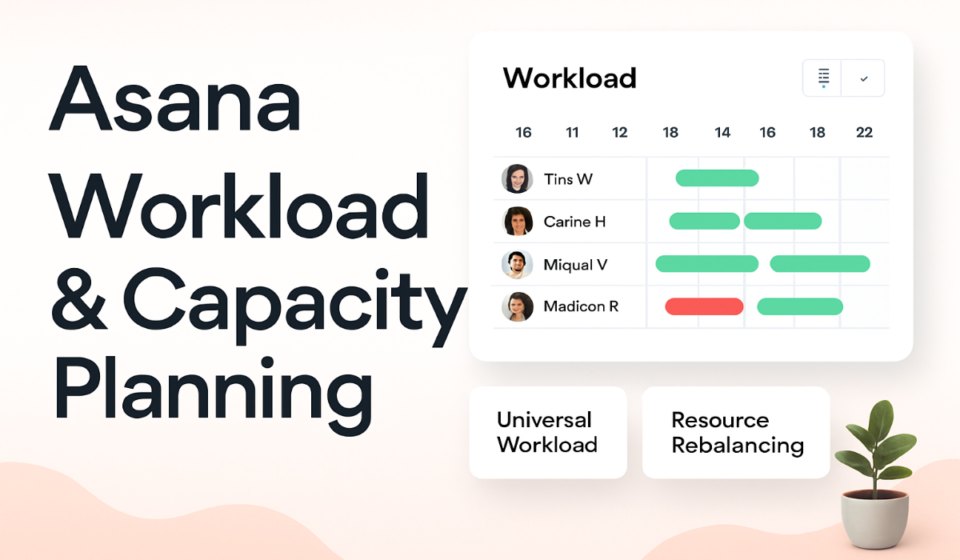
Workload is a horizontal timeline. Down the left it lists people; across the top it lists days, weeks, or months; and each person’s row fills up with bars representing the work assigned to them in that window. Asana builds those bars from tasks, not from anyone’s calendar or gut feel.
There are two flavours. Project workload lives inside a single project — add it by clicking the + in the project header and choosing Workload. More useful for real capacity planning is portfolio workload: you click Portfolios in the sidebar, open a portfolio, and switch to the Workload tab. The person list there is populated automatically by anyone who has work assigned to them in the projects inside that portfolio.
Two prerequisites matter before any of this is worth doing. First, the plan — Workload is gated (more below). Second, and this is the one that quietly ruins spreadsheets everywhere, a task only counts if it is assigned to a person and has dates. An unassigned task, or a task with no due date, contributes nothing to the picture. So the view is only ever as honest as your team’s task hygiene.
One framing that saves arguments later: Workload is a planning lens, not a record of hours worked. It shows estimated effort spread across a schedule. If you want to know what people actually spent time on, that is time tracking, and it is a separate thing.
Which plans include it
This is the first thing to check, because there is no point designing a capacity process around a feature your plan doesn’t have. Per Asana’s own documentation, Workload sits on Advanced and up.
| Plan | Project & Portfolio Workload | Universal Workload |
|---|---|---|
| Personal (free) | No | No |
| Starter | No | No |
| Advanced | Yes | No |
| Enterprise / Enterprise+ | Yes | Yes |
| Legacy Business | Yes | No |
Universal workload — the version that pulls tasks from across every project rather than just one portfolio — is Enterprise-only. For most teams that means Advanced is where capacity planning becomes practical, alongside Portfolios, Goals, and native time tracking. If you are weighing whether that jump is worth it, I broke down the tiers and what actually changes between them in the 2026 Asana pricing breakdown.
Setting up effort so the numbers mean something
By default Workload measures load by task count. That is nearly useless. A person with two tasks might be drowning while someone with nine is coasting, because a task can be twenty minutes or two weeks. Task count treats them the same. The whole point of the feature only appears once you switch to effort.
- Open your portfolio and click the Workload tab.
- Click the effort icon above the chart. This is where you choose your unit of measurement.
- Pick how you want to measure effort — task count, or effort in hours, points, or percent. For most teams doing genuine capacity planning, hours is the honest choice; points work if your team already estimates in story points.
- Give the tasks an effort value. Every task that should register needs an estimate attached, or Workload has nothing to size the bar with.
- Make sure tasks have start dates and due dates, not just a due date. This matters more than people expect — see the next point.
Here is the mechanic that trips everyone up. When you use hours or points, Asana spreads the effort evenly across the days a task spans. A ten-hour task running Monday to Friday shows as two hours a day, not ten hours on the deadline. That is why start dates matter: without one, a multi-day task collapses onto a single day and spikes that person’s bar artificially. Asana also skips weekends unless a task’s own dates force it onto a Saturday or Sunday.
The percent option works differently and is genuinely useful for people who split their week across ongoing responsibilities — you say a task takes 50% of someone’s time for a week, and it holds that share across the whole week regardless of hour math.
Setting capacity per person
Effort tells you demand. Capacity tells you supply. Without capacity set, the bars are just numbers with no line to cross, so you never get the colour change that makes overload obvious at a glance.
- In the Workload view, set a capacity for each team member. Use the same unit you chose for effort — if you are measuring in hours, set capacity in hours per week.
- Be realistic, not theoretical. A full-time person does not have 40 hours of project capacity. Meetings, email, review, and context-switching eat a large slice. I set most full-timers at 25 to 30 hours of plannable capacity and adjust from there. Setting everyone to 40 guarantees the view lies to you in the optimistic direction.
- Account for part-timers and shared people individually. The single most common setup mistake is giving a 3-day-a-week contractor the same capacity as a full-timer, then wondering why the numbers never flag them.
Once capacity is set, Workload shades or flags the days a person’s assigned effort exceeds it. That flag is the entire product. Everything else is navigation to help you act on it.
Reading and rebalancing the view
With effort and capacity in place, the view becomes something you can actually run a resourcing conversation from. A few controls carry most of the weight.
Zoom changes your horizon. Click the Zoom button to move between Days, Weeks, Months, Quarters, Half-Years, and Years. For weekly staffing I stay in Weeks; for a quarterly plan I zoom out to Quarters to spot the crunch months before they arrive.
Show and Filter narrow what you are looking at. The Show button filters people by name or role, so you can isolate just the designers or just one pod. The Filter button controls which work counts — you can hide specific projects, include or exclude subtasks, and choose whether to show tasks, milestones, or approvals.
Rebalancing happens by dragging. You can drag a task within the view to reschedule it to a lighter week, or reassign it to a less-loaded person. Reassignment locks the schedule first to prevent accidental date changes, then lets you drag to reschedule as a separate move. This is the satisfying part — you watch one person’s overloaded week deflate as another’s fills to a healthy level. You can also click the caret next to a name to drop into a drill-down view showing the actual projects and tasks behind their bar, which is where the conversation moves from “you look busy” to “this specific task is the problem.”
Colour helps too. A shared custom field, usually priority, can colour-code the bars so you can tell at a glance whether an overloaded week is stuffed with critical work or clogged with low-priority filler that can slide. If you are already leaning on Asana reporting dashboards for status, Workload is the operational companion to those — dashboards tell you how projects are doing, Workload tells you whether the people can absorb what is coming.
Where it breaks down in practice
I like Workload, but I have watched it mislead teams that trusted it too literally. The failure modes are consistent.
The effort-discipline problem. This is the big one, and it is a judgement call from experience rather than something Asana warns you about. The view is only as accurate as the effort estimates and dates people enter. In practice, a chunk of any team’s work is unestimated, undated, or logged as a vague catch-all task. All of that is invisible to Workload. So the view routinely shows people as under capacity when they are buried in work that simply was not captured cleanly. Before you rely on the numbers, you have to enforce the habit — and one way to keep it from decaying is a rule that flags or blocks tasks missing an effort value, which you can build with Asana’s automation rules.
Cross-portfolio blind spots. Portfolio workload only sees the tasks in the projects inside that one portfolio. If a person is also loaded up in a project that lives in a different portfolio, that work does not appear in your view. You can be looking at someone showing 60% capacity while they are genuinely overcommitted elsewhere. Universal workload solves this by reading across every project, but that is an Enterprise feature. On Advanced, the practical workaround is disciplined portfolio structure so the people you manage don’t have significant work living outside the portfolios you actually watch.
The even-spread assumption. Because hours spread evenly across a task’s days, Workload assumes work flows smoothly. Real work does not. A task “due Friday” often gets done Thursday night, and the tool’s tidy two-hours-a-day rendering can hide genuine deadline pileups. Read the flags as directional, not precise.
Reassignment is project-bound. Dragging a task to another person only works within a project. You cannot drag work across into an unrelated project from this view, so cross-team rebalancing still needs a manual reassignment inside the relevant project.
It is not actuals. Workload is planned effort. It will never tell you what a task truly cost, only what you estimated. For real time data — billing, budgets, forecasting from history — you need Asana’s time tracking, and deeper budget reporting sits in the separate Timesheets and Budgets add-on. Do not present a Workload chart to a finance team as if it were logged hours; it is not, and that gap has burned people.
Alternatives when you don’t have the plan
If you are on Personal or Starter, Workload and Portfolios are locked, but you are not completely blind. A few approaches get you a rough capacity read without the dedicated view.
The most practical substitute is a numeric Estimated hours custom field on your tasks, viewed in List view grouped by assignee. List view can sum a numeric column per group, so you get a crude total of estimated hours per person. It is manual and it does not chart over time, but it answers the core question of who is carrying the most. Pair it with well-maintained My Tasks setups so each person can see and sort their own load, and with Timeline view to catch the date collisions where too much lands in the same week.
If you find yourself repeatedly hitting the ceiling of what the lower plans allow, that is usually the signal to either move to Advanced or to genuinely evaluate whether Asana is the right home for your resourcing at all. I compared how the effort model holds up against the competition in ClickUp vs Asana and, for teams built around docs and databases, in Asana vs Notion. Capacity planning is one of the clearest places those tools diverge, so it is worth checking before you commit a process to any of them.
Whatever you land on, the discipline matters more than the tool. Workload is a good instrument, but it measures what you feed it. Estimate honestly, date everything, set capacity to a realistic number, and it will earn its place. Feed it half-captured work and it will confidently tell you your overloaded team has room to spare.
Sponsored