Skip to content
-
Subscribe to our newsletter & never miss our best posts. Subscribe Now!
Work Management Hub Work Management Hub

Expert Reviews, Comparisons & Guides for Smartsheet, Monday.com, Asana, ClickUp & More

Work Management Hub Work Management Hub

Expert Reviews, Comparisons & Guides for Smartsheet, Monday.com, Asana, ClickUp & More

  • Airtable
  • Asana
  • ClickUp
  • Jira
  • Monday.com
  • Notion
  • Smartsheet
  • Wrike
  • About
  • Contact
  • Airtable
  • Asana
  • ClickUp
  • Jira
  • Monday.com
  • Notion
  • Smartsheet
  • Wrike
  • About
  • Contact
Close

Search

  • https://www.facebook.com/
  • https://twitter.com/
  • https://t.me/
  • https://www.instagram.com/
  • https://youtube.com/
AsanaHow-To Guides

How to Set Up Asana AI Teammates in 2026: Step-by-Step Guide

By Shaik KB
May 20, 2026 20 Min Read
0
⚡ Key Takeaways

  • Asana’s Winter 2026 release shipped 21 out-of-the-box AI Teammates for Marketing, IT, and Operations teams, plus a no-code builder for custom Teammates — this is not a beta feature, it is production-ready and available on Business and Enterprise plans today.
  • AI Teammates are assigned tasks exactly like human team members — add them to a project, assign tasks, set due dates — the interface is identical to adding a colleague, which makes adoption dramatically faster.
  • Triggers are the single highest-leverage configuration decision: a poorly scoped trigger fires your Teammate on every task creation across an entire project, burning run credits and generating noise within days of launch.
  • AI Studio can now reference Goals, Workload, and Portfolios as live context sources — this is what separates Asana AI Teammates from simple automation rules and enables cross-portfolio decision logic.
  • Always run a sandbox project test before go-live — Asana provides a built-in test mode inside AI Studio that executes Teammate logic against real project data without committing any actions.
  • Custom Teammate instructions written in plain English outperform vague role descriptions — be explicit about what the Teammate should NOT do, not just what it should do.
Quick Answer:

To set up Asana AI Teammates in 2026, navigate to Admin Console → AI Studio → + New Teammate, choose a pre-built template or build custom, configure trigger conditions, add context sources (Goals, Portfolios, Workload), write Teammate instructions, run a sandbox test, then assign the Teammate to projects like any team member.

Table of Contents

  1. What Asana AI Teammates Actually Are (and What They Are Not)
  2. Prerequisites: Plan, Permissions, and AI Credits Before You Start
  3. How to Set Up Asana AI Teammates: Step-by-Step in AI Studio
  4. Trigger Configuration: The Make-or-Break Decision
  5. Connecting Goals, Portfolios, and Workload as Context Sources
  6. Writing Effective Teammate Instructions (With Examples)
  7. How to Set Up Asana AI Teammates Safely: Testing Before Go-Live
  8. Using the 21 Out-of-the-Box Teammates for Marketing, IT, and Ops
  9. Real-World Use Cases by Team Size and Function
  10. Verdict
  11. Frequently Asked Questions

How to Set Up Asana AI Teammates in 2026: Step-by-Step Guide

Knowing how to set up Asana AI Teammates correctly is the difference between a team that runs leaner in Q3 and a team that spends Q3 debugging runaway automations. Asana’s Winter 2026 release shipped one of the most operationally significant updates in the platform’s history: 21 production-ready AI Teammates built for Marketing, IT, and Operations, plus a no-code builder that lets any admin create custom Teammates without touching a line of code. Most guides covering this feature stop at the product overview. This one does not. What follows is the exact configuration path — trigger scoping, context-source setup, instruction writing, and sandbox testing — that separates teams who deploy successfully from those who disable their Teammates two weeks in because they generated noise instead of output.

What Asana AI Teammates Actually Are (and What They Are Not)

The fastest way to misconfigure an AI Teammate is to treat it as a smarter automation rule. It is not. A traditional Asana automation rule is deterministic: if field X changes to value Y, set field Z to value W. Every execution is identical. An AI Teammate is a reasoning agent — it receives a trigger, reads context from the task, the project, and optionally your Goals and Portfolios, decides what action to take, executes that action, and can loop back to evaluate whether the result was correct before marking itself complete.

The practical implication: AI Teammates handle ambiguity and variation that rules cannot. A rule cannot read a task description, infer that the work is blocked on a dependency that was not formally linked, and post a comment flagging the risk. A Teammate can. That capability is what justifies the additional configuration investment — and what requires you to be much more precise about scope, context, and instructions than you would be when writing a simple automation rule.

For background on how Asana’s standard automation layer works before layering in AI Teammates, see our guide to Asana AI Rules and automation setup in 2026.

AI Teammates are assigned to projects and tasks exactly like human team members. In Asana’s interface, a Teammate appears as a member in the project member list, can be @mentioned in comments, and can be the assignee on any task. This design decision — making Teammates indistinguishable from people at the UI level — is deliberate. It means your team needs zero re-training on where to find Teammate activity. Every comment, action, and status update a Teammate produces appears in exactly the same places human updates do.

Prerequisites: Plan, Permissions, and AI Credits Before You Start

Before opening AI Studio, verify three things. Skipping this check wastes configuration time on a setup that will either fail silently or require a plan upgrade mid-process.

Plan Requirements

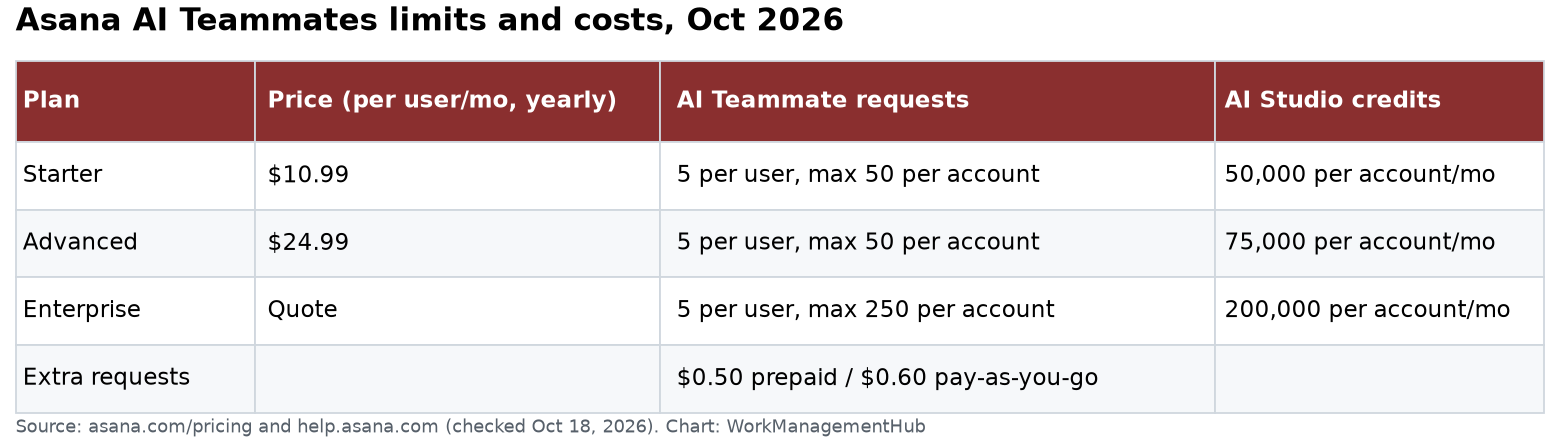
  • Business plan: Access to AI Teammates is included, with a monthly credit allocation for Teammate runs. The 21 out-of-the-box Teammates and the no-code builder are both available at this tier.
  • Enterprise and Enterprise+ plans: Full access with higher credit pools, SSO-gated Teammate permissions, and the ability to restrict which teams can create custom Teammates versus consuming pre-built ones.
  • Premium and Starter plans: AI Teammates are not available. You will see an upgrade prompt in the Admin Console instead of the AI Studio interface.

Permission Requirements

  • Only Super Admins can access Admin Console → AI Studio to create and publish Teammates.
  • Division Admins (on Enterprise+) can create Teammates scoped to their division but cannot publish organization-wide Teammates.
  • Regular members can assign published Teammates to projects and tasks but cannot edit Teammate logic.

AI Credits: Understand the Consumption Model First

Each Teammate run consumes AI credits from your organization’s monthly pool. A run is defined as one complete execution cycle from trigger to completion. Credit consumption varies by the number of context sources the Teammate reads, the complexity of the reasoning required, and the number of actions taken. Asana publishes reference consumption rates in their AI Teammates credit usage documentation. The critical operational point: set usage alerts inside Admin Console → AI Studio → Usage before deploying any Teammate to a high-volume project. A Teammate triggered on every task creation in a 200-task sprint board will exhaust a Business plan’s monthly credit pool in under a week.

How to Set Up Asana AI Teammates: Step-by-Step in AI Studio

The following steps assume you are a Super Admin on a Business, Enterprise, or Enterprise+ plan. This is the complete path from zero to a deployed, tested Teammate.

  1. Admin Console → AI Studio — From the left sidebar, click the grid icon or your organization name to open the Admin Console. Select AI Studio from the left navigation panel inside the console. If AI Studio does not appear, your plan does not include AI Teammates — contact Asana support to verify eligibility.
  2. Click “+ New Teammate” — In the top-right corner of the AI Studio dashboard, click the + New Teammate button. A modal opens with two paths: Start from a template (the 21 out-of-the-box options) or Build from scratch. First-time configurers should always start from a template even if you intend to customize heavily — templates pre-populate the trigger and context fields in ways that reveal Asana’s intended configuration patterns.
  3. Name your Teammate and assign a role category — Give the Teammate a descriptive name that will be visible to all project members (e.g., “Campaign Brief Reviewer” rather than “Marketing AI 1”). Select the role category that most closely matches the Teammate’s primary function. This category tag controls which projects the Teammate is recommended for during assignment.
  4. Configure the Trigger — Select what event starts the Teammate’s execution. This is covered in depth in the next section. Do not proceed past this step without reading the trigger scoping guidance below.
  5. Add Context Sources — Select which data sources the Teammate can read during execution. Options include the task itself, the parent project, linked Goals, Portfolio data, and Workload information. More context sources produce better reasoning but increase credit consumption per run.
  6. Write Teammate Instructions — In the instructions field, describe in plain English what the Teammate should do, how it should communicate, and explicitly what it should not do. The instruction quality directly determines output quality. Guidance on writing effective instructions is in a dedicated section below.
  7. Set Output Actions — Define what the Teammate does after reasoning is complete. Options include: post a task comment, add a subtask, update a custom field, reassign the task, move the task to a section, create a follow-on task in another project, send a message in Asana inbox, or trigger a downstream automation rule.
  8. Run Sandbox Test — Before publishing, click Test Teammate in the AI Studio toolbar. Select a real project and a real task to run the logic against. Asana executes the full reasoning chain but shows you the proposed actions without committing them. Validate the output matches your expectation before saving.
  9. Publish and Assign to Projects — Click Publish Teammate. The Teammate is now available across your organization. Navigate to any project, open Project Settings → Members, and add the Teammate exactly as you would add a human team member. It will appear in the member list with a distinct AI badge icon.

Trigger Configuration: The Make-or-Break Decision

Trigger configuration is where most AI Teammate deployments either succeed or fail within the first two weeks. Get this wrong and you will either have a Teammate that never fires (trigger too narrow) or one that fires on every task in a 500-row project board and drains your credit pool in days (trigger too broad). The right answer is almost always a compound trigger with at least two conditions.

Asana offers the following trigger types as of the Winter 2026 release:

  • Task Created — fires when any new task is added to the project or when a task is moved into the project from another project
  • Task Assigned — fires when a task’s assignee changes, including initial assignment
  • Task Due Date Approaching — fires N days before the due date; N is configurable per Teammate
  • Custom Field Changed — fires when a specified custom field changes to a specified value (the most precise trigger type for operational workflows)
  • Status Updated — fires when a task status changes (e.g., In Progress → Blocked)
  • Comment Added — fires when a comment containing a specified keyword or @mention is added to a task
  • Direct Task Assignment — fires when a human explicitly assigns the task to the AI Teammate; this is the most controlled trigger mode and the recommended starting point for new deployments
  • Automation Rule Output — fires when an existing Asana automation rule completes, enabling rule-to-Teammate chained workflows

Recommended Trigger Scoping Approach

For teams deploying AI Teammates for the first time, start with Direct Task Assignment as your trigger. This mode gives human team members complete control over when the Teammate activates — they explicitly assign the task to the Teammate when they want AI involvement. It generates zero false-positive runs, consumes credits only when intentional, and produces output that the assigning human is already primed to review because they requested it.

Once you have one month of run history and you understand which task types the Teammate handles well, you can introduce a compound automated trigger. A well-scoped compound trigger looks like this: Task Created AND Custom Field “Request Type” equals “Legal Review Required.” This fires only on a specific subset of tasks, not on every task creation event in the project.

For teams already familiar with Asana’s automation rule logic, our deep-dive on connecting Asana Portfolios, AI Rules, and Goals covers advanced compound trigger patterns in detail.

Connecting Goals, Portfolios, and Workload as Context Sources

This is the feature that genuinely differentiates Asana AI Teammates from every competing work management platform’s AI automation offering as of May 2026. When a Teammate runs, it does not just read the task it was triggered on. With the right context sources configured, it can read your organization’s live Goals, assess team Workload capacity, and scan Portfolio-level status data — and factor all of that into its output. A Teammate that can see that the project it is reviewing is behind on a Q2 OKR with 40% workload capacity remaining writes a fundamentally more useful status comment than one that only reads the task description.

To configure context sources after setting your trigger:

  1. Context Sources section → Add Source — In the Teammate builder, scroll to the Context Sources section and click Add Source.
  2. Select “Goals” — Choose Goals from the source type dropdown. You can scope this to the Goals linked directly to the current project, Goals linked to the current Portfolio, or all organizational Goals. Recommend scoping to project-linked Goals only for your first deployment to avoid feeding irrelevant organizational context into every run.
  3. Select “Portfolio” — Choose Portfolio and select which Portfolios the Teammate can reference. This enables the Teammate to see aggregate project health, on-track/at-risk/off-track status across all projects in the Portfolio, and resource allocation summaries. This context source is what enables cross-portfolio automation logic — the Teammate can identify when a task it is reviewing is part of a Portfolio where three other projects are already marked At Risk and escalate accordingly.
  4. Select “Workload” — Choose Workload to give the Teammate visibility into assignee capacity. When a Teammate is configured to reassign tasks or create follow-on work, Workload context prevents it from assigning additional tasks to a team member who is already over capacity. This context source requires that your team has configured effort estimates on tasks for the Workload feature to have meaningful data to surface.
  5. Select “Project Timeline” (optional) — For Teammates doing scheduling or date-adjustment work, adding the Project Timeline as a context source lets the Teammate reason about dependencies and slack time before suggesting date changes.

One important credit-consumption note: each additional context source increases the token volume processed per run and therefore increases credit consumption. Start with Goals and the task itself for most Teammates. Add Portfolio and Workload context only for Teammates doing resource allocation, escalation, or cross-project reasoning work. See Asana’s AI Studio context sources guide for the full list of available source types and their credit weight.

Writing Effective Teammate Instructions (With Examples)

The instruction field is a plain-English text box. There is no special syntax, no JSON, no prompt engineering jargon required. What it does require is specificity — particularly around what the Teammate should not do. Vague instructions produce wildly inconsistent outputs across different task types, which erodes trust and leads teams to disable Teammates that would actually be useful with better instructions.

Instruction Writing Principles

  1. Define the role in one sentence — Start with a concise role statement: “You are a campaign brief reviewer for the Marketing team. Your job is to review incoming campaign brief tasks and assess whether they contain enough information for the design team to begin work.”
  2. List required inputs explicitly — “A complete brief must include: target audience, campaign objective, required deliverables with dimensions, copy deadline, and brand guidelines link. If any of these are missing, the brief is incomplete.”
  3. Define the exact output format — “Post a single comment that begins with either ✅ Brief Complete or ⚠️ Brief Incomplete. Then list any missing fields as a bulleted list. Do not write more than 150 words total.”
  4. State explicitly what NOT to do — “Do not reassign this task. Do not change the due date. Do not mark the task complete. Do not comment if the brief contains all five required fields — only comment if something is missing.”
  5. Reference the context sources you connected — If you connected Goals, tell the Teammate how to use that data: “If this campaign is linked to a Q3 OKR that is currently marked At Risk, add a note at the bottom of your comment flagging the urgency.”

Instruction Anti-Patterns to Avoid

  • Avoid open-ended mandates: “Help the team with this task” — the Teammate has no idea what help means here and will either do nothing or do too much.
  • Avoid role confusion: Do not write instructions that describe what the Teammate is, not what it should do. “You are a helpful AI assistant” is not an instruction, it is a persona. Pair any persona statement with explicit action instructions.
  • Avoid implicit scope assumptions: If you want the Teammate to only act on tasks in a specific section of the project, say so explicitly in the instructions. Do not assume the trigger configuration alone will scope the behavior.

How to Set Up Asana AI Teammates Safely: Testing Before Go-Live

Asana’s sandbox test mode is one of the most underused features in AI Studio, and the teams who skip it are almost universally the ones filing support tickets two weeks into deployment. The test executes the complete Teammate logic — trigger evaluation, context source reading, instruction following, output generation — but shows you the proposed actions without committing them to the project. This means you can validate against real data without affecting live work.

  1. AI Studio → Your Teammate → Test Teammate — With your Teammate saved (but not yet published), click the Test Teammate button in the top toolbar of the builder interface.
  2. Select a test project — Choose an existing project from the dropdown. For best results, select a project that contains tasks representative of the ones your Teammate will actually handle in production. Avoid testing against empty projects or projects with highly atypical tasks.
  3. Select a test task — Choose a specific task within that project to run the Teammate logic against. The test UI shows you the task’s current fields, custom field values, and any linked context (Goals, Portfolio status) that the Teammate will read.
  4. Click “Run Test” — Asana executes the reasoning chain. The results panel shows: the context the Teammate read, the reasoning summary (a brief explanation of what the Teammate “decided” to do and why), and the proposed output actions with their exact content.
  5. Validate the output — Check that the proposed comment, field update, or task action matches what you intended. If the output is off, return to the instructions field and refine. Common issues at this stage: the Teammate commented when it should have stayed silent (instruction boundary too vague), the Teammate referenced Goals data it should not have referenced (context source scope too broad), or the output was too long (output format not specified in instructions).
  6. Run at least three test cases — Test against a “perfect” task (one where the Teammate should take action), an “already complete” task (one where the Teammate should do nothing), and an edge case task (incomplete data, missing fields, unusual status). Passing all three gives you reasonable confidence that the Teammate will behave correctly across the variability of your real project data.
  7. Publish when all three test cases pass — Click Publish Teammate. The Teammate is now available for project assignment.

Using the 21 Out-of-the-Box Teammates for Marketing, IT, and Ops

For most teams, the fastest path to value is selecting one of the 21 pre-built Teammates from Asana’s Winter 2026 template library and adjusting the instructions to fit your team’s specific terminology and standards. The templates are pre-configured with sensible default triggers, context sources, and output formats — editing them is significantly faster than building from scratch, and the default configurations encode Asana’s own best-practice recommendations.

The 21 Teammates are organized across three functional categories:

Marketing Teammates (7 templates)

Includes: Campaign Brief Reviewer, Content Calendar Coordinator, Asset Approval Tracker, Launch Checklist Enforcer, Brand Compliance Checker, Campaign Performance Tagger, and Stakeholder Update Drafter. The Campaign Brief Reviewer and Stakeholder Update Drafter are the two most commonly deployed in the first 30 days — they handle high-frequency, low-complexity review tasks that consume disproportionate time from senior marketers.

IT Teammates (7 templates)

Includes: IT Request Triage, Incident Priority Classifier, Change Request Reviewer, SLA Deadline Monitor, Vendor Ticket Escalator, Access Request Processor, and System Outage Communicator. The IT Request Triage Teammate is particularly high-value for IT teams running service desks in Asana — it classifies incoming requests by urgency and system impact using custom field logic, reducing triage time from hours to minutes on high-volume request queues.

Operations Teammates (7 templates)

Includes: Resource Allocation Advisor, Process Compliance Checker, Project Health Summarizer, Risk Flag Raiser, Cross-Team Dependency Tracker, Budget Status Monitor, and Kickoff Readiness Assessor. The Project Health Summarizer is the template that most benefits from Goals and Portfolio context sources — it generates executive-readable status summaries that account for both task completion rates and strategic goal attainment, which is exactly the kind of reporting that takes operations managers hours to compile manually.

To use a template, select it from the template library inside AI Studio → + New Teammate → Start from a Template, then proceed through the configuration steps described in the step-by-step section above. The template pre-fills trigger, context, and instruction fields — review each one before publishing rather than accepting defaults without review. Asana’s defaults are sensible starting points, not finished configurations.

Real-World Use Cases by Team Size and Function

The right AI Teammate configuration depends heavily on team size, task volume, and how mature your existing Asana project structure is. Here is how deployment typically looks across different organizational profiles.

Small Teams (10–30 people)

The highest-impact single Teammate for small teams is almost always a Status Update Drafter triggered by due date approaching. Small teams typically do not have a dedicated program manager generating weekly status reports, so tasks go stale without updates. A Teammate that fires 3 days before each task’s due date, reads the task’s completion percentage and any existing comments, and drafts a status update for the assignee to review and post closes that gap with minimal configuration investment. Start with the Direct Task Assignment trigger mode for two weeks to validate the Teammate’s output quality, then switch to the due date trigger.

Mid-Size Teams (30–150 people)

Mid-size teams operating across multiple projects benefit most from Portfolio-connected Teammates. The Project Health Summarizer Teammate configured with Portfolio and Goals context sources can generate a single Monday-morning digest that gives team leads an accurate picture of which projects are on track and which are at risk — a task that typically takes 2–3 hours of manual compilation at this team size. For teams using Asana for cross-functional work requests, the IT Request Triage template adapted for any intake workflow (design requests, legal reviews, finance approvals) eliminates the daily triage meeting entirely.

Enterprise Teams (150+ people)

At enterprise scale, the highest ROI comes from chaining Teammates together using the Automation Rule Output trigger. A common pattern: an existing automation rule detects when a project moves to At Risk status and fires a Risk Flag Raiser Teammate, which reads the project’s Goals context, generates a structured risk assessment, and automatically creates a follow-on task in the PMO oversight project assigned to the program manager. This kind of cross-portfolio escalation chain — which previously required custom API integrations or manual monitoring — runs entirely within Asana’s native toolchain as of the Winter 2026 release.

For a detailed look at how enterprise teams are structuring their Asana portfolio hierarchies to maximize AI Teammate context quality, see our guide on Asana portfolio and goals hierarchy for enterprise teams in 2026.

Comparing Asana AI Teammates to Competing Platforms

If you are evaluating Asana AI Teammates against AI agent capabilities in other platforms, our Asana vs. Monday.com AI agents comparison for 2026 covers the functional and pricing differences in depth. The short version: Asana’s strength is depth of context (Goals and Portfolio integration), Monday.com’s strength is LLM choice flexibility.

🏆 Verdict

Asana AI Teammates are the most strategically capable AI automation layer in any mainstream work management platform as of mid-2026, specifically because they can reason against live Goals and Portfolio data — not just task fields. The configuration investment is real: you will spend 2–4 hours setting up your first Teammate correctly if you follow the trigger scoping, context source, and instruction writing guidance in this post. That investment is worthwhile. The teams that deploy sloppily — broad triggers, vague instructions, no sandbox testing — are the ones generating the negative reviews you will find in the forums. Deploy one Teammate well before deploying ten Teammates quickly. Start with Direct Task Assignment as your trigger, test three task scenarios before publishing, and monitor the AI Studio Usage dashboard weekly for the first month. Done this way, Asana AI Teammates deliver measurable time savings within two to three weeks of go-live.

Frequently Asked Questions

Can I assign an AI Teammate to a task the same way I assign a human team member?

Yes — that is by design. In Asana’s interface, a published AI Teammate appears in the member list exactly like a human team member, with a small AI badge to distinguish it. You can assign tasks to the Teammate directly from the task detail panel, @mention it in comments to trigger a direct assignment run, and include it as a project member. The familiarity of the interface is intentional — Asana designed the experience this way to reduce adoption friction across non-technical team members who might otherwise find a separate “AI settings” panel confusing.

What happens if an AI Teammate makes an incorrect action on a live task?

Asana logs every Teammate action in the task’s activity feed and in the AI Studio run history. Any comment a Teammate posts can be deleted by any project member with comment permissions. Any field update a Teammate makes appears in the task history and can be reverted manually. For higher-stakes actions like task reassignment or moving tasks between projects, the recommended safeguard is to configure the Teammate to post a comment with a proposed action rather than executing the action directly — a human then reviews and confirms. This approach sacrifices some automation efficiency but is the right tradeoff during the first 60 days of a deployment until you have validated the Teammate’s accuracy across your actual task data.

How many AI Teammates can I create and deploy simultaneously?

Asana does not impose a hard cap on the number of published Teammates on Business or Enterprise plans as of the Winter 2026 release. The practical limiting factor is your organization’s monthly AI credit pool. Each additional Teammate running at scale consumes credits, and organizations that deploy many Teammates simultaneously without monitoring the Usage dashboard frequently exhaust their monthly allocation before month-end. Asana recommends deploying no more than three to five Teammates concurrently during the initial rollout period and expanding after establishing baseline credit consumption data.

Do AI Teammates work with Asana’s guest user accounts or only with full licensed members?

AI Teammates work at the project level regardless of whether the triggering event was initiated by a full member or a guest user. If a guest user creates a task that meets a Teammate’s trigger conditions, the Teammate will fire and process that task normally. However, guest users cannot assign tasks directly to a Teammate or configure Teammate settings — those actions require a licensed team member account. On Enterprise plans, admins can restrict which projects AI Teammates are active in, which provides a governance mechanism for managing Teammate exposure in projects that include external guest collaborators.

Is there a way to pause an AI Teammate without deleting its configuration?

Yes. Inside Admin Console → AI Studio, every published Teammate has a toggle that switches it between Active and Paused states. A paused Teammate retains all of its configuration — trigger, context sources, instructions, and output actions — but will not execute when trigger conditions are met. This is the correct action when you want to temporarily disable a Teammate during a high-volume sprint or a project phase where AI involvement would be disruptive, without losing the configuration work that went into building it. The pause state also stops credit consumption entirely for that Teammate until it is reactivated.

Sponsored Smartsheet Expert Services – Implementation, Automation, Training
Sponsored Power BI & Tableau Analytics – Dashboards, Reporting, Insights
Sponsored AI Agents for Work Management – Automate Tasks, Integrate Tools

Categories

  • Airtable (8)
  • Alternatives (10)
  • Asana (29)
  • ClickUp (34)
  • How-To Guides (102)
  • Integrations (15)
  • Jira (22)
  • Monday.com (35)
  • Notion (24)
  • Pricing Guides (11)
  • Project Management (62)
  • Smartsheet (24)
  • Tool Comparisons (44)
  • Uncategorized (5)
  • Wrike (9)

Recent Post

  • Notion vs ClickUp 2026: Which Tool Wins for Growing Teams?
  • Smartsheet Automations Not Triggering: 7 Fixes That Actually Work in 2026
  • How to Use ClickUp Gantt Baselines for Smarter Project Tracking in 2026
  • Linear Releases Feature Deep Dive: Track Every Deployment in 2026
  • How to Set Up Asana AI Teammates in 2026: Step-by-Step Guide
Work Management Hub

Independent expert reviews & comparisons of work management tools — helping 50,000+ teams choose the right software.

Tools We Cover

  • Smartsheet
  • Monday.com
  • ClickUp
  • Asana
  • Notion
  • Jira
  • Wrike
  • Airtable

Company

  • About Us
  • Contact Us
  • Privacy Policy
Copyright 2026 — Work Management Hub. All rights reserved. Blogsy WordPress Theme