
When a Smartsheet automation doesn’t trigger, the workflow is usually fine and the trigger never saw a change it counts. The most common cause is a trigger cell filled by a cell link or a cross-sheet formula, because Smartsheet won’t fire sheet-changing actions (move, copy, lock, record a date and the rest) from those changes. After that, look at the trigger type, the Hourly/Daily/Weekly setting and your condition paths.
This page is about workflows that don’t run, or run without doing their job: the row never moves, the date never gets stamped, the lock never happens. If the workflow ran and the email or Slack message simply never showed up, that’s a delivery problem, and our Smartsheet notifications troubleshooting guide covers it.
I implement Smartsheet through SSPM, a Smartsheet Premier Aligned Partner. Each fix below is checked against Smartsheet’s Help Center as of October 8, 2026.
First, find out which half is broken
Every workflow has a trigger (when), optional conditions (which rows) and actions (what happens). People tend to rebuild the action block first, which is wasted effort when the trigger is what failed. Smartsheet gives you a clean way to split the two.
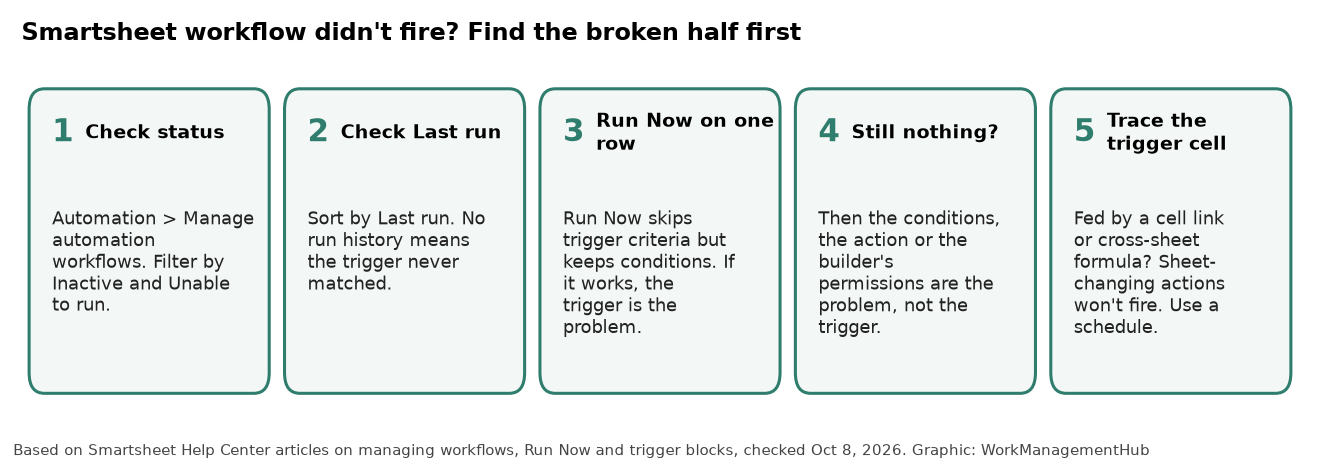
- Open the sheet and select Automation > Manage automation workflows.
- Use Filter by status and check Inactive and Unable to run. If Smartsheet emailed you about an issue with the workflow, follow that email’s instructions first.
- Set Sort by to Last run. A workflow that has never run has never had its trigger match.
- Hover the workflow, open the More menu and choose Run now. Pick a single test row and select Send notifications to myself so nobody else gets pinged.
Run Now bypasses all trigger criteria but still respects your conditions. So if Run Now does the job and a real edit doesn’t, the trigger is your problem. If Run Now also does nothing, look at conditions, permissions and the action itself.
Two warnings. Run Now only appears on active workflows, and it really runs the actions, so a move-rows or clear-cell workflow will change your data. Use a test row.
1. The trigger cell is fed by a cell link or cross-sheet formula
This is the cause that takes people the longest to find. Smartsheet’s trigger block documentation says that to prevent infinite loops, it doesn’t trigger actions that change the sheet when the change arrives through an inbound cell link or a cross-sheet formula. That also covers formulas that point at a cell holding a cell link or cross-sheet formula.
Smartsheet counts these as actions that change the sheet:
- Move rows and Copy rows
- Lock rows and Unlock rows
- Approval request
- Record a date
- Assign people
- Change cell value and Clear cell value
- Generate document
Smartsheet’s own example is a Status cell filled by a formula that reads a linked cell from another sheet. When Status flips to Complete through that link, a workflow set to lock the row doesn’t fire. No error, no email. It just doesn’t happen.
The fix: stop relying on the change. Smartsheet suggests time-based or recurring workflows instead. In practice that means a When a date is reached trigger on a daily recurrence, with conditions that pick up the rows where Status is Complete. Set the hour an hour ahead of when you need the result, as Smartsheet recommends, so a hiccup doesn’t make you late.
If the formula itself is returning the wrong value, fix that first. Our guide to Smartsheet formula errors walks through each error code.
2. You picked “When rows are added” for an edit
Smartsheet has four triggers: When a date is reached, When rows are added or changed, When rows are changed and When rows are added. The last one doesn’t fire when an existing row changes. Smartsheet says so right in the trigger list.
That’s the right trigger for an intake sheet fed by a Smartsheet form, where every submission is a new row. It’s the wrong trigger for “when someone sets Priority to High,” because that’s an edit. Switch to When rows are changed or When rows are added or changed.
While you’re in the trigger block, check the criteria. A trigger on Any value also fires when a cell becomes blank, which explains the opposite complaint: the workflow running when nobody expected it to.
3. The workflow is batched, so it ran later than you think
The Run workflow setting is the one people forget once a workflow is built. Only When triggered acts immediately. The other options batch the work:
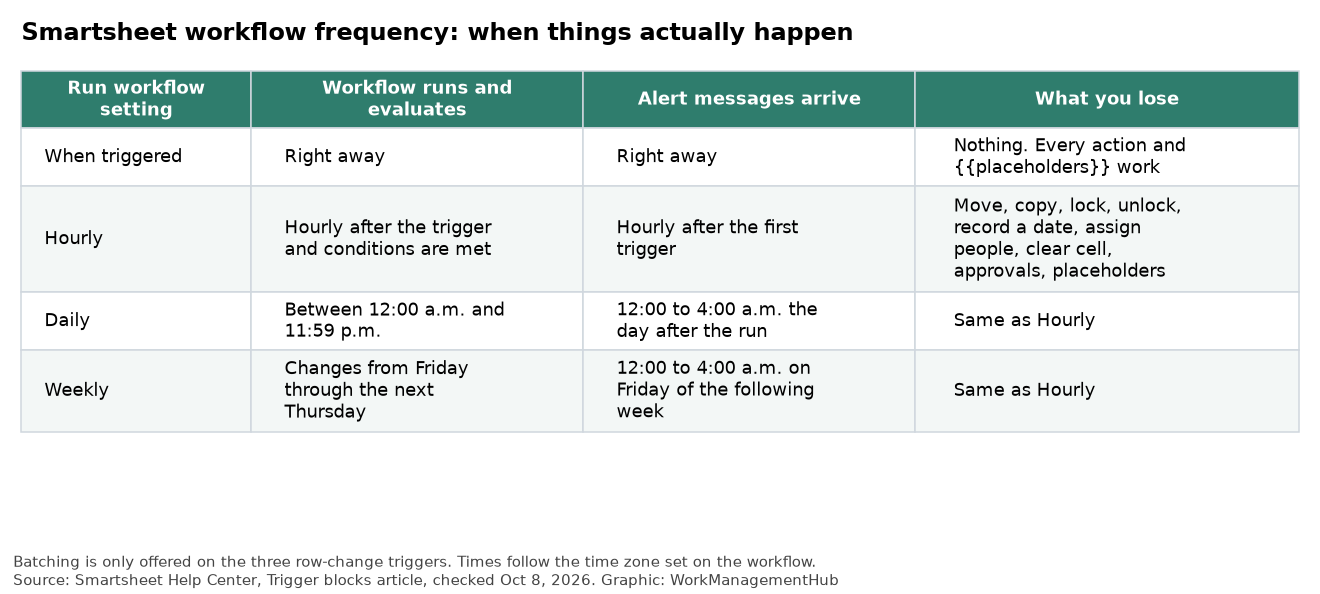
- Hourly: runs hourly after the trigger and conditions are first met.
- Daily: alert messages go out between 12:00 a.m. and 4:00 a.m. the day after the workflow runs.
- Weekly: the workflow evaluates changes from Friday through the following Thursday, and alerts land between 12:00 a.m. and 4:00 a.m. on the Friday after that.
Batching comes with hard limits. It’s meant for notifications and update requests, and on Hourly, Daily or Weekly you can’t use Clear cell value, Assign people, Record a date, Move rows, Copy rows, Lock rows, Unlock rows or Request an approval. And if your message uses {{placeholders}}, the workflow can only run When triggered.
When several rows change inside one batching window, subscribers get a single notification with up to 100 rows in a grid, not one per row. That’s useful for digests and confusing if you expected ten separate emails.
The fix: if the workflow needs to do something to the sheet, or needs to happen now, set it to When triggered.
4. A date-based workflow found nothing to act on
Recurring and date-based workflows follow strict rules, all from the same Smartsheet article:
- When the trigger uses a date column, the sheet checks daily for rows to include. If no row meets the conditions, nothing triggers.
- A row with an empty date cell never fires.
- Automation doesn’t send anything when the sheet is empty.
- The trigger’s time zone is always the sheet owner’s time zone.
That last one catches teams that inherit a sheet. If the owner’s profile is set to Pacific time and you’re in New York, an 8:00 a.m. trigger runs at 11:00 a.m. your time. The time zone shows under the trigger hour in the workflow builder, so check it before you assume the schedule is broken.
5. Overlapping condition paths send rows down only one path
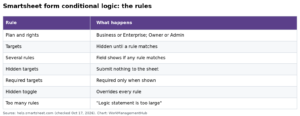
If you use conditional paths, Smartsheet evaluates them left to right and runs the action for the leftmost path the row matches. It doesn’t run every path that matches. Smartsheet’s condition block article uses a price example: with “Price is 100 or less” on the left and “Price between 50 and 250” to its right, a row priced at 75 only ever gets the first path. The second path looks broken. It isn’t.
The fix: order paths from the most specific to the least, or make the ranges stop overlapping. If you need and-logic and or-logic together, Smartsheet’s answer is to stack two condition blocks on the same path rather than force it into one block.
6. The person who built it doesn’t have the permission it needs
Workflows break after a handover more often than you’d think. Smartsheet’s workflow permissions table works like this:
- Owners and Admins can create workflows with other people as recipients.
- Editors can only create, edit or delete alerts or reminders where they themselves are the recipient.
- Viewers can’t create workflows.
Change cell value is limited to Owners and Admins. So if an Editor tried to build a team alert or a sheet-changing workflow, it either couldn’t be saved that way or only ever notified the Editor. Have an Owner or Admin rebuild it.
7. Change cell value has rules of its own
Change cell value has more fine print than any other action. From Smartsheet’s documentation:
- It writes to Text/Number, single-select dropdown, multi-select dropdown and checkbox columns. For dates use Record a date, and for people use Assign people.
- It works on cells that contain a cell formula, but the workflow doesn’t run if you convert that cell formula to a column formula.
- Cells with a cell link or cross-sheet formula don’t trigger it.
- You must enter an exact value. You can’t write a formula, reference another cell or pull a sheet summary field.
- It’s a terminal action, so nothing can be added after it in the workflow.
- Smartsheet notes that updates need time to land, especially when several workflows run on the same sheet.
If you need a calculated value written into a cell, a column formula usually does the job better than an automation.
8. Rows came in from somewhere else
When rows arrive through the API, a copy-rows or move-rows workflow from another sheet, or a Data Shuttle upload, open the row’s cell history. Check what actually changed, when, and who or what changed it. Most “the trigger ignored my row” cases make sense once you see that the value arrived differently than you assumed, for example through a link rather than a direct edit.
Also watch duplicated workflows. Smartsheet’s own learning track warns that if you duplicate a workflow with approval requests and don’t change them, approvals in the original can set off requests in the copy. Its tip for performance is to combine workflows that fire on the same trigger and deactivate old ones.
9. You’re on Pro and hit the monthly automation limit
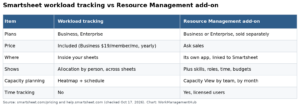
Smartsheet’s pricing page lists 250 automations per month on Pro ($9 per member per month, billed yearly) and unlimited automations on Business ($19 per member per month, billed yearly) and Enterprise. Smartsheet doesn’t spell out on that page exactly how a Pro plan behaves once it reaches 250, so I won’t guess. What’s clear is the pattern: if workflows on several sheets stop at about the same point in the month, check plan usage with your System Admin before you touch any workflow.
If you keep running into the cap, it’s worth pricing the upgrade. Our Smartsheet pricing breakdown shows what Business adds besides unlimited runs.
A quick checklist
| What you see | Most likely cause | Fix |
|---|---|---|
| Never appears in run history | Trigger never matched | Check the trigger type and criteria; trace the trigger cell for links or cross-sheet formulas |
| Move, lock, copy or date stamp never happens | Trigger cell changed by a cell link or cross-sheet formula | Use a date-reached trigger on a daily recurrence |
| Works for new rows, not for edits | Trigger is When rows are added | Switch to When rows are changed, or added or changed |
| Runs hours or days late | Run workflow set to Hourly, Daily or Weekly | Set it to When triggered |
| Sheet-changing action missing from the menu | Workflow is batched or uses placeholders | Save it as When triggered |
| One branch of a conditional workflow never runs | Overlapping condition paths | Reorder paths from specific to general |
| Broke after someone else took over | Builder is an Editor | Rebuild under an Owner or Admin |
| Change cell value stopped working | Cell formula converted to a column formula | Revert, or replace the automation with a column formula |
| Several sheets stopped mid-month | Pro’s 250 automations per month | Check usage with your System Admin |

When the workflow ran but nobody got the message
If Run Now works, the run history shows a run and people still say they got nothing, you’ve moved from automation to delivery. The usual causes are that the person editing the row was you (Smartsheet doesn’t email the person who made the change unless they turn on Include my changes in sheet notifications), the sheet’s automation permissions are Restricted so outside recipients are filtered out, someone unsubscribed from the workflow, or a mail filter caught the message. Our Smartsheet notifications guide takes those one at a time.
If you’re building workflows from scratch rather than fixing them, start with our Smartsheet automations setup guide. It’s easier to avoid most of the traps above at build time.
FAQ
Why does my Smartsheet workflow work with Run Now but not on its own?
Run Now skips the trigger criteria and only checks conditions. If it works there and not in real use, the trigger never matched. Check the trigger type, the criteria, and whether the trigger cell gets its value from a cell link or cross-sheet formula.
Do formulas trigger Smartsheet automations?
Not for sheet-changing actions when the value comes from a cell link or a cross-sheet formula, including formulas that reference a linked cell. Smartsheet’s documentation doesn’t make the same statement about plain same-sheet formulas, so test that case on a copy of your sheet before you build a process on it.
Why is Move rows or Record a date missing from my workflow?
The workflow is set to Hourly, Daily or Weekly, or its message uses placeholders. Sheet-changing actions and approval requests are only available when the workflow runs When triggered.
How do I make a Smartsheet automation run on a schedule?
Use the When a date is reached trigger and set a recurrence (daily, weekly, monthly or yearly) with Run once > Custom. Set the hour in the trigger block, and remember it runs in the sheet owner’s time zone.
Can an Editor create a Smartsheet workflow for the team?
Only alerts or reminders where the Editor is the recipient. Workflows that notify other people need an Owner or Admin, and Change cell value is limited to Owners and Admins.
Checked against Smartsheet Help Center articles on trigger blocks, condition blocks, Run Now, workflow permissions and Change cell value, and Smartsheet’s pricing page, on October 8, 2026.
Sponsored

Related guides