ClickUp AI for Remote Teams (2026): What Actually Helps Engagement and What It Costs

AI won’t make a remote team engaged. People feel engaged when they know what matters, can see that their work moves something forward, and don’t spend half the week chasing updates. ClickUp’s AI features can help with the last two. Used well, they cut status-chasing, meeting notes and “where is that doc?” questions, which is a lot of what makes remote work feel draining.
Used badly, they add another layer of noise: auto-generated summaries nobody reads and agents posting updates into channels people already mute.
This guide covers what ClickUp’s AI actually includes in 2026, what it costs for a remote team, and the specific setups I’d turn on first.
What ClickUp’s AI includes in 2026
ClickUp calls everything AI in the product ClickUp Brain. According to ClickUp’s Brain documentation, Brain can see the tasks, Docs, Chats and connected-app data you have permission to access, answers questions from that context, and can draft documents, emails and summaries. You can @mention Brain in comments and Chat, and switch between its default model and ChatGPT, Claude or Gemini models.
Three parts matter most for remote teams:
- Brain (assistant and search). Ask “what’s blocking the Q4 launch?” or “summarize this week’s updates on the onboarding project” and get an answer drawn from your workspace.
- Super Agents. Configurable AI agents that run multi-step work on a trigger or on request. ClickUp’s Super Agents article lists examples like daily reports of tasks due today, weekly overdue reports, and turning meeting notes into follow-up emails. You control which tools and data each agent can use, and actions are logged.
- AI Notetaker. Records meetings and turns them into notes and action items. ClickUp says it’s included in the Everything AI bundle and available to buy on all plans.
For a deeper tour, see our ClickUp Brain guide and Super Agents guide.
What it costs
AI in ClickUp is an add-on on top of your plan, priced per user. From ClickUp’s pricing page, checked October 1, 2026:
| Billed yearly | Billed monthly | |
|---|---|---|
| Unlimited plan | $7/user/month | $10/user/month |
| Business plan | $12/user/month | $19/user/month |
| Brain AI add-on | $9/user/month | $14/user/month |
| Everything AI add-on | $28/user/month | Check pricing page |
Brain AI includes unlimited Brain Assistant, AI chat and writing, plus 1,500 AI Super Credits per user each month for agents and automations. Everything AI adds unlimited AI Notetaker, AI Fields, AI automations and more agent usage, with 5,000 credits per user. Extra credits cost $10 per 10,000.
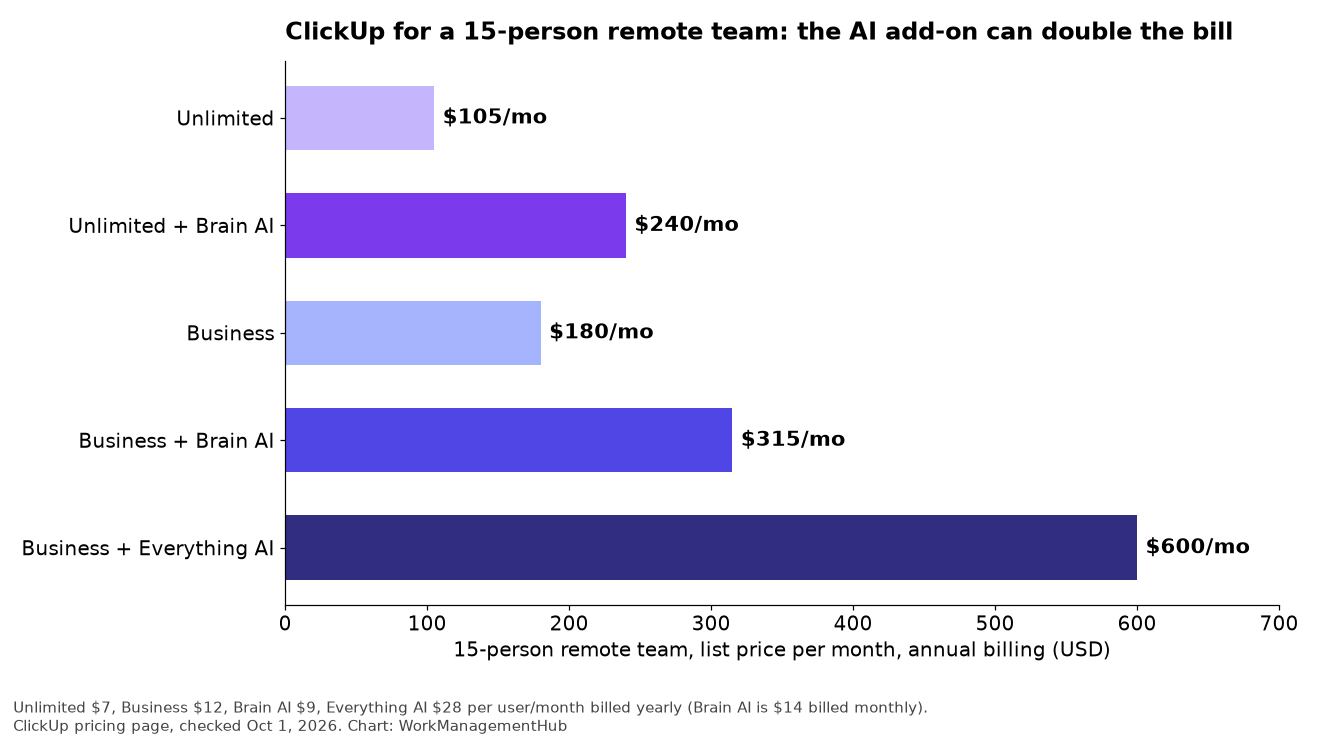
For a 15-person remote team on Business with annual billing, the base plan is $180 a month. Add Brain AI for everyone and it’s $315. Everything AI for everyone takes it to $600. That’s why I’d rarely buy the top AI tier for a whole team on day one. More on plan choice in our ClickUp pricing guide.
The remote-work problems AI can actually help with
Remote teams that work well tend to share a few habits. GitLab’s guide to all-remote work, one of the most thorough public playbooks on the subject, puts writing things down, asynchronous communication and a single source of truth near the top. ClickUp’s AI is useful where it supports those habits and makes them cheaper to keep up.
1. Status updates nobody wants to write
The classic remote-team time sink is the status meeting, or the Monday thread where everyone types what they did. A Super Agent can post a daily or weekly summary of what moved, what’s overdue and what’s blocked, built from the actual task data. People correct it instead of writing from scratch.
2. Meeting notes and follow-ups
Remote teams meet across time zones, and someone always misses the call. With AI Notetaker, notes and action items land in ClickUp, and an agent can turn them into tasks or a follow-up message. The people who weren’t there can catch up in five minutes.
3. “Where is that?” questions
New hires and people in other time zones lose hours waiting for answers. Brain’s search across tasks, Docs and Chat lets them ask the workspace first. It only works if the answers are written down somewhere, which is a good reason to keep a proper wiki in ClickUp Docs.

What I’d set up first
Here’s the order I’d roll it out for a remote team of 10 to 50 people. Each step should earn its keep before you add the next.
- Clean up the workspace first. AI answers are only as good as your tasks and Docs. Make sure every active project has an owner, due dates and a status that means something. Our ClickUp setup guide for remote teams covers the structure.
- Turn on Brain AI for leads and PMs, not everyone. Start with the people who write the most updates and answer the most questions. Watch usage for a month.
- Build one Super Agent: the weekly digest. Every Friday, summarize completed work, overdue tasks and blockers per project, posted to one Chat channel. Ask the team after three weeks whether they read it. If not, kill it.
- Add AI Notetaker for recurring cross-time-zone meetings only. Standups, planning and client calls are good candidates. One-on-ones usually aren’t. Get consent and tell people when recording is on.
- Move discussions into ClickUp Chat if they’re scattered across tools, so Brain can see them. Our ClickUp Chat deep dive covers the tradeoffs.
- Review costs at 90 days. Downgrade anyone who isn’t using the add-on, and only then consider Everything AI for the people who’d use notetaking and AI fields daily.
A weekly rhythm that uses AI without taking over
Tools matter less than rhythm. Here’s a simple week I’d suggest for a remote team using ClickUp, with AI doing the clerical work:
- Monday: the team lead posts the week’s three priorities in a Chat channel, linked to the tasks. Brain can draft it from last week’s digest, but a person edits and sends it.
- Daily: each person posts a two-line async update in a thread (what moved, what’s stuck). No meeting. Anyone blocked tags the person who can unblock them.
- Wednesday: one short live call for decisions and anything the threads couldn’t solve. AI Notetaker records it for the people in other time zones.
- Friday: the digest agent posts completed work, slipped dates and open blockers. The lead adds one line of context and a thank-you where it’s earned.
The human parts of that list are deliberate. Priorities, recognition and decisions should come from people. AI handles collecting, summarizing and reminding.
How to tell whether it’s working
You don’t need engagement surveillance to know if this helps. After six to eight weeks, look at a few plain signals:
- Hours in recurring meetings. Did the status meetings shrink or disappear?
- Time to answer common questions. Are new hires finding answers in Docs and Brain instead of waiting on Slack?
- Digest readership. Ask in a retro whether people read the Friday digest. If not, change it or stop it.
- One survey question. “Do you know what matters most this week?” Asked monthly, anonymously, it tells you more than any dashboard.
If those don’t move, the AI layer isn’t the problem. Look at how priorities are set and communicated first.
Where I’d hold back
- Auto-assigning work. AI-driven assignment sounds efficient, but on a remote team, being handed work by a bot with no context feels bad. Keep a human in the loop for assignments and priorities.
- Summaries of summaries. If an agent posts daily and a person also posts weekly, people will stop reading both. One digest per audience.
- Sentiment or productivity monitoring. Using AI to judge who’s “engaged” undermines trust faster than anything else on a remote team.
- Sensitive meetings. HR, performance and health conversations don’t belong in a notetaker.

FAQ
Is ClickUp AI included in paid plans?
ClickUp lists a free AI tier with trial access to advanced AI features. Full use requires an AI add-on: Brain AI at $9 per user per month billed yearly ($14 monthly), or Everything AI at $28 per user per month billed yearly.
What’s the difference between Brain AI and Everything AI?
Brain AI covers the assistant, AI chat and writing, search and a monthly allowance of credits for agents. Everything AI adds unlimited AI Notetaker, AI Fields, AI automations and dashboards, and more agent usage.
Do I have to buy AI for every user?
ClickUp prices AI per user, so check how seats are assigned in your workspace before you buy. In my experience, most teams get the best return by starting with the people who coordinate the most work.
Can ClickUp AI replace a weekly status meeting?
It can replace the reporting part. A weekly digest agent can summarize progress and blockers from task data. You’ll still want a short live conversation for decisions and for the human side of working together.
Is AI Notetaker safe to use for client calls?
Tell participants you’re recording, follow your company’s policy and any local consent laws, and limit who can see the notes. Skip it for sensitive conversations.
Sponsored