Asana Search Not Working? 7 Fixes for Missing Tasks, Empty Results & Saved Searches in 2026
- “Asana search not working” complaints trace back to four distinct root causes — indexing outages, filter scope, permission boundaries, and a 2026 description-search regression — and each one needs a different fix.
- In February 2026, Asana Forum users reported search returning zero results for every query, with saved searches empty while dashboards and reporting kept working — a classic indexing-side outage signature.
- A January 2026 forum thread confirmed the Asana app stopped searching inside task descriptions — keyword lookups that used to match description text now silently fail.
- Most “missing task” reports are not data loss: Advanced Search quietly excludes archived projects and defaults to scopes that hide tasks in other teams or private projects.
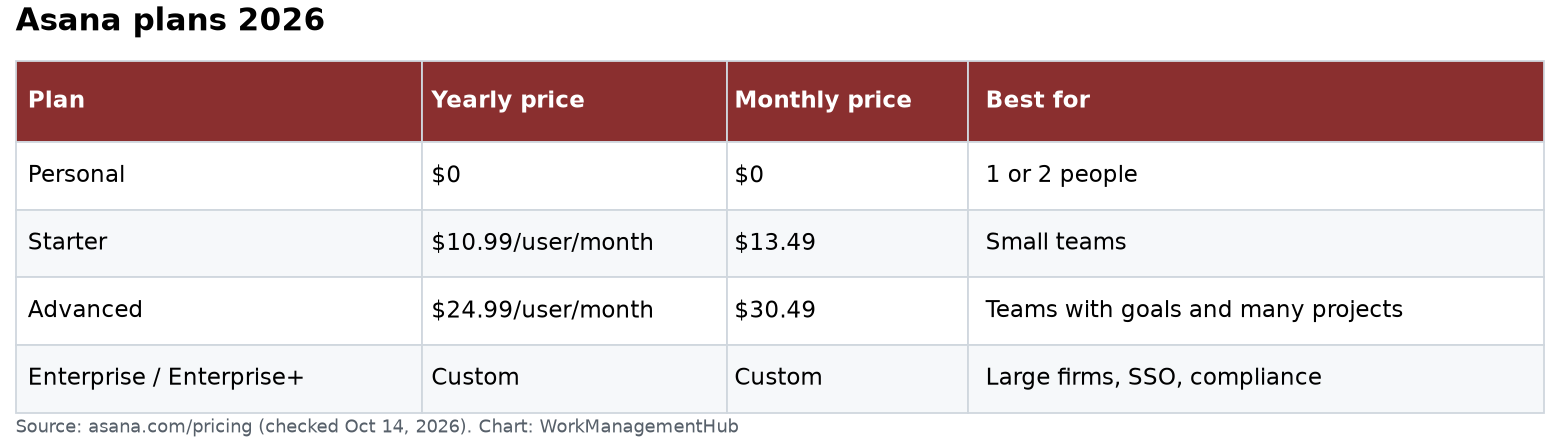
- Advanced Search filters (assignee, project, date range, custom fields) require a paid plan — Starter and above — so free-tier users are limited to basic keyword search.
- Mobile search is weaker than web search by design: description-field matching has been unreliable on the mobile app since at least 2024, so always verify on the web app before escalating.
If Asana search returns nothing, first check status.asana.com — February 2026 saw a search-index outage where all queries and saved searches came back empty. If Asana itself is fine, widen your Advanced Search scope to the full workspace, include archived projects, and search task titles instead of descriptions, since description search regressed in early 2026.
- Why Is Asana Search Not Working? The 4 Root Causes
- Fix 1: Rule Out an Indexing Outage Before Touching Anything
- Fix 2: Widen Your Advanced Search Scope
- Fix 3: Include Archived Projects and Completed Tasks
- Fix 4: Check Permission Boundaries and Guest Access
- Fix 5: Work Around the 2026 Description-Search Regression
- Fix 6: Rebuild Broken Saved Searches
- Fix 7: Reset the Client — Asana Search Not Working on Mobile vs Web
- Frequently Asked Questions
Why Is Asana Search Not Working? The 4 Root Causes
When Asana search is not working, the real cost isn’t the missing task — it’s the twenty minutes your team spends manually clicking through projects to find it, multiplied by everyone who hits the same wall that day. Before you burn that time, understand which of four failure modes you’re actually dealing with, because the fixes are completely different and the forum threads on this topic almost never distinguish between them.
Cause 1: An indexing-side outage. In late February 2026, multiple Asana Forum threads described search returning zero results for every query — task names, assignees, projects — with all saved searches also coming back empty while dashboards and reporting continued to work normally. That split is the tell: dashboards query Asana’s reporting layer, while search queries a separate index. When the index is degraded, nothing you do on your end fixes it. Users in the same window reported that sorting search results by Project or Assignee also stopped returning anything.
Cause 2: Filter scope. The longest-running category of complaints — threads stretching back years document Advanced Search “not returning results even though the data exists.” In nearly every resolved case, the task existed but sat outside the search scope: a different team, an archived project, or a filter combination that silently excluded it.
Cause 3: Permission boundaries. Asana search only returns tasks you can see. Private projects you’re not a member of, comment-only guest restrictions, and tasks in other teams within an organization all vanish from results without any “hidden results” warning.
Cause 4: The 2026 description-search regression. A January 2026 forum thread confirmed the Asana app no longer searches within task descriptions. If your team’s habit is dropping reference keywords, order numbers, or client codes into the description field, those lookups now fail silently — the task exists, the text exists, and search returns nothing.
The seven fixes below are ranked in the order you should try them: fastest diagnosis first, deepest rebuild last.
Fix 1: Rule Out an Indexing Outage Before Touching Anything
This is a two-minute check that saves you from an hour of pointless filter-fiddling. The February 2026 incident is the template: users could not search for any task at all, saved searches showed nothing, yet Asana dashboards and reporting kept working. If that pattern matches what you’re seeing, the problem is on Asana’s side and your only real move is a partial workaround while you wait.
- status.asana.com — open Asana’s official status page and check the current state of the search-related components. Asana breaks its status reporting into individual components, so look specifically for anything affecting search rather than just the top-line banner.
- Asana Forum → Ask the Community — search the forum for threads posted in the last 24 hours. During the February 2026 incident, multiple users converged on the same thread within hours, which is faster confirmation than the status page sometimes provides.
- Test with a task name you can see on screen — open any project, copy an exact task title, and paste it into the search bar. If an exact-title match on a task that’s visible right in front of you returns nothing, that is index failure, not user error.
- Ask one teammate to run the same search — if it fails for them too, it’s an outage or an org-wide issue, not your account or browser.
- Use the workaround: browse instead of search — while the index is down, navigate via the sidebar, use My Tasks, and lean on dashboards, which stayed functional throughout the February incident. Sort a project’s list view by Due date or filter by Assignee at the project level — project-level filters query project data directly, not the global search index.
If the status page is green and teammates can search fine, the problem is local to your account or your query. Move to Fix 2.
Fix 2: Widen Your Advanced Search Scope
This fixes the single largest share of “Asana search not working” complaints. Advanced Search does exactly what its filters say — and its filters are narrower than most people assume. A search filtered to one project will never surface a task that lives in a different project, and in multi-team organizations, results can be constrained by the teams you belong to.
- Search bar → Advanced search — click the search bar at the top of Asana, then select Advanced search (the filter icon) to open the full filter panel. Note that Advanced Search filters require a paid plan — Starter, Advanced, Enterprise, or Enterprise+ — per Asana’s search documentation.
- Clear the “In projects” filter — if any project is listed under In projects, remove it. This is the most common silent restriction: the task exists, just not in the project you’re scoped to.
- Remove assignee and collaborator filters — a task reassigned last week won’t match an Assigned to filter pointing at its old owner. Clear Assigned to and Collaborators, run the search on keyword alone, and re-add filters one at a time.
- Widen or remove date ranges — Due date and Completion date filters exclude tasks with no due date at all, which trips up teams that use due dates inconsistently. Remove date filters entirely on your first pass.
- Check custom field filters last — filters on custom fields only match tasks in projects where that field is attached. A task in a project without the field can never match, no matter what its other properties are.
The diagnostic principle: strip the search to a single keyword with zero filters. If the task appears, add filters back one at a time until it disappears — the last filter you added is your culprit.
Fix 3: Include Archived Projects and Completed Tasks
Archived projects are the second-biggest source of “my data vanished” panic. When a project is archived, its tasks drop out of default search results, sidebar browsing, and most views — but the data is fully intact. Teams that archive aggressively at quarter-end then spend the next quarter convinced Asana ate their tasks.
- Advanced search → Completion — set the completion filter to All tasks rather than Incomplete tasks. Completed tasks are excluded from several default views, and a task someone marked complete yesterday is the most mundane explanation for a “missing” task.
- Insert → Projects → include archived — in the Advanced Search panel, when scoping to projects, verify whether archived projects are included in your query. If you know which archived project held the task, add it explicitly.
- Team page → Browse projects → filter by Archived — from your team’s page, open the project browser and filter the status to Archived. This lists every archived project you have access to, which is often faster than search when you know roughly where the task lived.
- Unarchive if it’s still active work — open the archived project, click the project header dropdown, and choose Unarchive project. Its tasks immediately return to normal search visibility.
- Check for multi-homed tasks — a task can live in several projects at once. If it was multi-homed and one project was archived, the task remains visible through its other project. Open the task and check the Projects field to see every home it has.
Fix 4: Check Permission Boundaries and Guest Access
Asana search never shows you tasks you lack permission to see, and it never tells you results were withheld. This makes permissions the most confusing failure mode for managers: your teammate searches a client code and gets three results, you search the identical string and get zero, and nothing on screen explains the difference. The long-tail forum threads about Advanced Search “not returning results even though the data exists” resolve to permissions more often than anything except scope.
- Compare results with a teammate — run the identical query side by side. Different results for the same query is near-certain evidence of a permission boundary, not a search bug.
- Check project privacy — ask a member of the suspect project to open it and check the Share button. If it’s a private project and you’re not a member, its tasks are invisible to your searches by design. Request access via Share → Invite.
- Verify your team memberships — in an organization, you primarily see work in teams you belong to. Click your profile photo → My Settings and review which teams you’re in, then join or request the missing team from the sidebar’s team browser.
- Check whether you’re a guest — guests (accounts outside the organization’s email domain) only see projects and tasks explicitly shared with them. If you’re collaborating through a guest account, your search universe is a fraction of a full member’s. Confirm your account type under My Settings → Account.
- Check for private tasks — individual tasks can be private to specific collaborators. If a teammate can open the task, have them add you as a collaborator; it becomes searchable for you immediately.
If your organization routes work requests through Asana forms for intake, remember that form-generated tasks land in whatever project the form feeds — if that project is private to the triage team, requesters will never find their own submissions by searching. That’s a permissions design decision, not a bug.
Fix 5: Work Around the 2026 Description-Search Regression
This is the fix the scattered forum threads miss entirely, and it explains a wave of early-2026 confusion. In January 2026, users confirmed on the Asana Forum that searching in the Asana app no longer matches text inside task descriptions. If your workflow depends on finding tasks by invoice numbers, ticket IDs, or client references stored in the description field, those searches now fail silently — Asana doesn’t warn you that description text was skipped, it just returns nothing.
Related gaps compound the problem: hyperlinked text inside descriptions has separately been reported as unsearchable, and the mobile app has excluded description content from search results since well before 2026. The business impact is real — teams effectively lose keyword access to years of institutional knowledge buried in description fields.
- Confirm the regression is your issue — pick a task you can open right now whose description contains a distinctive word that does not appear in the task title. Search that word. If nothing returns, you’ve reproduced the regression; if it returns, your problem is scope or permissions (go back to Fixes 2–4).
- Search titles, not descriptions — as an immediate habit change, query words likely to appear in task names. Title matching remained functional throughout the regression.
- Promote critical keywords into task names — for high-value lookups (order numbers, client codes), append the identifier to the task title, e.g., “Launch review — ACME-2214”. It’s inelegant but restores findability today.
- Move structured identifiers into custom fields — the durable fix. Create a text custom field like “Reference ID” and filter on it in Advanced Search. Fields are built for exactly this, and our Asana custom fields setup guide walks through the configuration in about ten minutes.
- Search comments as a fallback — key details often get repeated in task comments. If description search fails, comment text may still surface the task depending on your search configuration — worth one extra query before giving up.
- Add your voice to the forum thread — Asana’s product team prioritizes by thread activity. Vote on the January 2026 thread rather than opening a duplicate; consolidated threads get product-team responses, scattered ones don’t.
Fix 6: Rebuild Broken Saved Searches
Saved searches (starred searches in your sidebar) fail in two distinct ways, and knowing which one you’re facing determines whether you wait or rebuild. During the February 2026 incident, saved searches went empty alongside live search — that’s the outage case, and rebuilding wouldn’t have helped. But saved searches also rot on their own: they store filter criteria, so when a referenced project gets archived, a teammate deactivates, or a custom field is deleted, the saved search quietly starts returning nothing.
- Test live search first — run a fresh keyword search for a task you know exists. If live search works but your saved search is empty, the saved search’s criteria have rotted; if both fail, revisit Fix 1 because you’re likely in an outage.
- Open the saved search and inspect its filters — click the saved search in your sidebar, then open the filter panel to see every stored criterion. Look for deleted projects (often shown as unresolvable), deactivated assignees, and removed custom fields.
- Remove stale criteria one at a time — delete the most suspicious filter and re-run. The moment results reappear, you’ve found the rotted criterion.
- Re-save under the same name — after fixing the filters, click the star icon (or the save option in the search view) to store the corrected version, and delete the broken original from your sidebar to avoid confusion.
- Convert reporting-style saved searches into dashboards — if you use saved searches for recurring status reviews (e.g., “all overdue tasks by assignee”), rebuild them as dashboard widgets instead. Dashboards proved more resilient than search during the February 2026 incident, and they refresh visually without re-running queries — our Asana reporting and dashboards guide covers the widget setup step by step.
Fix 7: Reset the Client — Asana Search Not Working on Mobile vs Web
If Fixes 1–6 came up empty, the problem is your client: a stale browser session, a broken extension, or the mobile app’s genuinely weaker search. This matters because mobile and web do not behave identically — description-field matching has been reported missing from mobile app search results since at least 2024, long before the January 2026 regression hit the broader app. The operating rule for any team: treat web search as the source of truth, and never conclude a task is missing based on a mobile search alone.
- Reproduce on the web app first — if search fails on mobile, run the identical query at app.asana.com in a desktop browser. If web finds it, the task isn’t missing; mobile search simply doesn’t cover the field your keyword lives in. Stop debugging mobile and adjust habits per Fix 5.
- Hard-refresh the browser — press Ctrl+Shift+R (Windows) or Cmd+Shift+R (Mac) to force-reload Asana with fresh assets. Long-lived Asana tabs accumulate stale state that can break search suggestions.
- Test in an incognito window with extensions off — open a private window, log in, and search. If it works there, a browser extension (ad blockers and privacy tools are frequent offenders) is interfering with Asana’s search requests. Re-enable extensions one by one to find it.
- Clear site data for asana.com — in Chrome: Settings → Privacy and security → Third-party cookies → See all site data, search “asana,” and remove it. Log back in and retest.
- Update or reinstall the mobile app — on iOS or Android, install the latest version from the app store; search behavior changes ship in app updates, and an old build can lag behind fixes. If the app is current, delete and reinstall to clear its local cache.
- Log out and back in — on both platforms, a full logout (profile photo → Log out) refreshes your session token and permission cache, which resolves the rare case where a recent team or project access change hasn’t propagated to search.
If search still fails after a client reset while teammates search successfully, contact Asana support with your reproduction steps — at that point you’ve isolated an account-level problem they need to fix server-side. And if slow triage of search-and-find requests is a recurring team pain, consider piping task updates into a shared channel via the Asana Slack integration so people stop relying on search to discover what changed.
Don’t debug in the wrong order: check status.asana.com first (two minutes), then strip Advanced Search to a bare keyword with zero filters (five minutes) — those two moves resolve the majority of Asana search failures. For the 2026 description-search regression, stop waiting on Asana: move structured identifiers like client codes and order numbers into task titles or custom fields now. It future-proofs your findability regardless of whether Asana restores description search, and it makes your Advanced Search filters dramatically more precise.
Frequently Asked Questions
Why does Asana search return no results for tasks I know exist?
The four usual causes, in order of likelihood: your Advanced Search filters are scoped too narrowly (a project, assignee, or date filter is excluding the task), the task lives in an archived project, you lack permission to see it (private project or guest account), or your keyword only appears in the task description — which the app stopped searching in early 2026. Strip your search to a single keyword with no filters and widen from there.
Was there an actual Asana search outage in 2026?
Yes. In late February 2026, Asana Forum users reported that search returned zero results for all queries and every saved search came back empty, while dashboards and reporting continued working — indicating a problem in Asana’s search indexing layer rather than data loss. When this pattern occurs, check status.asana.com and work from project views and dashboards until the index recovers.
Does Asana search look inside task descriptions?
Not reliably as of 2026. A January 2026 forum thread confirmed the Asana app stopped matching text within task descriptions, and mobile app search has excluded description content for even longer. Until Asana restores it, keep searchable identifiers in task titles or in a dedicated custom field, both of which remain fully searchable and filterable.
Why are my saved searches suddenly empty?
Two possibilities. If live search is also failing, you’re likely in an indexing outage like February 2026’s — wait it out. If live search works, your saved search’s stored criteria have rotted: a referenced project was archived or deleted, an assignee was deactivated, or a custom field was removed. Open the saved search, remove filters one at a time until results return, then re-save it.
Do I need a paid Asana plan to use Advanced Search?
Advanced Search filters — assignee, project, due date, completion status, and custom field filters — are available on paid plans (Starter and above), per Asana’s help documentation. Free-tier Personal users get basic keyword search only, which makes disciplined task naming even more important since you can’t compensate with filters.