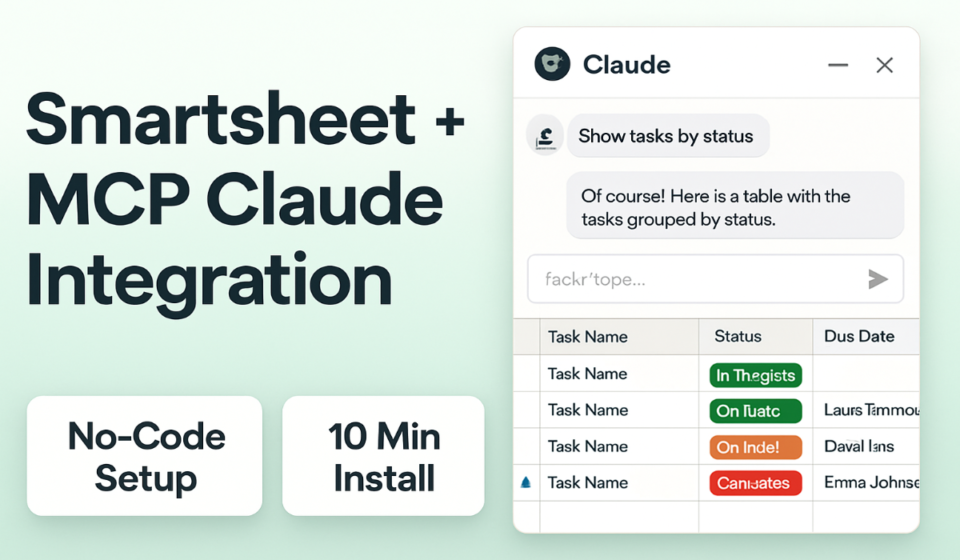

- Smartsheet MCP for Claude went GA on March 2, 2026 — no-code setup, OAuth-based, takes under 10 minutes
- 4,000+ users logged 1.74 million actions in the first week alone — adoption is outpacing most MCP connectors
- Claude can read, create, and update Smartsheet rows — permissions are workspace-scoped and revocable at any time
- Best immediate wins: automated weekly status reports, bulk row creation from meeting notes, cross-sheet summaries
- Current limitation: cannot manage user permissions or access Control Center templates — but core project management tasks are fully covered
To set up Smartsheet MCP Claude integration, open Claude Desktop Settings → Connections, find Smartsheet, authorize via OAuth, and select which workspaces to share. The entire setup takes under 10 minutes and requires no API keys or developer configuration. Claude can then read sheets, create rows, and trigger automations on your behalf.
Project managers who have spent years manually exporting Smartsheet data into status reports, hand-typing meeting action items into rows, or building elaborate Zapier chains just to move data between sheets now have a better option. The Smartsheet MCP Claude integration — generally available since March 2, 2026 — lets Claude act directly inside your Smartsheet environment through natural language. No API keys. No developer involvement. No middleware to maintain.
In the first week after launch, more than 4,000 users connected the integration and logged 1.74 million actions. That pace of adoption signals something real: teams are finding immediate, practical value, not just experimenting with novelty. The use cases driving that number are almost entirely operational — weekly status reports, bulk row creation from meeting transcripts, and cross-sheet roll-ups that used to require an analyst or a complex formula stack.
This guide covers everything you need to go from zero to a fully operational Smartsheet + Claude workflow: the complete OAuth setup, permission model, real-world use cases with team-size context, and an honest assessment of where the integration still falls short.
Why the Smartsheet MCP Claude Integration Changes How Teams Work
Most AI integrations with project management tools have followed one of two patterns: chatbots that answer questions about documentation, or automation triggers that fire when specific conditions are met. The Model Context Protocol (MCP) architecture changes that relationship fundamentally.
MCP is Anthropic’s open standard for giving AI models structured, permission-controlled access to external tools and data sources. Unlike a traditional API integration — which requires a developer to write code defining exactly what data flows where — an MCP connector lets the AI model interpret natural language instructions and determine which API calls to make in real time. Instead of building a Zapier zap that triggers when a row is updated, you tell Claude in plain English: “Find every row in the Q2 Project Tracker where status is Red and the due date is this week, then create a summary with owner names and blockers.” Claude figures out the rest.
For Smartsheet specifically, this closes a gap that has existed since the platform’s inception. Smartsheet’s native automation features handle rule-based triggers well, but they cannot synthesize, interpret, or narrate data the way a language model can. The MCP integration pairs Smartsheet’s structured data strength with Claude’s reasoning capability — and the 1.74 million actions logged in week one suggest that operations and project teams found that combination immediately useful.
Book Your FREE Smartsheet Discovery Call
A no-obligation 30-minute session — get expert answers tailored to your team’s Smartsheet setup.
What Claude Can Do Inside Smartsheet (and What It Can’t)
Supported Actions
- Read sheet data — retrieve rows, cell values, column structures, and sheet metadata from any authorized workspace
- Create new rows — add rows with specified cell values, including formula-driven cells and linked columns
- Update existing cells — modify cell values, status fields, dropdowns, and date fields across one or many rows simultaneously
- Create new sheets — generate new sheets from scratch with defined column structures
- Trigger automations — fire existing Smartsheet automation rules by updating trigger conditions
- Cross-sheet reporting — read data from multiple sheets and synthesize into a unified summary
Current Limitations (as of May 2026)
- User permission management — Claude cannot add, remove, or modify sharing permissions
- Permanent sheet deletion — destructive actions are blocked by design
- Control Center templates — provisioning projects from blueprints is not supported
- Dynamic View, DataMesh, Pivot App — Smartsheet Advance add-ons are outside current scope
- Resource Management module — capacity planning data is not accessible via MCP
Setting Up Smartsheet MCP Claude Integration — Phase 1: Connection
You need Claude Desktop (any plan) and an active Smartsheet paid account. The full setup takes under 10 minutes.
- Open Claude Desktop Settings. Click the hamburger menu (≡) in the top-left corner of Claude Desktop. Select Settings from the dropdown.
- Open the Connections panel. Click the Connections tab in the left sidebar. This displays all available MCP connectors.
- Find Smartsheet and click Connect. Scroll to Smartsheet in the connector list (or use the search field). Click the Connect button.
- Authorize via Smartsheet OAuth. A browser window opens to Smartsheet’s OAuth page. Sign in with your Smartsheet credentials. Review the requested permissions, then click Allow Access.
- Select workspaces to share. Choose which Smartsheet workspaces Claude can access. Only select workspaces relevant to your workflows — you do not need to grant access to everything. Click Save.
- Confirm the connection. Return to the Connections panel. Smartsheet should show a green connected status with your authorized workspace names listed.
- Test with a read prompt. Open a new Claude conversation and type: List my Smartsheet workspaces. Claude should respond with your workspace names within seconds.
- Test write access. In a test sheet, ask Claude to “Add a new row to [test sheet name] with Task = ‘MCP Test Row’, Status = ‘In Progress’.” Confirm the row appears in Smartsheet. Then delete it manually.
- Troubleshooting tip. If the OAuth flow fails, go to Settings → Connections, click Disconnect next to Smartsheet, and repeat from step 3. This resolves the majority of first-time connection issues. Enterprise users: confirm with your Smartsheet admin that MCP access is enabled for your account via the Smartsheet Admin Center.
Configuring Claude for Daily Smartsheet Workflows — Phase 2: Configuration
Connecting the integration is the easy part. Sustained daily value requires configuring Claude for your specific recurring workflows.
- Create a saved prompt for your weekly status report. In Claude Desktop, open Saved Prompts from the left sidebar. Create a new prompt titled “Weekly Smartsheet Status Report.” Example body: “Read the Q2 Project Tracker sheet. For every row where Status is Red or Yellow, list: Project Name, Owner, Due Date, and the most recent comment. Format as a Slack-ready bulleted list grouped by Owner. Add a one-sentence executive summary at the top.” Running this prompt every Monday takes under 30 seconds.
- Map your sheet structure in the prompt. Add a column reference block at the top of complex prompts: “Sheet: Q2 Project Tracker. Columns: Project Name (text), Owner (contact), Due Date (date), Status (dropdown: Green/Yellow/Red), Budget Variance (currency).” This eliminates ambiguity and reduces hallucination risk.
- Build a meeting-to-rows workflow. Create a saved prompt: “I will paste meeting notes below. Extract every action item, identify the owner, estimate a due date from context, and create rows in [Action Items sheet] with columns: Task, Owner, Due Date, Status = Not Started.” This single workflow typically saves 20-30 minutes per meeting.
- Configure a cross-sheet roll-up prompt. For multi-project programs: “Read sheets: [Sheet 1], [Sheet 2], [Sheet 3]. Count tasks by status across all three. List any tasks due in the next 7 days that are not Green. Output as a table.”
- Document shared prompts. Store proven prompts in a shared Smartsheet sheet or document so your team builds on each other’s work rather than duplicating effort.
5 High-Impact Use Cases for Teams Using Smartsheet + Claude
For a broader view of where Claude fits in project management tooling, see our guide to Claude AI for project management.
1. Weekly Executive Status Report — Mid-Market Teams (50–500 employees)
Mid-market PMO teams managing 10–40 active projects typically spend 2–4 hours per week on manual status reporting: export to Excel, copy-paste into a template, email by Friday. A single saved prompt reading all active project sheets, identifying Red/Yellow items, and formatting an executive summary cuts this to under 3 minutes. The 30-minute configuration investment pays back in the first week and compounds every week after.
2. Meeting Action Item Capture — Startups (under 50 employees)
Startup teams lose action items when the system relies on someone manually creating Smartsheet rows post-meeting. The meeting-to-rows prompt from Phase 2 eliminates this: paste notes or a transcript, and every action item is logged with owner and estimated due date before the next meeting starts. For a 10-person team running five meetings per week, this recovers 45–60 minutes of collective administrative time.
3. Cross-Program Portfolio Roll-Up — Enterprise PMO Teams (500+ employees)
Enterprise PMOs managing dozens of Smartsheet workspaces set up independently by different teams often have no unified portfolio view without a BI tool. Claude can bridge this gap today: read a defined list of sheets, extract specified fields (project name, RAG status, milestone, owner), and output a consolidated table. For 20–30 active programs, this replaces a quarterly manual consolidation that previously took a full day.
4. Client Deliverable Tracking — Agency and Professional Services Teams
Agencies managing multiple client engagements can generate client-ready deliverable summaries on demand: read the client’s project sheet, pull deliverables due in the next two weeks, flag anything behind schedule, and format the output as a client email draft. Under one minute from prompt to ready-to-send draft.
5. IT Intake Triage — Operations Teams
IT and ops teams using Smartsheet as an intake system can use Claude to triage incoming requests: read unassigned rows, apply categorization criteria, update Category and Priority fields, and route to the appropriate team queue. For teams handling 50–200 requests per week, this eliminates a daily triage meeting.
Smartsheet MCP vs. Zapier/Make Integrations — When to Use Each
The best work management stacks in 2026 use both tools — but in clearly delineated roles.
Use Smartsheet MCP (Claude) when the task requires judgment, synthesis, or natural language interpretation: generating a status narrative, converting unstructured meeting notes into rows, answering ad-hoc questions about project health, or producing a formatted report. Zapier and Make cannot reason — they move data when trigger conditions are met, but they cannot interpret or summarize what that data means.
Use Zapier or Make when the task is purely rule-based and high-volume: every new row triggers a Jira ticket, every Red status triggers a Slack alert. These tools execute deterministically, run 24/7 without human prompting, and handle scale without per-prompt token cost.
The clearest signal for MCP over automation: if you are building increasingly complex Zapier multi-step zaps with formatter steps and filter logic just to produce a readable output, you are using an automation tool to do a reasoning job. That is the exact problem MCP solves. See our Smartsheet vs Monday.com comparison for how integration ecosystem differences between platforms are shaping tool selection in 2026.
The Smartsheet MCP Claude integration is the most practical AI-to-spreadsheet connector available in 2026. For teams already on Smartsheet, the 10-minute setup delivers immediate payoff — particularly for status reporting, bulk row management, and cross-sheet analysis that previously required manual exports or complex Zapier chains. The lack of permission management and Control Center access are real gaps for enterprise admins, but for project managers and ops teams handling daily work, this connector belongs in your toolkit. Set it up today.
Frequently Asked Questions
Is Smartsheet MCP Claude integration free?
The MCP connector carries no additional cost — it is included with both Claude Personal and Claude for Work plans. You need an active Smartsheet paid account (Pro, Business, Business Plus, Enterprise, or Advance). Claude for Work at $25/user/month delivers the best performance for team use cases due to higher context limits, but the connector functions on personal plans as well.
Can Claude edit Smartsheet data, or is it read-only?
Claude has full read and write access within the scope you define during OAuth setup. It can read sheet data, create new rows, update cell values (including status dropdowns, dates, and text fields), create new sheets, and trigger existing automations. Claude only operates within the workspaces you explicitly authorized — you can modify that selection at any time from Settings → Connections.
Is my Smartsheet data safe with Claude?
Anthropic’s published policy is that data transmitted through MCP connections is not used for model training. Claude accesses only the workspaces you explicitly authorize. The OAuth token can be revoked instantly from Claude Desktop Settings → Connections → Disconnect. Enterprise teams with compliance requirements should review the Smartsheet MCP official documentation for data handling commitments specific to their plan tier.
What Smartsheet actions can Claude NOT perform?
As of May 2026: cannot manage user permissions, permanently delete sheets, provision projects from Control Center blueprints, interact with Dynamic View or DataMesh, modify intake forms, or access Resource Management data. These limitations primarily affect enterprise admins — for standard project tracking and reporting, none are blockers. The roadmap is active and these gaps are expected to narrow.
Does this work with Smartsheet Business and Enterprise plans?
Yes — supported across all paid Smartsheet tiers. The OAuth flow respects your existing Smartsheet permission model. Enterprise admins can restrict MCP connector usage at the organization level through the Smartsheet Admin Center, which is important for teams with strict data governance policies.
Sponsored