Skip to content
-
Subscribe to our newsletter & never miss our best posts. Subscribe Now!
Work Management Hub Work Management Hub

Expert Reviews, Comparisons & Guides for Smartsheet, Monday.com, Asana, ClickUp & More

Work Management Hub Work Management Hub

Expert Reviews, Comparisons & Guides for Smartsheet, Monday.com, Asana, ClickUp & More

  • Airtable
  • Asana
  • ClickUp
  • Jira
  • Monday.com
  • Notion
  • Smartsheet
  • Wrike
  • About
  • Contact
  • Airtable
  • Asana
  • ClickUp
  • Jira
  • Monday.com
  • Notion
  • Smartsheet
  • Wrike
  • About
  • Contact
Close

Search

  • https://www.facebook.com/
  • https://twitter.com/
  • https://t.me/
  • https://www.instagram.com/
  • https://youtube.com/
Uncategorized

Smartsheet Jira Integration: Complete Step-by-Step Setup Guide (2026)

By Shaik KB
May 19, 2026 10 Min Read
0

For any organization running development work in Jira while keeping project oversight in Smartsheet, the gap between the two tools is a daily friction point. Developers close sprints and update issues in Jira; project managers build status reports and resource plans in Smartsheet — and without integration, someone is manually transcribing data between systems. The Smartsheet Jira integration exists precisely to eliminate that overhead, keeping both platforms in sync so each team works in the tool they know without creating a second source of truth.

This guide covers the two primary routes for connecting Smartsheet and Jira — the native Smartsheet Jira Connector and the Unito third-party sync — along with the field-mapping strategy that determines whether the integration actually holds up under day-to-day use.

⚡ Key Takeaways

  • The native Smartsheet Jira Connector requires a Business plan or higher and supports Jira Cloud, Server (v6.x–v10.x), and Data Center.
  • Setup requires admin-level access on both Smartsheet and Jira; the initial connection must be performed by an administrator.
  • Field mapping — matching Jira issue types, statuses, and custom fields to Smartsheet columns — is the step most teams get wrong and must be planned before activating sync.
  • Unito offers a two-way sync alternative with its own subscription, useful for teams that lack the Smartsheet Business plan or need more granular filter control.
  • Once live, the integration syncs Jira issues as Smartsheet rows bidirectionally, so updates in either tool propagate automatically.

Table of Contents

  1. Why Integrate Smartsheet and Jira
  2. The Native Smartsheet Jira Connector
  3. Step-by-Step: Setting Up the Native Connector
  4. Field Mapping Strategy
  5. The Unito Alternative
  6. Step-by-Step: Setting Up Unito Sync
  7. Designing the Integrated Workflow
  8. Limitations and What to Watch For
  9. Which Approach Is Right for Your Team

Why Integrate Smartsheet and Jira

The friction that builds between engineering and project management teams isn’t about communication failures — it’s about tool fragmentation. Jira is purpose-built for agile development: it handles sprint planning, backlog grooming, story points, and issue tracking in a way that Smartsheet can’t replicate. Smartsheet, in turn, handles program-level planning, cross-functional timelines, resource views, and executive reporting in a way Jira can’t replicate. Both tools are doing their jobs correctly. The problem is the handoff.

Teams that try to consolidate into one tool typically end up forcing a square peg into a round hole — developers resenting a spreadsheet-style interface, or project managers unable to get the rollup views they need from a Jira dashboard. The smarter move is integration: keep each team in their preferred tool and automate the data layer between them.

Concretely, the Smartsheet Jira integration lets you sync Jira issues directly as rows in a Smartsheet sheet. Status changes in Jira update the corresponding row automatically; updates made in Smartsheet — say, a revised due date or a priority change — push back into Jira. Neither team has to leave their system or maintain parallel records.

The Native Smartsheet Jira Connector

Smartsheet’s native Jira Connector is a premium add-on built and maintained by Smartsheet. It supports Jira Cloud, Jira Server versions 6.x through 10.x, and Jira Data Center. The connector operates at the workflow level: you define sync rules that specify which Jira project and issue types map to which Smartsheet sheet, then activate the workflow to begin bidirectional sync.

Access to the connector requires a Smartsheet Business plan or higher. If you’re on a Pro or free plan, you’ll need to either upgrade or look at third-party options like Unito. Pricing for the connector itself is not listed publicly — Smartsheet routes enterprise add-on inquiries through their sales team.

On the Jira side, the connector works with any Jira instance where the Smartsheet app has been authorized. For Jira Cloud, this is handled through the Atlassian Marketplace OAuth flow. For Server or Data Center, your Jira admin will need to configure the Smartsheet app within the Jira administration panel and provide the server URL during connector setup.

Step-by-Step: Setting Up the Native Connector

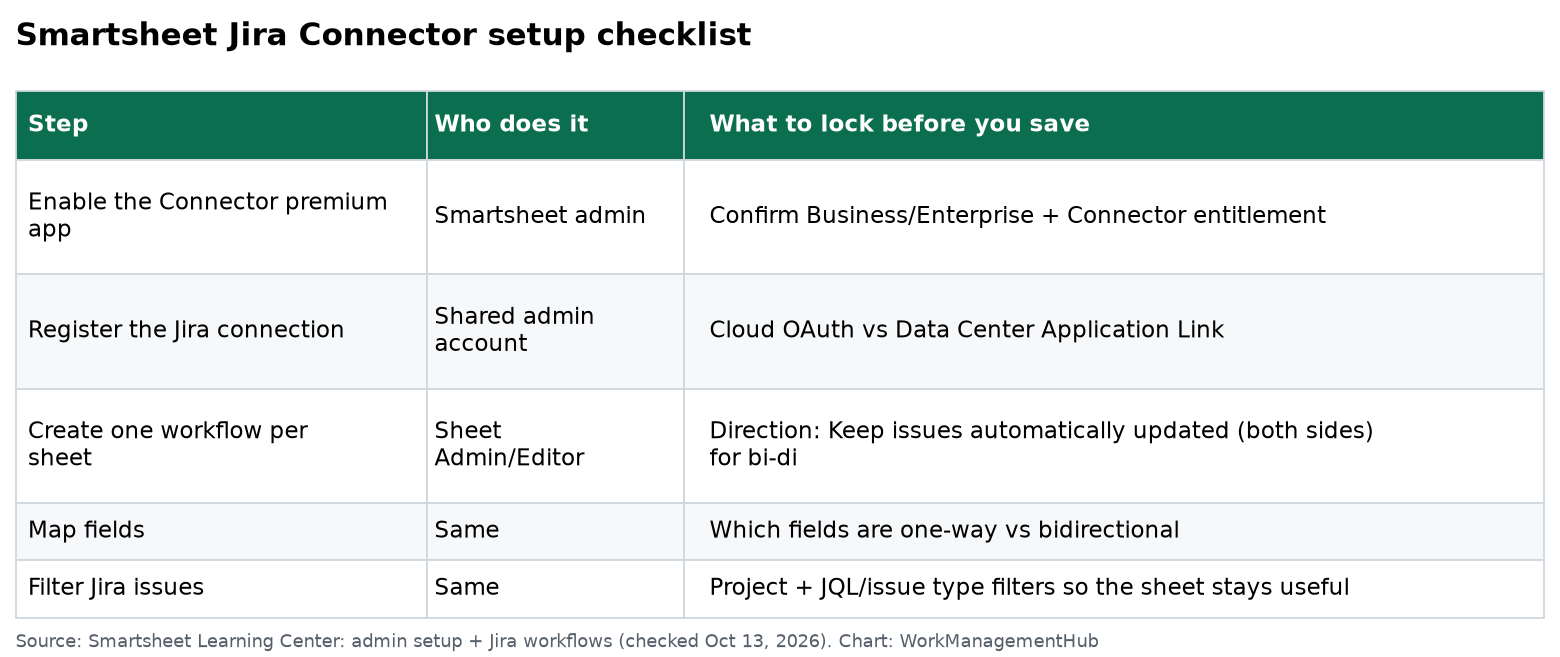
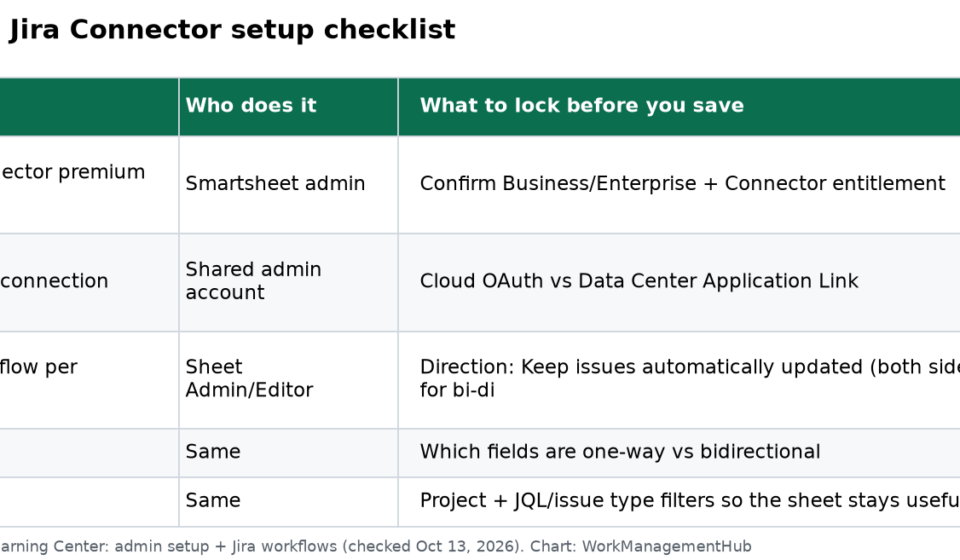
Before beginning, confirm that you hold admin-level permissions on both your Smartsheet account and your Jira instance. The initial setup cannot be delegated to a standard user on either platform.

  1. Access the Smartsheet Jira Connector — From your Smartsheet account, navigate to the Apps & Integrations panel (the grid icon in the left sidebar) and select Jira Connector. If the connector does not appear, contact your Smartsheet account admin to confirm it’s enabled for your plan.
  2. Initiate the connection — On the Jira Connector landing page, click Connect. You’ll be prompted to specify whether you’re connecting to Jira Cloud, Server, or Data Center. Select the appropriate option for your environment.
  3. Authenticate with Jira — For Jira Cloud, you’ll be redirected to Atlassian’s OAuth screen. Review the permissions requested — Smartsheet needs read/write access to your Jira projects and issues — and click Allow to authorize the connection. For Server or Data Center, enter your Jira server URL and provide admin credentials.
  4. Create a new workflow — Once the connection is established, click Create New Workflow. Give the workflow a descriptive name that identifies the Jira project and Smartsheet sheet it will govern.
  5. Select the Jira project — From the dropdown, choose the Jira project whose issues you want to sync. You can filter by specific issue types (Epic, Story, Bug, Task) at this step to avoid pulling in every issue type indiscriminately.
  6. Select or create the Smartsheet sheet — Choose an existing sheet or create a new one. If you’re creating a new sheet, the connector will scaffold the column structure based on the Jira fields you select in the next step.
  7. Configure field mappings — This is the critical step. Map each Jira field (summary, status, assignee, priority, due date, custom fields) to the corresponding Smartsheet column. See the Field Mapping Strategy section below before completing this step.
  8. Set sync direction and filters — Choose whether sync runs bidirectionally or in one direction only. Add any JQL filters to limit which issues are synced (e.g., only issues in the current sprint, or only issues with a specific label).
  9. Activate the workflow — Click Save and Sync (or Activate, depending on your connector version). The initial sync will run immediately, pulling matching Jira issues into Smartsheet as rows. Subsequent syncs run automatically as changes occur in either system.

Field Mapping Strategy

Field mapping is where most Smartsheet Jira integrations break down. Teams rush through this step during setup and spend weeks cleaning up data conflicts afterward. The core issue is that Jira’s data model — with its issue hierarchy, custom field library, and status workflows — doesn’t map cleanly onto a flat Smartsheet grid without deliberate design.

A few principles that hold across virtually every implementation:

Map Jira statuses to a Smartsheet dropdown column, not a text column. If you map the Jira status field to a free-text column in Smartsheet, users on the Smartsheet side can type anything, and the sync will attempt to push that arbitrary string back into Jira as a status — which will fail if it doesn’t match a valid Jira workflow state. A restricted dropdown column prevents this entirely.

Decide upfront which system owns each field. Bidirectional sync creates conflict potential on every field that can be edited in both tools. For fields like due date or assignee, pick one system as the authoritative source and configure the sync to respect that ownership. Engineering-owned fields (story points, sprint, epic link) should be Jira-authoritative. Reporting fields (baseline dates, phase, portfolio category) should be Smartsheet-authoritative.

Handle Jira’s issue hierarchy explicitly. Jira Epics, Stories, and Sub-tasks have a parent-child relationship that doesn’t automatically translate to Smartsheet’s row hierarchy. If you need that hierarchy in Smartsheet, you’ll need to either use the connector’s parent row mapping feature (available in some configurations) or create a separate sheet per issue level.

Test with a subset of issues first. Before activating sync across an entire Jira project, run the workflow on a filtered set — a single sprint or a labeled subset — to validate that field mappings behave as expected before applying them at scale.

The Unito Alternative

Unito is a third-party integration platform that connects Smartsheet and Jira without requiring the Smartsheet Business plan. It operates on its own subscription model, with pricing based on the number of users and tools connected. For teams already on Smartsheet Pro who need Jira sync, Unito is often the more cost-effective path.

Unito’s primary differentiator is its filter granularity. Where the native connector’s JQL filtering is functional but limited, Unito exposes a broader set of filter conditions and lets you build more sophisticated rules about which records sync and in which direction. It also handles a wider range of Jira field types in its mapping interface.

The tradeoff is an additional vendor relationship and a sync architecture that runs through Unito’s servers rather than Smartsheet’s own infrastructure. For organizations with strict data residency requirements, this needs to be evaluated.

Step-by-Step: Setting Up Unito Sync

  1. Log into Unito — Navigate to the Unito App at app.unito.io and sign in with your account credentials.
  2. Create a new flow — Click the + Create Flow button in the top navigation.
  3. Start the flow wizard — Click Start Here to begin the guided setup process.
  4. Connect Smartsheet — In the tool selection panel, choose Smartsheet as the first tool. If this is your first time connecting Smartsheet through Unito, you’ll be redirected to authorize Unito’s access to your Smartsheet account via OAuth. Select the specific sheet you want to participate in the sync.
  5. Connect Jira — Choose Jira as the second tool. Authorize Unito’s access to your Jira instance. Select the Jira project to sync.
  6. Configure flow direction — Choose bidirectional sync or a one-way flow. Unito represents this visually with directional arrows between the two tools.
  7. Set filter rules — Define which Jira issues and Smartsheet rows are in scope for sync. You can filter by issue type, status, label, assignee, or any combination. On the Smartsheet side, you can filter by column values.
  8. Map fields — Unito presents a side-by-side field mapping interface. Connect each Jira field to its Smartsheet counterpart. Unito will suggest automatic mappings for common fields; review and adjust these before proceeding.
  9. Launch the flow — Click Launch to activate the sync. Unito performs an initial sync run and then maintains sync continuously as changes occur.

Designing the Integrated Workflow

The technical setup is the easy part. The harder work is designing a workflow that both teams will actually use consistently. A few architectural decisions matter disproportionately here.

Establish a clear data entry convention. When both systems are connected bidirectionally, there’s a temptation for each team to update records in their preferred tool without coordination. This works technically — the sync will propagate the change — but it creates audit trail confusion when the same field gets updated in both systems near-simultaneously. A simple convention (engineering updates sprint and status in Jira; PM updates dates and notes in Smartsheet) prevents most of these conflicts.

Use Smartsheet for reporting, not for issue management. The Smartsheet Jira integration works best when Smartsheet serves as a read-optimized reporting layer — surfacing sprint progress, cross-project dependencies, and timeline views for stakeholders — while Jira remains the operational system for engineering work. Treating Smartsheet as a co-equal issue management system tends to create confusion about which tool is authoritative.

Build the Smartsheet sheet structure before activating sync. If you let the connector auto-generate the sheet structure, you’ll get a functional but unpolished sheet that doesn’t align with your existing reporting templates. Better to design the target sheet first — including any formula columns, summary rows, or report sheets that need to reference the synced data — and then configure the connector to populate it.

Communicate the integration to both teams. Engineers who see their Jira issues appearing in a Smartsheet sheet without context often assume someone is monitoring them or adding administrative overhead to their workflow. A brief explanation of what’s syncing, why, and what (if anything) they’re expected to update in Smartsheet prevents that friction.

Limitations and What to Watch For

Neither integration approach is without constraints. Understanding these before go-live prevents surprises.

Plan requirement for the native connector. The Smartsheet Jira Connector is gated behind the Business plan. This isn’t a technicality — it’s a hard prerequisite that frequently catches teams off guard mid-project when they discover their current plan doesn’t qualify.

Jira Server compatibility window. The native connector supports Jira Server versions 6.x through 10.x. If you’re running an older Server instance or have already migrated to a newer Data Center version, verify compatibility before starting setup.

Sync latency is not real-time. Both the native connector and Unito operate on a polling or near-real-time sync model, not instant push. For most reporting use cases this is irrelevant. For workflows where latency matters — say, a Smartsheet dashboard that needs to reflect a Jira status change within seconds — neither solution will meet that requirement without supplemental automation.

Custom field complexity. Jira’s custom field library can be extensive in mature instances. Not every custom field type maps cleanly to a Smartsheet column type, and some field types (multi-select, linked issues, Jira-native sprint fields) require special handling or may not sync at all depending on the connector version.

Deletion behavior. When a Jira issue is deleted, the corresponding Smartsheet row is not automatically deleted in most configurations — it’s typically flagged or left as an orphaned row. Decide upfront how you want to handle deleted issues and configure accordingly.

Which Approach Is Right for Your Team

If you’re on Smartsheet Business or Enterprise and your Jira environment is Cloud or a supported Server/Data Center version, the native Smartsheet Jira Connector is the cleanest path. It’s maintained by Smartsheet, sits within your existing contract, and doesn’t require a third-party vendor in the data path.

If you’re on Smartsheet Pro, or if you need more sophisticated filtering logic than the native connector provides, Unito is a proven alternative. The additional cost needs to be weighed against the upgrade cost to Smartsheet Business, and in many cases Unito comes out ahead.

In either case, invest the time in field mapping design before activating sync. The integration itself is straightforward to configure; it’s the data architecture decisions — which fields sync, in which direction, and who owns what — that determine whether the integration creates value or creates cleanup work.

Author

Shaik KB

Follow Me
Other Articles
Previous

Monday.com vs ClickUp (2026): Honest Comparison for Growing Teams

Next

ClickUp vs Jira (2026): Which Is Better for Software Development Teams?

No Comment! Be the first one.

    Leave a Reply Cancel reply

    Your email address will not be published. Required fields are marked *

    Sponsored Smartsheet Expert Services – Implementation, Automation, Training
    Sponsored Power BI & Tableau Analytics – Dashboards, Reporting, Insights
    Sponsored AI Agents for Work Management – Automate Tasks, Integrate Tools

    Categories

    • Airtable (8)
    • Alternatives (10)
    • Asana (29)
    • ClickUp (34)
    • How-To Guides (102)
    • Integrations (15)
    • Jira (22)
    • Monday.com (35)
    • Notion (24)
    • Pricing Guides (11)
    • Project Management (62)
    • Smartsheet (24)
    • Tool Comparisons (44)
    • Uncategorized (5)
    • Wrike (9)

    Recent Post

    • Notion vs ClickUp 2026: Which Tool Wins for Growing Teams?
    • Smartsheet Automations Not Triggering: 7 Fixes That Actually Work in 2026
    • How to Use ClickUp Gantt Baselines for Smarter Project Tracking in 2026
    • Linear Releases Feature Deep Dive: Track Every Deployment in 2026
    • How to Set Up Asana AI Teammates in 2026: Step-by-Step Guide
    Work Management Hub

    Independent expert reviews & comparisons of work management tools — helping 50,000+ teams choose the right software.

    Tools We Cover

    • Smartsheet
    • Monday.com
    • ClickUp
    • Asana
    • Notion
    • Jira
    • Wrike
    • Airtable

    Company

    • About Us
    • Contact Us
    • Privacy Policy
    Copyright 2026 — Work Management Hub. All rights reserved. Blogsy WordPress Theme