Jira Legacy Workflow Editor Removal: How to Migrate Before June 2026
- The Jira legacy workflow editor removal in 2026 is a forced conversion — Atlassian retires it on June 26, 2026 with no opt-out, and any unmigrated workflows will be auto-converted with no guarantee that custom rules survive intact.
- Workflow transition rules APIs are also being shut down on November 2, 2026, meaning any GitHub, Slack, or third-party integrations that reference legacy workflow statuses must be independently audited and updated.
- The most dangerous migration gap is bulk status reassignment: when you delete a status and reassign its issues in bulk, conditions, validators, and post-functions may silently stop firing — requiring manual rule re-verification after every reassignment.
- Start your audit now by exporting all workflow XML from Project Settings, mapping every legacy rule to its new-editor equivalent, and running a full regression test in a staging environment before the live cutover.
To migrate before Atlassian’s June 26, 2026 forced removal, export your legacy workflow XML, audit every transition rule for new-editor equivalents, rebuild and test workflows in a staging project, resolve bulk status reassignment edge cases manually, then cut over and update all downstream integrations before the November 2 API deadline.
- Jira Legacy Workflow Editor Removal: What Is Actually Changing on June 26, 2026
- Why Atlassian’s Auto-Migration Will Fail Your Complex Workflows
- Step-by-Step Pre-Migration Audit Checklist
- Complete Migration Process: 10 Steps to a Safe Cutover
- Handling Bulk Status Reassignment Edge Cases
- Updating GitHub, Slack, and Third-Party Integrations
- Legacy Custom Rules With No Direct New-Editor Equivalent
- Verdict
- Frequently Asked Questions
Jira Legacy Workflow Editor Removal: How to Migrate Before June 2026
The Jira legacy workflow editor removal in 2026 is not a soft sunset — Atlassian has set a hard deadline. If you are still using the legacy Jira Cloud workflow editor — the drag-and-drop diagram view that has been the default since Jira’s early cloud days — your window to migrate on your own terms closes on June 26, 2026. After that date, Atlassian will forcibly convert every unmigrated workflow, and the auto-conversion will not preserve your custom conditions, validators, or post-functions if they have no direct equivalent in the new editor. The business risk is not abstract: broken post-functions mean issues stop transitioning correctly, automation rules fire on wrong statuses, and SLA timers may reset incorrectly across active sprints and service desks.
This guide skips the feature marketing. It focuses on the exact audit, migration, and testing steps that most Jira admin articles omit — particularly the bulk status reassignment bug that silently breaks transition rules, and the separate November 2 integration API deadline that catches teams off guard weeks after they think they are done.
Jira Legacy Workflow Editor Removal: What Is Actually Changing on June 26, 2026
Atlassian announced the deprecation of the legacy workflow editor as part of its broader cloud modernisation roadmap. The new workflow editor, introduced in 2023, uses a list-based interface rather than the legacy swimlane diagram view. It introduces a unified rules panel, improved rule ordering, and tighter integration with Jira Automation — but it does not support every rule configuration that the legacy editor allowed.
Three things change simultaneously on the cutover date:
- Editor access removed: The legacy workflow editor UI is entirely removed from Jira Cloud. Any admin who navigates to a workflow will see only the new editor, regardless of whether that workflow has been manually migrated.
- Forced auto-conversion: Workflows not manually migrated will be auto-converted by Atlassian’s migration engine. Atlassian’s own documentation acknowledges that some legacy rule types have no equivalent and will be dropped during auto-conversion — with no warning to end users at the point of failure.
- Transition rules API deprecated (November 2, 2026): The workflow transition rules REST API endpoints that many GitHub Actions, Slack bots, and Zapier flows use to read and update workflow states are being discontinued four months after the editor removal. This is a separate deadline most migration guides miss entirely.
Jira Data Center and Jira Server are not affected — this is a Jira Cloud-only forced migration. If your organisation runs a hybrid setup with both Cloud and Data Center projects, only the Cloud projects require action before June 26.
Why Atlassian’s Auto-Migration Will Fail Your Complex Workflows
Atlassian’s migration engine handles simple workflows reliably. If your workflow is a standard To Do → In Progress → Done with no custom rules, the auto-conversion will likely work without incident. The problems surface the moment your workflows include any of the following:
- Custom scripted post-functions written in Groovy via ScriptRunner or Adaptavist App for Jira — the new editor has no native scripting surface for post-functions; these require migration to Jira Automation rules triggered on transition events.
- Condition chains with field-value logic that use deprecated field references — particularly “Current User” conditions tied to custom user picker fields, which the new editor resolves differently.
- Validators referencing deleted or renamed field schemes — the auto-converter maps validators to field names, not field IDs, causing silent mismatches when field names have changed since the workflow was originally configured.
- Bulk status reassignment — when an admin deletes a legacy status and bulk-reassigns its open issues to a replacement status, the transition rules associated with that original status do not automatically re-attach to the replacement. The issues move, but the rules stay orphaned, and the new editor does not flag this as an error.
The bulk status reassignment issue is the most operationally dangerous because it has no visible failure mode. Issues appear to be in the correct status. Transition buttons still show. But post-functions — including ones that update linked issues, send notifications, or log time — silently do not execute. Teams typically discover this days or weeks later when SLA reports show anomalies or linked epics fail to auto-close.
For deeper context on how Jira’s AI-driven automation capabilities interact with workflow rules post-migration, see our guide on how to set up AI agents in Jira in 2026, which covers the automation triggers that replace several legacy post-function patterns.
Step-by-Step Pre-Migration Audit Checklist
Do not begin any migration until you have a complete map of your existing workflow rules. Skipping the audit phase is the single most common reason migration projects require emergency rollback. The audit should take one to three hours for a Jira instance with under 20 active workflows, and one to two days for enterprise instances with 50 or more workflows across multiple projects.
- Navigate to Jira Administration > Issues > Workflows — this shows every active and inactive workflow in your instance. Note which workflows are shared across multiple projects, as a single change here affects all associated projects simultaneously.
- Export each workflow as XML — click the workflow name, then select “Export as XML” from the workflow actions menu (top right). Save each XML file with the workflow name and export date. These exports are your rollback reference and your audit source of truth.
- Open each XML file and extract all transition rule blocks — in the XML, look for
<conditions>,<validators>, and<post-functions>tags within each<action>(transition) block. List every class reference inside these tags in a spreadsheet. - Cross-reference each class reference against Atlassian’s migration compatibility matrix — Atlassian maintains a compatibility table at support.atlassian.com/jira-cloud-administration/docs/migrate-to-the-new-workflow-editor/. Flag every rule with status “No equivalent” or “Manual action required.”
- Identify all projects sharing each flagged workflow — go back to Administration > Issues > Workflows, click “Used in” for each flagged workflow, and document every project. These project owners must be notified before cutover.
- Check for active Jira Automation rules referencing workflow statuses by name — go to Jira Administration > Automation, filter by “When: Issue transitioned” triggers, and audit each rule for hardcoded status names that will change during migration.
- Document all third-party app post-functions — search your XML exports for class names containing “com.onresolve”, “com.adaptavist”, “com.codebarrel”, or any other app vendor prefix. These require app-vendor-specific migration paths and cannot be handled through the Jira UI alone.
Complete Migration Process: 10 Steps to a Safe Cutover
With the audit complete, the migration itself follows a structured sequence. Never migrate directly in production. Every step below assumes you are working in a dedicated staging project or a project sandbox until the final cutover step.
- Create a staging project — go to Projects > Create Project, select the same project template as your production project (Scrum, Kanban, or Business), and name it clearly as a staging environment. This is where you will test every migrated workflow before touching production.
- Open the legacy workflow in the new editor view — navigate to Project Settings > Workflows in your staging project, click the workflow name, and select “Switch to new editor” from the editor toolbar. Jira will display a pre-migration compatibility report — screenshot this report before proceeding.
- Review the compatibility report line by line — the report lists every rule Jira flags as incompatible or requiring manual action. For each flagged item, determine whether the equivalent behaviour can be recreated in the new editor’s Rules panel, or whether it requires a Jira Automation rule instead.
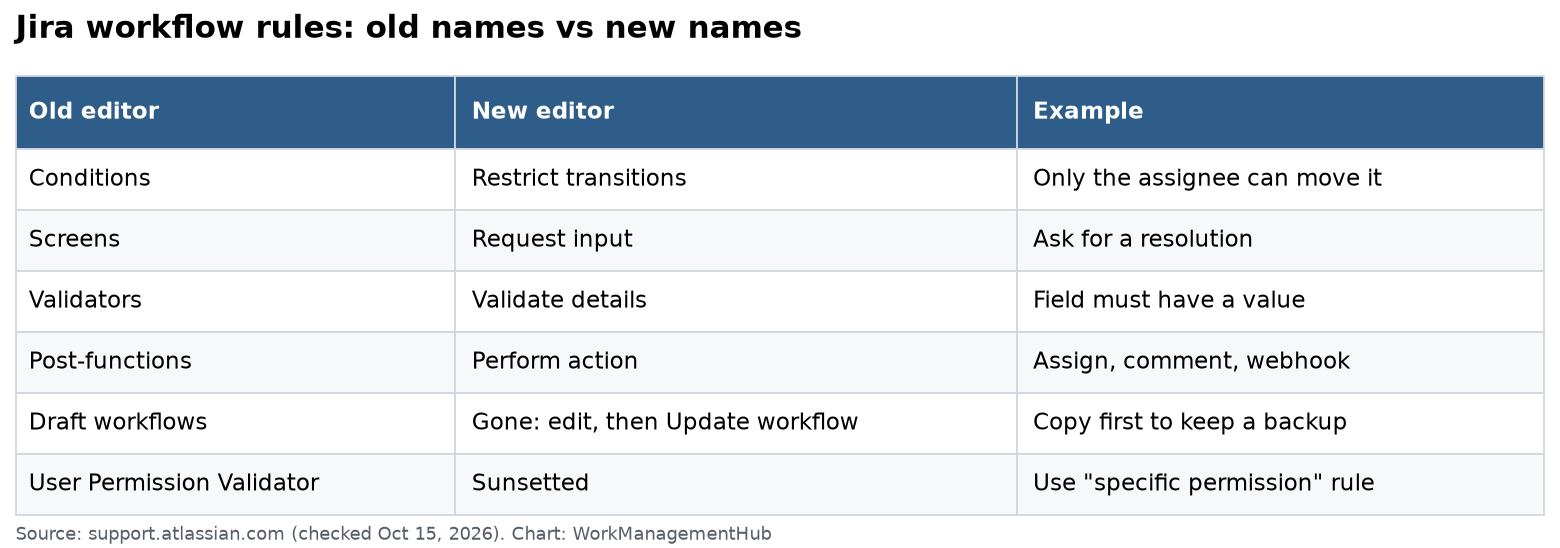
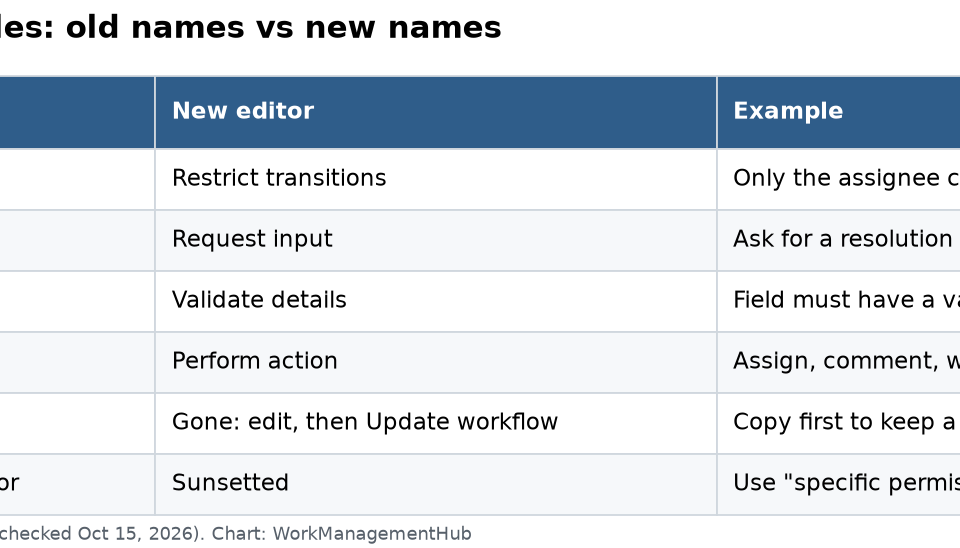
- Rebuild flagged conditions using the new Rules panel — in the new editor, click any transition arrow, then select “Add rule” from the transition detail panel on the right. Conditions are now called “Restrict who can move issues” — recreate each condition logic here, using the new role and user-group selectors.
- Rebuild flagged validators using transition rules — validators in the new editor are under “Require” within the transition rules panel. Recreate each field-required and permission check validator here. Note that “Parent status” validators must now be configured at the global automation level, not within the workflow itself.
- Replace scripted post-functions with Jira Automation triggers — for each Groovy or app-based post-function, create a corresponding Jira Automation rule with trigger “When: Issue transitioned” and filter “To status: [target status]”. Replicate the post-function logic as automation actions (update fields, send notifications, create linked issues, etc.).
- Publish the migrated workflow to your staging project — click “Publish” in the new editor, then select “Update existing workflow” (not “Create copy”). Associate it with only your staging project scheme for now by going to Project Settings > Workflows > Switch Scheme.
- Run a full transition regression test — in the staging project, create test issues and manually walk every transition path in your workflow. For each transition, verify: (a) the correct conditions restrict or allow the move, (b) validators block as expected, (c) post-function equivalent automation rules fire and produce the correct outcome. Document each test result.
- Test bulk operations specifically — in the staging project, select 20 or more test issues and use the bulk change tool (Issues > Bulk Change) to transition them simultaneously. Confirm that automation rules fire for all issues, not just the first batch. Jira Automation has a default execution limit of 100 rules per minute — large bulk transitions may queue, causing apparent rule failures that are actually delays.
- Cut over production by updating the workflow scheme — once staging tests pass, go to the production project’s Project Settings > Workflows, click “Switch Scheme”, and associate the project with the new workflow scheme containing your migrated workflow. Schedule this cutover during a low-activity window and notify project stakeholders in advance.
For context on how Jira’s spring 2026 release affects workflow automation features after migration, the Jira AI agents 2026 spring release guide covers the updated automation engine behaviour that your rebuilt post-function equivalents will run on.
Handling Bulk Status Reassignment Edge Cases
This is the section that will save your migration from a silent failure that surfaces two weeks after cutover. When a legacy workflow has a status that you need to remove — for example, an old “Pending Client” status being replaced by a new “Waiting for Customer” status — the standard admin instinct is to delete the old status and bulk-reassign all its issues to the new one. In the legacy editor, this was safe because transition rules were attached to transitions, not to statuses directly. In the migration to the new editor, the behaviour changes in a critical way.
When you delete a status and bulk-reassign its issues, the following occurs under the hood: Jira moves the issues’ status field value, but does not fire the transition rules associated with the original-to-new-status transition. This means:
- Post-function equivalents (Jira Automation “When: Issue transitioned” rules) do not trigger for bulk-reassigned issues
- Issues land in the new status without any post-assignment side effects — no linked issue updates, no notification emails, no field updates
- The new editor shows the issues as correctly statused, masking the rule skip entirely
The correct approach for bulk status reassignment during migration is:
- Do not delete the old status before migration — keep both the old and new status active in the workflow during the migration and testing phase. This preserves rule integrity while you are working.
- Add a transition from old status to new status in the new editor — in the new workflow editor, draw an explicit transition between the old status and the replacement status, then attach all required rules to that transition.
- Use the Bulk Change tool with the transition, not the status field — go to Issues > Bulk Change, select all issues in the old status, and choose “Transition Issues” (not “Edit Issues”). Select the new transition you just created. This fires all associated transition rules correctly.
- Verify rule execution via Jira Automation audit log — immediately after bulk transition, go to Jira Administration > Automation > Audit Log and confirm each triggered automation rule shows “Success” for the expected number of issues.
- Remove the old status only after verification — once the audit log confirms full rule execution, return to the workflow editor, delete the old status, and publish the final workflow version.
If you have already performed bulk status reassignment before reading this — and your migration is complete — audit your Automation rule execution logs for the past 30 days. Filter by rules with “Issue transitioned” triggers and look for execution counts that are lower than the total number of issues that changed status. A discrepancy indicates missed rule executions that need manual remediation.
Workflow and velocity reporting anomalies caused by missed transitions also appear in Jira’s velocity charts. If you notice sprint velocity reports behaving unexpectedly after migration, our guide on fixing wrong Jira velocity chart data in 2026 covers the specific status-transition causes.
Updating GitHub, Slack, and Third-Party Integrations
Even a perfectly migrated workflow creates downstream integration failures if your external tools still reference legacy status names, transition IDs, or the deprecated transition rules API endpoints. The November 2, 2026 API deprecation is a hard deadline — after that date, API calls to the deprecated endpoints will return errors, not graceful fallbacks.
Work through each integration category in this order:
- Audit GitHub Actions workflows for hardcoded Jira status names — search your GitHub repositories for strings matching your legacy status names (use GitHub’s code search:
org:your-org "In Review" jiraor similar). Each hardcoded status reference in a GitHub Actions YAML file must be updated to the exact new status name, which is case-sensitive in Jira’s REST API. - Update Jira-GitHub integration smart commit triggers — if your developers use smart commits (
#to-reviewor similar commit message triggers), these map to transition names, not status names. Go to GitHub for Jira app settings in Jira Administration > Apps > Manage Apps, open the GitHub for Jira configuration, and verify that each smart commit keyword maps to a valid transition in the new workflow. - Audit Slack Jira bots for transition ID references — tools like the official Jira for Slack app and third-party bots like Workato or Zapier flows often reference transition IDs (numeric values) rather than names. When you migrate to the new editor and publish the workflow, transition IDs are reassigned. Retrieve your new transition IDs via the REST API:
GET /rest/api/3/issue/{issueKey}/transitionsand update all integration configurations. - Replace deprecated API endpoint calls — the endpoints being discontinued on November 2, 2026 include
/rest/api/2/workflow/transitions/rulesand related transition rules read/write endpoints. Audit your integration codebase for any calls to these endpoints and replace them with the current Jira Automation REST API or Forge app equivalents. Atlassian’s migration guide for the workflow rules configuration API deprecation provides the replacement endpoint mapping. - Test each integration end-to-end in staging before production cutover — create a test issue in your staging project and walk through every integration touchpoint: push a GitHub commit with a smart commit trigger, send a Slack command, fire a Zapier or Make.com scenario. Confirm each integration correctly transitions the test issue and executes expected side effects.
- Update Jira Service Management SLA configurations — if your Jira instance includes Service Management projects, SLA pause and resume conditions are tied to workflow statuses. After migration, go to Project Settings > SLAs for each service project and verify every SLA condition references the correct new status names. SLA misconfiguration is invisible until a customer breach occurs.
Legacy Custom Rules With No Direct New-Editor Equivalent
Atlassian’s migration documentation is honest about the fact that some legacy rule types have no equivalent in the new editor. Understanding which ones fall into this category — and what your realistic options are — is essential for planning before you hit the cutover deadline.
The following legacy rule types have no native equivalent in the new workflow editor as of May 2026:
- Custom workflow condition classes — any condition implemented as a Java class via a Jira Server app that was also installed on Cloud (typically via Atlassian Marketplace apps that have both Server and Cloud versions). On Cloud, these cannot run arbitrary Java. The replacement is a Jira Automation condition block or, for complex logic, a Forge function condition.
- Sub-task blocking validators — the legacy editor supported a native “Block parent transition if sub-tasks are not in [status]” validator. The new editor does not have this natively. The functional equivalent requires a Jira Automation rule that blocks a parent issue’s transition by setting a flag field, or a Forge app implementing a custom validator via the Forge workflow extension point.
- Transition-scoped permission conditions with multiple AND/OR logic — the legacy editor allowed compound condition trees (User in Group A AND Project Role B, OR Status is X). The new editor’s “Restrict who can move issues” supports single conditions or role-based lists but not compound boolean logic trees. Complex permission logic must be rebuilt as Jira Automation pre-conditions or handled via permission schemes.
- Copy field value post-functions — certain ScriptRunner post-functions that copy field values between issues on transition have no native equivalent. These require Jira Automation “Edit issue” actions on the transition trigger, which works but introduces a slight execution delay (typically under 10 seconds) that was not present with synchronous post-functions.
For each unsupported rule, assess whether the business process it enforces is still necessary, whether it can be approximated via Jira Automation, or whether a Forge app from the Atlassian Marketplace provides a supported equivalent. Atlassian’s official list of workflow rules that do not migrate automatically is the authoritative reference — check it against your audit spreadsheet.
Do not leave these rules unresolved and hope the auto-migration handles them on June 26. They will be silently dropped, and the business process they protected will break with no error message visible to end users.
The June 26, 2026 deadline is not a soft sunset — it is a forced conversion that will silently break custom rules, scripted post-functions, and any workflow logic that has no new-editor equivalent. The teams that will emerge from this migration unscathed are the ones that start their XML audit this week, not the week before the deadline. Prioritise workflows with ScriptRunner post-functions and any workflow that has had status deletions and bulk reassignments in the past 12 months — these are your highest-risk configurations. Run every migration through a staging project with a full transition regression test before touching production. And treat the November 2 integration API deadline as a second migration project running in parallel: your Jira workflow can be perfectly migrated and your GitHub Actions can still break four months later if you do not update the API calls. Start the audit now, build your rule equivalence map, and do not rely on Atlassian’s auto-converter to make the right decisions for your business processes.
Frequently Asked Questions
What happens if I do nothing before June 26, 2026?
Atlassian will automatically convert your legacy workflow to the new editor format. For simple workflows with standard conditions and validators, this may work without visible issues. However, any legacy rule type that has no new-editor equivalent will be silently dropped — you will not receive an error or notification when this happens. Custom scripted post-functions, compound condition trees, and sub-task blocking validators are all at risk of being removed without replacement. You will only discover the breakage when a business process fails — an issue stops notifying, a linked ticket stops updating, or an SLA stops pausing correctly.
Can I test the migration without affecting production users?
Yes, and you should. The safest approach is to create a dedicated test project with the same workflow scheme as your production project. In that test project, switch to the new workflow editor, rebuild your rules, and run full transition testing with real user roles before touching the production workflow scheme. Jira does not provide a native workflow sandbox feature, so the test project approach is the recommended alternative. Make sure your test project is excluded from any reporting dashboards or team boards so test issues do not pollute production metrics.
Will the migration affect Jira Service Management (JSM) workflows differently?
JSM projects have an additional layer of complexity because their workflows are tied to request types and SLA conditions. When you migrate a JSM workflow to the new editor, you must separately verify SLA pause and resume conditions in Project Settings > SLAs, because these reference workflow statuses by name and do not automatically update when status names change. Customer-facing portal transitions may also be affected if you have configured specific transition screens for customer updates — the new editor handles transition screens differently and you should audit each portal transition for correct screen association after migration.
Do Jira Automation rules created as post-function replacements count against my automation limits?
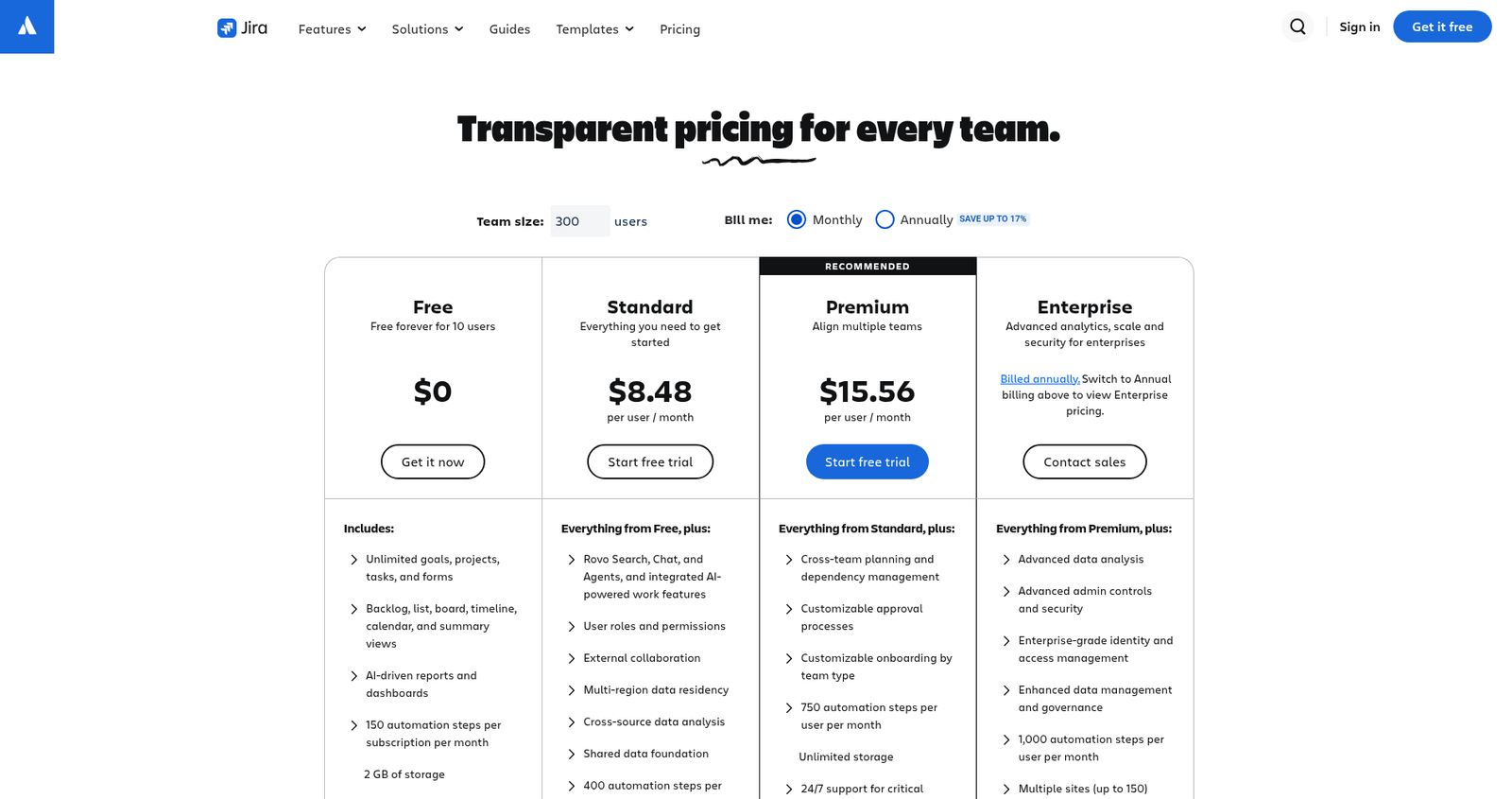
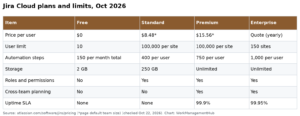
Yes. Jira Automation rules fire asynchronously and count against your plan’s monthly automation execution limit. If you are replacing multiple synchronous post-functions with automation rules, and those post-functions fire hundreds of times per day, you may find yourself approaching your plan’s execution cap. Audit your current automation usage in Jira Administration > Automation > Usage before migration, estimate the additional executions your new rules will generate, and upgrade your plan or optimise rule conditions to reduce unnecessary executions if needed. Atlassian’s Free plan allows 100 executions per month; Premium allows 1,000 per user per month with a maximum of 2,000,000.
Is there a way to roll back to the legacy editor if the migration goes wrong?
Before June 26, 2026, yes — if you switch to the new editor on a workflow and then need to revert, you can click “Discard changes” in the new editor to return to the legacy version, provided you have not yet published the migrated workflow. Once you publish the migrated workflow and associate it with a project scheme, rolling back requires manually reverting the scheme to the previous workflow version via Administration > Issues > Workflow Schemes. After June 26, 2026, the legacy editor is entirely removed and rollback is not possible regardless of your workflow state. This is why maintaining the XML exports from your pre-migration audit is critical — they are your only reference document if something goes wrong post-cutover.